Autocount Bank Reconciliation

AutoCount Bank Reconciliation is an efficient tool designed to streamline your financial management by automatically comparing AutoCount transactions with your bank statement. It helps identify discrepancies, ensuring your financial records are accurate and up-to-date. Whether you’re a small business or a large corporation, AutoCount makes bank reconciliation faster, more reliable, and error-free, saving you time and improving your bottom line.

Autocount Bank Reconciliation

Introduction Of Autocount Bank Reconciliation

Autocount Bank Reconciliation is a fantastic tool for any business that is looking to streamline its financial management process. It is specifically designed to compare Autocount bank transactions with the actual bank statement, allowing businesses to quickly and easily identify any discrepancies between the two. With this tool, you can ensure that your financial records are always up-to-date and accurate, helping you to make informed decisions about how to manage your finances more effectively. Whether you are a small business owner or a large corporation, also can help you to save time, reduce errors, and ultimately improve your bottom line. 

How to do bank reconciliation in autocount

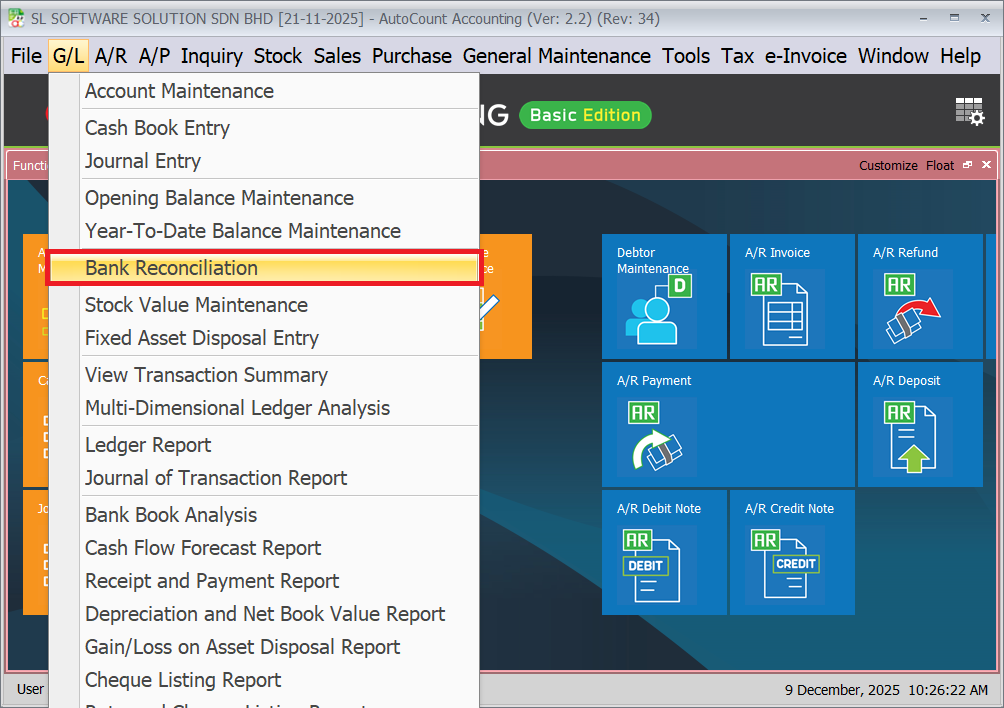
1. Go to G/L > Bank reconciliation

Go to G/L > Bank reconciliation

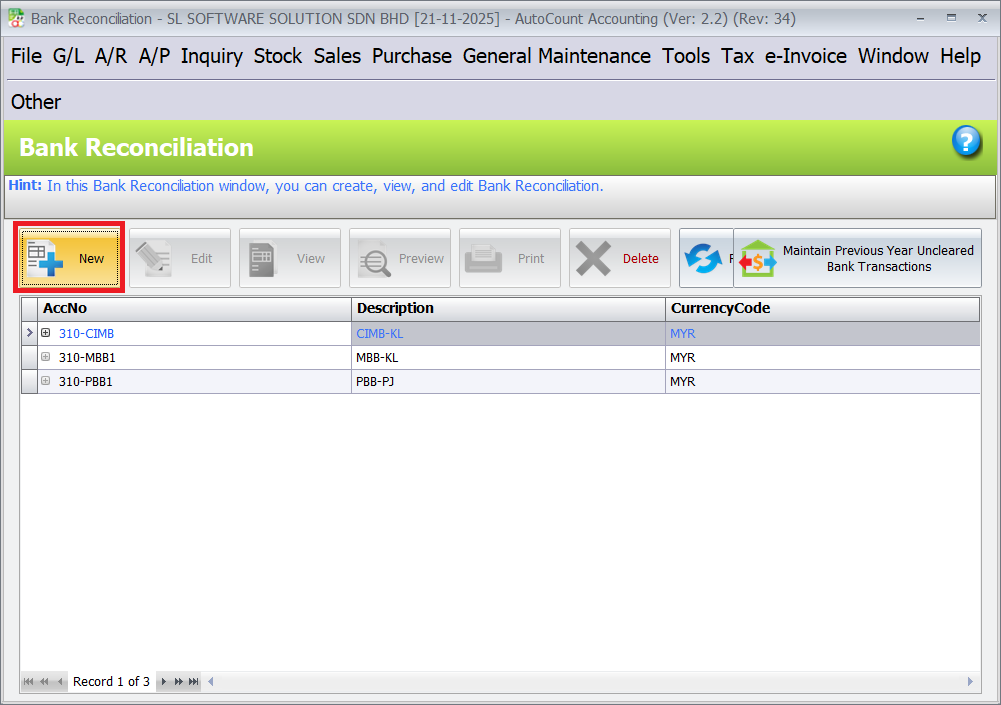
2. Click on "New" to create new bank reconciliation.

Click on "New" to create new bank reconciliation.

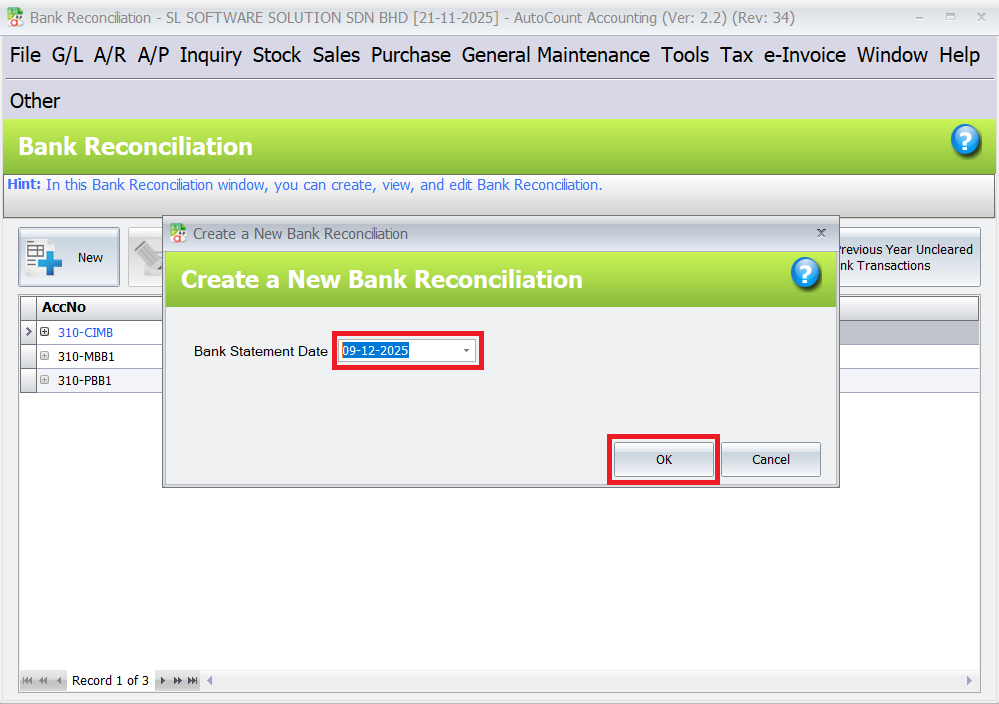
3. Ensure bank reconciliation date is correct. And click on “Ok” button.

Ensure bank reconciliation date is correct. And click on “Ok” button.

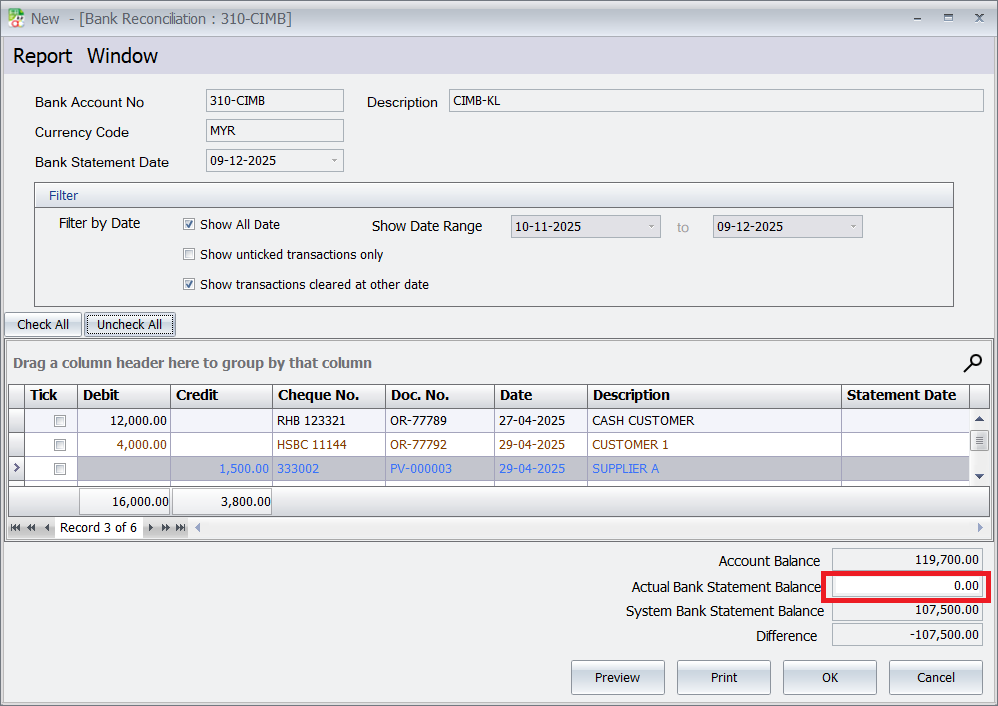
4. Key in the balance in the end of the month of the bank statement to the actual bank statement balance columns.

Key in the balance in the end of the month of the bank statement to the actual bank statement balance columns.

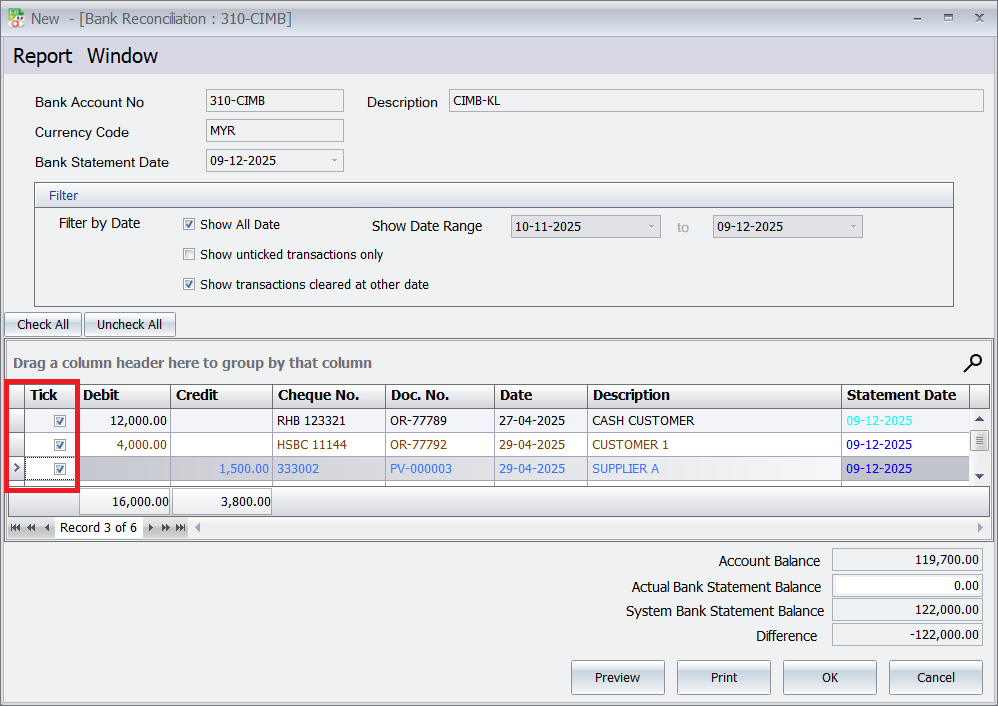
5. Tick off each transaction on the bank statement that matches the corresponding transaction in autocount.

Tick off each transaction on the bank statement that matches the corresponding transaction in autocount.

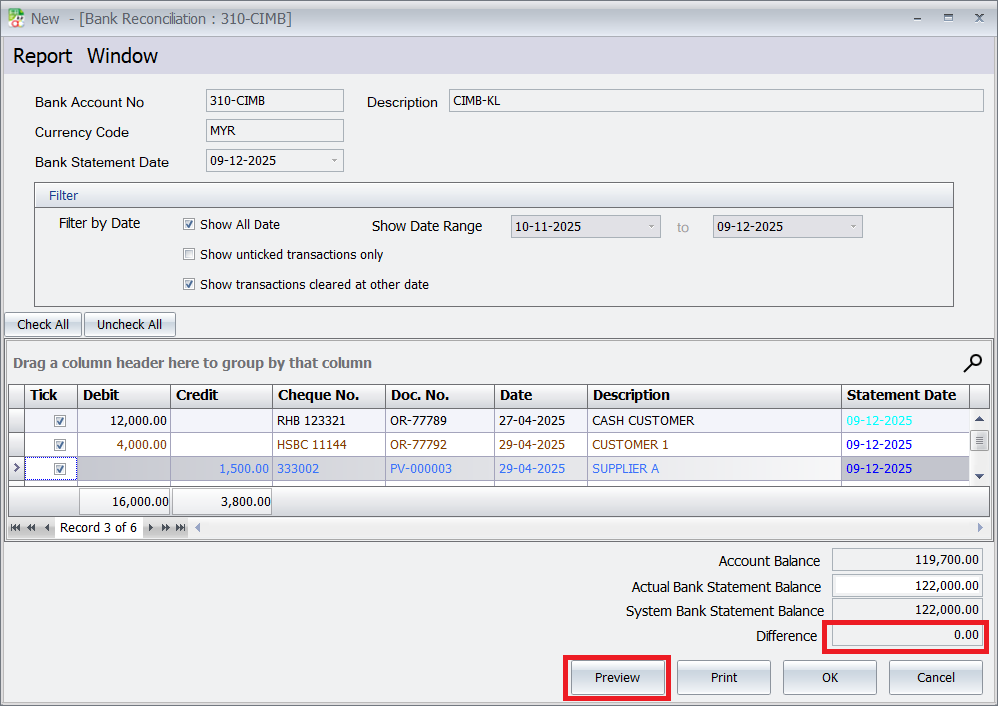
6. Ensure the difference between the AutoCount balance and the bank statement balances to zero. And click the “Preview” button to review the reconciliation.

Ensure the difference between the AutoCount balance and the bank statement balances to zero. And click the “Preview” button to review the reconciliation.

7. Click on “Bank Reconciliation Report” button.

Click on “Bank Reconciliation Report” button.

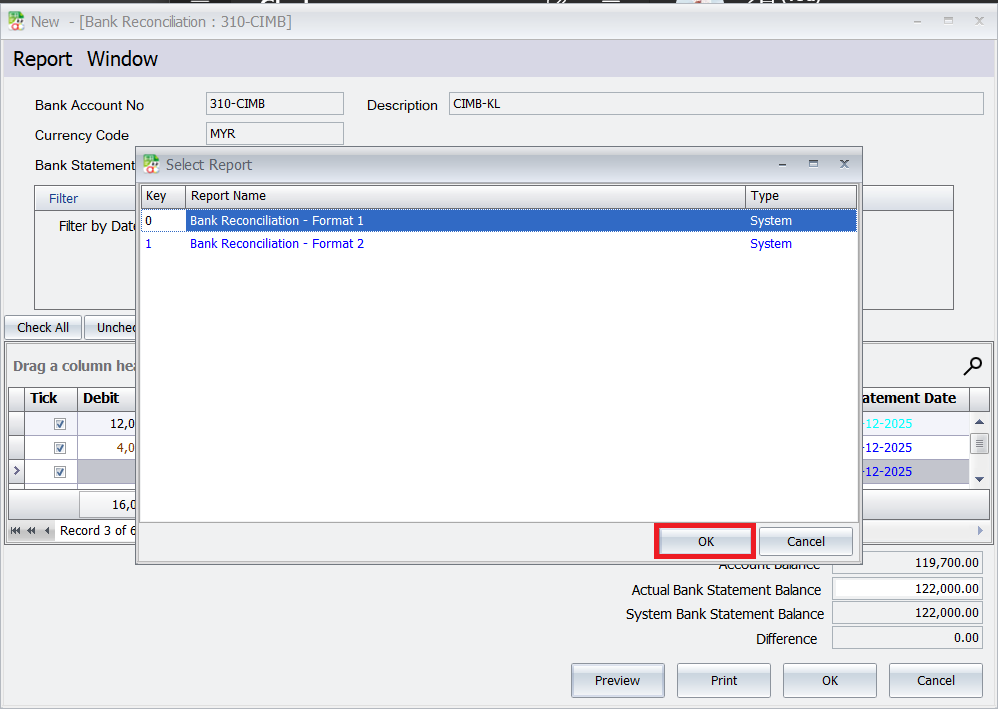
8.Click on “Ok” button.

Click on “Ok” button.

Report Format

Autocount Bank Reconciliation Format 1: Starts with Balance as per Bank Statement and ends with Balance as per Bank Account.

Bank Reconciliation Format 1

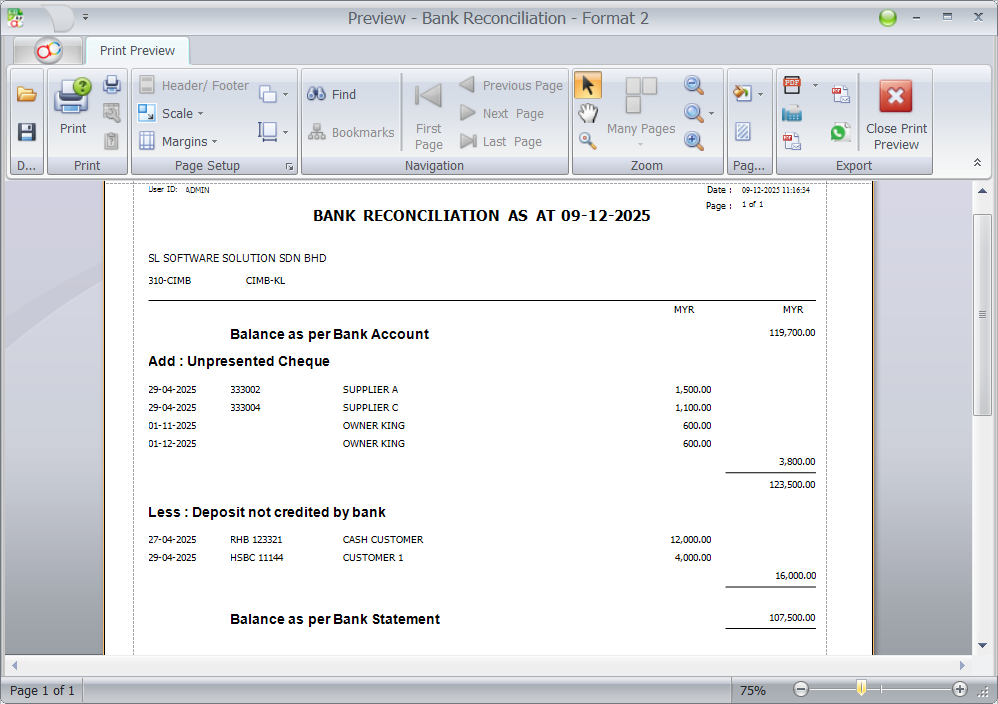
Autocount Bank Reconciliation Format 2: Starts with Balance as per Bank Account and ends with Balance as per Bank Statement.

Bank Reconciliation Format 2

When the difference in autocount bank reconciliation not equal to zero

When the difference in your bank reconciliation is not equal to zero it means you have missed out one or more items, please check your bank statement until it is all reconciled.

Streamline Your Financial Management with AutoCount Accounting

Automate bank reconciliation, enhance accuracy, and save time with AutoCount Accounting. Keep your financial records up-to-date effortlessly.

Related Articles

news-1701

yakinjp


sabung ayam online

yakinjp

yakinjp

rtp yakinjp

yakinjp

slot thailand

yakinjp

yakinjp

yakin jp

ayowin

yakinjp id

maujp

maujp

sabung ayam online

sv388

taruhan bola online

maujp

maujp

sabung ayam online

sabung ayam online

sabung ayam online

judi bola online

sabung ayam online

judi bola online

slot mahjong ways

slot mahjong

sabung ayam online

judi bola

live casino

118000476

118000477

118000478

118000479

118000480

118000481

118000482

118000483

118000484

118000485

118000486

118000487

118000488

118000489

118000490

118000491

118000492

118000493

118000494

118000495

118000496

118000497

118000498

118000499

118000500

118000501

118000502

118000503

118000504

118000505

118000506

118000507

118000508

118000509

118000510

118000511

118000512

118000513

118000514

118000515

128000546

128000547

128000548

128000549

128000550

128000551

128000552

128000553

128000554

128000555

128000556

128000557

128000558

128000559

128000560

128000561

128000562

128000563

128000564

128000565

128000566

128000567

128000568

128000569

128000570

128000571

128000572

128000573

128000574

128000575

138000401

138000402

138000403

138000404

138000405

138000406

138000407

138000408

138000409

138000410

138000411

138000412

138000413

138000414

138000415

138000416

138000417

138000418

138000419

138000420

158000316

158000317

158000318

158000319

158000320

158000321

158000322

158000323

158000324

158000325

158000326

158000327

158000328

158000329

158000330

158000331

158000332

158000333

158000334

158000335

158000336

158000337

158000338

158000339

158000340

158000341

158000342

158000343

158000344

158000345

178000746

178000747

178000748

178000749

178000750

178000751

178000752

178000753

178000754

178000755

178000756

178000757

178000758

178000759

178000760

178000761

178000762

178000763

178000764

178000765

208000206

208000207

208000208

208000209

208000210

208000211

208000212

208000213

208000215

208000216

208000218

208000219

208000220

208000221

208000222

208000223

208000224

208000225

208000226

208000227

208000228

208000229

208000230

208000231

208000232

208000233

208000234

208000235

208000236

208000237

208000238

208000239

208000240

208000241

208000242

208000243

208000244

208000245

208000246

208000247

208000248

208000249

208000250

news-1701