Streamline employee attendance tracking with AutoCount’s HRMS payroll ecosystem. Enable employees to record attendance directly from smartphones with real-time location verification for accurate, compliant workforce management.

Streamline employee attendance tracking with AutoCount’s HRMS payroll ecosystem. Enable employees to record attendance directly from smartphones with real-time location verification for accurate, compliant workforce management.
Mobile clock-in within the AutoCount HRMS suite is a feature that enables employees to register the start of their workday through the AutoCount AC Payroll mobile app. Rather than relying on traditional punch cards or fixed terminals, staff can use this mobile attendance method which integrates GPS location verification to ensure accurate clocking, syncing directly back to the HRMS platform for payroll and attendance tracking.
This feature enhances accuracy and flexibility in attendance tracking. It not only ensures that employees clock in from the right location but also reduces the risk of time theft or errors, ensuring reliable payroll data. The offline clocking option further supports remote and mobile workers, making it a versatile solution for businesses with a diverse workforce.
AutoCount HRMS offers various clocking options to suit different work environments and security requirements.
Geolocation Clocking
The system detects an employee's actual clock-in location using GPS and allows attendance only within a permitted geofenced area.
WiFi Clocking
Clock-in details are confirmed when the mobile device is connected to the workplace's Wi-Fi network — ensuring the employee is physically present.
Bluetooth Clocking
The system confirms clock-in by detecting a Bluetooth signal from a beacon installed in a specific area of the workplace.
Facial Recognition Clocking
Employees can clock in via mobile or an AutoCount iFace Biometric device that verifies identity in real time using facial recognition.
These features ensure a higher level of accuracy and efficiency in tracking attendance. With facial recognition, payroll integration, and offline capabilities, companies can reduce errors, prevent time fraud, and support remote or mobile employees seamlessly. The interactive verification options further enhance accountability, making the system a reliable tool for managing employee attendance.
Integrates identity verification via facial recognition (through devices or mobile) to ensure authentic clock in/out.
Clock in/out data syncs directly into payroll for accurate wage and OT calculations.
Provides detailed logs and maps showing clock-in locations and timestamps for verification and audit.
Offline attendance entries are captured and synced once connectivity returns (ensuring no lost data).
Employees can clock in/out directly from the AC Payroll mobile app anytime and anywhere.
These features ensure a higher level of accuracy and efficiency in tracking attendance. With facial recognition, payroll integration, and offline capabilities, companies can reduce errors, prevent time fraud, and support remote or mobile employees seamlessly. The interactive verification options further enhance accountability, making the system a reliable tool for managing employee attendance.
Step-by-Step Guide to Request Overtime via the AC Payroll App
Locate the AC Payroll application on your mobile device and tap to open it. Make sure you’re using the latest version for the best experience. Go to the main dashboard and select the “Attendance” option.
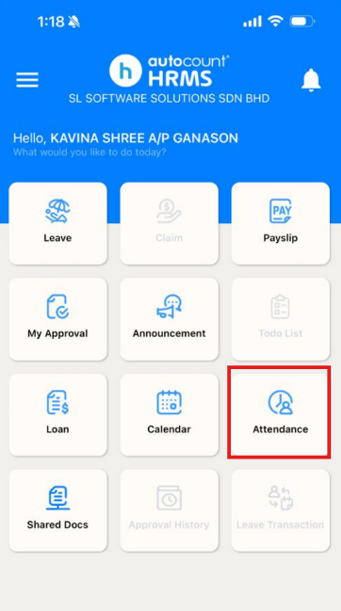
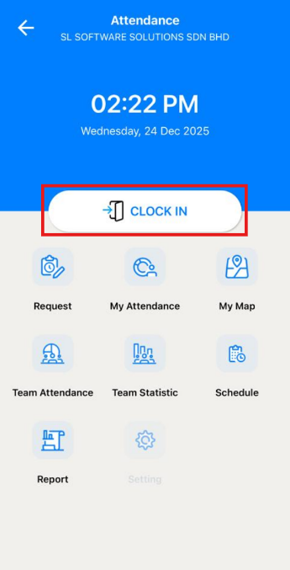
Once you’re on the attendance screen, tap the “CLOCK IN” button to register your start time.
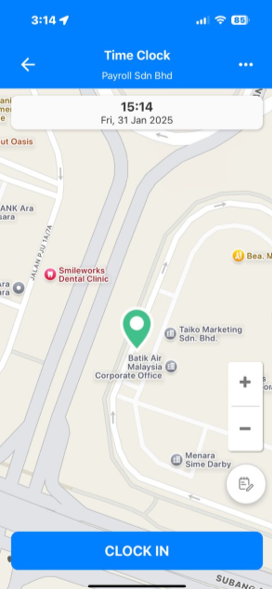
A map showing your current location will appear. Verify that the location is correct, then tap “CLOCK IN” to confirm.
A confirmation message will appear indicating your clock-in was successful. You’re now officially checked in and can begin your work
The e-attendance system enhances the entire HR and Payroll process with minimum costs and time needed. Each level role and access area are clearly defined for perfect HR management.
Employees play an essential role in capturing their own attendance with ease using the mobile app. They can effortlessly record their daily clock ins and clock outs via the AC Payroll application, helping ensure accurate attendance records are captured in real time.
Managers are responsible for coordinating team schedules and overseeing attendance across their departments. They create and maintain weekly or monthly roster schedules, which helps ensure proper coverage and shift planning.
HR personnel take a broader oversight role to ensure attendance data is accurate and ready for downstream processing. They configure and manage work shifts, verify and amend clocking entries when necessary, and ensure that all attendance records are correct before finalizing them for payroll
Ensure you have a stable internet connection before clocking in to avoid delays or failed attempts.
Turn on app notifications to receive reminders and confirmations about your attendance.
Make sure location services are enabled for the AC Payroll app to allow accurate location tracking.
AutoCount’s mobile clock-in feature brings modern, smartphone-driven attendance tracking to businesses of all sizes. By combining real-time GPS verification, offline resilience, and integrated HRMS reporting, organisations can streamline attendance processes, reduce errors, and maintain a clear, auditable attendance record — all while giving employees a simple, user-friendly way to log their work hours.
Employees can clock in using the AC Payroll mobile app by selecting the “Attendance” option, confirming their location via GPS, and tapping “Clock In.” Once successful, a confirmation message will appear.
Yes! The system supports offline clocking, where entries are captured during periods of no connectivity and automatically synced when the device reconnects to the internet.
Yes, AutoCount HRMS is flexible, offering various clock-in methods (GPS, Wi-Fi, Bluetooth, etc.), which can be tailored to specific roles or work environments, including fieldwork, office work, or remote positions.
AutoCount HRMS centralizes attendance records, making it easier to stay compliant with labour regulations and generate clear, auditable reports for shifts worked and hours logged.
Unlock all AutoCount Cloud Payroll features for free and then think carefully which plan is best with your business needs.