Clear overtime tracking without paperwork or guesswork. Submit, approve, and track overtime directly through the AC Payroll mobile app.

Clear overtime tracking without paperwork or guesswork. Submit, approve, and track overtime directly through the AC Payroll mobile app.
Overtime is common in many industries but managing it can be challenging. AutoCount HRMS offers a solution with its Mobile Overtime Request feature, which allows employees to submit overtime directly through the AC Payroll mobile app, eliminating paperwork and reducing errors.
This feature ensures overtime is recorded accurately, approved promptly, and integrated into payroll systems for seamless processing.
This feature helps reduce the chaos of verbal approvals or chat messages, making sure overtime requests are properly tracked. It brings in more visibility, accountability, and control, making the process much smoother for both employees and management.
This feature creates a smooth and structured overtime workflow that balances employee convenience with management control.
Employees can submit their overtime details, including date, time range, and reason, directly from their mobile devices.
Overtime requests aren’t auto approved. Each submission stays pending until reviewed and approved by the relevant manager or HR.
Overtime that extends past midnight is supported through cross-day entries, ensuring hours are calculated correctly for night shifts.
Approved overtime integrates with attendance and payroll records, reducing manual edits and end-of-month disputes.
Employees can submit overtime immediately after work, reducing forgotten claims and late submissions.
Ensures all overtime is captured and submitted on time, reducing the chances of missed claims and delays in processing.
Managers receive complete overtime information upfront, helping them approve based on facts rather than memory.
Reduces confusion and errors in the approval process, making it easier for managers to make informed decisions.
Approved overtime integrates with attendance and payroll records, reducing manual edits and end-of-month disputes.
Saves time and effort by automating the integration, minimizing payroll errors and reducing disputes related to overtime.
Step-by-Step Guide to Request Overtime via the AC Payroll App
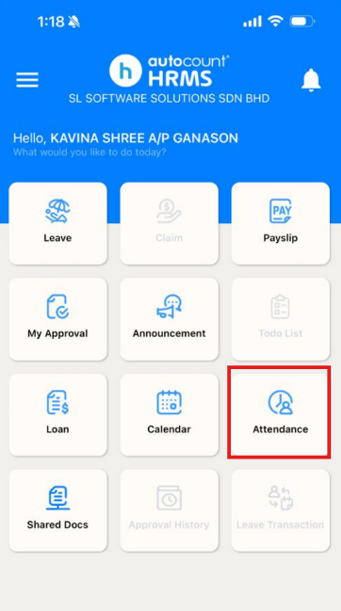
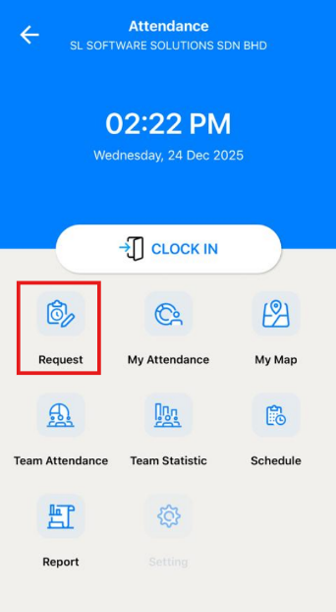
Employees can access the overtime request function from the attendance request area within the AC Payroll mobile application. This area centralizes all attendance-related submissions, including overtime. Upon accessing this section, employees can initiate a new overtime request by entering the necessary details for review and approval.
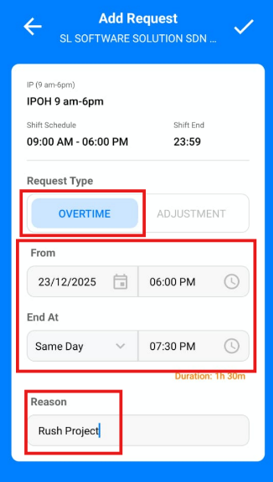
Employees provide the required overtime information, including:
These details ensure approvers have sufficient context to assess the request accurately. For overtime that extends past midnight, the request must be recorded as a next-day entry to ensure correct time calculation.
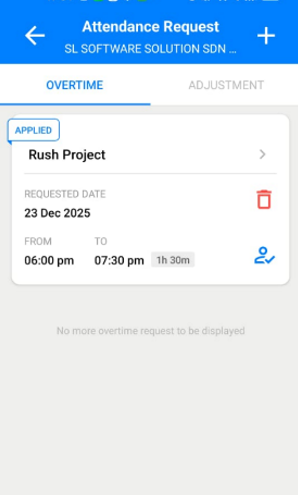
Once all overtime details are entered, the request is submitted into the approval workflow. At this point, the overtime request is not automatically approved and will appear as Pending Approval until reviewed by the assigned approver.
After submission, employees can monitor the status of the request to determine whether it remains pending or has been approved. This visibility improves transparency and reduces the need for manual follow-up with managers or HR.
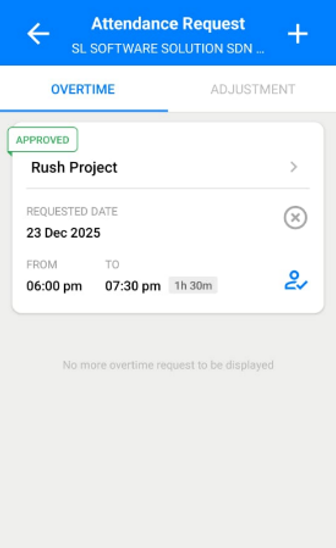
Management gains visibility into overtime patterns before payroll is processed.
HR teams spend less time chasing forms, verifying hours, or correcting payroll errors.
Employees can clearly see whether their overtime is pending or approved, reducing repeated follow-ups.
Clear records and timely approvals ensure employees are paid fairly for extra hours worked.
By moving overtime requests to a mobile and approval-based system, companies can:
This system ensures a smoother, more accurate overtime process. By reducing errors, increasing transparency, and automating integration with payroll systems, companies can streamline operations, lower costs, and foster better relationships with employees through trust and clarity.
Retail and F&B
Staff often stay late during peak hours. By submitting overtime immediately after closing, employees can ensure that all extra hours worked are documented promptly, eliminating the risk of missed or forgotten claims.
Warehouse and Logistics
Tasks like stock-taking or unloading can sometimes extend past midnight. With the ability to record these overtime hours correctly, employees ensure that their work is captured accurately, no matter the time of day or night.
Office and Project Teams
Overtime often occurs to meet tight deadlines. By properly documenting this overtime, employees ensure that their extra hours are officially recorded, preventing disputes or missed claims later.
Support and Maintenance Teams
After-hours or emergency work is a common occurrence. The ability to log these hours with clear justification and approval ensures that all overtime is tracked and paid accurately.
AutoCount HRMS’s Mobile Overtime Request feature turns a traditionally manual process into a fast, digital one. By enabling employees to submit overtime requests directly from their mobile devices, organisations can cut down admin overhead, improve transparency, and ensure overtime is captured and compensated the right way.
Whether it’s planned extra work or unexpected late shifts, this feature brings convenience and clarity to both staff and HR teams.
Overtime requests remain pending until they are reviewed and approved by the manager or HR.
Select Next Day before submitting the request to ensure correct time tracking.
The most common reason is a mismatch between your overtime start time and shift end time. Contact HR for further clarification.
This might be a setup issue. Ask HR or your admin to ensure your mobile role has access to Attendance Requests
Unlock all AutoCount Cloud Payroll features for free and then think carefully which plan is best with your business needs.