Learn how AutoCount HRMS streamlines employee attendance management with powerful shift configuration and scheduling tools for accurate payroll processing and efficient workforce management.

Learn how AutoCount HRMS streamlines employee attendance management with powerful shift configuration and scheduling tools for accurate payroll processing and efficient workforce management.
The Shift Schedule and Shift Maintenance features in AutoCount HRMS are essential for managing employee attendance effectively. These tools help define and assign work hours, ensuring that shifts are clearly structured. By setting up schedules and work rules, you ensure accurate tracking of working hours.
This integration with the payroll system ensures that employees are paid correctly, minimizing errors in timekeeping and payroll calculations, and streamlining your overall business operations.
Employees can submit overtime immediately after work, reducing forgotten claims and late submissions.
Ensures all overtime is captured and submitted on time, reducing the chances of missed claims and delays in processing.
Managers receive complete overtime information upfront, helping them approve based on facts rather than memory.
Reduces confusion and errors in the approval process, making it easier for managers to make informed decisions.
Approved overtime integrates with attendance and payroll records, reducing manual edits and end-of-month disputes.
Saves time and effort by automating the integration, minimizing payroll errors and reducing disputes related to overtime.
Follow these steps to create and configure shifts in AutoCount HRMS Shift Maintenance:
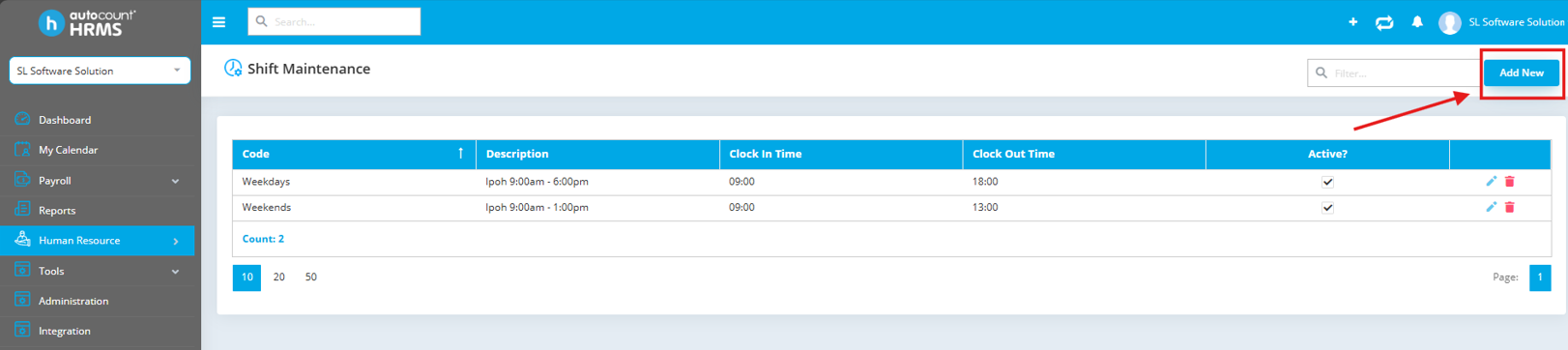
Click on Human Resource > Shift Maintenance under Attendance Management in the main menu.
Click on Add New at the top right corner to create a new shift.
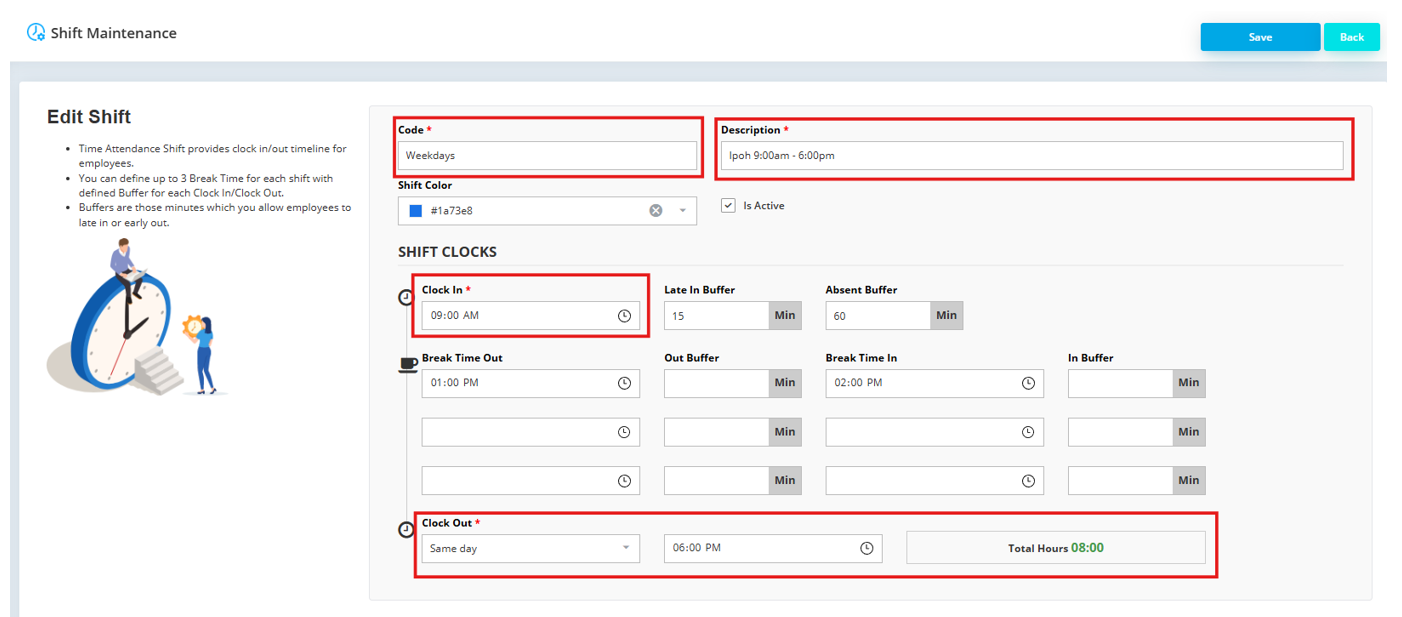
Enter a Code for the shift (e.g., Morning Shift, Night Shift or Weekdays) and a Description (e.g., Ipoh 9 AM – 6 PM). In the same form, set the Clock-In, Clock-Out and Break times. For example, set the clock-in time as 9:00 AM and the clock-out time as 6:00 PM.
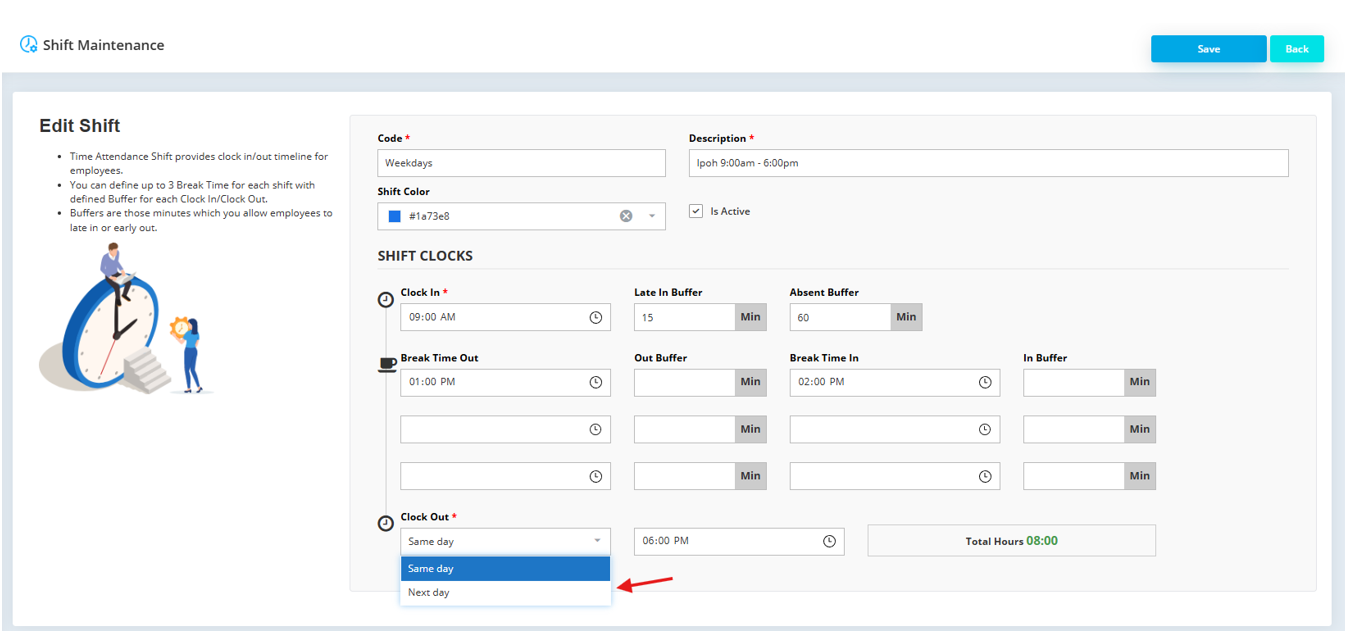
If the shift extends past midnight (e.g., 10:00 PM to 6:00 AM), select Next Day under the Clock-Out field to indicate that the shift carries over to the next day.
Once done, select click on Save.
The Shift Schedule module enables you to assign shift profiles, which are created in Shift Maintenance, to employees for specific time periods. It serves as a flexible scheduling tool that accommodates various work patterns.
Whether employees follow a regular, rotating, or flexible shift, this module allows you to apply the appropriate shift profile for any given time. It ensures accurate scheduling and simplifies workforce management by adapting to different work schedules as needed.
You assign specific shifts to employees, ensuring that each person has a clear schedule based on the shifts created earlier.
Shift schedules can be defined for a variety of timeframes, from weeks to months, and customized date ranges.
Three flexible scheduling methods: Standard for consistent patterns, Roster for rotating shifts, and Flex for dynamic schedules.
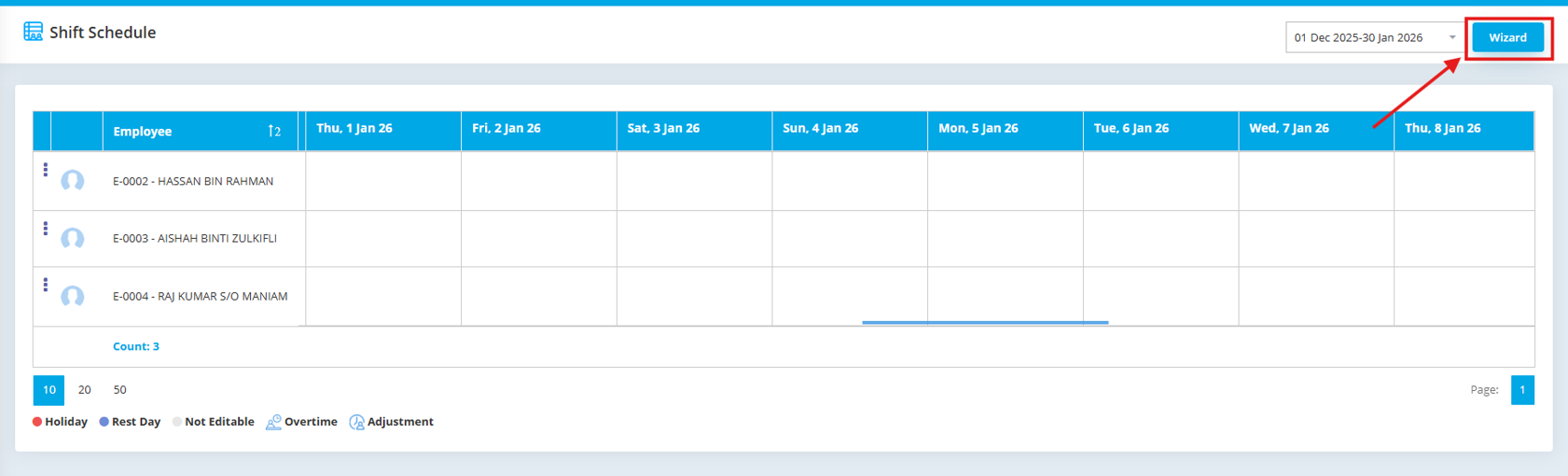
Navigate to Human Resource > Shift Schedule under Attendance Management in the AutoCount HRMS main menu and click on Wizard to create a new shift schedule.
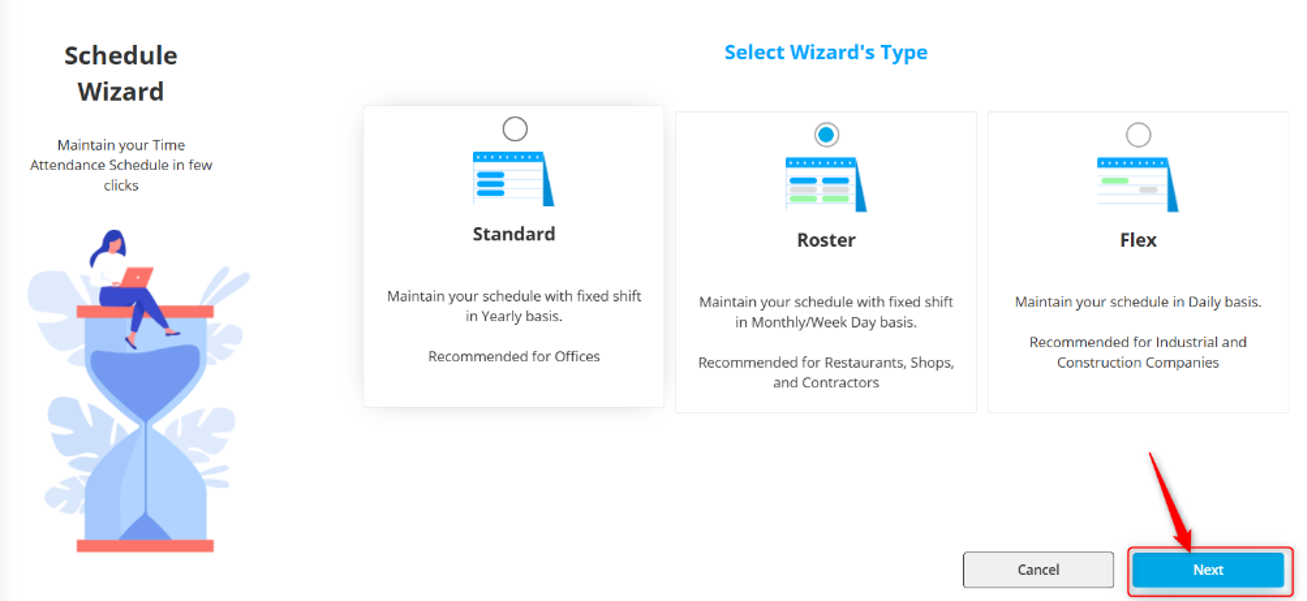
Choose between Standard, Roster, or Flex scheduling method based on your needs.
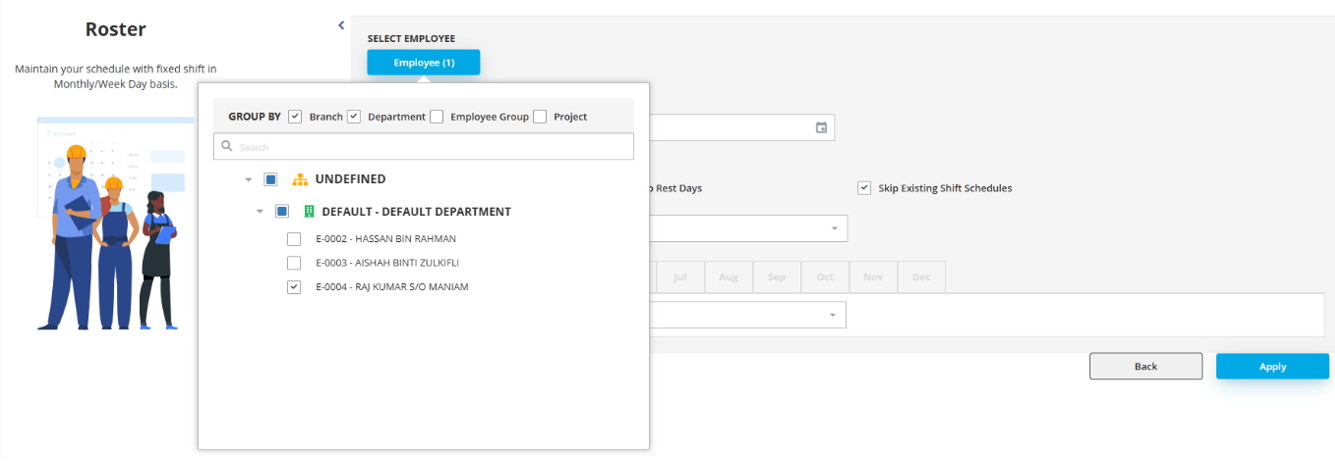
Click on Employee to select the employee(s) that you would like to create the schedule for.
You can select individual employees, groups, or departments depending on your organizational structure.
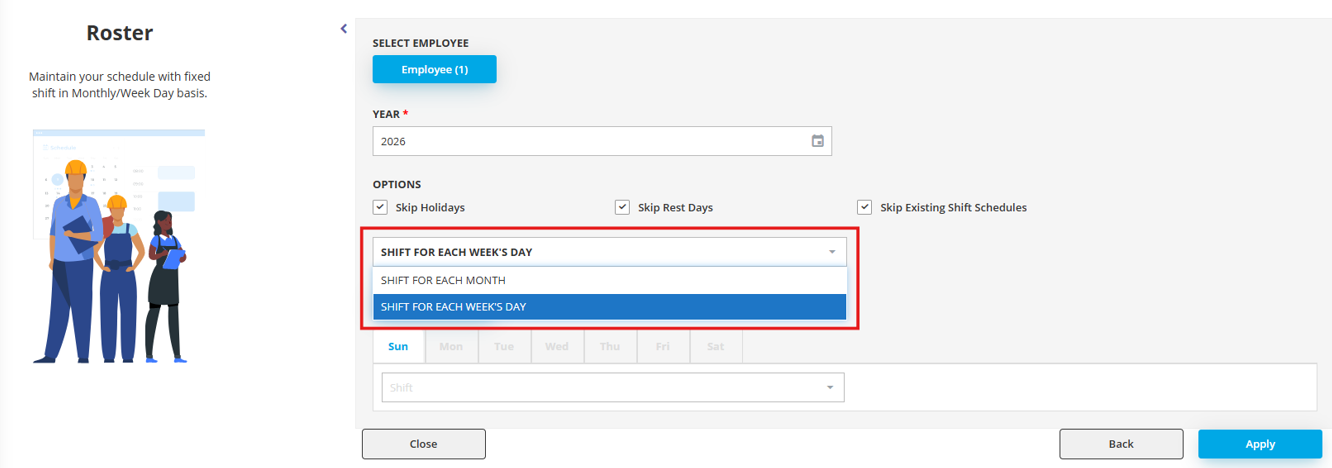
Select the Year and configure any optional settings specific to your scheduling needs.
Choose your preferred method of batch creation for the shift:
Select the month you want to schedule. Choose the specific day(s) you would like to assign a shift to, then select the shift along with the rule that you would like to assign for those days.

Once you have configured all parameters, click on Apply to create the shift schedules. A confirmation message will appear. Click on Confirm to apply the shift into the schedule.
The shift would then be created successfully.
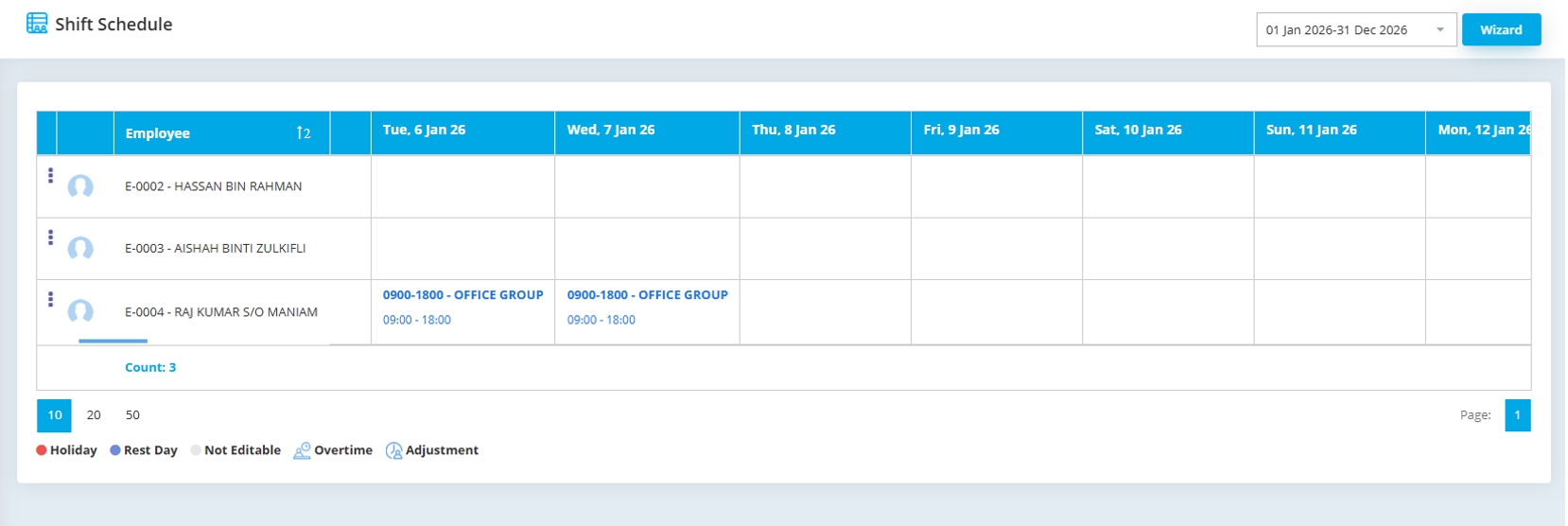
Shifts and schedules help to track attendance accurately. The system knows when someone is supposed to be working, so it can flag if someone clocks in late or misses time
Whether you have night shifts, rotating rosters, or flexible schedules, AutoCount HRMS can handle a wide variety of work patterns. This ensures that you are always in line with actual working hours, not just theoretical hours.
Overnight shifts are tricky in many systems, as they often split days or miscalculate hours. With AutoCount HRMS, you can explicitly set shifts that run across midnight, so the system will handle those hours correctly.
The shifts and schedules feed directly into payroll, meaning employees are paid for exactly what they worked — no more, no less. This ensures you don’t have issues like undercounted or overcounted hours, overtime mistakes, or wrong allowances.
Work rules (like lateness policies, overtime calculations, and break policies) should be paired with your shifts. Rules ensure that shifts are more than just time blocks — they become full-fledged work schedules with logic behind them.
If you have employees who work late hours, it’s best to define these shifts clearly upfront to avoid confusion later, especially when generating reports.
Periodically review shift schedules to ensure they align with business needs and employee preferences. This helps maintain workforce satisfaction and operational efficiency.
In conclusion, Shift Maintenance and Shift Schedule in AutoCount HRMS are crucial for streamlining attendance tracking and payroll management. Shift Maintenance helps define the rules for work hours, break times, and overnight shifts, ensuring clarity and consistency.
Once shifts are defined, Shift Schedule assigns them to employees, adapting to various work patterns and ensuring that schedules are applied accurately. Together, these features make it easier to manage complex work schedules, minimize errors, and ensure that payroll calculations are precise, ultimately leading to smoother operations and greater efficiency for your business.
Unlock all AutoCount Cloud Payroll features for free and then think carefully which plan is best with your business needs.