AutoCount Software

Face Recognition & Update Facial Recognition Image via AutoCount HRMS

Learn how AutoCount HRMS helps you track attendance accurately using face recognition and maintain up‑to‑date facial images for your employees.

This feature makes attendance monitoring smarter by matching a real photo with live clock‑in/out attempts — reducing mistakes and saving HR time
Introduction

AutoCount HRMS offers a modern cloud-based HR and payroll system tailored for Malaysian SMEs, combining core HR functionality with advanced time attendance technology such as facial recognition, GPS, Wi-Fi, and Bluetooth clocking methods.The Face Recognition feature helps businesses authenticate employee identity for accurate attendance logging, while facial image updates ensure recognition remains reliable over time. Attendance records captured through facial recognition can also be seamlessly integrated into payroll processing using the AutoCount Payroll system, ensuring accurate salary calculations.

Key Benefits

Accurate Identity Verification

Facial recognition ensures the person clocking in/out is the actual employee, preventing proxy clocking and strengthening attendance integrity.

Seamless Payroll Integration

Verified attendance data flows directly into payroll, minimizing manual edits and reducing errors in wage calculations.

Mobile & Device Flexibility

Employees can clock in/out using mobile apps or supported biometric devices, making attendance tracking easier in any work setting.

Improved Attendance Compliance

With face verification, attendance records are more trustworthy, helping HR teams monitor work hours and attendance patterns effectively.

Key Features of Face Recognition

Face Recognition in AutoCount HRMS is designed to:

The system detects an employee’s face and compares it to their registered photo for real time attendance validation.

Whether using mobile apps, kiosks, or hardware devices, face recognition works seamlessly alongside GPS, Wi Fi, and Bluetooth clocking, giving flexible options for different work environments.

Keeping employee photos up to date improves recognition accuracy as appearance changes over time, helping the system stay reliable and reducing failed recognition attempts during attendance capture.

Pro Tip

For best results, ensure employees take clear, well-lit photos facing directly toward the camera. Natural lighting works best for facial recognition accuracy.

Let’s Set Up Face Recognition

Step-by-Step Guide to Set Up Face Recognition via AutoCount HRMS

Access Employee Maintenance

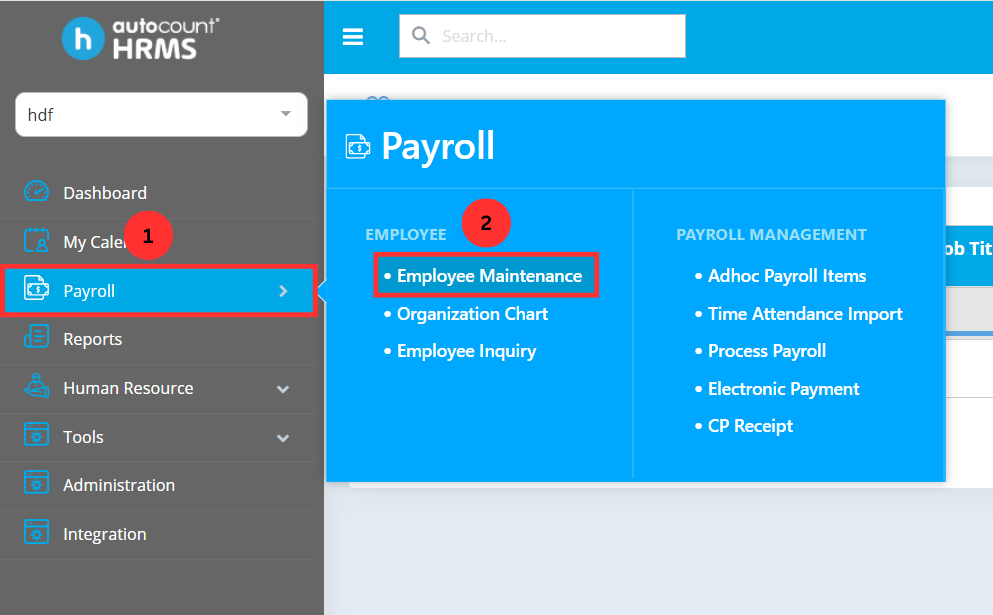
To begin setting up face recognition, navigate to Payroll > Employee Maintenance under Employee in the AutoCount HRMS main menu.

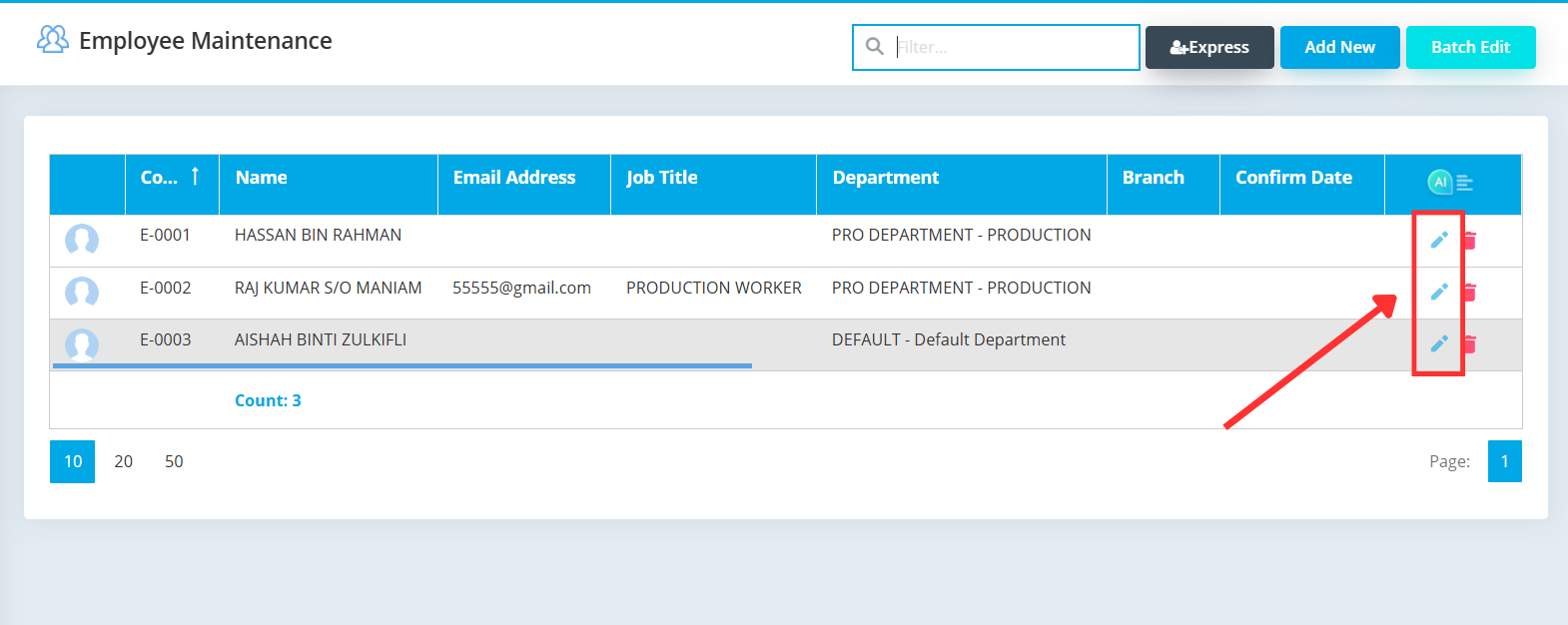
Employee list with a pencil icon to edit an employee

Select Employee for Face Recognition Setup

Identify the employee you wish to enable face recognition for clocking in and out, then click the pencil icon to edit the employee record.

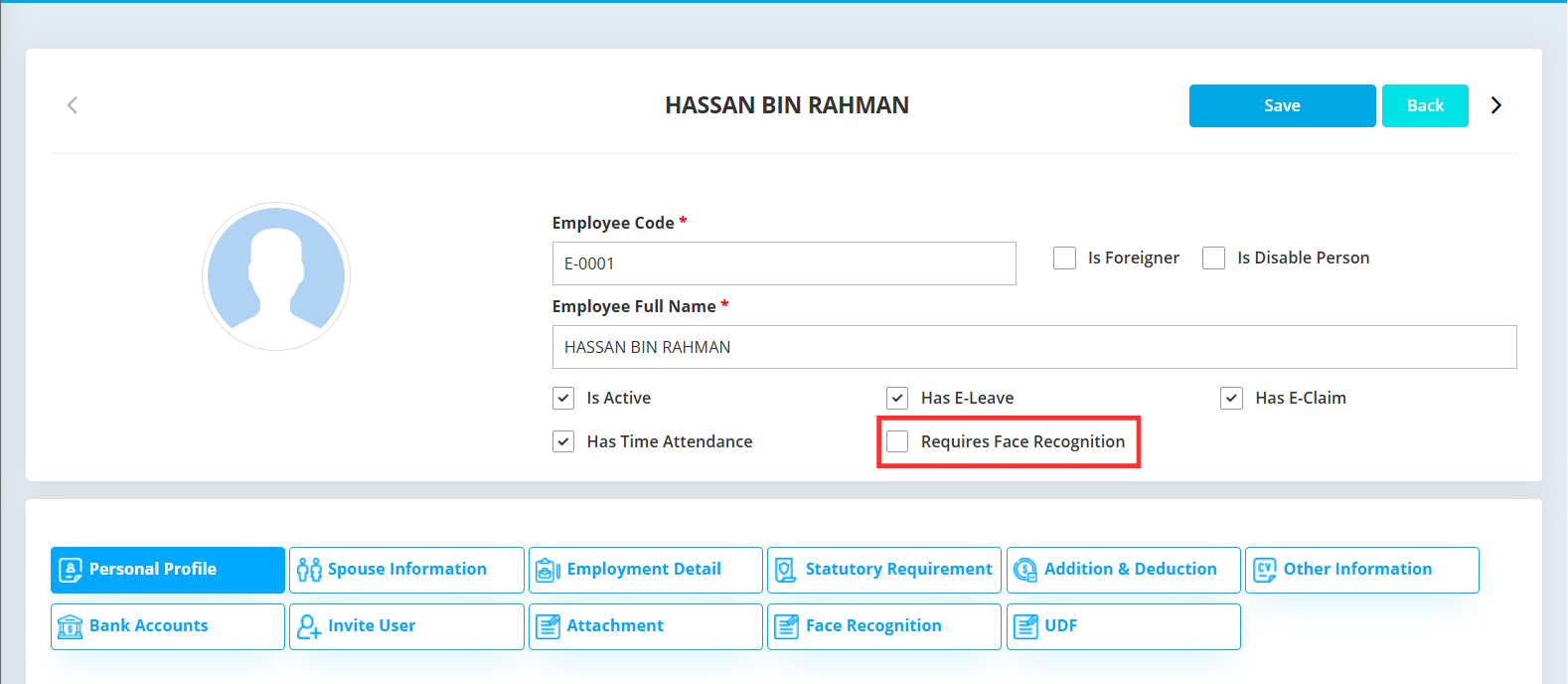
Employee maintenance form showing the Requires Face Recognition checkbox

Enable Face Recognition Requirement

Ensure the Requires Face Recognition checkbox is ticked. This setting enforces face recognition verification when the employee clocks in or clocks out.

HRMS employee profile with face recognition option visible

Save Changes

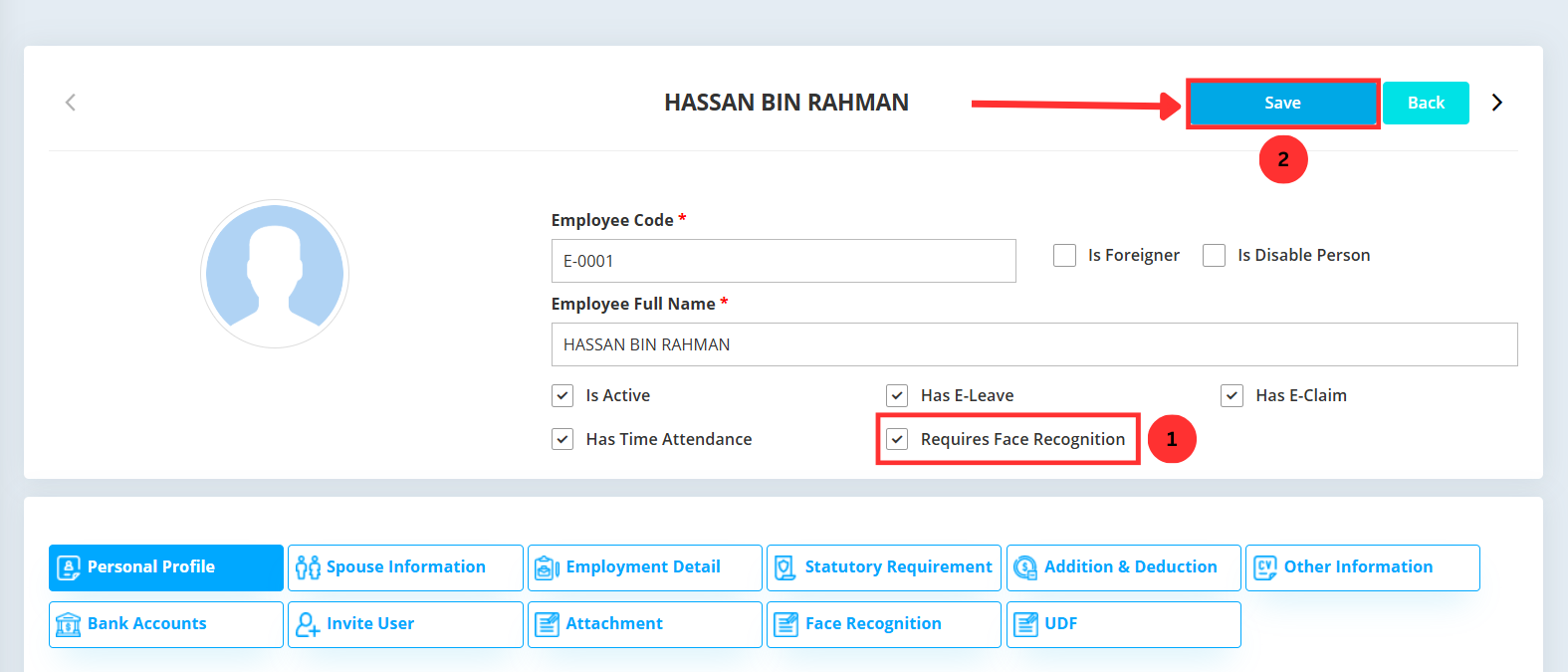
Click Save at the top-right corner to save the changes made. If you do not click Save, all entered data will remain unchanged.

Save changes button in HRMS employee edit form

Maintaining Facial Recognition Accuracy

Facial recognition accuracy may be affected by appearance changes or image quality. AutoCount HRMS allows HR administrators to update facial images anytime to maintain reliable attendance tracking.

When should images be updated?

What happens when images are updated?

Note:

Only authorized HR personnel are allowed to clear and reupload facial recognition images to protect employee data privacy.

How to Update Employee Facial Recognition Images

Step-by-Step Guide to Update Employee Facial Recognition images via AutoCount HRMS

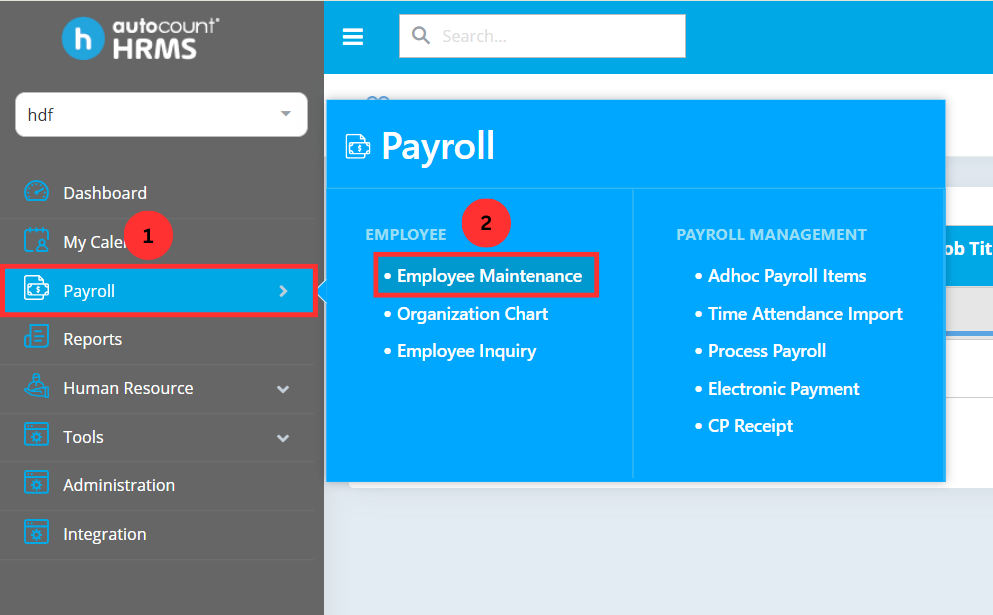
Access Employee Maintenance Module

To update the facial recognition images of an employee, navigate to Payroll > Employee Maintenance under Employee in AutoCount HRMS main menu. This section allows you to view and manage all employee records, including facial recognition data, before making any updates.

Payroll > Employee Maintenance menu in AutoCount HRMS

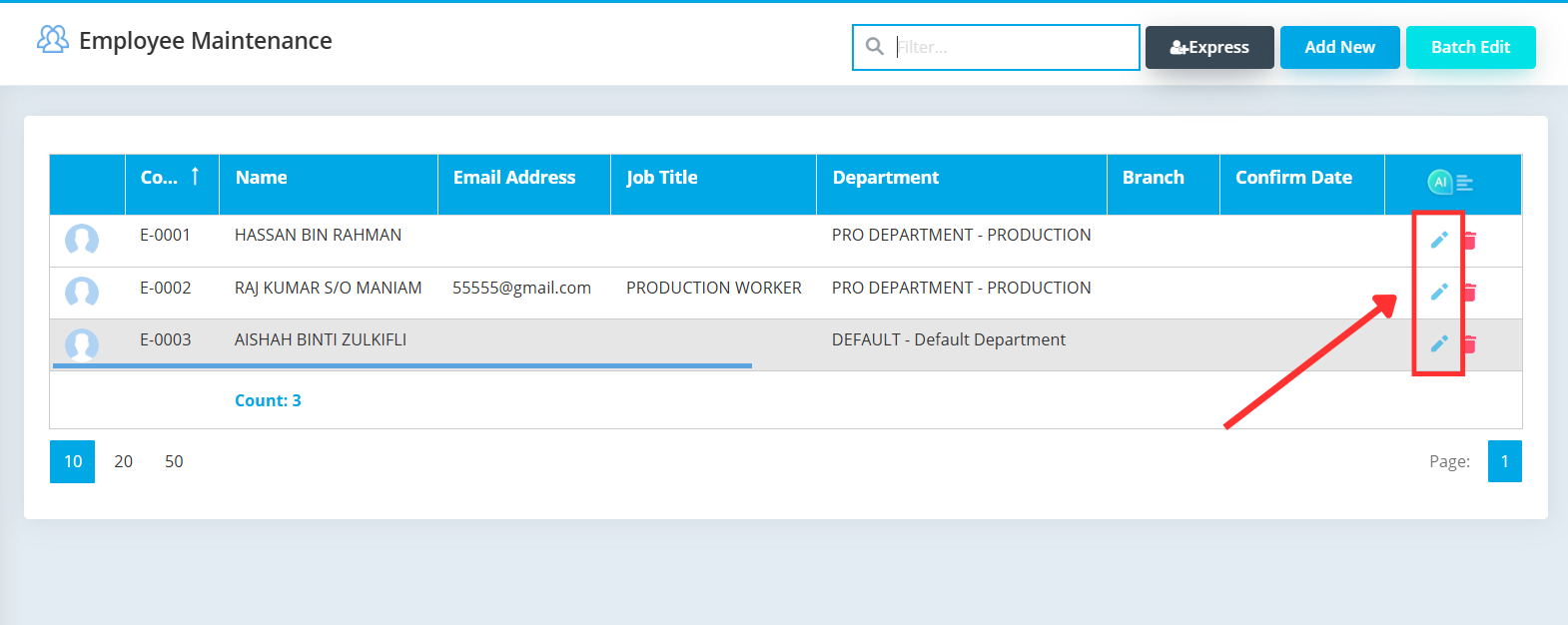
Choose Employee to Update

Identify the employee whose facial recognition image you want to update. You can browse the list of employees or use the search function to find the correct record. Once located, click the pencil icon to open the employee’s details and proceed with the update.

Employee list showing selectable employee records

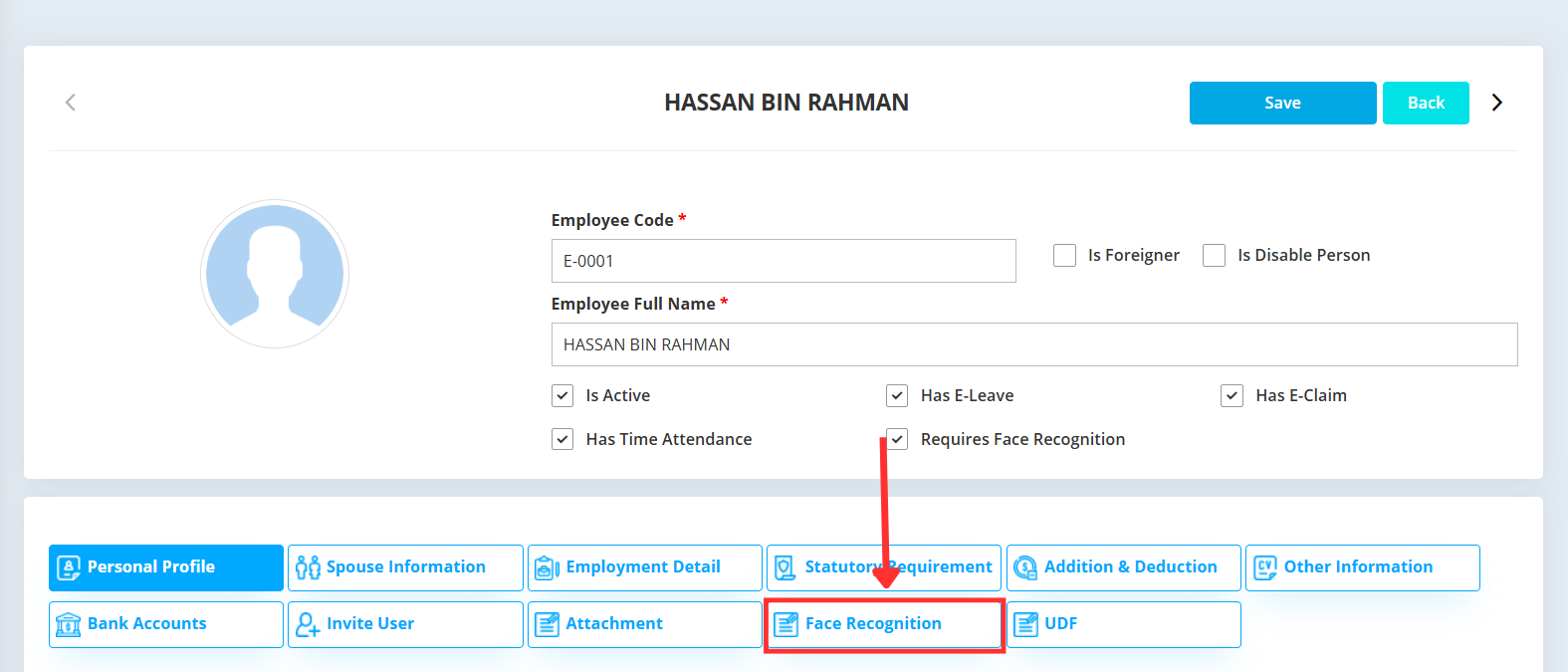
Open Face Recognition Section

Click on Face Recognition within the employee’s details to access their facial recognition settings. This section allows you to view the current image or update it to ensure accurate clock-in and clock-out recognition.

Face Recognition button/link in employee profile

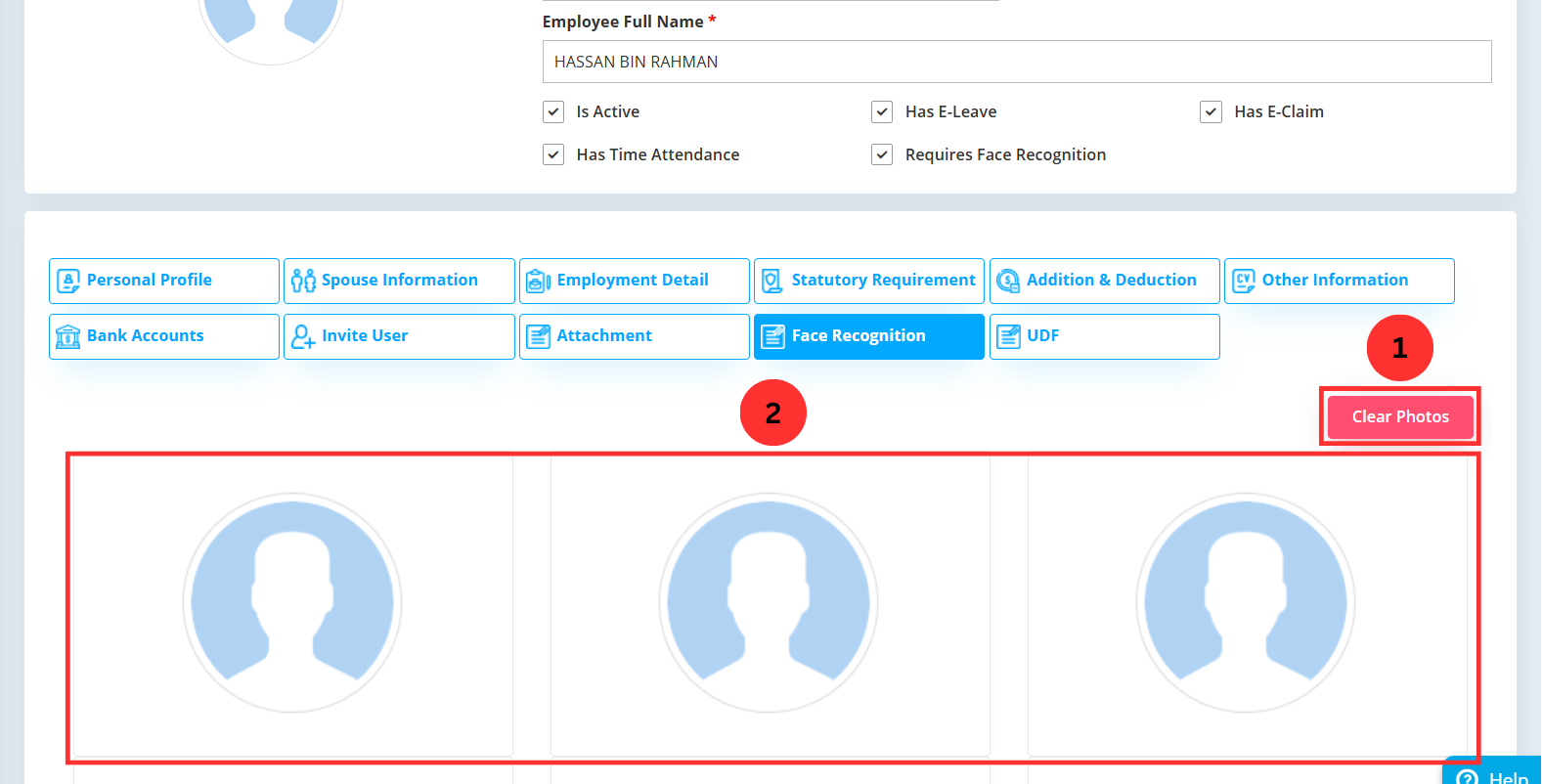
Update and Save Facial Recognition Image

Click Clear Photos to remove the current facial recognition images, then upload the three new photos you want the system to use. Make sure each photo clearly shows the employee’s face to ensure accurate clock-in and clock-out recognition. Once all photos are uploaded, click Save at the top-right corner to apply the changes.

Clear Photos button and Save at top right of HRMS screen

Best Practices for Facial Recognition Accuracy

Following these best practices helps ensure reliable facial recognition, reduces errors during clock-in, and keeps attendance tracking accurate.

Ensure sufficient lighting so facial features are clearly visible and not affected by shadows or glare.

Remove masks, hats, sunglasses, or other items that may obstruct key facial features during image capture.

Regular updates help prevent recognition errors caused by changes in personal appearance.

Capture facial images at a similar angle and distance to the attendance device used for daily clock-in and clock-out.

Conclusion

The Facial Recognition feature in AutoCount HRMS ensures accurate, secure, and efficient attendance tracking for Malaysian SMEs. By combining advanced facial authentication with flexible clocking options, HR teams can minimize errors, prevent time fraud, and streamline payroll processing. Regular image updates and role-based access maintain system reliability and data privacy, making this feature a dependable solution for modern workforce management.

Frequently Asked Questions

Can I use Facial Recognition alongside other clocking methods (GPS, Wi-Fi, Bluetooth)?

Yes. AutoCount HRMS supports multiple clocking methods simultaneously. Facial Recognition can be used alongside GPS, Wi-Fi, or Bluetooth clocking, giving your business flexibility in managing attendance.

No. Only users with the appropriate HR or administrative access rights can manage facial recognition images and settings. Regular employees cannot modify these settings, ensuring data privacy and system integrity.

Yes. Attendance data captured via Facial Recognition is automatically synchronized with the payroll module, helping reduce errors and streamline payroll processing.

If recognition fails, ensure the image is clear, properly aligned, and the environment has sufficient lighting. You can also re-capture the employee’s facial images if necessary. Alternatively, employees can use other available clocking methods (GPS, Wi-Fi, Bluetooth) until the issue is resolved.

Get started with AutoCount Payroll for free!

Unlock all AutoCount Cloud Payroll features for free and then think carefully which plan is best with your business needs.