
Mobile Overtime Request in AutoCount HRMS helps employees submit, review and track overtime requests through the AC Payroll mobile app. Replace scattered messages and paper forms with a clearer request-and-approval process.
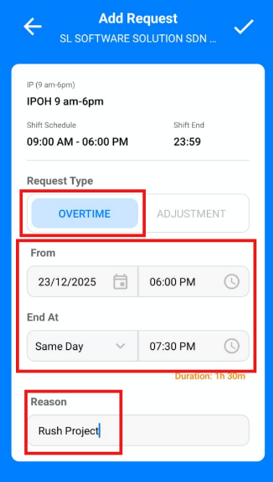
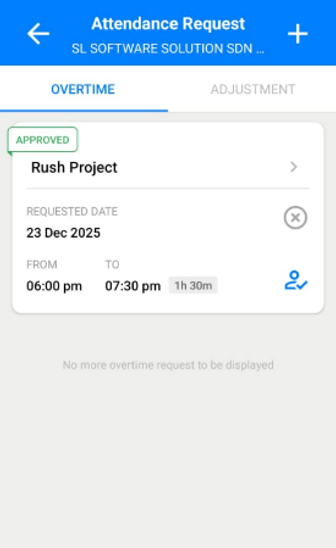
Actual AC Payroll overtime request screen
Overtime is common in retail, F&B, warehousing, field service and office operations. When requests are shared verbally or through messages, important details can be missed. The mobile overtime request feature allows employees to enter overtime dates, start and end times and reasons directly in the AC Payroll app.
Requests follow a review process instead of being automatically approved, helping employees and managers understand what has been submitted and what is still awaiting action.
Employees can enter overtime details directly in the app.
The request stays pending until the appropriate manager or HR reviewer approves it.
Use Next Day for overtime that finishes after midnight.
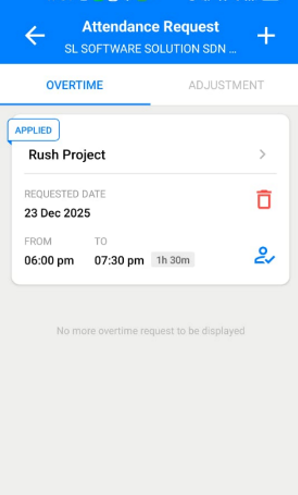
Employees can check whether a submitted request is pending or approved.
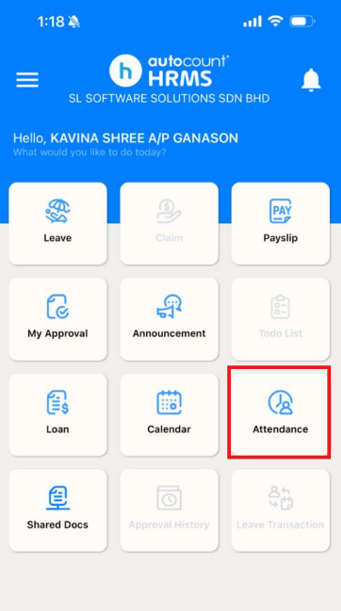
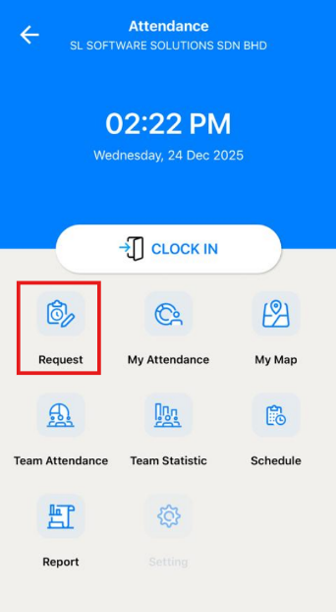
Go to Attendance → Request in the AC Payroll app.
Enter date, start/end time and reason, then submit.
Manager or HR reviews the request; employee can track the status.
Open the AC Payroll mobile app, select Attendance, then choose Request.
Enter the overtime date, start and end time, and reason. If overtime ends on the following day, select Next Day where applicable.
Submit the completed request for manager or HR review. Employees can check the request status in the app; submission does not mean automatic approval.
Record overtime requests for late closing shifts and busy periods.
Document overtime when deliveries, unloading or stock counts run late.
Keep a clearer record of requests during time-sensitive projects.
Capture the reason and hours for after-hours support work.
A structured mobile overtime request and approval history can reduce follow-up messages, improve visibility and support HR when reviewing overtime before payroll processing.
For example, a warehouse employee who finishes a stock count later than scheduled can record the relevant time range and explain why additional hours were needed. The supervisor can review that information against the work performed, while HR can follow up on any missing details before payroll processing. Employees should check that the information they submit matches their actual working hours and their organisation’s overtime procedures.
Requests require a review by the responsible approver.
Use Next Day when the overtime ends after midnight.
Eligibility and pre-approval requirements continue to apply.
Check your dates and times before submitting to avoid unnecessary corrections.
A manager or HR approver must review the request before it is approved.
Use the Next Day option when the overtime ends on the following calendar day.
Check with your manager or HR team for the reason, and verify the submitted date, time range and explanation.
Ask HR to verify your mobile app permissions and attendance-request setup.
No. Approval and payroll treatment depend on your company’s workflow, policies and payroll configuration.
Speak with SL Software Solutions about mobile overtime request workflows in AutoCount HRMS, attendance and the AC Payroll mobile app. Learn more about the wider product range on the official AutoCount website.