Improve stock accuracy
Capture physical quantities and reduce manual transcription errors.

TD Stock Take App helps Malaysian businesses digitise physical inventory counts, scan product barcodes and synchronize stock count results with AutoCount. Reduce paper records and give your warehouse team a more organised counting workflow.
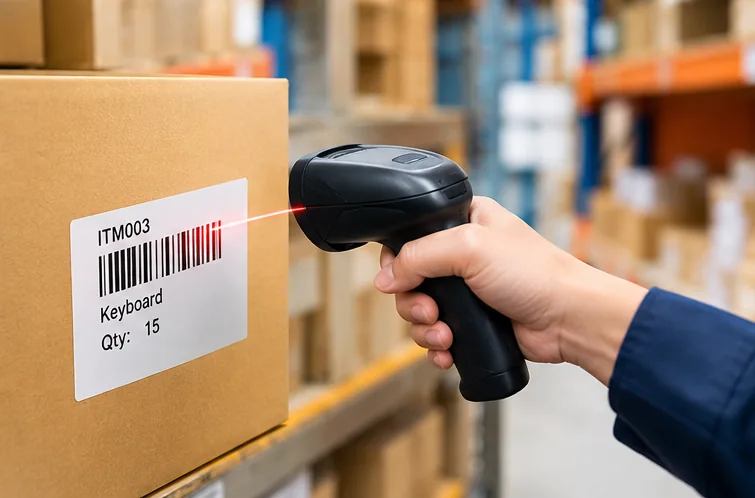
Traditional stock taking often involves printed item lists, handwritten quantities and repeated data entry. When several staff count inventory at the same time, inconsistent records can make reconciliation difficult.
The app provides a mobile counting workflow for compatible Android devices and barcode scanners. It is designed for warehouses, retail shops, supermarkets, hardware stores, pharmacies and manufacturing businesses that need to verify physical inventory.
Capture physical quantities and reduce manual transcription errors.
Use barcode scanning instead of repeatedly typing item codes.
Organise counting responsibilities across different inventory areas.
Keep count information in digital records.
Record counts offline and sync when connectivity returns.
Transfer stock count information through the supported inventory workflow.
Explore the original product video and an additional video guide.
Explore six key functions designed to support digital inventory counting.
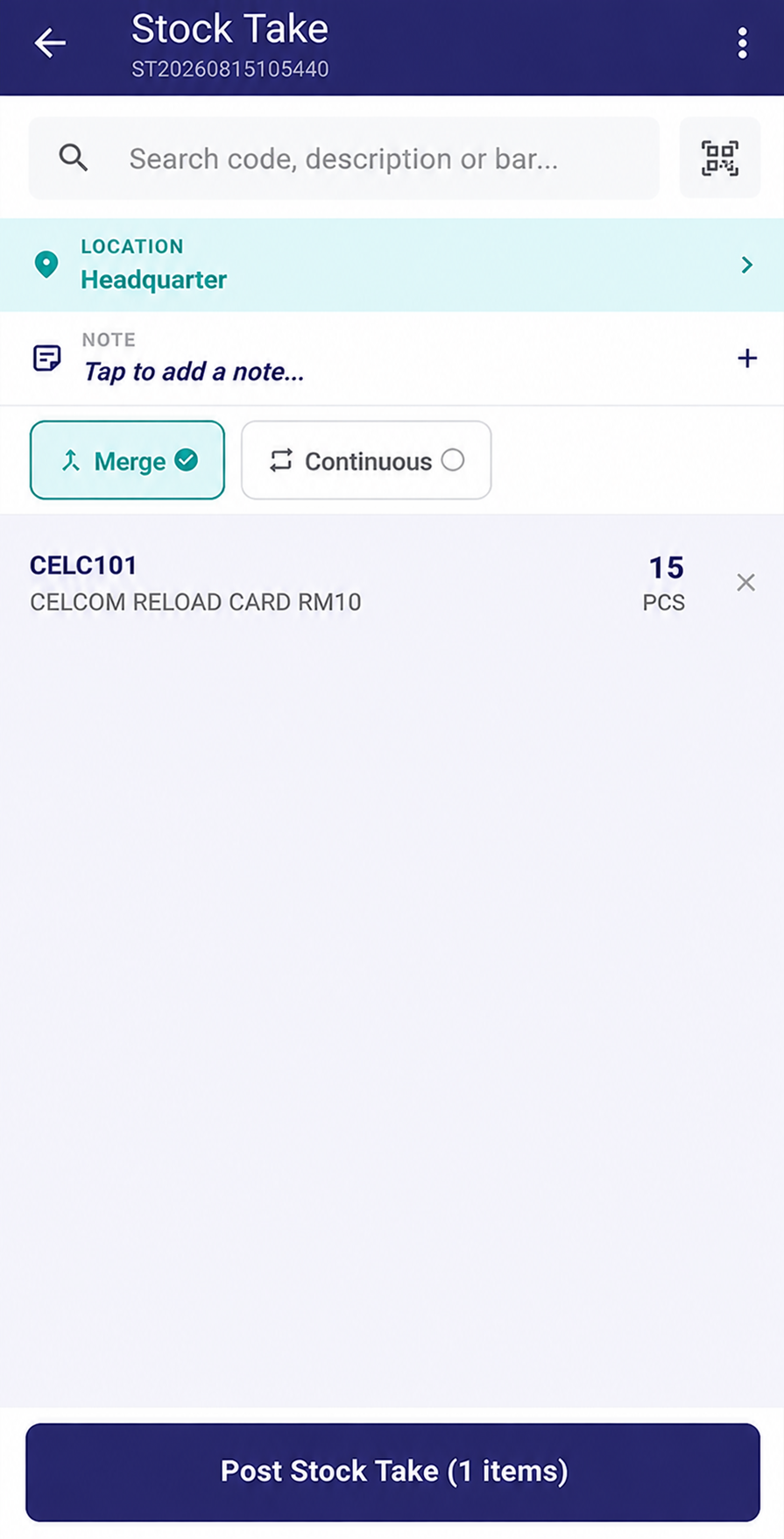
See how the mobile counting interface organises the selected location, item information and physical stock quantity.
Scan product barcodes using compatible Android smartphones, barcode scanner devices or wireless scanners. This reduces repeated manual item-code entry and helps staff identify products during physical counts.
Record quantities during counting so staff can review stock count information without waiting for office staff to re-enter paper sheets. Confirm synchronization behaviour for your network and configuration.
Multiple staff can count using different devices. Divide the work across warehouse areas or store sections, and agree on responsibilities before starting to avoid counting the same stock twice.
Import stock item lists, export count results and update inventory records through the supported AutoCount workflow. Review count discrepancies before making inventory adjustments.
A mobile workflow is designed for storekeepers, warehouse staff, administrators and new employees. Demonstrate the daily counting process to staff before a scheduled stock take.
Continue recording stock counts when internet access is unavailable, then synchronize when connectivity returns. This is particularly useful in warehouses with weak coverage and remote inventory locations.
Check item master information, barcodes, available devices and the warehouse areas that need counting.
Assign responsibilities, scan items and record physical quantities. Keep a consistent process for checking duplicate counts.
Synchronize completed records and review stock differences with the relevant AutoCount personnel before adjustments.
During a demonstration, ask how concurrent users, offline records and count reconciliation work for your particular business. For example, a retailer may assign staff to separate aisles, while a distributor may organise counts by warehouse zone. Agree on how to handle damaged items, unlabelled stock and discrepancies before counting starts. The TD Stock Take App can then be evaluated against the team's actual inventory workflow. For broader warehouse operations, compare the TD Stock App and explore other AutoCount mobile apps.
Explore the standard AutoCount inventory screens that support preparation and review of physical stock counts.
Review item codes, units of measure, locations and recorded balance quantities before physical counting.
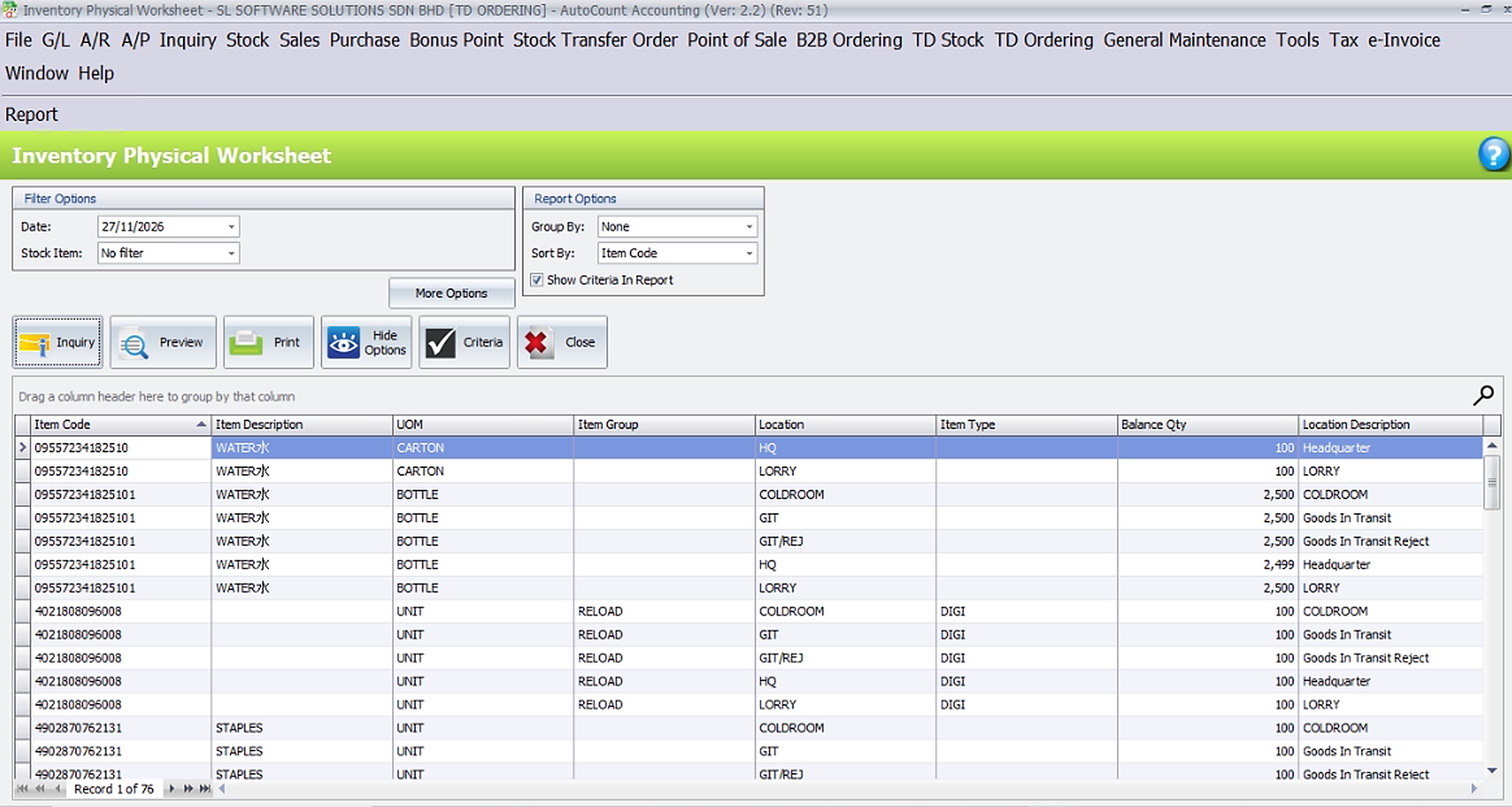
Click image to view full size.
Compare recorded inventory quantities across warehouse locations.
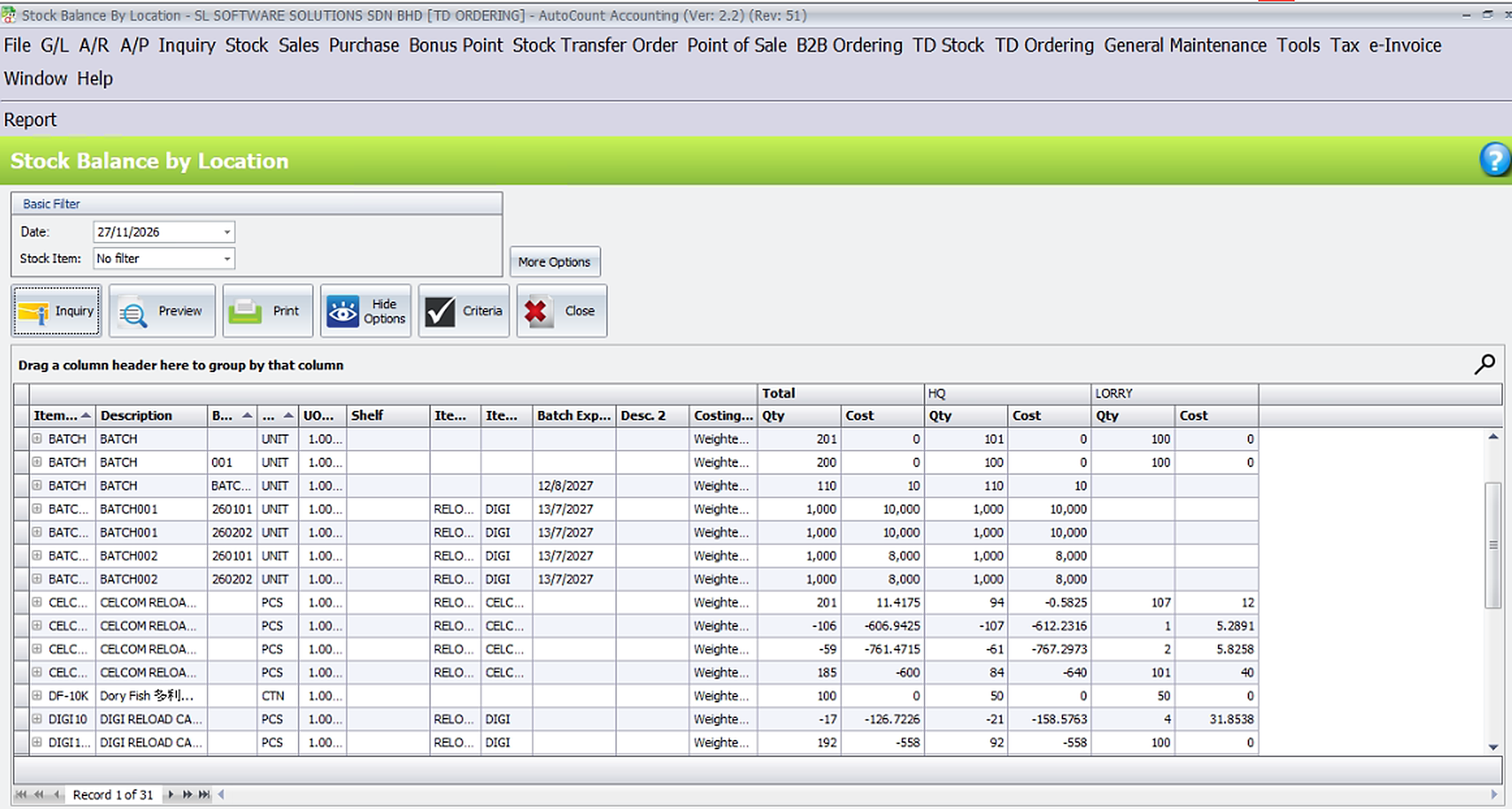
Click image to view full size.
Review the recorded inventory balance for a selected item across locations.
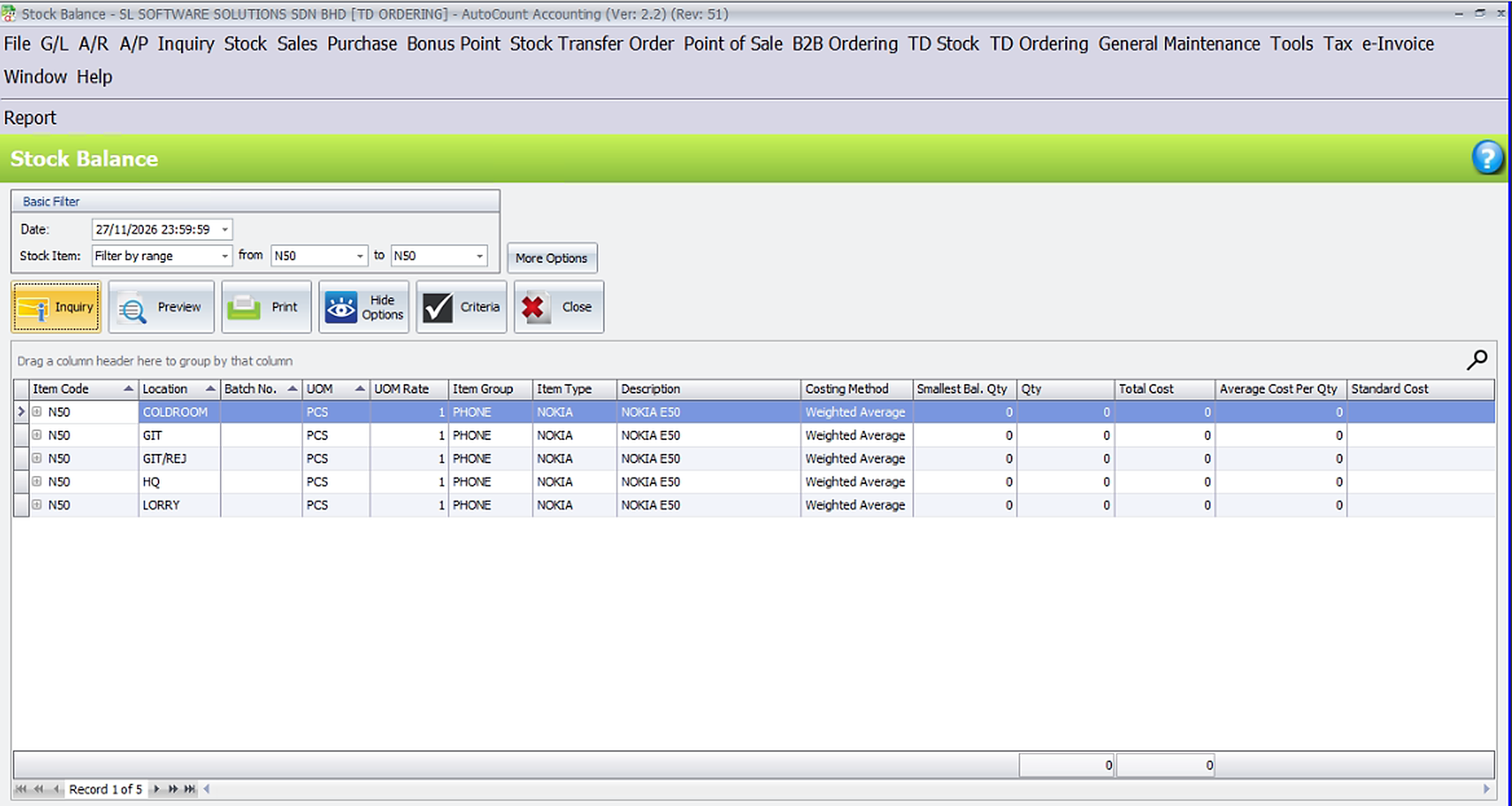
Click image to view full size.
These examples show standard AutoCount desktop inventory reports. TD synchronisation and available functions depend on your licensed configuration.
Yes. It is designed to work with AutoCount Accounting and inventory systems. Confirm the required version and configuration before implementation.
Yes. Compatible Android smartphones with barcode scanning capability can be used. Confirm your device and scanner requirements during a demo.
Yes. Stock counts can be recorded offline and synchronized later when connectivity is available.
Yes. Retailers, wholesalers, warehouses and other businesses with physical stock can evaluate the mobile workflow according to their inventory size and counting needs.
Contact SL Software Solutions to discuss your stock counting requirements, compatible devices and AutoCount setup. Request a product demonstration for your team.