
Define employee working hours in AutoCount HRMS Shift Maintenance. Learn how to create a shift, enter clock-in and clock-out times, and identify shifts that continue past midnight.
Shift Maintenance defines a shift and its working hours. Shift Schedule is the separate task of assigning those shifts to employees on specific dates.
This guide covers creating the shift itself. If your shifts and attendance rules are already prepared, continue to the employee shift scheduling guide.
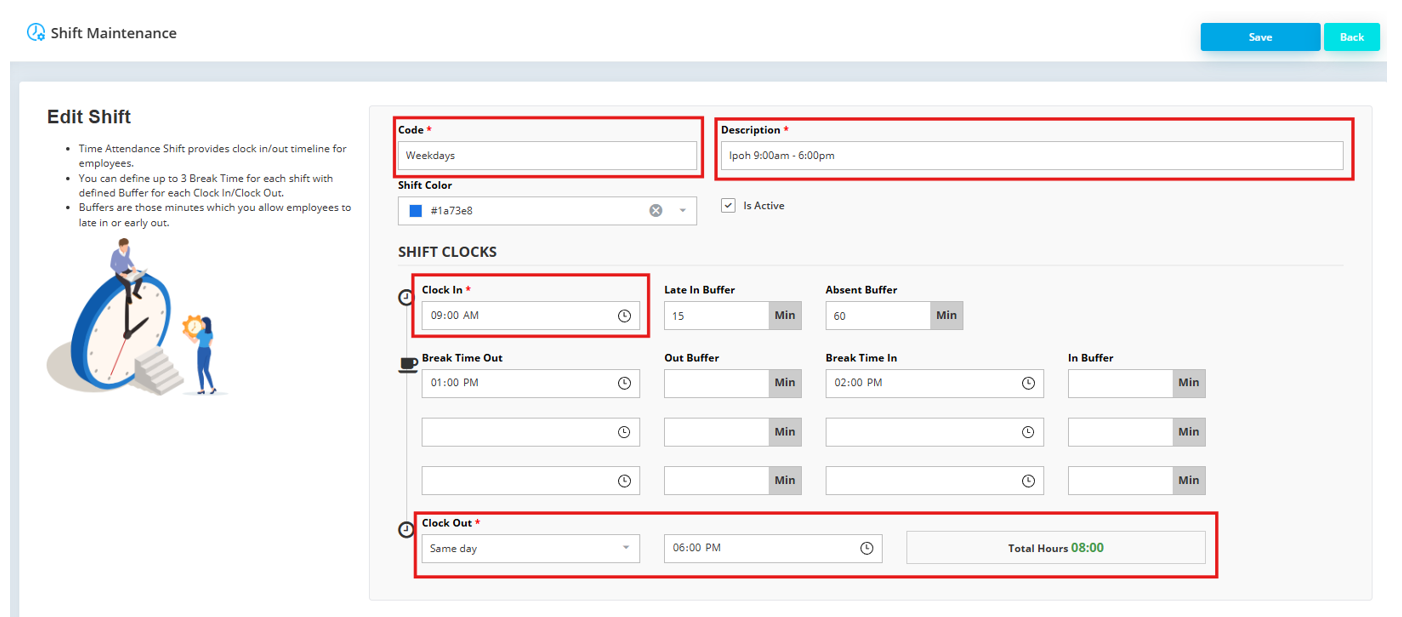
Use the Code and Description fields to identify each working pattern.
Choose names that help administrators distinguish office, morning and overnight shifts.
Enter the Clock In and Clock Out times that define the shift.
Check the times against the working arrangement before saving.
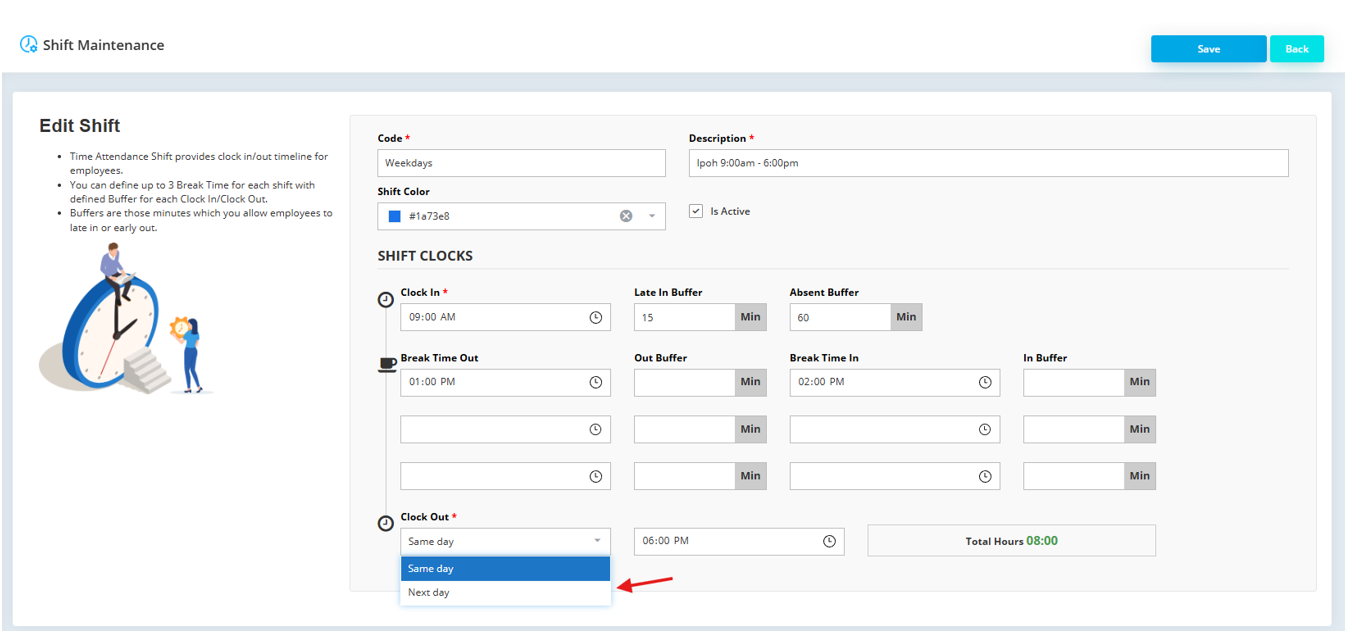
Use Same Day for a shift that ends on its start date, or Next Day when the shift continues past midnight.
For a 10:00 PM to 6:00 AM shift, the clock-out belongs to the following day.
The retained screenshots show an earlier HRMS interface. AutoCount’s current Shift Maintenance instructions use Human Resource > Shift & Rule > Shift Maintenance and Add Shift. Labels may differ from those shown below.
Open Human Resource > Shift & Rule > Shift Maintenance. In the earlier interface shown below, Shift Maintenance appears under Attendance Management.
Choose Add Shift to create a shift. The earlier screenshot labels this action Add New.
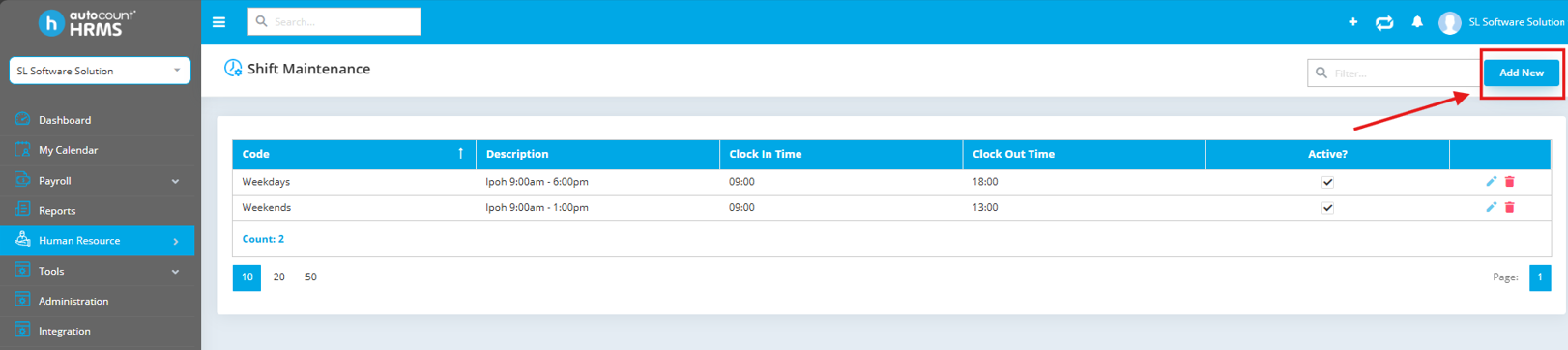
Enter a Code and Description, then set Clock In and Clock Out. For example, an office shift may start at 9:00 AM and end at 6:00 PM on the same day. Review any additional fields displayed in your interface.
For a shift that crosses midnight, such as 10:00 PM to 6:00 AM, select Next Day for the shift type or clock-out day setting shown in your interface. Use Same Day when the shift ends on its start date.
Review the shift details, then select Save.
Shift Maintenance defines working hours. Rule Maintenance controls attendance conditions such as lateness, overtime settings and clocking methods. Review both before assigning schedules; a shift definition alone does not confirm payroll results.
After creating the shift and its attendance rule, use Shift Schedule to assign working shifts to employees for the required dates.
Follow the separate AutoCount HRMS Shift Schedule Setup Guide for the scheduling wizard, employee selection, working dates, verification and troubleshooting.
Review the shift alongside its applicable attendance rule. Keep working hours and attendance conditions consistent with the company’s arrangements.
For overnight work, confirm the clock-out day and review the applicable attendance settings before assigning the shift.
Check the shift code, description and times whenever working arrangements change. Review existing assignments before applying changes to staff schedules.
Confirm the shift has a recognisable code and description, the correct clock-in and clock-out times, and the appropriate Same Day or Next Day setting.
Then prepare the attendance rule and continue to the shift scheduling instructions. After assignment, check the resulting employee schedule and attendance records separately.
Explore AutoCount HRMS and confirm the available trial features and limits before choosing a plan for your business.