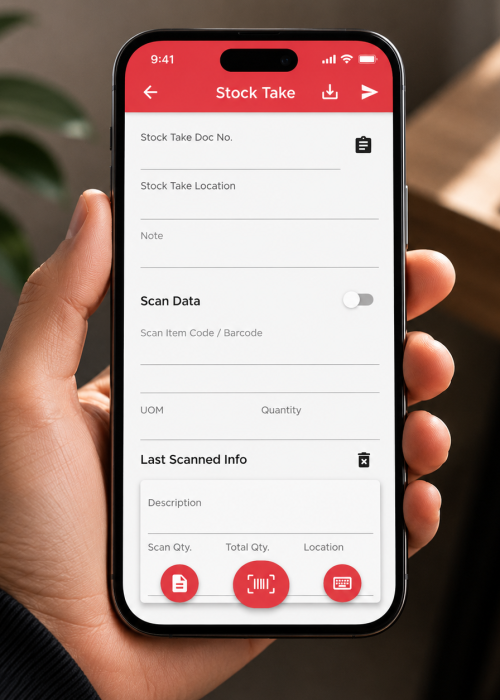
Perform digital physical inventory counts directly from your mobile device during the AutoCount Stock Take. This eliminates manual paper sheets and immediate data entry bottlenecks. By utilizing mobile technology, you not only enhance accuracy but also save substantial time, enabling your team to focus on more strategic tasks. Consider integrating features like barcode scanning to ensure each item is accounted for, and utilize real-time data updates to maintain the integrity of your inventory records throughout the AutoCount Stock Take process. For related inventory features, see our TD Stock App; for official product documentation, visit the AutoCount Help Centre.
Always double-check that you have selected the correct “Location” (Warehouse) in the top dropdown before initiating any scans. Scanning items into the wrong logical location will corrupt your variance reporting. Take the time to verify that all team members are aware of the designated warehouse locations and their respective inventory to prevent future discrepancies. Establishing a standard operating procedure for location verification can further enhance accuracy during the scanning process.
The Stock Take Workflow is crucial for maintaining streamlined operations and accurate inventory levels. This workflow encompasses several key steps, each designed to minimize errors and optimize efficiency. A well-structured workflow ensures that every team member knows their responsibilities, contributing to a more effective stock count.
This guide will help you understand the AutoCount Stock Take process efficiently. Effective stock management is essential for any business, and understanding the AutoCount Stock Take can lead to better inventory control. Throughout this guide, we will explore techniques to enhance your stock take process, including tips for team coordination, technology utilization, and reporting best practices.
Tap ‘New Count’ and select your target warehouse location. This initial step sets the foundation for the entire stock take process. It is crucial to ensure that the warehouse selected is accurate to prevent any future discrepancies. Consider creating a session template that includes common locations, enabling quicker access for users. Additionally, encouraging team members to familiarize themselves with the session setup can foster a smoother start to the counting process.
Tap ‘New Count’ and select your target warehouse location. Utilizing this function allows you to quickly initiate the stock take process for various locations across your enterprise. A clear understanding of the inventory layout within each warehouse can significantly reduce the time spent on locating items. Moreover, training staff to navigate this feature efficiently can drastically improve overall productivity during the stock take.
Scan barcodes continuously. The app groups identical items. Input manual quantities for bulk boxes if needed. This feature not only simplifies the counting process but also enhances the accuracy of the inventory. When items are scanned, ensure that the data captured reflects the actual stock on hand. It may be beneficial to implement random checks during the scanning process to ensure that the quantity being recorded matches physical stock levels. Additionally, training staff on the nuances of handling bulk items can lead to fewer errors and a more efficient stock take overall.
Scan barcodes continuously for a seamless experience. The app groups identical items, reducing redundancy in data entry. By having the ability to input manual quantities for bulk boxes, you maintain flexibility in your stock counting. Consider leveraging technology to provide visual cues on screen, such as alerts for discrepancies between scanned numbers and expected stock levels. This proactive approach can help catch errors before they impact your final reporting.
Hit “Sync”. The data instantly populates the Stock Take module in the desktop system, ready for the manager to calculate variances and post adjustments. This step is crucial as it ensures all gathered data is centralized and readily available for review. Managers should take the time to analyze variances comprehensively, looking for patterns that may indicate larger issues within the inventory management process. Utilizing reporting tools can help visualize trends over time, allowing for more informed decision-making regarding inventory adjustments.
Hit “Sync” to finalize your stock take. The data instantly populates the Stock Take module in the desktop system, ready for the manager to calculate variances and post adjustments. Taking the time to review the synced data will provide insights into the accuracy of your stock levels and help identify areas for improvement. Make it a point to establish a routine analysis process post-sync to better understand stock discrepancies and enhance inventory accuracy for future counts.