“How many pieces are in this delivery?”
Reduce repeated calculations
Use configured conversion rates to relate purchase quantities to the item's base unit.

Keep purchasing, sales and stock reports connected when your products use different units of measurement. AutoCount Basic Multi-UOM lets you configure unit conversions and use the right unit for each transaction.
For retailers, wholesalers and trading businesses handling bulk packs and individual units. Availability depends on your AutoCount edition and licence.
A supplier delivers cartons, your customers buy individual items, and your team wants a stock report in boxes. When those units are handled separately, even a simple quantity check takes extra work. AutoCount Basic Multi-UOM connects the units within your AutoCount stock workflow.
Use configured conversion rates to relate purchase quantities to the item's base unit.
Select a configured sales UOM that matches the quantity your customer is buying.
Review stock in a consistent report unit so your team can interpret remaining quantities.
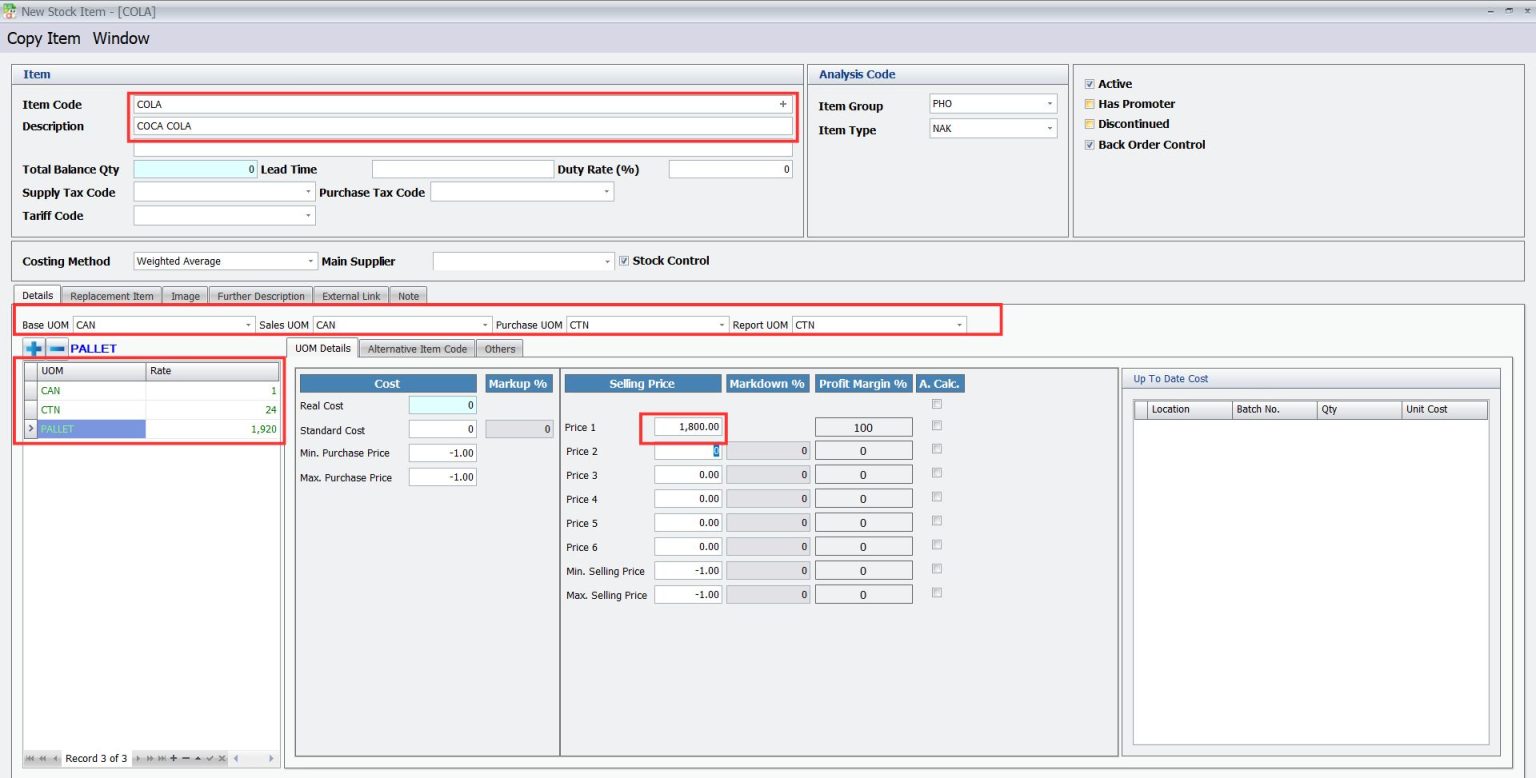
From item setup to the final stock balance, see how configured units connect purchasing, sales and reporting. The screenshots below come from the AutoCount Basic Multi-UOM user guide.
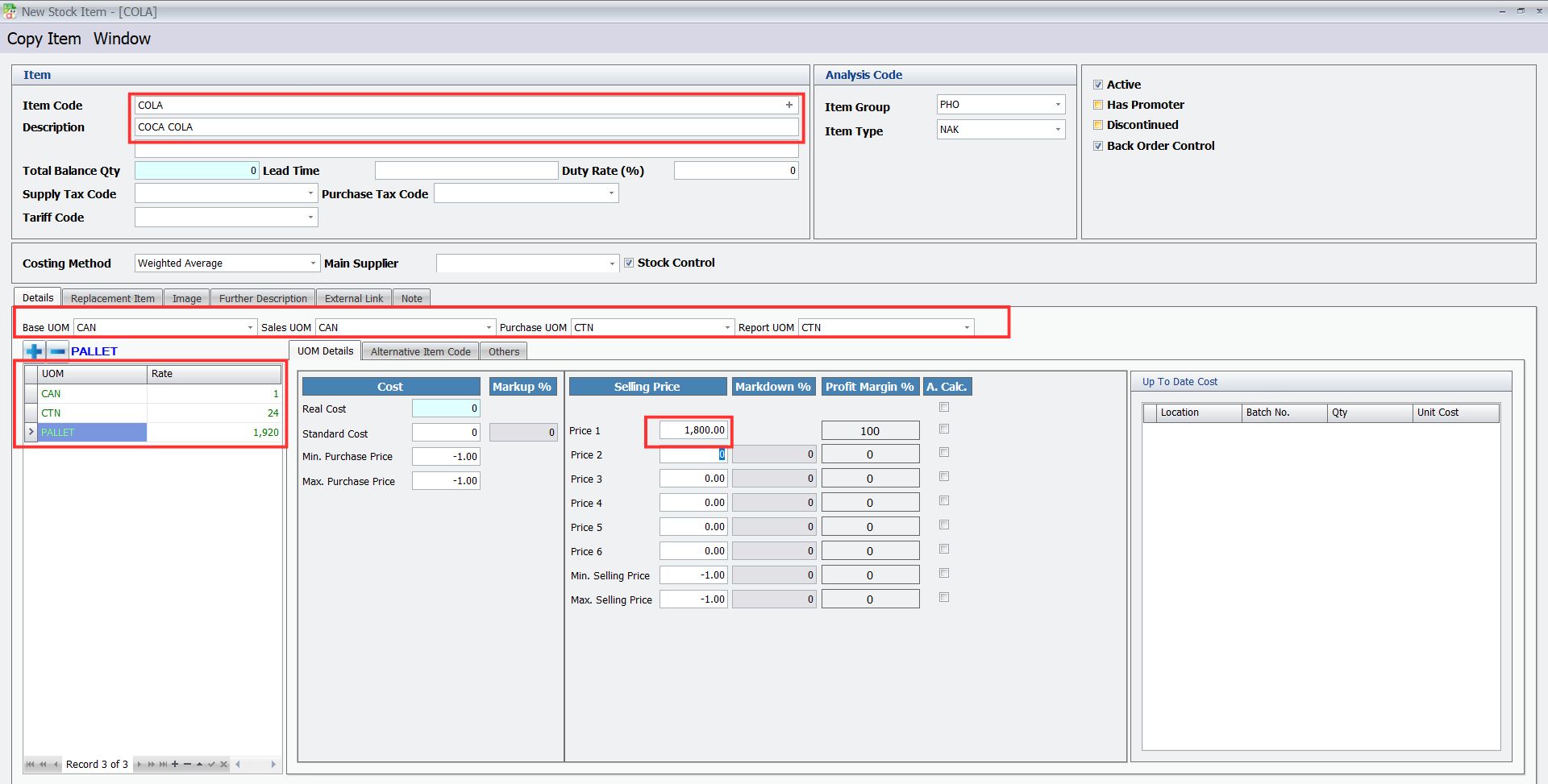
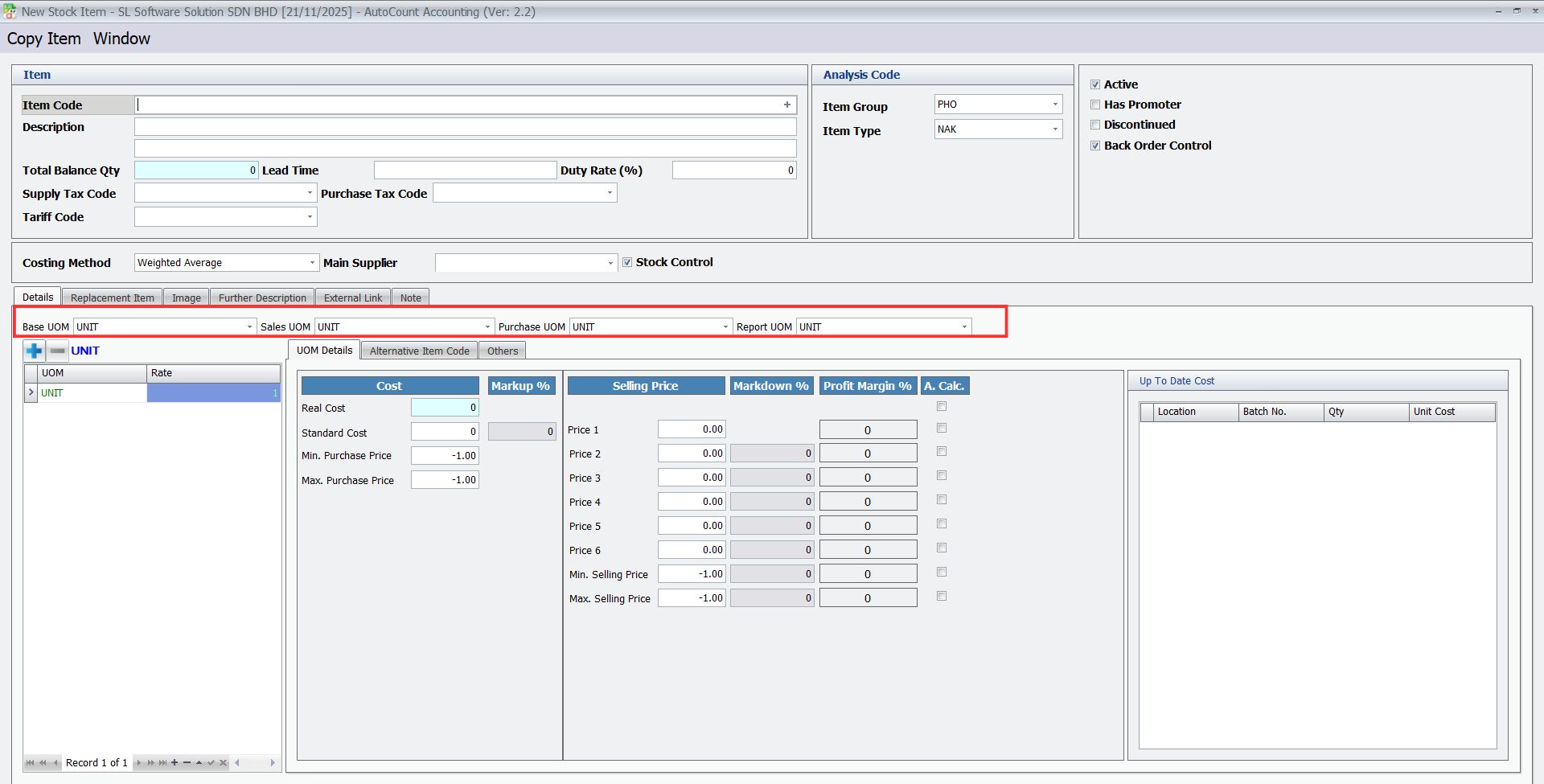
Define a base unit, conversion rate and the default units for purchasing, selling and reporting in Stock Item Maintenance. Start with the way your team actually handles each product.
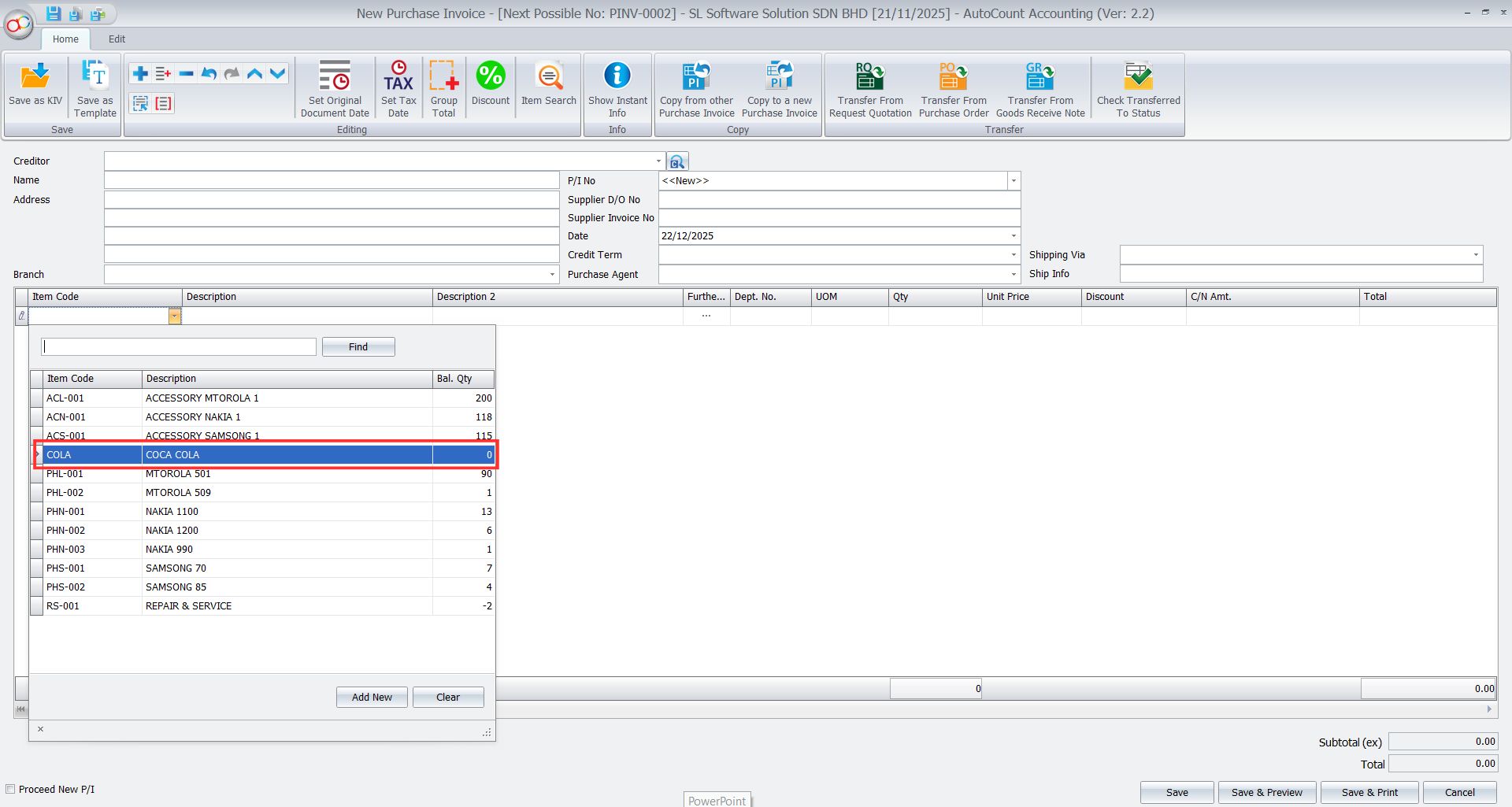
Record a purchase invoice in cartons, boxes or another configured purchase unit. AutoCount applies the item's default purchase UOM, and you can select another configured unit when the transaction requires it.
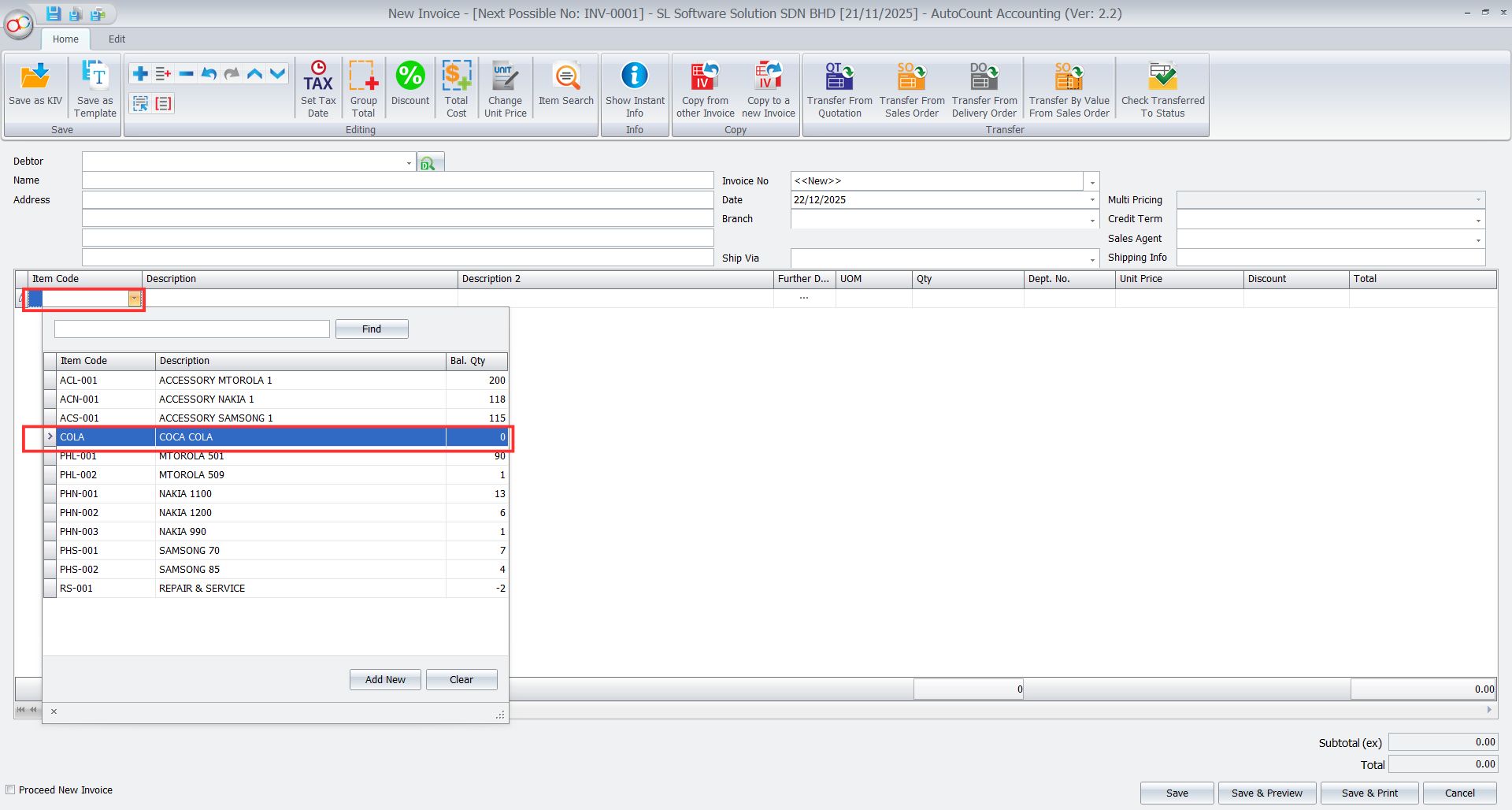
Use the item's sales UOM on invoices and change to another configured unit when needed. Buying a product by the carton does not mean every customer has to buy a full carton.
Set the relationship between units once, then use it throughout your purchase and sales workflow. For example, if one carton contains 24 cans, a sale of 6 cans represents 0.25 carton.
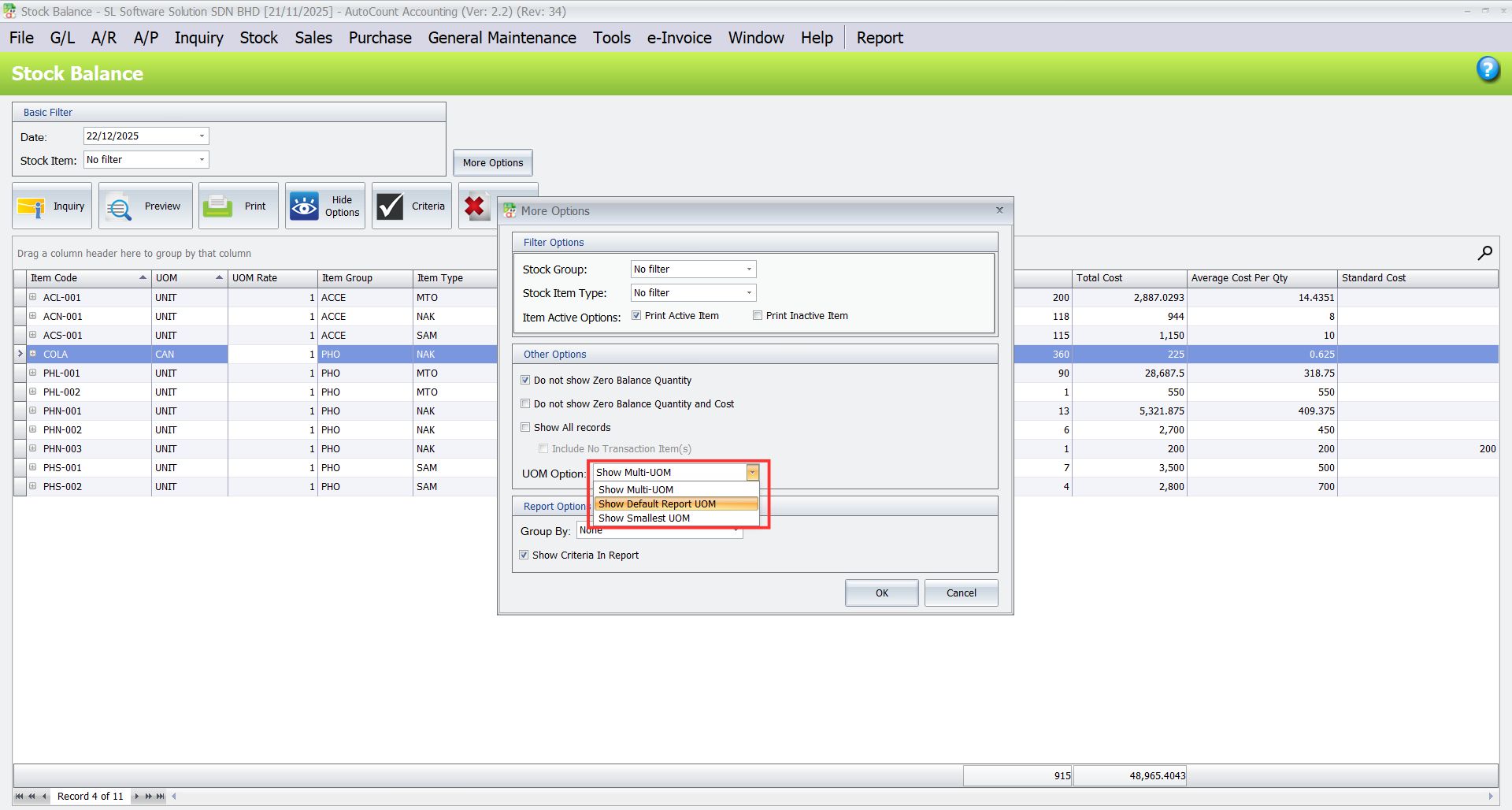
Choose the report UOM that makes stock quantities easier to review. The guide shows how to use More Option > UOM Option > Show Default Report UOM in the Stock Balance Report.
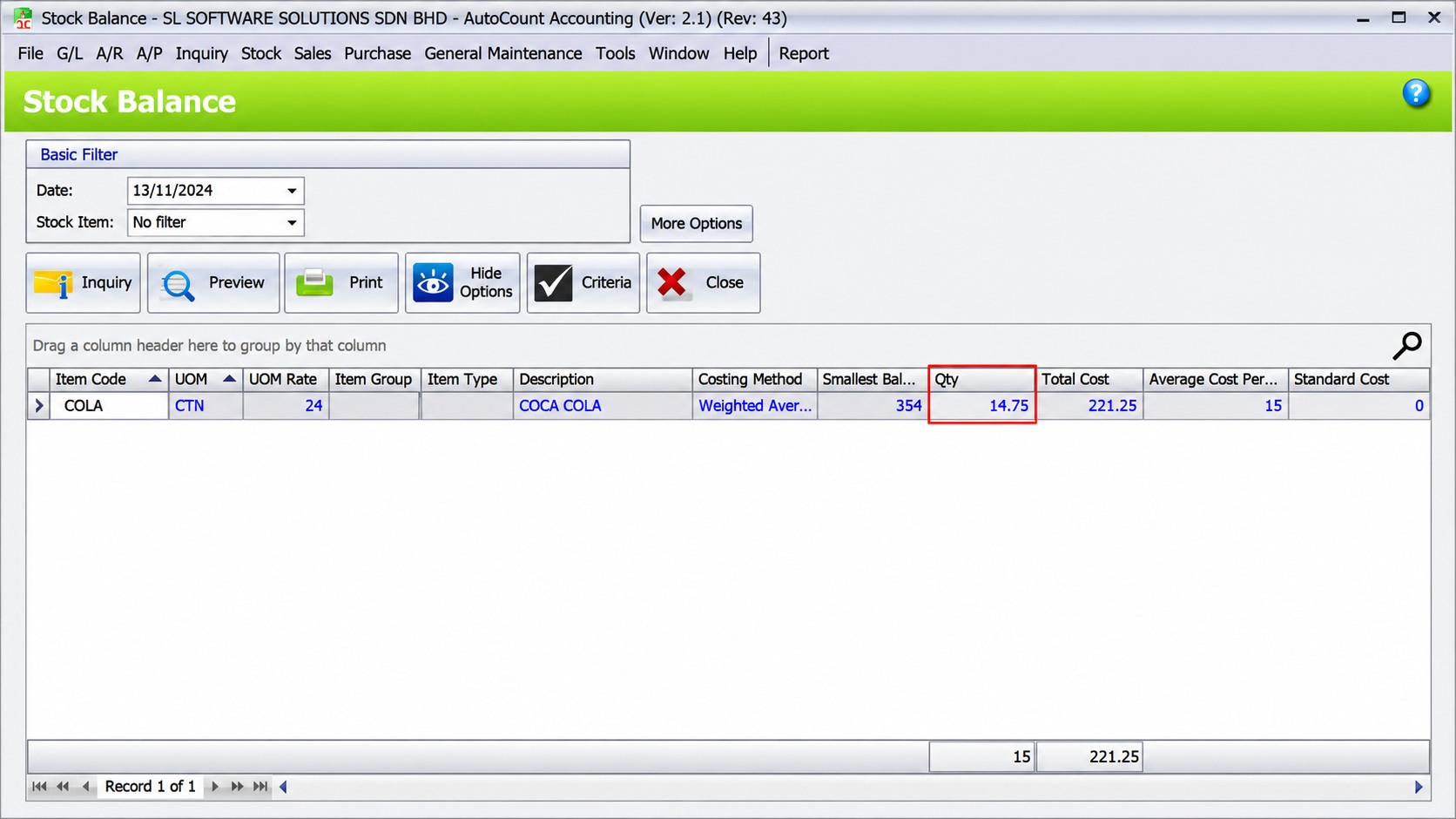
Test a complete transaction cycle before everyday use. With 24 cans per carton, buying 15 cartons and selling 6 cans leaves 354 cans, equivalent to 14.75 cartons. Compare the report with your expected result.
Show SL Software how you buy, sell and count your products. We can help you assess the units, conversion rates and AutoCount setup your business needs.
Receive products in cartons or boxes and sell individual cans, bottles or pieces using configured units.
Work with supplier pack sizes while selling in the configured quantities your customers order.
Keep item units and conversion rates consistent across purchase invoices, sales invoices and stock reports.
Watch the English or Chinese tutorial from the original user guide to see the module's setup and transaction workflow.
 Play tutorial
 Play tutorial
UOM means Unit of Measurement: the unit used to buy, sell or count a product. Examples include CAN, CTN, PCS and BOX. AutoCount Basic Multi-UOM links the configured units to the same stock item through conversion rates.
Yes. Configure the item's base unit, carton conversion rate and default purchase and sales units. For example, with 24 cans in one carton, purchasing 1 carton adds the equivalent of 24 cans to stock.
Yes. The documented workflow uses the item's default unit and lets you select another configured UOM in the invoice line. Check the quantity and price for the selected unit before saving.
Set the item's Report UOM, then open Stock Balance Report and use More Option > UOM Option > Show Default Report UOM. Run the inquiry again to review the quantity in that unit.
Check your licence and product edition in Tools > Program Control, then review Module Settings. Ask SL Software to confirm availability for your AutoCount edition and version before making changes to a live account book.
Start with the units and conversion rules your business needs. AutoCount Basic Multi-UOM covers the setup, transaction and report workflows shown here. If you have more complex unit requirements, ask SL Software to compare the available modules against a sample of your real stock items.
Pricing and setup requirements depend on your AutoCount licence and implementation needs. Contact SL Software for a quotation and a demonstration using your purchase and sales workflow.
Need step-by-step instructions? Read the complete AutoCount Basic Multi-UOM user guide for the setup, purchase, sales and stock reporting walkthrough.
Bring a few examples of how you buy and sell your products. Our team can review the workflow with you and recommend a suitable AutoCount setup.