Repeated line-by-line checks
Large statements make it difficult to compare every bank transaction efficiently.

The AutoCount Auto Bank Reconciliation Plugin helps your accounts team load supported bank statements, review automatic matches and resolve unmatched transactions inside AutoCount Accounting.
Ask our team about plugin suitability and version compatibility before purchase.
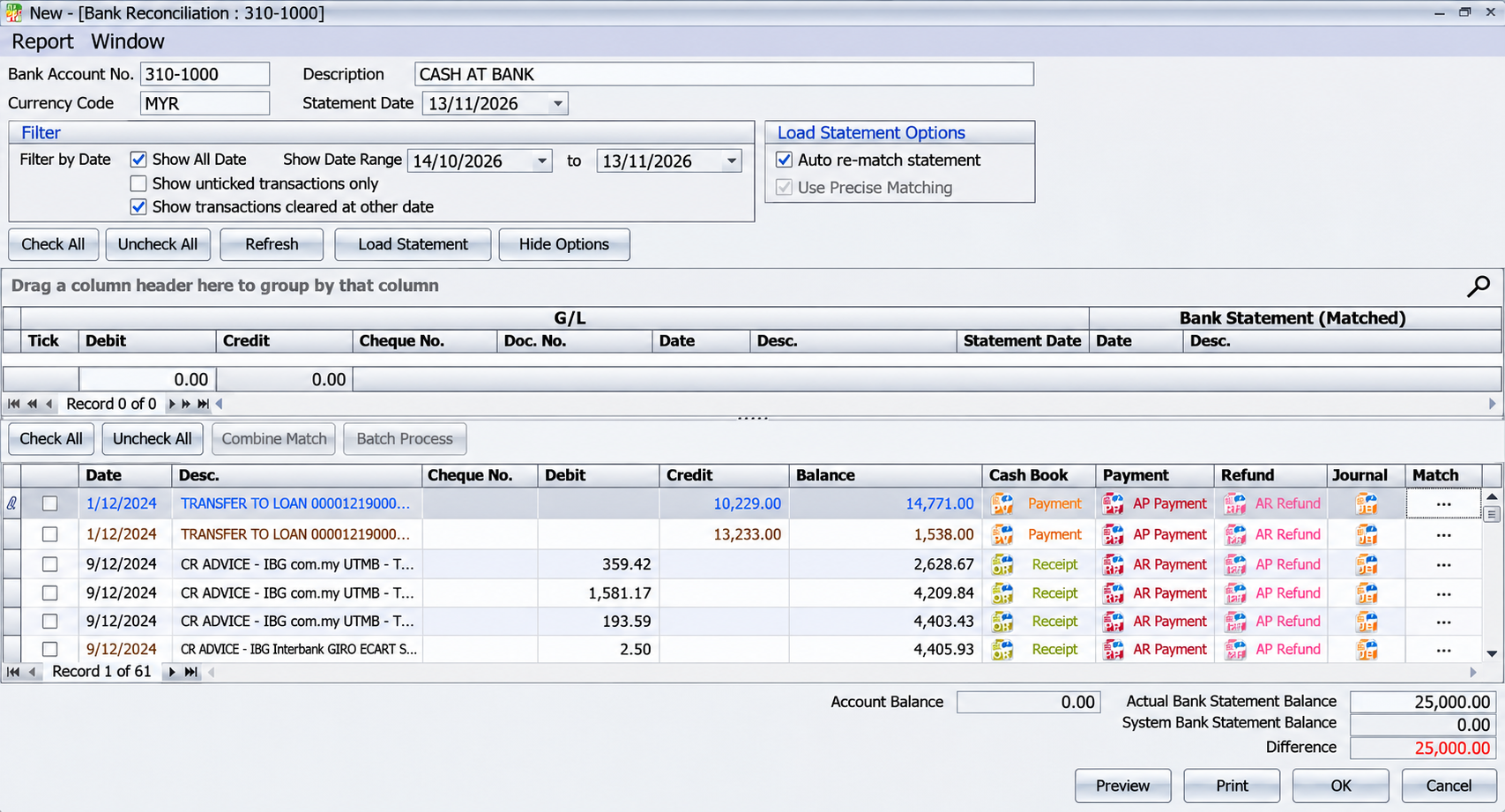
Matching bank statements to accounting records line by line can slow down a busy accounts team. The AutoBank Reconciliation Plugin provides a structured process for importing statement data, checking matching results and investigating differences. Your team can focus its review on the records that need attention.
These are common workflow problems the plugin can help your business address.
Large statements make it difficult to compare every bank transaction efficiently.
Column positions, worksheet names and statement formats can vary between banks.
Missing documents and unmatched transactions make reconciliation harder to complete.
See how the plugin's features can support your day-to-day workflow.
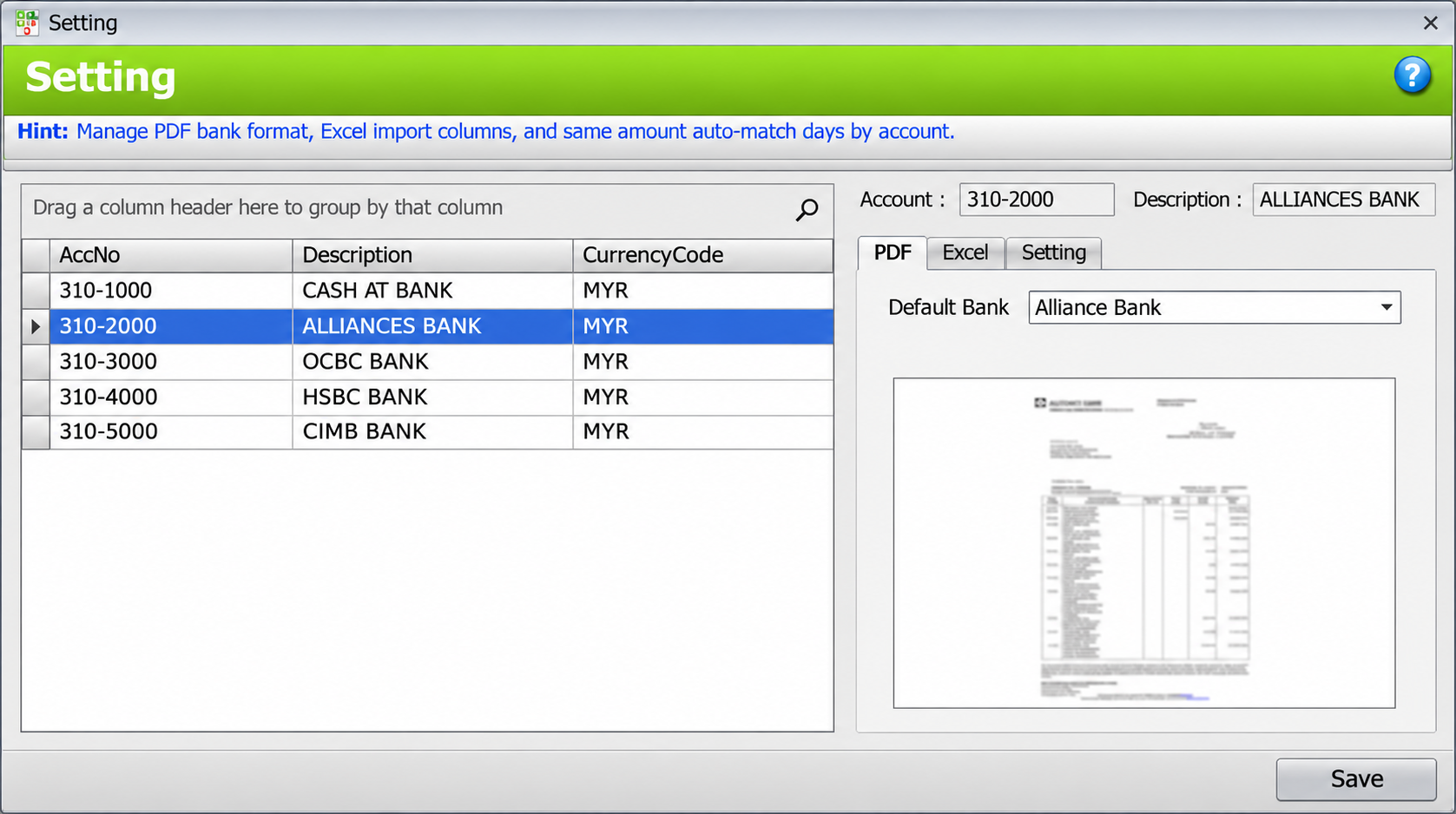
Select the relevant bank account and configure the PDF bank format to match your statement layout.
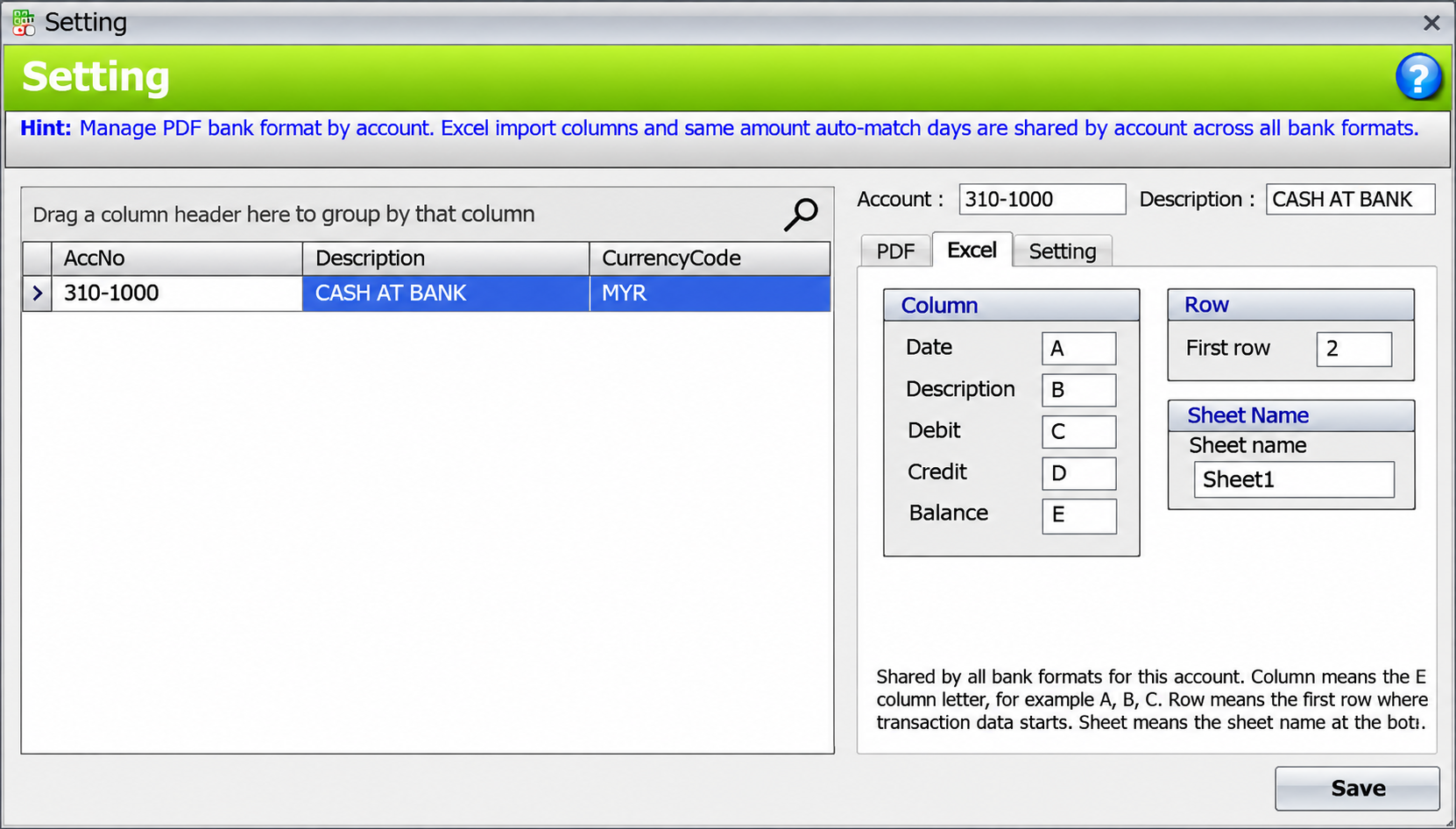
Set the date, description, debit, credit and balance columns, together with the first data row and worksheet name.
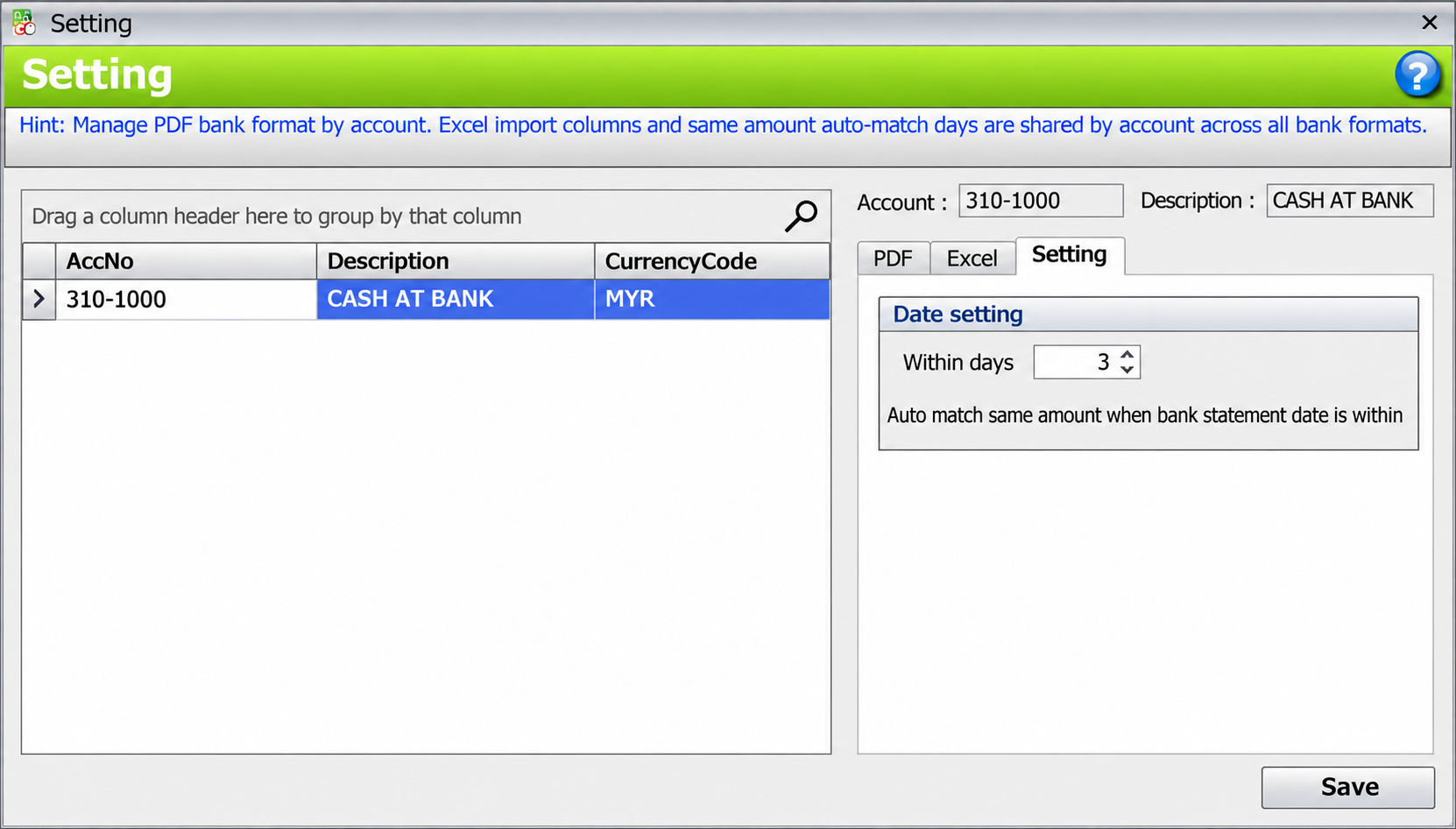
Configure the permitted date difference for same-amount automatic matching, then review the resulting matches.
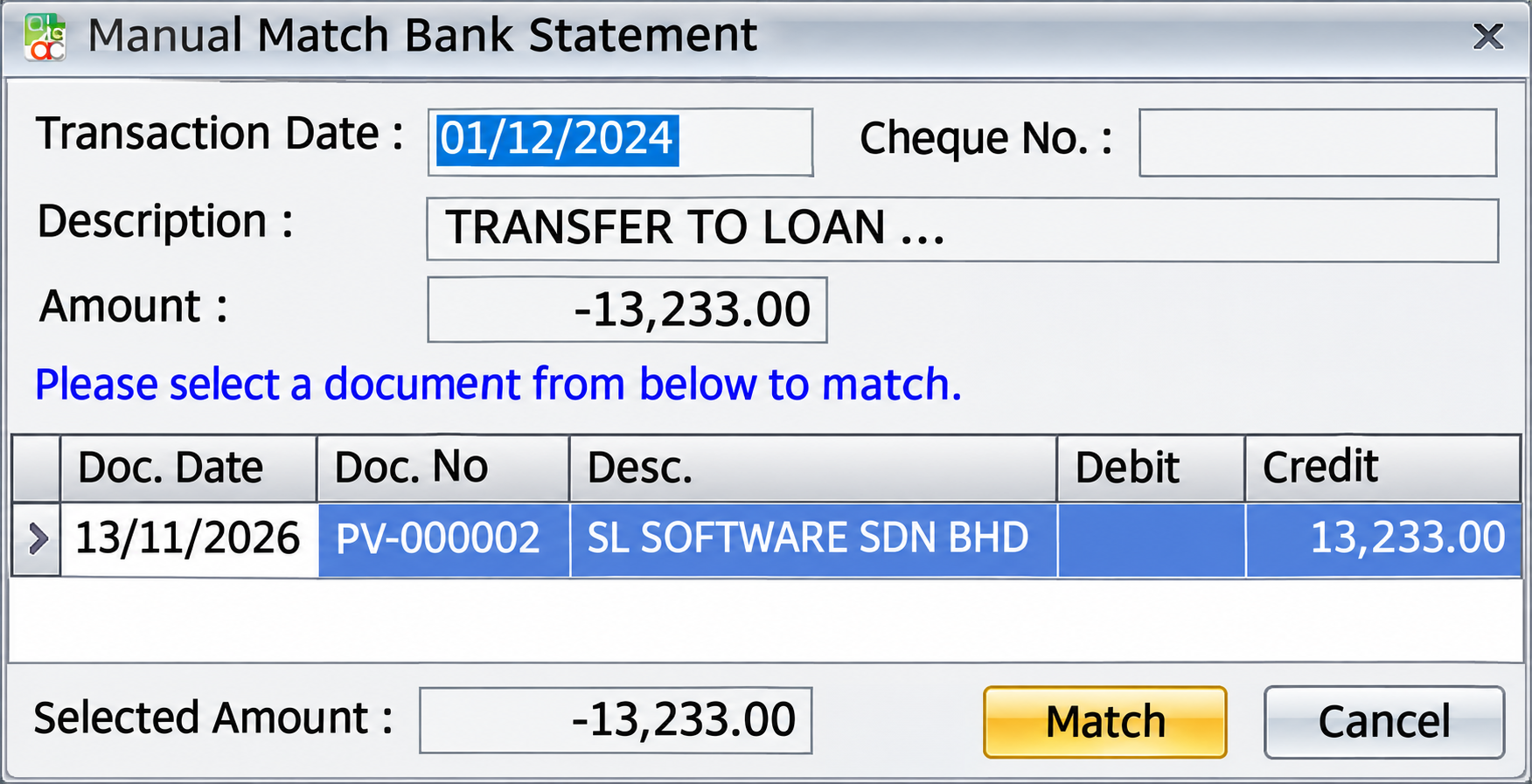
Review remaining statement lines and use manual matching to select the corresponding accounting document. Where a document is missing, the screen provides relevant accounting-entry actions.
Review Actual Bank Statement Balance, System Bank Statement Balance and Difference alongside the transaction grid.
Tell SL Software about your current workflow and the outcome you need.
An illustrative business workflow using the documented plugin functions.
Select the bank account and confirm the statement format.
Use the configured PDF format or Excel mapping.
Verify automatic matches and investigate unmatched records.
Resolve differences and review entries before finalising.
Organise statement matching when transaction volumes grow.
Configure statement settings for the relevant account.
Use balance comparison and exception review in the reconciliation process.
Yes. The guide documents supported PDF bank formats and Excel column mapping. SL Software can assess your actual statement layout.
The documented workflow loads statement files. Direct bank feeds or online banking connections should be discussed separately with SL Software.
Matching depends on the statement, accounting documents, amounts and date window. Review automatic matches and handle exceptions manually.
Yes. Manual Match Bank Statement lets you compare the bank transaction and candidate accounting documents before matching.
Send a redacted sample to SL Software for a format and compatibility assessment before purchase.
Contact SL Software for a current quotation based on your licensing and setup. Our team can review your AutoCount version and requirements before recommending the plugin.
Already using this plugin? Read the AutoCount Auto Bank Reconciliation User Guide for setup and operating instructions.
Browse the AutoCount add-on catalogue or consult the technical user guide.
Discuss your requirements with SL Software Solutions and explore the AutoCount Auto Bank Reconciliation Plugin in a product demonstration.
Product functions and compatibility should be checked against your deployed AutoCount version.