AUTOCOUNT ACCOUNTING · STEP-BY-STEP USER GUIDE

How to Add a New User ID in AutoCount Accounting

Learn how to create a new AutoCount Accounting user login, enter the user details and save the profile in four straightforward steps.
Quick path: General Maintenance → User Maintenance → New → Enter User Details → Save

Step-by-Step: Create a New AutoCount User Login

Follow the four steps below. Each instruction includes an enlarged AutoCount screenshot so you can easily identify the correct menu, button and fields.

STEP 1 · Open User Maintenance

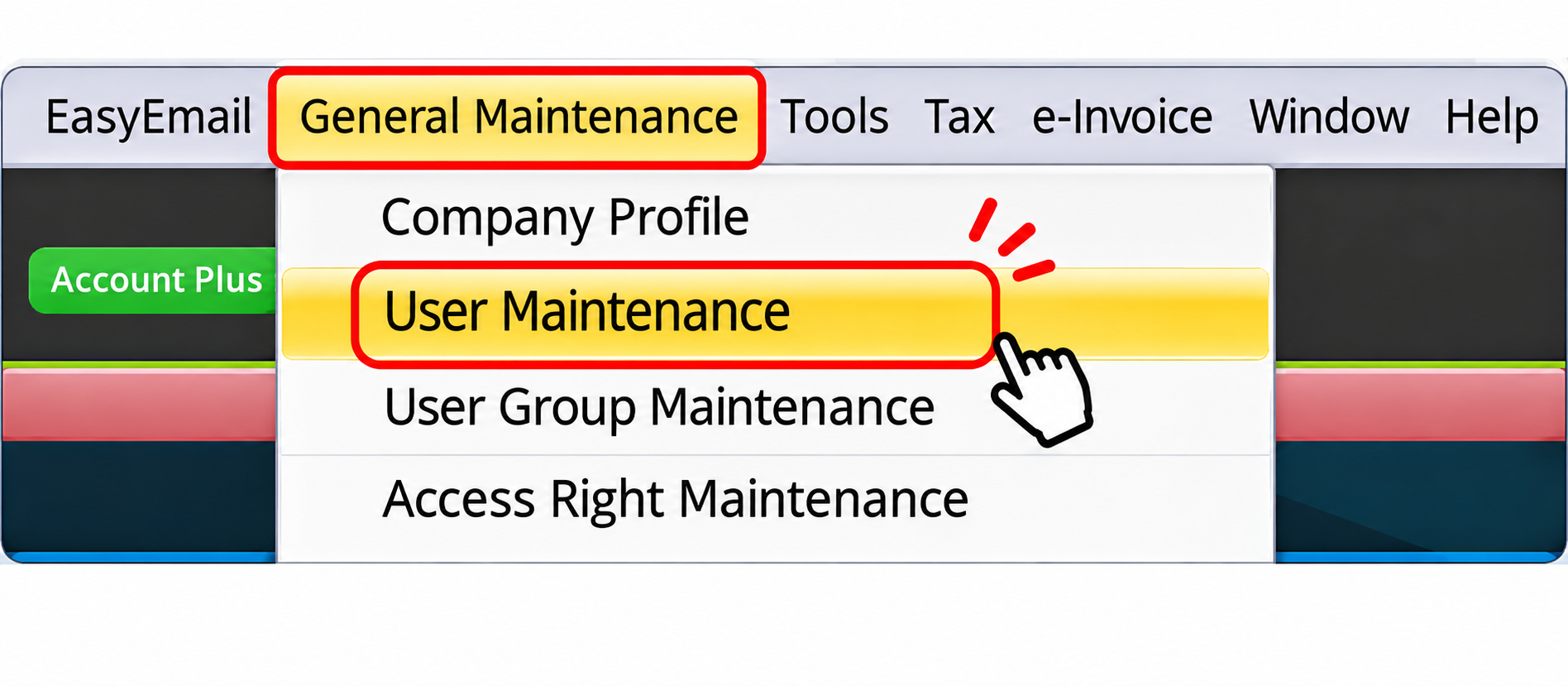
At the top menu, select General Maintenance, then click User Maintenance.
AutoCount General Maintenance dropdown showing User Maintenance

STEP 2 · Create a New User

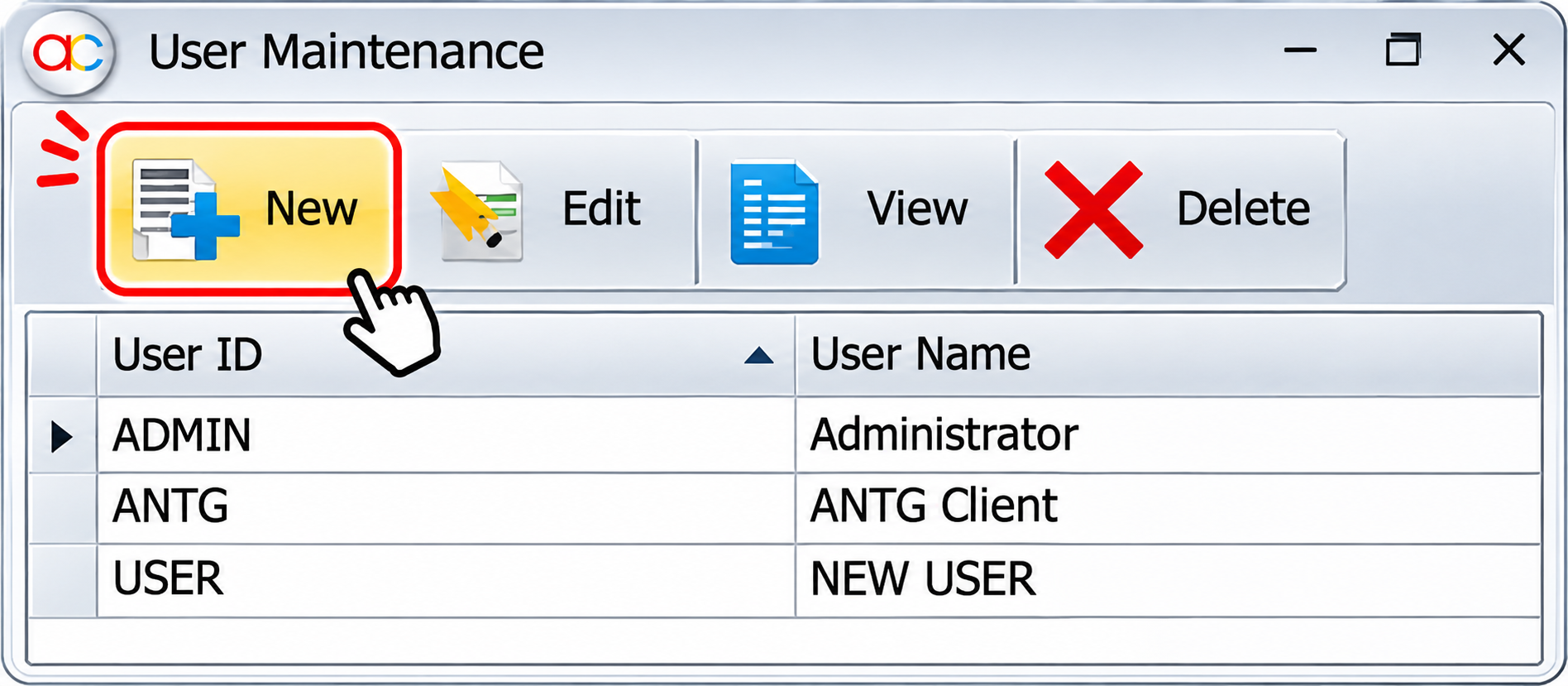
In the User Maintenance window, click New to open the User Editor.
AutoCount User Maintenance toolbar with New button

STEP 3 · Enter User Details

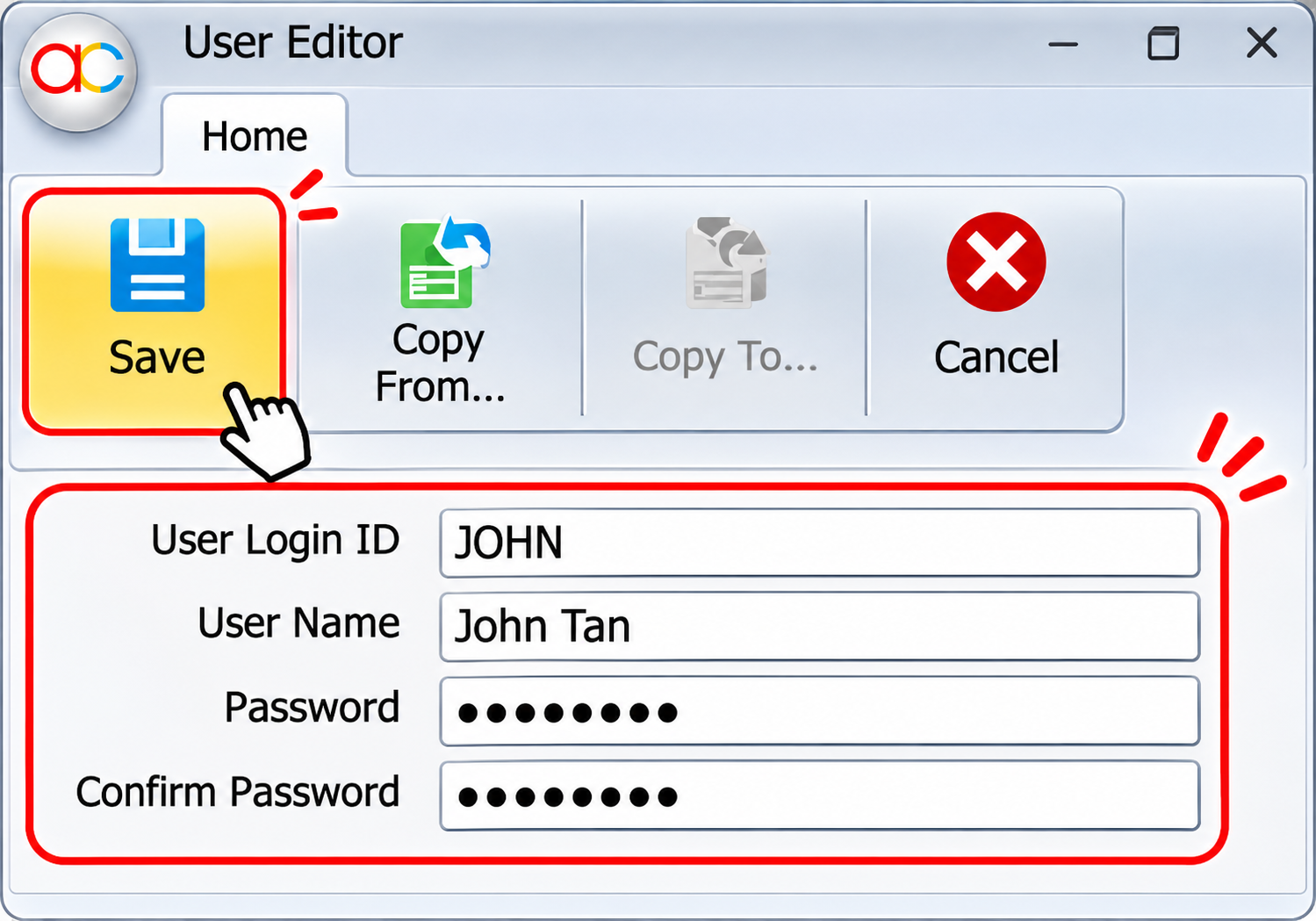
In the User Editor, complete User Login ID (example: JOHN), User Name (example: John Tan), Password, and Confirm Password (enter the same password again).
AutoCount User Editor input fields for login ID user name and passwords

STEP 4 · Save the User

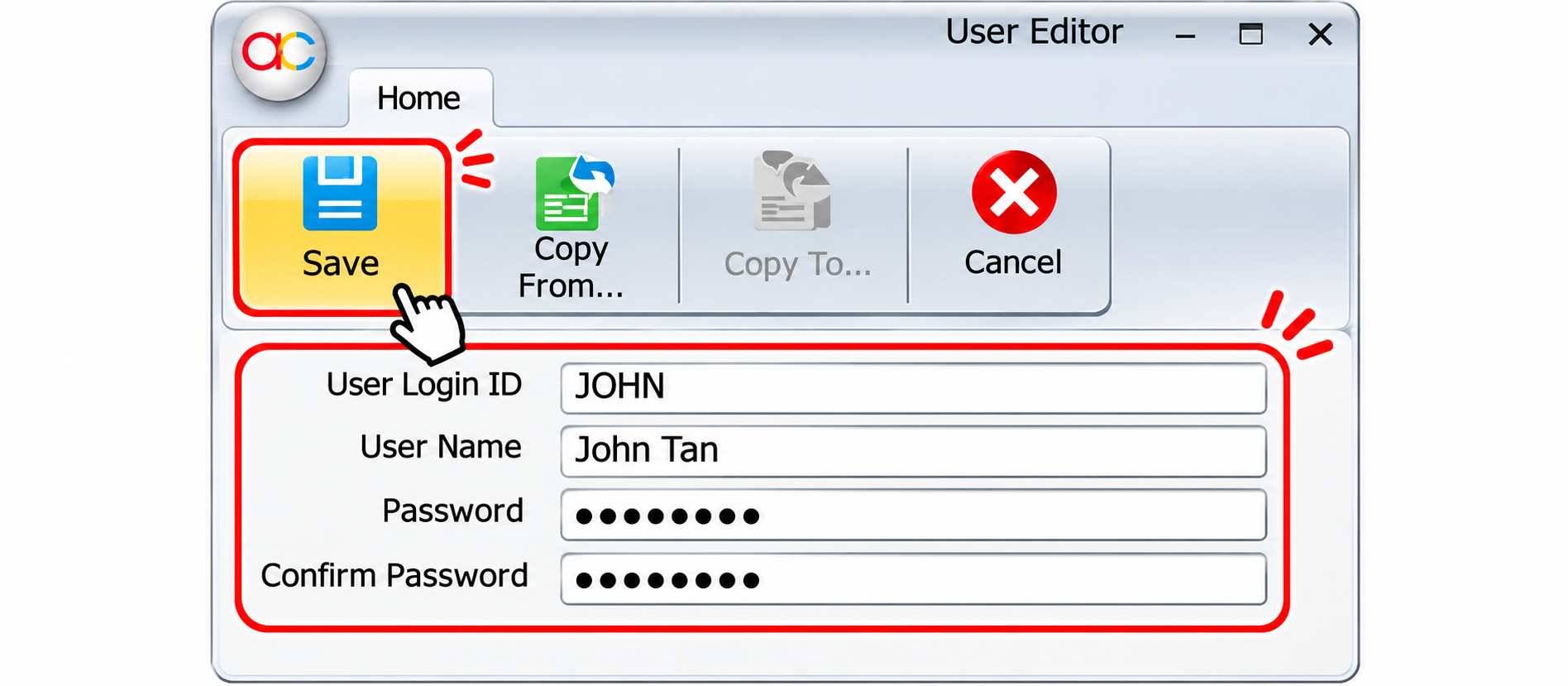
Click Save in the User Editor to create the new user.
AutoCount User Editor Save button

Before You Finish

Check that the User Login ID and User Name are entered correctly and that the password matches the confirmation field. This guide covers creating the user; any additional access-right configuration should be handled separately according to your company’s permissions policy.

Frequently Asked Questions About AutoCount User IDs

At the top menu, go to General Maintenance, then choose User Maintenance.

Enter the User Login ID, User Name, Password, and Confirm Password in the User Editor.

After entering the details, click Save in the User Editor.

This illustrated guide covers user creation only. Review access rights separately according to your organization’s requirements.

Need Assistance with AutoCount User Setup?

Need help with AutoCount user maintenance or setting user permissions? Contact SL Software Solutions for assistance.