
AutoCount Cloud payment knock off connects customer receipts and supplier payments to the right invoices. Learn how to record payments, apply the correct amounts and review outstanding balances in AutoCount Cloud Accounting.
A practical guide to partial settlements, deposits and payment allocation checks.
Recording a receipt or payment captures the money received or paid. Applying it to the intended invoices explains which documents have been settled and which amounts still need follow-up.
Use the payment reference, supporting evidence and invoice breakdown together. An equal amount alone does not establish that the correct invoice has been selected.
Begin with the correct customer or supplier and the actual payment information. Select the intended invoices, check the application amounts and review the remaining balances.
Before creating a voucher, check whether the payment already exists. This helps your team avoid recording the same money twice.
AutoCount Cloud Accounting v1.1.84, released on 19 October 2026, introduced outstanding invoice selection within Cash Book Entry after choosing a customer or supplier. Older tutorials may instead show a separate knock-off screen after saving the voucher.
Confirm the customer or supplier account and intended company before recording the transaction.
Have the actual payment date, amount, payment method and transfer reference ready.
Keep the remittance breakdown or invoice numbers alongside your payment evidence.
Check whether another team member has already entered the receipt or payment.
Customer payment: Receipt Voucher.
Supplier payment: Payment Voucher.
Existing payment: review its current allocation before entering another voucher.
General expense: use the appropriate Payment Voucher and posting account; it may not involve a supplier invoice.
For AutoCount Cloud payment knock off, use a Receipt Voucher when a customer pays an outstanding invoice. Record the amount actually received, then check how it is applied to the intended invoices.
Go to Accounting → Cash Book Entry.
Use +New and select the receipt document.
Choose the account whose invoices the payment is intended to settle.
Complete the payment date, method, actual amount and supporting reference.
Check the invoices available in your current Cash Book screen against the customer remittance advice.
Allocate the appropriate amount to each intended invoice. Review partial allocations carefully.
Save the transaction and review the resulting invoice balances.
The approved image will be placed here after upload.
If the payment is already recorded, review its allocation instead of creating a second receipt.
In Cash Book Entry, open +New → New Payment Voucher. The screenshot below shows this menu; screen details may vary by version.
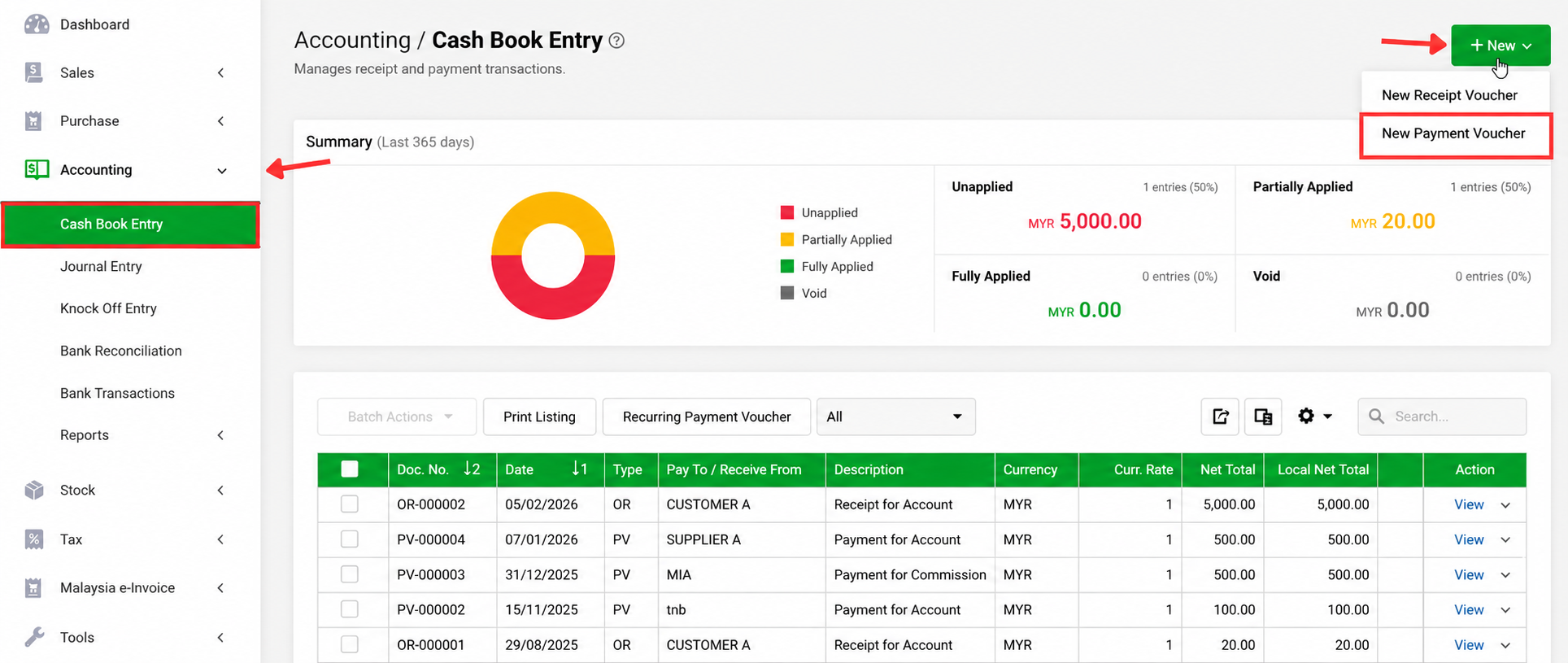
Use a Payment Voucher for a payment to a supplier. Confirm which Purchase Invoices it covers before selecting documents.
Use the supplier statement and remittance breakdown to distinguish invoices with similar values. Keep the payment evidence with your accounting records.
Open Cash Book Entry and choose the payment document.
Confirm the intended supplier account.
Record the actual date, amount, payment method and reference.
Select the invoices covered, review application amounts and save.
Review the original record and its current allocation first. A bank movement, a saved voucher and an invoice allocation answer different questions.
The separate Knock Off Entry function can manage eligible customer and supplier allocations, including multiple selected documents.
Go to Accounting → Knock Off Entry and click +New.
Select the debtor or creditor, then the relevant outstanding documents and available transactions.
Check the selected positive and negative amounts. Do not apply money to an unrelated invoice simply to balance the screen.
Confirm the entry and review the intended invoice balances.
In the separate Knock Off Entry, this means the allocation balances. An invoice may still be partially unpaid when only part of its outstanding amount is applied.
These AutoCount Cloud payment knock off examples illustrate full payments, partial settlements and excess receipts. Verify the actual payment and intended documents before applying an amount.
Invoice RM1,000 · Paid RM1,000
Allocate the receipt to the intended invoice and confirm the resulting balance.
Invoice RM1,000 · Paid RM400 · Remaining RM600
Record and apply only RM400. The invoice still has RM600 to be followed up.
RM500 + RM1,000 covered by one RM1,500 receipt
Use the customer breakdown to select both documents and check the total allocation.
RM1,200 received for a RM1,000 invoice
Investigate the extra RM200. It may relate to another invoice, a deposit or an overpayment requiring clarification.
AutoCount’s documented example uses a Receipt Voucher for money received before the invoice is issued. A later invoice can be allocated against the earlier receipt and a subsequent balance payment.
Retain the original receipt and a clear reference to the order. When invoicing, check the deposit before requesting or recording the remaining amount. Do not record the original deposit again.
For AutoCount Cloud payment knock off involving a deposit, check the earlier receipt reference and remaining unapplied amount before selecting the invoice.
Record the first RM100 receipt when received. After the invoice is issued and the remaining RM100 is received, review both receipts against the RM200 invoice.
AutoCount’s Payment Amount example follows a different posting route from an invoice followed by a separate customer receipt. A fully paid invoice using that method does not require the same separate knock-off process.
A Receipt Voucher records payment through the customer account and is allocated against the relevant invoice. Review how the original payment was recorded before adding another receipt.
Working check: discuss corrections with the person responsible for your accounting process. Do not remove payment information merely to make an invoice appear in a list.
Check whether payment was already recorded through Payment Amount in the invoice. Confirm the account and review existing records before making changes.
An invoice dated after the selected knock-off date may not be available. Review the filter against the document date.
Check the status and required approval process. Draft or awaiting-approval documents need the appropriate approval; expired or void documents are not available for knock-off.
Compare selected invoices and applied payment amounts. Both sides of the separate allocation must balance to 0.00. Apply only the amount intended for settlement.
Include AutoCount Cloud payment knock off checks in your review before following up an unpaid invoice. Compare payment and allocation records to distinguish an unpaid balance from money already received but not yet applied to that document.
The approved image will be placed here after upload.
Yes. Select the intended invoices and review each application amount against the payment breakdown.
The October 2026 enhancement supports outstanding invoice selection after choosing a customer or supplier. Your current screen may differ from older tutorials.
Check whether payment was applied to that invoice, whether only part was allocated and whether the correct account was used.
The official example uses a Receipt Voucher before invoicing and later allocation once the invoice is available.
Review the payment record and invoice allocation together. A bank entry alone does not explain which invoice the payment was intended to cover.
Talk to SL Software Solutions about your AutoCount Cloud payment knock off workflow, customer receipts, supplier payments and invoice allocation in AutoCount Cloud Accounting.
This guide is based on AutoCount Cloud Accounting documentation. Editorial images are illustrations, not software screenshots.
Explore AutoCount Cloud Accounting · Browse the Knowledge Base