
Mobile clock-in with AutoCount HRMS helps Malaysian businesses record employee attendance through the AC Payroll smartphone app. Whether your employees work in an office, retail outlet or designated field location, suitable clocking methods can help HR review working hours and prepare attendance information for payroll.
Mobile clock-in lets employees record attendance through AC Payroll instead of relying solely on punch cards or fixed terminals. Configured verification methods help HR review attendance records.
Employees who need to report additional working hours can also explore the Mobile Overtime Request in AutoCount HRMS workflow for submission and approval.
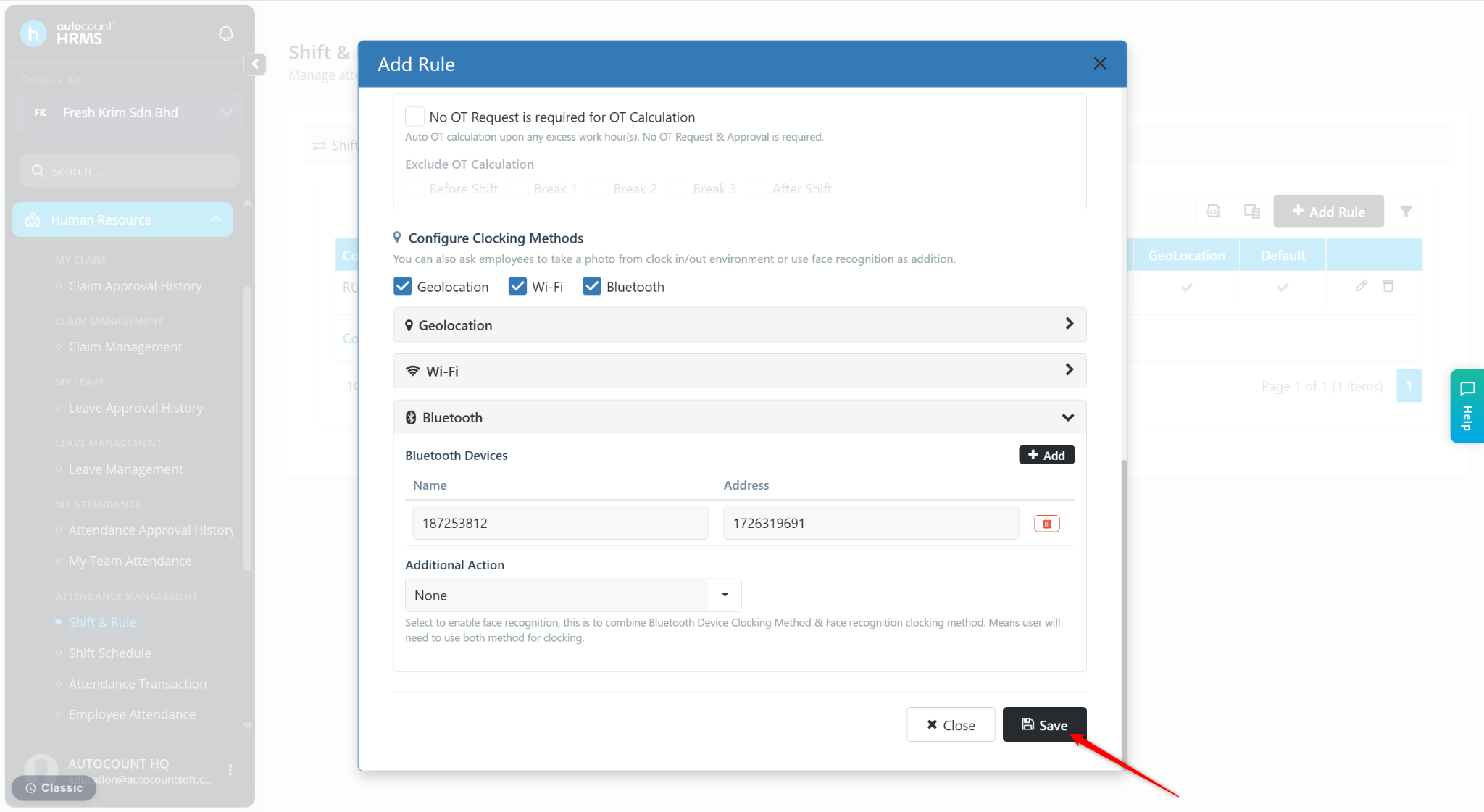
For example, office staff may use a configured workplace Wi-Fi network, while field teams may need approved GPS clocking locations. Retail outlets can evaluate suitable verification methods for their operating environment. Choose the method according to company attendance rules and supported configurations. HR can review the relevant attendance rules before rolling out mobile clock-in to employees.
Select a clocking method that matches your workplace and attendance rules.
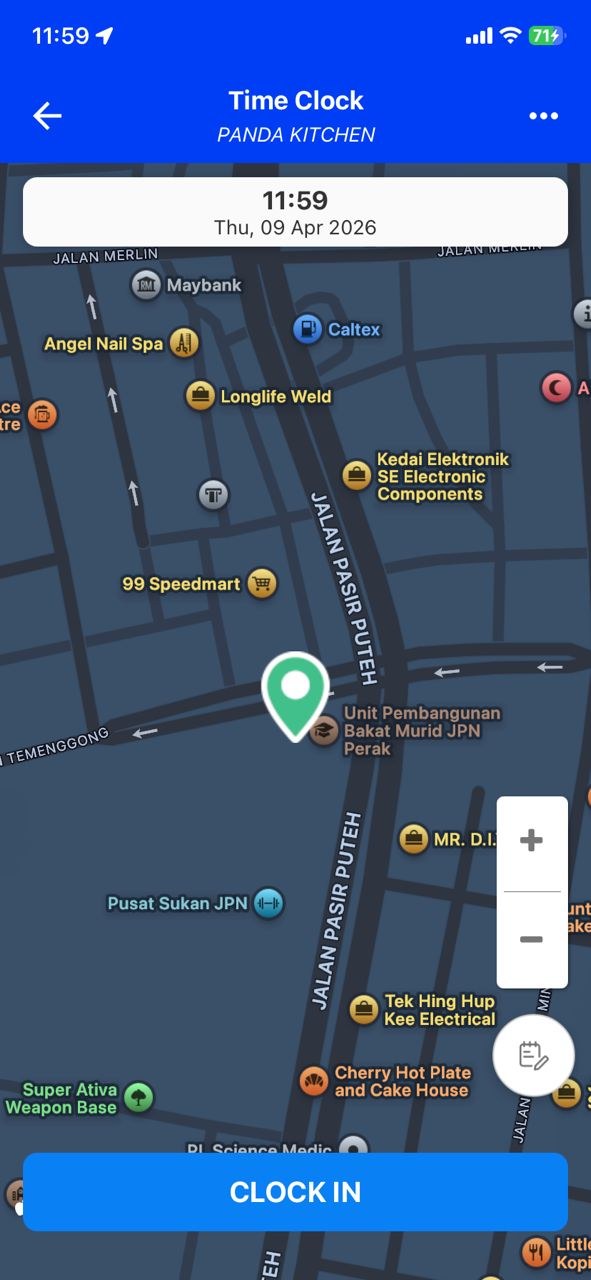
The system detects an employee’s actual clock-in location using GPS and allows attendance only within a permitted geofenced area.
Clock-in details are confirmed when the mobile device is connected to the workplace’s Wi-Fi network — ensuring the employee is physically present.
The system confirms clock-in by detecting a Bluetooth signal from a beacon installed in a specific area of the workplace.
Employees can clock in via mobile or an AutoCount iFace Biometric device that verifies identity in real time using facial recognition.

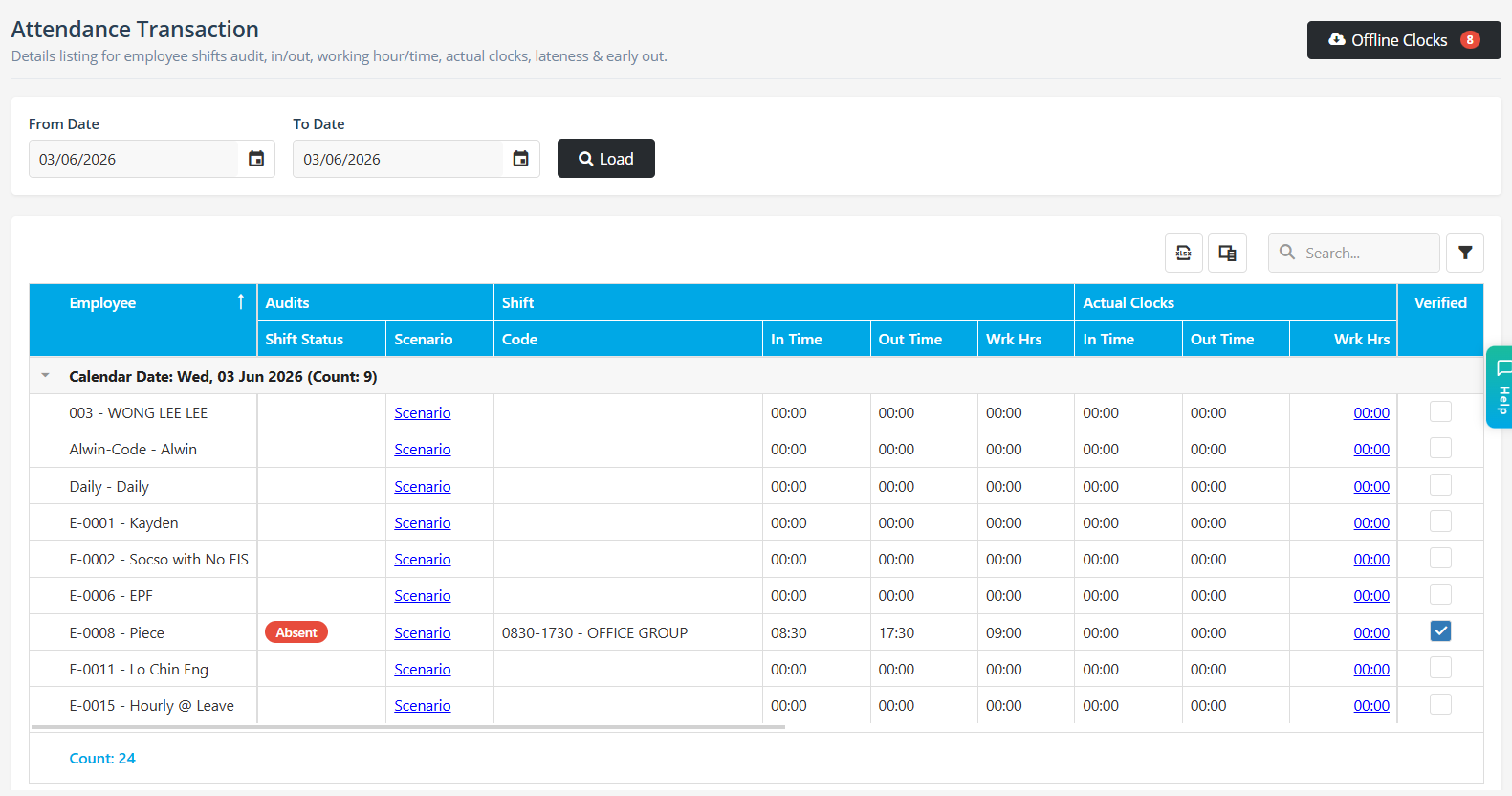
Use clock-in and clock-out records to support payroll and applicable overtime calculations. Before processing payroll, HR should review working hours, missing entries and exceptions, and confirm any necessary corrections according to company policy.
Review clocking timestamps and location records for attendance checks. When an employee reports a missed or incorrect entry, managers and HR can refer to the available attendance information before deciding whether a correction is needed.
Where offline clocking is supported, employees can capture attendance during connectivity interruptions and synchronise it after reconnecting. Employees should verify that their records have synced successfully.
The AC Payroll app provides an attendance dashboard, clock-in screen and location confirmation. Employees should use the approved clocking method, check the displayed attendance information and confirm that their entry has been recorded. The exact workflow depends on company settings. Employees should check their clocking confirmation and inform their supervisor or HR if an attendance record needs review.
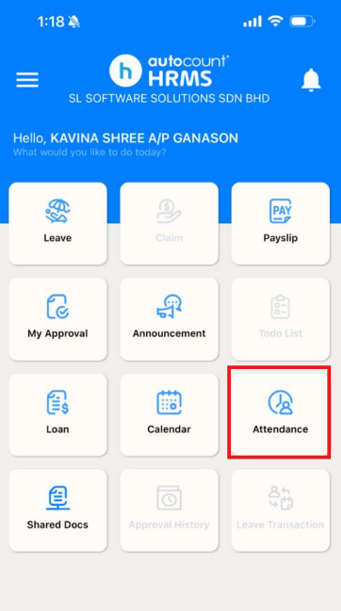
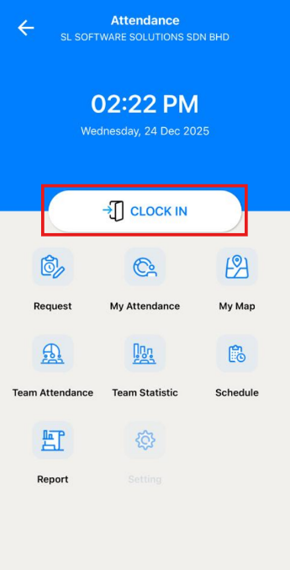
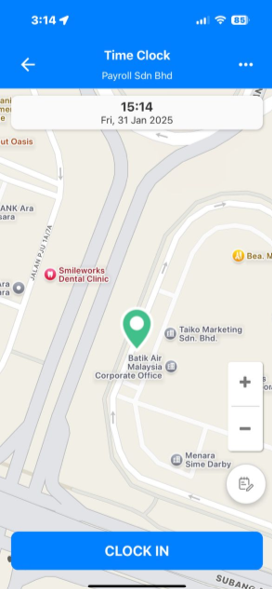
Record daily clock-in and clock-out using the approved mobile method, check confirmation and report missed or incorrect entries promptly.
Review team attendance, coordinate roster schedules and follow up on missing or unusual clocking entries according to company procedures.
Configure applicable shifts and clocking rules, review attendance exceptions and prepare verified attendance information for payroll. Before introducing mobile clock-in, HR should communicate the approved clocking methods, location requirements and reporting procedures so employees know what to do if they encounter an attendance issue.
Check internet connectivity before clocking where possible. If offline clocking is available, verify that the entry has synced after reconnection before attempting another submission.
Enable app notifications where applicable and review any attendance confirmation or relevant alerts.
Allow required location permissions and check that you are within the approved clocking area when using GPS-based attendance.
Employees can clock in using the AC Payroll mobile app by selecting the “Attendance” option, confirming their location via GPS, and tapping “Clock In.” Once successful, a confirmation message will appear.
Offline clocking may be available depending on the supported method and company configuration. Where supported, entries can be captured without connectivity and synchronised after reconnection. Verify the attendance record and contact HR if it remains missing.
Yes, AutoCount HRMS is flexible, offering various clock-in methods (GPS, Wi-Fi, Bluetooth, etc.), which can be tailored to specific roles or work environments, including fieldwork, office work, or remote positions.
Centralised attendance records help HR review shifts, working hours and clocking history. HR should check missing entries and exceptions before payroll preparation; attendance software alone does not guarantee statutory compliance.
Discuss your workplace locations, employee clocking requirements and payroll workflow with SL Software Solutions. Explore suitable AutoCount HRMS attendance configurations and request a demonstration of the relevant features.