Scale labels contain encoded values
The item, price or quantity is stored in specific digit positions.

Configure a 13-digit scale-barcode format, identify item-code and value positions, and scan encoded price or quantity directly into supported AutoCount invoice workflows.
Confirm scale output, flag digits, decimal positions and supported transaction workflows with SL Software.
A simplified concept view of the documented plugin workflow.
AutoCount Scale Barcode helps retailers use barcodes produced by compatible weighing scales. Administrators configure how AutoCount should interpret the flag, item code, encoded price or quantity and decimal placement within a 13-digit label.
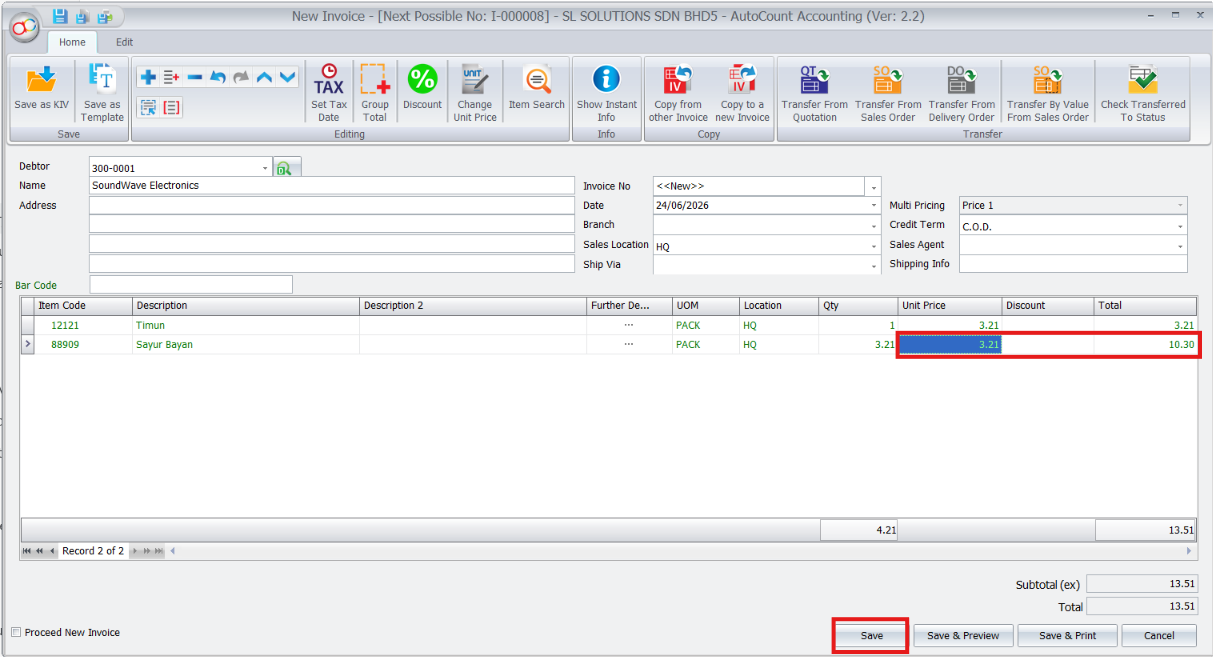
During invoice entry, staff scan the barcode and review the item, quantity, unit price and total before saving the transaction.
The item, price or quantity is stored in specific digit positions.
Rekeying weighted item information takes time and introduces errors.
An incorrect setting can make quantity or price too large or too small.
These capabilities follow the current Scale Barcode guide, from format configuration through price and quantity scanning and final invoice review.
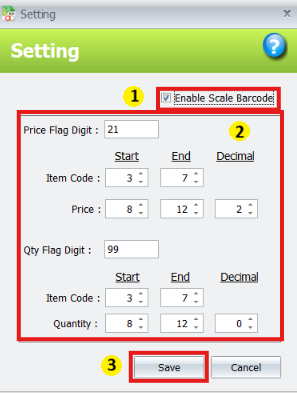
Enable Scale Barcode and define the flag, item-code positions, price or quantity positions and decimal settings that match the printed label.
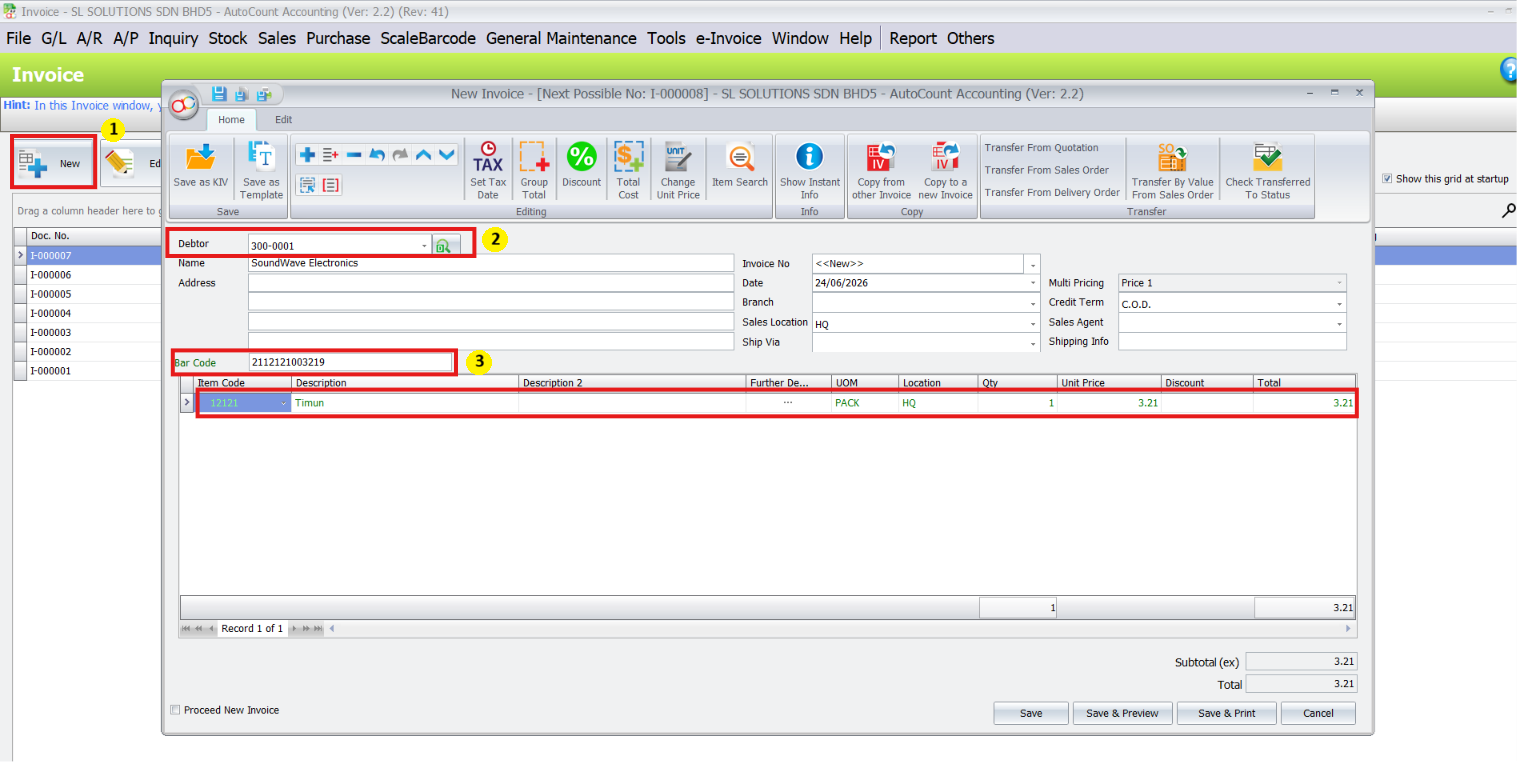
Scan the configured Price Format barcode in an invoice and let AutoCount identify the item and insert the encoded price.
Use the Qty Format flag so AutoCount identifies the item and inserts the encoded quantity according to the configured decimal setting.
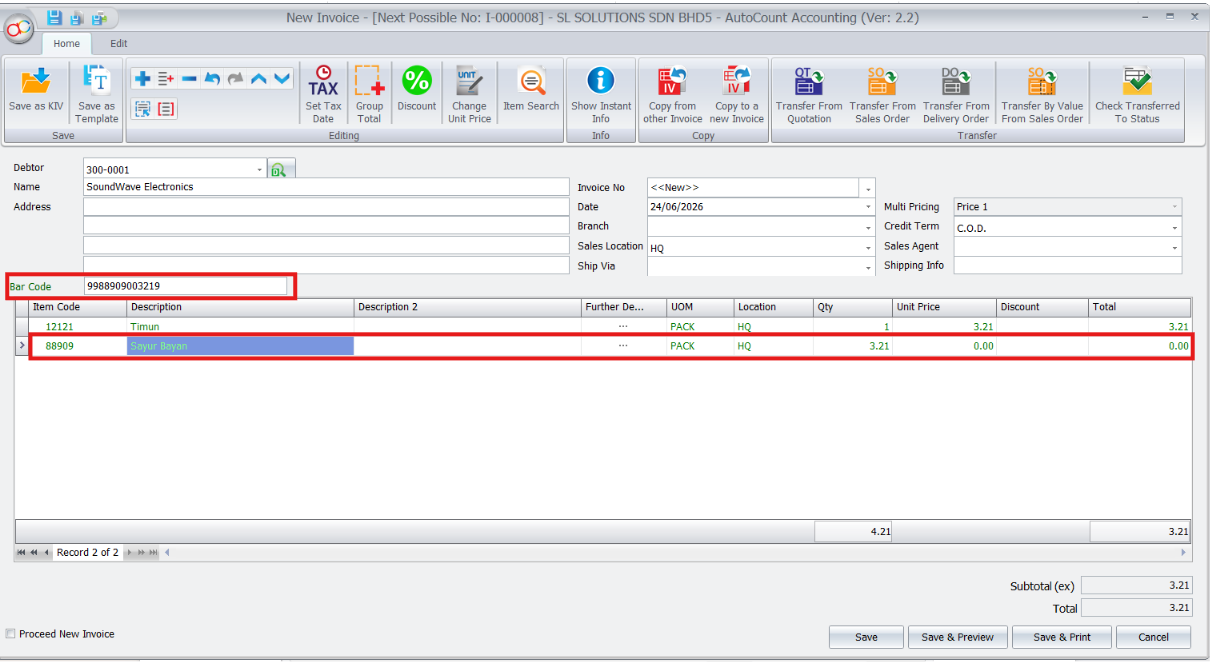
Confirm the item, quantity, unit price and total amount before saving the completed invoice.
Arrange a demonstration with SL Software and discuss your AutoCount version, responsibilities and reporting needs.
Reliable scanning begins with a label format that matches the configured digit positions.
Identify the flag, item code, value and decimal positions.
Enter the matching Price Format or Qty Format settings.
Use the invoice barcode field to read the scale label.
Confirm the inserted values before saving the invoice.
Handle produce, meat or other goods sold by weight.
Reduce manual entry for scale-labelled items.
Connect compatible scale output with AutoCount invoice entry.
The starting flag identifies the configured Price Format or Qty Format.
Check that the Item Code Start and End positions match the digits printed by the scale.
The decimal value determines how the encoded digits are converted into the final price or quantity.
It may come from AutoCount item pricing or require manual entry, depending on the configured workflow.
The guide notes that the last digit is not used by the plugin and may be a check digit or random digit.
Need operating instructions? Read the plugin user guide.
Configure the barcode format once, scan encoded price or quantity and review the transaction values before saving.