
-
AutoCount Accounting Features
-
- Approval Workflow
- Audit Trail
- Auto Save in Draft Folder
- AutoCount Contra Account
- AutoCount Feature Stock Take
- AutoCount License Setting Guide
- Column Chooser
- Deposit Tracking & Management
- Documents Numbering Format
- Full Transfer and Partial Transfer
- Import Data to AutoCount Accounting Using Excel
- Informative Charts and Analytical Data
- Layout Customization
- Multi Pricing
- Sales and Services Tax
- Schedule Backup
- Search Lookup Edit
- View Documents Flow
- Show Remaining (3) Collapse
-
AutoCount Cloud Accounting
-
AutoCount E-Invoice
- AutoCount E-Invoicing Tutorial
- E-Invoice Guide and Preparation for AutoCount Users
- Employee Handbook Template for E-Invoicing
- How E-Invoice Works in AutoCount Accounting?
- How to Enable and Submit SVDP e-Invoices in AutoCount 2.0
- How to Use AutoCount Accounting for LHDN e-Invoice
- What is E-Invoicing?
-
AutoCount Payroll & HRMS
-
- Coming soon
-
- Coming soon
-
AutoCount Modules
-
- Activity Stream
- Advanced Financial Report
- Advanced Item
- Advanced Multi-UOM
- Advanced Quotation Module
- AutoCount Bonus Point Module User Guide
- AutoCount Scripting Module User Guide
- AutoCount Service Management Plugin User Guide
- AutoCount SST Hidden Functions
- AutoCount SST Submission - Service Tax
- Basic Multi-UOM
- Budget Module
- Consignment
- Filter By Salesman
- FOC Quantity
- Formula
- Item Batch
- Item Package
- Landing Cost
- Multi-Currency
- Multi-Dimensional Analysis
- Multi-Location
- Project Account
- Recurrence
- Remote Credit Control Module
- Stock Assembly
- User Defined Fields (UDF)
- Show Remaining (12) Collapse
-
AutoCount Plugins
-
- AutoCount Car Tint Film Plugin
- AutoCount Credit Memo Plugin User Guide
- AutoCount Easy Recurrence Plugin
- AutoCount Lock Price Plugin
- AutoCount Pick List Plugin User Guide
- AutoCount Production order
- AutoCount Progressive Billing
- Batch Update Unit Price Plugin
- DMS Import Plugin
- Fixed Assets Management
- Goldsmith
- TD Ordering Mobile Apps
- TD Stock Mobile Apps
- Universal Import Plugin
-
- AutoCount Advance Aging Format Plugin
- AutoCount Advance Deposit Plugin
- AutoCount Advanced Credit Term Plugin User Guide
- AutoCount Advanced Stock Assembly Plugin User Guide
- AutoCount Agent Validation Plugin User Guide
- AutoCount AutoBank Reconciliation Plugin User Guide
- AutoCount Barcode Generator Plugin User Guide
- AutoCount Batch Transfer SO DO Plugin
- AutoCount Bill Remark Plugin User Guide
- AutoCount Cage Management Plugin User Guide
- AutoCount Centralized Kitchen Management Plugin
- AutoCount Daily Collection Summary Plugin User Guide
- AutoCount Easy Batch Number Entry Plugin User Guide
- AutoCount Easy Deposit Plugin User Guide
- AutoCount Easy Knock Off Plugin
- AutoCount Easy Payment Plugin User Guide
- AutoCount Easy Photo 2.0 User Guide
- AutoCount Email & WhatsApp Plugin User Guide
- AutoCount Event Management System Plugin User Guide
- AutoCount Fruit Basket Plugin Guide
- AutoCount GridToExcel Plugin
- AutoCount Historical Outstanding DO Listing Plugin
- AutoCount IC Checker Plugin
- AutoCount Integrator Plugin
- AutoCount InterCompany Billing Plugin
- AutoCount Item Visibility Control Plugin User Guide
- AutoCount Migrator Plugin
- AutoCount MRP Order Plugin
- AutoCount Multi Company Knock Off Plugin
- AutoCount Optical Plugin
- AutoCount Pain Tracker Plugin User Guide
- AutoCount Payment Request Plugin
- AutoCount Procurement Planning Plugin User Guide
- AutoCount Project Department Visibility Control Plugin
- AutoCount Recurrence Late Interest Plugin
- AutoCount Recurring Invoice Plugin User Guide
- AutoCount Referral Management Plugin User Guide
- AutoCount Rental Management
- AutoCount RMA Plugin
- AutoCount Sales Commission Plugin
- AutoCount Scale Barcode Plugin User Guide
- AutoCount Service Contract Plugin User Guide
- AutoCount Shipment Plugin User Guide
- AutoCount Smart Analysis Plugin User Guide
- AutoCount Stock Availability Report Plugin
- AutoCount Timber Log Plugin User Guide
- AutoCount To-Do List Plugin User Guide
- AutoCount Tour Plugin User Guide
- AutoCount Vege Basket Plugin User Guide
- AutoCount Vehicle Master Plugin User Guide
- AutoCount Vehicle Plugin
- AutoCount Warranty 2.0 Plugin User Guide
- Batch Transfer SODO Plugin
- Intercompany Billing Plugin User Guide
- Lead Management 2.0 Plugin
- SL AutoCount API
- Show Remaining (41) Collapse
-
-
Form Template
-
Report Template
-
- Advance Quotation
- Cash Sale
- Consignment
- Consignment Movement
- Credit Note
- Debit Note
- Delivery Order
- FOC Quantity Analysis By Document Report
- Invoice
- Item Package Sales Report
- Monthly Sales Analysis
- Outstanding Sales Order Listing
- Profit And Loss Of Documents
- Quotation
- Sales Agent Contribution Report
- Sales Order
- Top/Bottom Sales Ranking
- Show Remaining (2) Collapse
-
- Available Stock Status Report
- Expired Item Batch Listing
- Inventory Physical Worksheet
- Stock Adjustment
- Stock Aging Report
- Stock Assembly
- Stock Assembly Order
- Stock Balance By Location
- Stock Balance Report
- Stock Card Report
- Stock Disassembly
- Stock Issue
- Stock Item Profit Margin
- Stock Movement Report
- Stock Receive
- Stock Take
- Stock Transfer
- Stock Write Off
- Show Remaining (3) Collapse
-
B2B ORDERING
-
AutoCount AI Agent
-
AutoCount FAQ & Troubleshooting
-
AutoCount F&B
-
- How to Accept or Reject QR Orders in AutoCount F&B POS
- How to Connect AutoCount POS Backend to QR Ordering Using an API Key
- How to Create a Restaurant in AutoCount QR Ordering Backend
- How to Customize AutoCount QR Ordering Customer View and Operating Hours
- How to Print and Test AutoCount F&B Table QR Codes
- How to Publish Menu Items to AutoCount F&B QR Ordering
- How to Set Up AutoCount F&B QR Ordering: Complete Guide
- How to Set Up Table QR Codes in AutoCount F&B
-
-
AutoCount Unicart Integration
- How Customer, Supplier and Order Field Mapping Works
- How Does a SiteGiant iSKU Map to an AutoCount Item Code?
- How Does the System Check Duplicate iSKU Mapping?
- How Is the Stock Sync Quantity Calculated?
- How Shipping, Discounts, Vouchers and Marketplace Charges Post to AutoCount?
- How Should a New AutoCount Item and SiteGiant iSKU Be Created?
- How SiteGiant Members and Bonus Points Sync with AutoCount POS
- How SiteGiant Orders Sync to AutoCount: Manual or Automatic
- How SiteGiant Purchase Flow Posts to AutoCount GRN
- How to Auto Sync AutoCount Price & Cost to SiteGiant Inventory
- How to Choose the Stock Master in SiteGiant and AutoCount
- How to Connect SiteGiant ERP to AutoCount and Confirm the Connection
- How to Handle Cancelled, Returned or Refunded Online Orders?
- How to Handle Fulfilled by Shopee Stock in AutoCount
- How to Handle SiteGiant Bundle / KIT Items
- How to Map Different UOMs for the Same Item?
- How to Reconcile Marketplace Settlements Using Bulk Knock Off
- How to Set the Posting Rules for Each Sales Channel
- How to Sync Stock from AutoCount to SiteGiant: Manual or Automatic
- Show Remaining (4) Collapse
AutoCount Scale Barcode Plugin User Guide
Configure AutoCount to read 13-digit weighing-scale barcodes, identify the encoded item, and insert either the barcode price or quantity into an Invoice transaction.
On this page
AutoCount Scale Barcode video guides
Choose the English or Chinese video for an additional walkthrough. Use the written sections below for the barcode-position and decimal rules.
English video
Chinese video
Before you begin
- Confirm the weighing scale prints a consistent 13-digit barcode.
- Identify which digits contain the flag, item code, price, or quantity.
- Confirm the scale’s decimal placement before entering the plugin settings.
- For quantity barcodes, confirm whether Unit Price should come from AutoCount item pricing or be entered manually.
1. Configure the barcode format
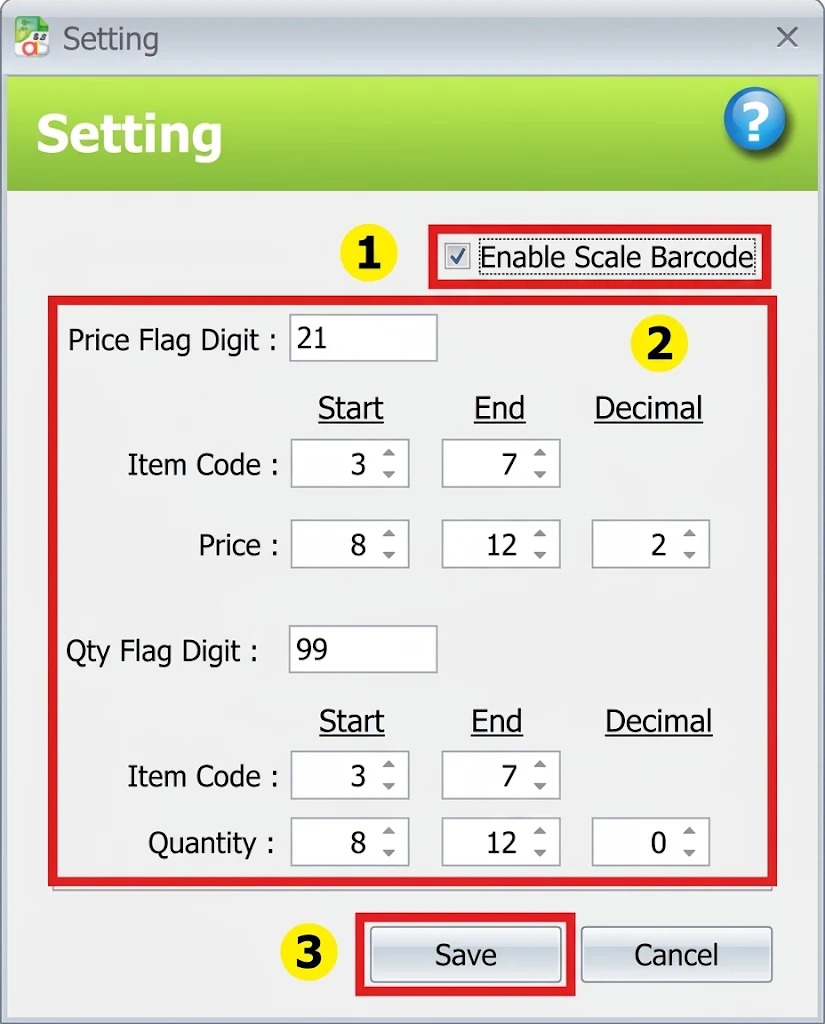
- Open ScaleBarcode > Scale Barcode Setting.
- Select Enable Scale Barcode.
- Enter the flag digit, item-code positions, price positions, quantity positions, and decimal settings that match the scale label.
- Save the settings.
The configured positions must match the barcode printed by the weighing scale.
2. Scan a Price Format barcode
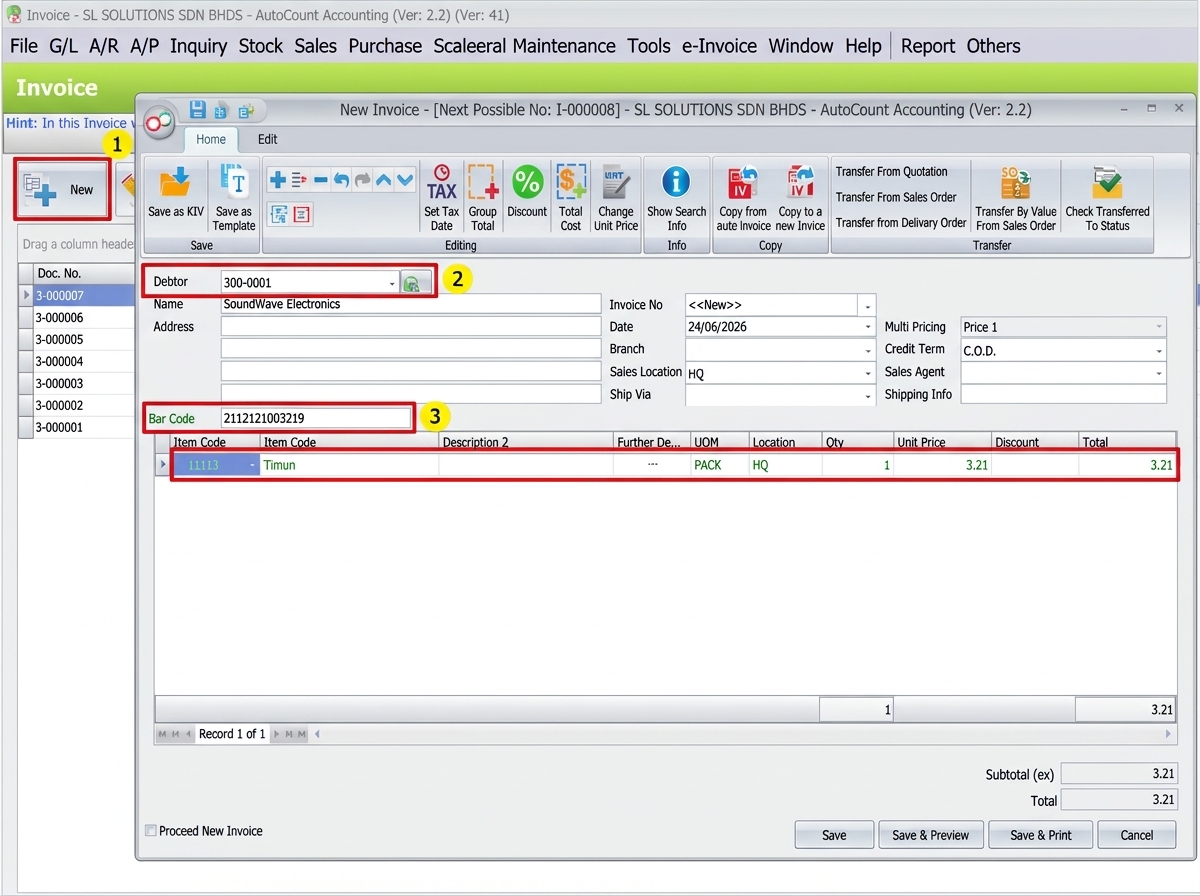
- Open Sales > Invoice.
- Select the correct Debtor.
- Click the Bar Code field.
- Scan or enter the scale barcode.
- Confirm AutoCount identifies the item and fills the encoded price into the transaction row.
3. Scan a Qty Format barcode
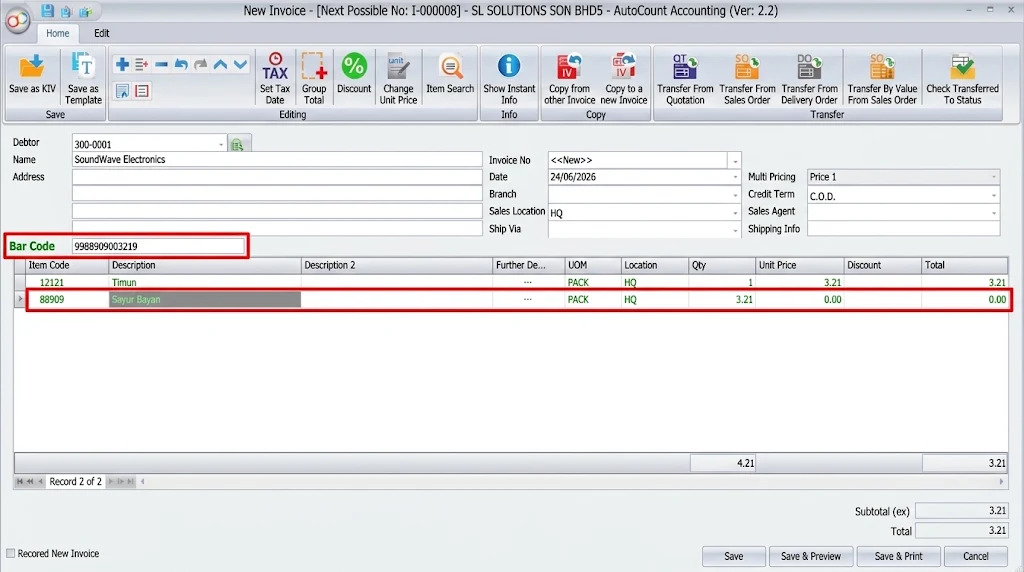
- Open the Invoice and click the Bar Code field.
- Scan or enter a barcode that uses the configured Qty Format flag.
- Confirm AutoCount identifies the item and fills the encoded quantity into the Qty field.
In the guide example, item 88909 – Sayur Bayan receives quantity 3.21. Unit Price may come from AutoCount item pricing or may need to be entered manually.
4. Review and save the Invoice
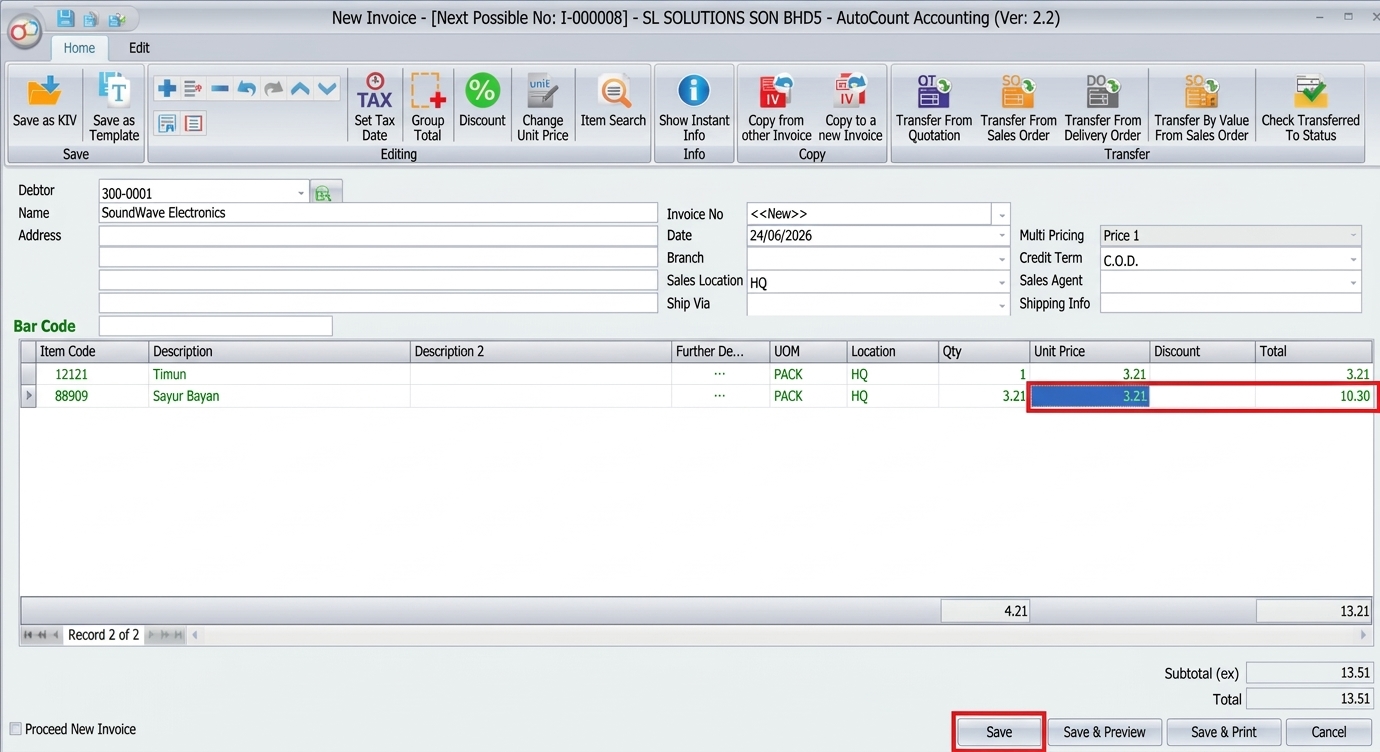
Before saving, confirm:
- The correct item was inserted.
- The quantity is correct.
- The Unit Price is correct.
- The total amount is correct.
When all transaction values are correct, click Save.
5. Understand the barcode settings
The setting screen tells AutoCount how to read the 13-digit scale barcode.
Flag Digit
The starting number identifies the format. The guide examples use 21 for Price Format and 99 for Qty Format.
Item Code Start / End
These positions identify the barcode digits containing the item code. For example, Start 3 and End 7 reads digits 3 through 7.
Price Start / End and Decimal
These positions identify the price digits. If the encoded value is 00321 and Decimal is 2, AutoCount reads 3.21.
Quantity Start / End and Decimal
These positions identify the quantity digits. An encoded 00321 becomes 321 with Decimal 0 or 3.21 with Decimal 2.
Last digit
The plugin does not use the last digit. It may be a random digit or the scale barcode’s check digit.
Troubleshooting: checks before contacting support
- The barcode is ignored: confirm Enable Scale Barcode is selected and the flag matches Price or Qty Format.
- The wrong item is inserted: check Item Code Start and End against the printed label.
- The price or quantity is too large or too small: verify the value positions and Decimal setting.
- A Qty barcode has no Unit Price: check AutoCount item pricing or enter the required Unit Price manually.
- The total is unexpected: review the item, quantity, Unit Price, and total before saving.
Frequently asked questions
What tells AutoCount whether the barcode contains price or quantity?
The starting Flag Digit. The guide examples use 21 for Price Format and 99 for Qty Format.
Why was the wrong item inserted?
Check Item Code Start and End. Those positions must match the digits containing the scale’s item code.
How does the Decimal setting work?
An encoded value of 00321 is read as 321 with Decimal 0 or 3.21 with Decimal 2.
Where does Unit Price come from for a Qty barcode?
It may come from AutoCount item pricing, or the user may need to enter it manually.
Does the plugin use the final barcode digit?
No. The final digit may be a random digit or check digit from the scale barcode.
Related resources and technical support
Continue exploring AutoCount or get assistance with the steps in this guide.
Explore Scale Barcode Plugin
Review the features and barcode-processing workflows supported by AutoCount Scale Barcode Plugin.
Browse the Knowledge Base
Find practical instructions for other AutoCount functions, modules and plugins.
TECHNICAL SUPPORT
Need help with Scale Barcode?
Send the details below so our team can understand the issue and review the relevant workflow.
Have these details ready
- AutoCount and Scale Barcode Plugin versions
- Full 13-digit barcode sample
- Configured digit positions and decimals
- Expected and actual transaction values
Before sharing a screenshot: hide customer, pricing, and other confidential business information.