
Capture everyday bills. Review the extracted details. Create the right transaction with a practical workflow for your team.
AI SmartScan offers an innovative solution for managing your accounting tasks efficiently.
AI SmartScan helps bring document information into your accounting workflow. AutoCount’s Cloud guide describes using Document Scanner for uploaded files and documents sent from CA Uploader.
Use this guide to organise the process from the moment a bill arrives through to checking the transaction created from it.
With AI SmartScan, you can quickly digitize your documents and streamline your workflow.
A successful upload confirms that a file reached the system. Your team still needs to check the chosen transaction type and the information before completing the record.
Keep the original document beside the extracted details. Give particular attention to references, dates, amounts and the account involved.
AI SmartScan enhances the accuracy of your records through advanced technology.
A clear source document makes the review easier. Begin with one complete bill and a clear idea of the transaction you need to record.
Utilizing AI SmartScan ensures that every detail of your transaction is captured flawlessly.
Set aside the original PDF or a readable photograph. Check that you can see the document heading, reference, date, line details and final total. If there are several pages, confirm that they belong to the same document before keeping them together.
AI SmartScan helps reduce human error in your accounting processes significantly.
Confirm the company you are working in before sending or processing documents.
Before processing, ensure AI SmartScan is set up correctly for optimal performance.
Use the full document. Check for missing pages, cut-off totals or an unreadable reference.
Use AI SmartScan to ensure you have all necessary documents uploaded accurately.
AI SmartScan guarantees that all details are captured before you finalize your entries.
Check whether a colleague has already entered the bill or uploaded the same document.
Leverage AI SmartScan to improve your team’s workflow and efficiency.
Suggested first test: choose one familiar bill, process it from beginning to end and compare the resulting record with the source before moving to a larger batch.
AutoCount documents two connected routes: direct upload in Document Scanner and mobile capture through CA Uploader. Choose the route that fits where the source document is stored.
With AI SmartScan, you can choose the most convenient method for document capture.
| Your source | Starting point | Practical preparation |
|---|---|---|
| PDF or image on your computer | Tools → Document Scanner | Check the filename and document before selecting it. |
| Paper bill at the counter | CA Uploader camera | Flatten the paper and keep every edge visible. |
| Existing phone photograph | CA Uploader gallery | Choose the clearest image and check page order. |
| PDF saved on your phone | CA Uploader files | Preview the selected file before uploading. |
Direct upload supports PDFs and images. CA Uploader provides Files, Gallery and Camera options. Keep an internal record of what has been processed so your team can avoid sending the same document through different routes.
AI SmartScan offers multiple options for document processing, making it flexible for users.
AI SmartScan through Document Scanner allows you to manage your documents seamlessly.
Follow the documented sequence below, then complete your usual accounting review. Button labels and screen arrangements can change between software versions.
In AutoCount Cloud Accounting, go to Tools → Document Scanner.
Choose +Upload. Browse for a PDF or image, or drag it into the upload window, then select Submit.
Look for the uploaded file before proceeding. Compare its name with the source you intended to process.
Verifying the file with AI SmartScan helps prevent potential errors in your records.
AI SmartScan ensures that you select the correct transaction type effortlessly.
Select the file, choose Convert, then choose the required file type. AutoCount’s guide lists Invoice, Purchase Invoice, Receipt Voucher and Payment Voucher as conversion options.
With AI SmartScan, reviewing extracted information becomes a quick and easy process.
Check and amend the details before selecting Create. For the documented utility-bill example, a document-model selection appears first.
Using AI SmartScan, you can complete the transaction window with confidence.
Review the resulting document again and use Save/Approve as appropriate. Check the completed record before treating the task as finished.
Keep a simple status distinction: uploaded, awaiting review and completed. This is a suggested team checklist, rather than a claim about the names of software statuses.
AI SmartScan allows you to maintain a clear distinction of your document statuses.
Capture bills effectively with AI SmartScan using CA Uploader.
AI invoice and receipt scanning illustration. Review source documents before saving.
AutoCount’s mobile guide identifies the app as CA Uploader: Cloud OCR Tool. Install it from the appropriate app store, sign in with your Cloud Accounting account and choose the intended company.
Use the plus button to choose Files, Gallery or Camera. Preview the material, add it and upload it. For related pages, the documented workflow provides a combine option and a way to reorder pages before uploading. Review that order carefully.
AI SmartScan improves the clarity and accuracy of your document processing.
Return to Document Scanner in Cloud Accounting to convert the uploaded file. Photographing a document and uploading it are preparation steps; they do not replace checking the resulting transaction.
Convert your uploaded files using AI SmartScan for efficient document management.
AI SmartScan enables you to review essential fields that matter to your records effortlessly.
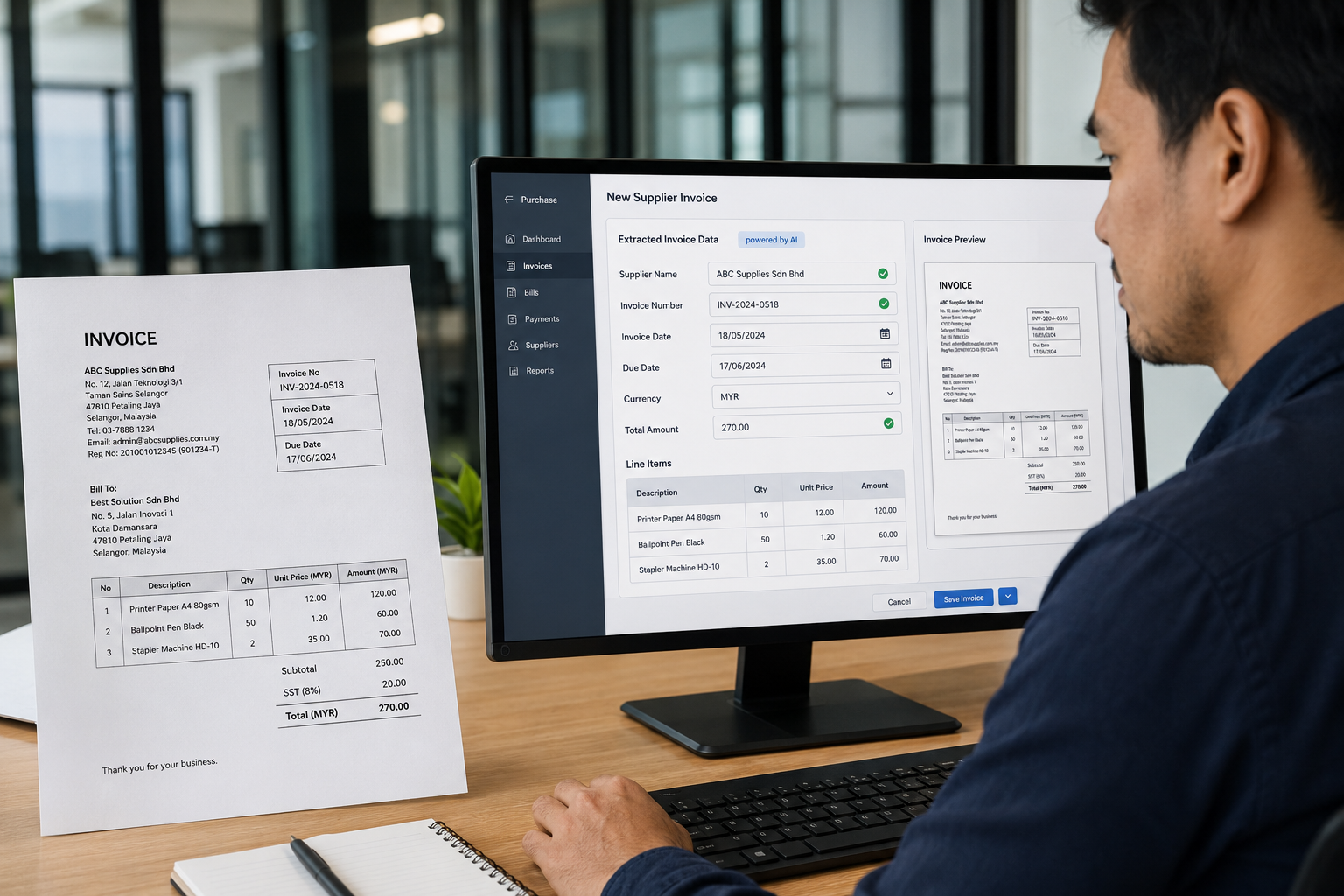
Treat extracted details as information to verify. A sensible review compares the source document with both the proposed details and the final transaction.
The checklist below is a recommended working control. It is not a guarantee that every field will be extracted automatically from every document layout.
Ensure every detail is accurately extracted with the help of AI SmartScan.
| Review area | What to compare | Why it matters |
|---|---|---|
| Customer or supplier | Name and intended account against the source | Similar names can lead to the wrong account. |
| Reference and date | Complete document number and actual document date | References support duplicate checks and later enquiries. |
| Line information | Description, quantity, unit price and discount where relevant | Correct totals alone do not explain incorrect line details. |
| Amounts | Subtotal, any applicable tax and final amount | Differences need an explanation before completion. |
| Transaction selection | The chosen document type and relevant accounting details | The record should reflect the transaction being recorded. |
| Supporting evidence | The source file and any explanation for corrections | The next reviewer should understand the record. |
Process supplier bills smoothly through AI SmartScan, enhancing your review routine.
Imagine your team receives a supplier PDF for office consumables. The example below illustrates a review routine; it does not prescribe the account or tax treatment for your business.
Check the supplier name and invoice number against existing records. Confirm that the file contains every page and decide which transaction type fits your process.
Upload the PDF through Document Scanner. Keep the original open in another window so you can compare it with the information presented during conversion.
AI SmartScan simplifies the uploading process for your team.
If the reference is missing a character, correct it against the source. If an amount differs, inspect the line details and document totals rather than adjusting a number simply to make it agree.
Review the final document before saving or approving it. Record any question that needs the person responsible for your accounts to resolve.
Example difference: a line quantity read as 10 instead of 1 needs a source check. Review the quantity, unit price and amount together so the reason for the difference is clear.
With AI SmartScan, discrepancies can be easily identified and resolved.
AI SmartScan assists in investigating the source of any mismatches you encounter.
Return to the original and capture it again with better lighting and all edges visible. Avoid using a second photograph of an already blurred image. Check every page before retrying.
Compare the supplier, invoice reference, date and amount with existing entries. Confirm whether the records relate to the same transaction before changing anything. Use your normal correction and approval process.
Compare line details, discounts and any applicable tax shown on the document. Identify the reason for the difference. If the source itself is unclear, obtain a readable copy or ask the supplier for clarification.
Confirm the company selected in CA Uploader and look for the upload-success message. Check the relevant company in Document Scanner. Before uploading again, establish whether the original upload already arrived.
Pause before creating the document and confirm the intended treatment with the person responsible for your accounts. A supplier invoice, a payment and a receipt can describe different parts of the same business process.
Ensure your team follows a structured handover process with the help of AI SmartScan.

Decide who captures documents, who checks the details and who completes the transaction. In a small team, one person may perform several tasks, but the handover should still make unfinished work visible.
Keep a short exception list with the filename, supplier, reference, question and person responsible. Examples include an unreadable total, uncertain account selection or a possible duplicate. Resolve those questions before marking the record complete.
AI SmartScan enables easier tracking of unresolved questions in your accounting process.
Start with a manageable batch and review recurring mistakes. If several photographs have the same glare, improve the capture setup. If similar supplier names cause confusion, review your account-selection process. Use the pattern to improve the next batch.
Utilize AI SmartScan in your end-of-batch checklist to streamline your workflow.
AI SmartScan addresses common questions and improves your document processing experience.
No. The documented Document Scanner workflow supports direct PDF and image uploads. CA Uploader is another route for files, gallery images and camera capture from your phone.
AutoCount’s Document Scanner guide lists Invoice, Purchase Invoice, Receipt Voucher and Payment Voucher. Choose the type that fits the transaction and review the resulting document before completion.
The CA Uploader guide describes combining and reordering selected files or images. Check that the pages belong to the same document and are in the correct sequence.
Yes. The official workflow includes checking and amending converted details, followed by reviewing the resulting transaction window before saving or approving.
Ask SL Software Solutions to confirm the options for your company and current subscription. Keep detailed pricing on the separate pricing page and confirm current terms before making a purchase decision.
Speak to SL Software Solutions about your AutoCount Cloud Accounting setup, document capture and review workflow.
Make the most of AI SmartScan to manage document processing with ease.
The software steps are based on AutoCount’s official help articles. Preparation, checking and team routines are editorial recommendations. Images are illustrative photographs, not software screenshots.
AI SmartScan guides you through the necessary steps for efficient document management.