Different date interpretations
Invoice age and overdue age answer different questions during a balance review.

The AutoCount Advance Aging Format Plugin helps Malaysian businesses review customer and supplier balances using different aging bases and available month-based or day-based report formats.
Ask our team about plugin suitability and version compatibility before purchase.
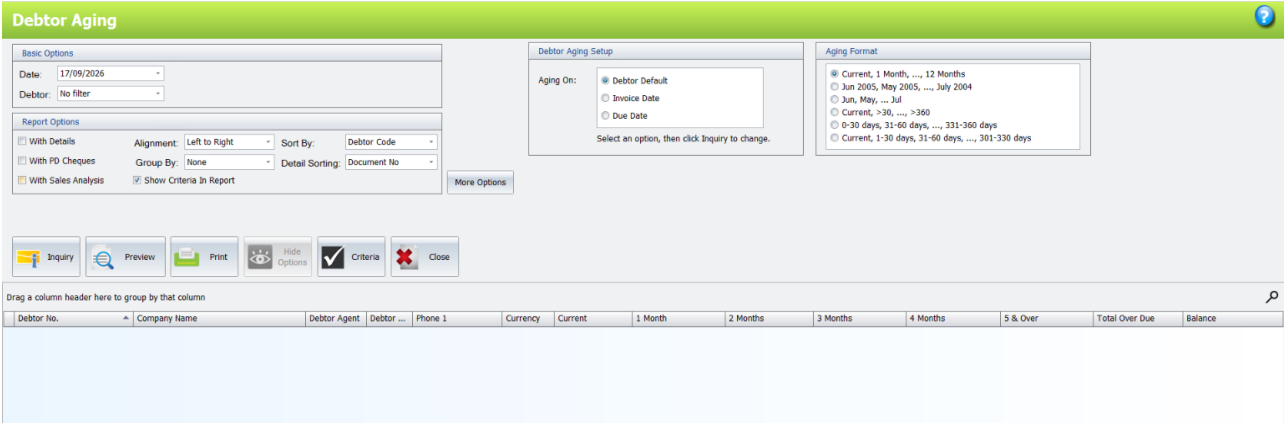
An outstanding invoice can fall into a different period depending on whether aging starts from its invoice date or due date. The Advance Aging Format Plugin adds aging-basis and format choices to AutoCount Debtor Aging and Creditor Aging inquiries, helping your team review the same balances from a more useful perspective.
These are common workflow problems the plugin can help your business address.
Invoice age and overdue age answer different questions during a balance review.
A single aging layout may not fit the way your team discusses outstanding balances.
Staff need relevant detail columns and comparison views to understand the result.
See how the plugin's features can support your day-to-day workflow.
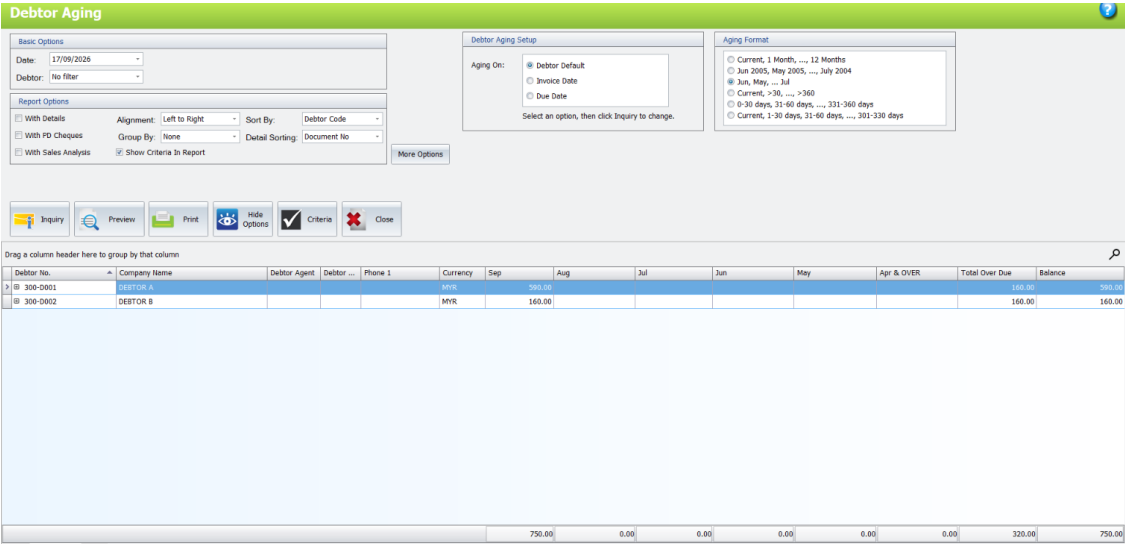
Use Debtor Default, Invoice Date or Due Date in the Debtor Aging inquiry. Default follows the basis configured for each debtor.
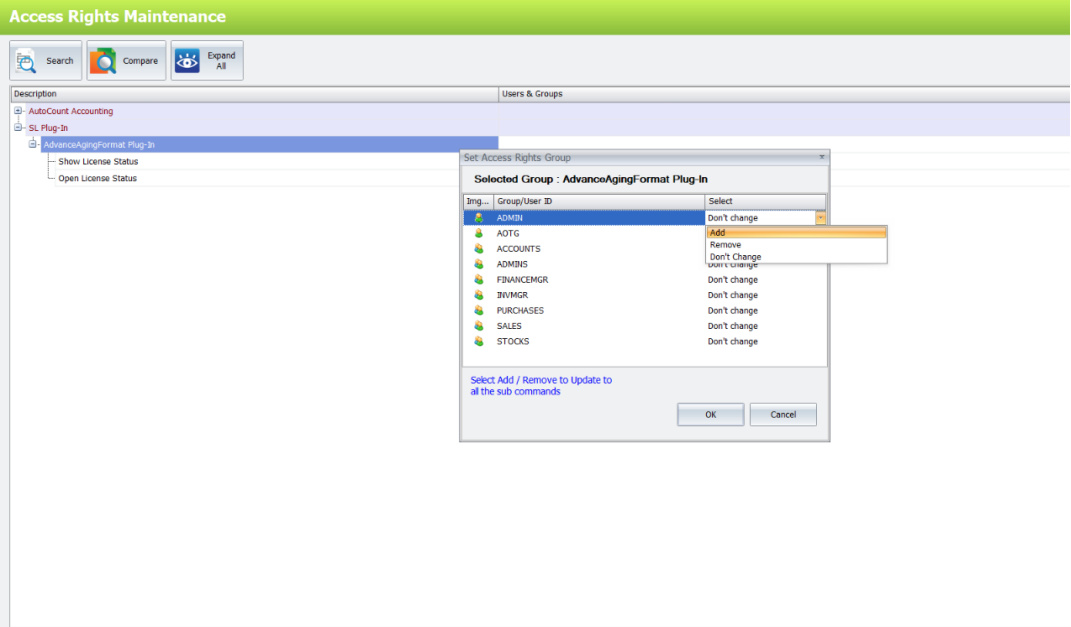
Choose from the available aging formats and refresh the inquiry to apply the selected report columns.
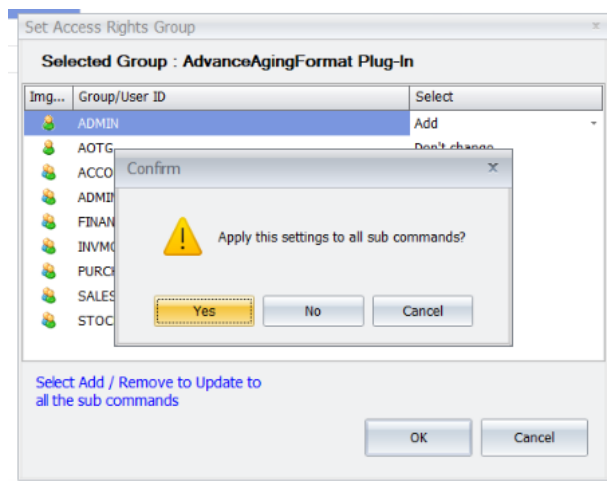
Use the documented All, Invoice Date and Due Date tabs to review customer aging information.
Choose Creditor Default, Invoice Date or Due Date and an available aging format in the Creditor Aging inquiry.
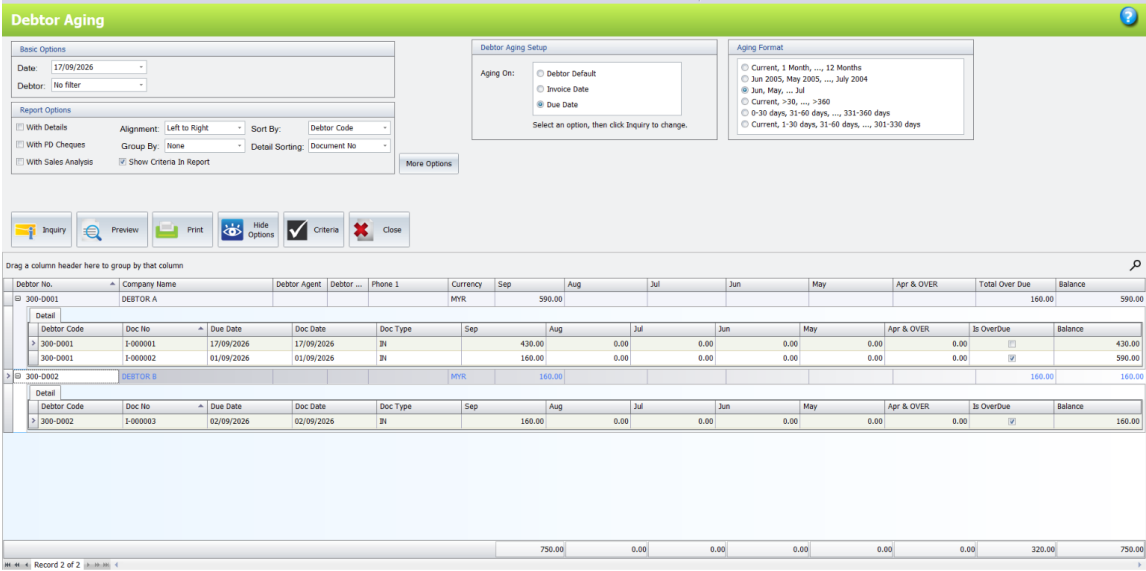
Use Column Chooser in the debtor detail grid to adjust the columns displayed during inquiry.
Tell SL Software about your current workflow and the outcome you need.
An illustrative business workflow using the documented plugin functions.
Select Debtor Aging or Creditor Aging for your review.
Select the date basis and available month or day format.
Apply the selections to the report results.
Compare views and inspect the relevant detail columns.
Review customer balances using invoice-date and due-date perspectives.
Review supplier outstanding balances with suitable aging periods.
Discuss outstanding balances using a consistent reporting basis.
Yes. The plugin adds aging-basis and format choices to Debtor Aging and Creditor Aging inquiries.
Invoice Date calculates age from the invoice date. Due Date calculates age from the invoice due date.
Yes. Select an available month-based or day-based Aging Format and run Inquiry.
Debtor Default follows the aging basis configured for each debtor. Creditor Default uses the applicable creditor default basis.
Yes. Right-click the debtor detail grid header and use Column Chooser to select relevant columns.
Contact SL Software for a current quotation based on your licensing and setup. Our team can review your AutoCount version and requirements before recommending the plugin.
Already using this plugin? Read the AutoCount Advance Aging Format User Guide for setup and operating instructions.
Browse the AutoCount add-on catalogue or consult the technical user guide.
Discuss your requirements with SL Software Solutions and explore the AutoCount Advance Aging Format Plugin in a product demonstration.
Product functions and compatibility should be checked against your deployed AutoCount version.