Orders accepted without required deposits
Manual checks may not consistently enforce the business’s minimum payment policy.

Set deposit requirements, record customer payments in Sales Orders, apply deposits during invoicing and review collection and cash-flow reports.
Discuss your Sales Order, tax and payment requirements with SL Software before implementation.
A simplified concept view of the documented plugin workflow.
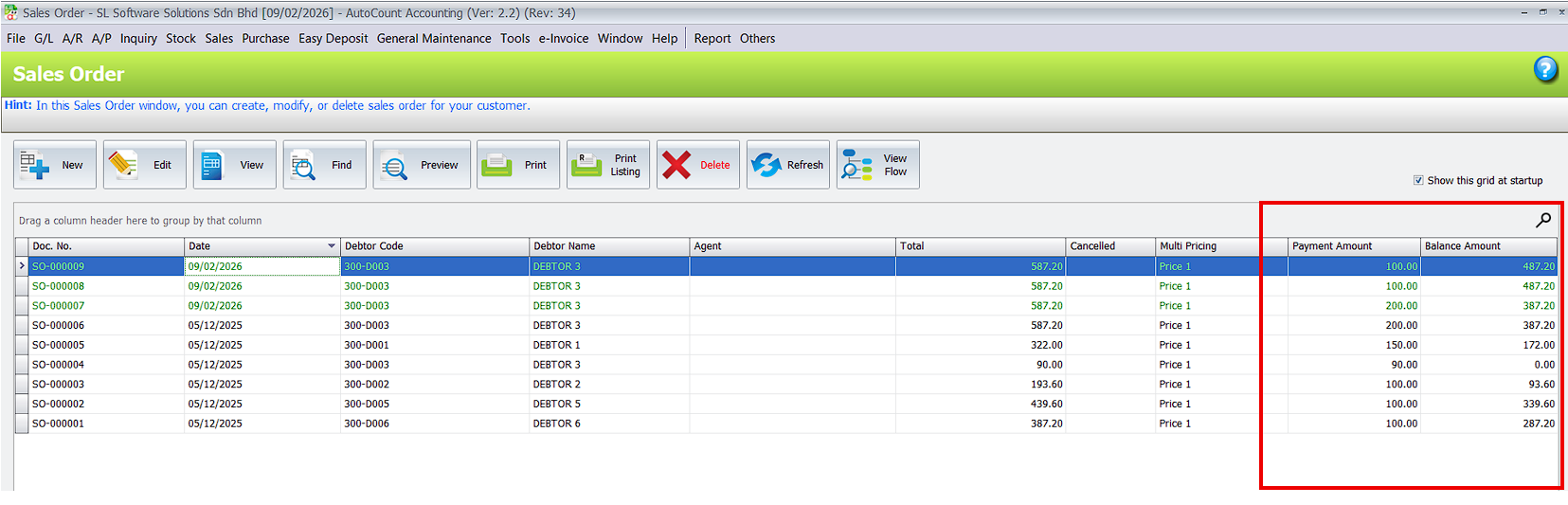
AutoCount Easy Deposit adds a structured payment workflow to Sales Orders. Businesses can define minimum payment requirements, record deposits and keep the paid amount and remaining balance visible during order processing.
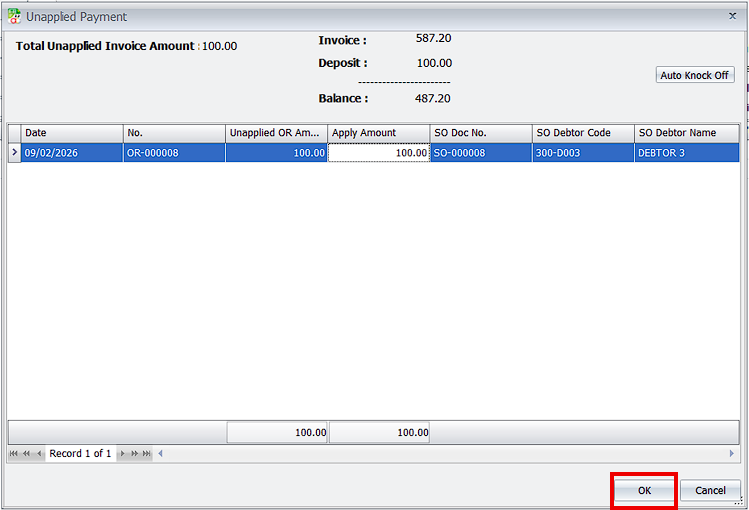
When the Sales Order is transferred to an invoice, the documented knock-off workflow applies the deposit against the new invoice, while reports support customer balance communication and internal cash-flow review.

Manual checks may not consistently enforce the business’s minimum payment policy.
Sales staff can struggle to answer how much has been paid and what remains due.
Re-entering or matching deposits during invoicing creates avoidable reconciliation work.
These capabilities follow the current Easy Deposit user guide, from payment settings through deposit recording, invoice knock-off and reporting.
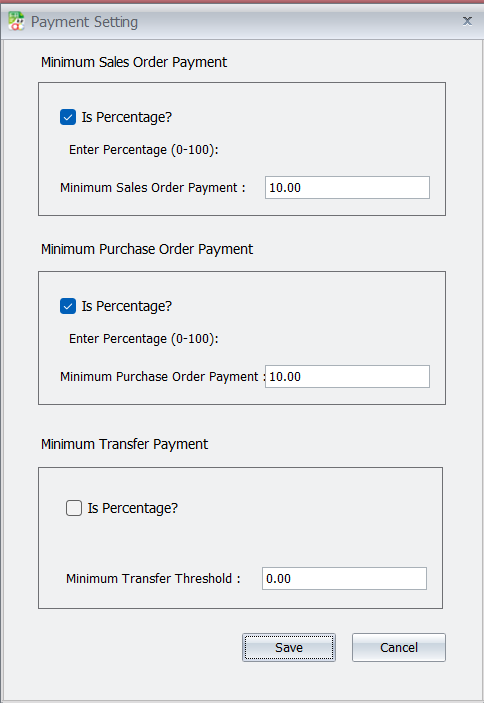
Configure the minimum required deposit and the transfer-payment threshold used by the documented order workflow.
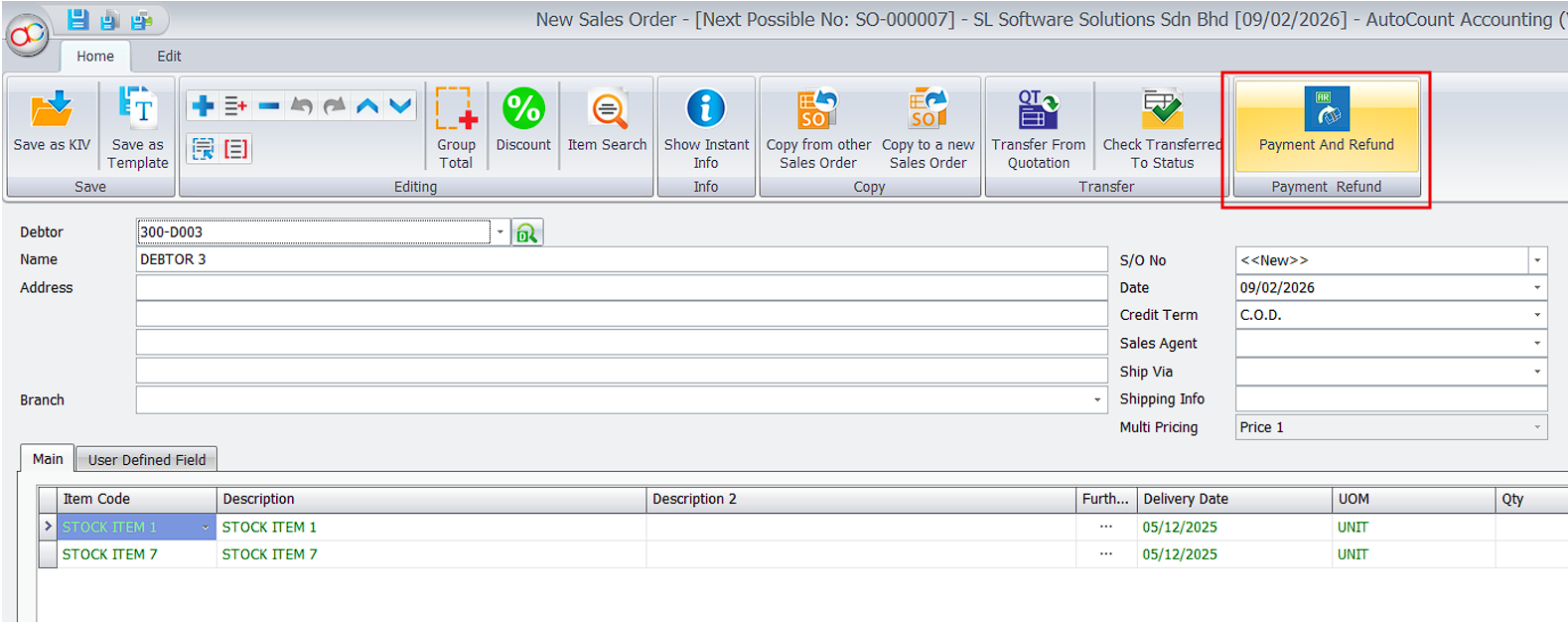
Use Payment and Refund, choose the payment method and enter the amount received from the customer.
Save the payment so the order workflow can show the amount collected and the outstanding balance.
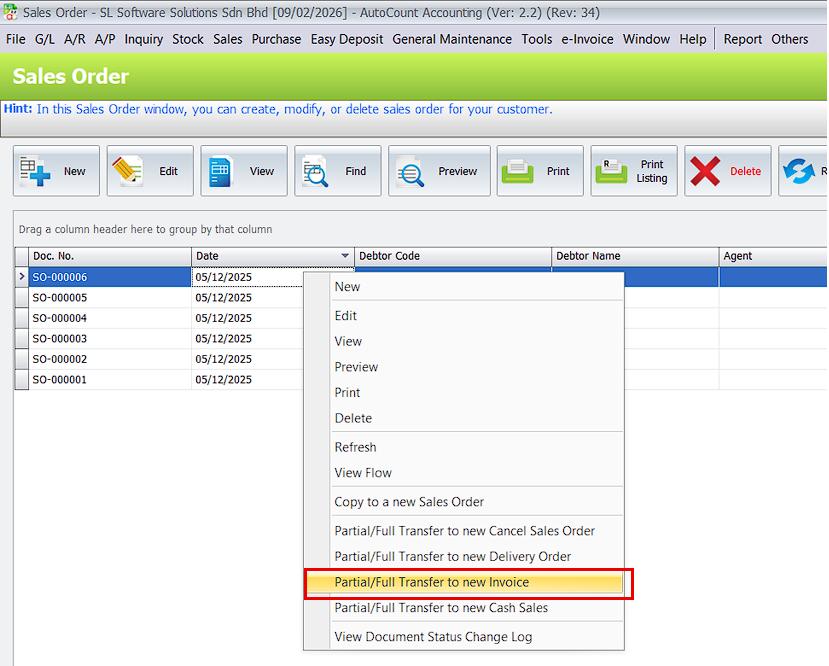
Transfer the Sales Order to an invoice and confirm the documented knock-off prompt so the deposit reduces the final balance.
Use the Sales Order with Deposit report for customer balances and Cashflow Analysis for internal payment review.
Arrange a demonstration with SL Software and discuss your AutoCount version, responsibilities and reporting needs.
The exact responsibilities may vary by company, but the documented process follows these practical stages.
Define the minimum Sales Order and transfer payment settings.
Enter the payment method and customer amount in the order.
Create the invoice when the order is ready for billing.
Apply the deposit, then review balances and cash flow.
Collect a deposit before committing stock, labour or production.
Track partial payments against Sales Orders before final invoicing.
Maintain clearer customer balances for work billed later.
Yes. Payment Settings includes a minimum Sales Order payment used by the documented workflow.
Open Payment and Refund from the Sales Order, select the method and enter the received amount.
The documented transfer workflow prompts the user to knock off the deposit against the new invoice.
The Sales Order with Deposit report provides a breakdown of the order total, paid deposit and remaining balance.
Yes. The guide documents Cashflow Analysis for reviewing when payments were collected.
Need operating instructions? Read the plugin user guide.
Set deposit requirements, record customer payments in Sales Orders, apply deposits during invoicing and review collection and cash-flow reports.