Batch details arrive later
An invoice may be entered before staff have the batch information ready.

Manage batch-controlled stock with flexible allocation rules, purchase batch entry and recommended sales batch quantities. Reduce repetitive batch selection and complete missing batch information within AutoCount Accounting.
Talk to our team about your workflow, plugin licensing and AutoCount version compatibility.
For businesses receiving and selling goods in batches, staff need to record the correct batch number, quantity and expiry information without losing sight of the invoice. Easy Batch No Entry supports these tasks inside AutoCount.
Use it alongside the AutoCount Item Batch module and items configured for batch control. The plugin also provides an Update Empty Batch No workflow for eligible Sales Invoice lines that were saved without batch details.
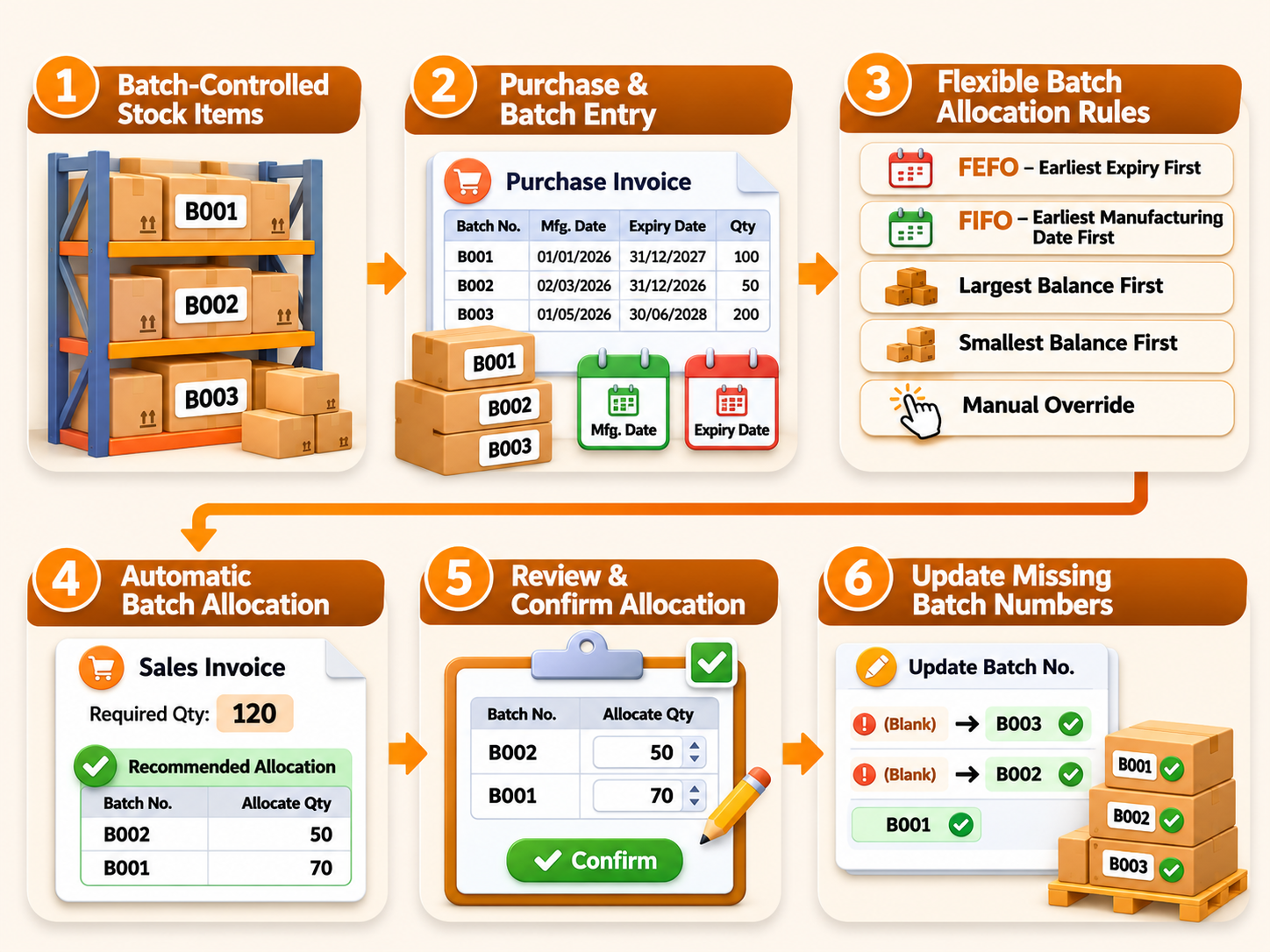
See how Easy Batch No Entry can support a more organised workflow in AutoCount.
An invoice may be entered before staff have the batch information ready.
Batch numbers, quantities and expiry dates must match the goods received.
Existing invoice lines need a practical process for reviewing and completing batch details.
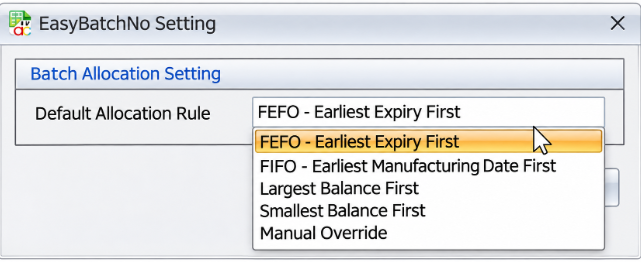
Choose a default allocation rule that matches your stock rotation policy. The plugin recommends batch quantities during sales invoicing, with manual control when required.
Prioritise batches approaching expiry to support stock rotation.
Allocate older manufactured batches first.
Prioritise batches with larger stock balances.
Prioritise smaller balances to help clear remaining batch stock.
Assign batch quantities manually when business requirements differ from the default rule.
Explore the functions that support your daily work, with actual product screenshots.
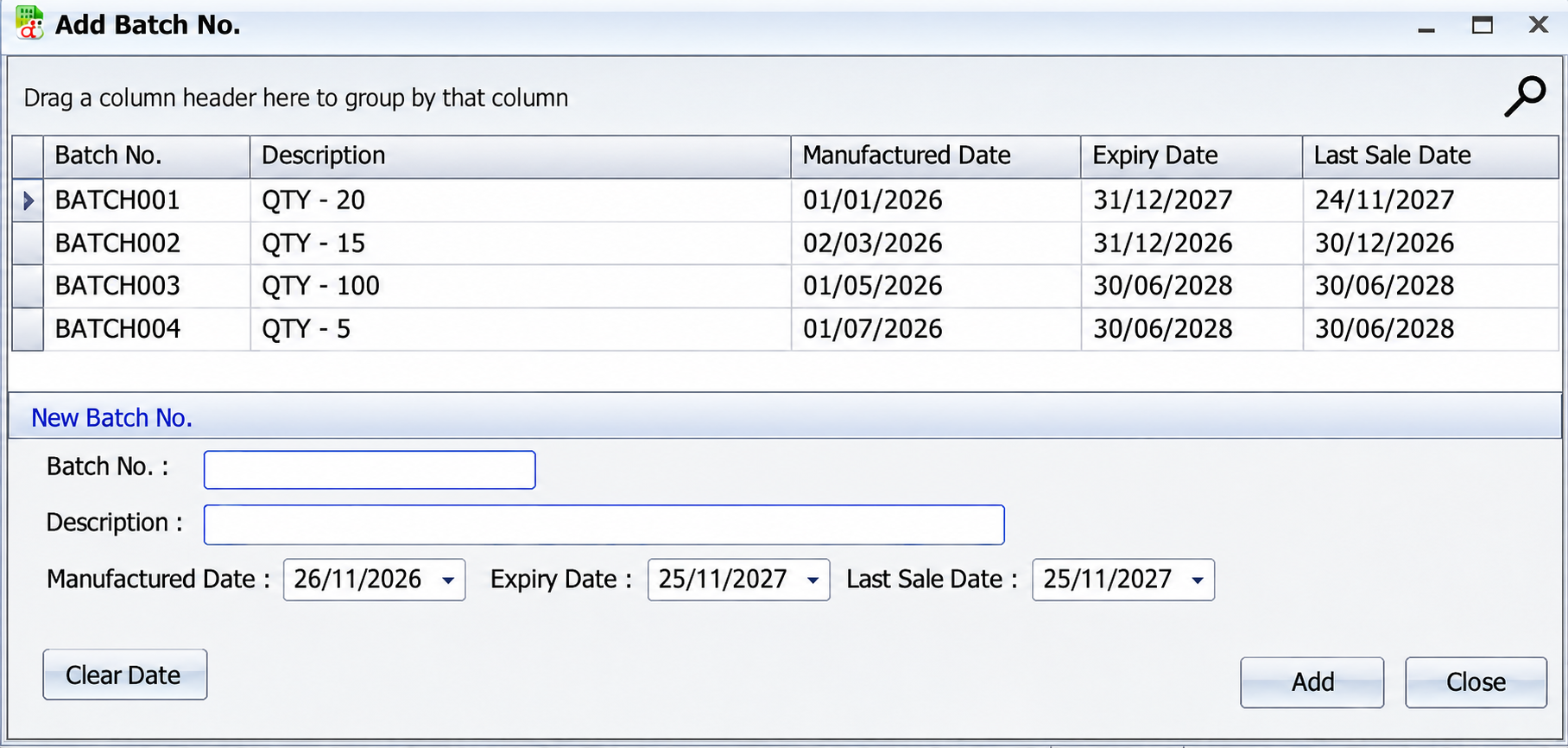
Enter batch numbers, quantities and expiry dates in the Purchase Invoice workflow. Create new batch records directly from the purchase invoice, including manufacturing, expiry and last sale dates.
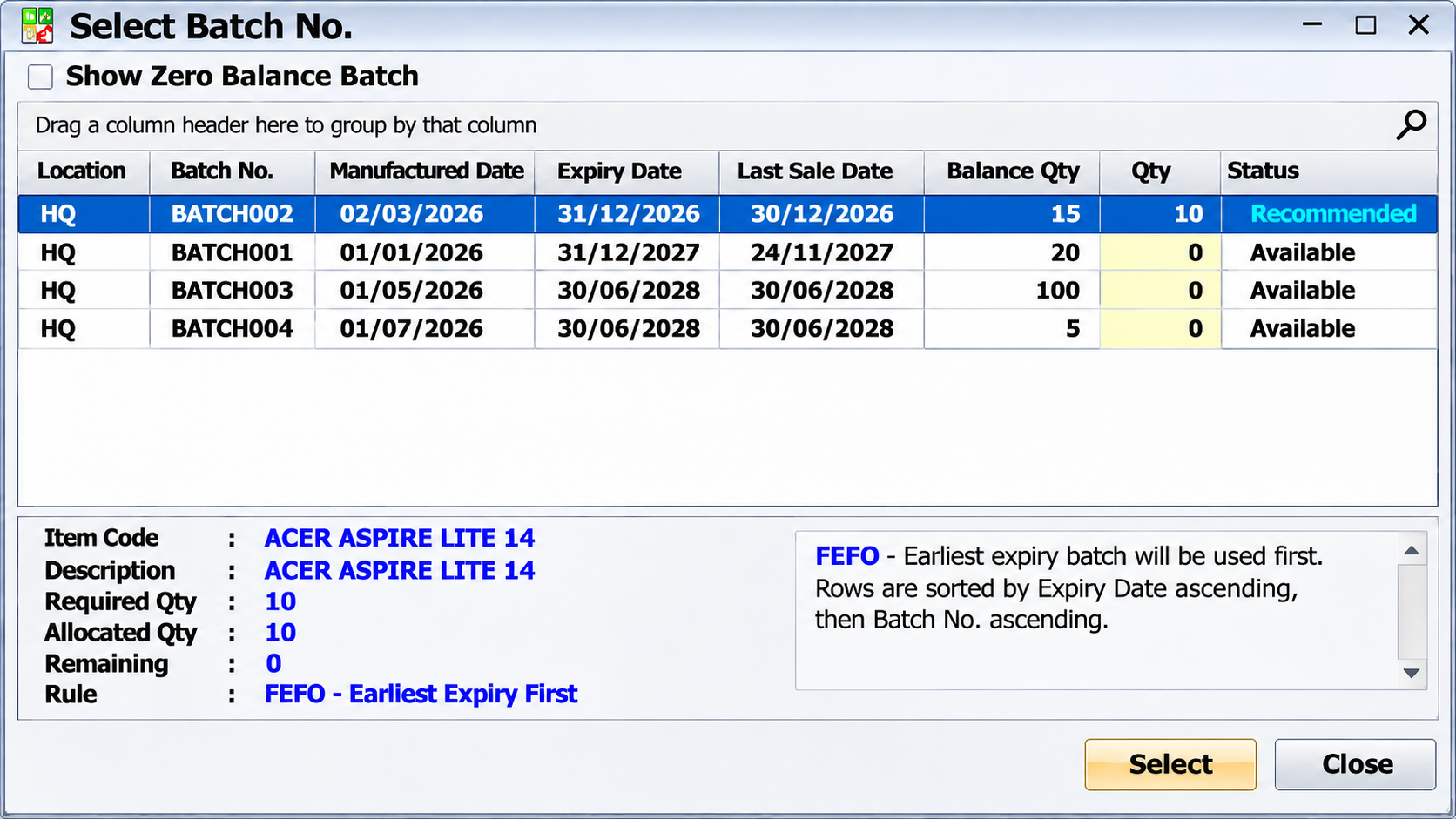
Receive recommended batch numbers and allocated quantities based on your chosen allocation rule. Review recommendations and reallocate batches when necessary.
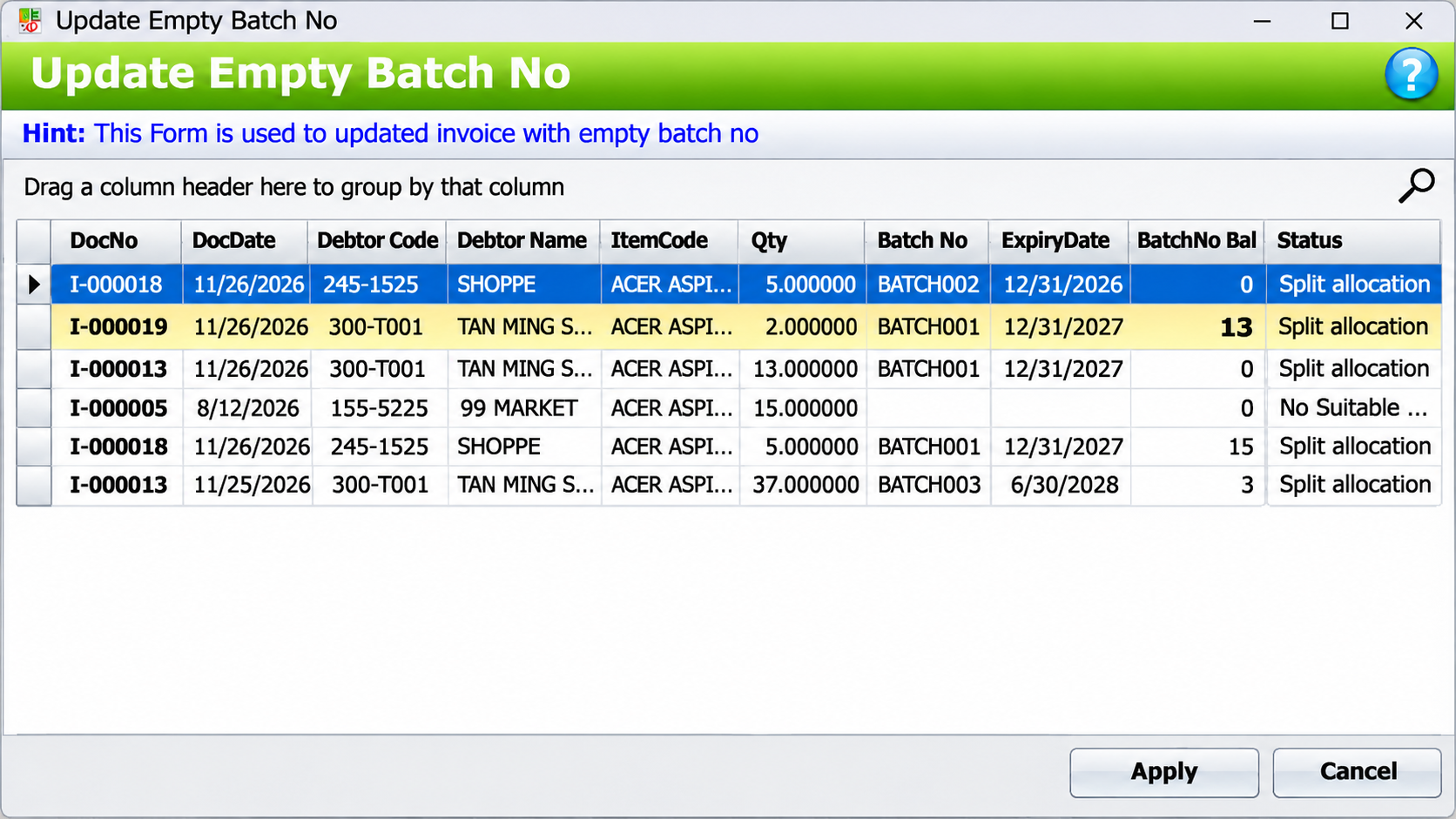
Use Update Empty Batch No to review eligible Sales Invoice lines lacking batch information. Check the proposed allocations before applying the update.
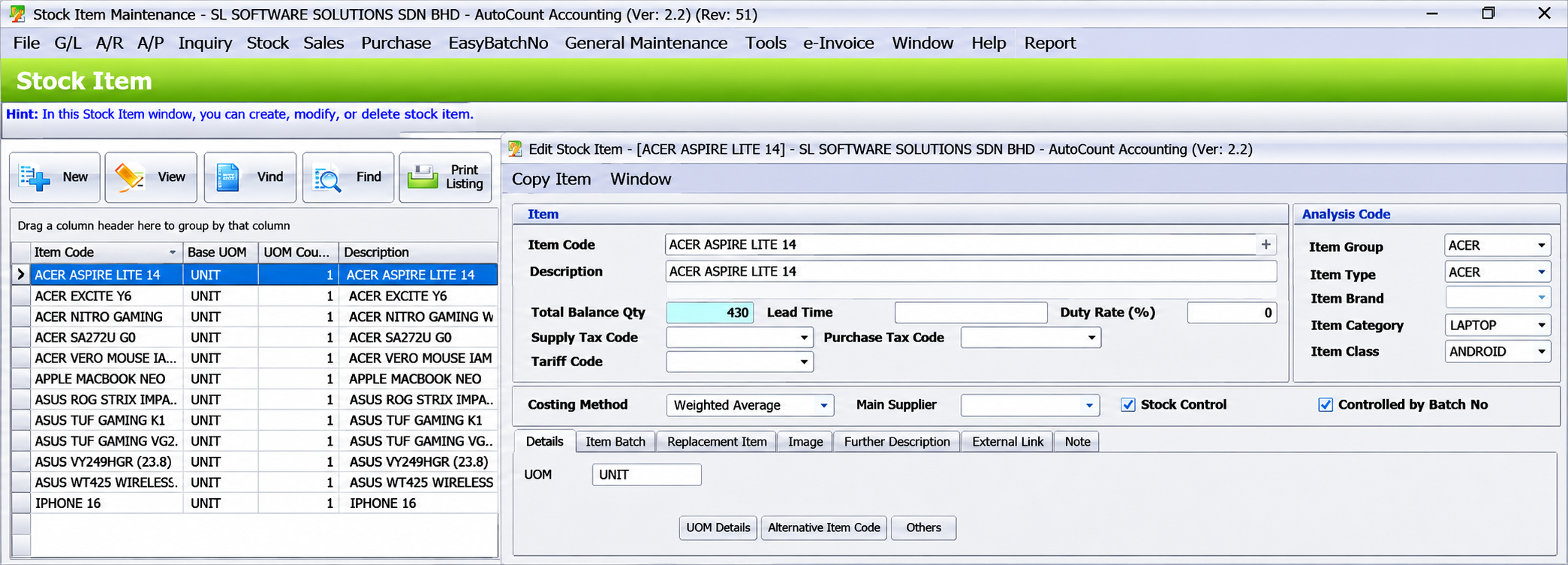
Works alongside the AutoCount Item Batch module for items configured for batch control, with access rights for authorised users.
Set the default allocation policy based on expiry, manufacturing date or stock balance, with manual allocation available when needed.
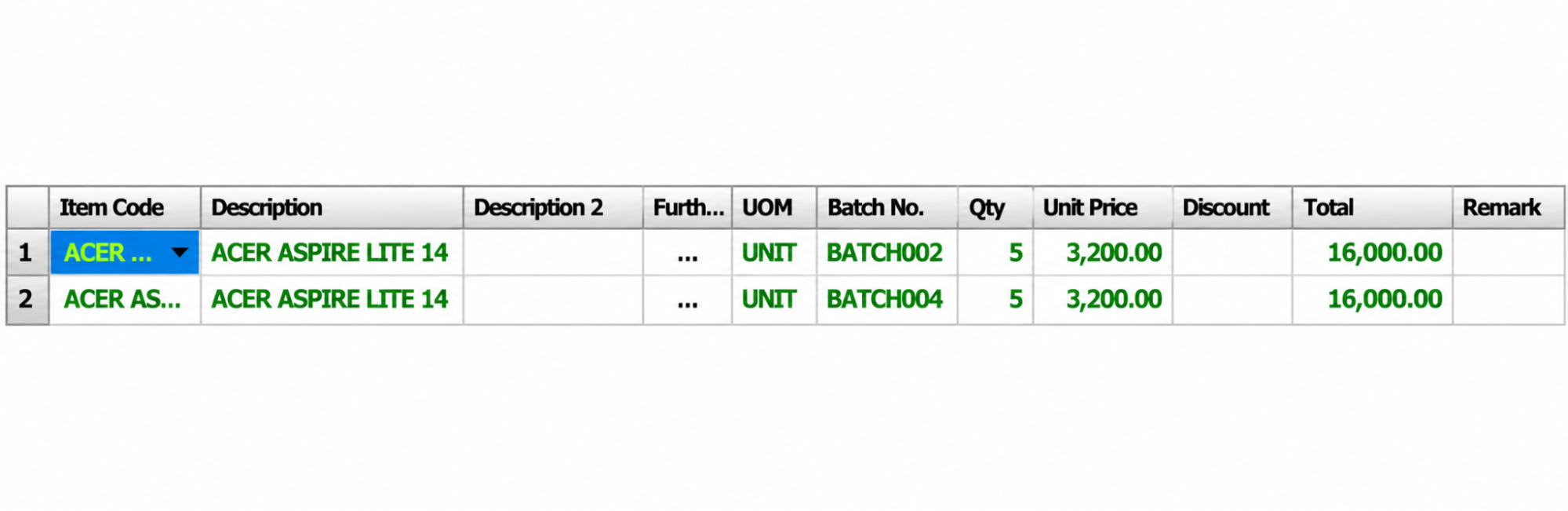
When a sales quantity needs more than one batch, the allocation can be reflected across invoice lines with their respective batch numbers and quantities.
Tell us where your team spends time and what you want to improve.
An illustrative business example using the plugin's documented functions.
Enter a supplier batch number, quantity and expiry date.
Use the default rule that suits your stock rotation needs.
Review recommended batch quantities according to your chosen allocation rule.
Use the update workflow for eligible empty batch entries.
Record batch and expiry details for incoming stock.
Handle stock received and sold across multiple batches.
Review missing batch information in eligible Sales Invoices.
Yes. Enable the Item Batch module and configure the relevant items as Controlled by Batch No before using these workflows.
Yes. The Purchase Invoice workflow includes batch number, quantity and expiry date entry.
When the Allow To Save Empty Batch No option is enabled, Sales Invoices can be saved without batch details. Eligible empty batch entries can then be reviewed through the update function.
The update form shows eligible lines. Review available stock and the proposed batch allocations before applying changes; suitability depends on the records involved.
Yes. Applying the update changes batch information on affected Sales Invoices. Review the proposed allocations and keep an appropriate account-book backup.
FEFO (earliest expiry), FIFO (earliest manufacturing date), Largest Balance First, Smallest Balance First and Manual Override.
Yes. The documented allocation workflow supports allocated quantities across multiple batches, subject to available stock. Users can review or manually adjust the allocation.
Contact SL Software for a current quotation. Our team will review your AutoCount version, required workflow and licensing before recommending a setup.
Already using this plugin? Read the AutoCount Easy Batch No Entry Plugin User Guide for setup and operating instructions.
Compare add-ons for your business or find practical operating instructions.
Discuss your requirements with SL Software Solutions and see whether the AutoCount Easy Batch No Entry Plugin fits your business.
Product functions and compatibility should be checked against your deployed AutoCount version.