Disconnected payment records
A deposit recorded without a clear order link is harder for staff to trace.

Connect customer deposits with saved Sales Orders, keep deposit amounts within the available order balance, and review collection activity through AutoCount.
Ask SL Software about plugin suitability, licensing and version compatibility before purchase.
The AutoCount Advance Deposit Plugin links customer deposits to eligible saved Sales Orders, records permitted deposit amounts through Cash Sale documents, and supports collection reporting by selected dates and locations.
It works within the supported AutoCount environment. Our team can assess whether its documented workflow fits your company's requirements.
These are workflow challenges the documented plugin functions can help address.
A deposit recorded without a clear order link is harder for staff to trace.
Teams need a reliable way to check how much advance collection is allowed.
Different collection documents and locations may take extra time to reconcile.
Explore verified capabilities shown in the accompanying product documentation.
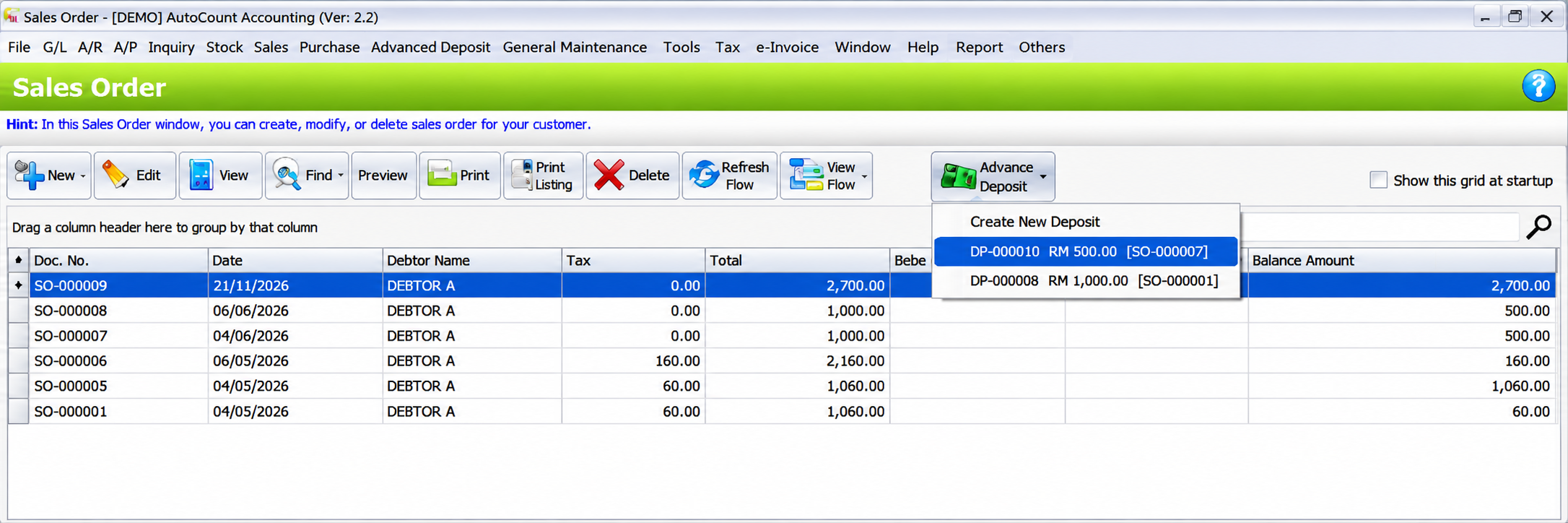
Create an Advance Deposit Cash Sale from an eligible saved Sales Order with a debtor.
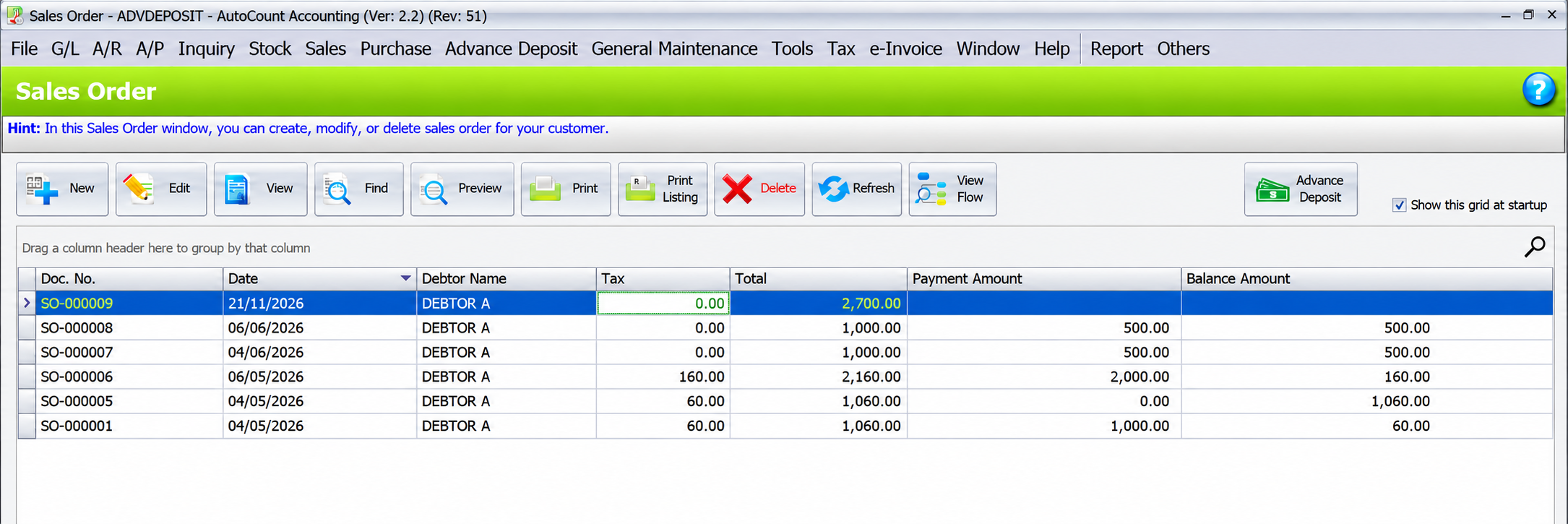
Record a deposit amount up to the available Sales Order balance.
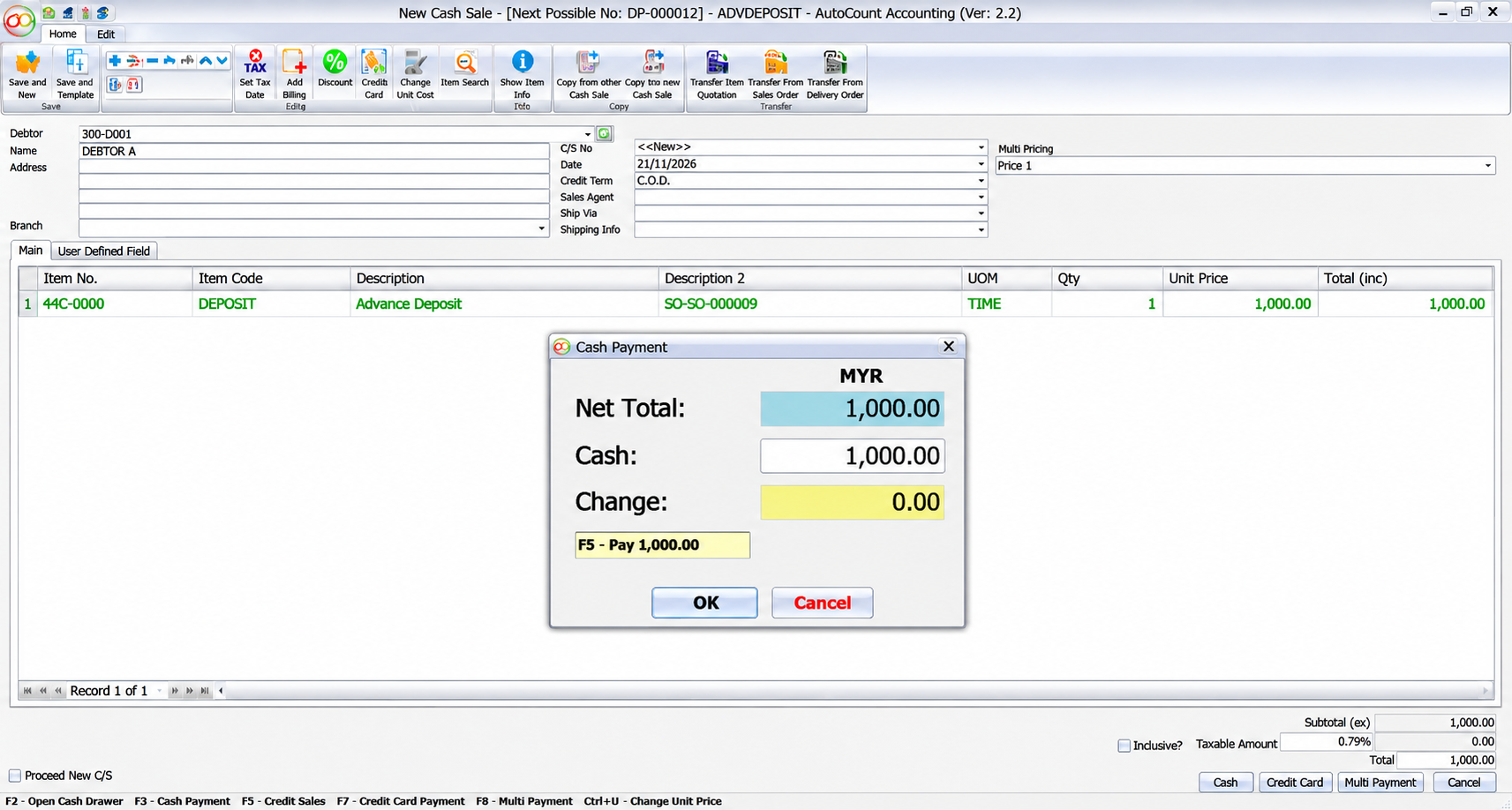
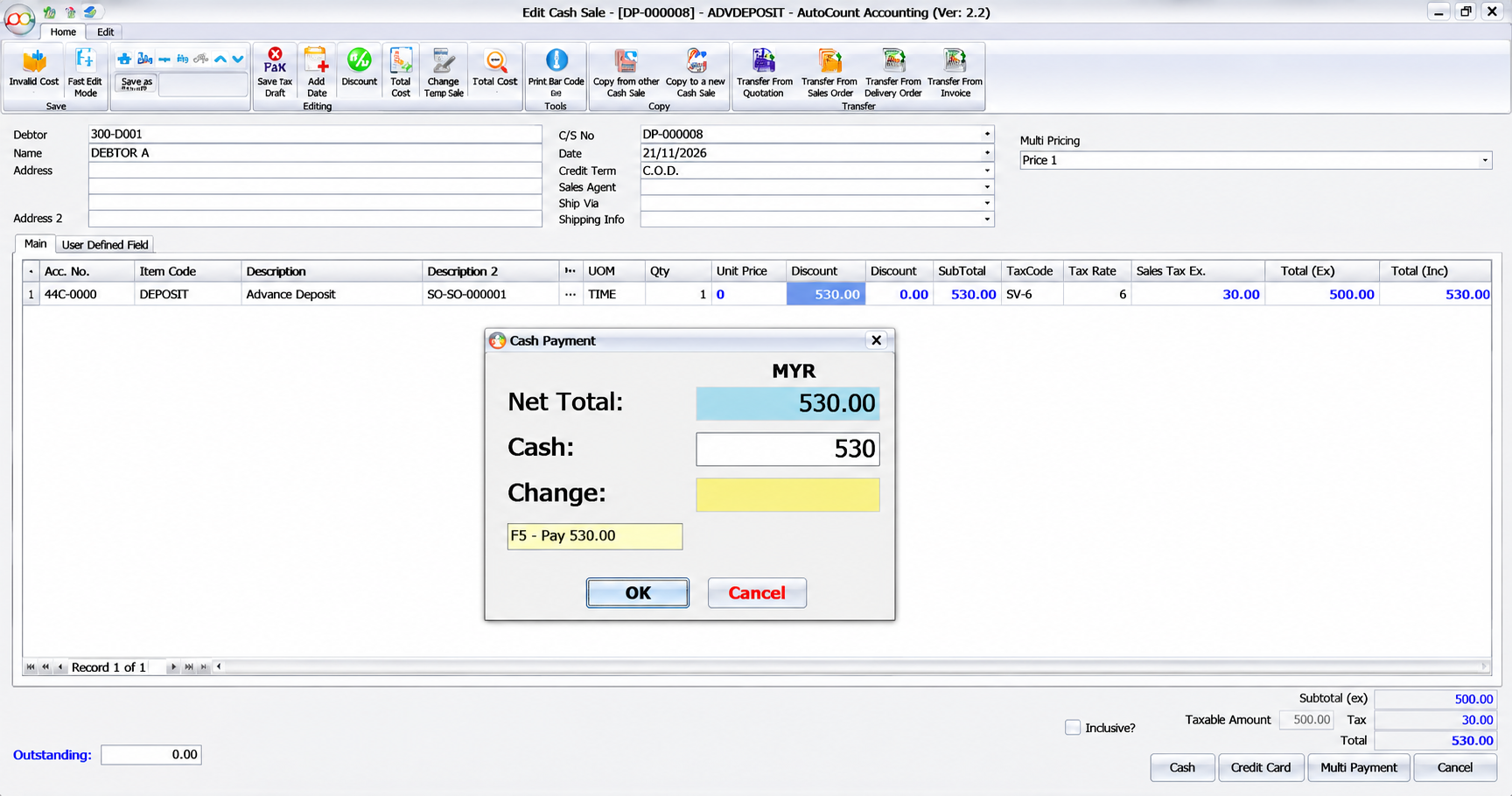
Use documented Cash and Multi Payment options for the deposit workflow; Credit Sale is not available.
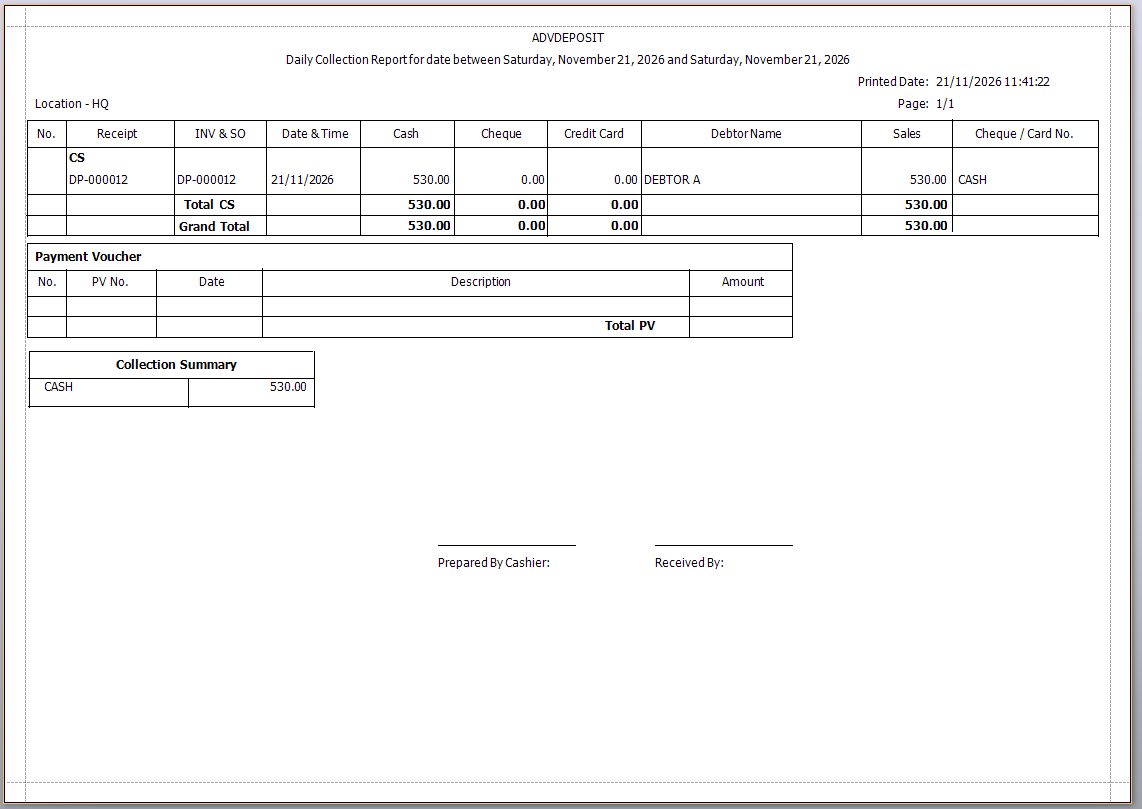
Review payment collections, invoice-related receipts, refunds and relevant deposit or transfer information by selected dates and locations, according to the selected report layout.
Open an available unused deposit for the same debtor and update eligible amounts. A deposit already transferred to an invoice cannot be edited and saved.
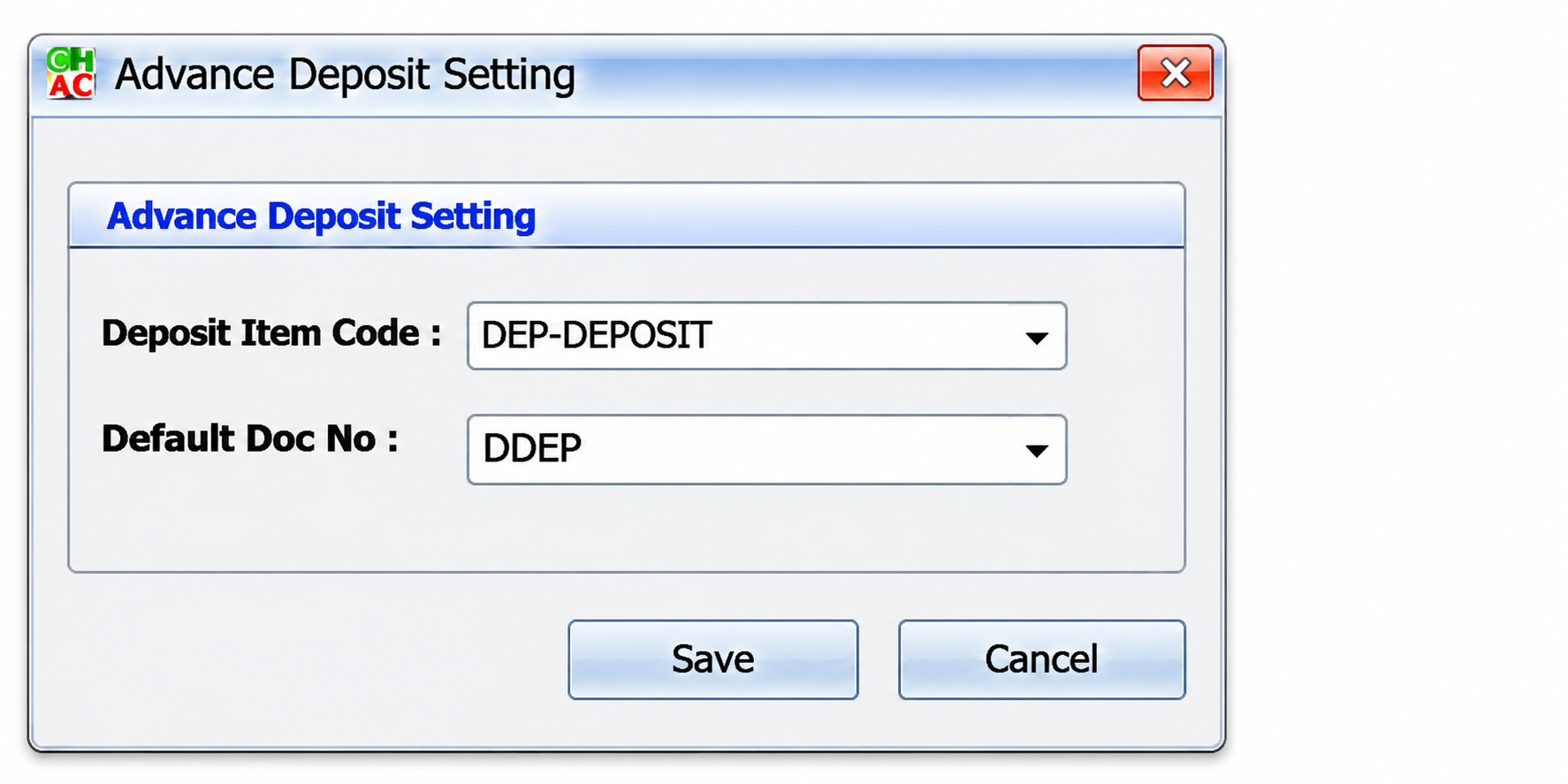
Configure the default deposit item code, document numbering format and optional e-Invoice submission flag for new deposit Cash Sales.
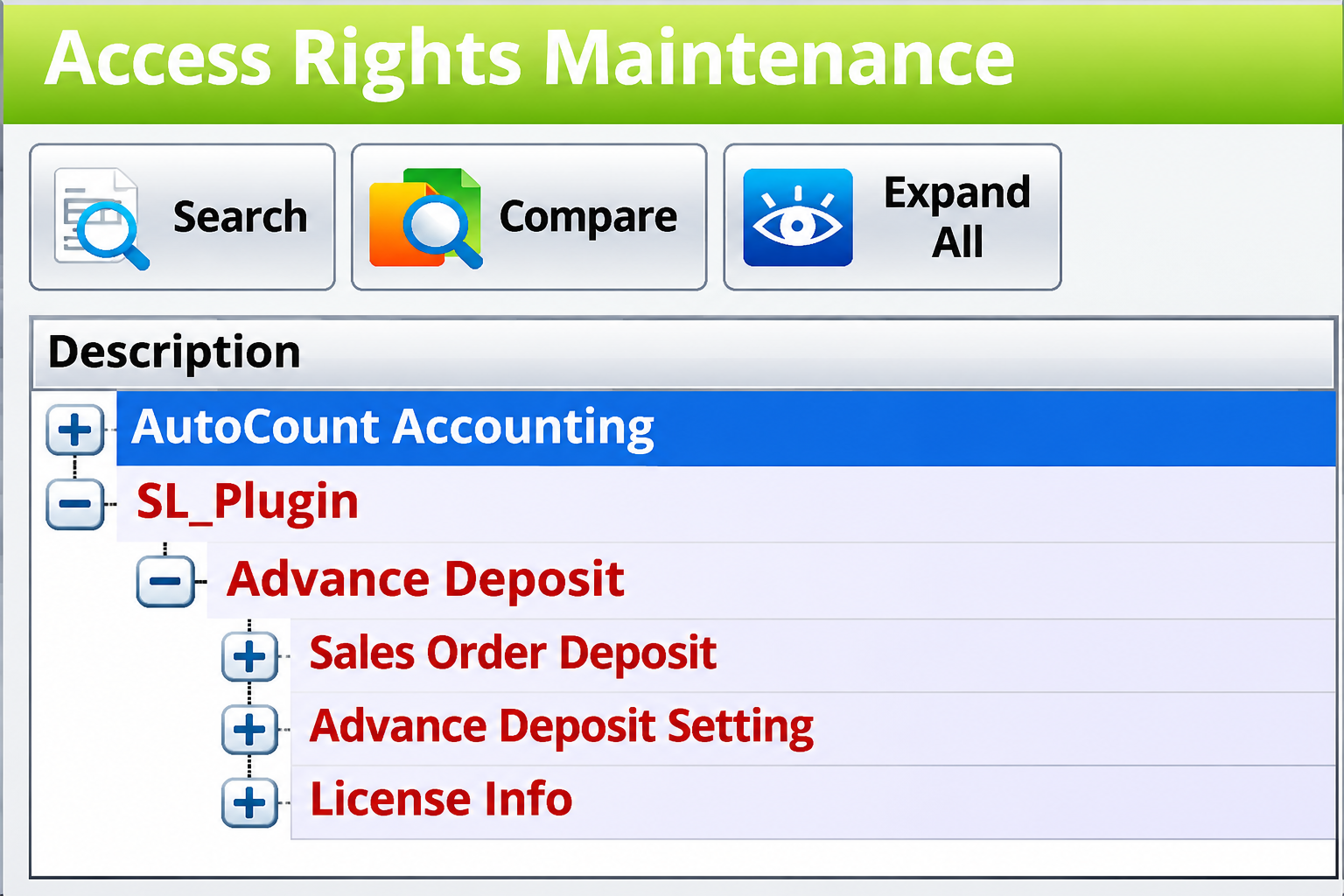
Manage permissions for advance deposit commands and reporting functions according to staff responsibilities.
Tell us how your business handles the process today and discuss suitable AutoCount options.
Illustrative business process, not step-by-step software instructions.
A clear checkpoint for the team as it progresses through the documented workflow.
A clear checkpoint for the team as it progresses through the documented workflow.
A clear checkpoint for the team as it progresses through the documented workflow.
A clear checkpoint for the team as it progresses through the documented workflow.
Collect customer deposits before fulfilling orders.
Keep advance collections associated with the customer's order.
Review daily collections across selected dates and locations.
Yes, the amount must be within the available Sales Order balance.
Yes. Cash and Multi Payment are documented; Credit Sale is not supported for advance deposits.
The guide documents opening an available unused deposit for the same debtor.
No. The documented Advance Deposit Cash Sale cannot be deleted.
No. Once transferred to an invoice, the source deposit cannot be edited and saved.
Yes. The Daily Collection Report supports date and location criteria.
Already using the plugin? Read the AutoCount Advance Deposit User Guide for setup and operating instructions.
Browse the AutoCount add-on catalogue, consult the Advance Deposit user guide or discuss your deposit management requirements with SL Software.
Discuss your requirements with SL Software Solutions and confirm compatibility with your AutoCount version.
Licensing, configuration, supported documents and deployment details should be confirmed before purchase.