Balances spread across documents
Staff must compare invoices, credits and payments before matching.

Bring outstanding invoices, credits and related payments together for review, helping your accounts team allocate knock-off amounts and check customer or supplier balances in AutoCount.
Contact SL Software to discuss version compatibility, licensing and suitability.
Bring outstanding invoices, credits and related payments together for review, helping your accounts team allocate knock-off amounts and check customer or supplier balances in AutoCount.
It provides the documented functions outlined below within the applicable AutoCount environment. Your team can confirm specific permissions, setup requirements and compatibility before purchase.
Common operational problems the documented functions may help your team address.
Staff must compare invoices, credits and payments before matching.
Different amounts may need to be allocated to different open documents.
Businesses using branches may need to narrow outstanding records.
Incorrect matching can require additional correction work.
Functions confirmed in the companion user guide.
The documented Easy Knock Off screen brings relevant outstanding invoices, debit or credit notes and payments together.
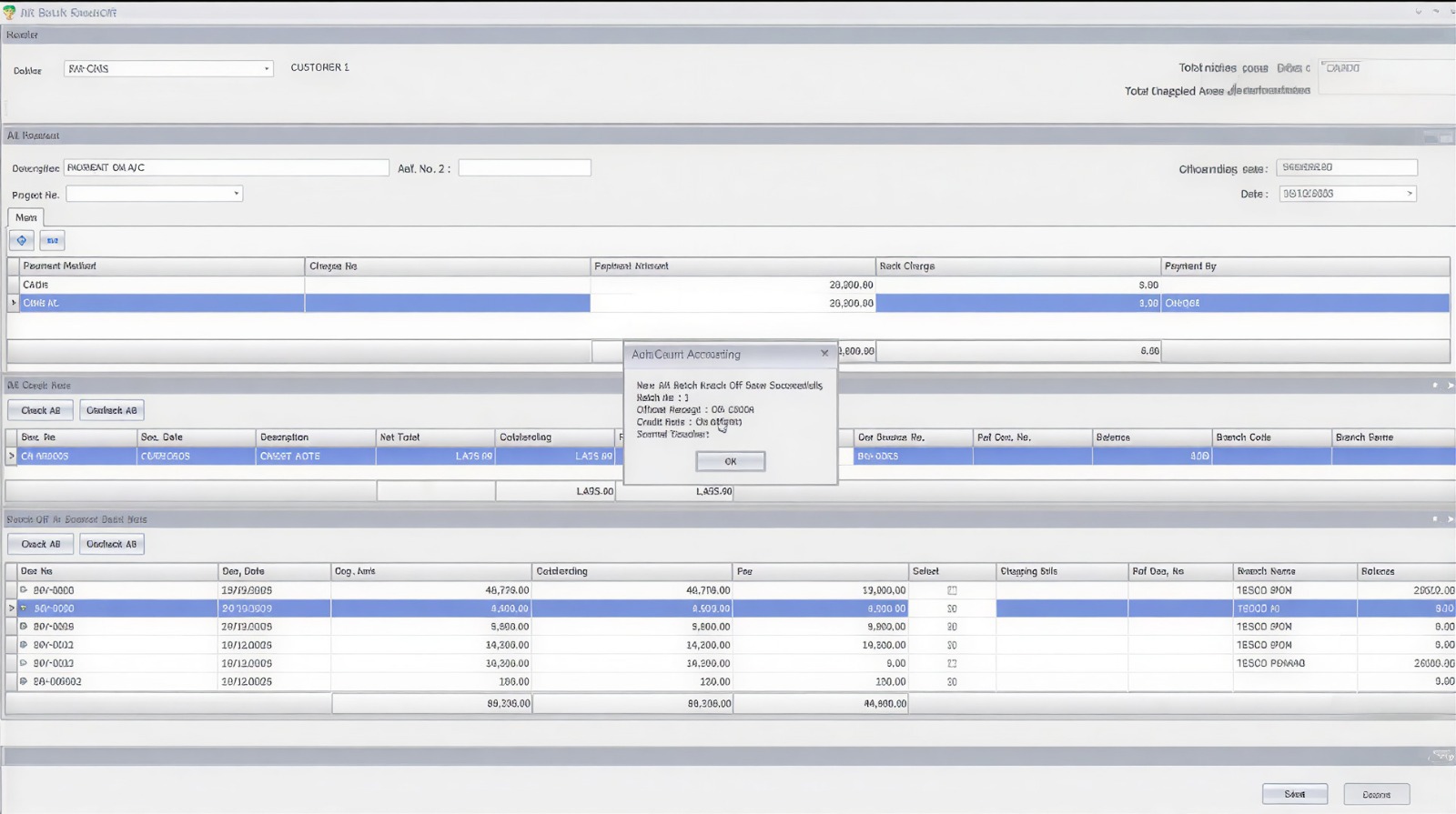
Staff can adjust the applied amount against selected outstanding transactions within available balances.
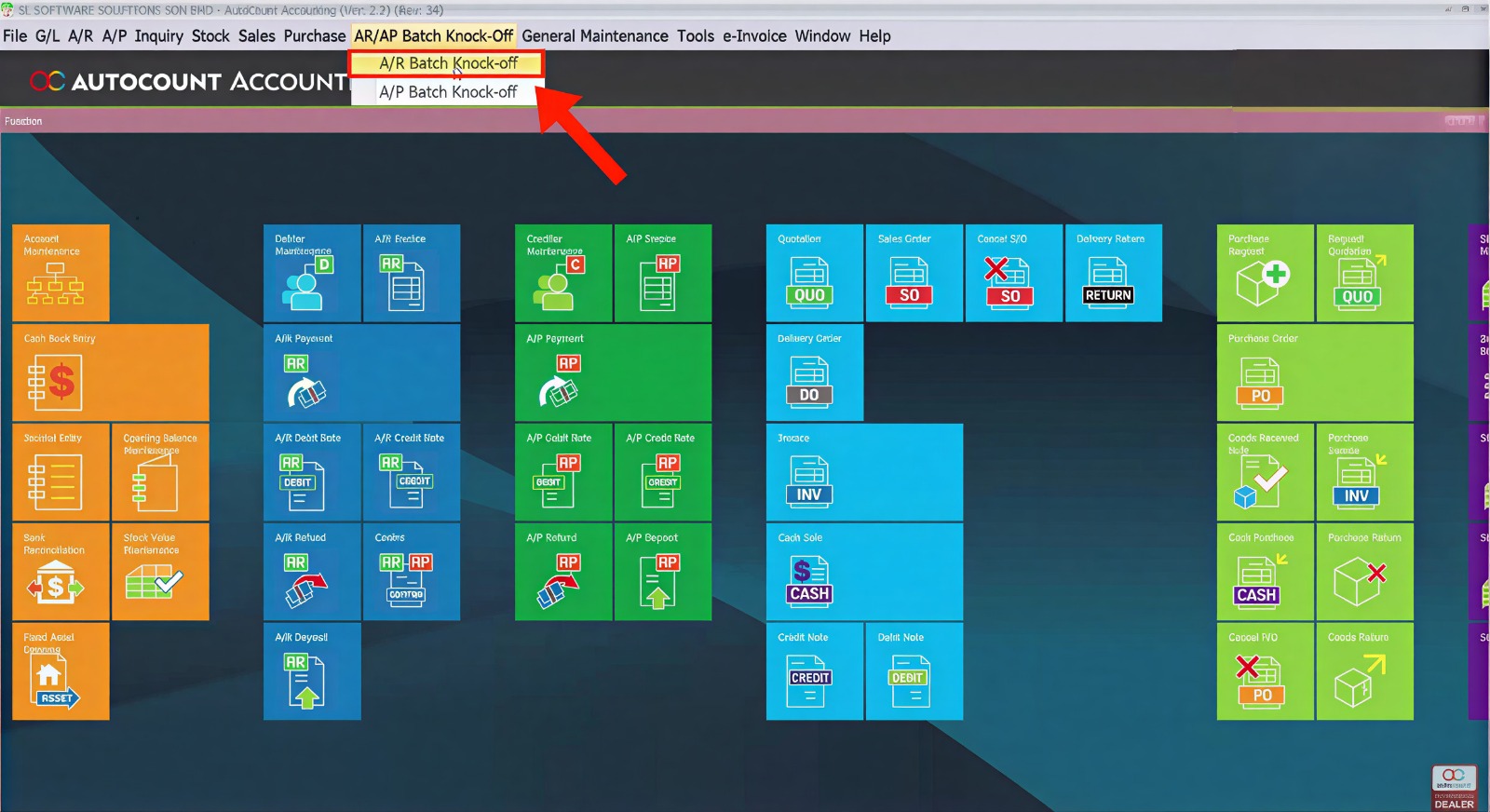
Use the applicable AR or AP context, with branch filters where the account book supports them.
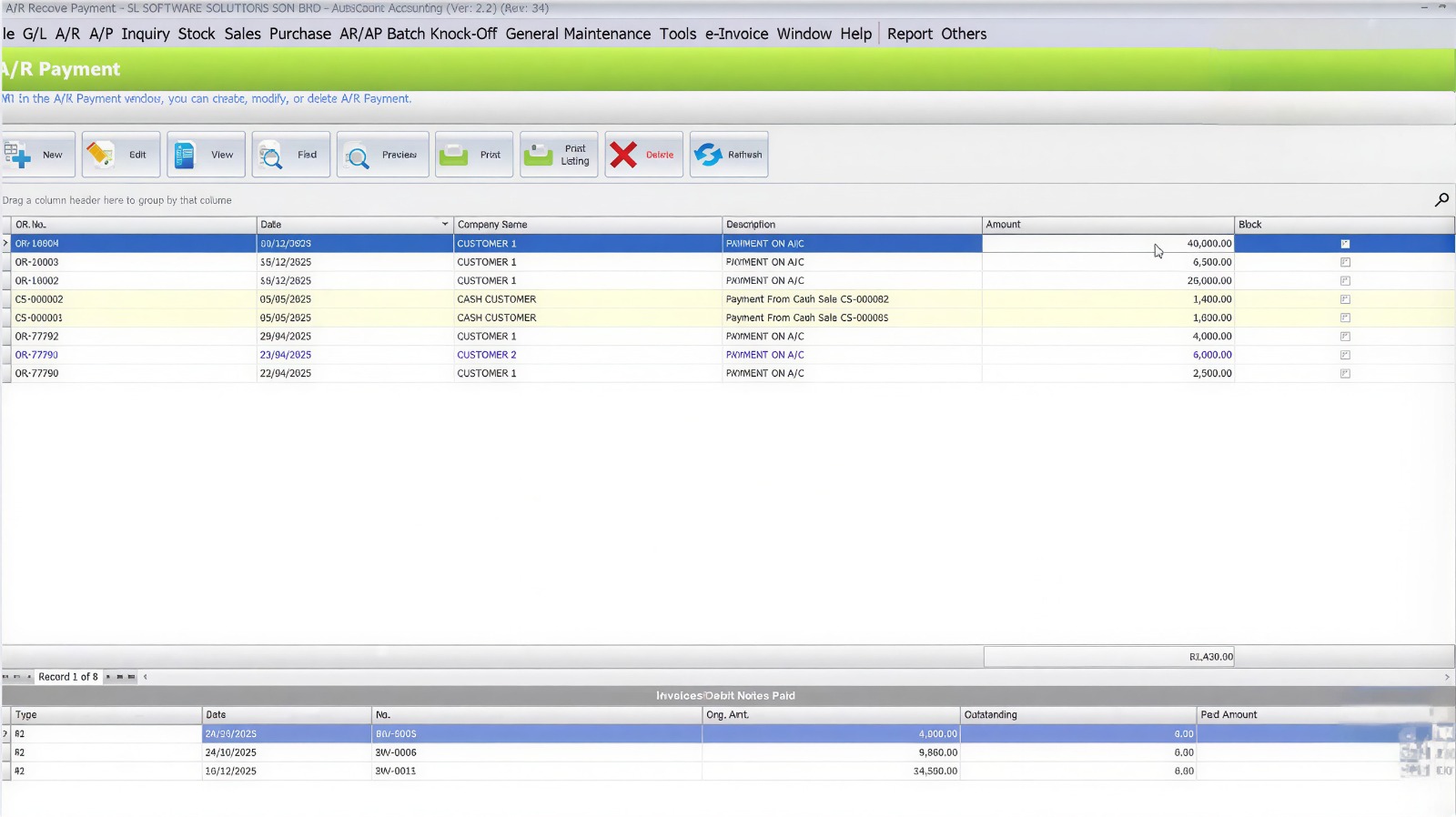
After saving the selected matching transaction, review the related AutoCount records and outstanding figures.
Talk to SL Software Solutions about how your company currently handles this process.
Illustrative sequence showing the business use, not installation instructions.
Part of the documented plugin workflow; confirm your requirements with SL Software.
Part of the documented plugin workflow; confirm your requirements with SL Software.
Part of the documented plugin workflow; confirm your requirements with SL Software.
Part of the documented plugin workflow; confirm your requirements with SL Software.
Match customer payments and credits.
Review applicable supplier transactions.
Filter matching context where branch codes are used.
Yes. The documented workflow allows adjustments to applied amounts.
The guide describes both AR and AP Easy Knock Off contexts.
The documented view brings relevant outstanding records together.
Yes, where the AutoCount account book has applicable branch configuration.
Reversal may depend on configuration and permissions; verify the exact process with your AutoCount team.
Contact SL Software to confirm compatibility, version and licensing.
Already using this plugin? Read the AutoCount Easy Knock Off User Guide for the operating steps.
Confirm the plugin's fit, supported functionality, licensing and installation requirements with our team.