
-
AutoCount Accounting Features
-
- Approval Workflow
- Audit Trail
- Auto Save in Draft Folder
- AutoCount Contra Account
- AutoCount License Setting Guide
- Deposit Tracking & Management
- Documents Numbering Format
- Full Transfer and Partial Transfer
- Import Data to AutoCount Accounting Using Excel
- Informative Charts and Analytical Data
- Layout Customization
- Multi Pricing
- Sales and Services Tax
- Schedule Backup
- Search Lookup Edit
- View Documents Flow
- AutoCount Feature Stock Take
- Column Chooser
- Show Remaining (3) Collapse
-
AutoCount Cloud Accounting
-
AutoCount E-Invoice
-
AutoCount HRMS User Guide
-
AutoCount Modules
-
- Activity Stream
- Advanced Financial Report
- Advanced Item
- Advanced Multi-UOM
- Advanced Quotation Module
- Basic Multi-UOM
- Budget Module
- Consignment
- Filter By Salesman
- FOC Quantity
- Formula
- Item Batch
- Item Package
- Landing Cost
- Multi-Currency
- Multi-Dimensional Analysis
- Multi-Location
- Project Account
- Recurrence
- Remote Credit Control Module
- Stock Assembly
- User Defined Fields (UDF)
- AutoCount SST Hidden Functions
- AutoCount SST Submission - Service Tax
- AutoCount Scripting Module User Guide
- AutoCount Bonus Point Module User Guide
- AutoCount Service Management Plugin User Guide
- Show Remaining (12) Collapse
-
AutoCount Plugins
-
- Fixed Assets Management
- Goldsmith
- TD Ordering Mobile Apps
- TD Stock Mobile Apps
- Universal Import Plugin
- DMS Import Plugin
- AutoCount Pick List Plugin User Guide
- AutoCount Credit Memo Plugin User Guide
- AutoCount Lock Price Plugin
- AutoCount Progressive Billing
- AutoCount Easy Recurrence Plugin
- Batch Update Unit Price Plugin
- AutoCount Production order
- AutoCount Car Tint Film Plugin
-
- Event Management System
- AutoCount To-Do List Plugin
- AutoCount AutoBank Reconciliation Plugin
- Intercompany Billing Plugin User Guide
- Lead Management 2.0 Plugin
- AutoCount Service Contract Plugin User Guide
- AutoCount Optical Plugin
- AutoCount Integrator Plugin
- AutoCount Procurement Planning Plugin
- Cage Management Plugin
- AutoCount Vehicle Plugin
- AutoCount Agent Validation Plugin User Guide
- AutoCount Barcode Generator Plugin User Guide
- AutoCount Easy Batch Number Entry Plugin User Guide
- Warranty 2.0 Plugin
- AutoCount Easy Photo 2.0 User Guide
- AutoCount Recurring Invoice Plugin User Guide
- AutoCount Scale Barcode Plugin User Guide
- AutoCount Recurrence Late Interest Plugin
- AutoCount Item Visibility Control
- AutoCount Bill Remark Plugin User Guide
- AutoCount Pain Tracker User Guide
- AutoCount Easy Payment
- AutoCount Easy Deposit Plugin
- AutoCount Easy Knock Off Plugin
- AutoCount Daily Collection Summary Plugin
- Timber Log Plugins
- Batch Transfer SODO Plugin
- AutoCount Vege Basket Plugin Guide
- AutoCount Fruit Basket Plugin Guide
- Referral Management Plugin
- AutoCount Migrator Plugin
- AutoCount Email & WhatsApp Plugin
- AutoCount Multi Company Knock Off Plugin
- AutoCount Advance Aging Format Plugin
- AutoCount Payment Request Plugin
- AutoCount Vehicle Master Plugin
- AutoCount Advance Deposit Plugin
- AutoCount IC Checker Plugin
- AutoCount RMA Plugin
- AutoCount Historical Outstanding DO Listing Plugin
- AutoCount Project Department Visibility Control Plugin
- AutoCount MRP Order Plugin
- AutoCount GridToExcel Plugin
- AutoCount Stock Availability Report Plugin
- AutoCount Batch Transfer SO DO Plugin
- AutoCount Centralized Kitchen Management Plugin
- SL AutoCount API
- AutoCount InterCompany Billing Plugin
- AutoCount Sales Commission Plugin
- AutoCount Advanced Credit Term Plugin
- AutoCount Advanced Stock Assembly Plugin
- AutoCount Shipment Plugin
- AutoCount Tour Plugin
- AutoCount Smart Analysis
- AutoCount Rental Management
- Show Remaining (41) Collapse
-
-
Form Template
-
Report Template
-
- Advance Quotation
- Cash Sale
- Consignment
- Consignment Movement
- Credit Note
- Debit Note
- Delivery Order
- FOC Quantity Analysis By Document Report
- Invoice
- Item Package Sales Report
- Monthly Sales Analysis
- Outstanding Sales Order Listing
- Profit And Loss Of Documents
- Quotation
- Sales Agent Contribution Report
- Sales Order
- Top/Bottom Sales Ranking
- Show Remaining (2) Collapse
-
- Available Stock Status Report
- Expired Item Batch Listing
- Inventory Physical Worksheet
- Stock Adjustment
- Stock Aging Report
- Stock Assembly
- Stock Assembly Order
- Stock Balance By Location
- Stock Balance Report
- Stock Card Report
- Stock Disassembly
- Stock Issue
- Stock Item Profit Margin
- Stock Movement Report
- Stock Receive
- Stock Take
- Stock Transfer
- Stock Write Off
- Show Remaining (3) Collapse
-
B2B ORDERING
-
AutoCount AI Agent
AutoCount Easy Knock Off Plugin
Simplify Payments, Credit Notes & Debtors Matching — All in One Place
The AutoCount Easy Knock Off Plugin enhances your cash collection and accounts receivable workflow by consolidating multiple transaction types—outstanding invoices, credit notes, debit notes, and payments—into a single unified screen. This eliminates the need to jump between separate screens (like Official Receipt and Credit Note entry), helping cashiers and accountants reconcile and apply transactions faster and more accurately.
AutoCount Easy Knock Off Plugin Video Guide
Watch these videos guide to learn how to effectively use the AutoCount Easy Knock Off Plugin. Gain insights on managing item visibility and usage across various AutoCount Accounting modules.
- AutoCount Easy Knock Off Plugin (EN)
Knock Off Plugin Setup
Integration & Knock Off Setup
- AutoCount Easy Knock Off Plugin (CN)
仿冒插件设置
集成与仿制设置
Why Use AutoCount Easy Knock Off Plugin?
Managing customer payments, credit notes and outstanding invoices across different screens can make reconciliation slower and more complicated.
The Easy Knock Off Plugin helps businesses:
Manage Payments & Documents in One Place
Speed Up Knock Off Processing
Reduce Manual Reconciliation Work
Handle Complex Payment Scenarios Easily
This is particularly important for businesses that frequently manage customer payments, credit notes, outstanding invoices and partial payment applications
Key Features of AutoCount Easy Knock Off Plugin
Single Unified Knock Off Screen
View outstanding invoices, credit notes, debit notes and available payments together in one centralized screen
Flexible Payment Application
Apply customer payments directly to invoices and credit notes with support for different payment methods
Branch Filtering
Filter transactions by branch to make reconciliation easier for businesses operating multiple locations
Dynamic Amount Adjustment
Adjust applied amounts during knock off processing for partial payments, deductions or flexible allocation
Who Should Use AutoCount Easy Knock Off Plugin?
Accounts Receivable Teams
Suitable for teams managing customer payments, invoices and outstanding balances regularly
Finance & Accounting Teams
Helps accounting teams improve reconciliation accuracy and reduce manual matching work
Multi-Branch Businesses
Useful for businesses that need to manage collections and outstanding transactions across different branches
Businesses with Complex Payment Scenarios
Ideal for businesses handling partial payments, credit notes, multiple invoices and different payment situations
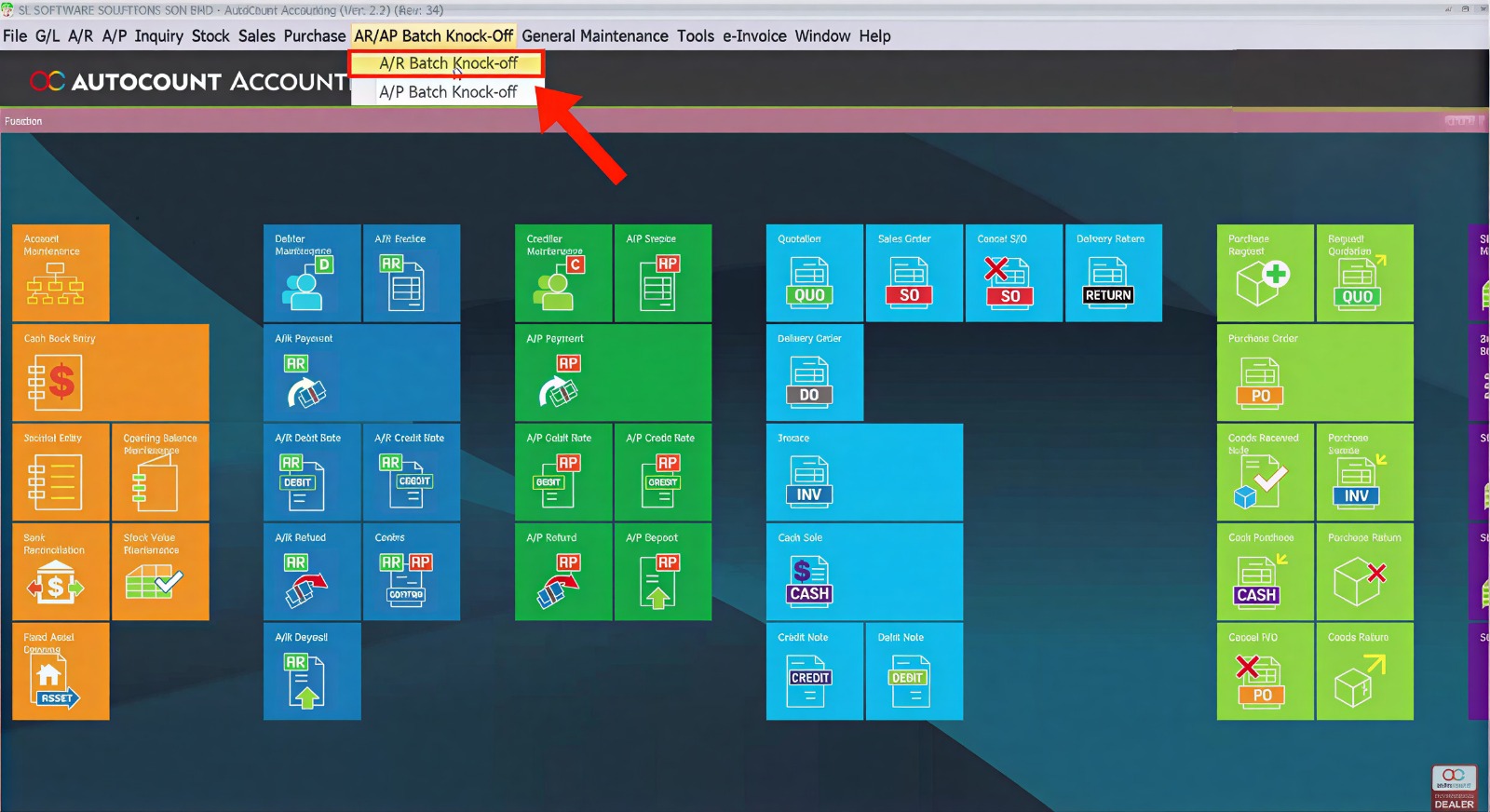
Starting the Easy Knock Off Screen
Open AR Easy Knock Off (or AP Easy Knock Off if matching supplier credits/payments).
The screen shows aggregated data including:
- Outstanding invoices
- Unapplied credit notes
- Debit notes or contra balances
- Payments available for application
Selecting Branch & Customer Context
If your business uses branch codes (e.g., Ipoh, Penang, KL), choose the relevant branch to filter the listed transactions.
This helps users focus only on invoice/credit groups relevant to that outlet or customer segment.
Apply Knock Off
In the combined screen:
- Review credit note balances
- Select invoices to apply
- Add payment amount and choose payment method
- Adjust partial allocations if desired
- View running total of applied amounts
You can manually increase or reduce applied amounts before saving if needed.
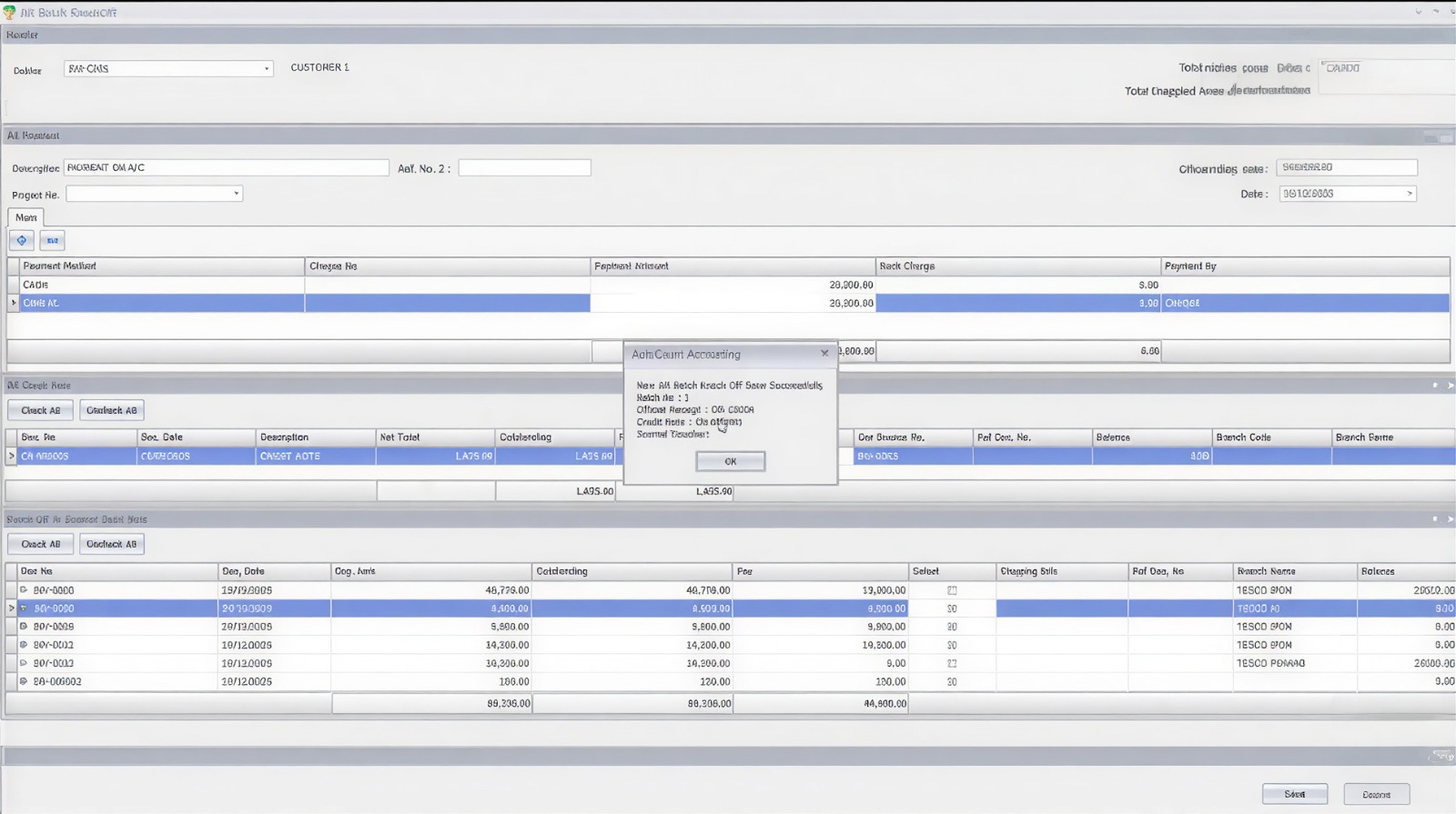
Confirm & Save
Once you’re satisfied with the match:
Save the transaction — the system will:
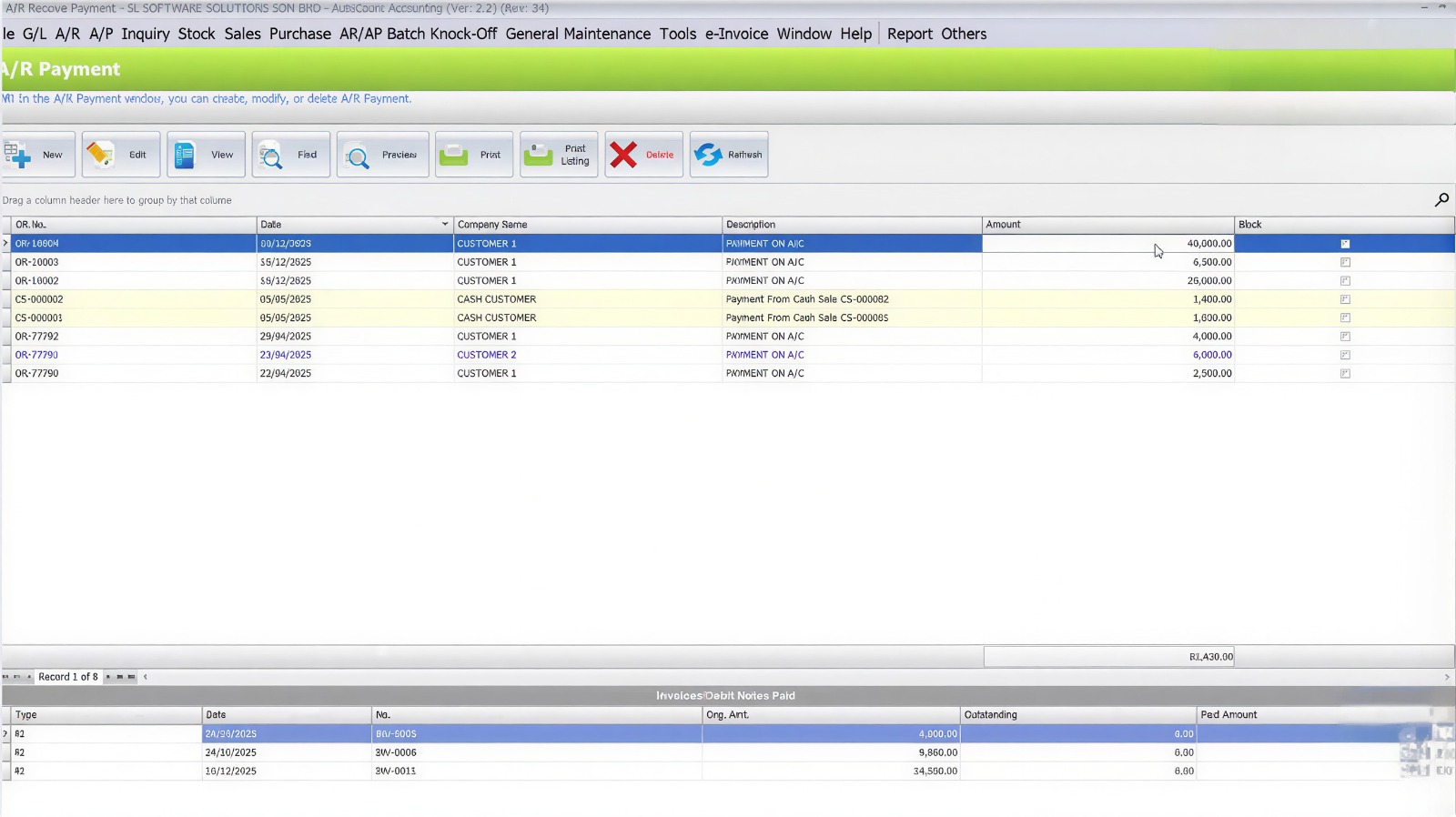
- Apply matched payments and credits
- Generate corresponding AR/AP posting entries
- Update outstanding balances in real time
The applied results appear as knocked‑off transactions in AR/AP and cash/bank positions.
Access & Permissions
Make sure the plugin is enabled in AutoCount and that authorized users (e.g., AR/AP roles) have access rights assigned in General Maintenance > Access Right Maintenance.

Once rights are set, users will see Easy Knock Off options under Accounts Receivable (AR) and Accounts Payable (AP) menus.
Benefits of AutoCount Easy Knock Off Plugin
Faster Cash Application
Reduce the time required to match customer payments with outstanding transactions
Improved Reconciliation Accuracy
Minimize manual errors by managing payments and related documents in one workflow
Better Outstanding Visibility
View invoice balances, credit notes and available payments more clearly before applying knock off
Supports Complex Business Transactions
Handle real business situations such as partial payments, multiple invoices and credit note adjustments more efficiently
Conclusion
The AutoCount Easy Knock Off Plugin helps businesses simplify payment reconciliation by combining invoices, credit notes, debit notes and payments into a single workflow. With better visibility and flexible payment application, businesses can improve collection efficiency and reduce manual reconciliation effort.
Frequently Asked Questions
Will this affect my accounting data integrity?
No. The plugin applies transactions using standard AR/AP posting logic — it doesn’t overwrite existing entries, it matches and posts like normal AutoCount receivable logic.
Is this compatible with all AutoCount versions?
Compatibility depends on your AutoCount core version and plugin framework. Check with your dealer for specific version support.
Can I undo a knock off?
Yes — in transactions where an auto‑generated payment or application was done, you can unknock off if needed (depending on configuration and rights).
Does it support partial application?
Yes — you can adjust applied amounts before saving to reflect partial payments or partial credit use.
Interested in Getting AutoCount for your Business?
Contact our sales team today to explore pricing options and get started with the perfect solution for you.
Benefits of AutoCount [Plugins Name] Plugin
[Benefit 1]
[Benefit Description 1]
[Benefit 2]
[Benefit Description 2]
[Benefit 3]
[Benefit Description 3]
[Benefit 4]
[Benefit Description 4]