Static reports answer limited questions
A fixed layout may not reveal the product, customer or salesperson detail management needs.

Filter sales data, arrange pivot results, add user-defined fields, inspect supporting transactions and save reusable analysis criteria and layouts.
Confirm cost-field access, export requirements and user permissions with SL Software.
A simplified concept view of the documented plugin workflow.
AutoCount Smart Analysis gives authorised users a flexible way to explore sales information using filters and pivot-style arrangements. Teams can select criteria, run the inquiry and reorganise dimensions to compare performance from different angles.
The documented workflow also covers user-defined fields, transaction drill-down, preview and export, saved criteria and reusable pivot layouts.

A fixed layout may not reveal the product, customer or salesperson detail management needs.
Users rebuild the same date ranges and conditions for recurring reviews.
Access rights and layout choices determine which cost, profit and custom fields are available.
These capabilities follow the current Smart Analysis guide, from access rights and inquiry through filtering, pivot exploration, export and saved layouts.
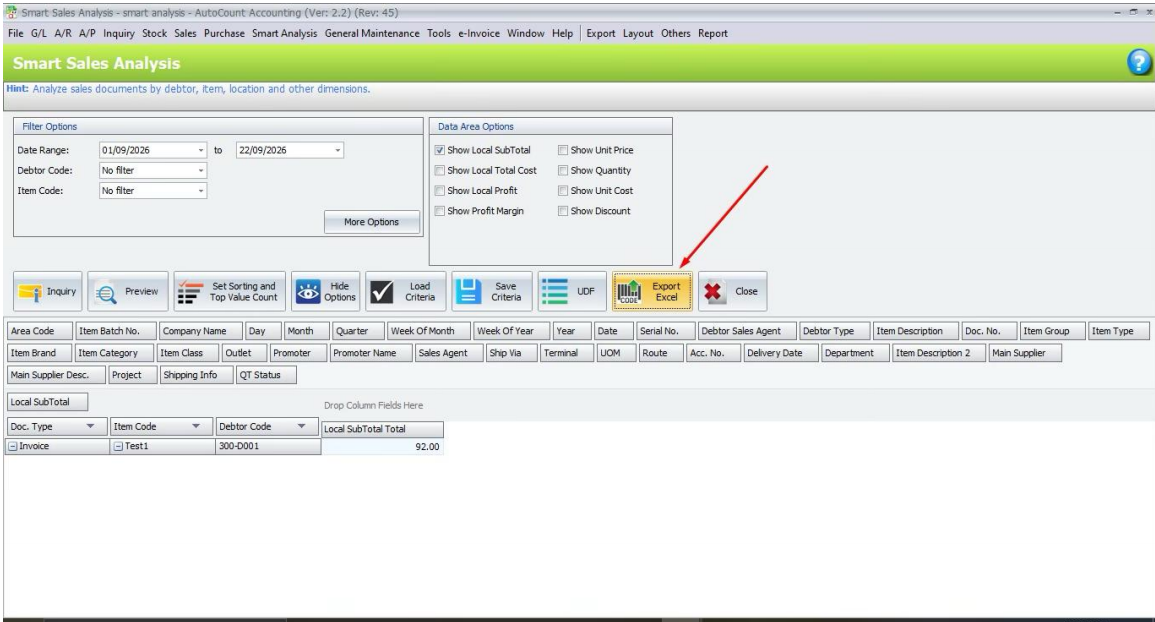
Open Smart Sales Analysis, select the applicable date range and criteria, then run the inquiry to load matching sales information.
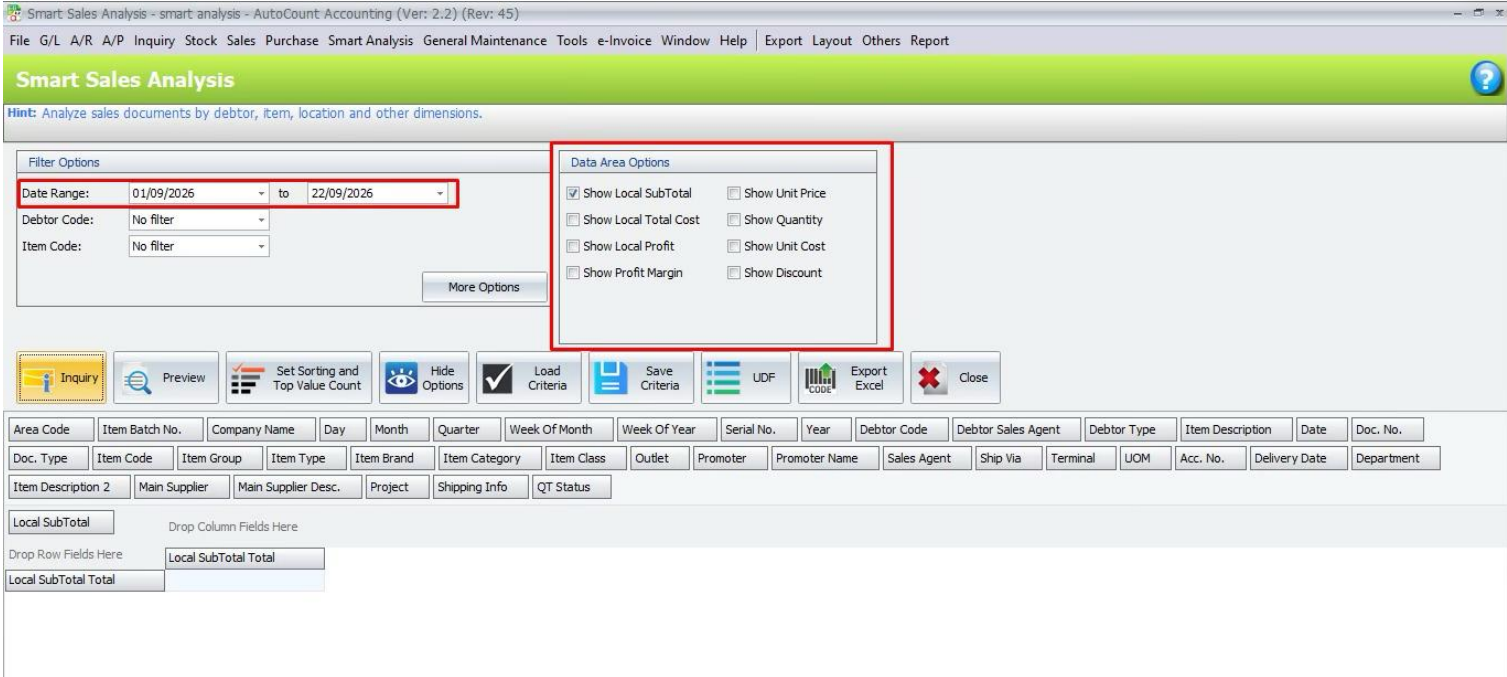
Apply the available filters to focus the analysis on selected customers, items, salespeople, locations or other documented dimensions.
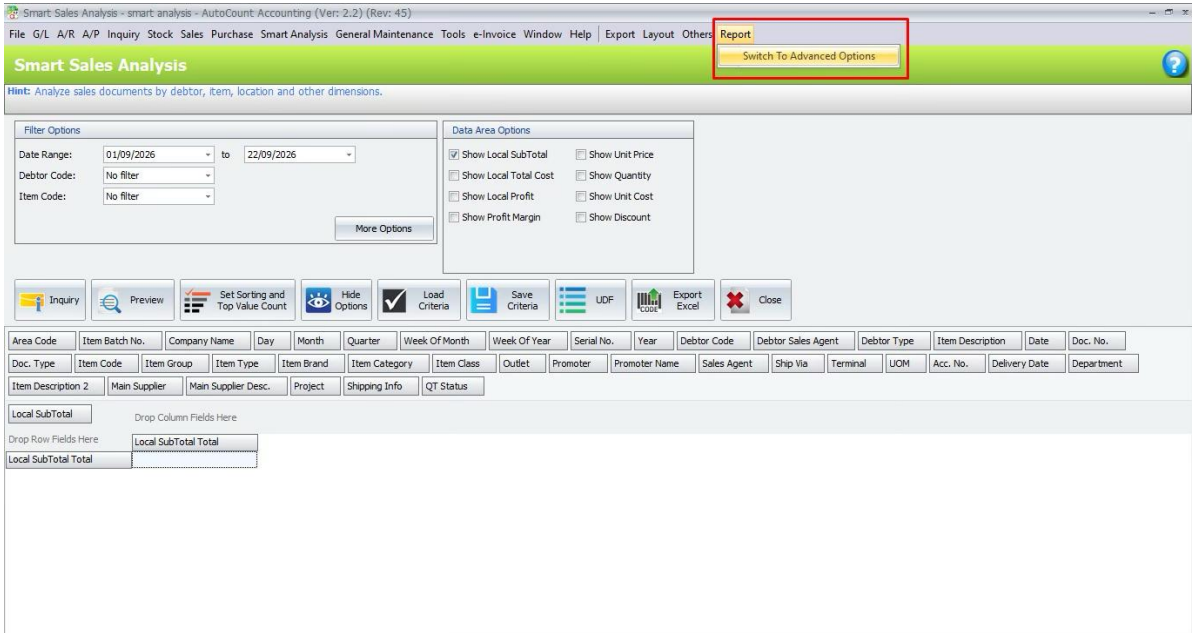
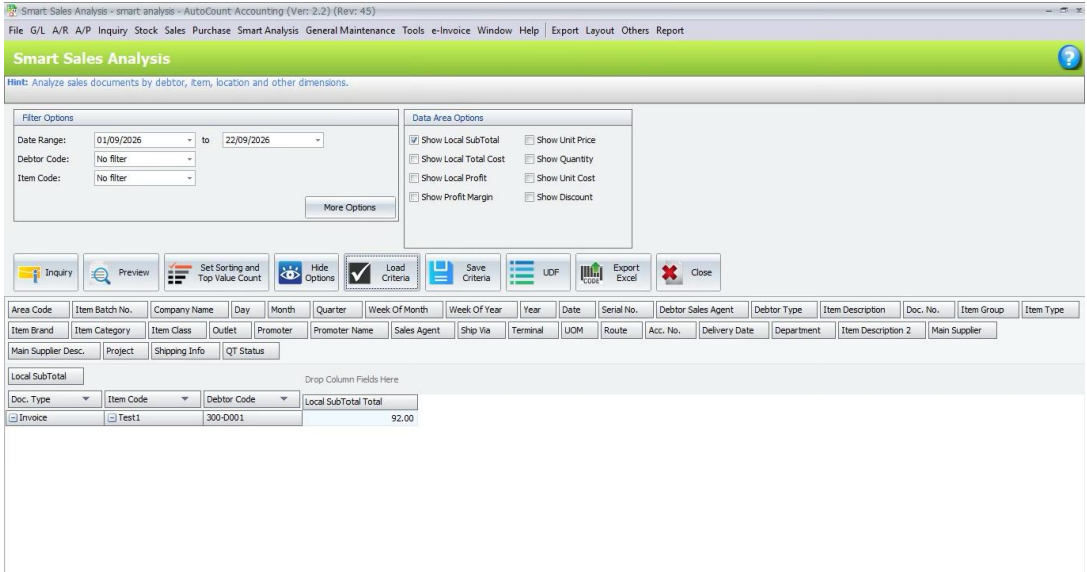
Move fields within the pivot layout, expand results and inspect the transactions behind an analysis value when more detail is required.
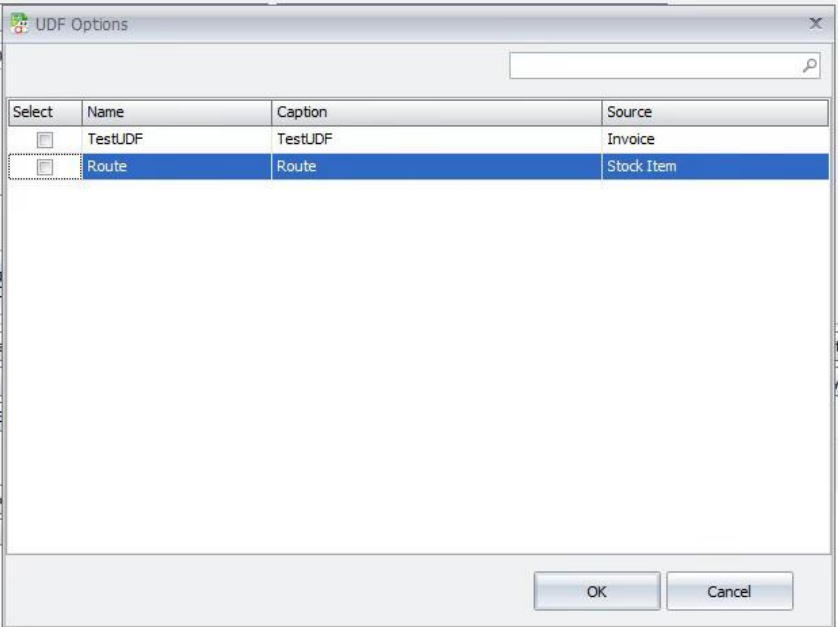
Add available user-defined fields to the analysis when the business records additional information beyond the standard columns.
Preview or export the results, save frequently used criteria and restore a preferred pivot layout for later analysis.
Arrange a demonstration with SL Software and discuss your AutoCount version, responsibilities and reporting needs.
The workflow moves from a defined management question to a reusable analysis view.
Choose dates, filters and available fields.
Load the matching sales transactions.
Arrange dimensions and inspect supporting detail.
Reuse the criteria and layout or share the results.
Compare performance across customers, products and salespeople.
Review sales values, cost and profit fields where access is permitted.
Analyse company-specific information recorded through UDFs.
Check that the relevant Smart Analysis access rights are granted.
Those fields depend on the user’s View Cost permission.
Yes. The guide documents exploring the supporting transactions from the analysis result.
Yes. Criteria and pivot layouts can be saved and restored.
Use the documented Preview or Export functions; available formats should be confirmed in the installed AutoCount environment.
Need operating instructions? Read the plugin user guide.
Filter the right transactions, explore pivot results and save the criteria and layout your team uses most often.