
A Delivery Order (DO) in AutoCount is a fulfillment document used to record the delivery of goods to a customer. It serves as a dispatch document and, when signed, can also serve as proof of delivery or receipt.
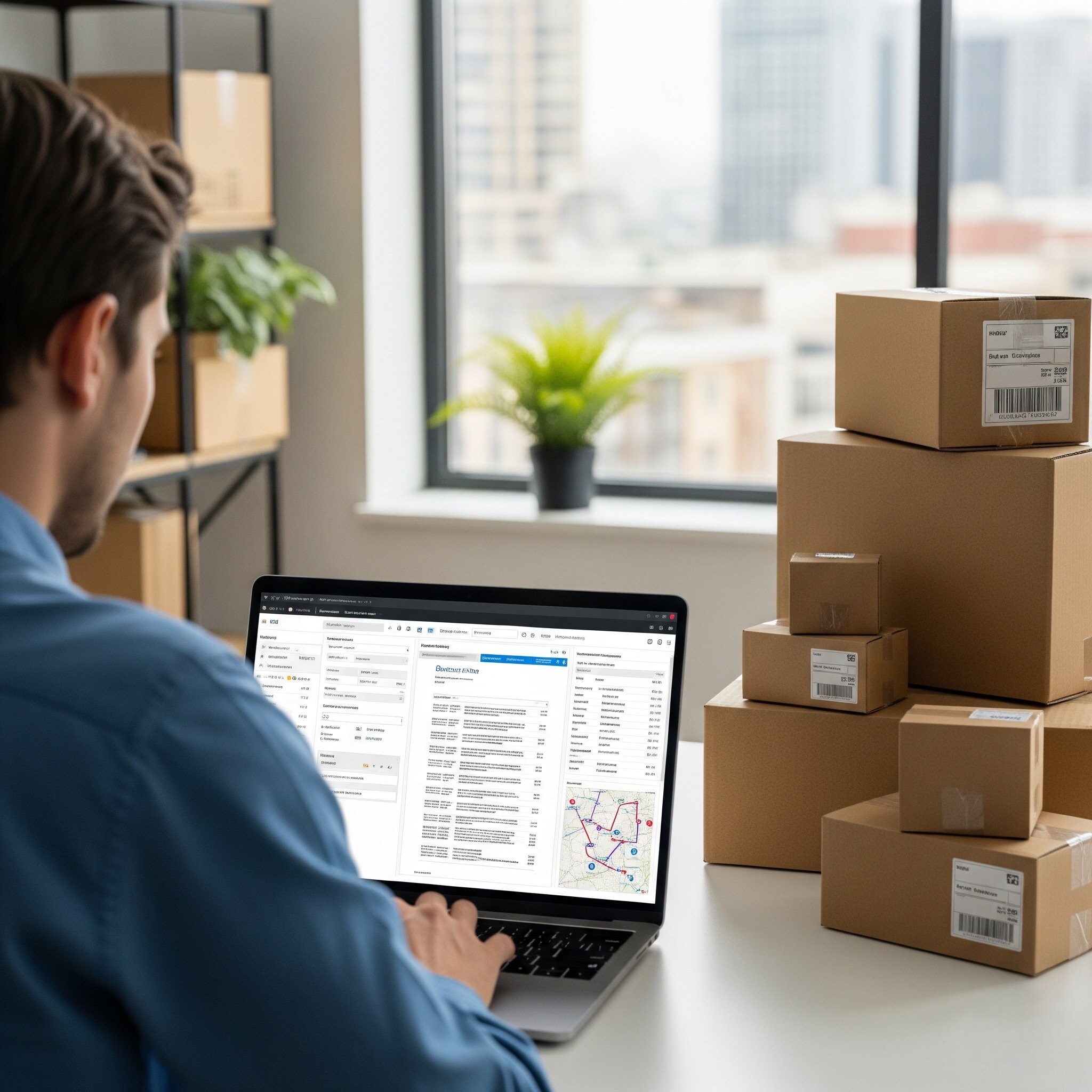
A Delivery Order is a document that authorizes and lists the goods to be delivered to a customer. It is given to the delivery team and includes details like the customer’s information, delivery address, and a list of items with quantities.
In a traditional workflow, the driver gets this document, and upon delivery, the customer signs it as proof of receipt. In many companies, the signed DO is returned to the accounts department before invoicing.
“In AutoCount, the invoice is typically created by transferring from the DO.”
Within the AutoCount system, the Delivery Order serves several key purposes:
When a DO is saved with Post To Stock enabled, the system reduces the stock level for the items delivered.
Unlike an invoice, a DO does not affect your General Ledger (G/L) or accounts. It is strictly an operational document for tracking goods movement.
It acts as a crucial link between a confirmed sale (Sales Order) and the final billing (Sales Invoice). This allows you to track what has been delivered but not yet billed.
You can create a DO from scratch, but it’s highly recommended to transfer from other documentslike a Sales Order (SO) or Quotation. This ensures traceability and accurate outstanding reports.
When a DO is saved with Post To Stock enabled, the system reduces the stock level for the items delivered.
You can design professional DO templates that match your company’s branding by adding your logo, delivery terms, and customizing the layout.
This feature provides a report that shows all deliveries that have been made but are not yet converted into invoices. This helps prevent revenue leakage and missed billing.
For businesses with high volume, this add-on allows you to convert multiple DOs into invoices in bulk, saving significant time and reducing manual errors.
Go to the main menu and click on Sales > Delivery Order.
Click on "Create A New Delivery Order".
Use the function to "Transfer from Sales Order". Select the relevant Sales Order; the system will auto-populate customer details and items.
Check Item Code, Description, UOM, and Qty. You can adjust quantities if you are doing a partial delivery.
Click Save. If "Post To Stock" is enabled, this will update your inventory levels immediately.
After saving, click Save & Preview to print the DO for your delivery team.
By automating stock updates and transferring data from sales orders, you eliminate manual data entry errors.
Every delivery is logged with details of who, when, what, and where, which is invaluable for audits and resolving disputes.
By tracking unbilled DOs, you ensure that every delivered item is invoiced, preventing revenue leakage.
It creates a clear handoff between the warehouse (who dispatches goods) and the accounts department (who bills for them).
A signed DO can serve as proof of delivery (POD) or evidence that the goods were received.
| Step | Workflow & System Actions |
|---|---|
| 1 | Sales Order: A customer places an order, and you create a Sales Order (SO) in AutoCount. The SO records customer demand and contributes to Reserved Qty / Available Qty calculations, but it does not deduct stock by itself. |
| 2 | Picking & Packing: The warehouse team uses the SO to pick and pack the goods. |
| 3 | Delivery Order Creation: You transfer the SO to a Delivery Order (DO). The DO is printed and given to the driver. System Action: When the DO is saved with Post To Stock enabled, inventory is reduced. |
| 4 | Goods Delivery: The driver delivers the goods to the customer, who signs the DO as proof of receipt. |
| 5 | Invoice Generation: The signed DO is returned to the accounts department. They find the DO in AutoCount and use it to generate the final Sales Invoice. (Batch Transfer plugin can be used for bulk processing). System Action: The invoice updates the customer’s account and creates the financial transaction. Since it was transferred from a DO, it does not reduce stock again. |
From a system perspective, here is what happens when you process a Delivery Order:
The primary function of a DO is to execute inventory movement. When saved with "Post To Stock" enabled, the system updates the quantity, immediately reflecting in all stock balance reports.
A DO has no effect on G/L entries. It doesn't record revenue; financial accounting only triggers when the final Sales Invoice is generated.
AutoCount maintains full bi-directional links. You can drill down from an Invoice to find the source DO and the original Sales Order easily.
Supports report scripting for multi-UOM packing lists (e.g., "2 CTN, 3 BOX") and APIs for automated DO creation from external systems.
No. A DO is strictly an operational document used for tracking the movement of goods. It has no impact on your General Ledger (G/L), revenue, or cost of goods sold; these financial transactions only occur once an invoice is generated.
When a DO is saved with the Post To Stock feature enabled, the system automatically reduces the stock level for the items delivered. This ensures your stock balance reports reflect real-time inventory movement.
Transferring from a Sales Order (SO) or Quotation is highly recommended because it ensures traceability and accuracy in outstanding reports. It also saves time by automatically populating customer details, items, and quantities, which eliminates manual entry errors.
No. When an invoice is transferred from a Delivery Order, the system does not reduce the stock again. This is because the inventory was already deducted at the moment the DO was saved.
AutoCount includes an Outstanding Delivery Order Listing feature. This report identifies all deliveries that have been made but not yet converted into invoices, helping businesses prevent revenue leakage and missed billing.
Manage deliveries efficiently with AutoCount.
Record dispatches, track inventory movement accurately , and generate proof of delivery with an integrated operational system.