New Version 1.0.0.5 Available

Advanced Inventory Control

For Autocount Users

Seamlessly bridge your warehouse floor and your accounting office. Scan, pick, transfer, and audit inventory with real-time AutoCount synchronization.

Plugin Name

TechDEVS.TD_STOCK

App Version

1.0.0.5

Plugin Version

2.2.0.40 / 2.2.1.28

Developer

TECHDEVS SDN BHD

The Complete Mobile Warehouse Suit

Everything you need to run an efficient warehouse, right in the palm of your hand.

Stock Take

Fast cycle counting with barcode verification. Sync instantly with AutoCount variance reports.

Order Form

Create new sales orders directly from the warehouse floor or out in the field on mobile.

Picking & DO

Pick against sales orders accurately and post Delivery Orders without touching a keyboard.

GRN & PO

Convert incoming Purchase Orders to Goods Receive Notes directly upon scanning items.

User Documentation

Everything you need to set up and master TD STOCK.

Welcome to the TD STOCK user guide. This application is designed to work as an extension of the AutoCount Accounting system, providing mobile scanning capabilities for warehouse personnel.

Primary Prerequisites :

  • Active AutoCount Accounting License.
  • Ensure plugin TECHDEVS.TD_STOCK is installed via Plugin Manager.
  • Service running and accessible on network
  • Compatible with Android 8.0 and above.
  • Built for industrial scanners (Zebra, Honeywell).
  • Must be on the same local network or use Static IP.

Before you can use the app, you must configure the communication path to your server.
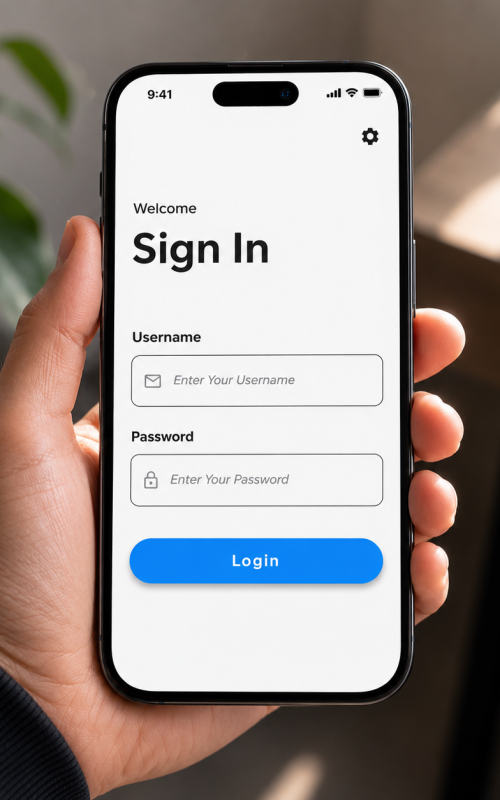
Connection Configuration Steps

  1. Open Settings: Click the “Settings” gear icon on the main Login screen
  2. Service URL: Enter the exact IP address and Port of your AutoCount Plugin service 
  3. Database Name: Enter the exact name of your AutoCount Database (case-sensitive in some setups).
  4. Apply: Click Save & Test Connection.

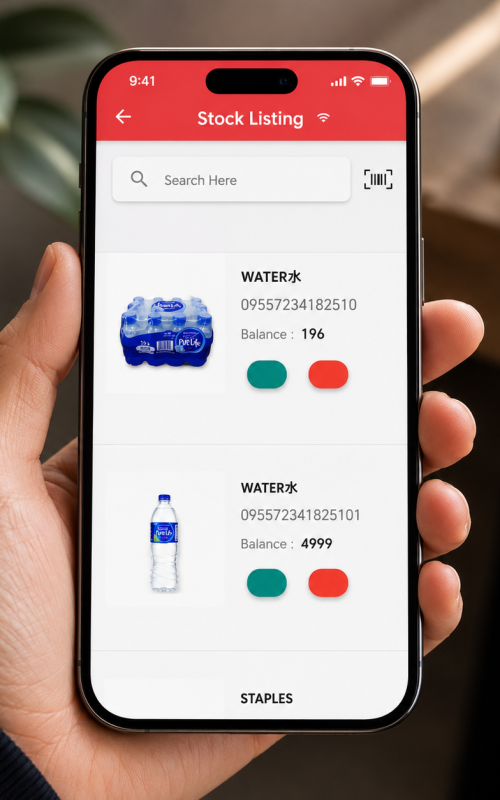
The Stock Inquiry module provides real-time visibility into inventory levels directly from the warehouse floor.

Search Capabilities

Users can query the database by scanning a Barcode, typing an Item Code, or typing partial Item Descriptions.

Item Detail View

Selecting an item will display a comprehensivedata card including:
This module manages the outbound fulfillment process. It allows warehouse staff to pick physical items accurately based on existing Sales Orders.

Document Posting States

Upon completing a pick list, users determine how the data flows back into AutoCount:

Save as Draft

Data is saved but not committed, allowing further edits in AutoCount

Standard Post

Document is pushed to AutoCount as a standard uncommitted transaction.

Commit (Final)

Document is finalized, locked, and stock is immediately deducted.

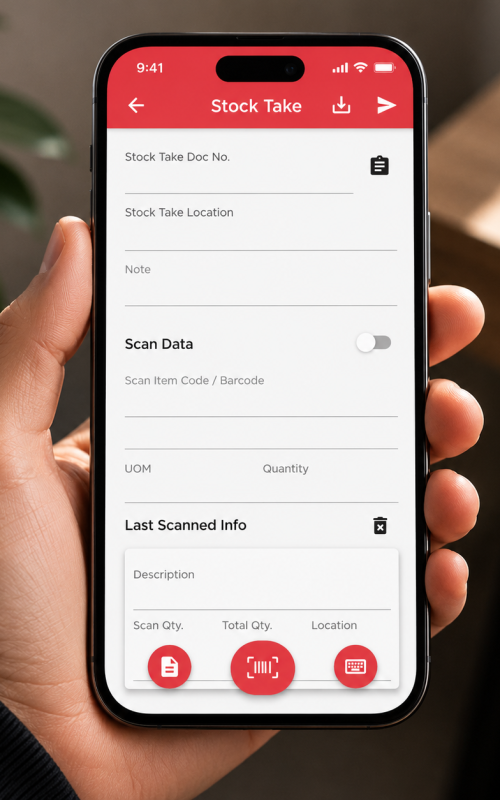
Perform digital physical inventory counts directly from your mobile device. This eliminates manual paper sheets and immediate data entry bottlenecks.

Always double-check that you have selected the correct “Location” (Warehouse) in the top dropdown before initiating any scans. Scanning items into the wrong logical location will corrupt your variance reporting.

The Stock Take Workflow:

Create Session

Tap ‘New Count’ and select your target warehouse location.”

Scan & Input

Scan barcodes continuously. The app groups identical items. Input manual quantities  for bulk boxes if needed.

Post to AutoCount

Hit “Sync”. The data instantly populates the Stock Take module in the desktop system, ready for the manager to calculate variances and post adjustments.
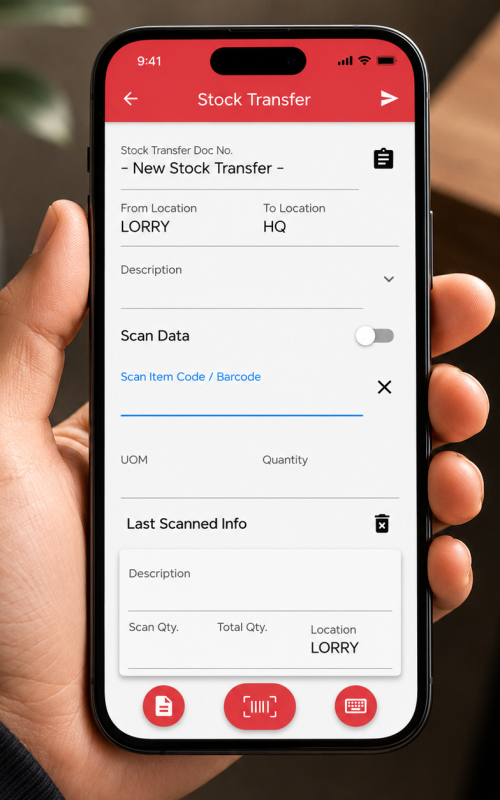
Execute inter-branch or inter-warehouse transfers seamlessly. Move stock from HQ to retail branches or vice-versa while physical loading occurs.

Transfer Procedure

Define Routing

Carefully select the From Location (where stock is currently) and the To Location (destination)

Scan Inventory

Scan the items being loaded onto the transfer vehicle and specify the exact quantities.

Generate Document

Posting the document generates a formal “Stock Transfer” record in AutoCount instantly, maintaining an accurate audit trail.
The Stock Issue module is utilized to record inventory that is removed from the warehouse for non-sales purposes. Examples include internal usage, R&D consumption, marketing samples, or write-offs

Because this action decreases inventory asset value without generating revenue, precise accounting categorization is required by AutoCount.
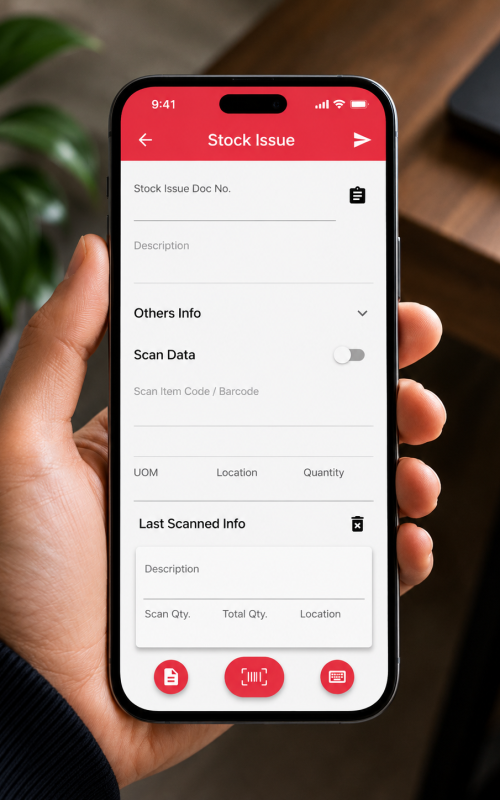
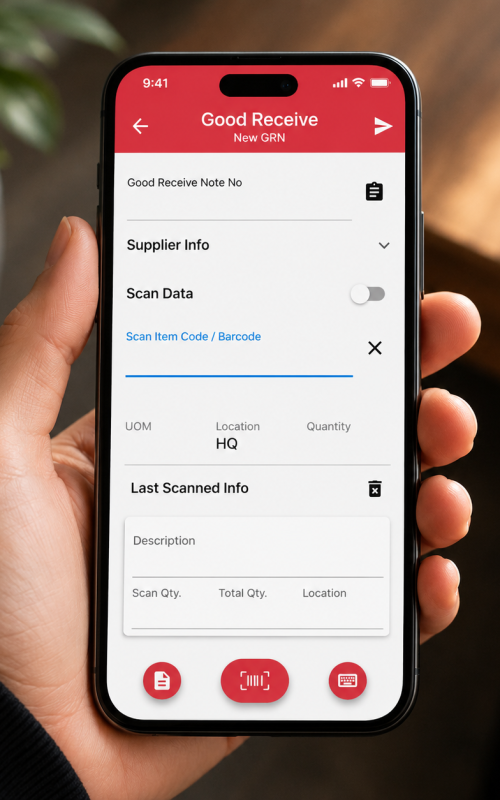
Efficiently process inbound shipments. TD STOCK offers two distinct workflows for receiving inventory to match your operational style.

Because this action decreases inventory asset value without generating revenue, precise accounting categorization is required by AutoCount.

METHOD A

Create New GRN

Standard manual receipt. Use this when stock arrives without a prior PO in the system. Select the Supplier/Vendor, scan the incoming items, define quantities, and post.
METHOD B

Transfer From PO

This is the most efficient and accurate method. It ensures you only receive what was actually ordered.
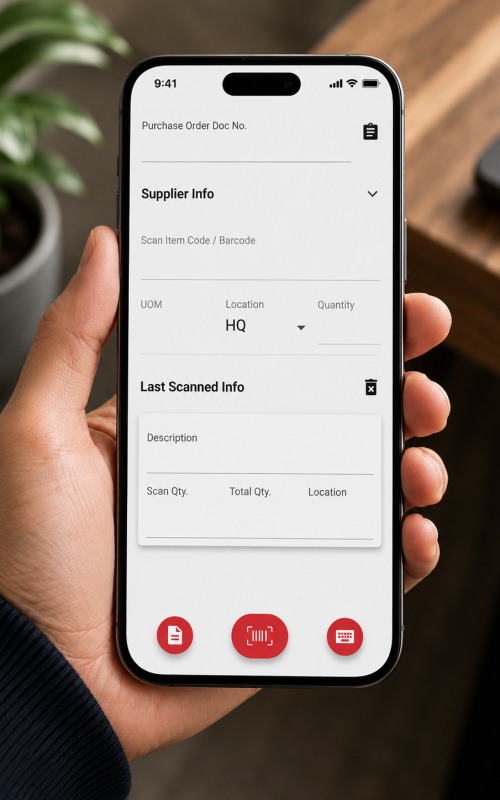
  • Select “Transfer From PO” on the main menu.
  • Search and select the pending Purchase Order number provided by the delivery driver.
  • The app automatically downloads the expected item list.
  • Scan items to verify against the PO, preventing over-receiving.

Generate official Delivery Orders dynamically from the scanning device. Ideal for environments where picking and shipping happen simultaneously, or for delivery fleets directly loading trucks.
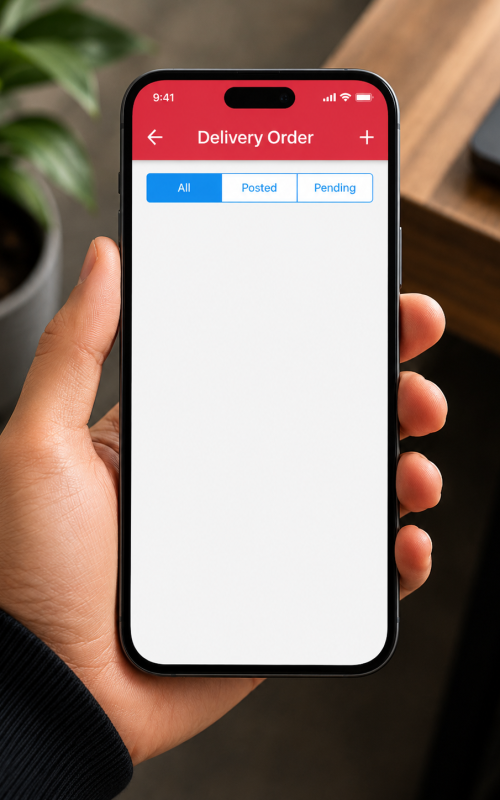
  1. Initiate: Click the “+” FAB (Floating Action Button) to create a new blank DO document.
  2. Assign Debtor: Search and select the appropriate Customer from the live AutoCount database.
  3. Scan & Load: Scan the barcodes of the items as they are being physically loaded onto the delivery vehicle or handed to the courier.
  4. Generate DO:Post the data back to the server. The office can immediately print the official AutoCount DO paper for the driver, or process it into an Invoice.

The Order Form module empowers Sales Representatives, whether on the warehouse floor with a customer or traveling in the field. It functions as a mobile Sales Order entry point. Reps can pull up customer details, see real-time inventory levels (via Inquiry), and add items to a cart.

 Once the order is scanned and quantities are confirmed, clicking “Post” instantly pushes a draft or committed Sales Order into AutoCount. The billing department can immediately process it for fulfillment.

Ready to Transform Your Business?

Join over 240k Malaysian businesses that trust AutoCount for their accounting and business management needs.

news-1701

sabung ayam online

yakinjp

yakinjp

rtp yakinjp

slot thailand

yakinjp

yakinjp

yakin jp

yakinjp id

maujp

maujp

maujp

maujp

sabung ayam online

sabung ayam online

judi bola online

sabung ayam online

judi bola online

slot mahjong ways

slot mahjong

sabung ayam online

judi bola

live casino

sabung ayam online

judi bola

live casino

SGP Pools

slot mahjong

sabung ayam online

slot mahjong

SLOT THAILAND

118000701

118000702

118000703

118000704

118000705

118000706

118000707

118000708

118000709

118000710

118000711

118000712

118000713

118000714

118000715

118000716

118000717

118000718

118000719

118000720

118000721

118000722

118000723

118000724

118000725

118000726

118000727

118000728

118000729

118000730

118000731

118000732

118000733

118000734

118000735

118000736

118000737

118000738

118000739

118000740

118000741

118000742

118000743

118000744

118000745

138000441

138000442

138000443

138000444

138000445

138000446

138000447

138000448

138000449

138000450

138000451

138000452

138000453

138000454

138000455

138000456

138000457

138000458

138000459

138000460

138000461

138000462

138000463

138000464

138000465

138000466

138000467

138000468

138000469

138000470

158000346

158000347

158000348

158000349

158000350

158000351

158000352

158000353

158000354

158000355

158000356

158000357

158000358

158000359

158000360

158000361

158000362

158000363

158000364

158000365

158000366

158000367

158000368

158000369

158000370

158000371

158000372

158000373

158000374

158000375

208000371

208000372

208000373

208000374

208000375

208000376

208000377

208000378

208000379

208000380

228000071

228000072

228000073

228000074

228000075

228000076

228000077

228000078

228000079

228000080

228000081

228000082

228000083

228000084

228000085

228000086

228000087

228000088

228000089

228000090

228000091

228000092

228000093

228000094

228000095

228000096

228000097

228000098

228000099

228000100

228000101

228000102

228000103

228000104

228000105

228000106

228000107

228000108

228000109

228000110

228000111

228000112

228000113

228000114

228000115

228000116

228000117

228000118

228000119

228000120

228000121

228000122

228000123

228000124

228000125

228000126

228000127

228000128

228000129

228000130

228000131

228000132

228000133

228000134

228000135

228000136

228000137

228000138

228000139

228000140

228000141

228000142

228000143

228000144

228000145

228000146

228000147

228000148

228000149

228000150

228000151

228000152

228000153

228000154

228000155

238000232

238000233

238000234

238000235

238000236

238000237

238000238

238000239

238000240

238000241

238000242

238000243

238000244

238000245

238000246

news-1701