Learn how AutoCount HRMS helps you track attendance accurately using face recognition and maintain up‑to‑date facial images for your employees.

Learn how AutoCount HRMS helps you track attendance accurately using face recognition and maintain up‑to‑date facial images for your employees.
For Malaysian businesses facing buddy punching, manual attendance errors, and payroll inefficiencies, the AutoCount HRMS facial recognition system delivers a secure, contactless solution. This system automates identity verification during clock-in and clock-out, ensuring only registered employees record attendance. By replacing punch cards and manual sign-ins, it creates a reliable audit trail, reduces time theft, and improves workforce accuracy.
The primary advantage of a dedicated facial recognition is its ability to provide foolproof identity verification. By analyzing unique facial features, it completely prevents “buddy punching,” ensuring that attendance records are authentic and accurate. This directly translates to significant financial savings by eliminating payroll leakage from fraudulent time claims.
A well-implemented facial recognition system does not operate in isolation. The AutoCount solution integrates directly with HR and payroll modules. This means attendance data captured by the facial recognition system automatically flows into payroll calculations, eliminating manual data entry and the errors that come with it, ensuring employees are paid correctly and on time.
Modern workplaces are dynamic. A versatile facial recognition supports various work models. Employees can clock in via dedicated biometric terminals on-site or through a mobile app using their smartphone’s camera for remote or field-based work. This multi-method capability, often combining facial recognition with GPS or Wi-Fi verification, offers unparalleled flexibility while maintaining the core security of a biometric facial recognition system.
The AutoCount HRMS facial recognition system is built with powerful features designed for real-world business environments:
The core of the system captures and analyzes facial data instantly during clock-in/out, comparing it against the enrolled database in seconds.
While the facial recognition is primary, it works in tandem with other methods (GPS, Wi-Fi) for added flexibility in diverse work scenarios.
The system includes an intuitive interface within HRMS for administrators to enroll new employees or update facial images as needed, ensuring long-term accuracy.
The facial recognition can store and process data locally, allowing attendance tracking to continue seamlessly even during internet outages, syncing data once connectivity is restored.
Configuring the facial recognition system for an employee is a straightforward process within the AutoCount HRMS platform. Follow these steps to enable this secure clocking method:
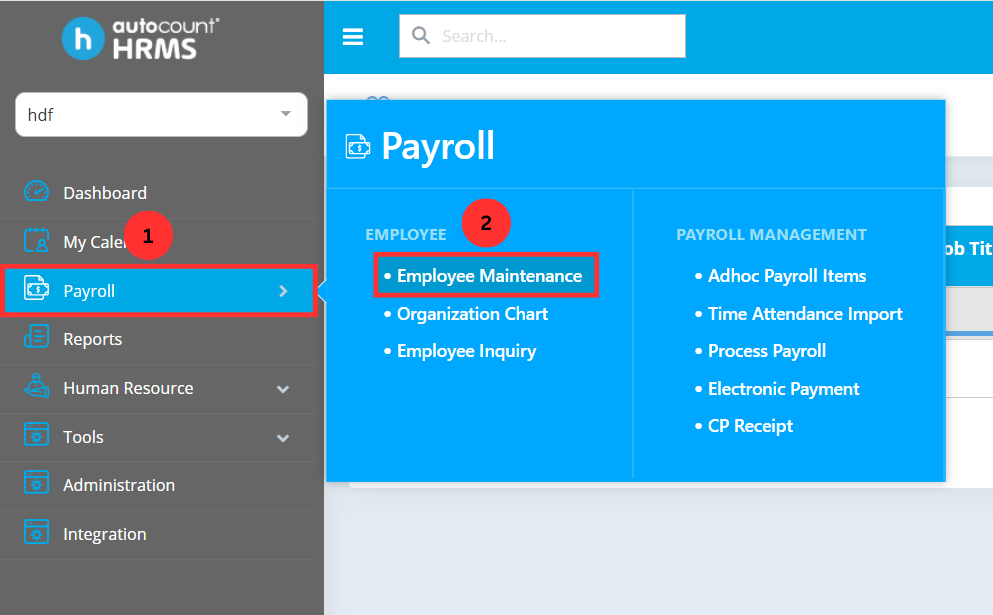
To begin setting up face recognition, navigate to Payroll > Employee Maintenance under Employee in the AutoCount HRMS main menu.
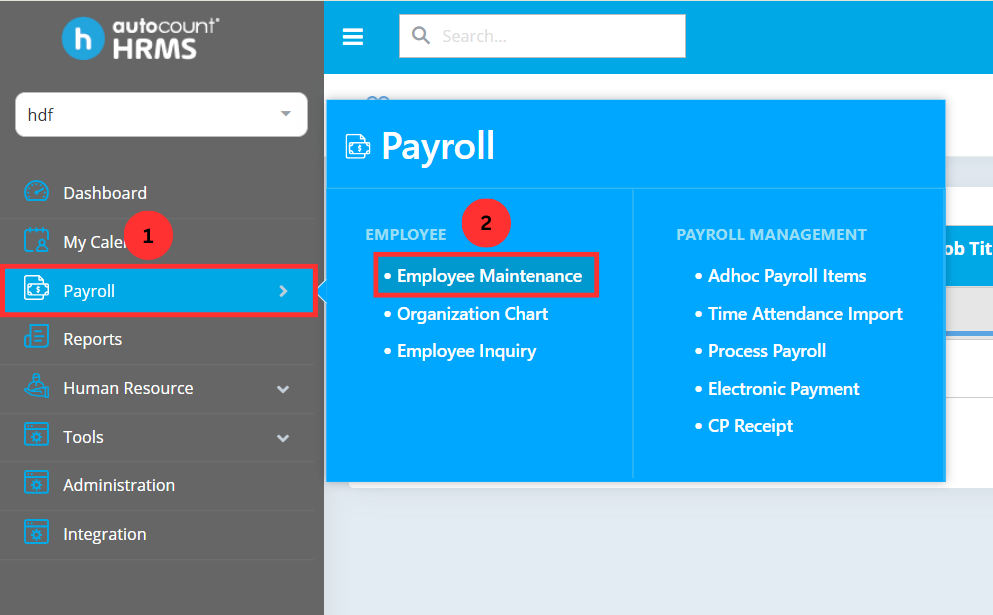
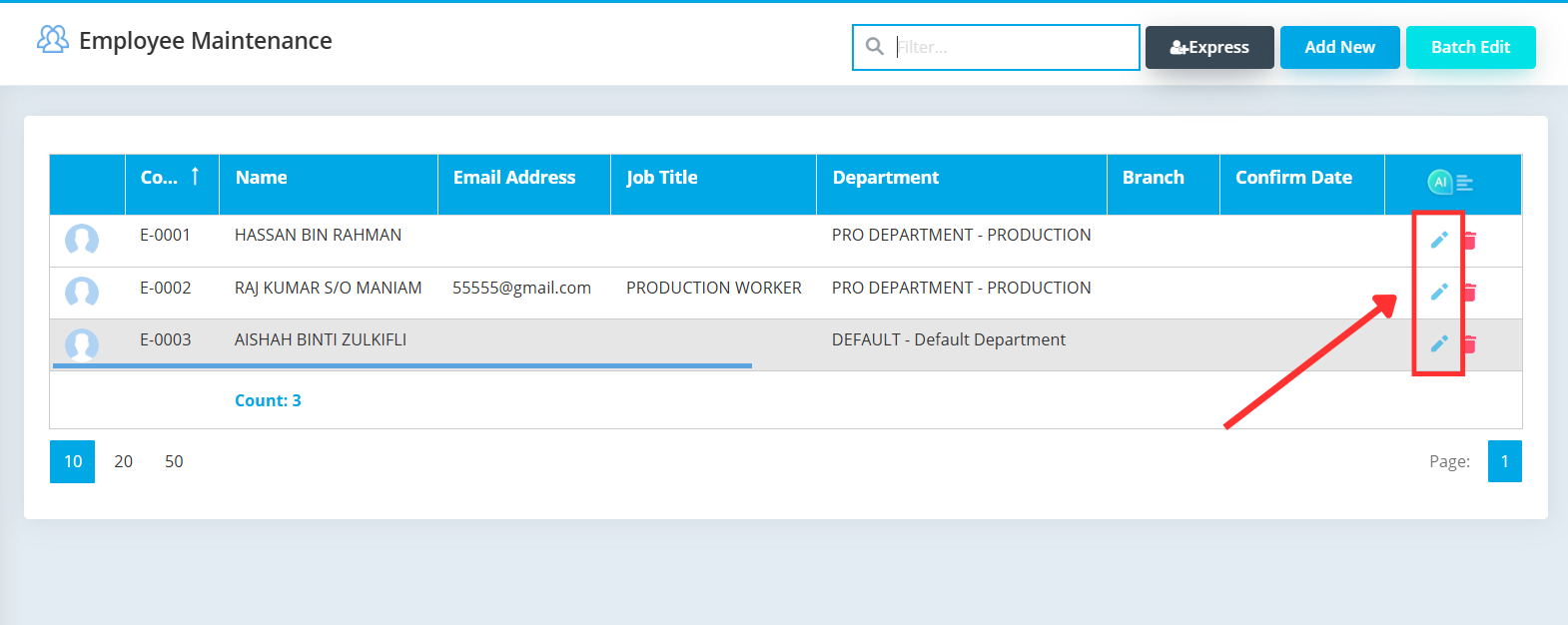
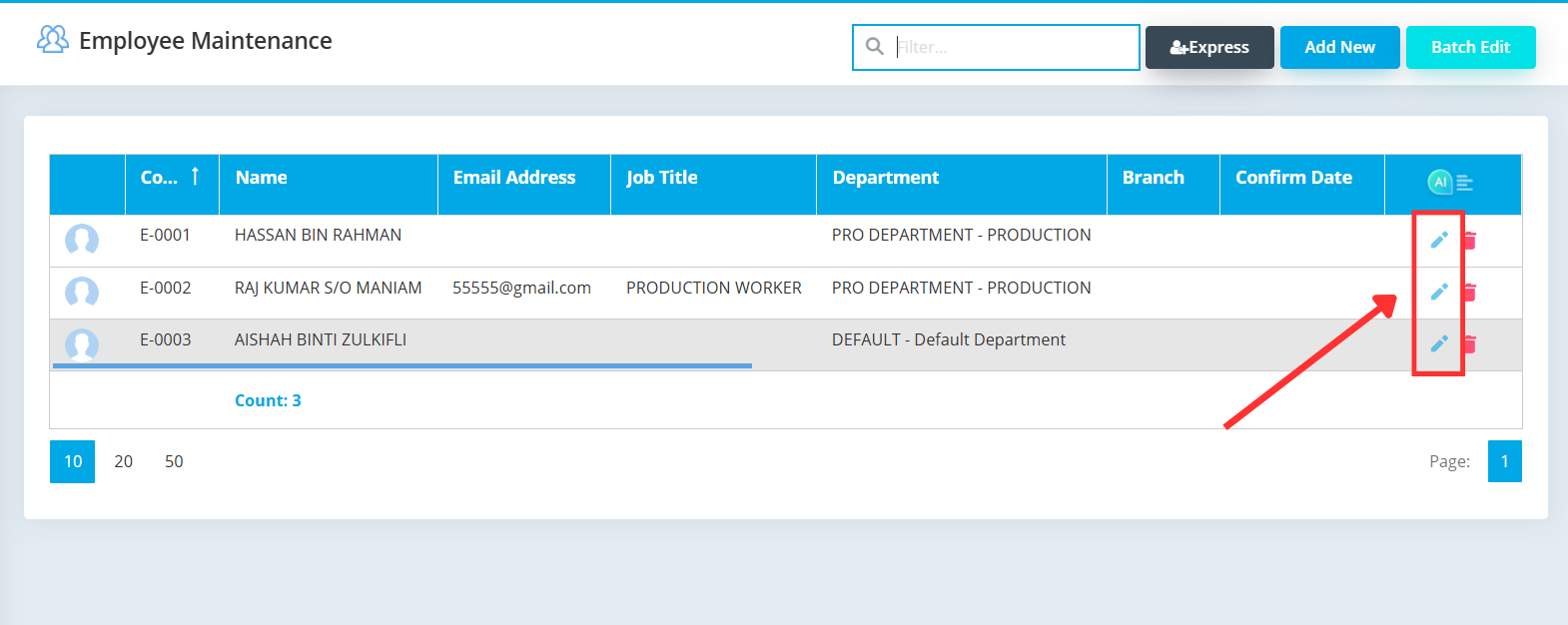
Identify the employee you wish to enable face recognition for clocking in and out, then click the pencil icon to edit the employee record.
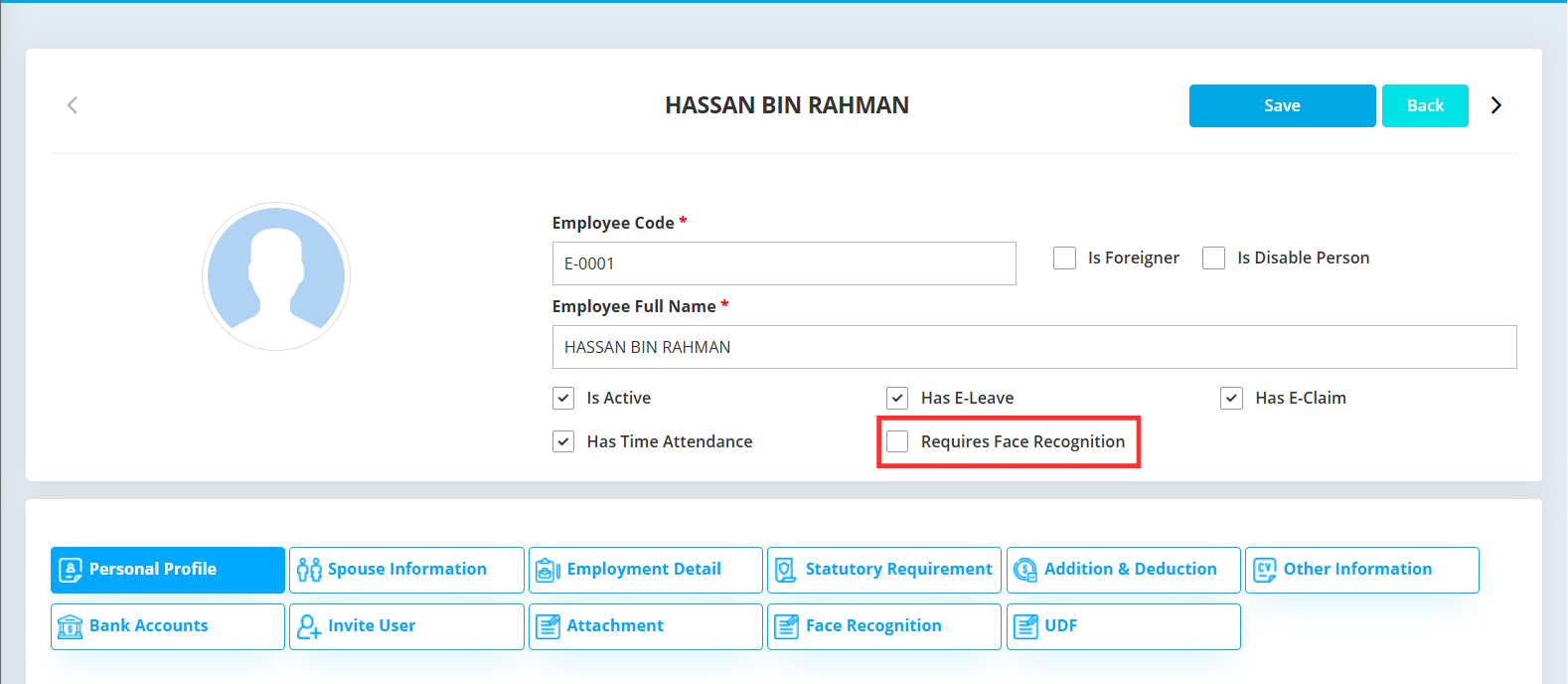
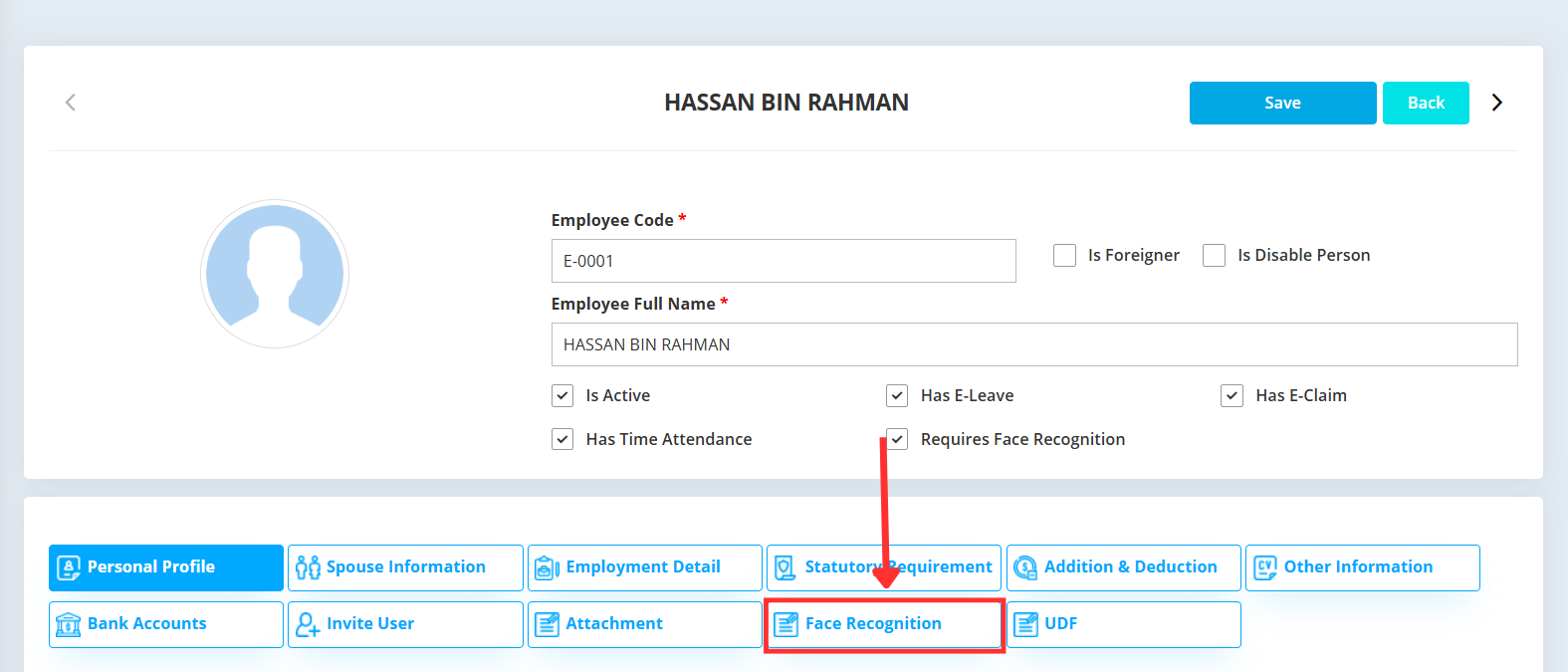
Ensure the Requires Face Recognition checkbox is ticked. This setting enforces face recognition verification when the employee clocks in or clocks out.
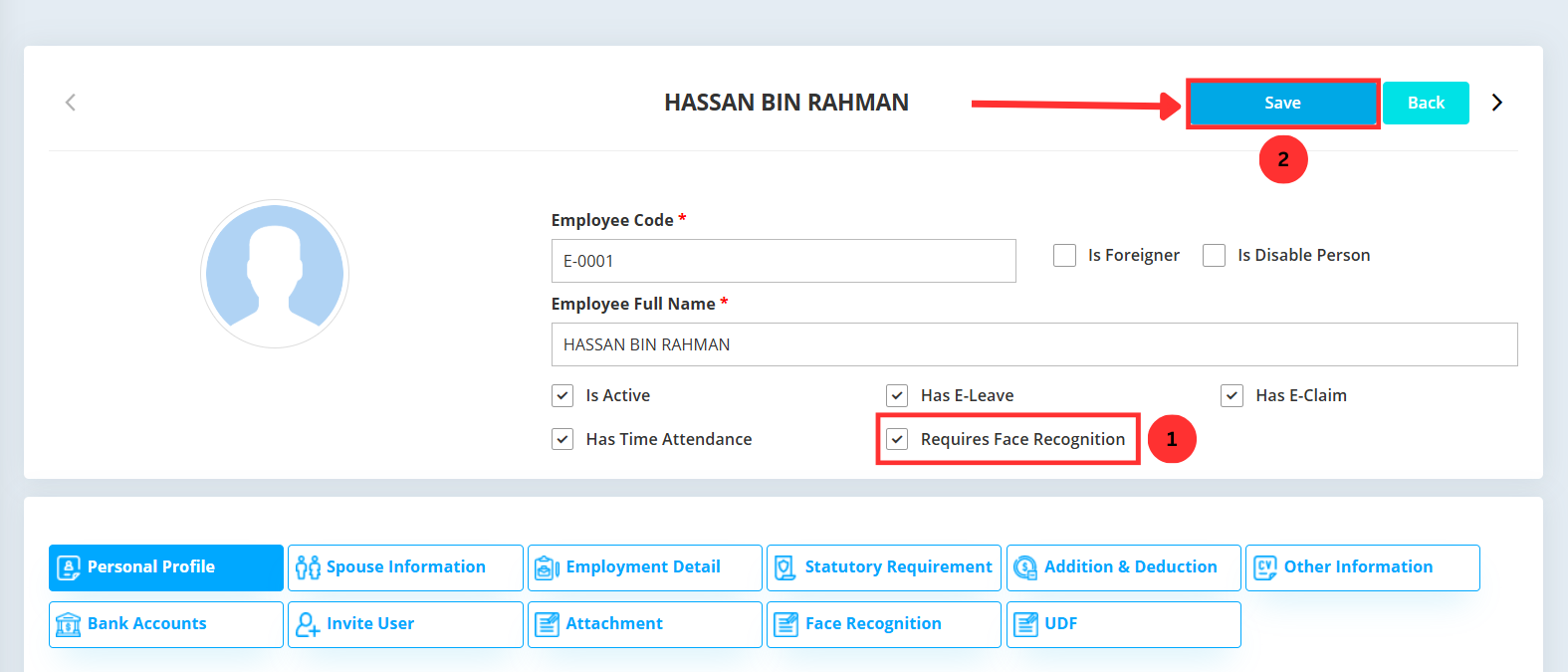
Click Save at the top-right corner to save the changes made. If you do not click Save, all entered data will remain unchanged.
The effectiveness of any facial recognition system depends on the quality and currency of its enrolled data. Human appearance changes over time, and maintaining accuracy requires periodic updates.
Only authorized HR personnel are allowed to clear and reupload facial recognition images to protect employee data privacy.
The process to update the facial recognition images is simple and non-disruptive:
To update the facial recognition images of an employee, navigate to Payroll > Employee Maintenance under Employee in AutoCount HRMS main menu. This section allows you to view and manage all employee records, including facial recognition data, before making any updates.
Identify the employee whose facial recognition image you want to update. You can browse the list of employees or use the search function to find the correct record. Once located, click the pencil icon to open the employee’s details and proceed with the update.
Click on Face Recognition within the employee’s details to access their facial recognition settings. This section allows you to view the current image or update it to ensure accurate clock-in and clock-out recognition.
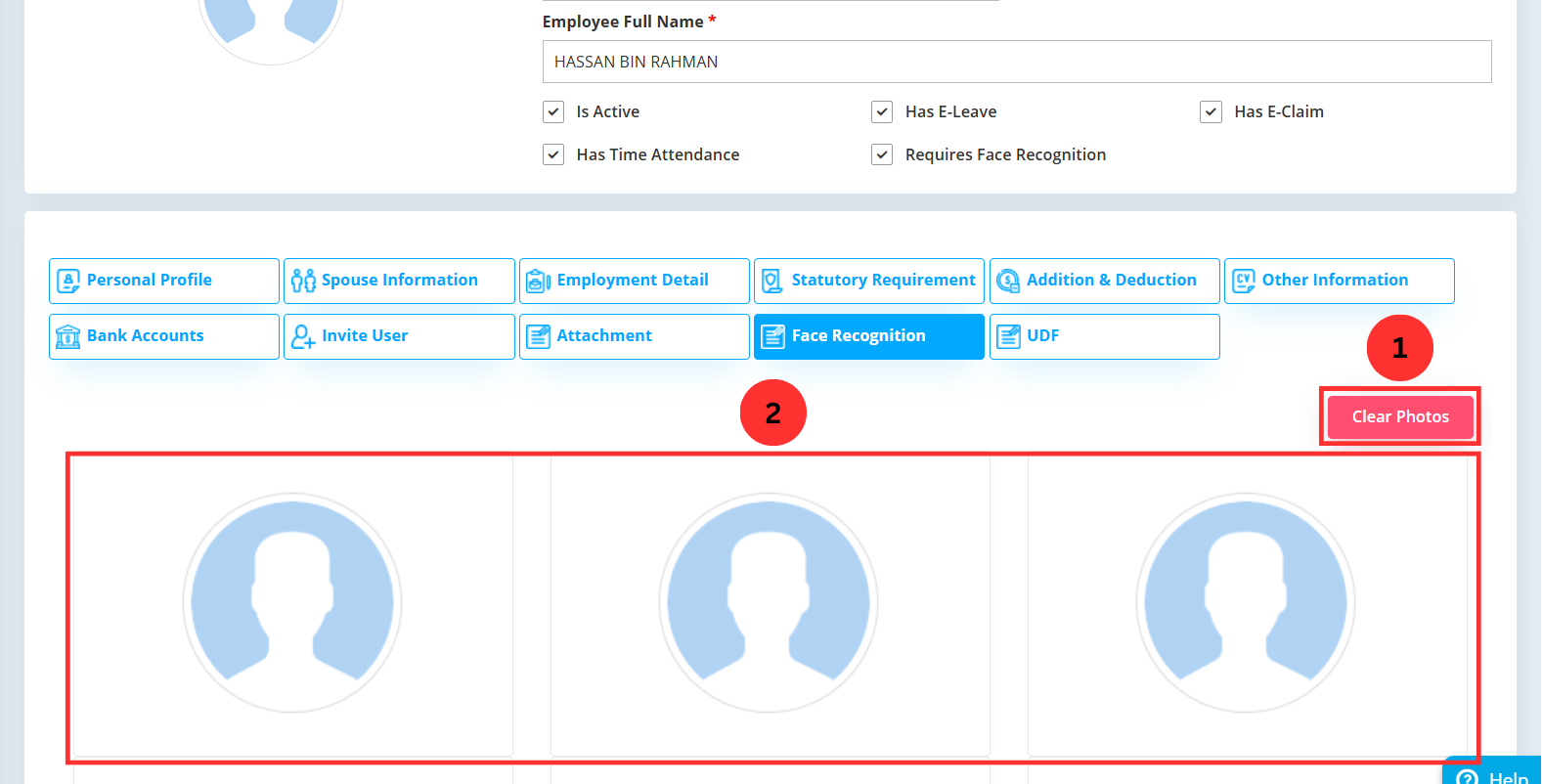
Click Clear Photos to remove the current facial recognition images, then upload the three new photos you want the system to use. Make sure each photo clearly shows the employee’s face to ensure accurate clock-in and clock-out recognition. Once all photos are uploaded, click Save at the top-right corner to apply the changes.
To ensure your facial recognition system delivers maximum accuracy and reliability, follow these guidelines during enrollment and daily use:
Use good, even lighting (natural light is ideal) and a plain background. Ensure the employee faces the camera directly with a neutral expression.
Position cameras at face level. For mobile clock-in, encourage employees to use a well-lit environment and hold the phone steady.
Advise employees to avoid hats, sunglasses, or masks that cover key facial features when using the facial recognition to clock in/out.
Regularly install software updates for your facial recognition system to benefit from improved algorithms and security patches.
Implementing the AutoCount HRMS facial recognition system is a strategic move toward a more secure, efficient, and modern workplace. This system directly tackles the costly issues of attendance fraud and administrative inefficiency, providing a solid return on investment through payroll savings and productivity gains.
By following the setup, maintenance, and best practice guidelines outlined above, you can ensure your facial recognition operates at peak performance, providing reliable and secure attendance tracking for years to come.
The AutoCount facial recognition system is designed with security in mind. It typically stores a mathematical template (facial feature data) rather than an actual photograph, and this data is encrypted, protecting employee privacy.
Yes. The facial recognition within AutoCount HRMS can be accessed via the mobile app. Remote employees can clock in/out using their smartphone’s camera, with the system verifying their identity biometrically, often supplemented by GPS location data.
If the system fails a verification, employees can typically use an alternative approved method (like a PIN with GPS verification) for that instance. An administrator should then update the employee’s facial image in the system to prevent future issues.
No. Management of the facial recognition system is integrated into the familiar AutoCount HRMS interface. Enrolling employees and updating images are simple processes that take just a few clicks, as shown in the guides above.
Unlock all AutoCount Cloud Payroll features for free and then think carefully which plan is best with your business needs.