
A Goods Received Note, or GRN, is a purchase document in AutoCount used to record goods received from a supplier. It confirms that the items have arrived and updates stock movement by increasing inventory quantity.

A Goods Received Note, or GRN, is a purchase document in AutoCount used to record goods received from a supplier. It confirms that the items have arrived and updates stock movement by increasing inventory quantity. However, a GRN does not create G/L entries on its own.
“In practical terms, the GRN is the operational proof that goods have been received, checked, and recorded. It helps the purchasing, warehouse, and accounting teams stay aligned before the supplier invoice is processed.”
Using a GRN in AutoCount helps businesses maintain better control over purchasing and stock receiving. Because the GRN increases stock quantity immediately, the inventory record reflects what has physically arrived at the company. This is especially useful when goods are received before the supplier invoice is entered.
The GRN also strengthens internal control. Once a GRN exists, AutoCount requires the Purchase Invoice to be created by transferring from that GRN. This keeps the document flow traceable and reduces the risk of invoicing errors, duplicate processing, or paying for items that were never received.
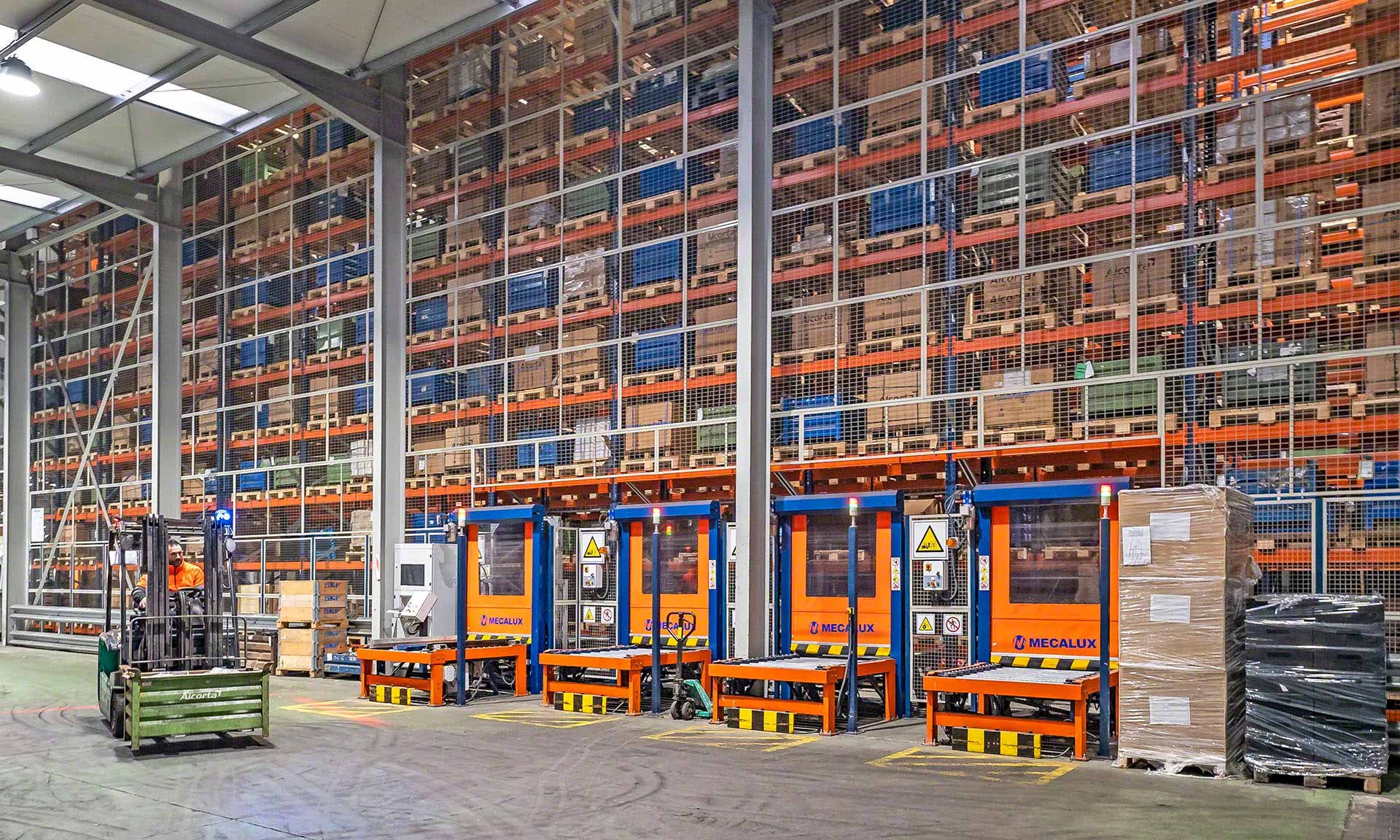
A typical purchase flow in AutoCount is:
The Purchase Menu and related help pages show that GRN is part of the purchase document flow, Purchase Invoice can be transferred from GRN, and A/P Payment is the step used to settle supplier balances and print a payment voucher.
This flow separates physical receipt from financial posting. The GRN handles stock receipt, the Purchase Invoice handles the payable and G/L posting, and A/P Payment handles the actual payment to the supplier.
The user navigates to Purchase > Goods Received and clicks Create a New Goods Received Note to start the process.
The user chooses how to create the GRN: either enter the document manually or transfer from an existing document.
The user selects Transfer from Purchase Order (PO) to automatically populate supplier and item details, improving traceability.
The user reviews and confirms the items received, including quantities, prices, and any differences from the original order.
Upon saving, the system updates the following:
The transaction is reflected in inventory reports, purchase reports, and document history for accurate tracking and reconciliation.
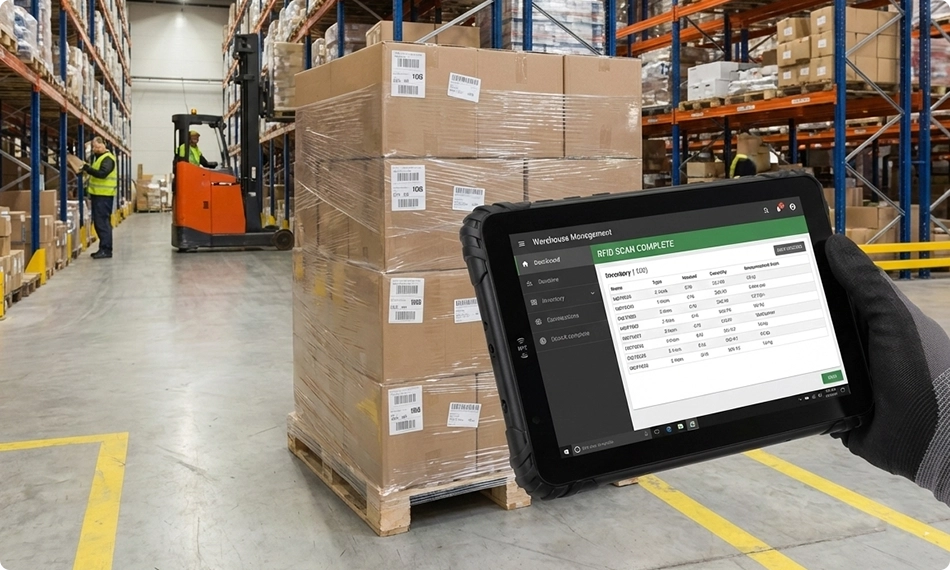
When preparing a GRN, AutoCount includes fields such as Creditor, Branch, Address, G/R No., Supplier D/O No., Date, Credit Terms, Agent, Ship Via, and Shipping Info. The screen also includes tabs such as Main, More Header, External Link, and Note for additional transaction and delivery information.
This is an important detail for your webpage copy: the system clearly supports recording the supplier’s delivery order number in the Supplier D/O No. field, but the help page does not state that the GRN is directly created by transferring from a supplier DO as if it were a standard AutoCount source document. That distinction matters for accuracy.
When a GRN is saved, AutoCount updates inventory movement by increasing stock quantity, but there is still no G/L posting at this stage. The financial impact only happens later when the Purchase Invoice is saved.
| Aspect | Goods Received Note (GRN) | Purchase Invoice (PI) |
|---|---|---|
| Purpose | Receiving goods and updating stock | Recording payable and posting to A/P and G/L |
| Inventory Impact | Increases stock when saved | May affect stock if created directly |
| When Linked | Stock already updated at GRN stage | No additional stock increase when transferred from GRN |
| G/L & A/P Impact | No G/L posting | Posts to A/P and relevant G/L accounts |
| Best Practice | Create GRN when goods are received | Use Transfer from GRN (not auto-generated) |
If goods are returned before the supplier invoice is received, AutoCount uses Goods Return. The system requires the return to be transferred from an existing outstanding GRN, and it updates both stock level and the outstanding GRN information.
If the supplier invoice has already been issued, the correct document is Purchase Return, which must be transferred from the Purchase Invoice. That is why it is helpful to explain both documents briefly on the webpage, so users understand that GRN-related returns and invoice-related returns are not the same thing.
No. A GRN records the receipt of goods and updates stock quantity, while a Purchase Invoice records the supplier bill and posts to A/P and G/L accounts.
No. A GRN affects inventory movement only. G/L posting happens when the Purchase Invoice is saved.
Yes. AutoCount provides a Supplier D/O No. field in the GRN screen.
You should create the Purchase Invoice by transferring from the Goods Received Note.
Use A/P Payment to record full or partial payment, knock off the related invoice or debit note, and print the payment voucher.
Manage incoming stock efficiently with AutoCount.
Record received goods, track delivery accuracy, and ensure proper stock updates with an integrated accounting system.