Simplify HR management by understanding every leave type, from standard annual leave to customized parent leave policies, all automated within AutoCount e-Leave.

Simplify HR management by understanding every leave type, from standard annual leave to customized parent leave policies, all automated within AutoCount e-Leave.
A leave type is a specific category of time off that employees can request, such as Annual Leave, Sick Leave, or Emergency Leave. In AutoCount e‑Leave, each leave type is fully customizable, allowing you to tailor it precisely to your company’s policies. You can configure rules for entitlement, calculation methods, approval workflows, and special conditions for every category of leave.
AutoCount e-Leave transforms how you handle time off by digitizing the entire process:
Employees apply for leave online or via the mobile app. Managers can approve or reject requests digitally, eliminating paper forms and endless email chains.
Leave balances, applied days, and request statuses are updated instantly. Employees and HR always have an accurate, up-to-date view of leave information.
Configure multiple leave categories, entitlements, and approval rules to match your unique company policies perfectly.
Connect different leave categories (e.g., linking Emergency Leave to Annual Leave) to ensure automated and accurate deductions across categories, removing guesswork.
Empower employees to view their leave balances, application history, and approval status anytime via the web or mobile app, boosting transparency and reducing HR queries.
he system automatically calculates leave entitlements based on join dates and length of service, ensuring fairness and eliminating manual spreadsheets.
All leave actions, balances, and history are securely logged in one central location, simplifying audits and reporting.
Perfect for remote teams, employees and managers can handle leave requests anytime, anywhere through the mobile app.
Creating a new leave is a fundamental step in setting up your leave management system. Follow these steps to add one in AutoCount HRMS:
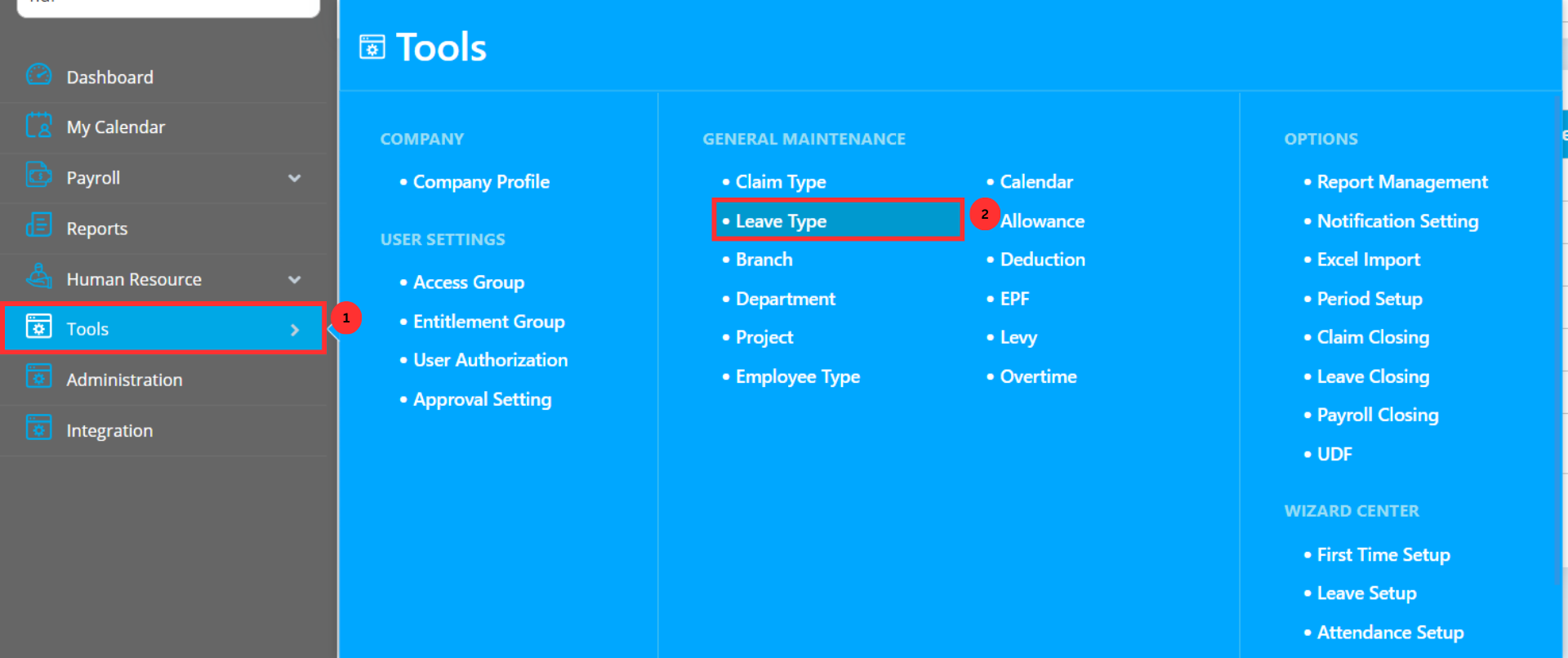
Go to Tools > Leave Type under the General Maintenance section.
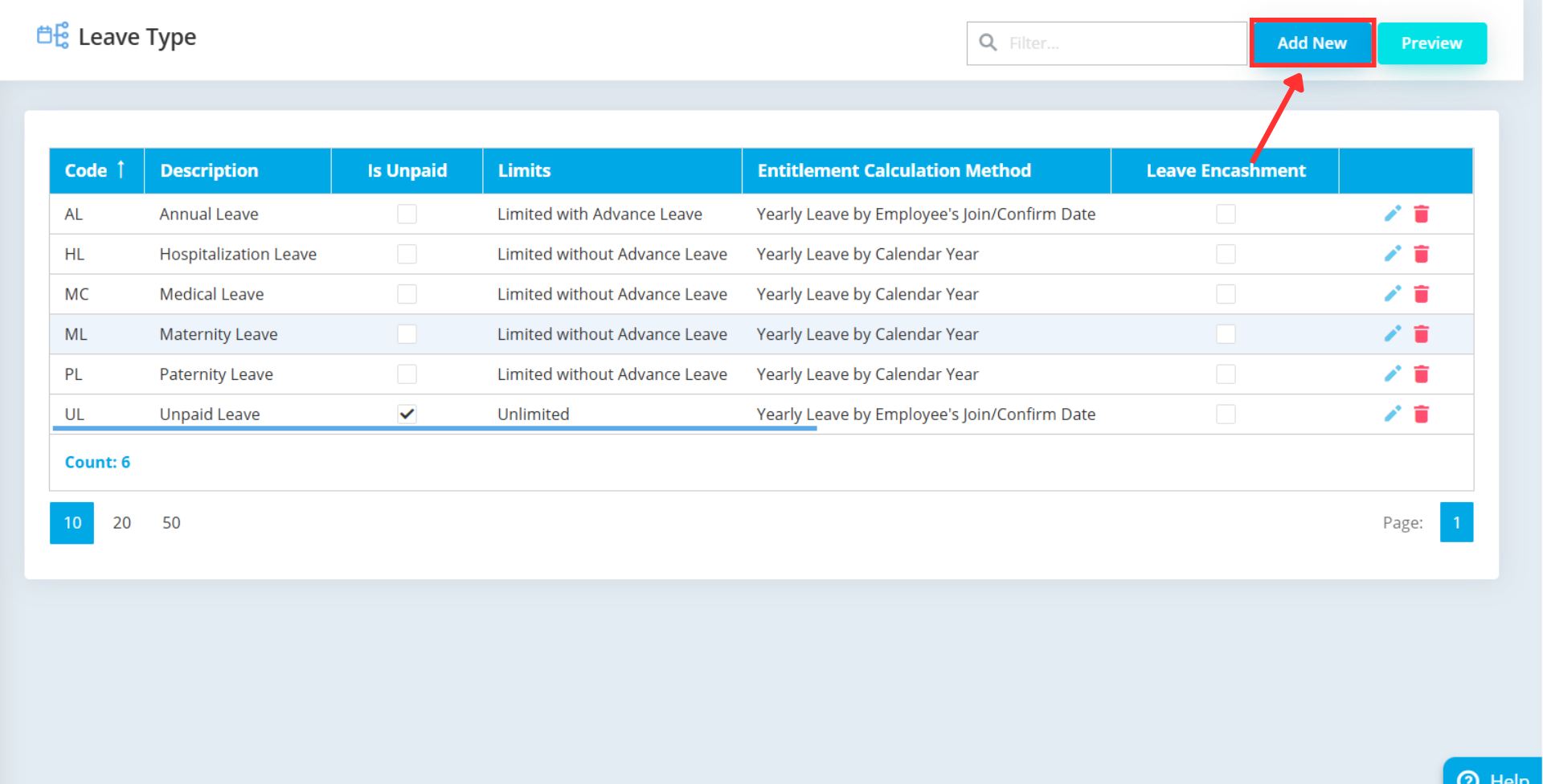
Click the Add New button at the top right corner of the screen to begin.
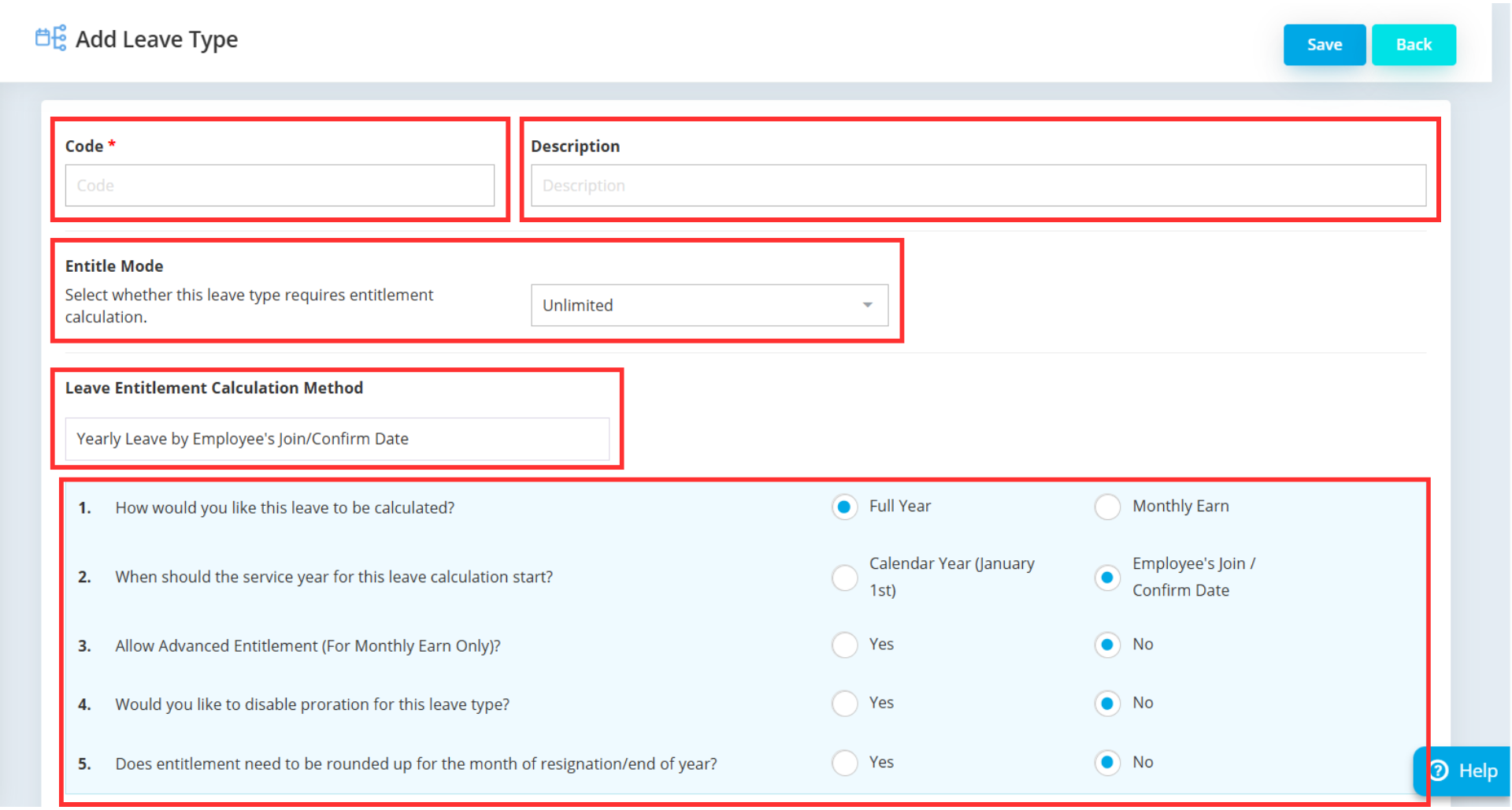
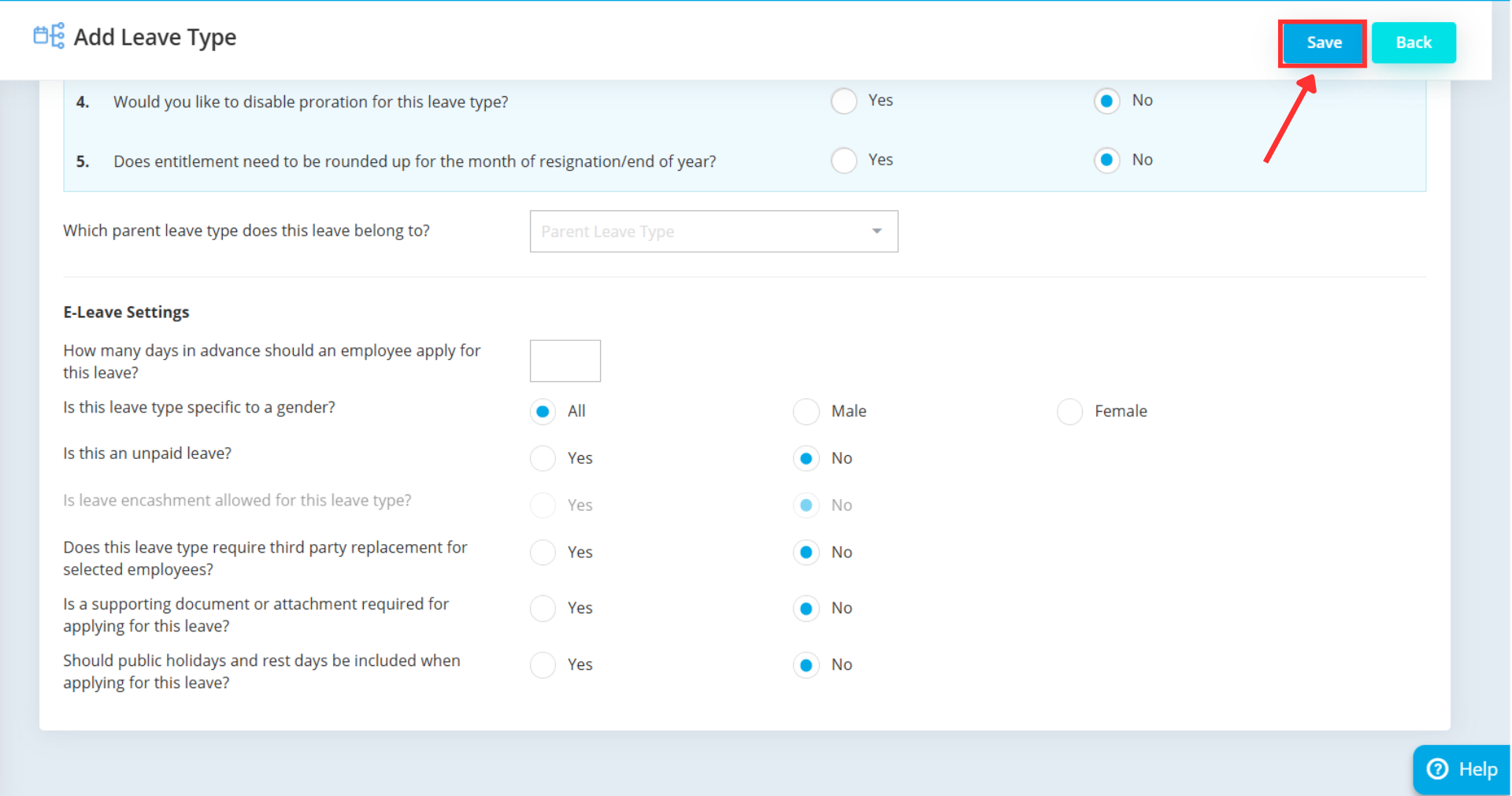
Code: Enter a unique identifier for the leave type (e.g., “AL” for Annual Leave). This code must be unique within your company.
Description: Provide a clear name for the leave type, such as “Annual Leave.”
Entitle Mode: Choose how the entitlement will be applied when employees request this leave type (options available in the system).
Leave Entitlement Calculation Method: Select from the available calculation methods based on your company’s policy.
Parent Leave Type (if applicable): This crucial field allows you to link this leave type to a parent. For example, you might link a “Medical Leave” leave type to a “Hospitalization Leave” parent.
E-Leave Settings: Configure additional options, such as whether this leave type is unpaid, or if leave on public holidays or rest days is permitted.
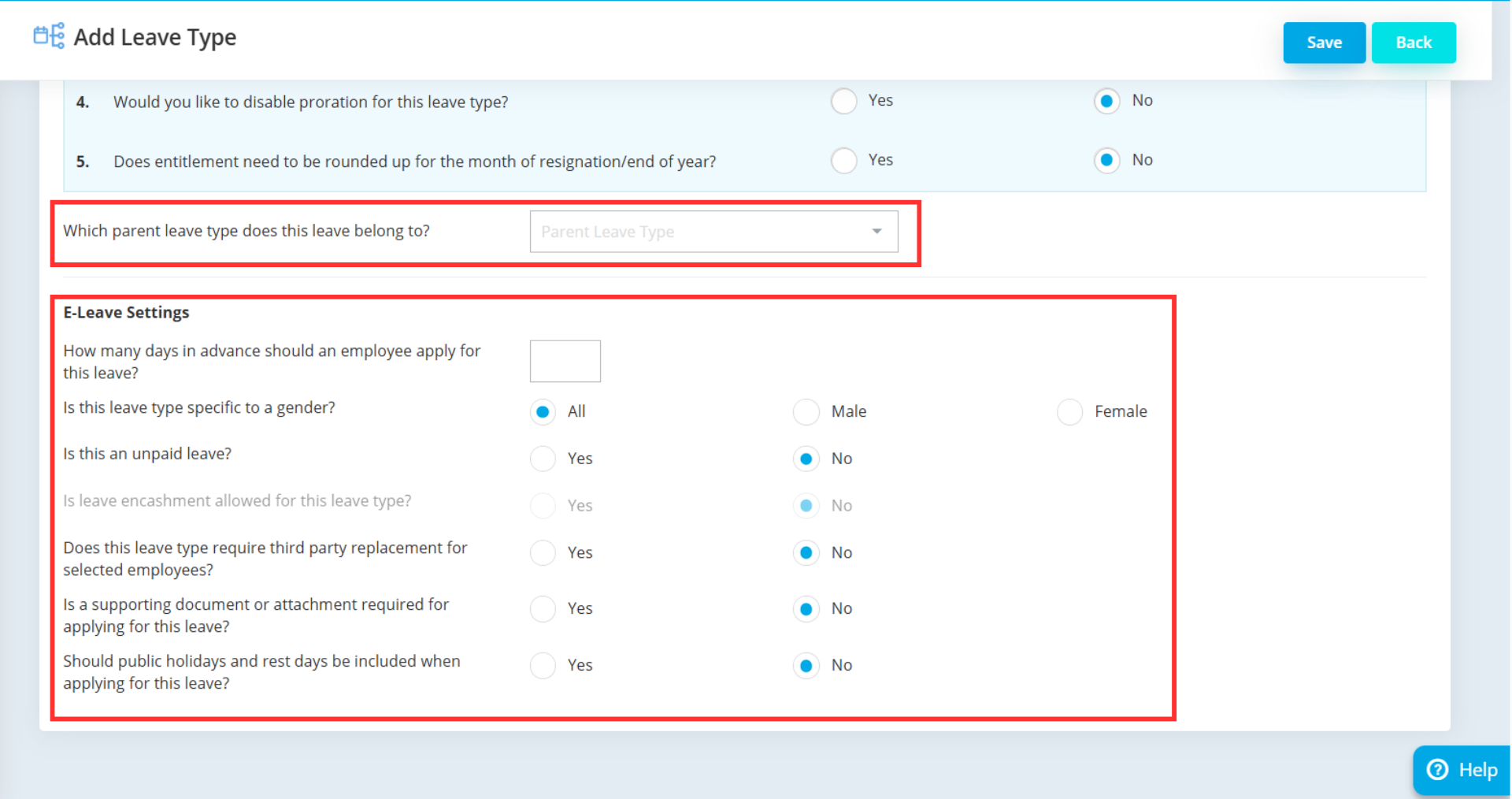
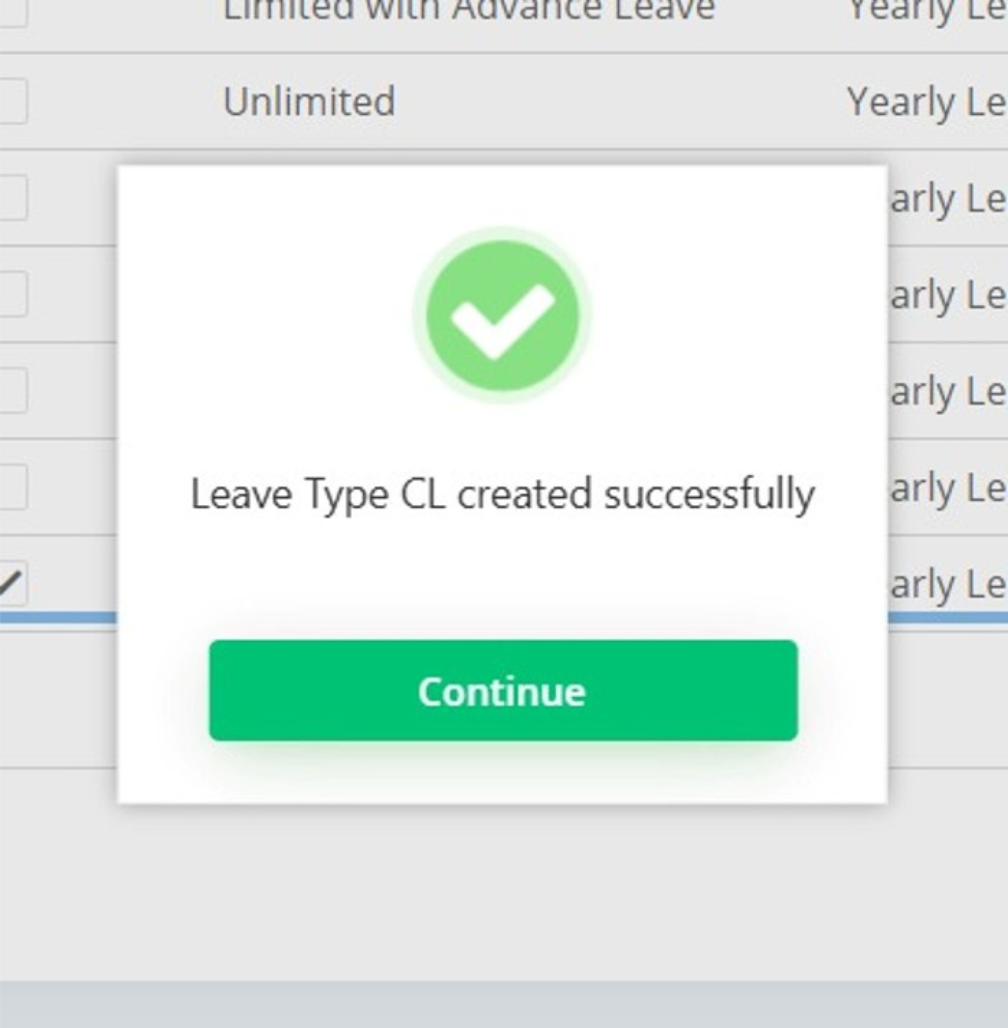
Once all information is entered, click the Save button to add the new leave type to your system.
A parent leave type is a powerful feature that links one leave categories to another. When an employee applies for a leave type that has a parent, the system automatically deducts the leave balance from both the applied leave and its parent upon approval.
The Leave Type: Emergency Leave (EL)
The Parent Leave Type: Annual Leave (AL)
Scenario: An employee applies for 2 days of Emergency Leave (EL). Once the request is approved, the system automatically deducts 2 days from their Emergency Leave (EL) balance and another 2 days from their Annual Leave (AL) balance.
By setting up a parent leave type, you can efficiently manage linked leave categories and ensure accurate, policy-compliant deductions without any manual intervention.
Applying for one categories automatically deducts balances from both the selected leave and its parent. This enforces company policy without any manual work.
Linking leave categories eliminates the risk of mismatches and errors caused by manual adjustments, maintaining precise leave records.
The system automatically enforces complex rules—like emergency leave counting against annual leave—so HR doesn’t have to remember or manually adjust balances.
Automation saves HR significant time by removing the need for spreadsheets and manual corrections, leading to fewer errors and less administrative work.
Employees can see exactly how taking a specific leave type impacts both their balances, building trust and reducing follow-up questions for HR.
Configuring a parent leave type is a quick and straightforward process.
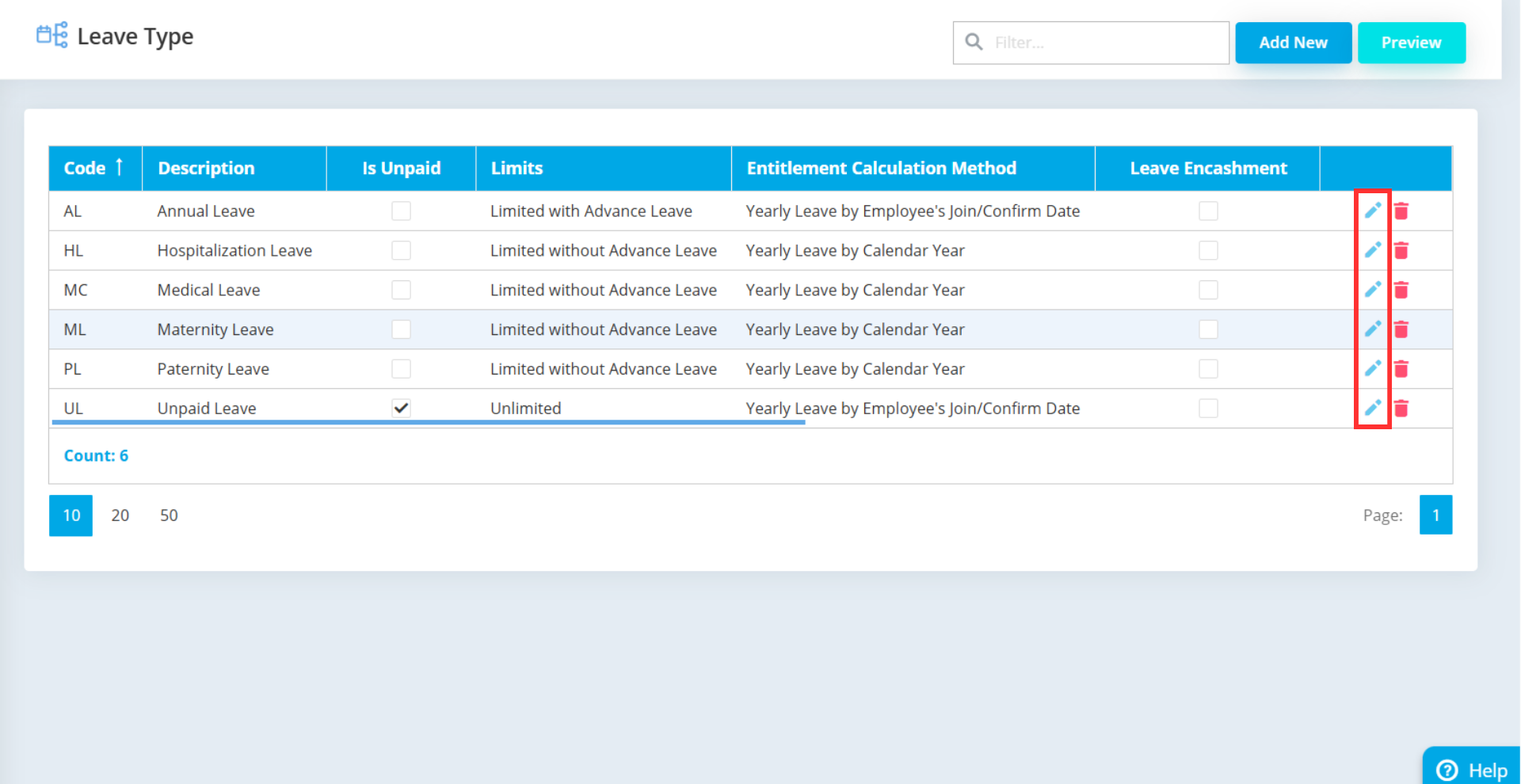
To begin, you will need to navigate to the correct settings page within the system. From the main dashboard, go to Tools and then select Leave Type, which is located under the General Maintenance section. This will bring up a list of all the leave types currently configured in your company.
Once the leave type list is displayed, locate the specific leave type you want to configure—for example, “Emergency Leave.” To edit its settings, simply click on the pencil icon located next to that leave type, which will open its configuration window.
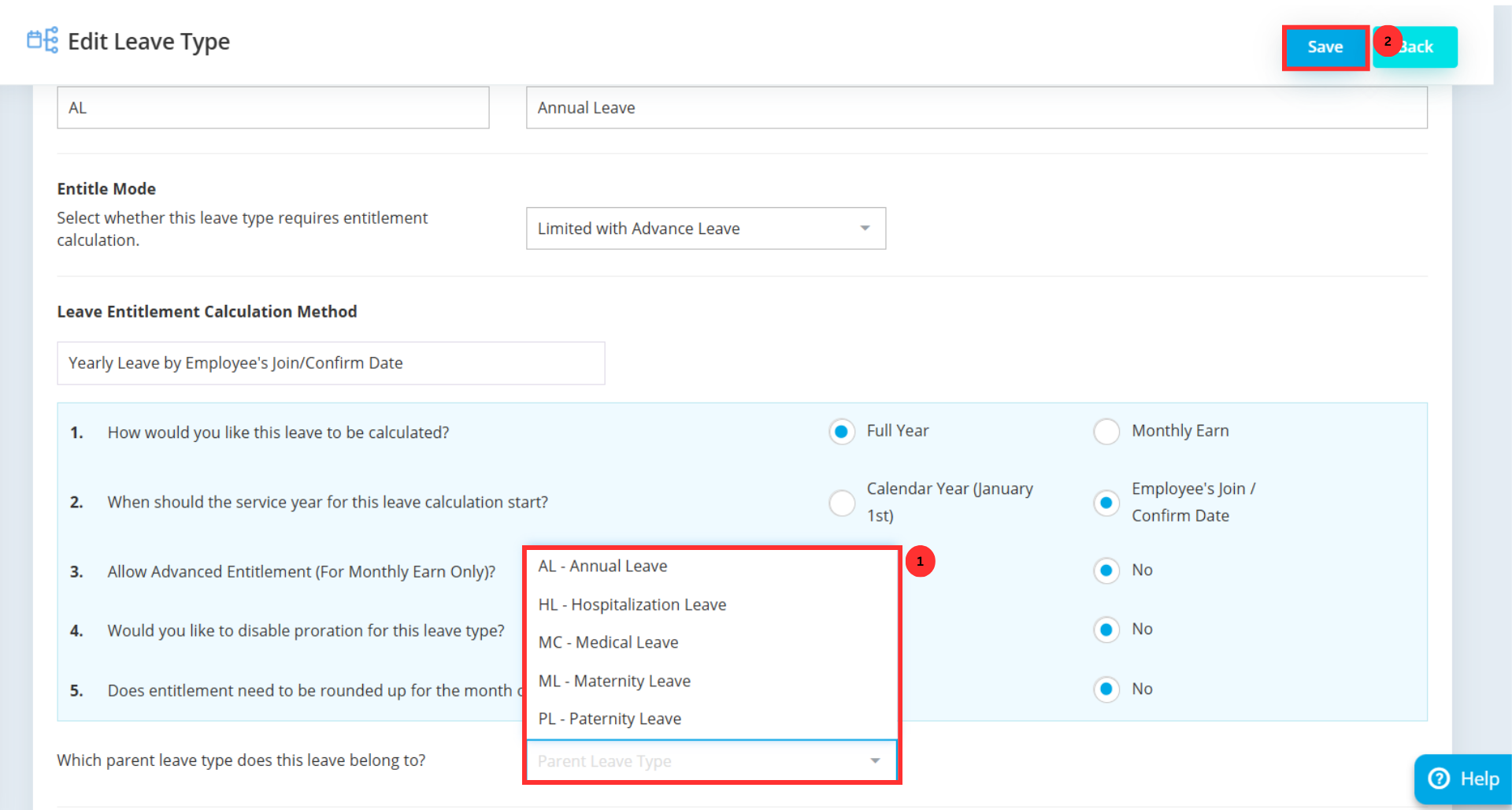
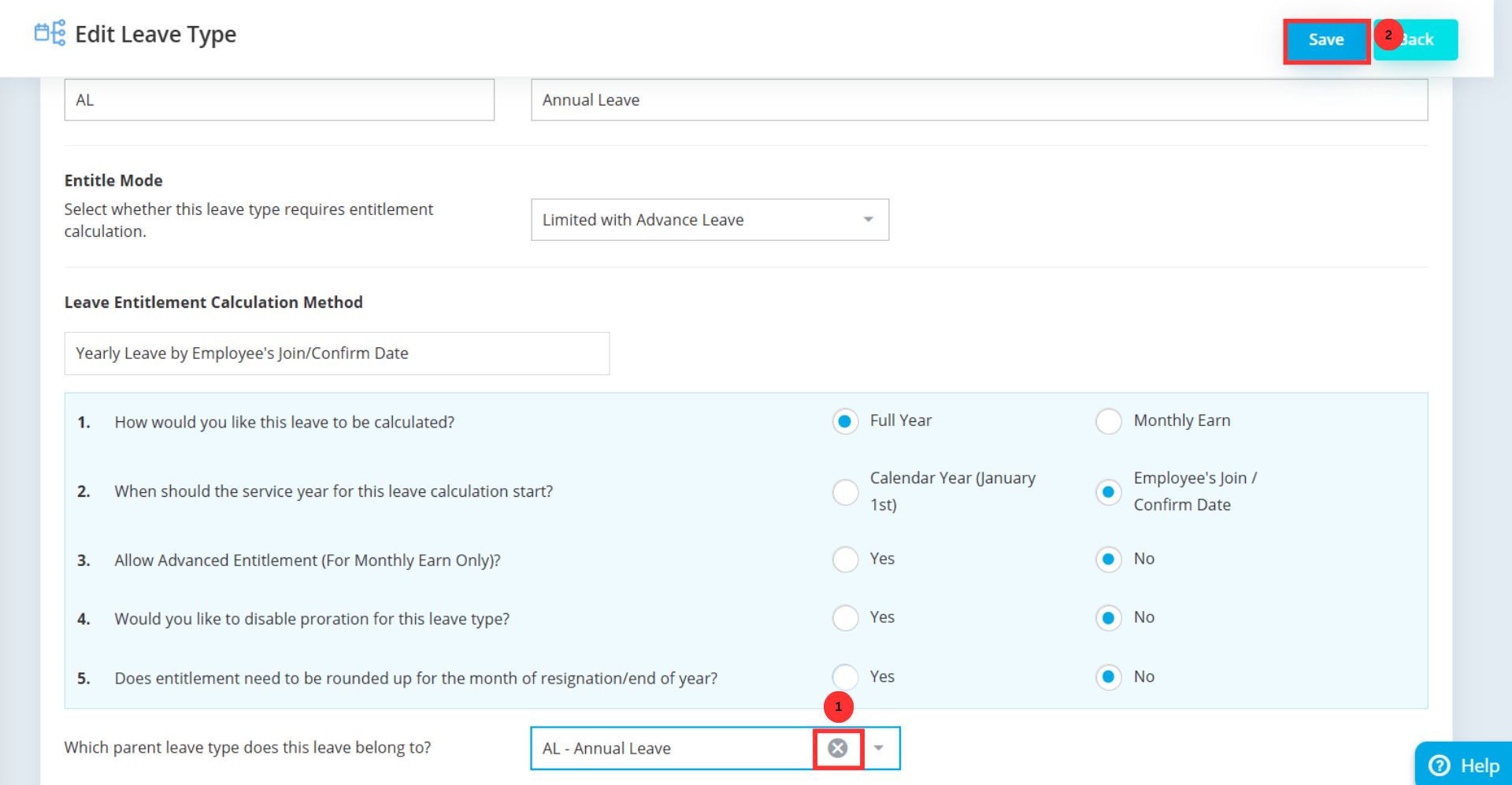
Now, you can assign the parent leave type. In the settings window, find the field labeled Parent Leave Type. Click on the dropdown menu and select the leave type you wish to set as the parent, such as “Annual Leave.” After making your selection, click the Save button to apply the link immediately.
If you ever need to remove a parent leave type association, the process is just as simple. Return to the edit screen for that leave type, and click the ‘x’ icon located in the Parent Leave Type field to clear the selection. Once removed, click Save to confirm the changes and update the leave type settings.
Create and manage various leave categories, linking them under parent leave types to mirror your exact policies.
The system automatically integrates leave types and parent leave types into employee leave balances for accurate, real-time tracking.
Automated deductions and customized rules streamline the entire leave process for both employees and HR, reducing errors and administrative work.
A user-friendly interface gives employees clear visibility into their balances and a simple way to apply for leave.
Effective leave management starts with smart configuration. By mastering Leave Types and Parent Leave Types in AutoCount e-Leave, you ensure that every leave request is handled accurately, policies are enforced automatically, and your team enjoys a seamless digital experience. It’s a simple setup that delivers lasting efficiency for your organization.
No, each leave type can only have one parent leave type assigned to it. However, one parent leave type (e.g., Annual Leave) can be linked to multiple child categories (e.g., Emergency Leave, Bridging Leave).
Upon approval, the system will automatically deduct the number of days applied from both the selected leave type’s balance and the parent leave type’s balance simultaneously. For example, applying for 2 days of Emergency Leave will deduct 2 days from both Emergency Leave and Annual Leave.
Yes, you can easily remove or change a parent leave type at any time. Simply navigate to the leave type settings, click the ‘x’ icon in the Parent Leave Type field to clear the existing link, or select a new parent from the dropdown menu. Remember to click Save to apply your changes.
No, it actually improves visibility. Employees can see how taking a specific leave type impacts both their selected leave balance and the linked parent leave balance. This transparency helps employees understand their leave deductions and reduces questions for HR.
Yes, you can apply the parent leave type feature to most standard and custom leave categories you create, such as Emergency Leave, Medical Leave, or Study Leave, depending on your company’s policy needs.
Unlock all AutoCount Cloud Payroll features for free and then think carefully which plan is best with your business needs.