
A comprehensive guide to preparing, managing, and printing price offers in AutoCount before a sale is confirmed.
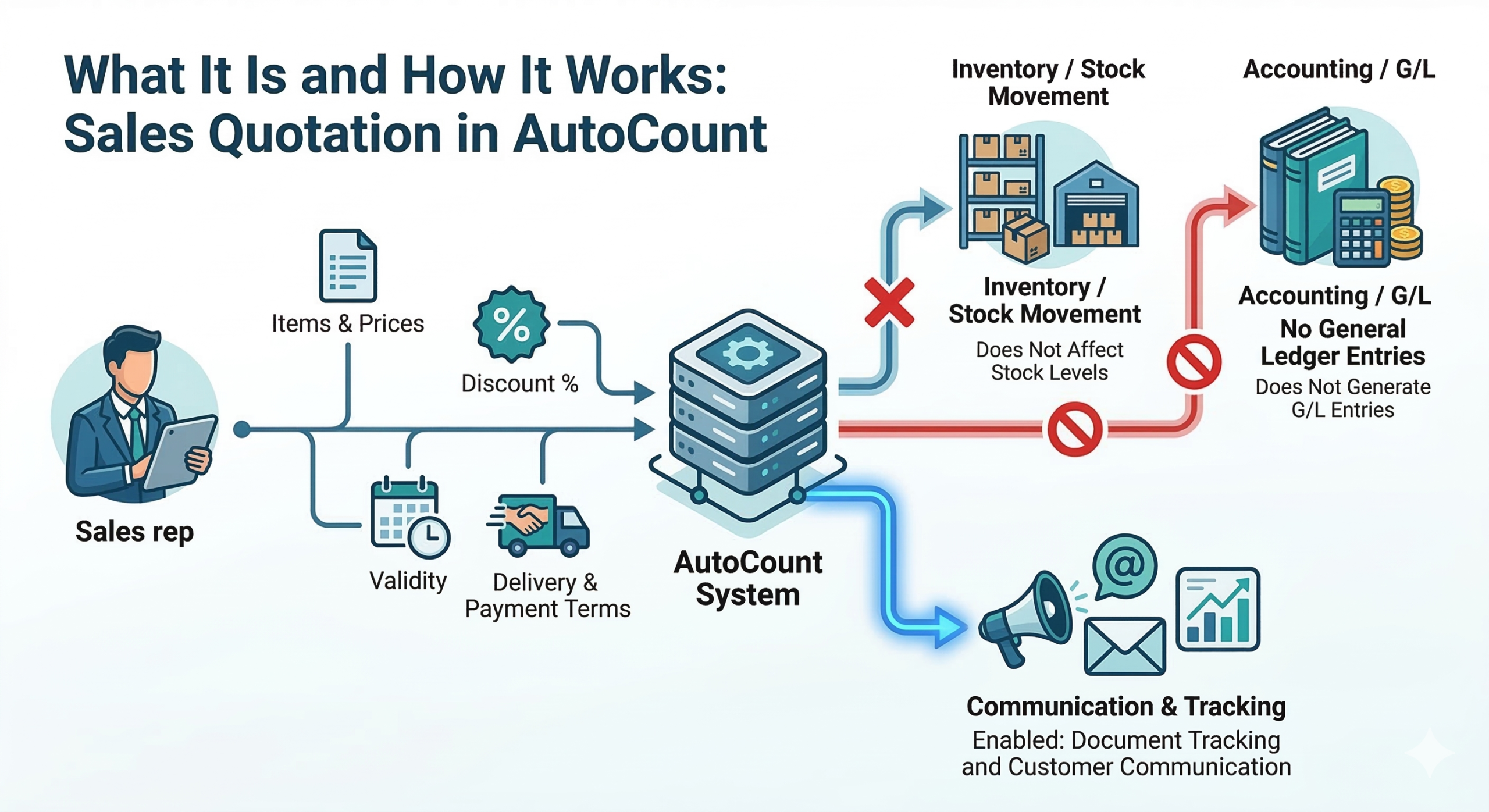
A Sales Quotation in AutoCount is a document used to prepare, manage, and print a price offer for a customer before the sale is confirmed. It allows businesses to record quoted items, selling prices, discounts, delivery terms, payment terms, and quotation validity in one structured document.
Crucial System Behavior: In AutoCount, a quotation is a sales document for communication and tracking only, which means it does not affect stock movement or generate G/L entries at the quotation stage.
Present pricing clearly and professionally before a customer places an order, allowing them to review all commercial terms.
Quotations are saved in the system. The sales team can easily refer back to them later and directly transfer them into the next document.
Standardize the way you present offers to customers, improving document consistency across your sales team.
Include exact quantities, discount structures, and delivery expectations before the customer commits to purchasing.
AutoCount’s quotation screen allows users to capture extensive data at both the document (header) level and the line item (detail) level.
Users can add specific product details, including:
Go to Sales > Quotation and choose Create A New Quotation.
Select your customer and populate the quotation header details (dates, terms, agents).
Insert rows manually or search items from the lookup screen. You can utilize AutoCount's tools like instant item information to review price history or stock balance while preparing. Set dates and apply required discounts.
Save the document and preview the printed layout to ensure proper formatting before sharing with the customer.
By default, a quotation in AutoCount is automatically approved, and an approved quotation can be transferred to another document. However, companies needing tighter sales control can adjust this:
Remove the automatic approval right in user access settings. Quotations must then be approved manually (especially when quoted prices or discounts require internal review) before they can be transferred.
If this option is unchecked on a document, the quotation cannot be transferred forward, giving businesses granular control over the sales pipeline.
One of the main advantages of using Sales Quotation in AutoCount is the seamless transfer into a Sales Order upon customer acceptance.
No need to re-enter customer and item details again.
Prevents key-in errors by directly porting existing data.
System recommendation: transferring makes outstanding reports much more meaningful.
Helps businesses standardize the way they present offers to customers, ensuring a professional image.
Improves overall document consistency across the sales team and throughout the entire quotation process.
Significantly reduces repetitive data entry by allowing easy data retrieval and document transfer.
Makes it much easier to manage the transition from quotation to order once the customer accepts.
Provides a clearer historical record of what was offered, including pricing, terms, and item details.
The structured record supports better communication with clients and ensures smoother follow-up actions.
Sales team prepares a quotation for the customer.
Customer reviews pricing & terms. Internal approval if needed.
Quotation is transferred to a Sales Order for processing.
* Note: Both Quotation and Sales Order are non-accounting documents, organizing sales flow without immediately affecting stock or G/L.
A Sales Quotation should be described as a commercial offer or sales proposal, not automatically as a legal agreement. Whether it becomes contractually binding depends on the customer's acceptance and the company's terms, not merely on the existence of the quotation itself. This wording is safer and more professional.
No. A Sales Quotation does not affect inventory movement.
No. A Sales Quotation does not affect General Ledger entries.
Yes. An approved quotation can be transferred to a Sales Order.
Yes. AutoCount includes approval rights and an Allow to Transfer setting for transfer control.
Manage customer offers efficiently with AutoCount.
Record quotations, verify sales details, and track customer offers accurately with an integrated system.