AutoCount Software

Face Recognition & Update Facial Recognition Image via AutoCount HRMS

Learn how AutoCount HRMS helps you track attendance accurately using face recognition and maintain up‑to‑date facial images for your employees.

This feature makes attendance monitoring smarter by matching a real photo with live clock‑in/out attempts — reducing mistakes and saving HR time
Introduction

AutoCount HRMS offers a modern cloud-based HR and payroll system tailored for Malaysian SMEs, combining core HR functionality with advanced time attendance technology such as facial recognition, GPS, Wi-Fi, and Bluetooth clocking methods.The Face Recognition feature helps businesses authenticate employee identity for accurate attendance logging, while facial image updates ensure recognition remains reliable over time. Attendance records captured through facial recognition can also be seamlessly integrated into payroll processing using the AutoCount Payroll system, ensuring accurate salary calculations.

Key Benefits

Accurate Identity Verification

Facial recognition ensures the person clocking in/out is the actual employee, preventing proxy clocking and strengthening attendance integrity.

Seamless Payroll Integration

Verified attendance data flows directly into payroll, minimizing manual edits and reducing errors in wage calculations.

Mobile & Device Flexibility

Employees can clock in/out using mobile apps or supported biometric devices, making attendance tracking easier in any work setting.

Improved Attendance Compliance

With face verification, attendance records are more trustworthy, helping HR teams monitor work hours and attendance patterns effectively.

Key Features of Face Recognition

Face Recognition in AutoCount HRMS is designed to:

The system detects an employee’s face and compares it to their registered photo for real time attendance validation.

Whether using mobile apps, kiosks, or hardware devices, face recognition works seamlessly alongside GPS, Wi Fi, and Bluetooth clocking, giving flexible options for different work environments.

Keeping employee photos up to date improves recognition accuracy as appearance changes over time, helping the system stay reliable and reducing failed recognition attempts during attendance capture.

Pro Tip

For best results, ensure employees take clear, well-lit photos facing directly toward the camera. Natural lighting works best for facial recognition accuracy.

Let’s Set Up Face Recognition

Step-by-Step Guide to Set Up Face Recognition via AutoCount HRMS

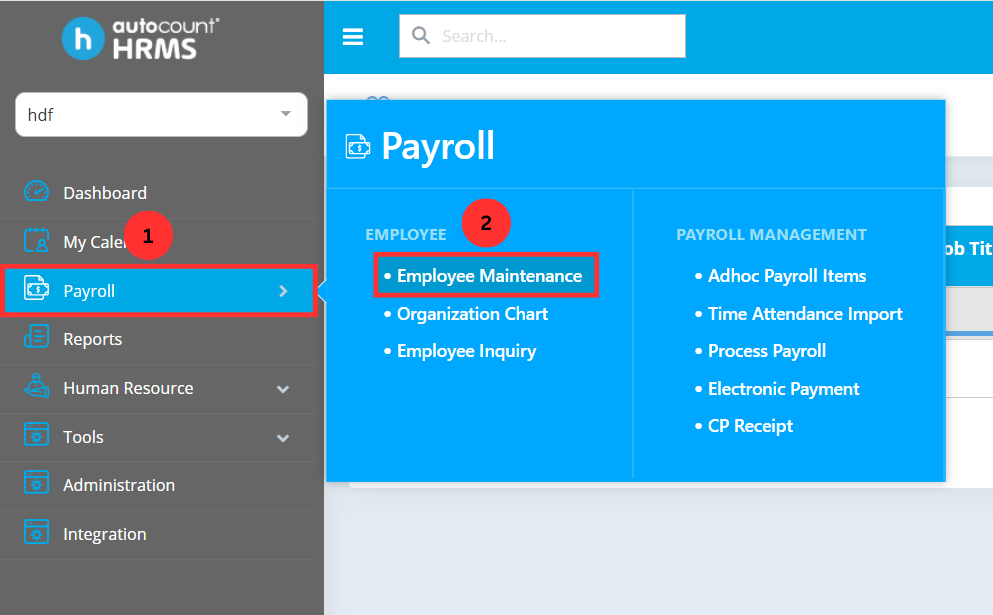
Access Employee Maintenance

To begin setting up face recognition, navigate to Payroll > Employee Maintenance under Employee in the AutoCount HRMS main menu.

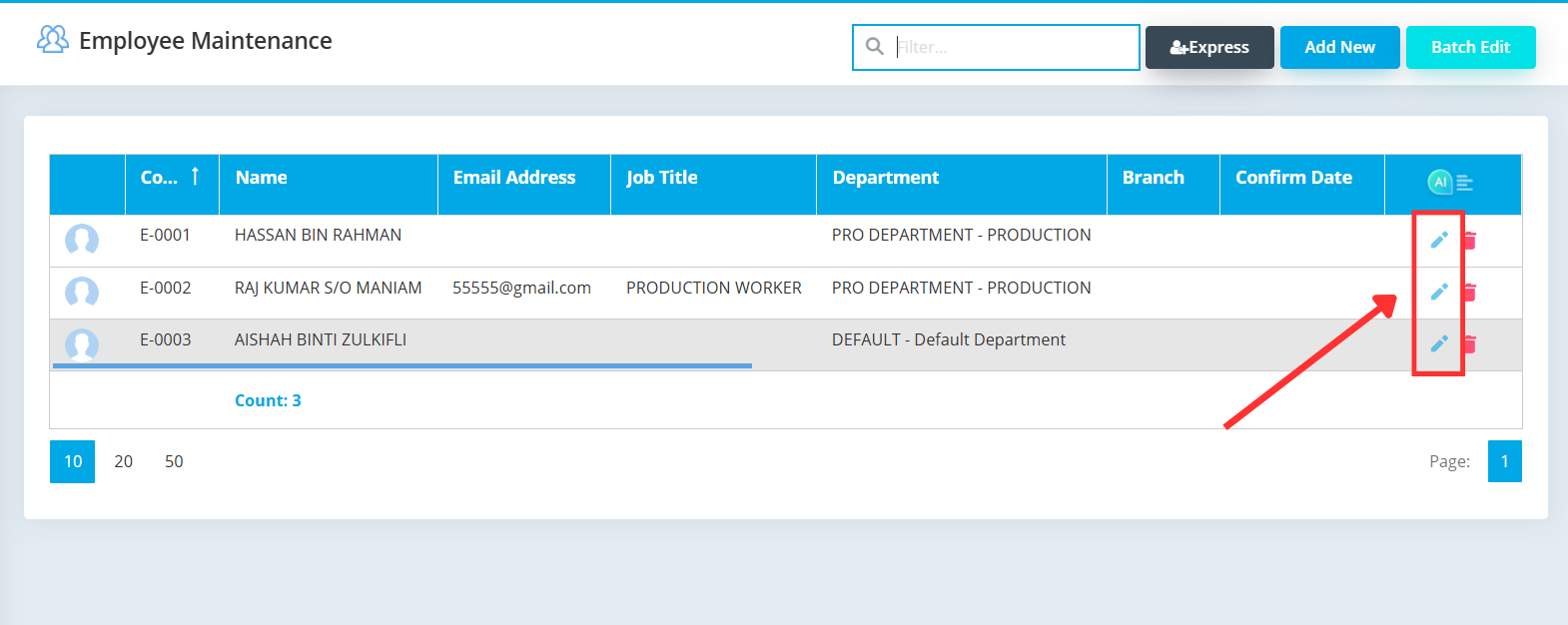
Employee list with a pencil icon to edit an employee

Select Employee for Face Recognition Setup

Identify the employee you wish to enable face recognition for clocking in and out, then click the pencil icon to edit the employee record.

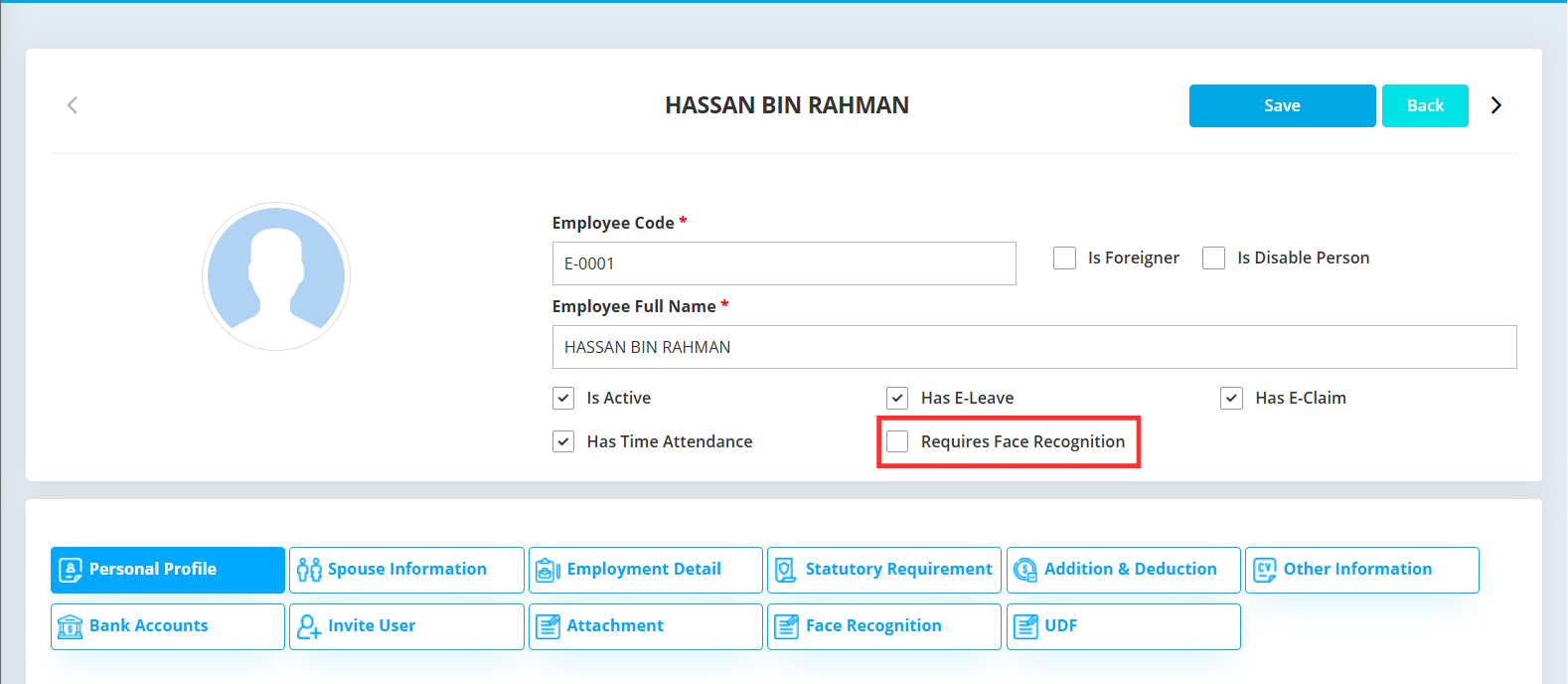
Employee maintenance form showing the Requires Face Recognition checkbox

Enable Face Recognition Requirement

Ensure the Requires Face Recognition checkbox is ticked. This setting enforces face recognition verification when the employee clocks in or clocks out.

HRMS employee profile with face recognition option visible

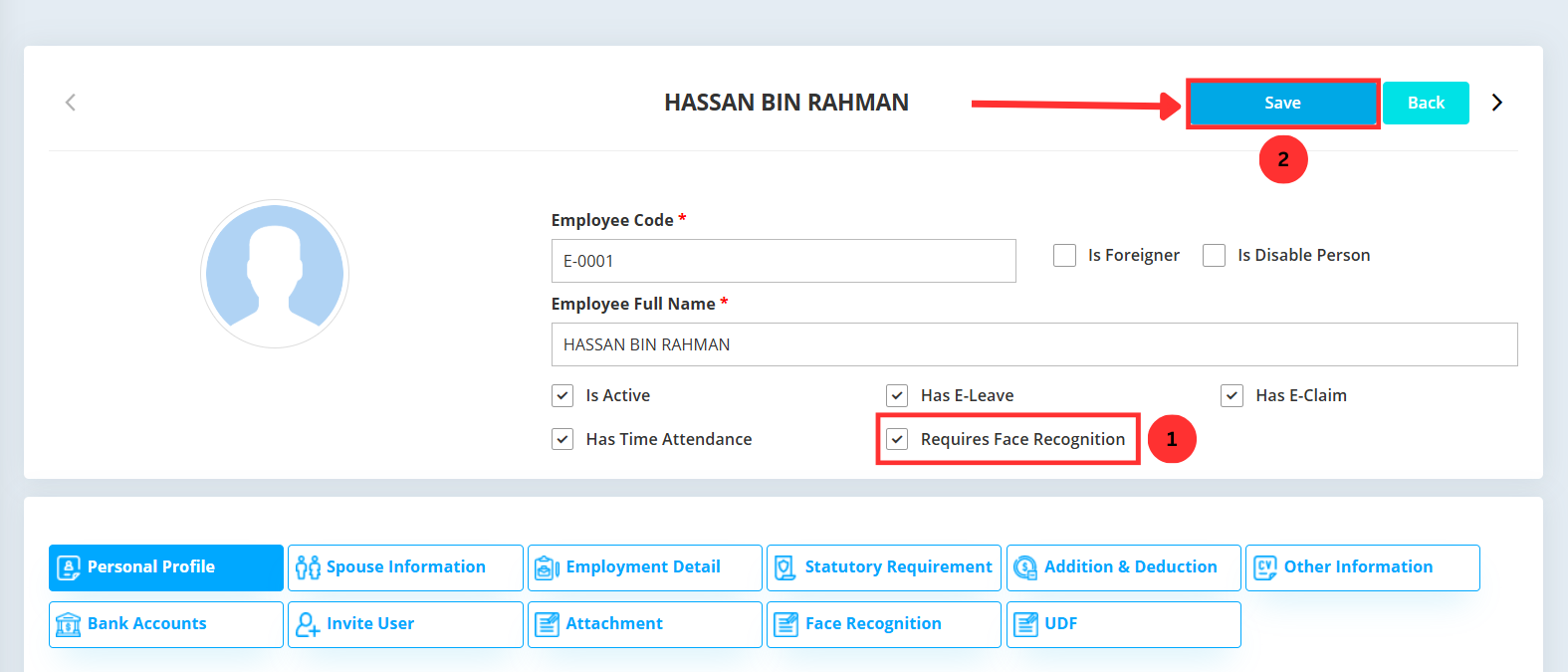
Save Changes

Click Save at the top-right corner to save the changes made. If you do not click Save, all entered data will remain unchanged.

Save changes button in HRMS employee edit form

Maintaining Facial Recognition Accuracy

Facial recognition accuracy may be affected by appearance changes or image quality. AutoCount HRMS allows HR administrators to update facial images anytime to maintain reliable attendance tracking.

When should images be updated?

What happens when images are updated?

Note:

Only authorized HR personnel are allowed to clear and reupload facial recognition images to protect employee data privacy.

How to Update Employee Facial Recognition Images

Step-by-Step Guide to Update Employee Facial Recognition images via AutoCount HRMS

Access Employee Maintenance Module

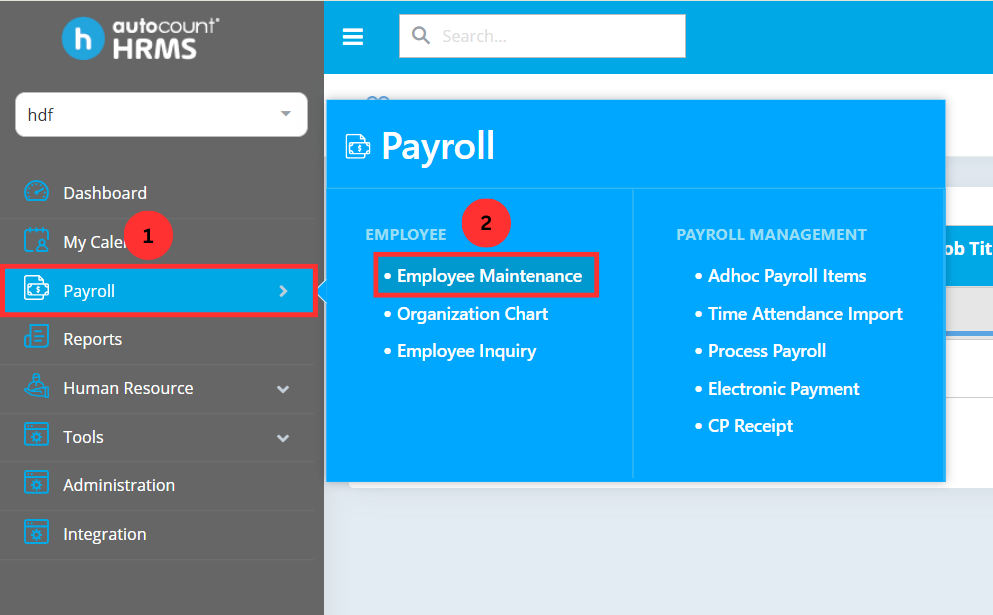
To update the facial recognition images of an employee, navigate to Payroll > Employee Maintenance under Employee in AutoCount HRMS main menu. This section allows you to view and manage all employee records, including facial recognition data, before making any updates.

Payroll > Employee Maintenance menu in AutoCount HRMS

Choose Employee to Update

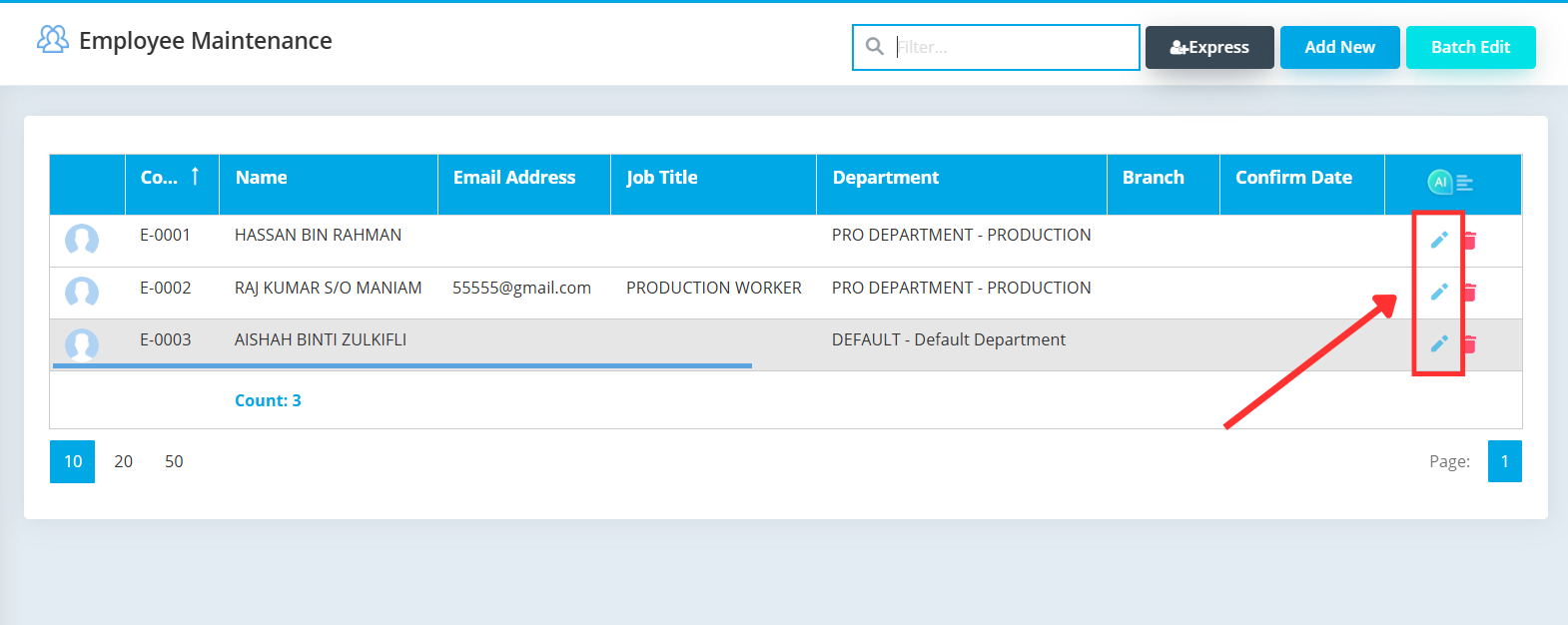
Identify the employee whose facial recognition image you want to update. You can browse the list of employees or use the search function to find the correct record. Once located, click the pencil icon to open the employee’s details and proceed with the update.

Employee list showing selectable employee records

Open Face Recognition Section

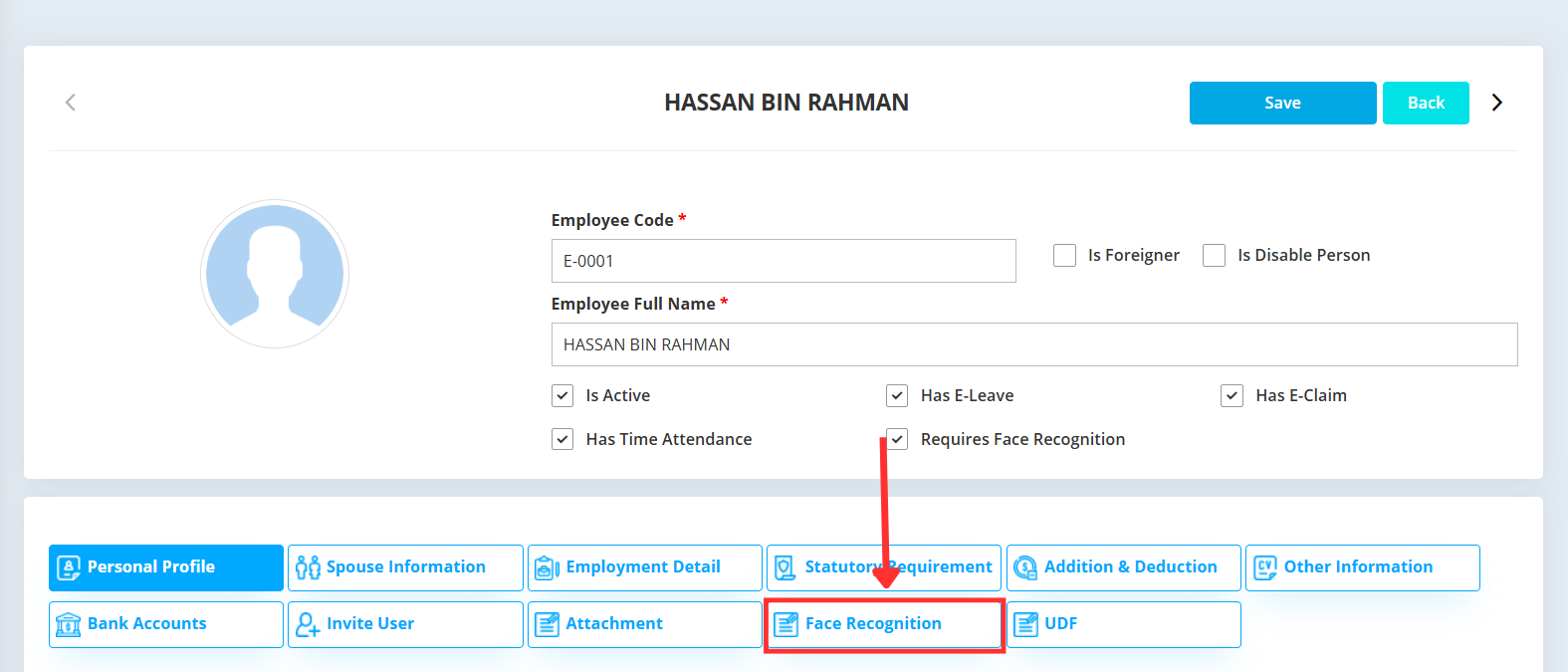
Click on Face Recognition within the employee’s details to access their facial recognition settings. This section allows you to view the current image or update it to ensure accurate clock-in and clock-out recognition.

Face Recognition button/link in employee profile

Update and Save Facial Recognition Image

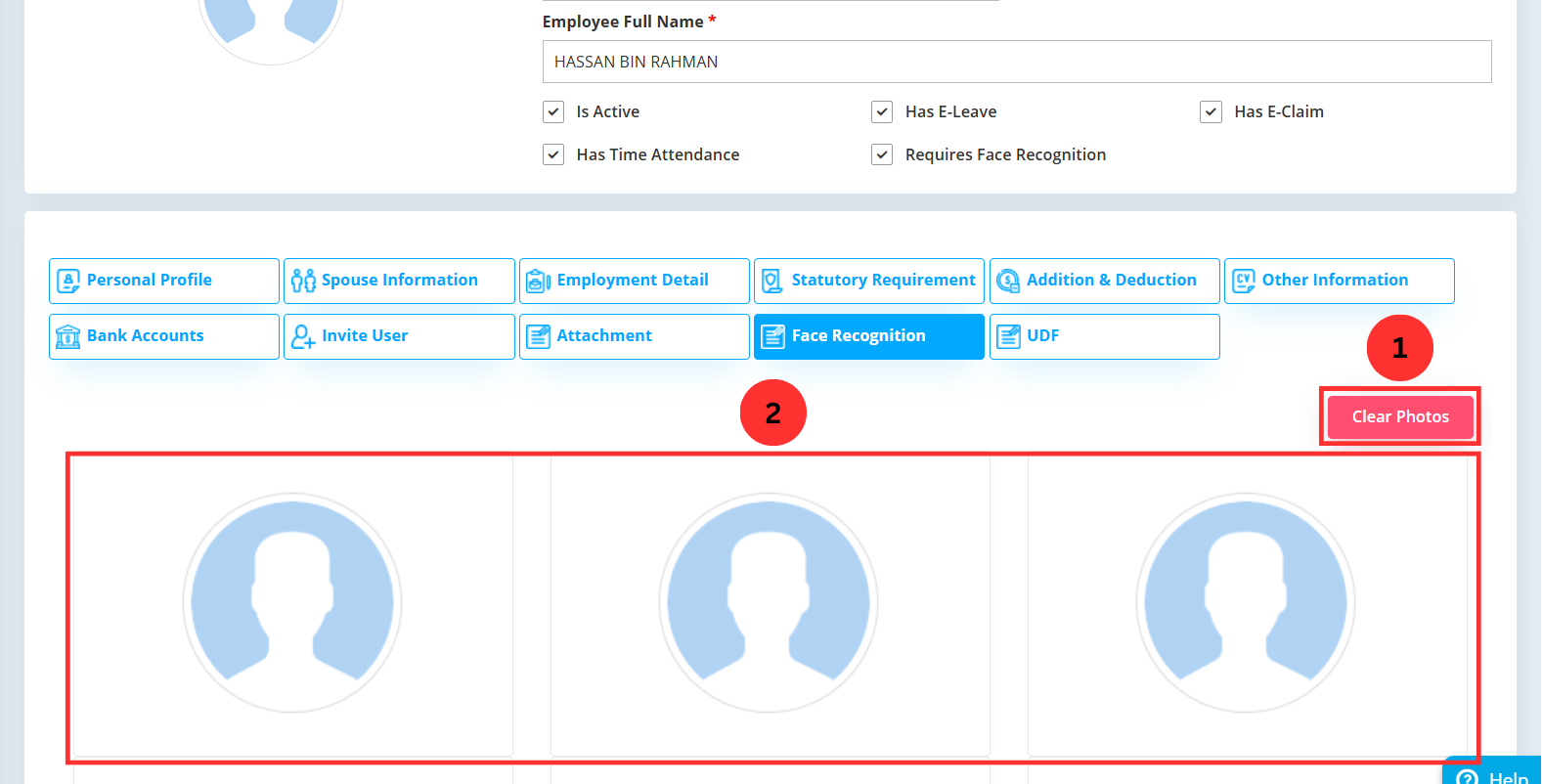
Click Clear Photos to remove the current facial recognition images, then upload the three new photos you want the system to use. Make sure each photo clearly shows the employee’s face to ensure accurate clock-in and clock-out recognition. Once all photos are uploaded, click Save at the top-right corner to apply the changes.

Clear Photos button and Save at top right of HRMS screen

Best Practices for Facial Recognition Accuracy

Following these best practices helps ensure reliable facial recognition, reduces errors during clock-in, and keeps attendance tracking accurate.

Ensure sufficient lighting so facial features are clearly visible and not affected by shadows or glare.

Remove masks, hats, sunglasses, or other items that may obstruct key facial features during image capture.

Regular updates help prevent recognition errors caused by changes in personal appearance.

Capture facial images at a similar angle and distance to the attendance device used for daily clock-in and clock-out.

Conclusion

The Facial Recognition feature in AutoCount HRMS ensures accurate, secure, and efficient attendance tracking for Malaysian SMEs. By combining advanced facial authentication with flexible clocking options, HR teams can minimize errors, prevent time fraud, and streamline payroll processing. Regular image updates and role-based access maintain system reliability and data privacy, making this feature a dependable solution for modern workforce management.

Frequently Asked Questions

Can I use Facial Recognition alongside other clocking methods (GPS, Wi-Fi, Bluetooth)?

Yes. AutoCount HRMS supports multiple clocking methods simultaneously. Facial Recognition can be used alongside GPS, Wi-Fi, or Bluetooth clocking, giving your business flexibility in managing attendance.

No. Only users with the appropriate HR or administrative access rights can manage facial recognition images and settings. Regular employees cannot modify these settings, ensuring data privacy and system integrity.

Yes. Attendance data captured via Facial Recognition is automatically synchronized with the payroll module, helping reduce errors and streamline payroll processing.

If recognition fails, ensure the image is clear, properly aligned, and the environment has sufficient lighting. You can also re-capture the employee’s facial images if necessary. Alternatively, employees can use other available clocking methods (GPS, Wi-Fi, Bluetooth) until the issue is resolved.

Get started with AutoCount Payroll for free!

Unlock all AutoCount Cloud Payroll features for free and then think carefully which plan is best with your business needs.

news-1701

sabung ayam online

yakinjp

yakinjp

rtp yakinjp

slot thailand

yakinjp

yakinjp

yakin jp

yakinjp id

maujp

maujp

maujp

maujp

sabung ayam online

sabung ayam online

judi bola online

sabung ayam online

judi bola online

slot mahjong ways

slot mahjong

sabung ayam online

judi bola

live casino

sabung ayam online

judi bola

live casino

SGP Pools

slot mahjong

sabung ayam online

slot mahjong

SLOT THAILAND

118000691

118000692

118000693

118000694

118000695

118000696

118000697

118000698

118000699

118000700

118000701

118000702

118000703

118000704

118000705

118000706

118000707

118000708

118000709

118000710

118000711

118000712

118000713

118000714

118000715

118000716

118000717

118000718

118000719

118000720

118000721

118000722

118000723

118000724

118000725

118000726

118000727

118000728

118000729

118000730

128000681

128000682

128000683

128000684

128000685

128000686

128000687

128000688

128000689

128000690

128000691

128000692

128000693

128000694

128000695

128000726

128000727

128000728

128000729

128000730

128000731

128000732

128000733

128000734

128000735

128000736

128000737

128000738

128000739

128000740

138000441

138000442

138000443

138000444

138000445

138000446

138000447

138000448

138000449

138000450

138000451

138000452

138000453

138000454

138000455

138000456

138000457

138000458

138000459

138000460

138000451

138000452

138000453

138000454

138000455

138000456

138000457

138000458

138000459

138000460

158000346

158000347

158000348

158000349

158000350

158000351

158000352

158000353

158000354

158000355

158000356

158000357

158000358

158000359

158000360

158000361

158000362

158000363

158000364

158000365

208000361

208000362

208000363

208000364

208000365

208000366

208000367

208000368

208000369

208000370

208000401

208000402

208000403

208000404

208000405

208000408

208000409

208000410

208000416

208000417

208000418

208000419

208000420

208000421

208000422

208000423

208000424

208000425

208000426

208000427

208000428

208000429

208000430

208000431

208000432

208000433

208000434

208000435

228000061

228000062

228000063

228000064

228000065

228000066

228000067

228000068

228000069

228000070

228000071

228000072

228000073

228000074

228000075

228000076

228000077

228000078

228000079

228000080

228000081

228000082

228000083

228000084

228000085

228000086

228000087

228000088

228000089

228000090

228000091

228000092

228000093

228000094

228000095

228000096

228000097

228000098

228000099

228000100

228000101

228000102

228000103

228000104

228000105

228000106

228000107

228000108

228000109

228000110

228000111

228000112

228000113

228000114

228000115

228000116

228000117

228000118

228000119

228000120

228000121

228000122

228000123

228000124

228000125

228000126

228000127

228000128

228000129

228000130

228000131

228000132

228000133

228000134

228000135

228000136

228000137

228000138

228000139

228000140

news-1701