
-
AutoCount Accounting Features
-
- Approval Workflow
- Audit Trail
- Auto Save in Draft Folder
- AutoCount Contra Account
- AutoCount License Setting Guide
- Deposit Tracking & Management
- Documents Numbering Format
- Full Transfer and Partial Transfer
- Import Data to AutoCount Accounting Using Excel
- Informative Charts and Analytical Data
- Layout Customization
- Multi Pricing
- Sales and Services Tax
- Schedule Backup
- Search Lookup Edit
- View Documents Flow
- AutoCount Feature Stock Take
- Show Remaining (2) Collapse
-
AutoCount Cloud Accounting
-
AutoCount E-Invoice
-
AutoCount HRMS User Guide
-
AutoCount Modules
-
- Activity Stream
- Advanced Financial Report
- Advanced Item
- Advanced Multi-UOM
- Advanced Quotation Module
- Basic Multi-UOM
- Budget Module
- Consignment
- Filter By Salesman
- FOC Quantity
- Formula
- Item Batch
- Item Package
- Landing Cost
- Multi-Currency
- Multi-Dimensional Analysis
- Multi-Location
- Project Account
- Recurrence
- Remote Credit Control Module
- Stock Assembly
- User Defined Fields (UDF)
- AutoCount SST Hidden Functions
- AutoCount SST Submission - Service Tax
- Show Remaining (9) Collapse
-
AutoCount Plugins
-
Form Template
-
Report Template
-
- Advance Quotation
- Cash Sale
- Consignment
- Consignment Movement
- Credit Note
- Debit Note
- Delivery Order
- FOC Quantity Analysis By Document Report
- Invoice
- Item Package Sales Report
- Monthly Sales Analysis
- Outstanding Sales Order Listing
- Profit And Loss Of Documents
- Quotation
- Sales Agent Contribution Report
- Sales Order
- Top/Bottom Sales Ranking
- Show Remaining (2) Collapse
-
- Available Stock Status Report
- Expired Item Batch Listing
- Inventory Physical Worksheet
- Stock Adjustment
- Stock Aging Report
- Stock Assembly
- Stock Assembly Order
- Stock Balance By Location
- Stock Balance Report
- Stock Card Report
- Stock Disassembly
- Stock Issue
- Stock Item Profit Margin
- Stock Movement Report
- Stock Receive
- Stock Take
- Stock Transfer
- Stock Write Off
- Show Remaining (3) Collapse
AutoCount Module: Advanced Financial Report Module
Introduction to AutoCount Advanced Financial Report Module
The AutoCount Advanced Financial Report Module is an essential addition to AutoCount’s suite of tools. In other words, it provides businesses with advanced financial reporting capabilities. In addition, this module helps organizations generate detailed financial reports that offer critical insights into cash flow, profitability, and overall financial health. Moreover, the module features three core functions: generating Cash Flow Forecast Reports, Cash Flow Statements, and customized financial reports (Profit & Loss and Balance Sheet accounts).
What is AutoCount Advanced Financial Report Module?
An Advanced Financial Report is a detailed financial document that provides comprehensive insights into a company’s financial health. However, unlike basic financial reports, these advanced versions delve deeper into aspects such as cash flow forecasting, profit and loss statements, balance sheets, and customized financial metrics.
(CN) AutoCount Advanced Financial Report Module
The video comprehensively explains the AutoCount Advanced Financial Report Module and details its features.
Who Needs This Module?
Finance and management teams who require granular, segmented reporting.
Multi‑company or multi‑branch businesses needing consolidated and comparative insights.
Organizations using budgets or forecasts to track vs. actuals.
CFOs or accounting managers focusing on department‑level performance and accountability.
How To Use Advance Financial Report Module?
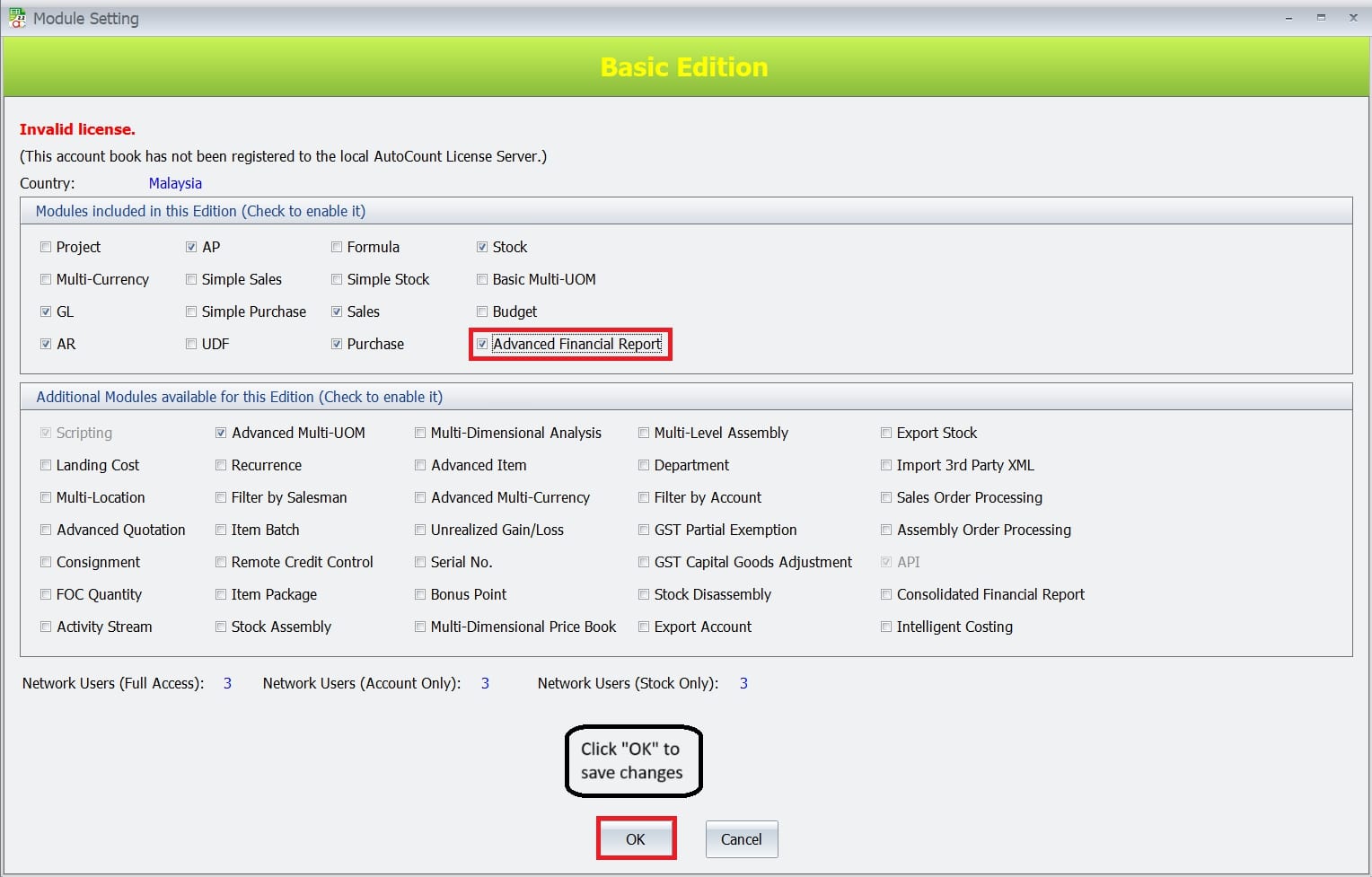
1. Enable the Module
- Firstly, go to Tools > Program Control > Module Setting > Activate the Module.
- Secondly, check the box next to Advanced Financial Report
- This process activates the module. Thus, allowing you to leverage its advanced financial reporting tools.
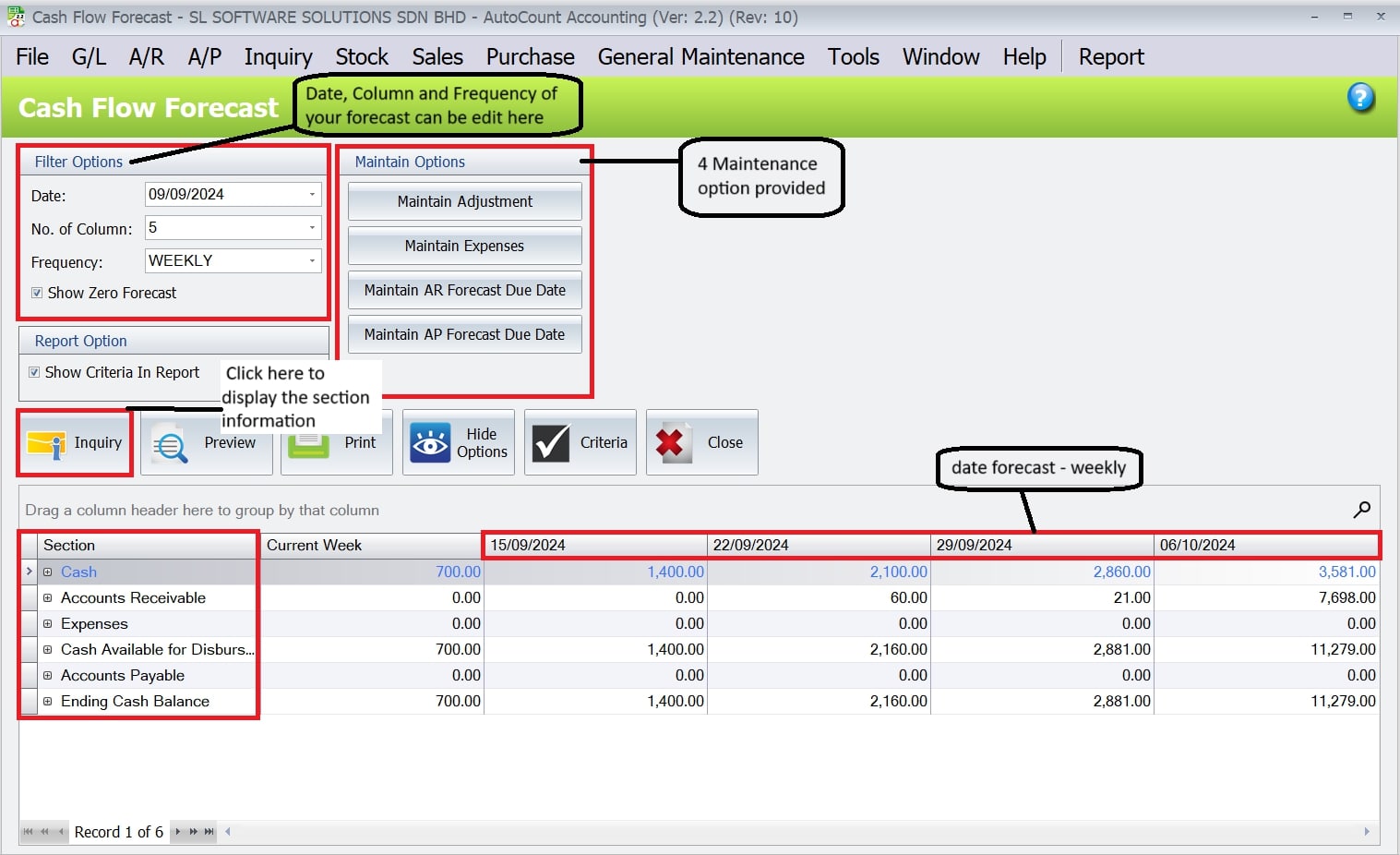
2. Forecast Setup & Report Options
- First, select the Start Date, number of Columns (time periods), and Frequency (Daily, Weekly, Monthly) to define your forecast structure.
- Next, use Maintain Adjustment to fine-tune forecasted cash movements
- Enter expected expenses under Maintain Expenses
- Adjust AR/AP Due Dates for more accurate cash flow timelines
- Lastly, in the Report Option, tick “Show Criteria in Report” if you want the filter details included in the final report output.
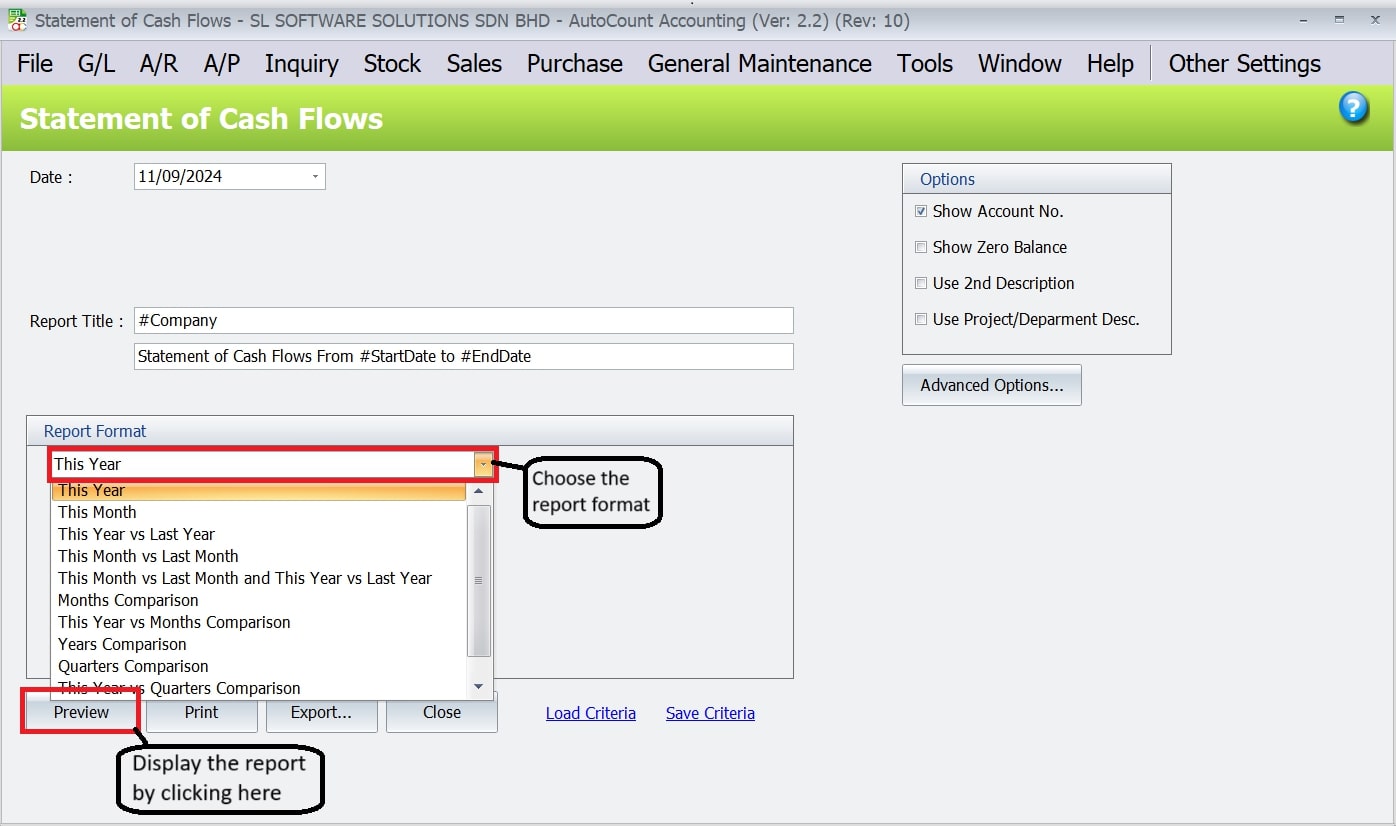
3. View Cash Flow Statement
Next, generate the Cash Flow Statement to see a detailed breakdown of your cash inflows and outflows. This helps you understand your financial position over a specific period.
Report Configuration: You can customize the report title, date range, and choose whether to display account numbers or zero balances.
This report is essential for monitoring cash flow and making informed financial decisions.
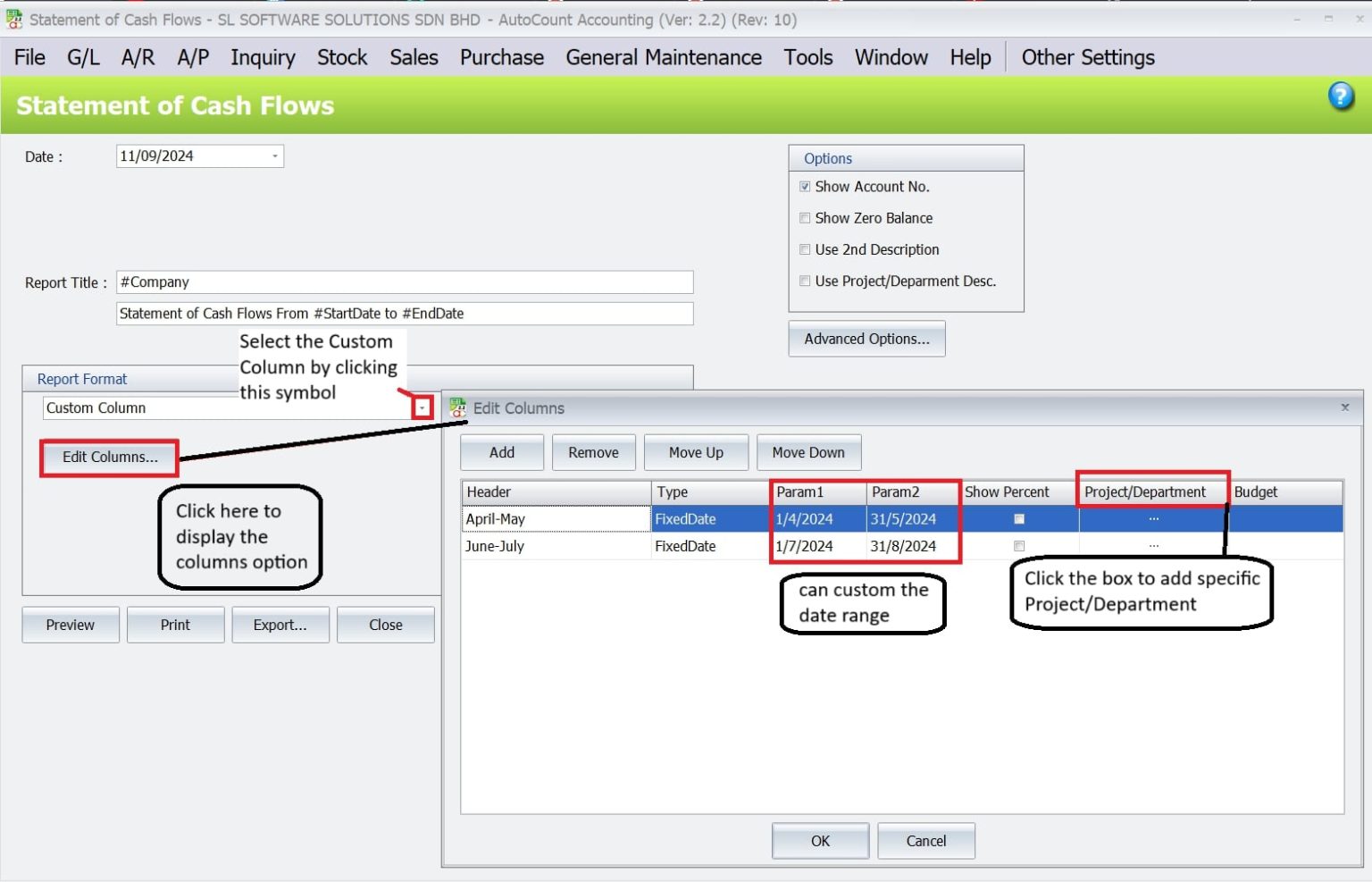
4. Customize Reports with Custom Columns
Use the Custom Columns feature to build tailored Profit & Loss or Balance Sheet reports based on your business needs.
- Flexible Column Setup: Arrange columns by month, quarter, or year.
- Custom Date Ranges: Define unique reporting periods or use formulas to calculate values.
- Project/Department Reports: Filter data to focus on specific projects or departments.
This feature is perfect for businesses that need detailed, customized financial reports for deeper insights.
Conclusion
The Advanced Financial Report module in AutoCount is a powerful tool for generating flexible, accurate, and customized financial reports. From cash flow forecasting to departmental analysis, it helps businesses make smarter financial decisions with ease.
Whether you’re managing daily operations or planning long-term strategies, this module gives you the insights you need — all in one place.
Frequently Asked Questions
Is this module part of Express or Basic Edition?
This is an optional add‑on, typically available with the Pro or Premium editions, or via purchase for higher tiers.
Can I drill down to source documents?
Yes—the module supports drill‑down from financial lines directly to source documents like invoices or payments.
Are comparisons available against budgets or prior years?
Absolutely—you can compare actual vs budget or actual vs previous period within the same report layout.
What export formats are supported?
Reports can be exported as PDF, Excel, HTML, or XML for sharing or further analysis.
Do I need the Recurrence Plugin to schedule reports?
Yes—while you can manually run and export templates, automating scheduled report delivery requires the Recurrence Plugin.
Interested in Getting AutoCount for your Business?
Contact our sales team today to explore pricing options and get started with the perfect solution for you.