
-
AutoCount Accounting Features
-
- Approval Workflow
- Audit Trail
- Auto Save in Draft Folder
- AutoCount Contra Account
- AutoCount License Setting Guide
- Deposit Tracking & Management
- Documents Numbering Format
- Full Transfer and Partial Transfer
- Import Data to AutoCount Accounting Using Excel
- Informative Charts and Analytical Data
- Layout Customization
- Multi Pricing
- Sales and Services Tax
- Schedule Backup
- Search Lookup Edit
- View Documents Flow
- AutoCount Feature Stock Take
- Column Chooser
- Show Remaining (3) Collapse
-
AutoCount Cloud Accounting
-
AutoCount E-Invoice
-
AutoCount HRMS User Guide
-
AutoCount Modules
-
- Activity Stream
- Advanced Financial Report
- Advanced Item
- Advanced Multi-UOM
- Advanced Quotation Module
- Basic Multi-UOM
- Budget Module
- Consignment
- Filter By Salesman
- FOC Quantity
- Formula
- Item Batch
- Item Package
- Landing Cost
- Multi-Currency
- Multi-Dimensional Analysis
- Multi-Location
- Project Account
- Recurrence
- Remote Credit Control Module
- Stock Assembly
- User Defined Fields (UDF)
- AutoCount SST Hidden Functions
- AutoCount SST Submission - Service Tax
- AutoCount Scripting Module User Guide
- AutoCount Bonus Point Module User Guide
- AutoCount Service Management Plugin User Guide
- Show Remaining (12) Collapse
-
AutoCount Plugins
-
- Fixed Assets Management
- Goldsmith
- TD Ordering Mobile Apps
- TD Stock Mobile Apps
- Universal Import Plugin
- DMS Import Plugin
- AutoCount Pick List Plugin User Guide
- AutoCount Credit Memo Plugin User Guide
- AutoCount Lock Price Plugin
- AutoCount Progressive Billing
- AutoCount Easy Recurrence Plugin
- Batch Update Unit Price Plugin
- AutoCount Production order
- AutoCount Car Tint Film Plugin
-
- Event Management System
- AutoCount To-Do List Plugin
- AutoCount AutoBank Reconciliation Plugin
- Intercompany Billing Plugin User Guide
- Lead Management 2.0 Plugin
- AutoCount Service Contract Plugin User Guide
- AutoCount Optical Plugin
- AutoCount Integrator Plugin
- AutoCount Procurement Planning Plugin
- Cage Management Plugin
- AutoCount Vehicle Plugin
- AutoCount Agent Validation Plugin User Guide
- AutoCount Barcode Generator Plugin User Guide
- AutoCount Easy Batch Number Entry Plugin User Guide
- Warranty 2.0 Plugin
- AutoCount Easy Photo 2.0 User Guide
- AutoCount Recurring Invoice Plugin User Guide
- AutoCount Scale Barcode Plugin User Guide
- AutoCount Recurrence Late Interest Plugin
- AutoCount Item Visibility Control
- AutoCount Bill Remark Plugin User Guide
- AutoCount Pain Tracker User Guide
- AutoCount Easy Payment
- AutoCount Easy Deposit Plugin
- AutoCount Easy Knock Off Plugin
- AutoCount Daily Collection Summary Plugin
- Timber Log Plugins
- Batch Transfer SODO Plugin
- AutoCount Vege Basket Plugin Guide
- AutoCount Fruit Basket Plugin Guide
- Referral Management Plugin
- AutoCount Migrator Plugin
- AutoCount Email & WhatsApp Plugin
- AutoCount Multi Company Knock Off Plugin
- AutoCount Advance Aging Format Plugin
- AutoCount Payment Request Plugin
- AutoCount Vehicle Master Plugin
- AutoCount Advance Deposit Plugin
- AutoCount IC Checker Plugin
- AutoCount RMA Plugin
- AutoCount Historical Outstanding DO Listing Plugin
- AutoCount Project Department Visibility Control Plugin
- AutoCount MRP Order Plugin
- AutoCount GridToExcel Plugin
- AutoCount Stock Availability Report Plugin
- AutoCount Batch Transfer SO DO Plugin
- AutoCount Centralized Kitchen Management Plugin
- SL AutoCount API
- AutoCount InterCompany Billing Plugin
- AutoCount Sales Commission Plugin
- AutoCount Advanced Credit Term Plugin
- AutoCount Advanced Stock Assembly Plugin
- AutoCount Shipment Plugin
- AutoCount Tour Plugin
- AutoCount Smart Analysis
- AutoCount Rental Management
- Show Remaining (41) Collapse
-
-
Form Template
-
Report Template
-
- Advance Quotation
- Cash Sale
- Consignment
- Consignment Movement
- Credit Note
- Debit Note
- Delivery Order
- FOC Quantity Analysis By Document Report
- Invoice
- Item Package Sales Report
- Monthly Sales Analysis
- Outstanding Sales Order Listing
- Profit And Loss Of Documents
- Quotation
- Sales Agent Contribution Report
- Sales Order
- Top/Bottom Sales Ranking
- Show Remaining (2) Collapse
-
- Available Stock Status Report
- Expired Item Batch Listing
- Inventory Physical Worksheet
- Stock Adjustment
- Stock Aging Report
- Stock Assembly
- Stock Assembly Order
- Stock Balance By Location
- Stock Balance Report
- Stock Card Report
- Stock Disassembly
- Stock Issue
- Stock Item Profit Margin
- Stock Movement Report
- Stock Receive
- Stock Take
- Stock Transfer
- Stock Write Off
- Show Remaining (3) Collapse
-
B2B ORDERING
-
AutoCount AI Agent
AutoCount Accounting: Document Numbering Format
Introduction to Document Numbering Format
Documents numbering is a fundamental aspect of managing accounting and inventory systems. To clarify, in the context of AutoCount, a widely-used accounting software, proper document numbering ensures that all transactions are systematically recorded, easy to track, and compliant with regulatory requirements. In addition, AutoCount's flexible documents numbering format allows businesses to customize their numbering systems to match their specific operational needs.
Key Elements of Document Numbering Format
When configuring a documents numbering format, it’s essential to understand the key elements that make up a robust numbering system:
- Naming the Format: Each numbering format must be assigned a unique name for easy identification and management.
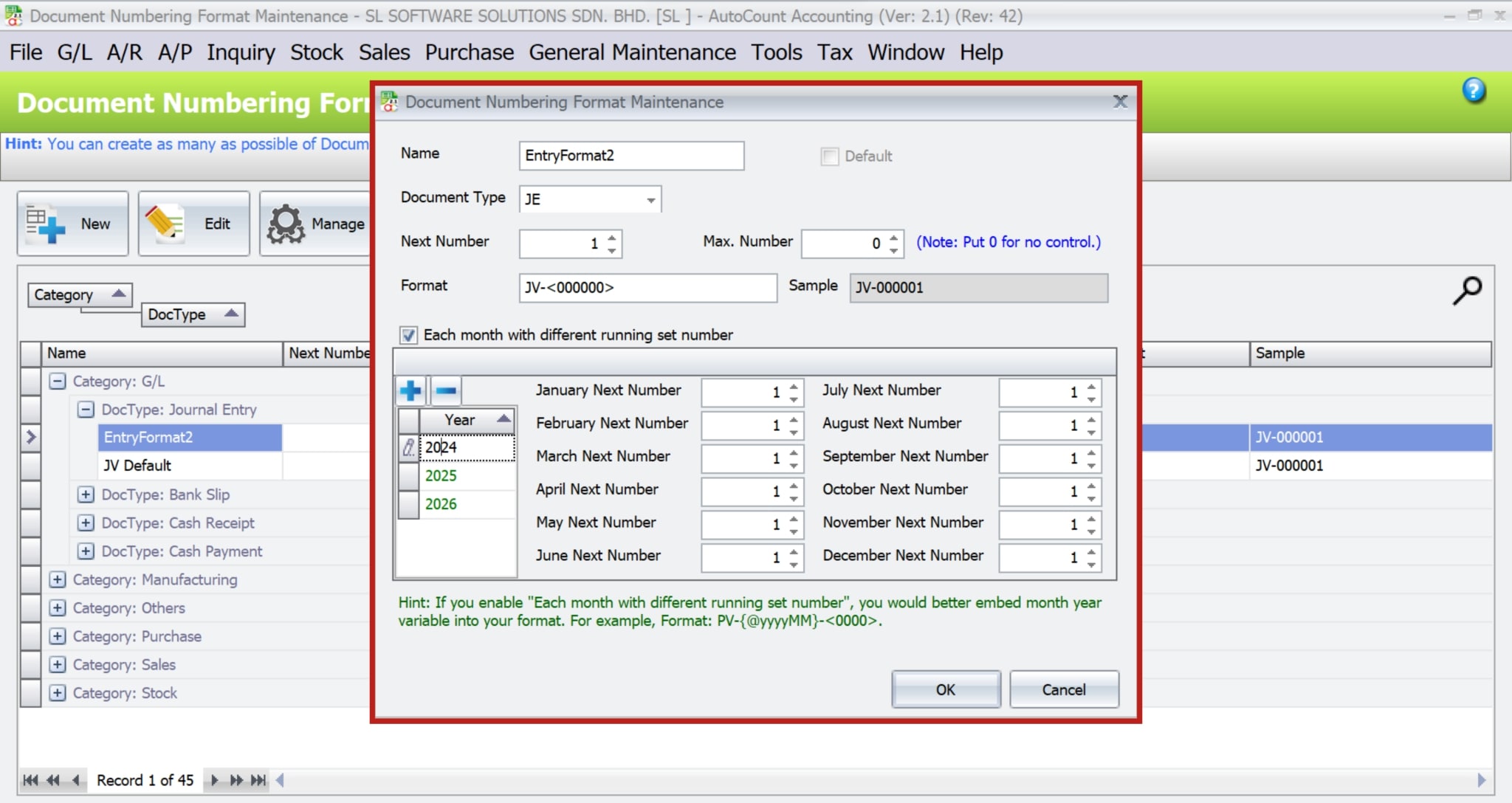
- Document Types and Defaults: Document types are pre-selected, but users can later set any format as the default.
- Configuring the Next Running Number: This feature allows users to specify the starting number for new documents, ensuring continuity and avoiding conflicts.
AutoCount Document Numbering Format Video Guide
- AutoCount Document Numbering Format (EN)
Document Numbering Format Setup
Integration & Document Numbering Format Setup
- AutoCount Document Numbering Format (CN)
文档编号格式设置
集成和文档编号格式设置
Setting Up Documents Numbering Format in AutoCount
To set up a documents numbering format in AutoCount, users must first navigate to the Documents Numbering Format Maintenance section, located under General Maintenance. This section serves as the control center where all documents numbering configurations are managed.
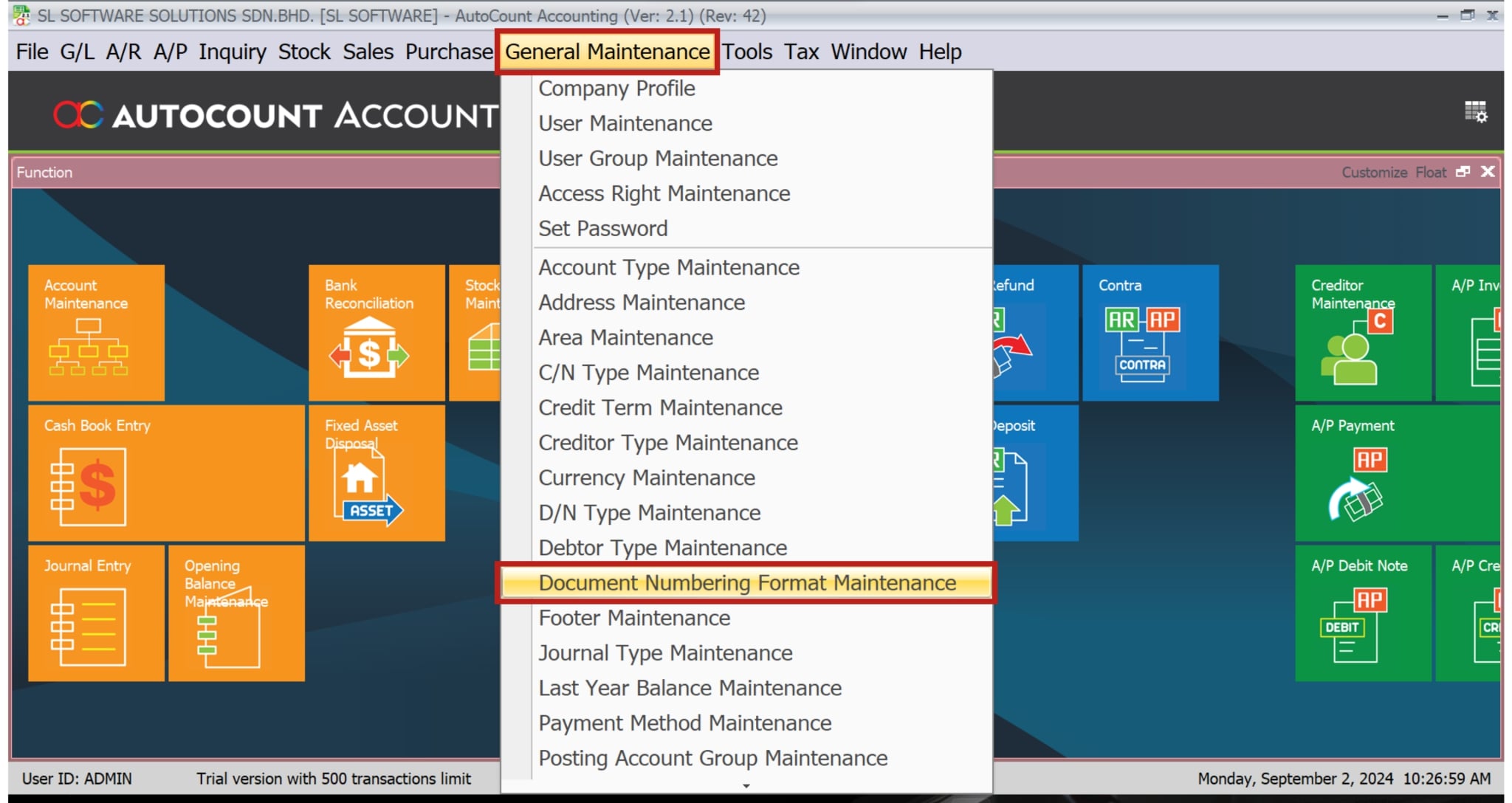
1. Accessing the Maintenance Section
Firstly, go to General Maintenance > Document Numbering Format Maintenance.
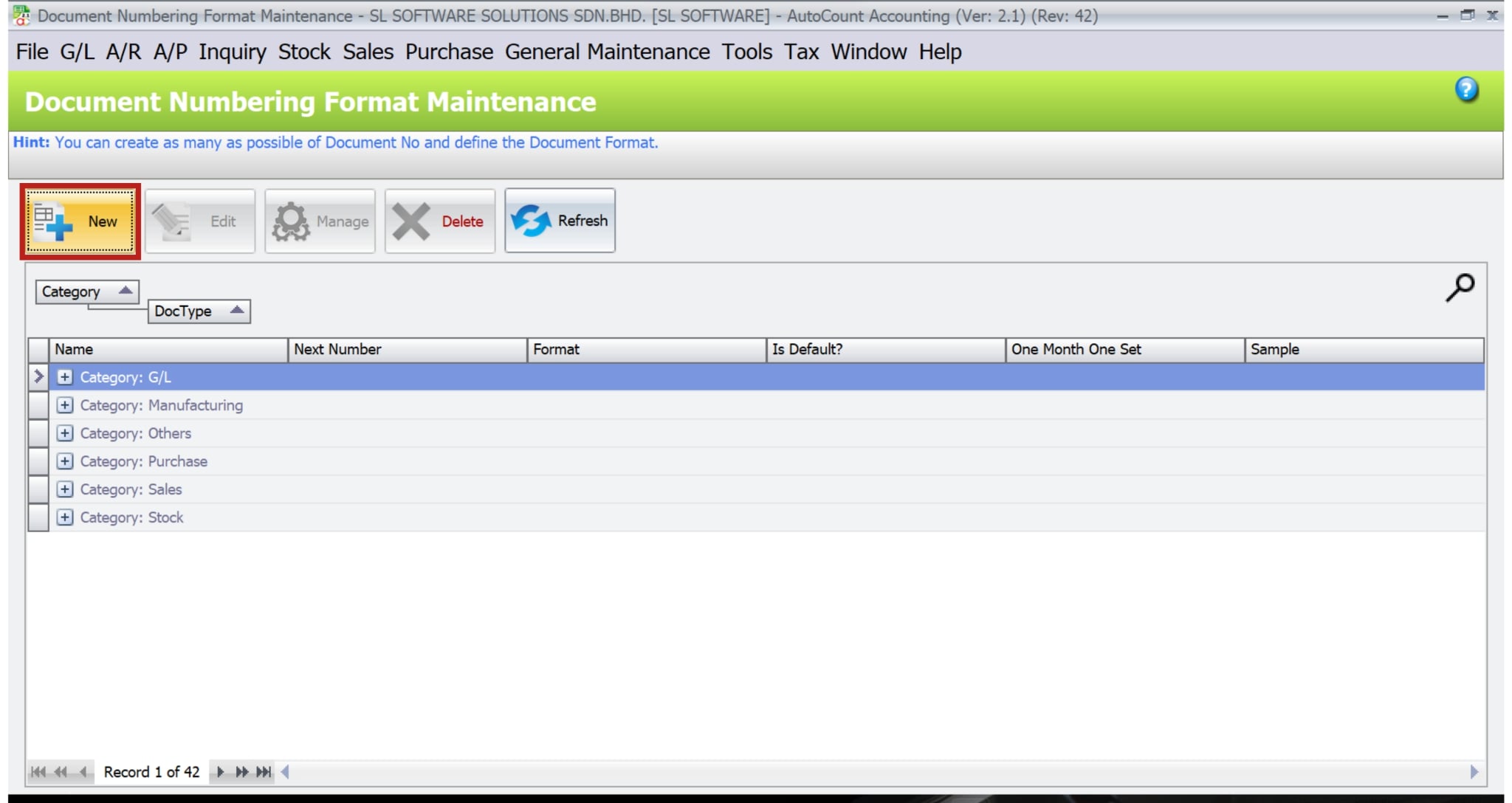
2. Creating a New Format
Secondly, click on New to start configuring a new documents numbering format. Here, you can define a unique name and other specific settings.
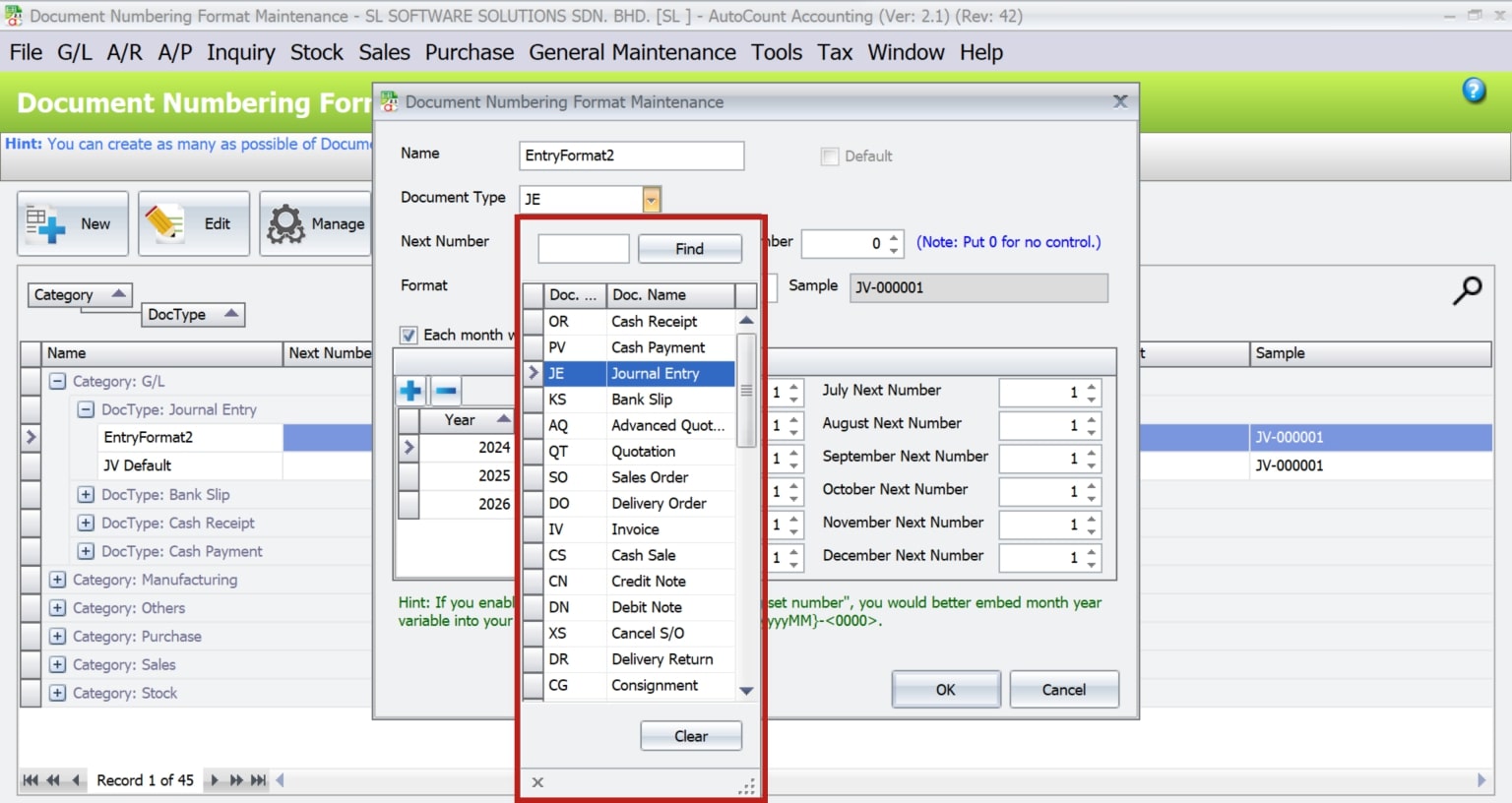
3. Selecting Document Type
Thirdly, the system automatically highlights the document type before you begin. Thus, streamlining the process.
Customizing Numbering Formats
AutoCount provides a highly customizable framework for documents numbering format. Users can include various elements such as prefixes (e.g., “INV” for invoices), date indicators (year, month), and other fixed characters. Additionally, you can configure running numbers with a specific length by defining it in the format settings.
For instance, a common invoice format might be “INV{@yyMM}-<00000>“, where “INV” is the prefix, “{@yyMM}” represents the last two digits of the year and the current month, and “<00000>” is a five-digit running number.
How to Set AutoCount Document Format by Year by Month
AutoCount supports a wide range of numbering formats. Here are some examples on how to set them:
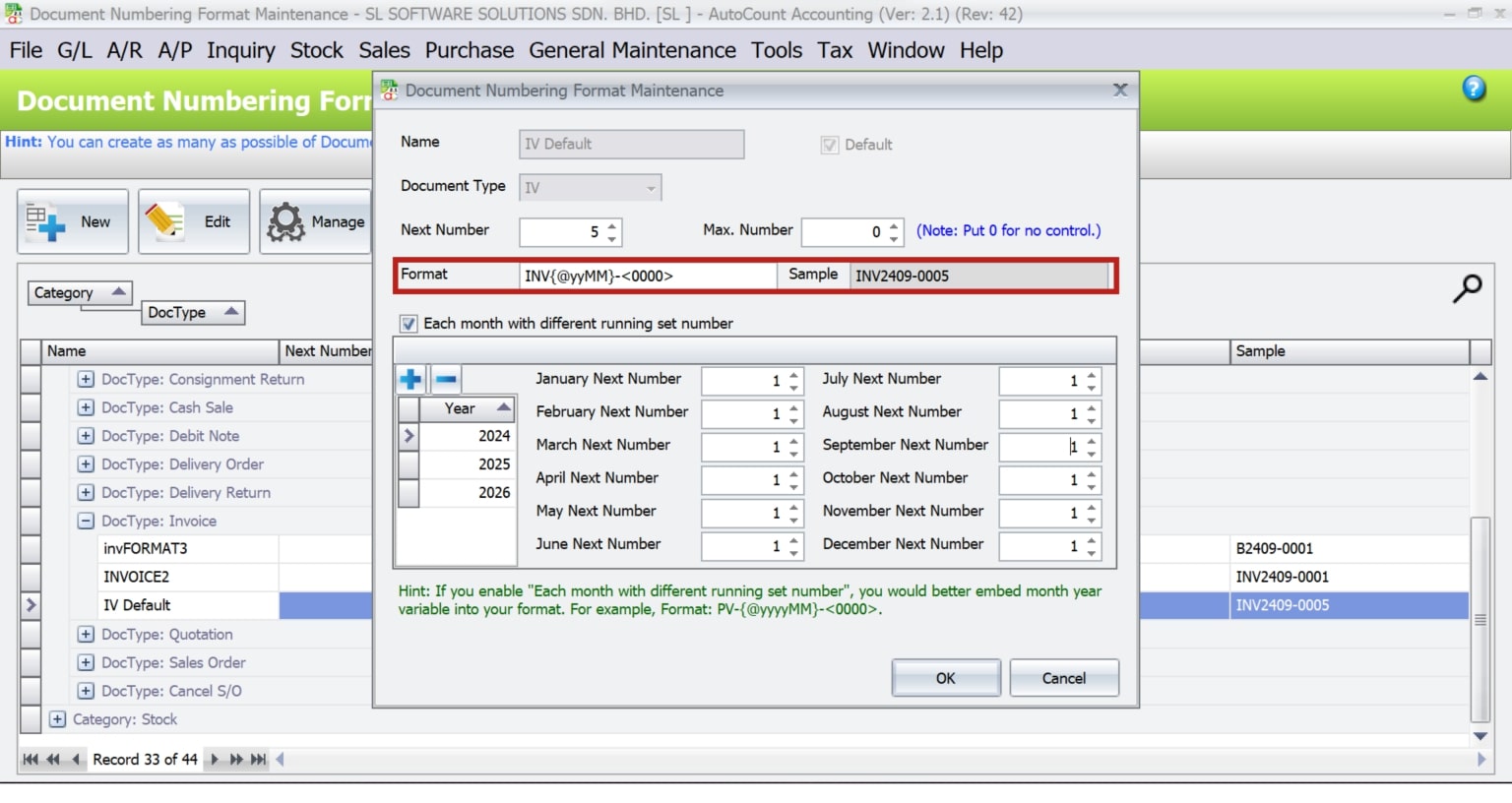
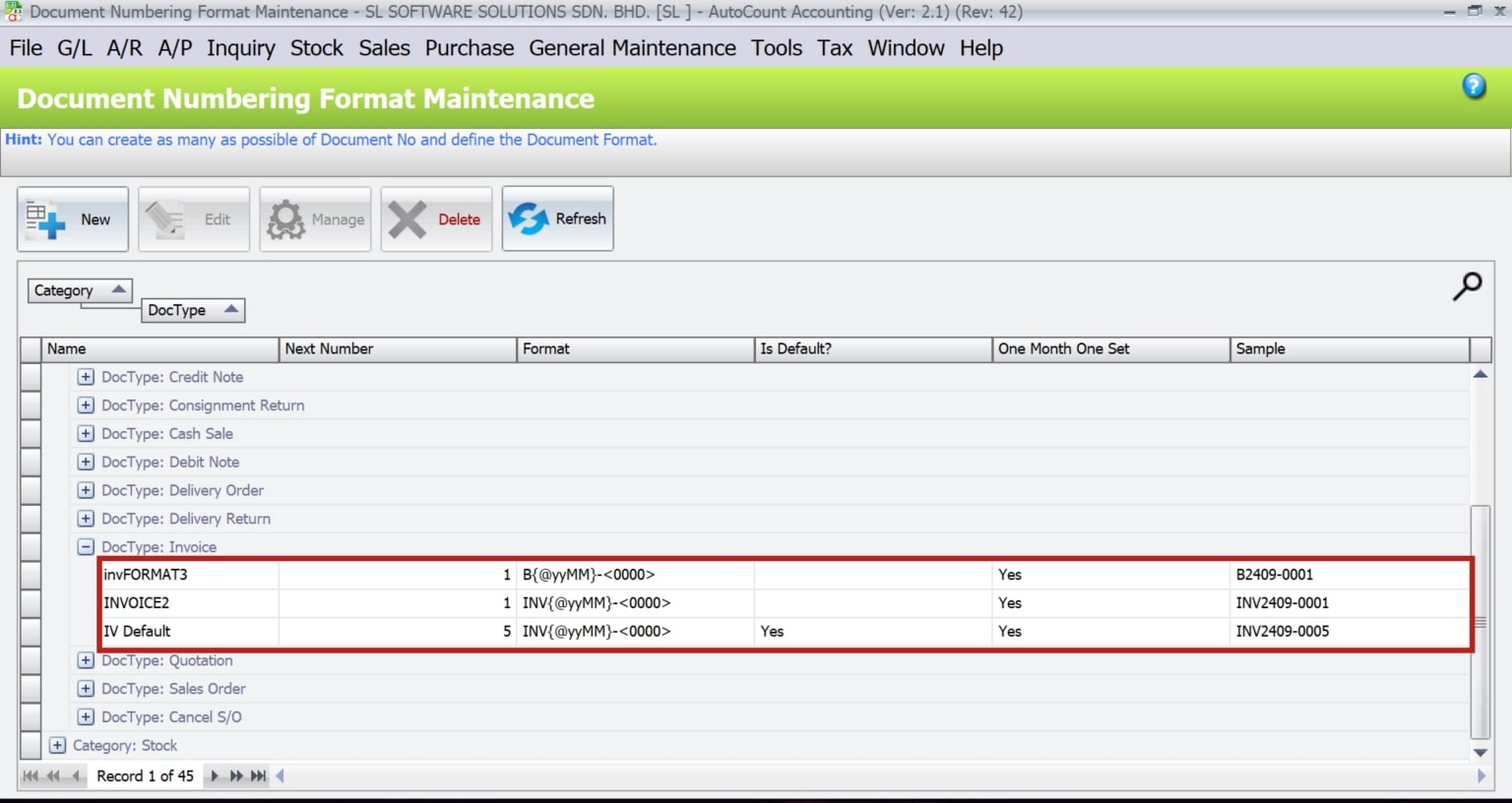
Standard Invoice Format
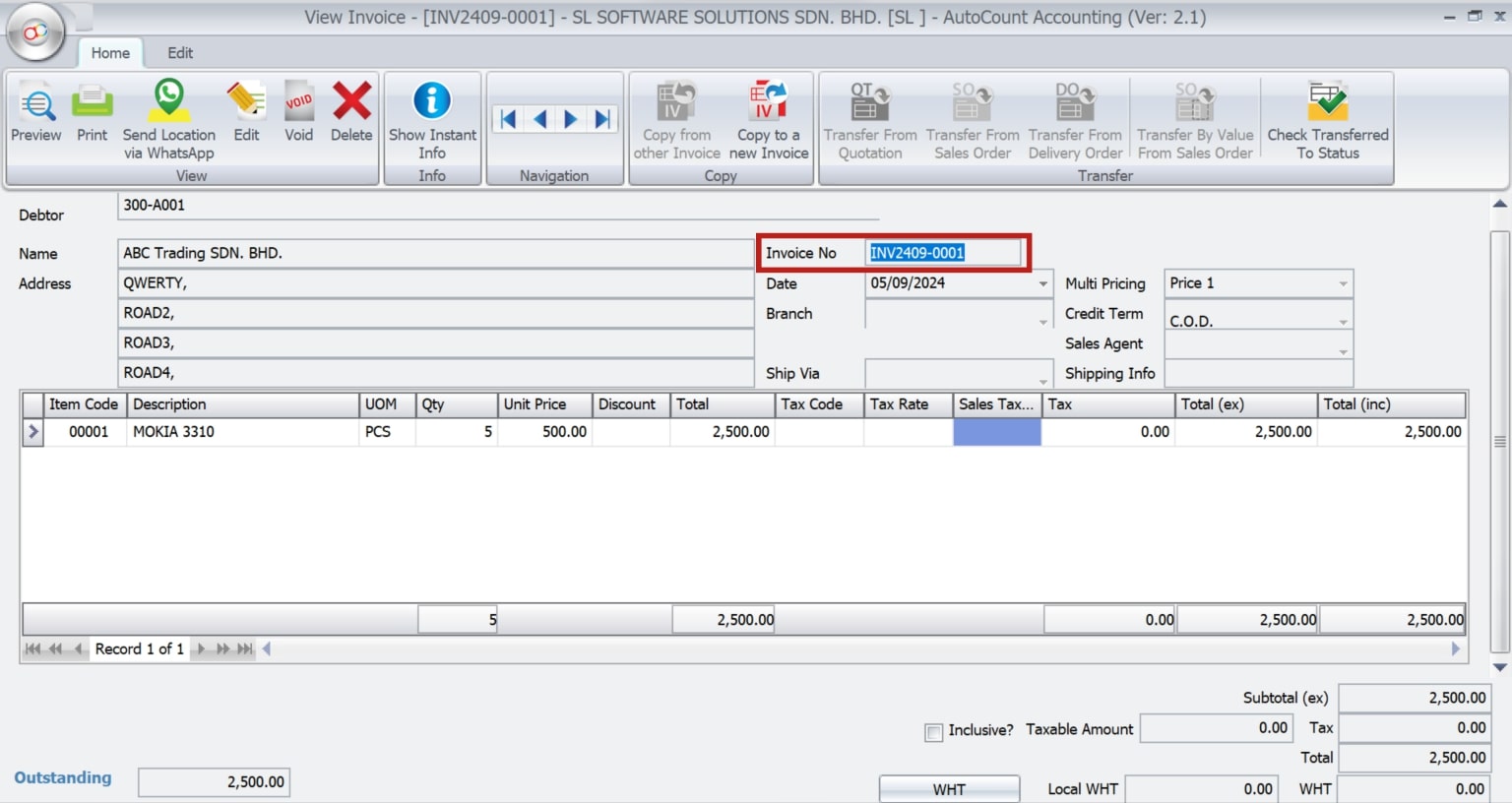
INV{@yyMM}-<0000> (e.g., INV2409-0001 for an invoice in 2024)
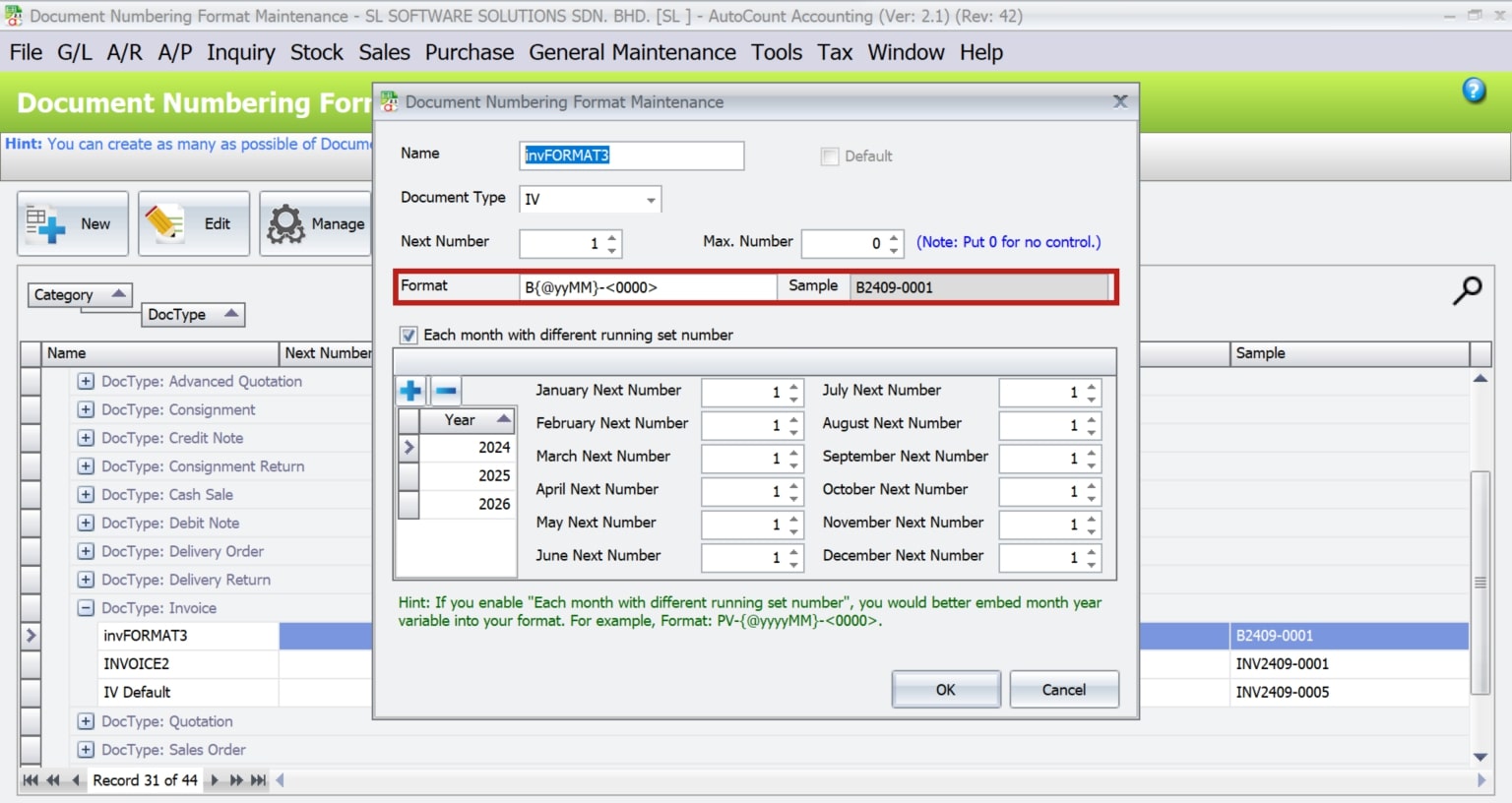
Customized Invoice Format with Prefixes
B{@yyMM}-<0000> (e.g., B2409-0001)
Free Format
Users can manually enter any number or code without following a sequence.
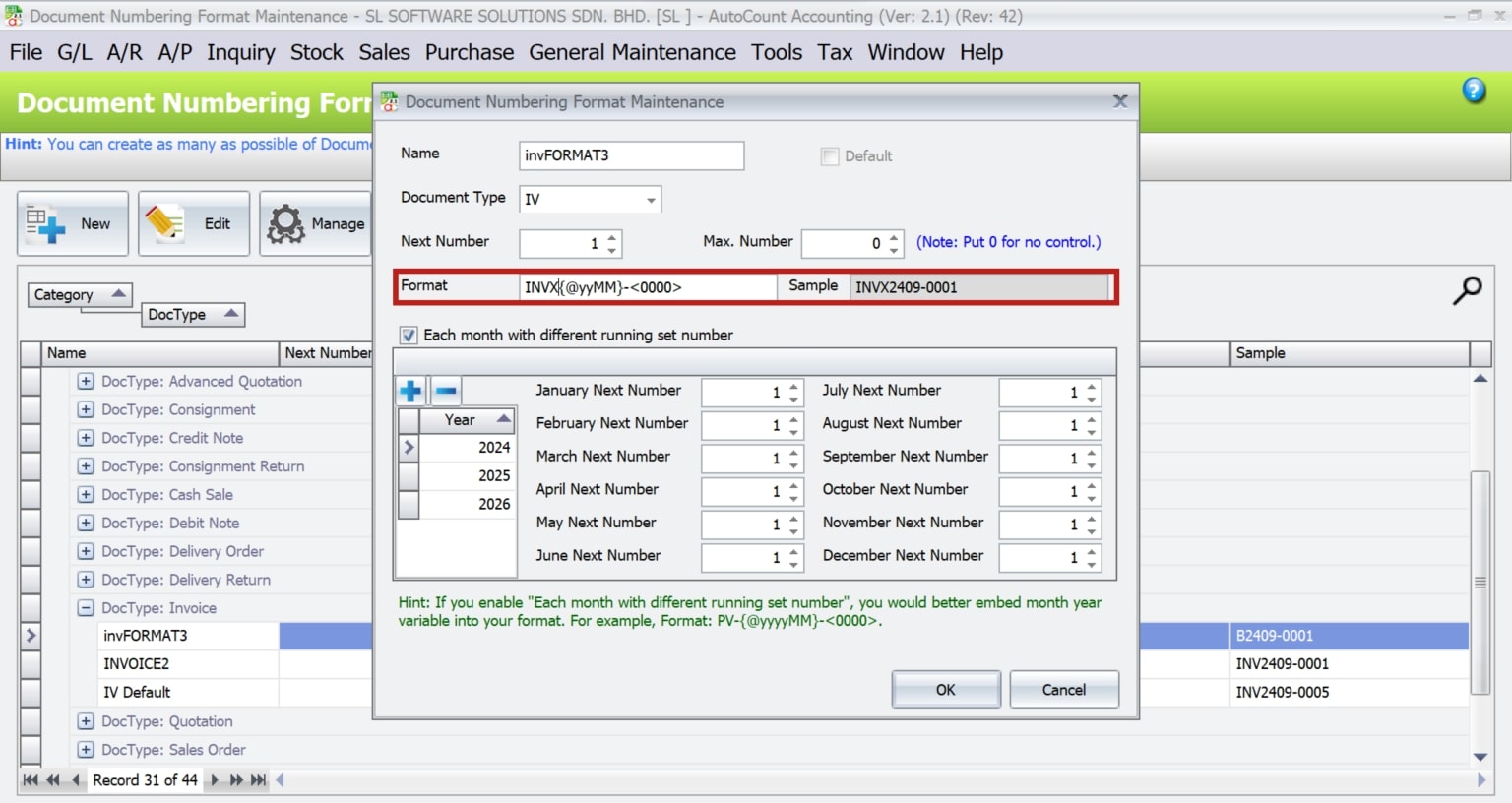
Note: With the @ symbol, the system allows users to key in last month data. Without the @ symbol, will always follow computer date year and month.
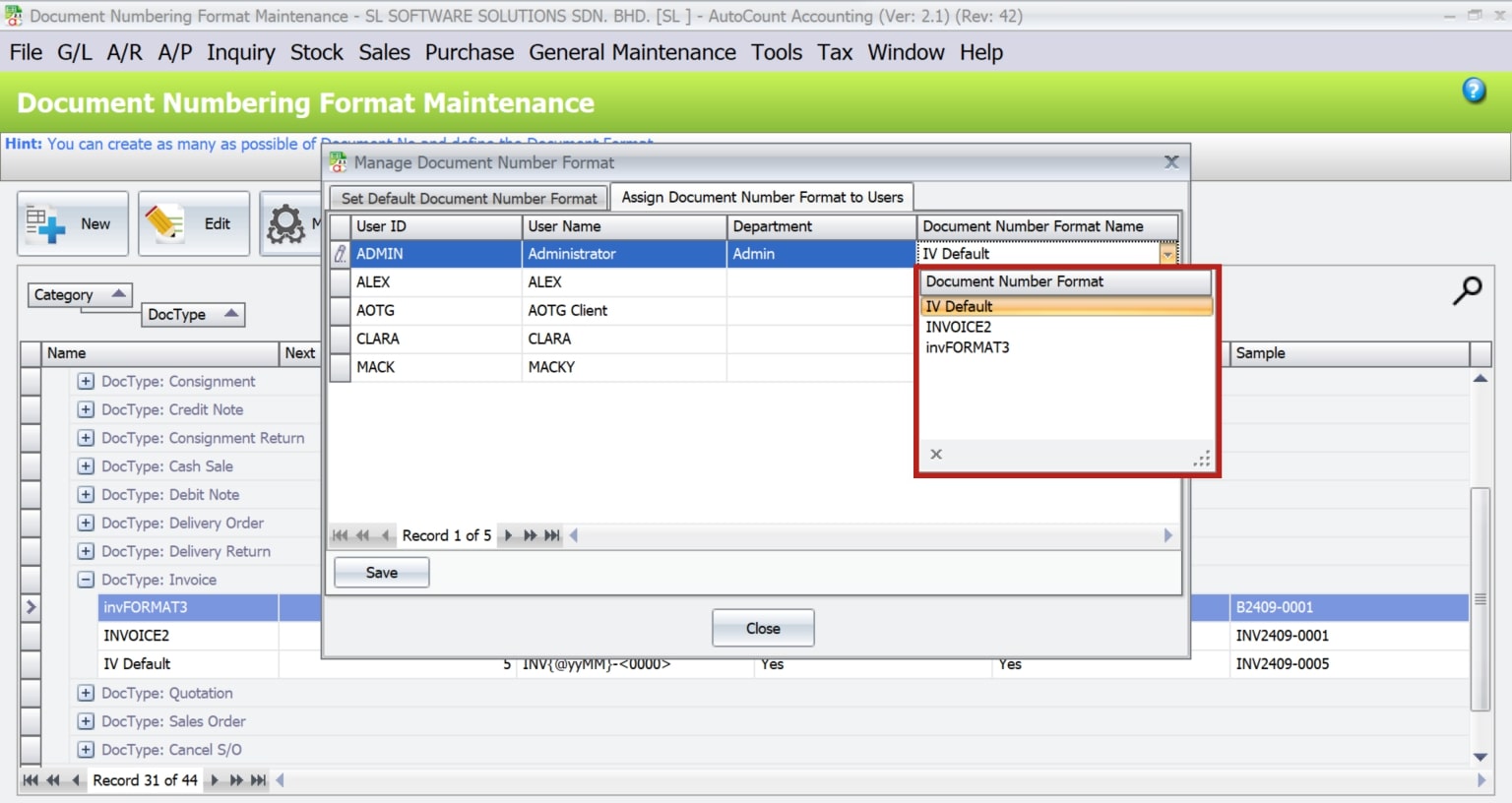
Assigning Documents Numbering Format to Users
Assigning specific numbering format to users can help manage access and control over different document types. This feature is especially useful in larger organizations where different users or departments might handle various aspects of the accounting process.
1. Navigate to the Assign Document Number To Users tab.
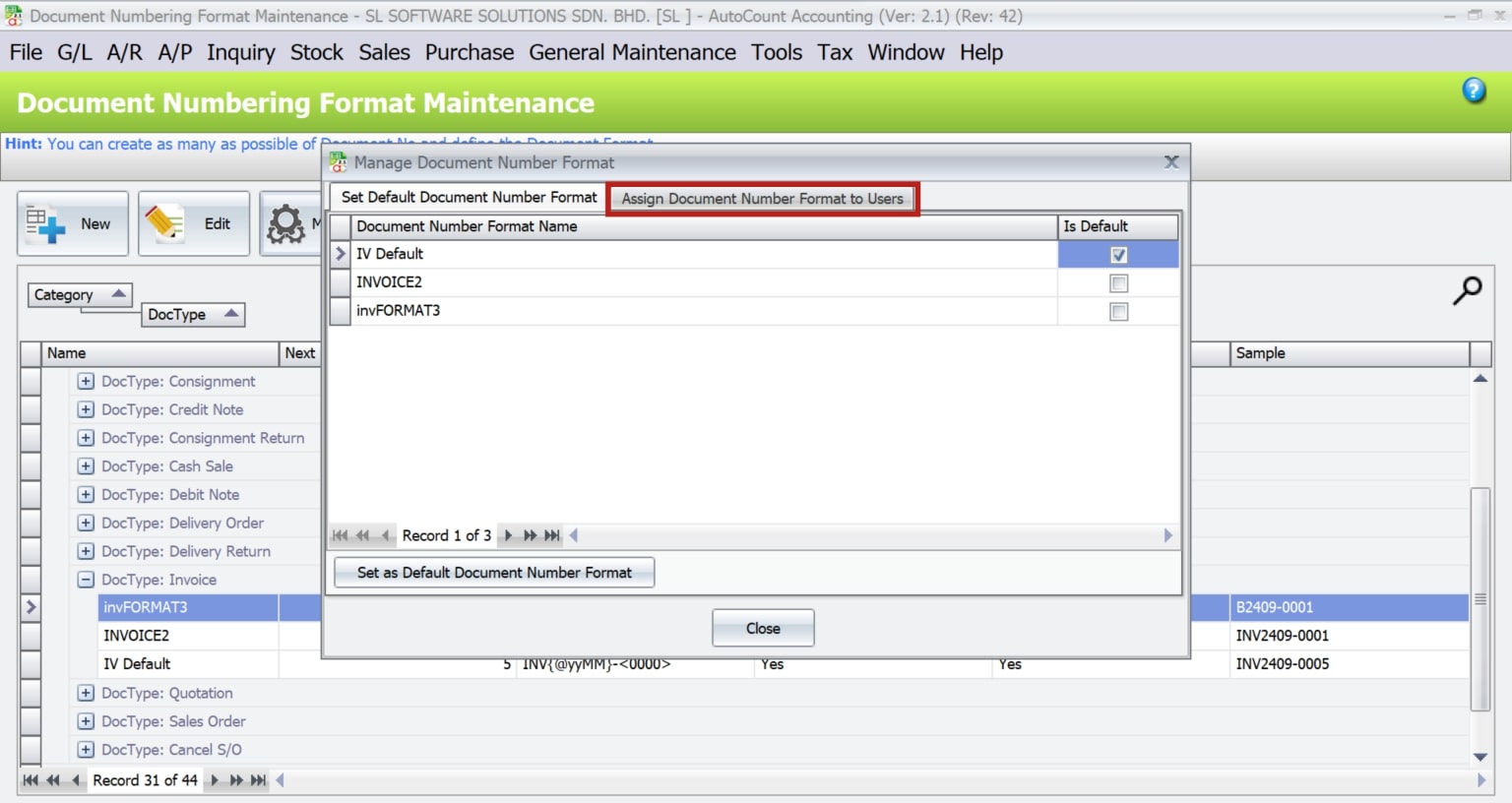
2. Select the user and assign the appropriate numbering format.
Managing Multiple Numbering Formats
Businesses often need to manage multiple sets of numbering formats, especially when dealing with different document types or departments. To clarify, AutoCount allows users to create and maintain multiple numbering formats. Thus, ensuring that each document type or department follows a specific sequence.
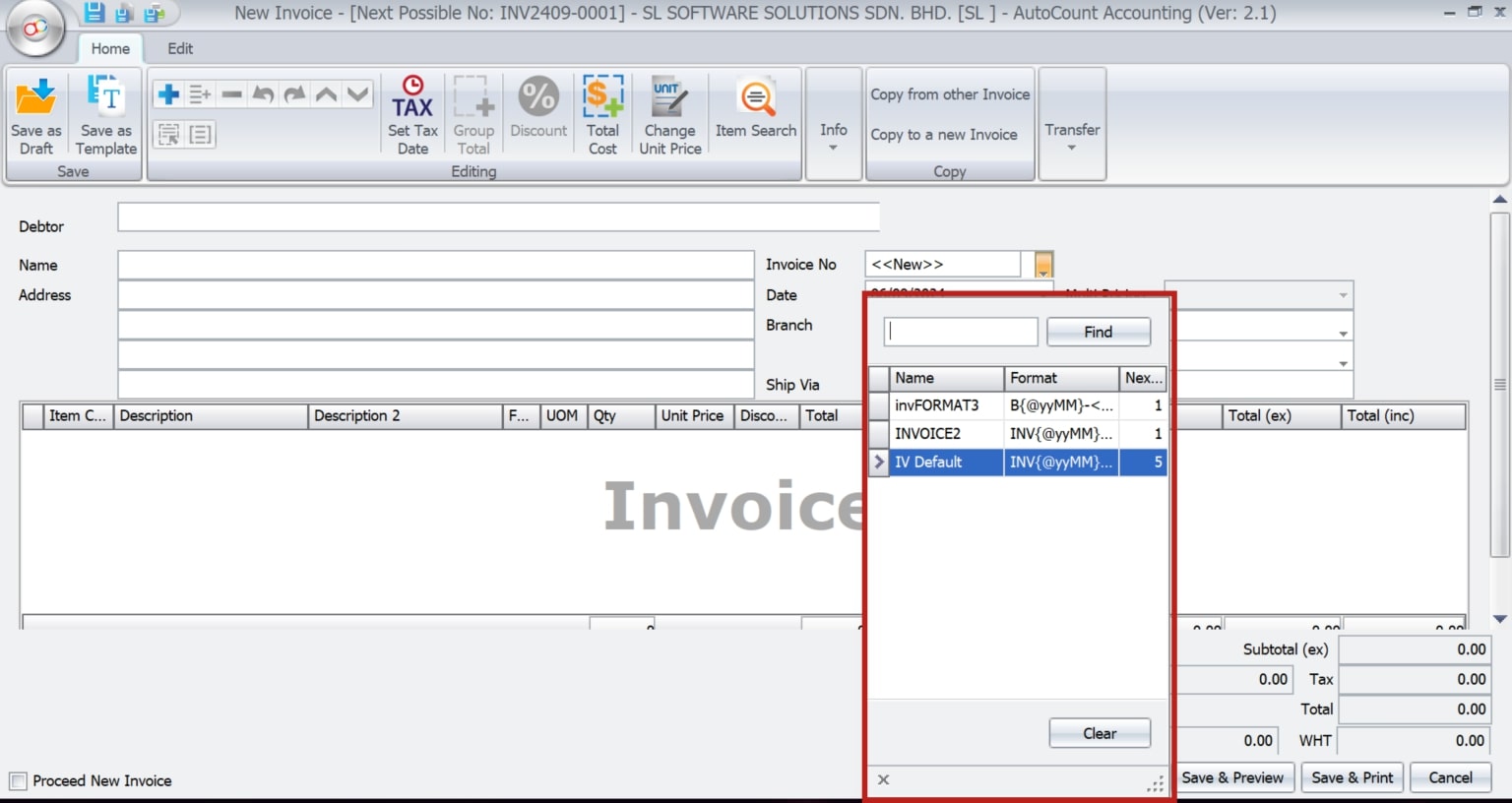
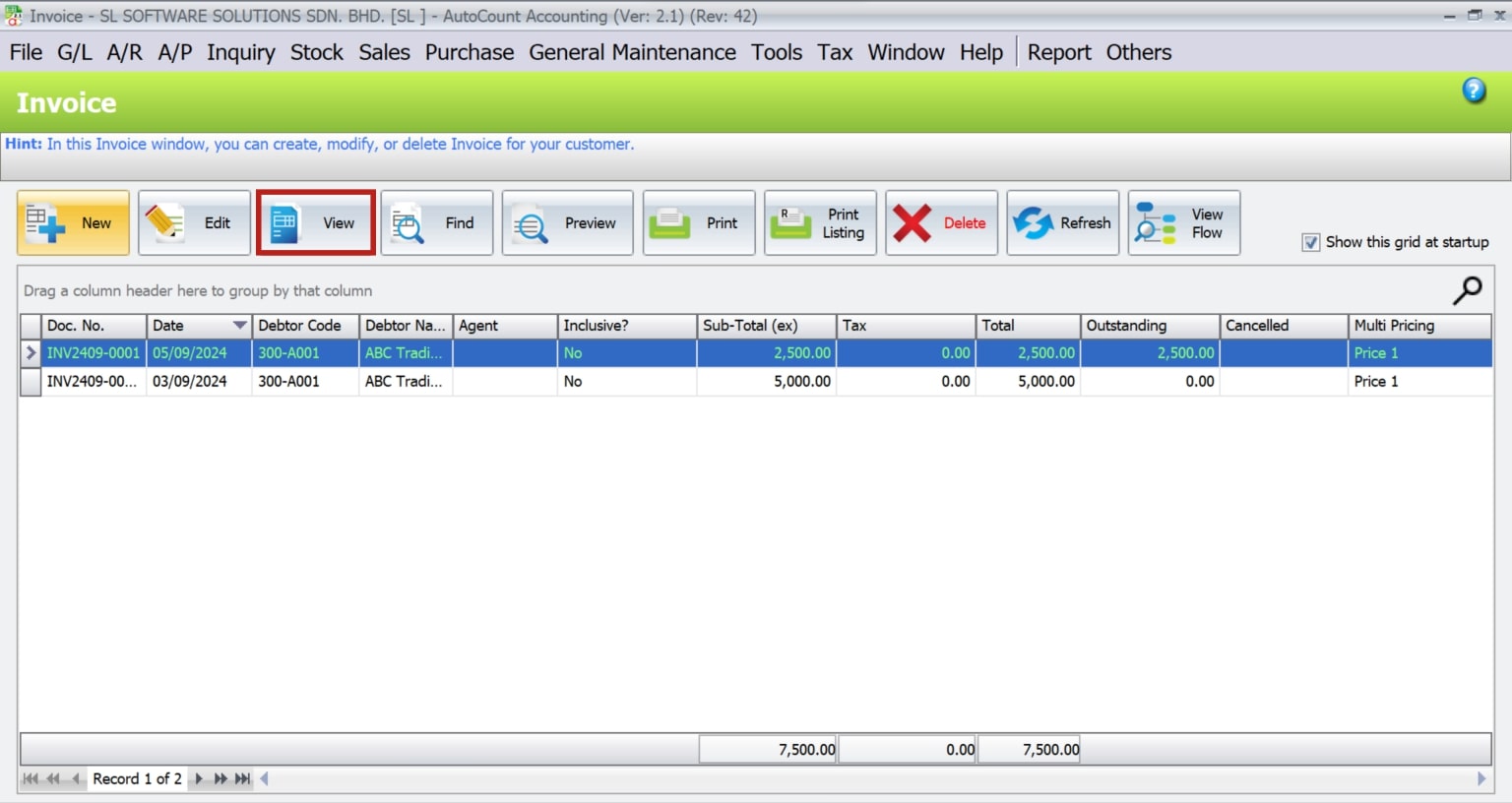
When issuing invoice, just click on ‘New’ and key in document number directly in Invoice No. field.
Integrating Documents Numbering with Other AutoCount Features
AutoCount’s documents numbering format can be integrated with other modules such as inventory management, sales, and purchases, enabling seamless operations and consistent tracking across the entire business system.
Best Practices for AutoCount Documents Numbering Format
Effective Use of Document Numbering in Businesses
Small Business Invoicing
A small retail business uses AutoCount to streamline its invoicing process by setting up a customized numbering format that includes the store code and date.
Large Enterprise Document Management
A multinational corporation manages its complex document workflows by utilizing multiple numbering formats for different regions and departments.
Common Issues in Documents Numbering Formats and How to Resolve Them
While AutoCount’s documents numbering system is robust, users may occasionally encounter issues, such as numbering conflicts or sequence errors. Common resolutions include resetting the numbering sequence, reconfiguring format settings, or troubleshooting specific errors.
Advanced Configuration Options
For businesses with complex requirements, AutoCount offers advanced configuration options, including conditional formatting and the use of scripts for more sophisticated numbering logic. These tools allow for highly specific and automated document numbering processes.
Future Trends in Numbering Systems
The future of documents numbering lies in automation and AI, which will further enhance accuracy and reduce manual errors. Emerging technologies may also introduce more dynamic and adaptable numbering systems.
Conclusion
The AutoCount Document Numbering Format is a powerful tool that allows businesses to maintain organized and systematic records. By understanding and implementing the various features and best practices discussed, businesses can optimize their document management processes, leading to greater efficiency and accuracy.
Frequently Asked Questions
What is the AutoCount Document Numbering Format?
The AutoCount Documents Numbering Format is a customizable system within AutoCount that allows users to define unique numbering sequences for various document types.
How do I reset my document numbering in AutoCount?
Resetting document numbering can be done through the Documents Numbering Format Maintenance by adjusting the “Next Number” setting.
Can I assign different formats to different users?
Yes, AutoCount allows you to assign specific numbering formats to individual users through the “Assign Document Number To Users” feature.
What are common errors in numbering formats?
Common errors include sequence duplication, incorrect format configurations, and numbering conflicts, which can be resolved through system settings.
How do I set up a custom numbering format?
To set up a custom numbering format, navigate to the Documents Numbering Format Maintenance, create a new format, and define the specific elements such as prefix, date, and running number.
How does document numbering integrate with other modules?
Documents Numbering Format integrates seamlessly with other AutoCount modules, allowing for consistent document tracking across sales, purchases, and inventory management.
Interested in Getting AutoCount for your Business?
Contact our sales team today to explore pricing options and get started with the perfect solution for you.