
-
AutoCount Accounting Features
-
- Approval Workflow
- Audit Trail
- Auto Save in Draft Folder
- AutoCount Contra Account
- AutoCount License Setting Guide
- Deposit Tracking & Management
- Documents Numbering Format
- Full Transfer and Partial Transfer
- Import Data to AutoCount Accounting Using Excel
- Informative Charts and Analytical Data
- Layout Customization
- Multi Pricing
- Sales and Services Tax
- Schedule Backup
- Search Lookup Edit
- View Documents Flow
- AutoCount Feature Stock Take
- Column Chooser
- Show Remaining (3) Collapse
-
AutoCount Cloud Accounting
-
AutoCount E-Invoice
-
AutoCount HRMS User Guide
-
AutoCount Modules
-
- Activity Stream
- Advanced Financial Report
- Advanced Item
- Advanced Multi-UOM
- Advanced Quotation Module
- Basic Multi-UOM
- Budget Module
- Consignment
- Filter By Salesman
- FOC Quantity
- Formula
- Item Batch
- Item Package
- Landing Cost
- Multi-Currency
- Multi-Dimensional Analysis
- Multi-Location
- Project Account
- Recurrence
- Remote Credit Control Module
- Stock Assembly
- User Defined Fields (UDF)
- AutoCount SST Hidden Functions
- AutoCount SST Submission - Service Tax
- AutoCount Scripting Module User Guide
- AutoCount Bonus Point Module User Guide
- AutoCount Service Management Plugin User Guide
- Show Remaining (12) Collapse
-
AutoCount Plugins
-
- Fixed Assets Management
- Goldsmith
- TD Ordering Mobile Apps
- TD Stock Mobile Apps
- Universal Import Plugin
- DMS Import Plugin
- AutoCount Pick List Plugin User Guide
- AutoCount Credit Memo Plugin User Guide
- AutoCount Lock Price Plugin
- AutoCount Progressive Billing
- AutoCount Easy Recurrence Plugin
- Batch Update Unit Price Plugin
- AutoCount Production order
- AutoCount Car Tint Film Plugin
-
- Event Management System
- AutoCount To-Do List Plugin
- AutoCount AutoBank Reconciliation Plugin
- Intercompany Billing Plugin User Guide
- Lead Management 2.0 Plugin
- AutoCount Service Contract Plugin User Guide
- AutoCount Optical Plugin
- AutoCount Integrator Plugin
- AutoCount Procurement Planning Plugin
- Cage Management Plugin
- AutoCount Vehicle Plugin
- AutoCount Agent Validation Plugin User Guide
- AutoCount Barcode Generator Plugin User Guide
- AutoCount Easy Batch Number Entry Plugin User Guide
- Warranty 2.0 Plugin
- AutoCount Easy Photo 2.0 User Guide
- AutoCount Recurring Invoice Plugin User Guide
- AutoCount Scale Barcode Plugin User Guide
- AutoCount Recurrence Late Interest Plugin
- AutoCount Item Visibility Control
- AutoCount Bill Remark Plugin User Guide
- AutoCount Pain Tracker User Guide
- AutoCount Easy Payment
- AutoCount Easy Deposit Plugin
- AutoCount Easy Knock Off Plugin
- AutoCount Daily Collection Summary Plugin
- Timber Log Plugins
- Batch Transfer SODO Plugin
- AutoCount Vege Basket Plugin Guide
- AutoCount Fruit Basket Plugin Guide
- Referral Management Plugin
- AutoCount Migrator Plugin
- AutoCount Email & WhatsApp Plugin
- AutoCount Multi Company Knock Off Plugin
- AutoCount Advance Aging Format Plugin
- AutoCount Payment Request Plugin
- AutoCount Vehicle Master Plugin
- AutoCount Advance Deposit Plugin
- AutoCount IC Checker Plugin
- AutoCount RMA Plugin
- AutoCount Historical Outstanding DO Listing Plugin
- AutoCount Project Department Visibility Control Plugin
- AutoCount MRP Order Plugin
- AutoCount GridToExcel Plugin
- AutoCount Stock Availability Report Plugin
- AutoCount Batch Transfer SO DO Plugin
- AutoCount Centralized Kitchen Management Plugin
- SL AutoCount API
- AutoCount InterCompany Billing Plugin
- AutoCount Sales Commission Plugin
- AutoCount Advanced Credit Term Plugin
- AutoCount Advanced Stock Assembly Plugin
- AutoCount Shipment Plugin
- AutoCount Tour Plugin
- AutoCount Smart Analysis
- AutoCount Rental Management
- Show Remaining (41) Collapse
-
-
Form Template
-
Report Template
-
- Advance Quotation
- Cash Sale
- Consignment
- Consignment Movement
- Credit Note
- Debit Note
- Delivery Order
- FOC Quantity Analysis By Document Report
- Invoice
- Item Package Sales Report
- Monthly Sales Analysis
- Outstanding Sales Order Listing
- Profit And Loss Of Documents
- Quotation
- Sales Agent Contribution Report
- Sales Order
- Top/Bottom Sales Ranking
- Show Remaining (2) Collapse
-
- Available Stock Status Report
- Expired Item Batch Listing
- Inventory Physical Worksheet
- Stock Adjustment
- Stock Aging Report
- Stock Assembly
- Stock Assembly Order
- Stock Balance By Location
- Stock Balance Report
- Stock Card Report
- Stock Disassembly
- Stock Issue
- Stock Item Profit Margin
- Stock Movement Report
- Stock Receive
- Stock Take
- Stock Transfer
- Stock Write Off
- Show Remaining (3) Collapse
-
B2B ORDERING
-
AutoCount AI Agent
AutoCount Accounting: Approval Workflow
Introduction to AutoCount's Approval Workflow
In today's fast-paced business environment, maintaining an organized and efficient approval process is crucial for ensuring that all transactions are properly reviewed and authorized. Therefore, AutoCount's Approval Workflow feature offers a robust solution to help businesses streamline their accounting processes. Consequently, this user guide will walk you through setting up and using the Approval Workflow feature in AutoCount.
AutoCount Approval Workflow Video Guide
Watch these AutoCount Approval Workflow videos to o gain a deeper understanding and how to operate the Approval Workflow.
- AutoCount Approval Workflow (EN)
Approval Workflow Setup
Integration & Approval Workflow Setup
- AutoCount Approval Workflow (CN)
审批工作流程设置
集成与审批工作流程设置
What is Approval Workflow?
Approval Workflow in AutoCount is a system that allows businesses to define, manage, and automate the approval processes for various transactions. Consequently, this ensures that all financial activities are subject to proper scrutiny and authorization, thereby enhancing internal controls and reducing the risk of errors and fraud.
Benefits of Using Approval Workflow
Improved Control
Ensures that authorized personnel review and approve all transactions.
Enhanced Efficiency
Automates the approval process, reducing manual intervention and speeding up transaction processing.
Transparency
Provides a clear audit trail of all approval activities.
Customization
Allows businesses to tailor the approval process to their specific needs.
Setting Up Approval Workflow in AutoCount
Accessing Approval Workflow Settings
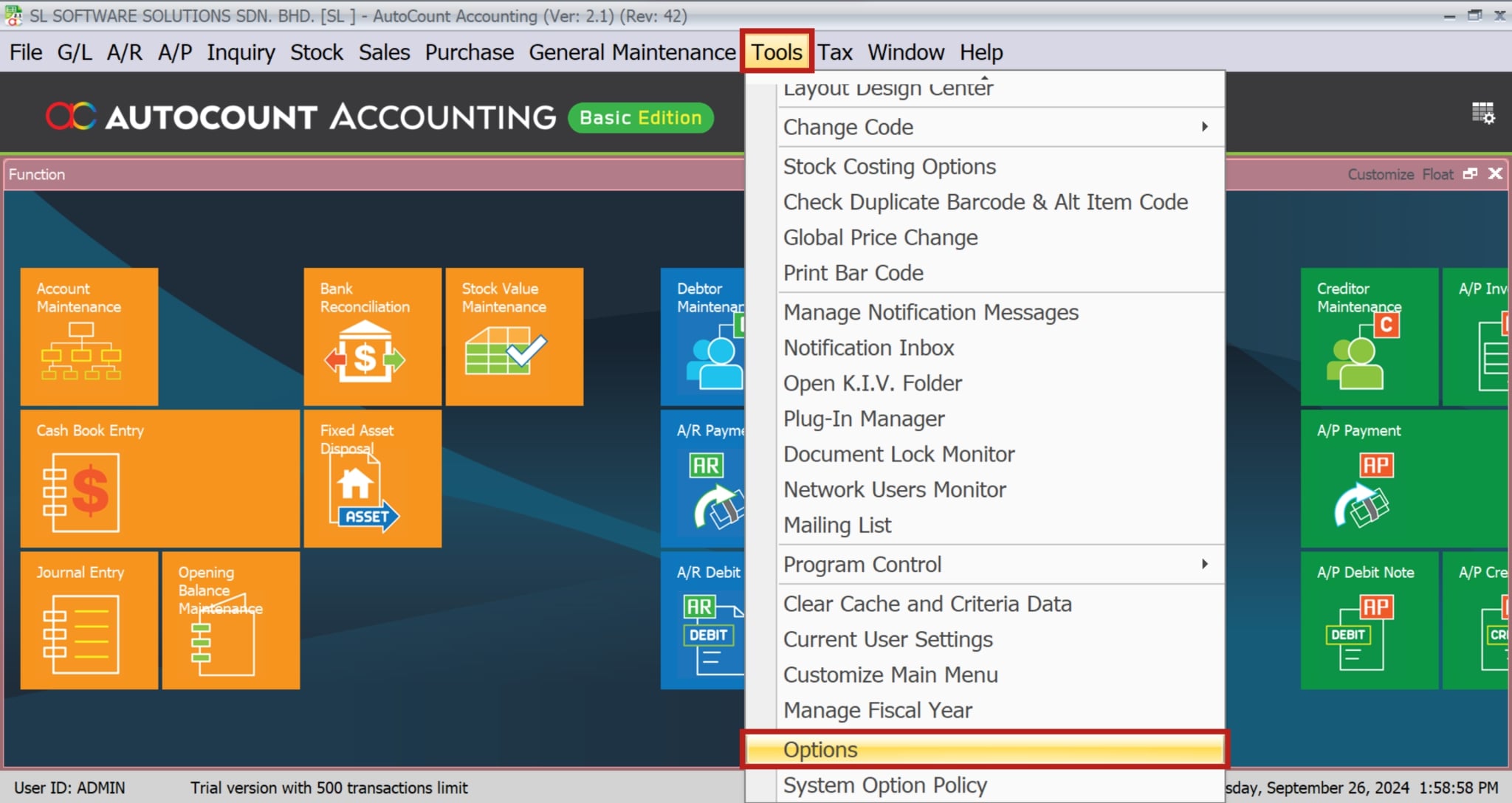
- Navigate to the “Tools” menu.
- Then, select “Options” from the drop-down menu.
Enabling Approval Workflow
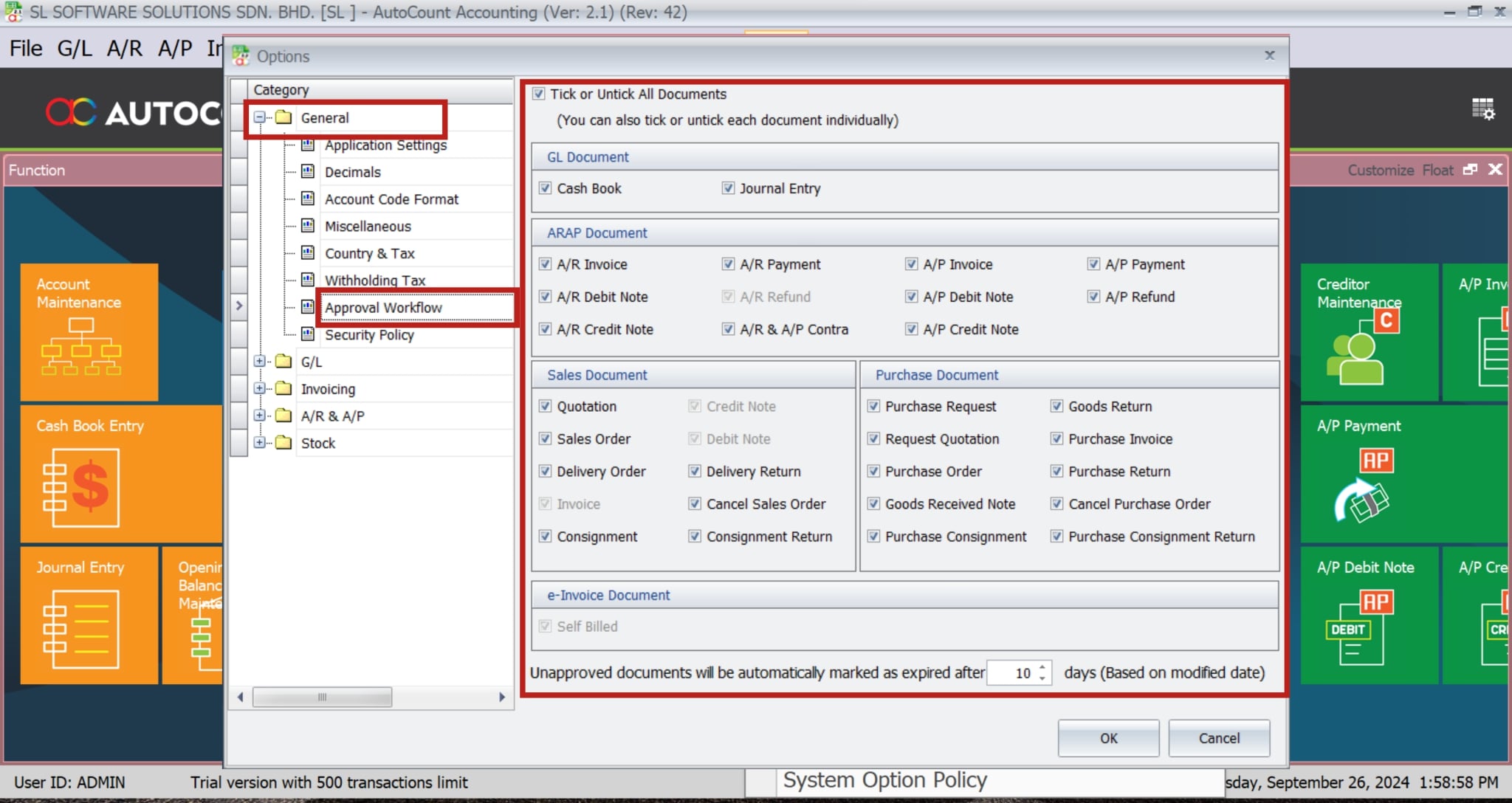
- In the “Options” window, select “Approval Workflow” under the “General” category.
- Tick the checkbox next to each document type that requires approval (e.g., A/R Invoice, Sales Order).
- For a simpler setup, you can tick the “Tick or Untick All Documents” checkbox to enable the approval workflow for all document types at once.
- After that, click “OK” to save your settings.
Configuring Access Rights
a) Set Access Rights
Define access rights for approval and non-approval users. This is because to ensures that only designated personnel can approve transactions.
b) Approval Users
Users with approval rights can save transactions as drafts before approving them.
c) Non-Approval Users
Users without approval rights can save transactions as drafts and send them for awaiting approval.

Managing Approvals
Approval Status Categories
AutoCount’s Approval Workflow includes six status categories to manage and track the approval process efficiently:

Approving Transactions
a) Access Pending Approvals
- Approvers can view transactions pending their approval in the “Approval Workflow” section.
b) Review Transaction Details
- Approvers should review the details of the transaction to ensure accuracy and compliance with company policies.
c) Approve or Reject
- Approvers can either approve or reject the transaction. If rejected, a reason must be provided.
d) Integration with e-Invoice Module
- Once a transaction is approved, the invoice is directly sent to the myInvois portal (LHDN portal) immediately, ensuring seamless integration and compliance.
Tracking Approval Status
a) View Document Status Change Log
- To track the status of a document, right-click on the document and select “View Document Status Change Log.”
- This log provides detailed information on the changes in document status, including actions taken, timestamps, user IDs, and reasons for changes.

b) Monitor Pending Approvals
- Keep track of transactions that are still awaiting approval to ensure timely processing.

Special Features and Integration
Free for All AutoCount Accounting Users
Approval Workflow is free for all AutoCount Accounting Version 2.2 users. This module is specially designed for Malaysia’s e-invoicing purpose, including only invoices, credit notes, debit notes, and refund notes. However, AutoCount is free for all modules, including AR, AP, and GL, which can improve accuracy before posting to the accounting and stock module.
Different Buttons for Approval and Non-Approval Users
a) Approval Users
- Save as Draft
- Approve
- Approve & Preview
- Approve & Print

b) Non-Approval Users
- Save as Draft
- Save as Draft & Preview
- Save as Draft & Print
- Submit for Approval

Approving Transactions Individually or in Batch
a) Individual Approval
- Open the document that needs approval.
- Then, click on the “Approve” button in the toolbar.
- You can also choose to “Approve & Preview” or “Approve & Print”.

b) Batch Approval
- Go to the “Awaiting Approval” tab.
- Select multiple documents using the checkboxes.
- After that, click on the “Approve” button to approve all selected documents at once.

Conclusion
In conclusion, AutoCount’s Approval Workflow is a powerful tool that helps businesses maintain control over their financial transactions by ensuring proper review and authorization. By following the steps outlined in this guide, you can set up and manage an effective approval process that enhances efficiency, transparency, and compliance within your organization.
Frequently Asked Questions
Can approval rules be customized for different departments?
Yes, but customization does require special adjustments. Currently, only user access rights can set approval rules, designating users as either approval or non-approval.
Is it possible to modify an approval rule after it has been created?
Yes, you can edit approval rules as needed. However, you cannot modify e-invoice documents because the LHDN portal does not provide an API for this function.
Can non-approval users initiate transactions?
Yes, non-approval users can initiate transactions by saving them as drafts and sending them for awaiting approval.
Is there a way to track rejected transactions?
Yes, the system records all rejected transactions, including the reasons for rejection, which you can review in the approval history.
How does the approval workflow integrate with e-invoicing?
Once approved, the system automatically sends the document to the myInvoice portal (LHDN portal) to meet Malaysia’s e-invoicing requirements.
What happens to documents that are not approved in a timely manner?
If documents are not approved within a specified period, the system will automatically mark them as expired. You can set the expiration period under Tools > Options > General > Approval Workflow.
Interested in Getting AutoCount for your Business?
Contact our sales team today to explore pricing options and get started with the perfect solution for you.