
-
AutoCount Accounting Features
-
- Approval Workflow
- Audit Trail
- Auto Save in Draft Folder
- AutoCount Contra Account
- AutoCount License Setting Guide
- Deposit Tracking & Management
- Documents Numbering Format
- Full Transfer and Partial Transfer
- Import Data to AutoCount Accounting Using Excel
- Informative Charts and Analytical Data
- Layout Customization
- Multi Pricing
- Sales and Services Tax
- Schedule Backup
- Search Lookup Edit
- View Documents Flow
- AutoCount Feature Stock Take
- Column Chooser
- Show Remaining (3) Collapse
-
AutoCount Cloud Accounting
-
AutoCount E-Invoice
-
AutoCount HRMS User Guide
-
AutoCount Modules
-
- Activity Stream
- Advanced Financial Report
- Advanced Item
- Advanced Multi-UOM
- Advanced Quotation Module
- Basic Multi-UOM
- Budget Module
- Consignment
- Filter By Salesman
- FOC Quantity
- Formula
- Item Batch
- Item Package
- Landing Cost
- Multi-Currency
- Multi-Dimensional Analysis
- Multi-Location
- Project Account
- Recurrence
- Remote Credit Control Module
- Stock Assembly
- User Defined Fields (UDF)
- AutoCount SST Hidden Functions
- AutoCount SST Submission - Service Tax
- AutoCount Scripting Module User Guide
- AutoCount Bonus Point Module User Guide
- AutoCount Service Management Plugin User Guide
- Show Remaining (12) Collapse
-
AutoCount Plugins
-
- Fixed Assets Management
- Goldsmith
- TD Ordering Mobile Apps
- TD Stock Mobile Apps
- Universal Import Plugin
- DMS Import Plugin
- AutoCount Pick List Plugin User Guide
- AutoCount Credit Memo Plugin User Guide
- AutoCount Lock Price Plugin
- AutoCount Progressive Billing
- AutoCount Easy Recurrence Plugin
- Batch Update Unit Price Plugin
- AutoCount Production order
- AutoCount Car Tint Film Plugin
-
- Event Management System
- AutoCount To-Do List Plugin
- AutoCount AutoBank Reconciliation Plugin
- Intercompany Billing Plugin User Guide
- Lead Management 2.0 Plugin
- AutoCount Service Contract Plugin User Guide
- AutoCount Optical Plugin
- AutoCount Integrator Plugin
- AutoCount Procurement Planning Plugin
- Cage Management Plugin
- AutoCount Vehicle Plugin
- AutoCount Agent Validation Plugin User Guide
- AutoCount Barcode Generator Plugin User Guide
- AutoCount Easy Batch Number Entry Plugin User Guide
- Warranty 2.0 Plugin
- AutoCount Easy Photo 2.0 User Guide
- AutoCount Recurring Invoice Plugin User Guide
- AutoCount Scale Barcode Plugin User Guide
- AutoCount Recurrence Late Interest Plugin
- AutoCount Item Visibility Control
- AutoCount Bill Remark Plugin User Guide
- AutoCount Pain Tracker User Guide
- AutoCount Easy Payment
- AutoCount Easy Deposit Plugin
- AutoCount Easy Knock Off Plugin
- AutoCount Daily Collection Summary Plugin
- Timber Log Plugins
- Batch Transfer SODO Plugin
- AutoCount Vege Basket Plugin Guide
- AutoCount Fruit Basket Plugin Guide
- Referral Management Plugin
- AutoCount Migrator Plugin
- AutoCount Email & WhatsApp Plugin
- AutoCount Multi Company Knock Off Plugin
- AutoCount Advance Aging Format Plugin
- AutoCount Payment Request Plugin
- AutoCount Vehicle Master Plugin
- AutoCount Advance Deposit Plugin
- AutoCount IC Checker Plugin
- AutoCount RMA Plugin
- AutoCount Historical Outstanding DO Listing Plugin
- AutoCount Project Department Visibility Control Plugin
- AutoCount MRP Order Plugin
- AutoCount GridToExcel Plugin
- AutoCount Stock Availability Report Plugin
- AutoCount Batch Transfer SO DO Plugin
- AutoCount Centralized Kitchen Management Plugin
- SL AutoCount API
- AutoCount InterCompany Billing Plugin
- AutoCount Sales Commission Plugin
- AutoCount Advanced Credit Term Plugin
- AutoCount Advanced Stock Assembly Plugin
- AutoCount Shipment Plugin
- AutoCount Tour Plugin
- AutoCount Smart Analysis
- AutoCount Rental Management
- Show Remaining (41) Collapse
-
-
Form Template
-
Report Template
-
- Advance Quotation
- Cash Sale
- Consignment
- Consignment Movement
- Credit Note
- Debit Note
- Delivery Order
- FOC Quantity Analysis By Document Report
- Invoice
- Item Package Sales Report
- Monthly Sales Analysis
- Outstanding Sales Order Listing
- Profit And Loss Of Documents
- Quotation
- Sales Agent Contribution Report
- Sales Order
- Top/Bottom Sales Ranking
- Show Remaining (2) Collapse
-
- Available Stock Status Report
- Expired Item Batch Listing
- Inventory Physical Worksheet
- Stock Adjustment
- Stock Aging Report
- Stock Assembly
- Stock Assembly Order
- Stock Balance By Location
- Stock Balance Report
- Stock Card Report
- Stock Disassembly
- Stock Issue
- Stock Item Profit Margin
- Stock Movement Report
- Stock Receive
- Stock Take
- Stock Transfer
- Stock Write Off
- Show Remaining (3) Collapse
-
B2B ORDERING
-
AutoCount AI Agent
AutoCount Accounting: Sales & Service Tax
Introduction to Sales and Service Tax (SST)
Firstly, Sales and Service Tax (SST) is a crucial component of Malaysia’s tax system. Reintroduced in 2018, SST consists of Sales Tax, which applies to the manufacturing and import of goods, and Service Tax, which is levied on specific services. To summarize, businesses in Malaysia must ensure compliance with SST regulations to avoid penalties. In addition, it also helps them to ensure accurate financial reporting.
The Importance of SST Compliance
Firstly, compliance with SST is legally required and essential for businesses to maintain their reputation and avoid fines, audits, and legal issues. In addition, the Royal Malaysian Customs Department (RMCD) oversees SST compliance and imposes strict guidelines. Thus, making it critical for businesses to manage SST effectively using reliable software like AutoCount.
Enabling SST in AutoCount
Watch this video to learn how to configure tax rates, set up SST codes, and ensure proper SST compliance. Perfect for Malaysian businesses using AutoCount.
Step-by-Step Guide on Enabling SST in AutoCount
To enable the SST function in AutoCount, follow these steps:
Activate SST in AutoCount
- Firstly, go to Tools > Options.
- Secondly, navigate to the Country and Tax tab.
- Thirdly, check the box to enable the SST settings.


Configure Tax Codes
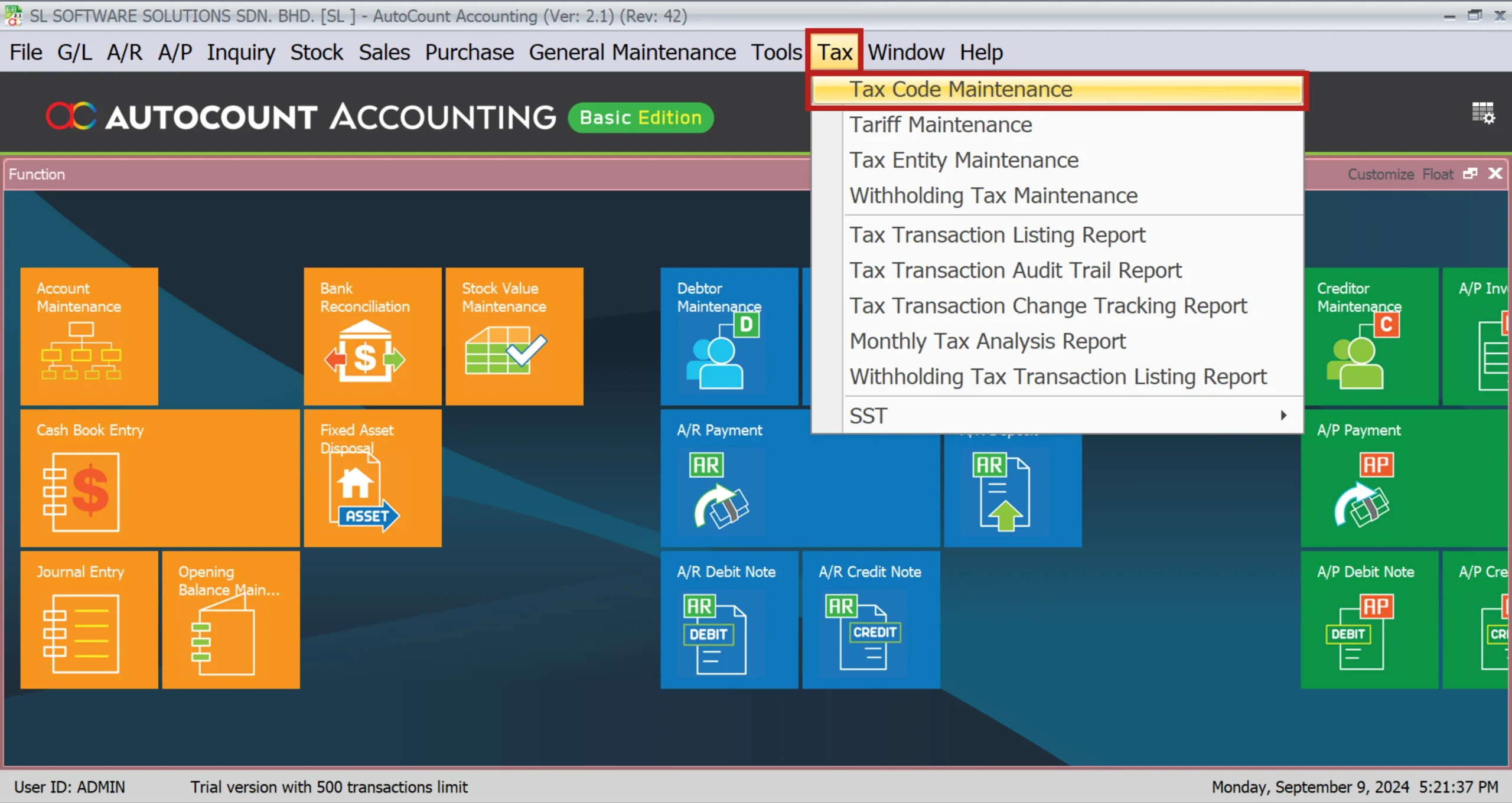
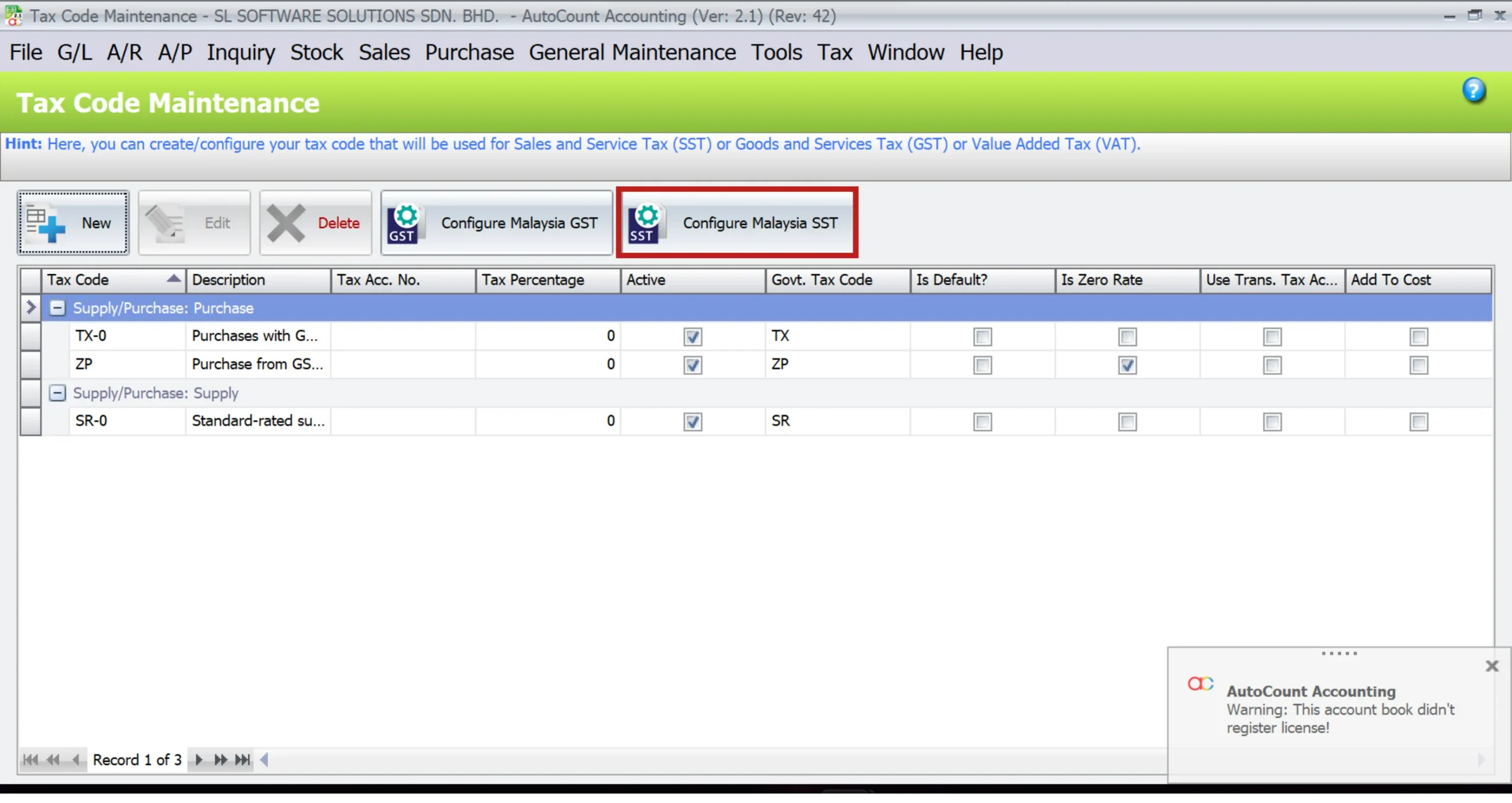
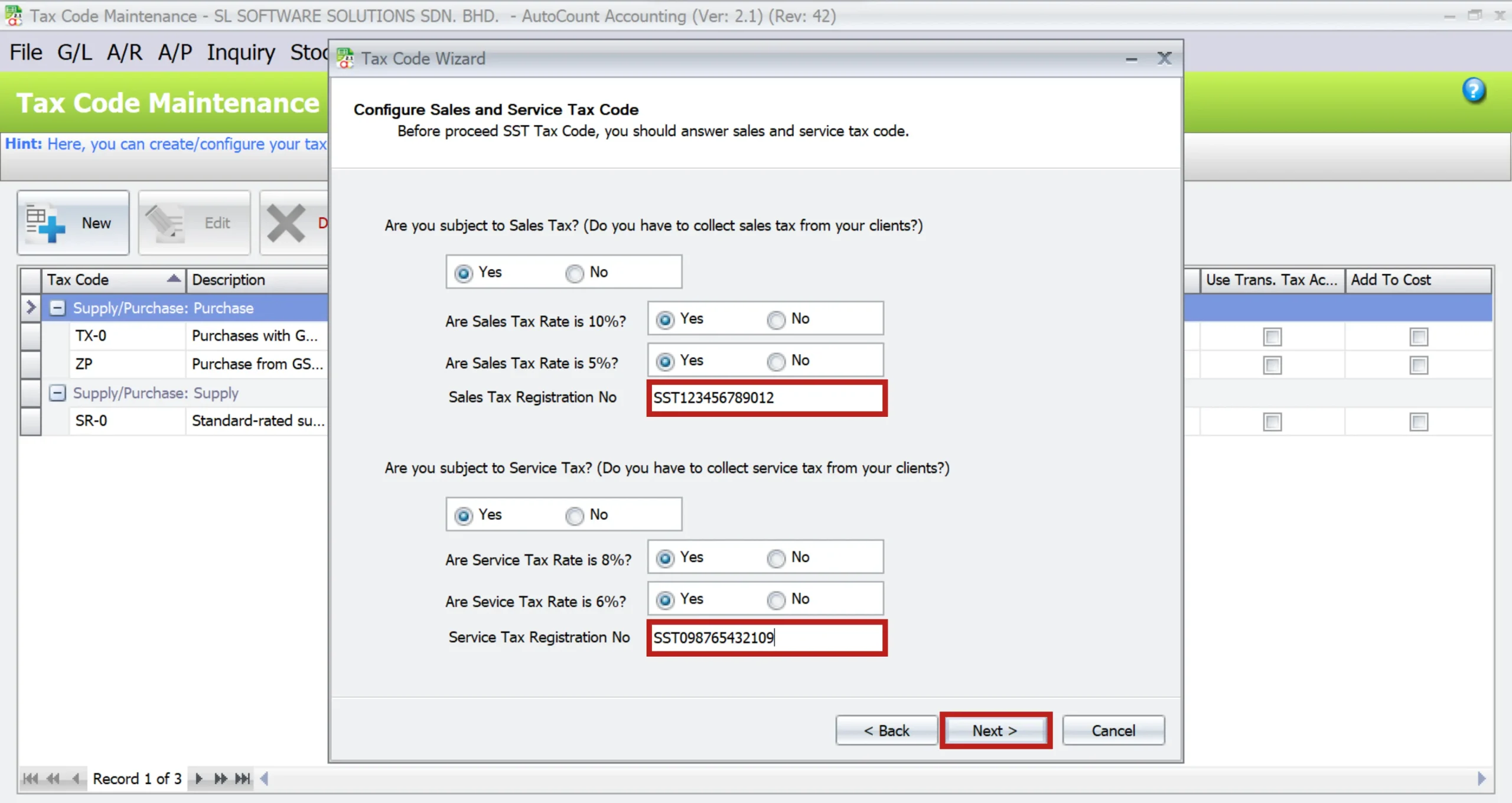
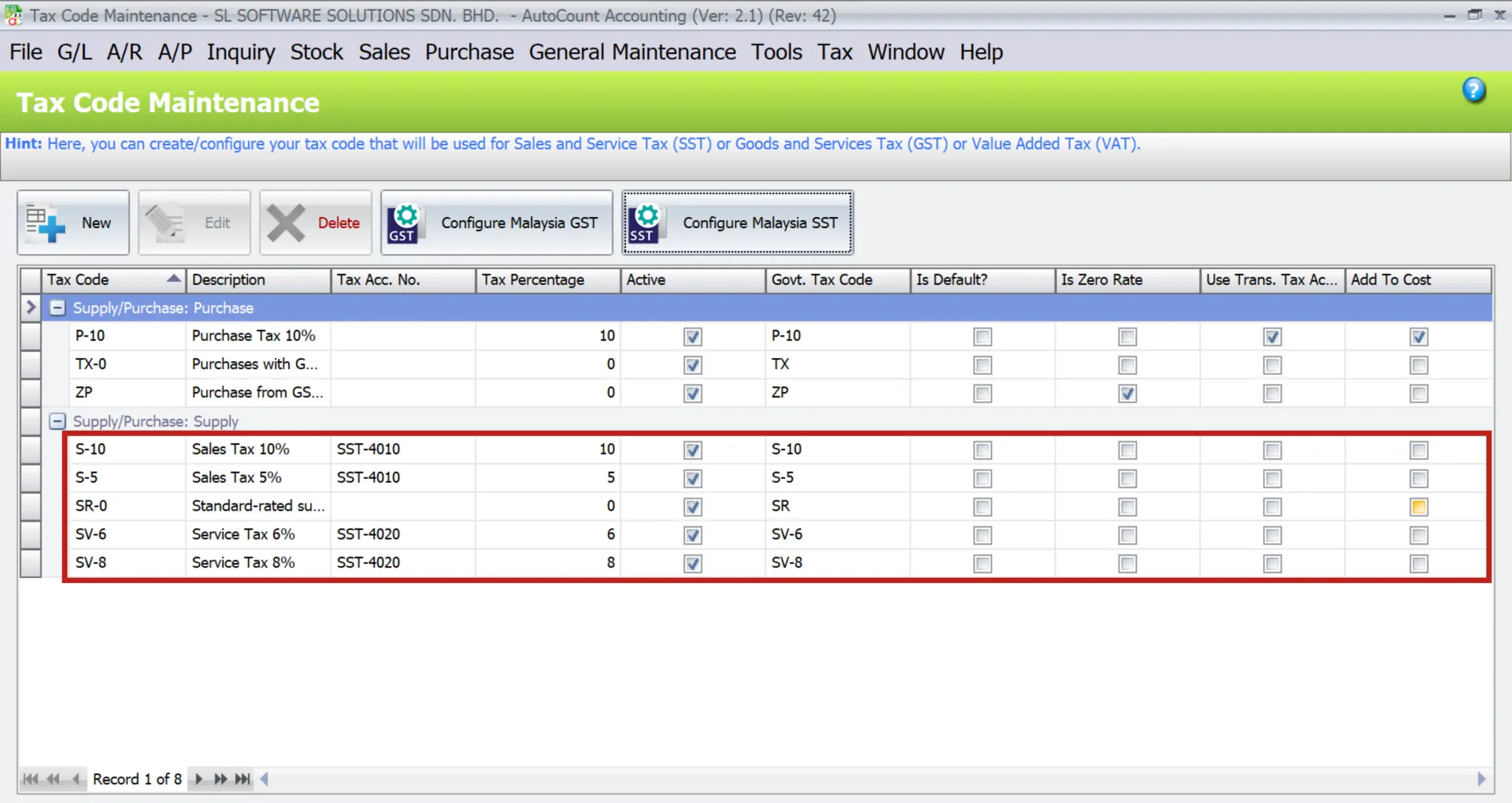
Firstly, set up the relevant tax codes under Tax > Tax Code Maintenance. To clarify, this might include S-10 for 10% Sales Tax, SV-6 for 6% Service Tax, and the newly added SV-8 for 8% Service Tax.
Tax Code Configuration
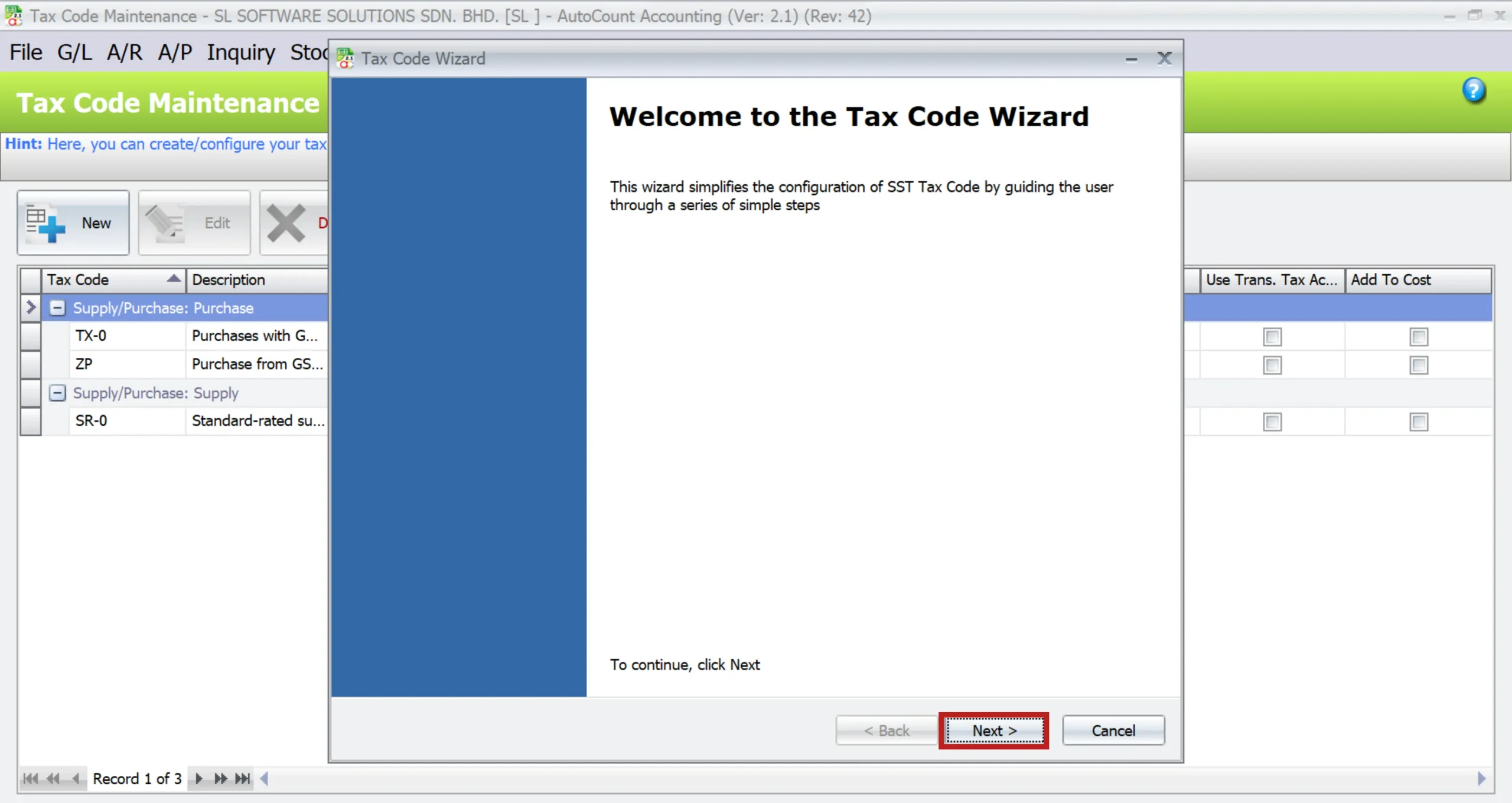
Learn how to configure advanced SST (Sales & Service Tax) Tax Code settings in AutoCount to avoid SST errors.
Managing Tax Codes in AutoCount
One of the critical steps in setting up SST in AutoCount is managing tax codes.
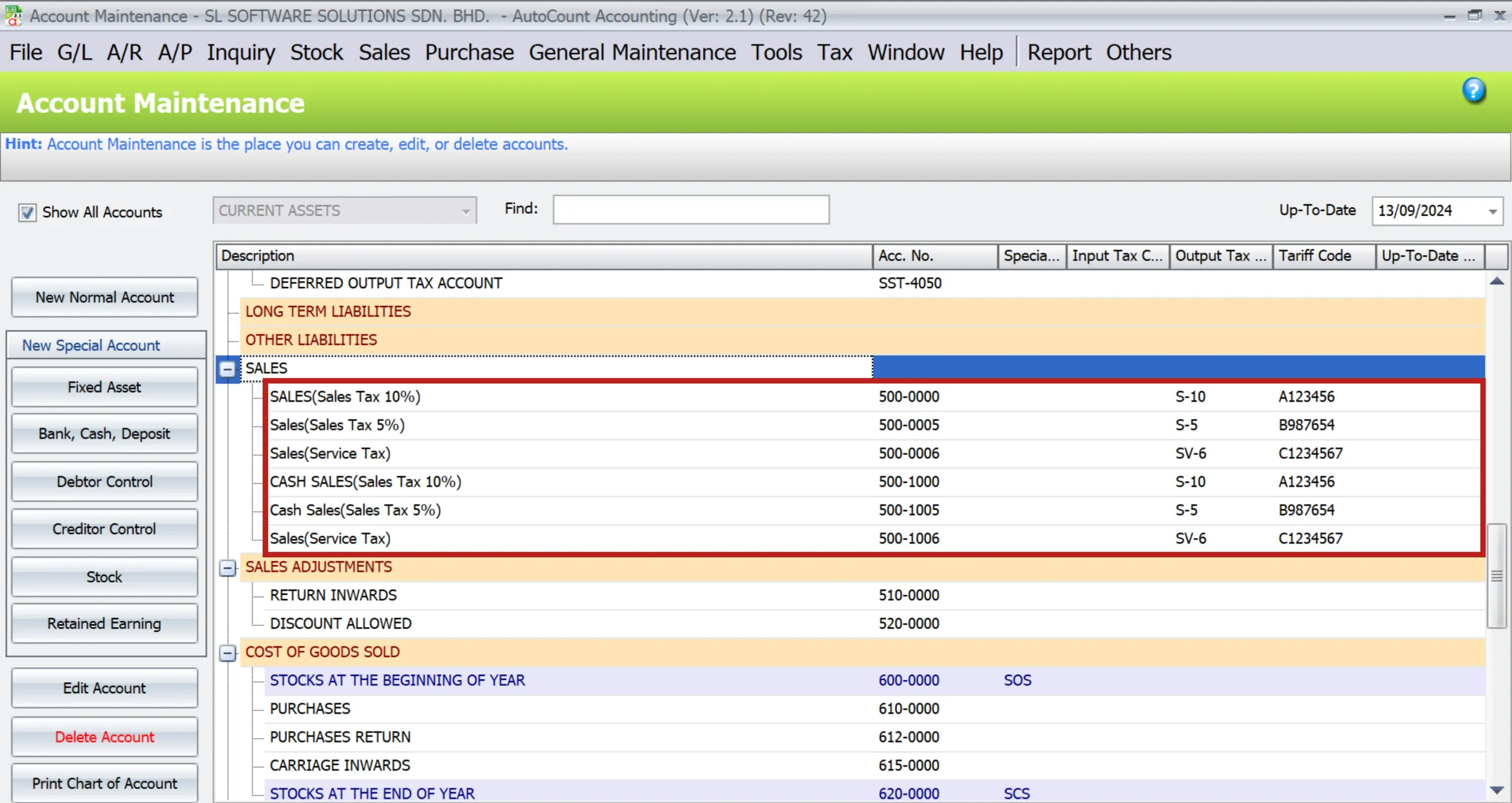
Updating the Chart of Accounts
Firstly, ensure that your chart of accounts is updated with the correct tax codes. To clarify, this involves adding or modifying accounts to include SST-specific tax information, which is vital for accurate financial reporting and compliance.
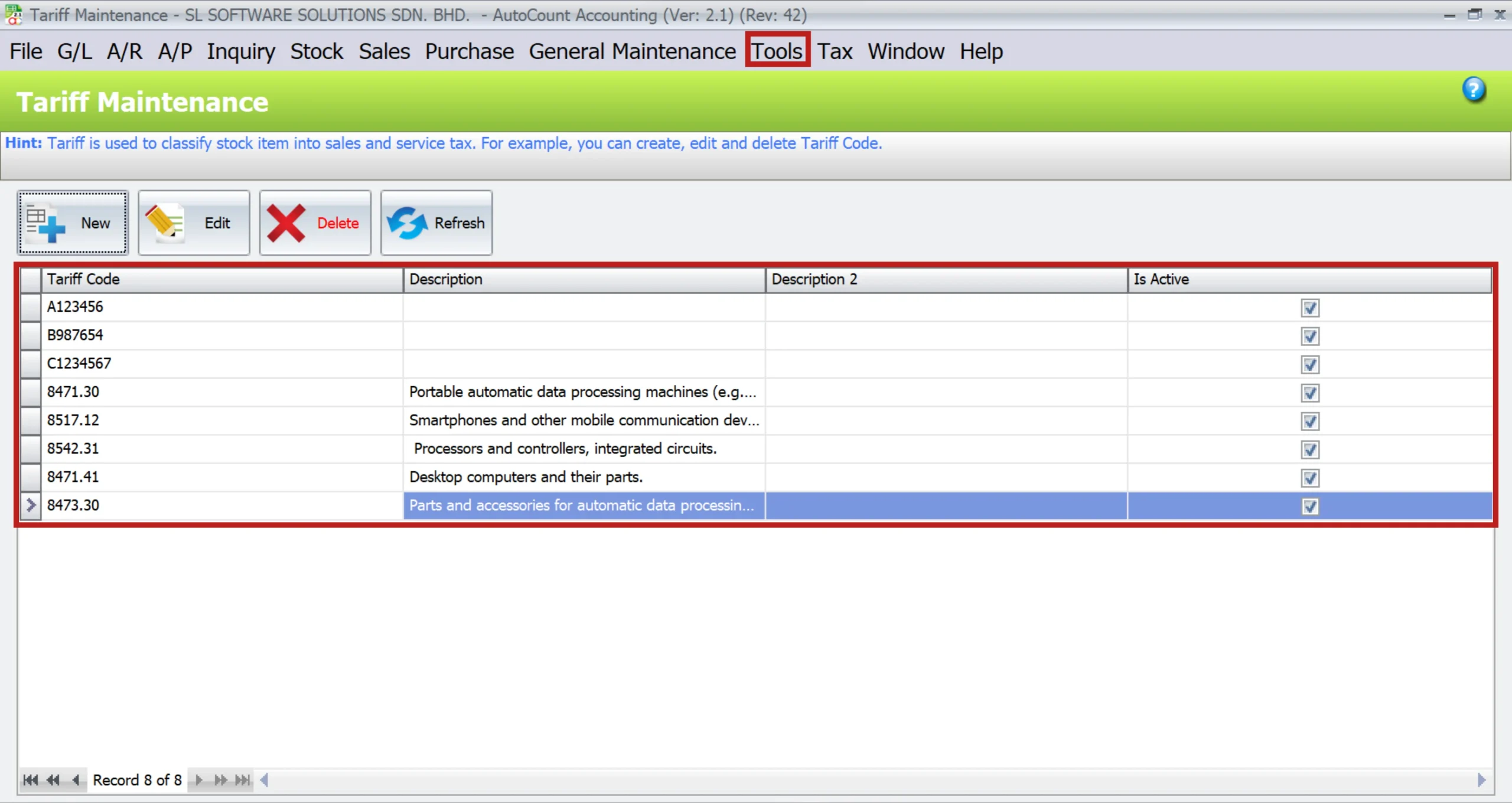
Maintaining Tariff Codes
Firstly, tariff codes categorize goods and services and determine the applicable tax rates. In other words, you have to maintain these codes accurately in AutoCount. As a result, you can ensure the correct tax is applied to each transaction.
How to Enable Tax Code Related Service Tax 8%
The Service Tax is set to rise from 6% to 8% for selected services effective on 01/03/2024.
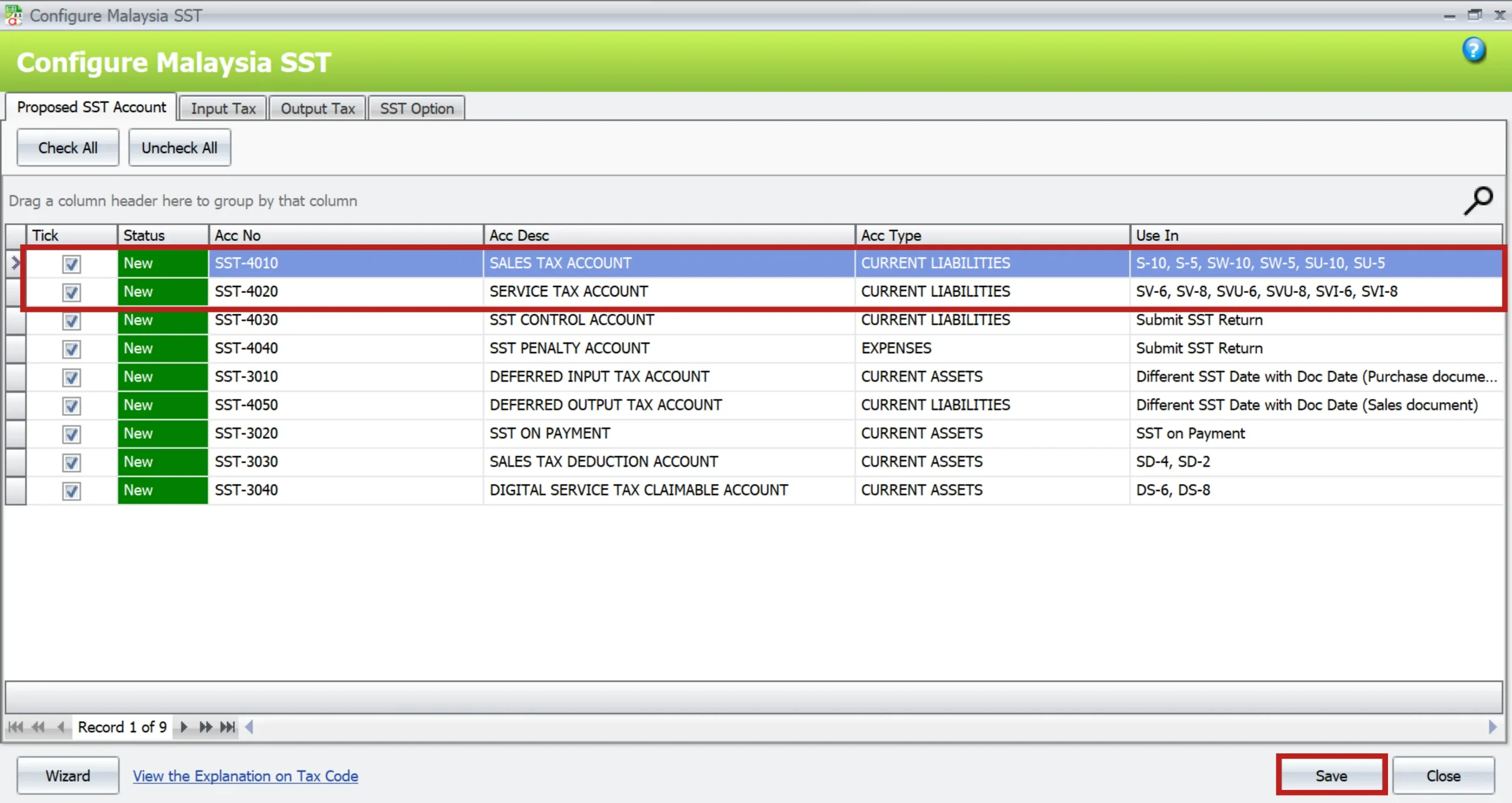
Add New Tax Code SST
To comply with the latest changes on SST, there will be 8 new tax codes added to the system. These tax codes are:
- SV-8, SVU-8, SVI-8, PS-8, DS-8, DSN-8, IMSV-8, ESV-8
1. Go to Tax > Tax Code Maintenance.
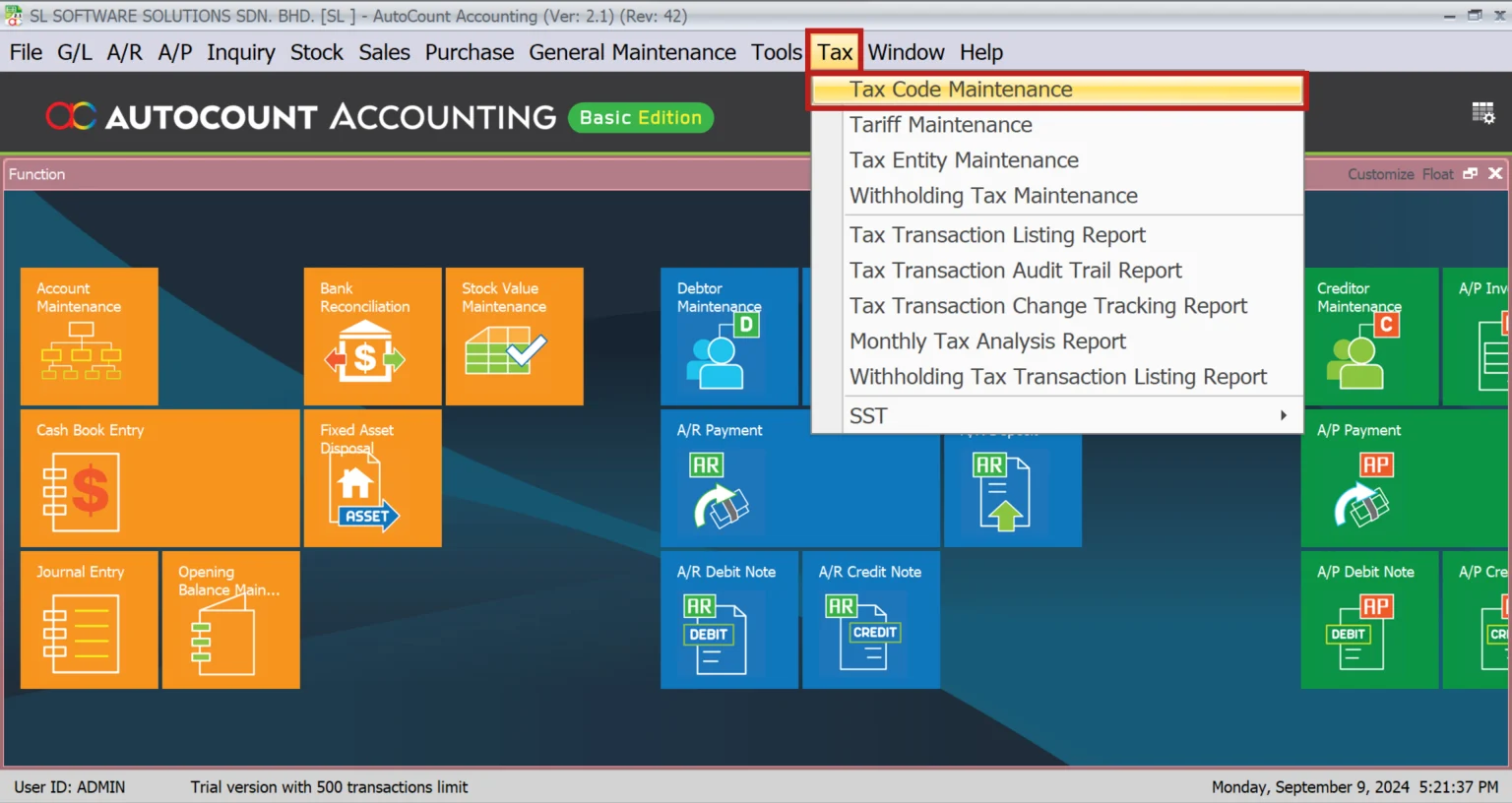
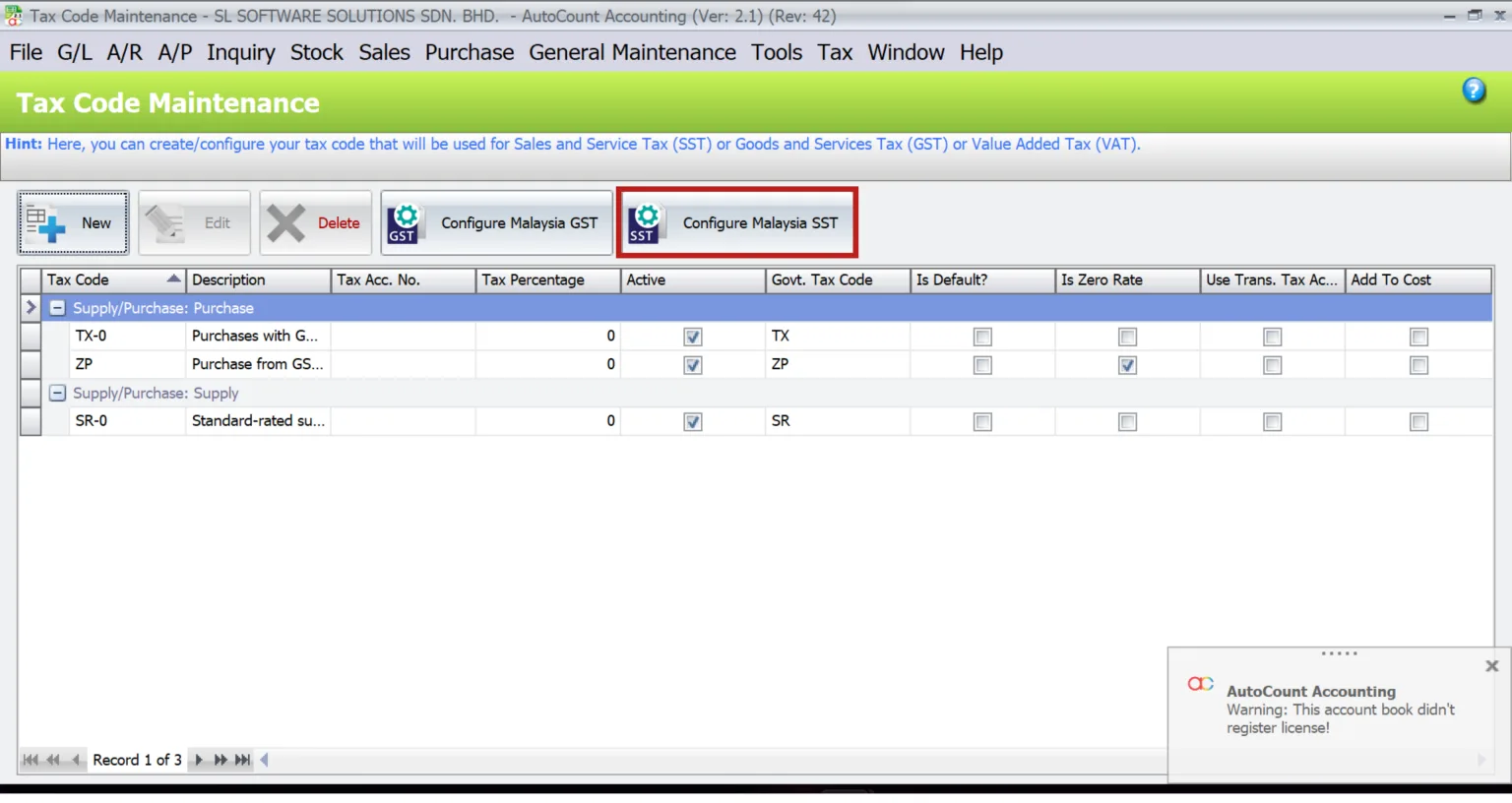
2. Click on Configure Malaysia SST.1. Go to Tax > Tax Code Maintenance.
3. You may tick the tax code that you need in the tab Input Tax and Output Tax and click on Save.
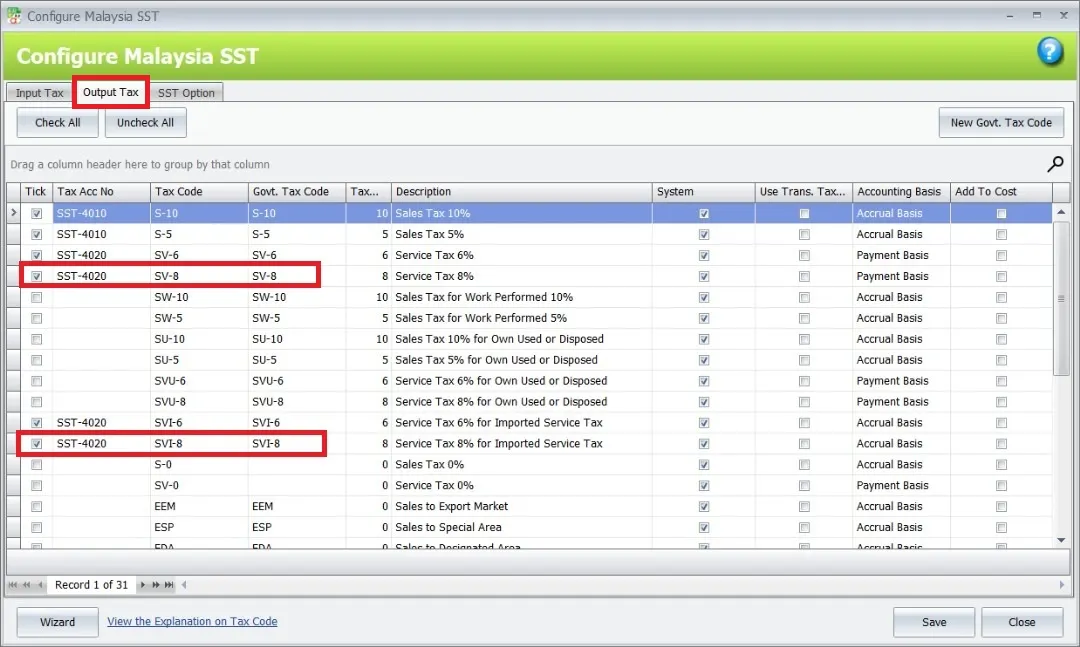
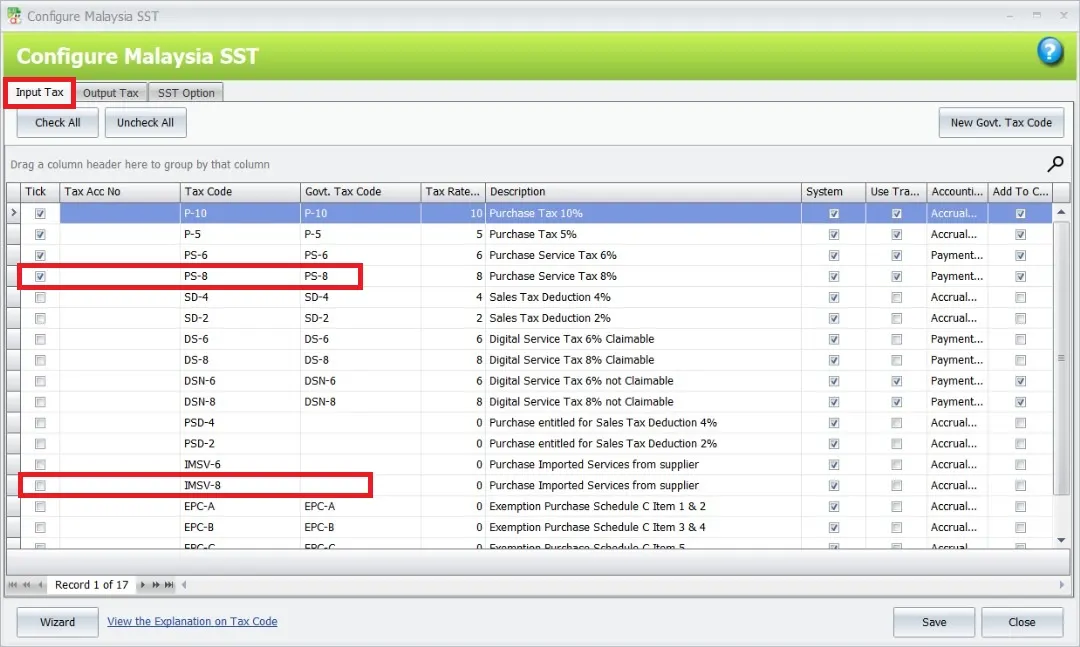
Example: SV-8, SVI-8, PS-8, IMSV-82. Click on Configure Malaysia SST.1. Go to Tax > Tax Code Maintenance.
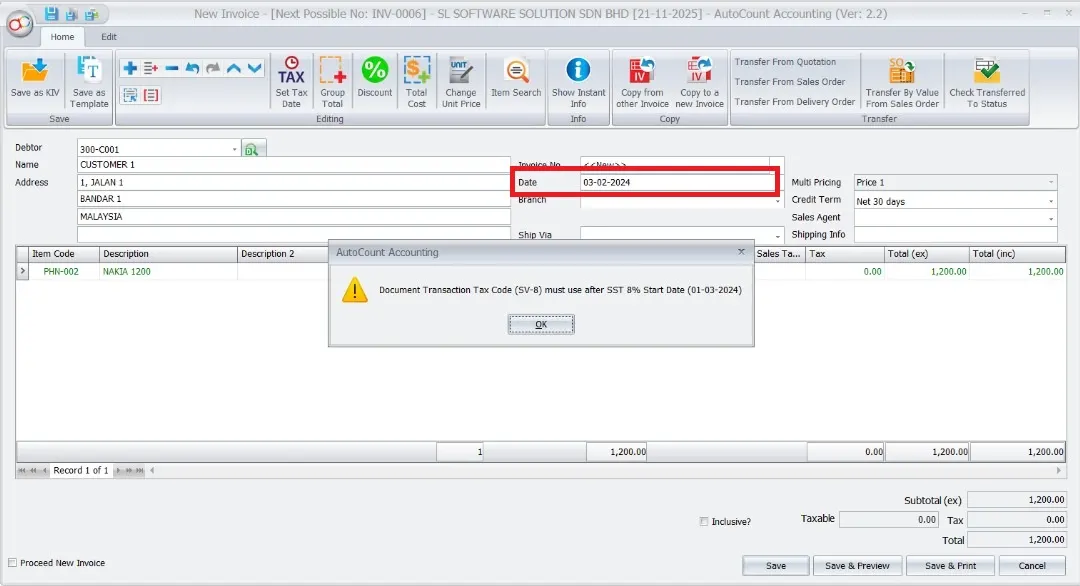
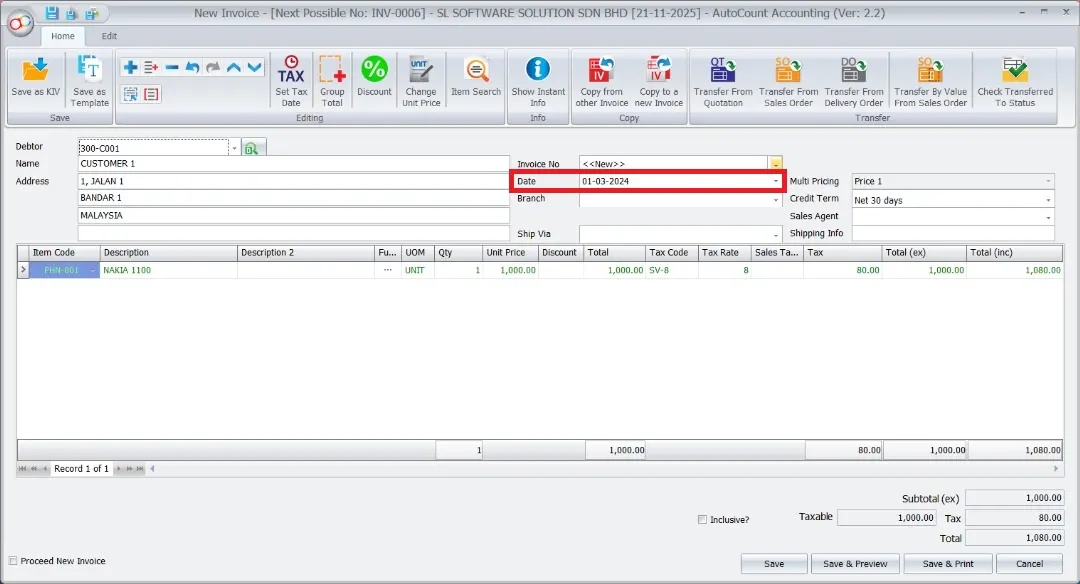
Note: Now, you may create an Invoice with tax code SV-8 for document dates on or later than 01/03/2024.
Warning: If the document date is earlier than 01/03/2024, the system will block you when you try to save the document with tax code SV-8.
How to perform Imported Services for 8%
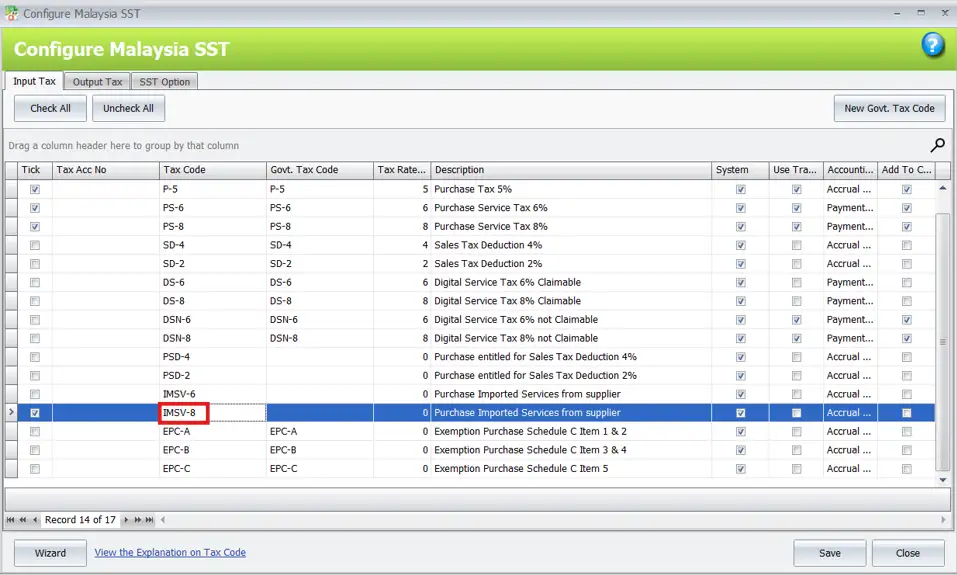
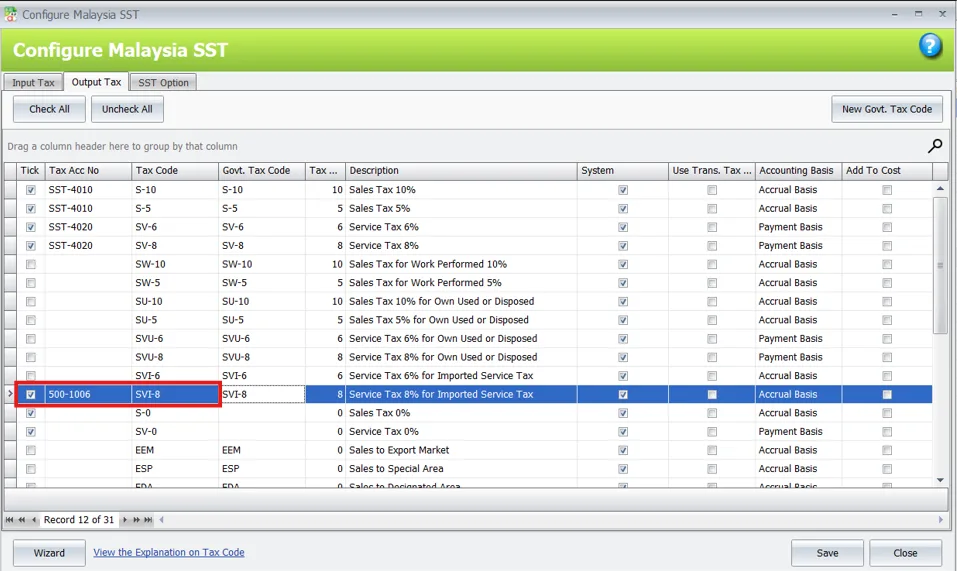
1. First, users need to enable the tax code IMSV-8 and SVI-8 for imported services 8%.
2. Key in the AP invoice or Purchase Invoice with the select tax code IMSV-8 and click on Save.
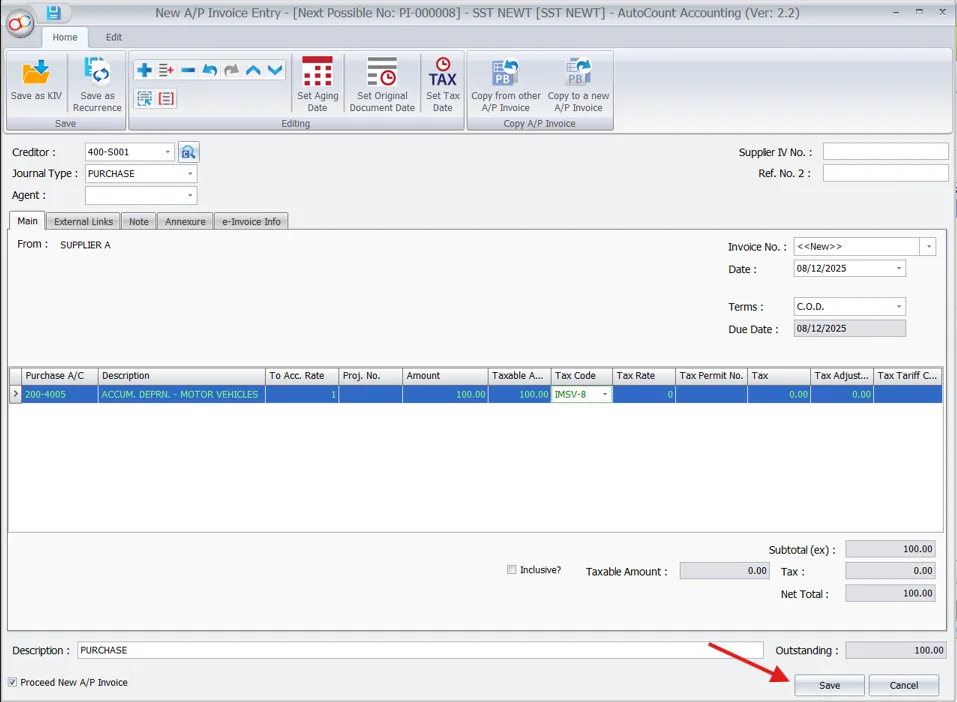
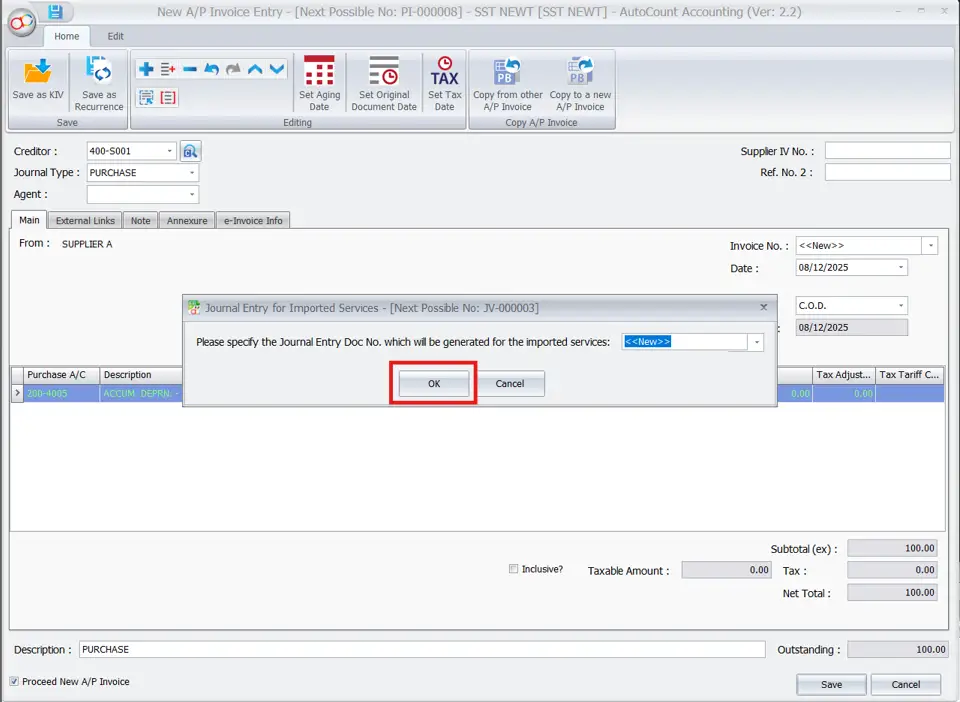
3. Click on OK to generate Imported Services journal.
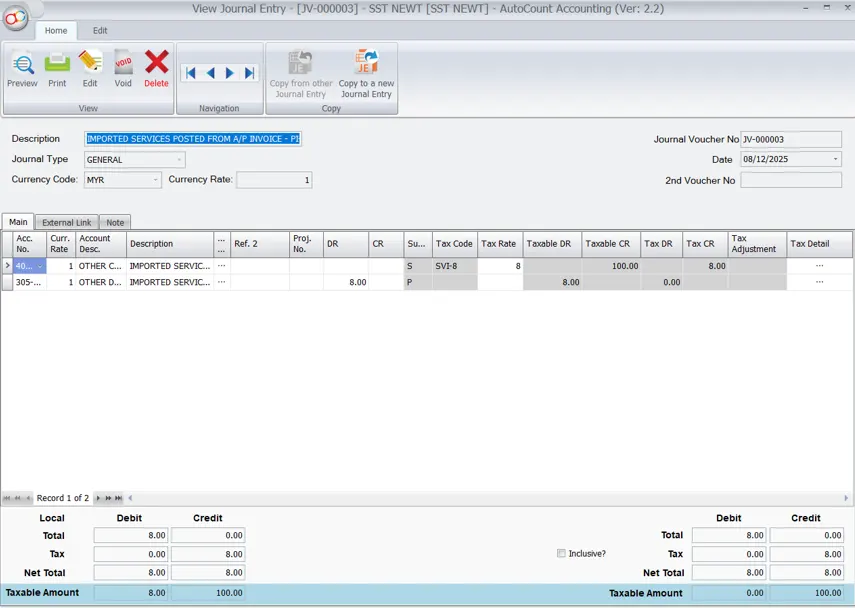
4. This is the journal result for Imported Services on 8%.
Transfer Document allows to change Tax Code
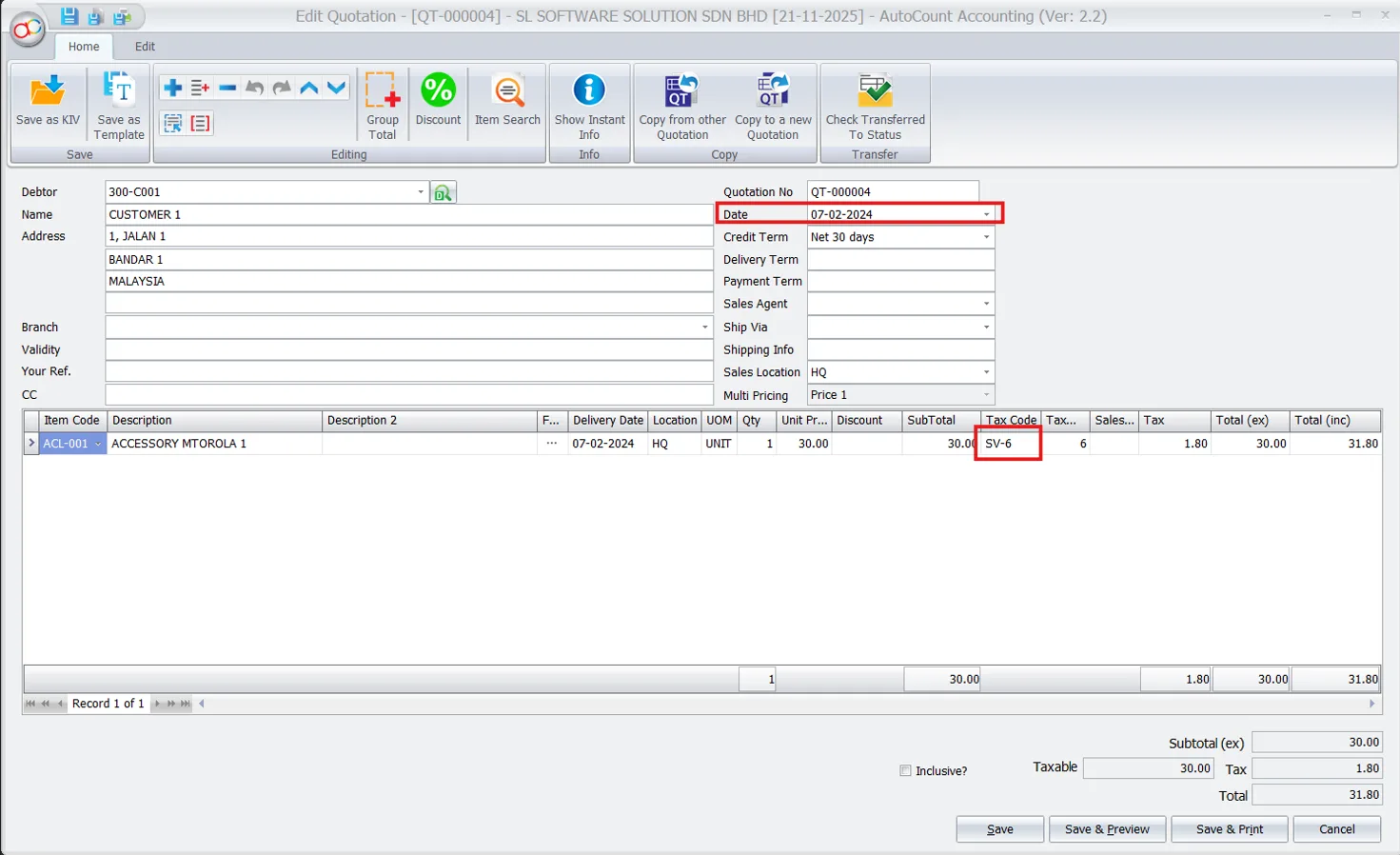
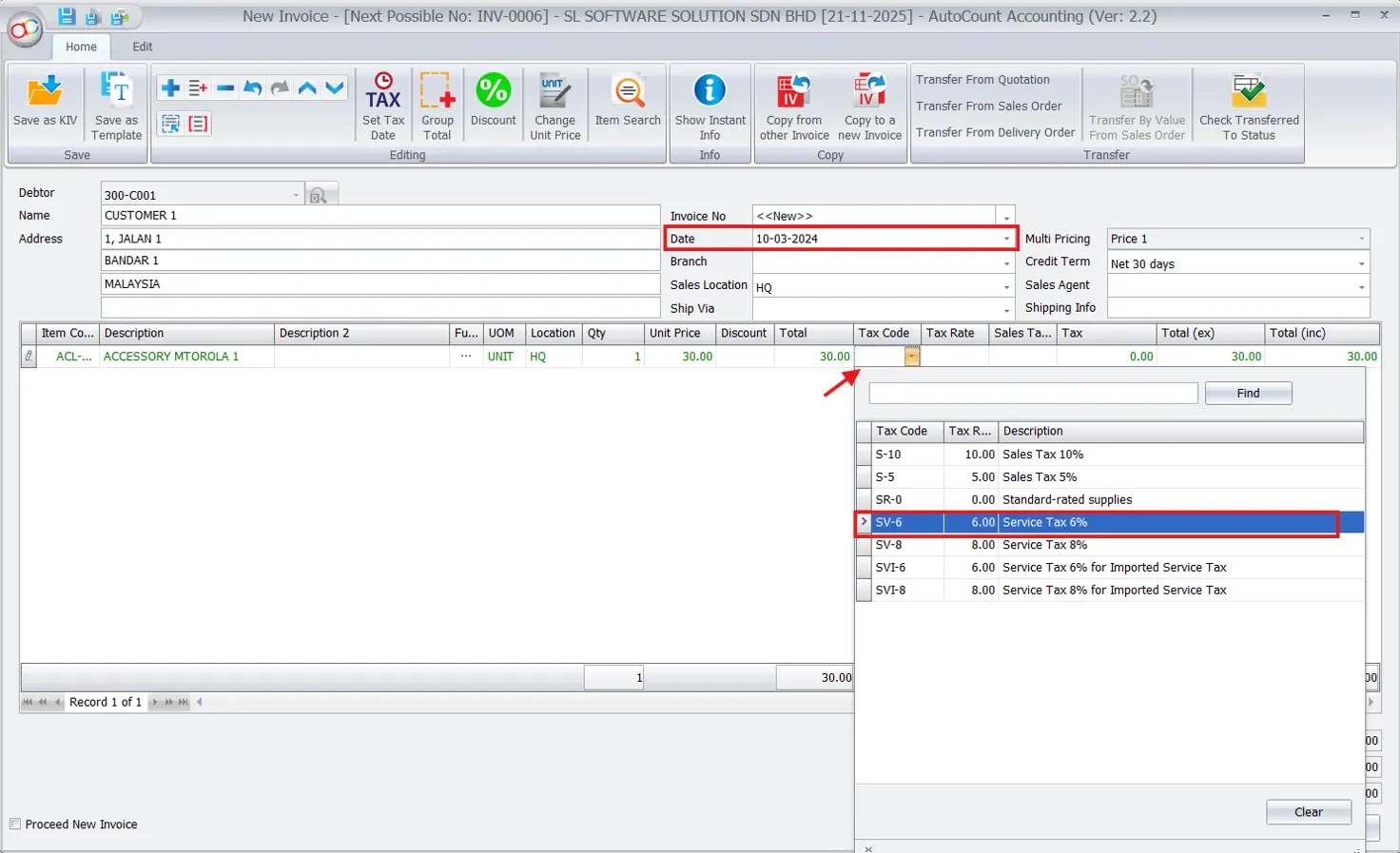
For documents dated before 01/03/2024 where you have selected tax code 6%, while transferring the document to 01/03/2024 or later, the system allows you to change the tax code.
Example Scenario:
- Quotation dated 07/02/2024 with select tax code SV-6.
- Transfer the Quotation to Invoice dated 01/03/2024.
- Now you can change the tax code, which is not necessary to unlock the tax code field from ‘Edit Column Lock’.
Billing and Invoicing with SST in AutoCount
AutoCount simplifies the billing and invoicing process by integrating SST directly into these functions.
Creating Invoices
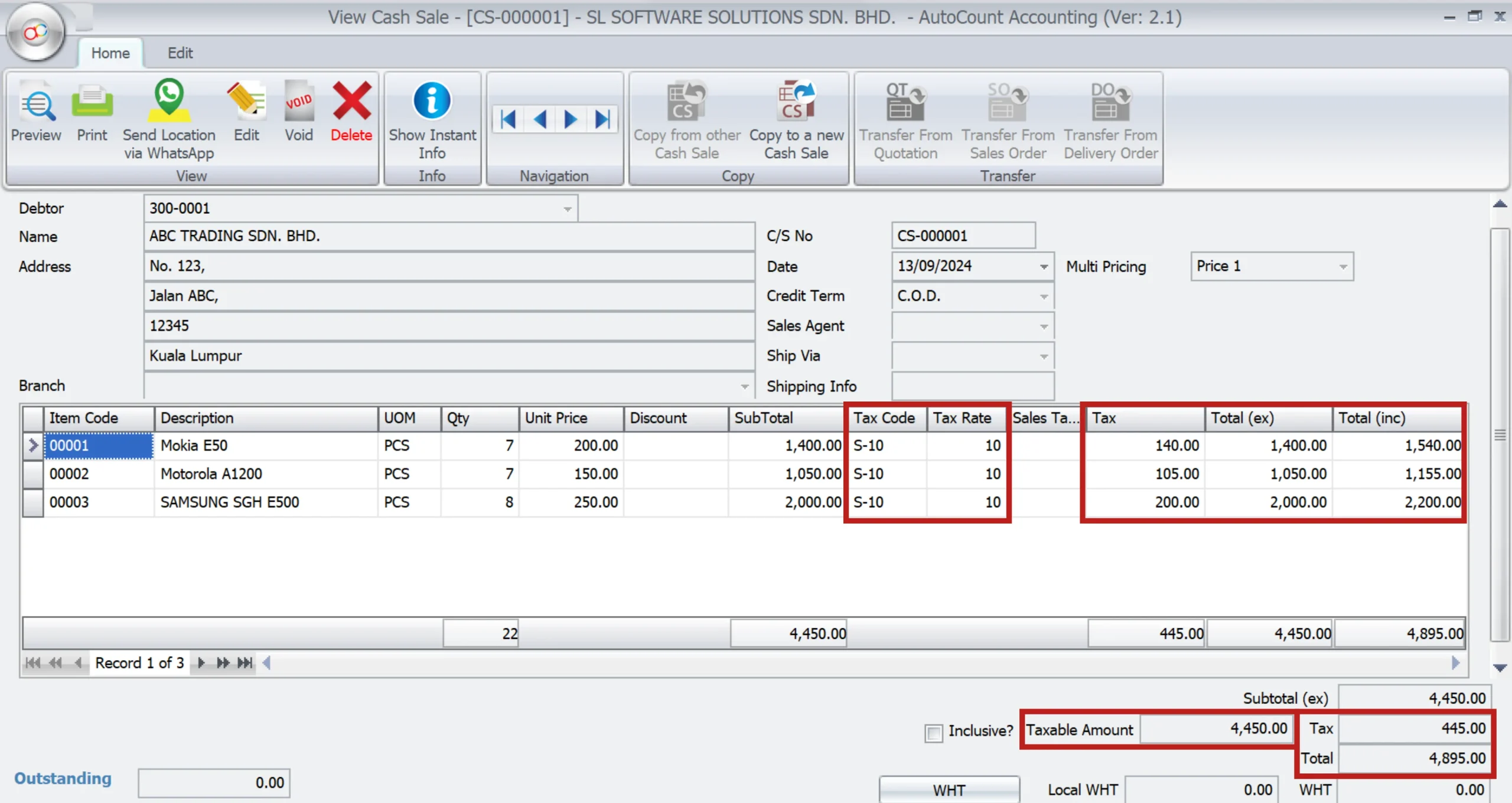
Firstly, when you create an invoice in AutoCount, the system automatically applies the appropriate SST based on the tax codes assigned to the items or services being invoiced. This ensures the correct amount of SST charge to your customers. Thus, helping you stay compliant with tax regulations.
Handling Service Tax in Invoices
Secondly, you can apply Service Tax, such as the common 6% or the new 8% rate to services that your business provides. In addition, AutoCount allows you to configure these rates. Moreover, it also ensures that they are correctly reflected on all service-related invoices.
Handling Purchase Transactions
Recording purchase transactions accurately is vital for managing SST.
Entering Purchase Invoices
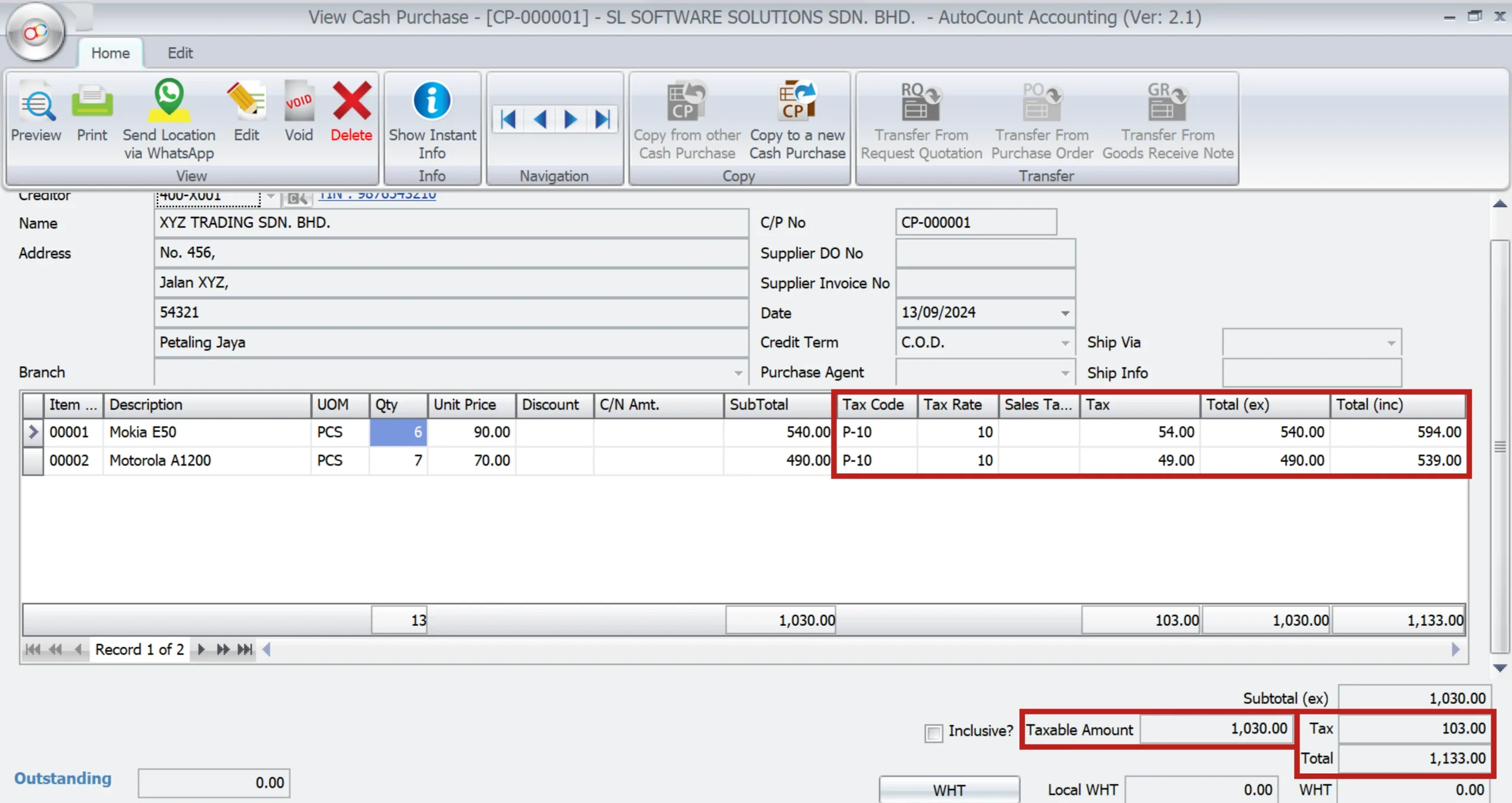
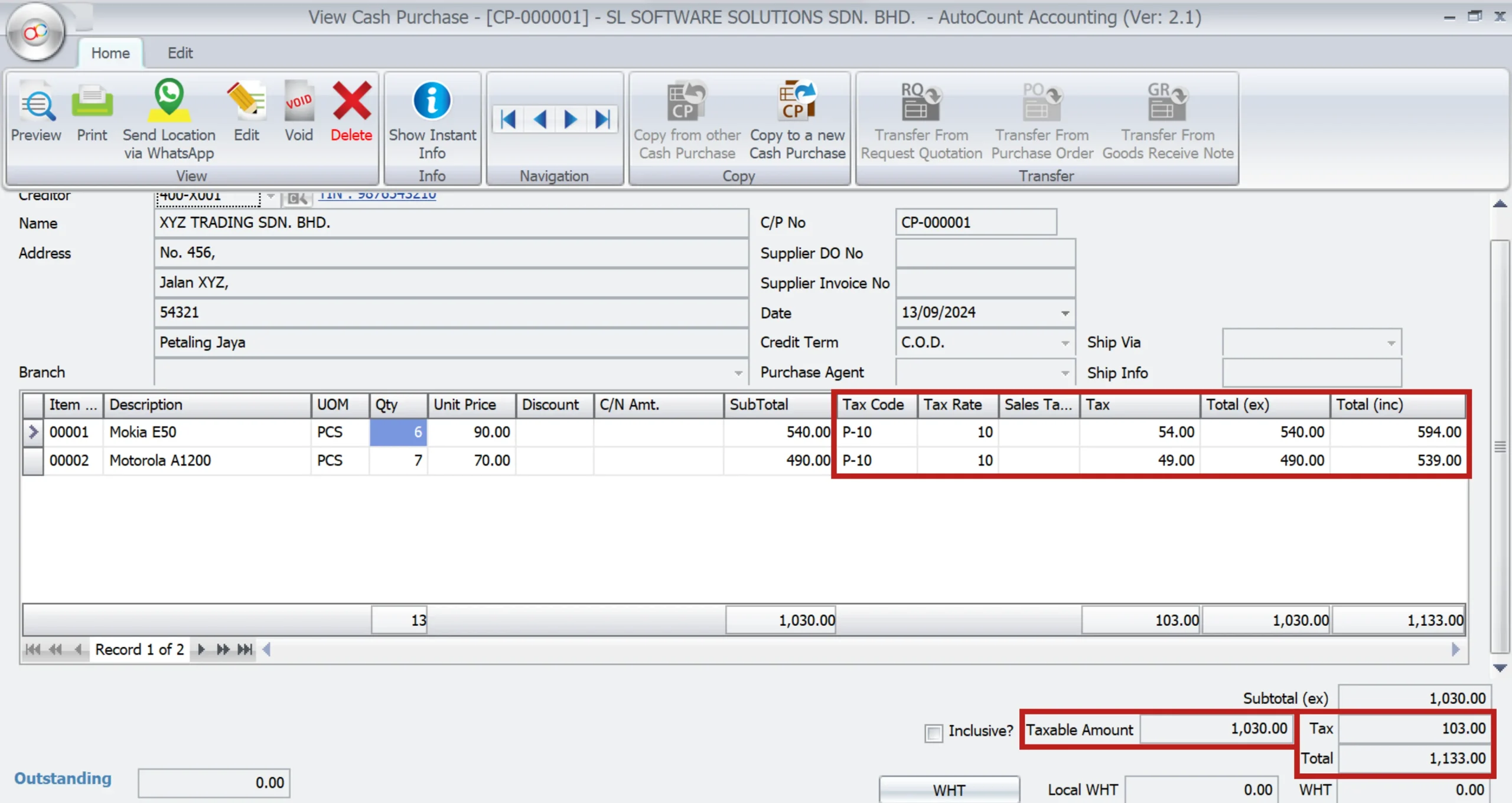
FIrstly, use AutoCount to record purchase invoices with the correct tax codes. As a result, this ensures a payment of the correct amount of SST on your purchases. Additionally, the system allows you to process purchase returns. Moreover, it let you adjusting the SST as needed based on the returned goods or services.
Stock and Service Item Maintenance
Managing your stock and service items in AutoCount is critical to ensuring the correct application of SST.
Stock Item Maintenance
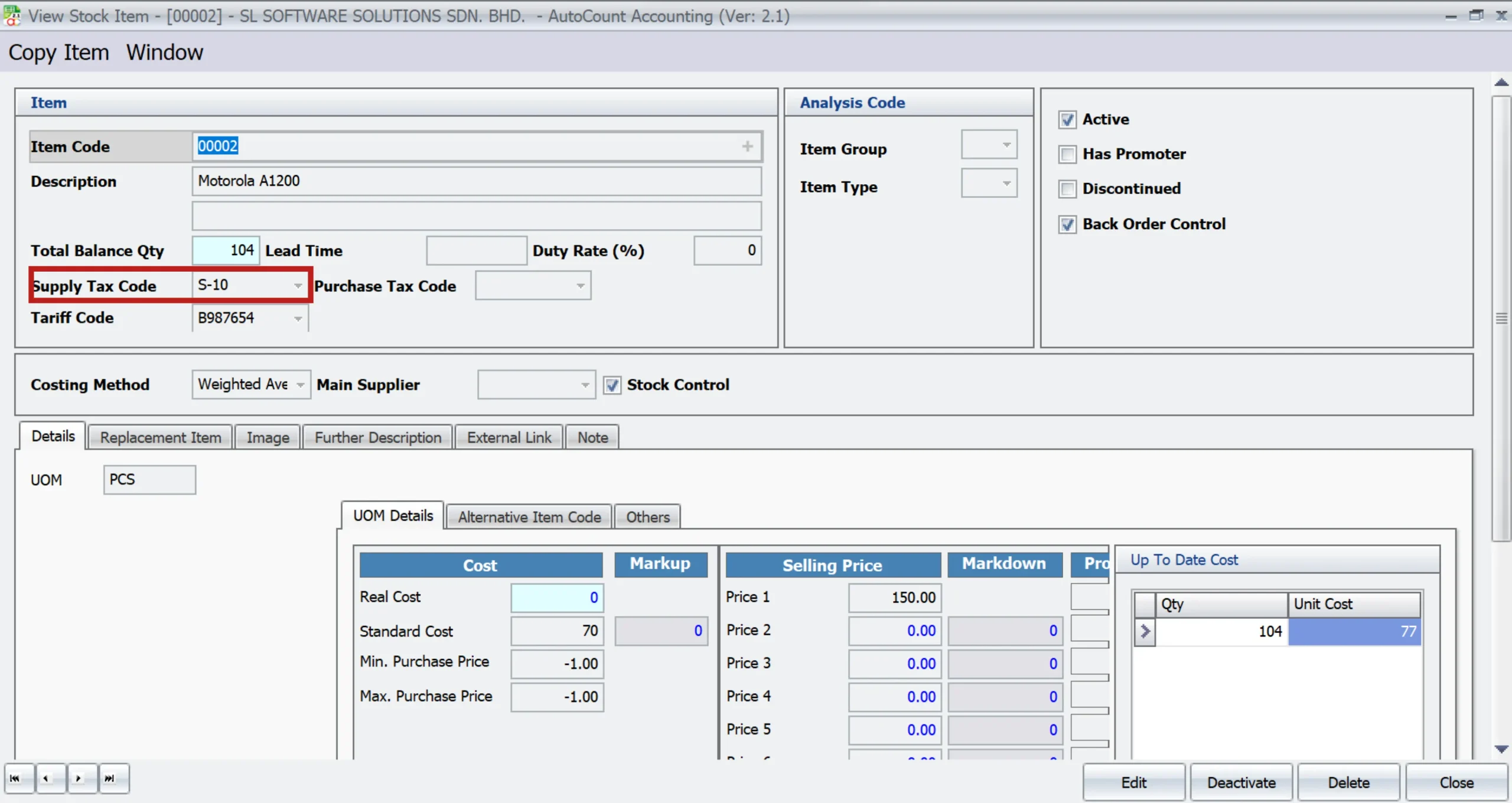
Firstly, you can configure each stock item in AutoCount with a specific tax code, such as S-10 for a 10% Sales Tax. This setup ensures that when you sell these items, the system will apply the correct amount of SST.
Credit Notes and Returns
AutoCount provides tools to manage credit notes and returns effectively.
Issuing Credit Notes
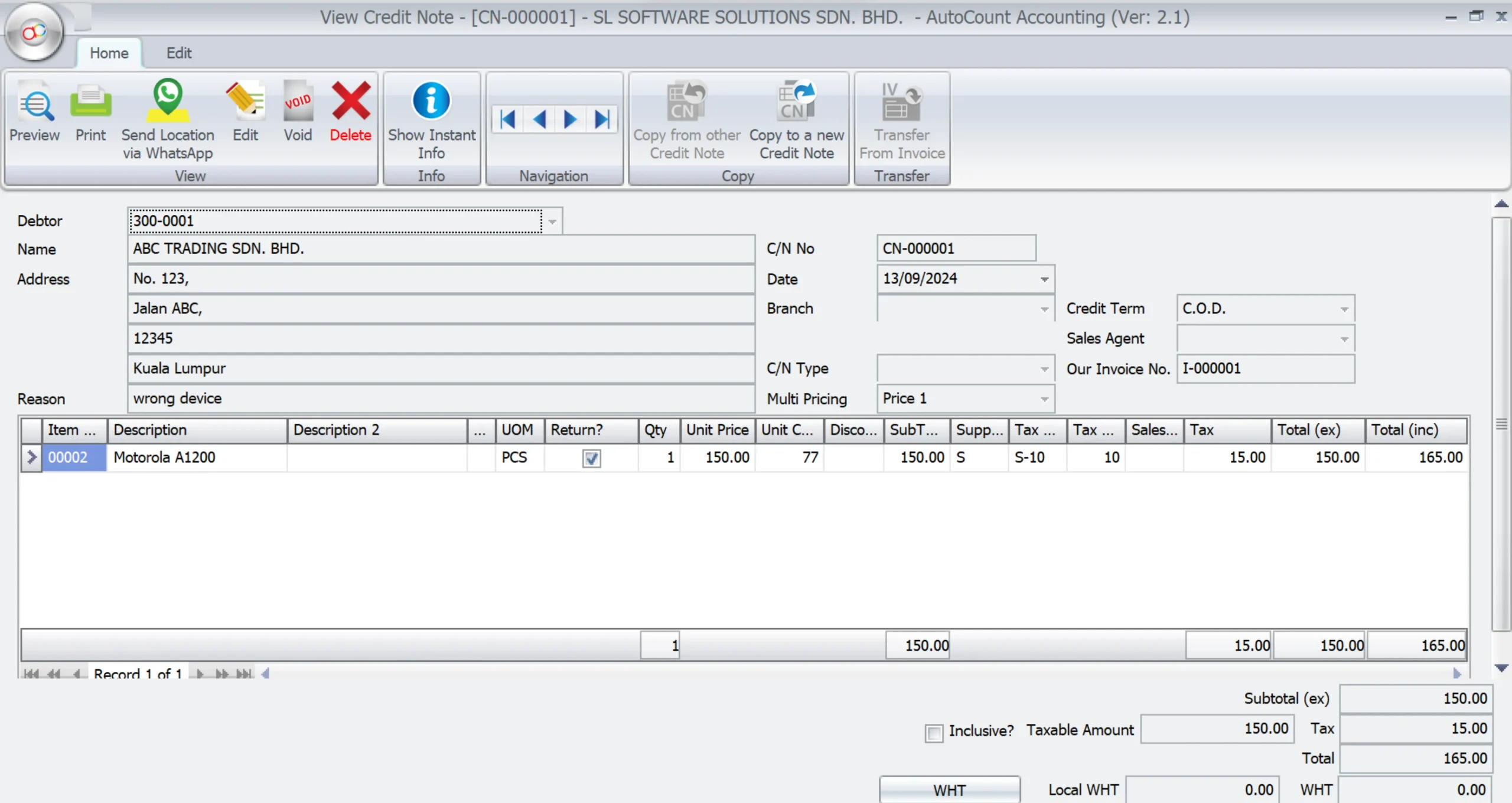
Credit notes are used to adjust the amount of SST in cases where goods are returned or invoices are incorrect. AutoCount allows you to issue credit notes that reflect the correct SST adjustments. Thus, ensuring your tax records remain accurate.
Running SST Reports in AutoCount
Generating SST reports is a key feature of AutoCount that aids in compliance.
SST Transaction Listings and Audit Trails
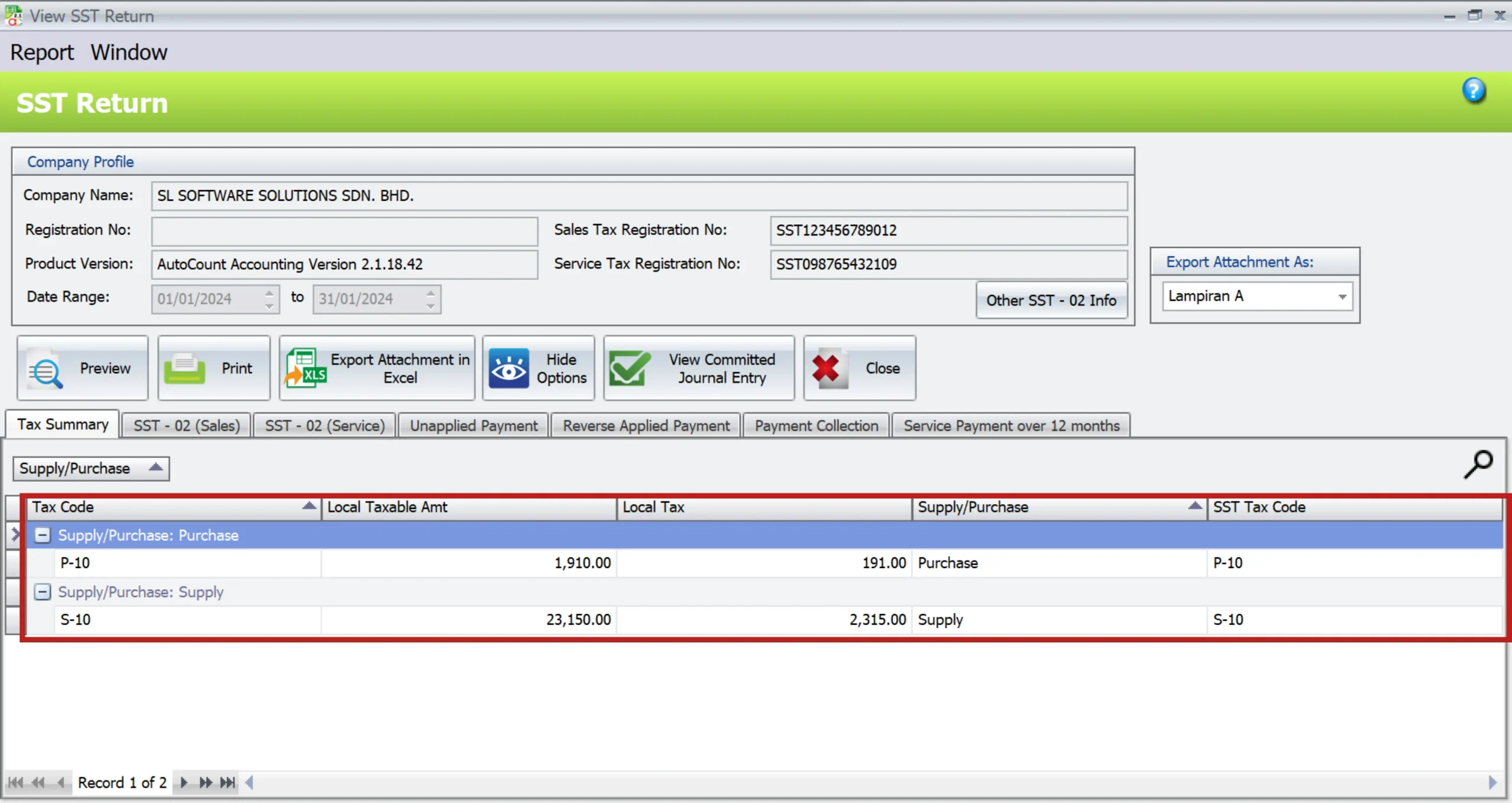
Firstly, AutoCount allows you to generate detailed reports, such as SST Transaction Listings and SST Audit Trails. In addition, these reports provide comprehensive records of all SST-related transactions, which are essential for internal audits and regulatory compliance.
SST Transaction Listings

SST Audit Trails

Processing SST Payments
AutoCount includes tools to help you manage and process SST payments efficiently. If you have an advance payment when running the SST Processor, the system allows you to generate SST on Payment for 6% or 8%.
Using the SST Processor
Firstly, the SST Processor in AutoCount compiles all SST data for a given period. Thus, making it easier to calculate and process payments to the RMCD. in addition, the processor also helps generate the SST-02 report, which is required for SST submissions.
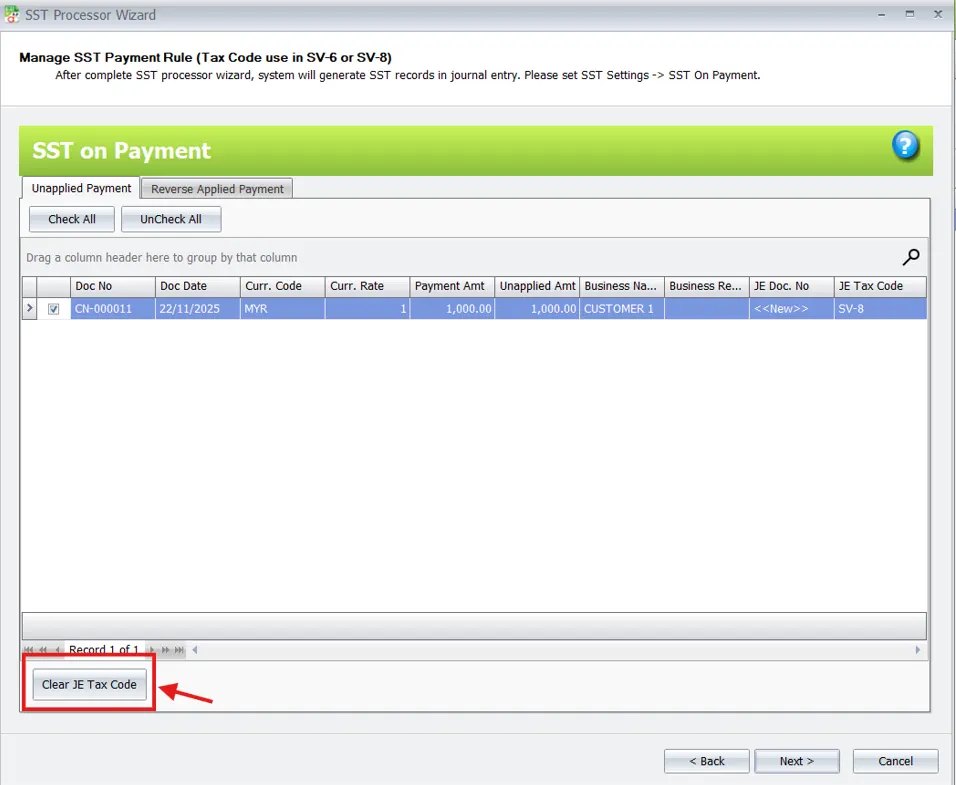
1. First, you need to tick the document (O/R or CN) to process the SST on Payment.
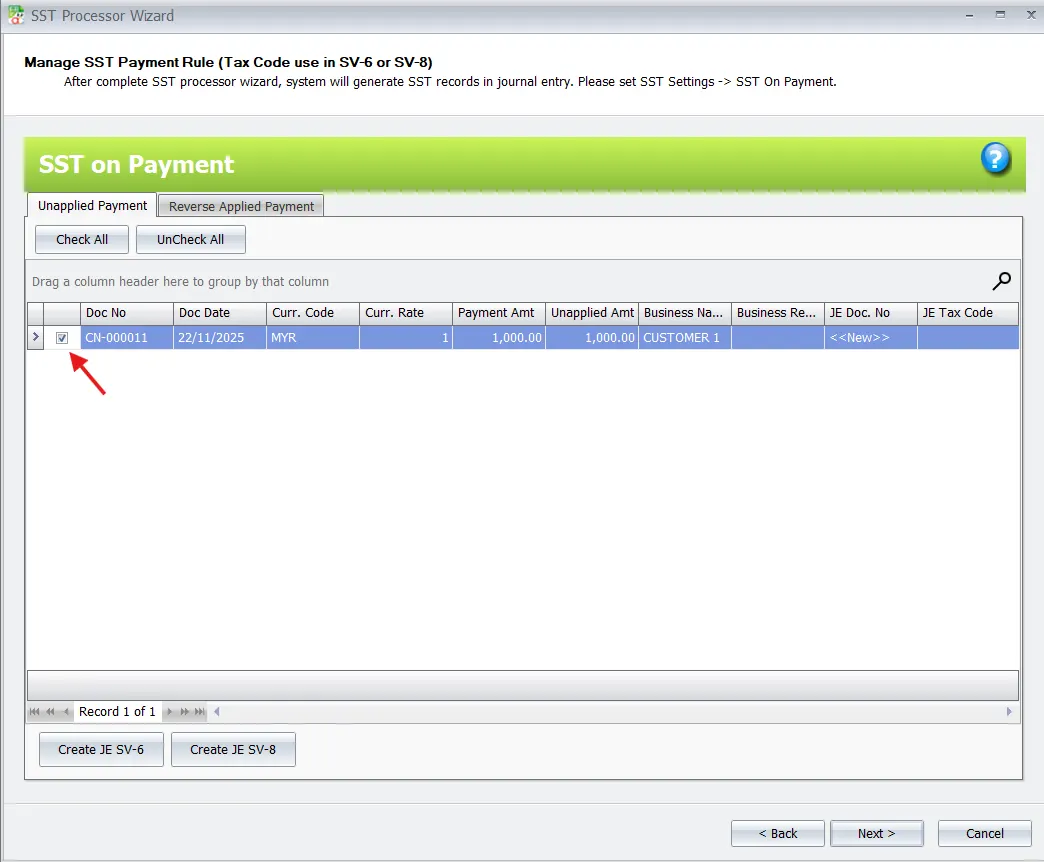
2. Select Create JE SV-6 for 6% or Create JE SV-8 for 8%.
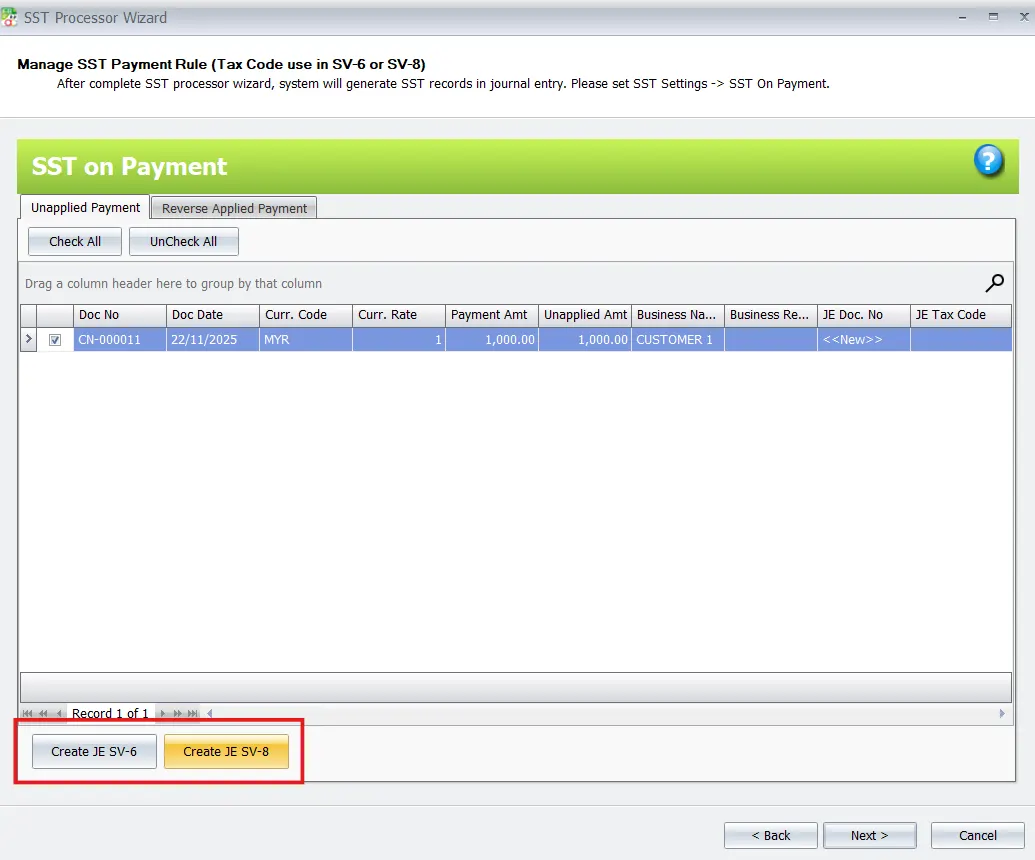
3. JE Tax Code will show your selected type, then click on Next to continue for the SST processor.
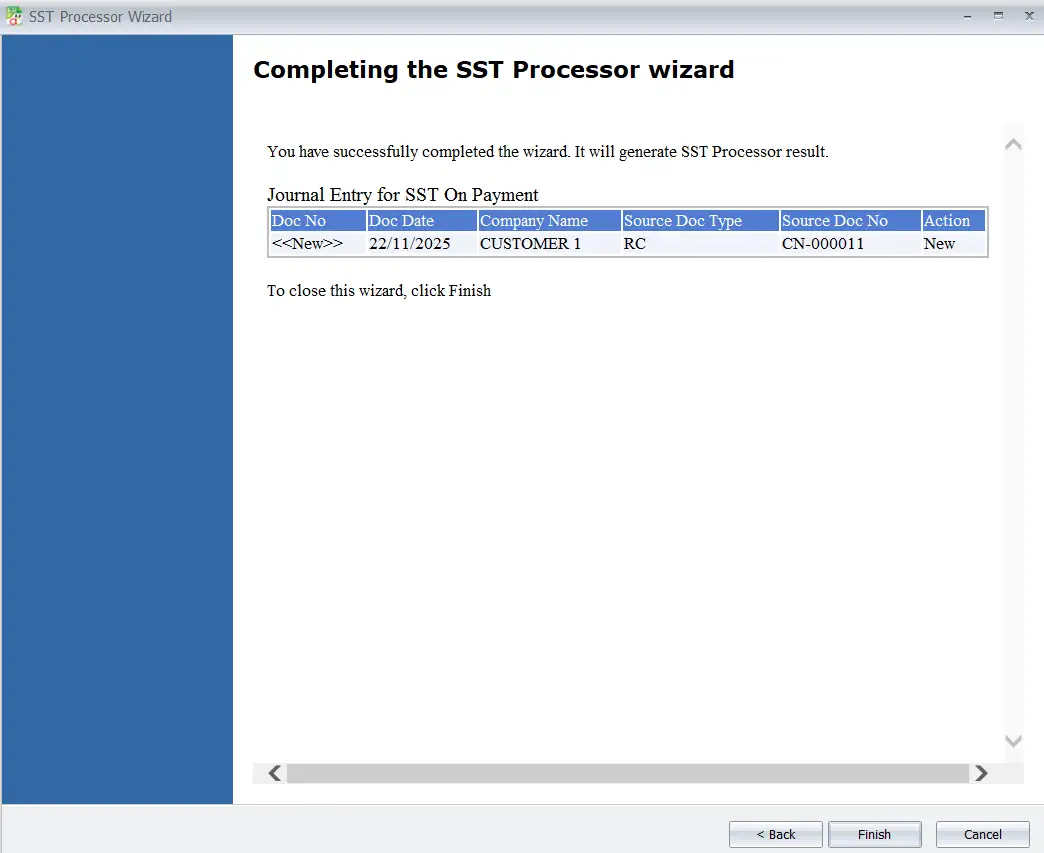
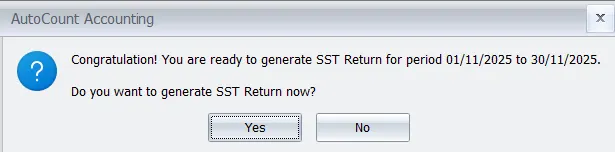
4. Click on Finish and then click on Yes.
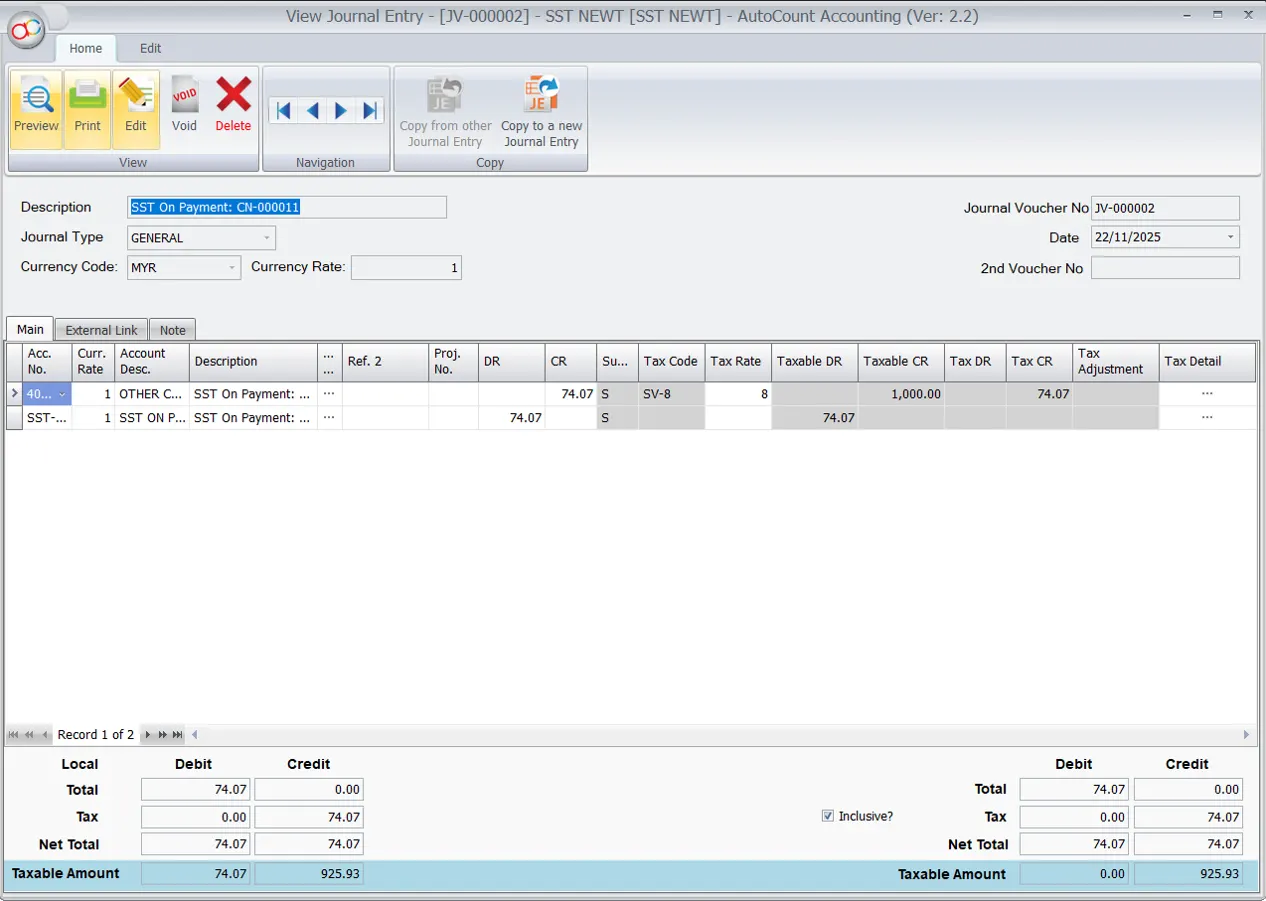
5. This is the Journal result for SST on Payment on 8%.
In case you have wrongly selected, you may click on Clear JE Tax code to undo the selection.
Backup and Security Measures
Regular backups are crucial to protect your SST data.
Data Backup
AutoCount allows you to back up your SST data regularly. This practice ensures protection of your financial records, including SST-related data. Thus, ensuring that you can recover all these daat in case of data loss.
Troubleshooting Common SST Issues
Even with a well-configured system, issues can arise in managing SST.
Resolving Tax Code Discrepancies
AutoCount offers troubleshooting tools to resolve common issues, such as discrepancies in tax codes or errors in SST calculations. Regular checks and updates help prevent these issues from affecting your tax compliance.
Conclusion
To conclude, maintaining accurate SST records in AutoCount requires ongoing diligence and regular updates to your tax configurations. Therefore, by ensuring proper training of your team and regular review on your tax codes, you can maintain compliance and avoid potential penalties.
Frequently Asked Questions
How to handle zero-rated supplies in AutoCount?
Zero-rated supplies are managed by assigning the S-0 or SV-0 tax codes to items or services that are exempt from SST.
What to do if SST rates change?
If there is a change in SST rates, update the tax codes in AutoCount’s Tax Code Maintenance section to reflect the new rates, ensuring that future transactions apply the correct tax.
How to reconcile SST reports with financial statements?
Reconciliation involves comparing your SST reports, such as the SST Transaction Listing, with your financial statements to ensure that all taxable transactions are accurately recorded.
Can AutoCount handle partial SST returns?
Yes, AutoCount supports partial returns through the Credit Note feature, allowing you to adjust the SST for only part of an invoice.
What reports are essential for SST compliance?
Essential reports include the SST Transaction Listing, SST-02, and SST Audit Trail. These reports provide detailed records needed for compliance and audit purposes.
How often should SST data be backed up?
It is recommended to back up SST data after every major update or transaction cycle to ensure that your records are secure and can be easily restored if necessary.
Interested in Getting AutoCount for your Business?
Contact our sales team today to explore pricing options and get started with the perfect solution for you.