
-
AutoCount Accounting Features
-
- Approval Workflow
- Audit Trail
- Auto Save in Draft Folder
- AutoCount Contra Account
- AutoCount License Setting Guide
- Deposit Tracking & Management
- Documents Numbering Format
- Full Transfer and Partial Transfer
- Import Data to AutoCount Accounting Using Excel
- Informative Charts and Analytical Data
- Layout Customization
- Multi Pricing
- Sales and Services Tax
- Schedule Backup
- Search Lookup Edit
- View Documents Flow
- AutoCount Feature Stock Take
- Column Chooser
- Show Remaining (3) Collapse
-
AutoCount Cloud Accounting
-
AutoCount E-Invoice
-
AutoCount HRMS User Guide
-
AutoCount Modules
-
- Activity Stream
- Advanced Financial Report
- Advanced Item
- Advanced Multi-UOM
- Advanced Quotation Module
- Basic Multi-UOM
- Budget Module
- Consignment
- Filter By Salesman
- FOC Quantity
- Formula
- Item Batch
- Item Package
- Landing Cost
- Multi-Currency
- Multi-Dimensional Analysis
- Multi-Location
- Project Account
- Recurrence
- Remote Credit Control Module
- Stock Assembly
- User Defined Fields (UDF)
- AutoCount SST Hidden Functions
- AutoCount SST Submission - Service Tax
- AutoCount Scripting Module User Guide
- AutoCount Bonus Point Module User Guide
- AutoCount Service Management Plugin User Guide
- Show Remaining (12) Collapse
-
AutoCount Plugins
-
- Fixed Assets Management
- Goldsmith
- TD Ordering Mobile Apps
- TD Stock Mobile Apps
- Universal Import Plugin
- DMS Import Plugin
- AutoCount Pick List Plugin User Guide
- AutoCount Credit Memo Plugin User Guide
- AutoCount Lock Price Plugin
- AutoCount Progressive Billing
- AutoCount Easy Recurrence Plugin
- Batch Update Unit Price Plugin
- AutoCount Production order
- AutoCount Car Tint Film Plugin
-
- Event Management System
- AutoCount To-Do List Plugin
- AutoCount AutoBank Reconciliation Plugin
- Intercompany Billing Plugin User Guide
- Lead Management 2.0 Plugin
- AutoCount Service Contract Plugin User Guide
- AutoCount Optical Plugin
- AutoCount Integrator Plugin
- AutoCount Procurement Planning Plugin
- Cage Management Plugin
- AutoCount Vehicle Plugin
- AutoCount Agent Validation Plugin User Guide
- AutoCount Barcode Generator Plugin User Guide
- AutoCount Easy Batch Number Entry Plugin User Guide
- Warranty 2.0 Plugin
- AutoCount Easy Photo 2.0 User Guide
- AutoCount Recurring Invoice Plugin User Guide
- AutoCount Scale Barcode Plugin User Guide
- AutoCount Recurrence Late Interest Plugin
- AutoCount Item Visibility Control
- AutoCount Bill Remark Plugin User Guide
- AutoCount Pain Tracker User Guide
- AutoCount Easy Payment
- AutoCount Easy Deposit Plugin
- AutoCount Easy Knock Off Plugin
- AutoCount Daily Collection Summary Plugin
- Timber Log Plugins
- Batch Transfer SODO Plugin
- AutoCount Vege Basket Plugin Guide
- AutoCount Fruit Basket Plugin Guide
- Referral Management Plugin
- AutoCount Migrator Plugin
- AutoCount Email & WhatsApp Plugin
- AutoCount Multi Company Knock Off Plugin
- AutoCount Advance Aging Format Plugin
- AutoCount Payment Request Plugin
- AutoCount Vehicle Master Plugin
- AutoCount Advance Deposit Plugin
- AutoCount IC Checker Plugin
- AutoCount RMA Plugin
- AutoCount Historical Outstanding DO Listing Plugin
- AutoCount Project Department Visibility Control Plugin
- AutoCount MRP Order Plugin
- AutoCount GridToExcel Plugin
- AutoCount Stock Availability Report Plugin
- AutoCount Batch Transfer SO DO Plugin
- AutoCount Centralized Kitchen Management Plugin
- SL AutoCount API
- AutoCount InterCompany Billing Plugin
- AutoCount Sales Commission Plugin
- AutoCount Advanced Credit Term Plugin
- AutoCount Advanced Stock Assembly Plugin
- AutoCount Shipment Plugin
- AutoCount Tour Plugin
- AutoCount Smart Analysis
- AutoCount Rental Management
- Show Remaining (41) Collapse
-
-
Form Template
-
Report Template
-
- Advance Quotation
- Cash Sale
- Consignment
- Consignment Movement
- Credit Note
- Debit Note
- Delivery Order
- FOC Quantity Analysis By Document Report
- Invoice
- Item Package Sales Report
- Monthly Sales Analysis
- Outstanding Sales Order Listing
- Profit And Loss Of Documents
- Quotation
- Sales Agent Contribution Report
- Sales Order
- Top/Bottom Sales Ranking
- Show Remaining (2) Collapse
-
- Available Stock Status Report
- Expired Item Batch Listing
- Inventory Physical Worksheet
- Stock Adjustment
- Stock Aging Report
- Stock Assembly
- Stock Assembly Order
- Stock Balance By Location
- Stock Balance Report
- Stock Card Report
- Stock Disassembly
- Stock Issue
- Stock Item Profit Margin
- Stock Movement Report
- Stock Receive
- Stock Take
- Stock Transfer
- Stock Write Off
- Show Remaining (3) Collapse
-
B2B ORDERING
-
AutoCount AI Agent
AutoCount Plugin: Event Management System Plugin
Understanding AutoCount Event Management System
The AutoCount Event Management System is designed to streamline event and appointment management with an intuitive interface. It allows businesses to easily create, track, and manage events, offering features like custom events, recurring schedules, WhatsApp reminders, and event categorization with different calendar types and colors. The system’s flexible calendar view—daily, weekly, or monthly—helps businesses manage time efficiently, while client integration and automated reminders reduce no-shows, ensuring smooth operations and better control over schedules.
What is AutoCount Event Management System?
The AutoCount Event Management System is a comprehensive solution designed to streamline the management of events, appointments, and schedules for businesses. Whether you’re managing client meetings, internal events, or recurring appointments, this system allows for efficient planning, organization, and tracking. With features like calendar integration, automated reminders, event categorization, and client management, it simplifies the entire process, helping businesses reduce administrative workload and enhance customer experience. The system integrates seamlessly with other AutoCount software, including AutoCount Accounting, ensuring smooth data synchronization and helping businesses stay organized and efficient.
AutoCount Event Management System Plugin Video Guide
- AutoCount Event Management System Plugin (EN)
Event Management System Plugin Video Guide
- AutoCount Event Management System Plugin (CN)
活动管理系统插件视频指南
Why You Should Use It?
This plugin boosts productivity by keeping your team on track with automated scheduling and alerts. It saves time, removes the need for external calendars or manual follow‑ups, and helps ensure nothing slips through the cracks especially important when juggling customer bookings or internal meetings
Key Features & Capabilities
Calendar Type Maintenance
Create custom calendar categories like “Client Meetings,” “Service Calls,” or “Team Reviews.”
Event Entry System
Add, edit, and manage specific events or appointments.
Reminder Notifications
Keep on top of schedules with reminders before events start.
Recurrence Settings
Automate repeated appointments like weekly check-ins or monthly reviews.
WhatsApp Notification Integration
Send appointment confirmations or reminders via WhatsApp.
Who This Plugin is For?
Businesses that manage customer appointments (salons, clinics, service providers)
Teams needing centralised internal meeting schedules
SMEs wanting automated reminders and recurring event tracking
Users who want visual planning tools that sync calendars, reminders, and notifications
Core Features of AutoCount Event Management System Plugin
Calendar Type Maintenance
One of the standout features of the AutoCount Event Management System Plugin is its Calendar Type Maintenance function. This feature enables users to create and customize different calendar types based on their unique requirements.
1. Creating Custom Calendar Types
Navigate to Event > Calendar Type Maintenance to create various calendar types. You can create categories like “Work Appointments,” “Client Meetings,” or “Personal Tasks.” Make sure to assign clear and descriptive names to each calendar type for better organization and clarity.
Define the categories you’ll use to group events.
Create Calendar Categories:
- Go to Event > Calendar Type Maintenance. Create names like “Work Appointments,” “Client Meetings,” or “Personal Tasks.”
Assign clear names so your team can pick the right type every time.

2. Assigning Colors for Better Visibility
Use distinct colors to categorize each calendar type. For example, assign blue for “Work Appointments,” green for “Client Meetings,” and yellow for “Personal Tasks.” This visual distinction makes it easier to quickly identify and manage events at a glance.
- Assign Colors for Visibility: Pick distinct colors (e.g., blue for internal events, green for client meetings) so events are easy to spot.

Pro Tip:
Use colors consistently (e.g., all customer-facing events in one color) so your calendar tells a story at a glance.
Event Entry System
Managing individual appointments is seamless with the Event Entry System.
Event Entry
1. Creating and Managing Appointments
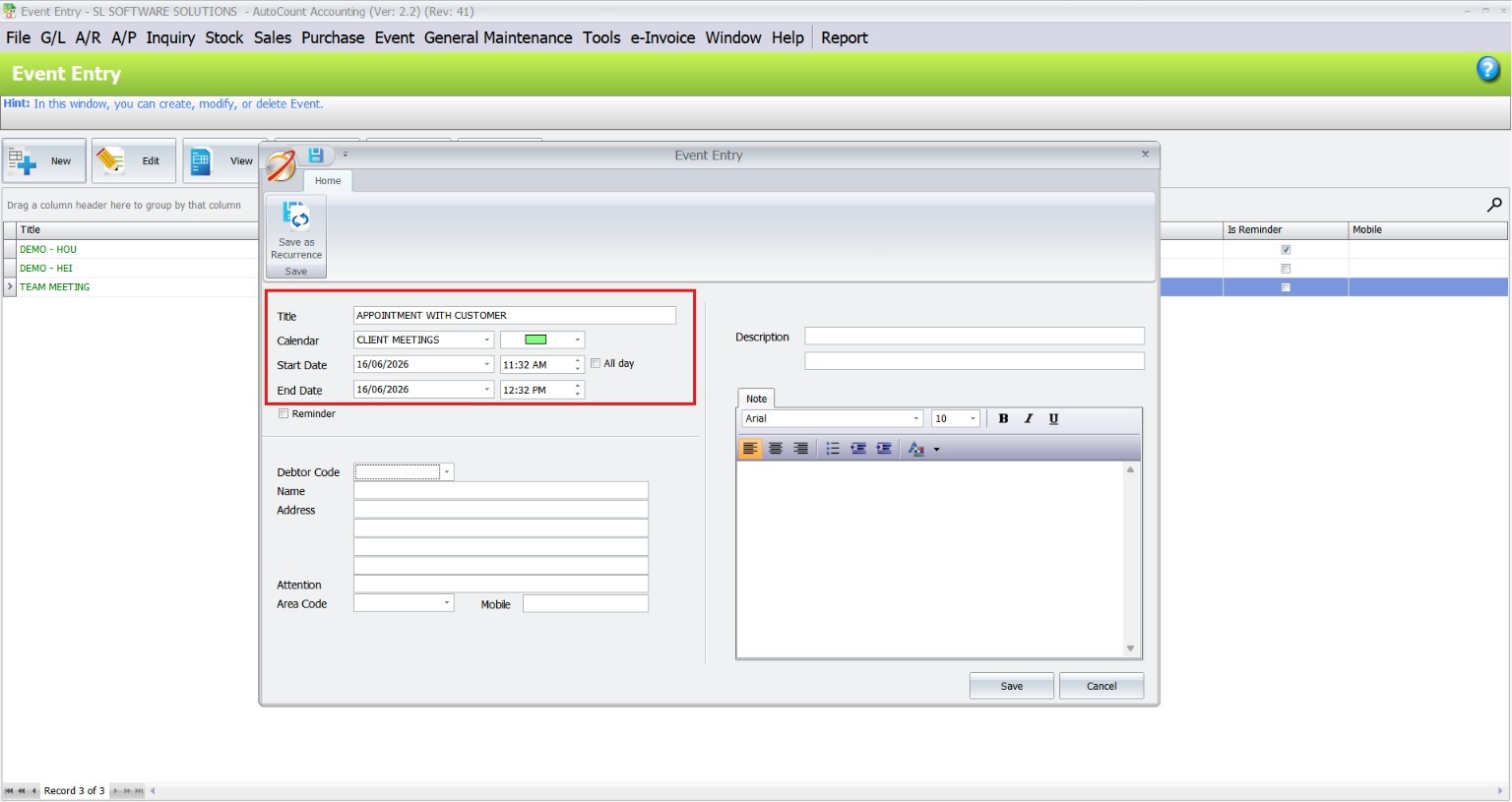
Go to Event > Event Entry to add new schedules. Enter key details such as the event name, calendar type, and time. Assign a specific color to the event to ensure it’s categorized correctly and easily identifiable.
Schedule specific events, appointments, or tasks.
Open Event Entry:
- Go to Event > Event Entry and click New to add a schedule.
Fill in Event Details:
- Event Name
- Calendar Type
- Date / Time
- Color for quick identification
2. Adding Remarks and Client Details
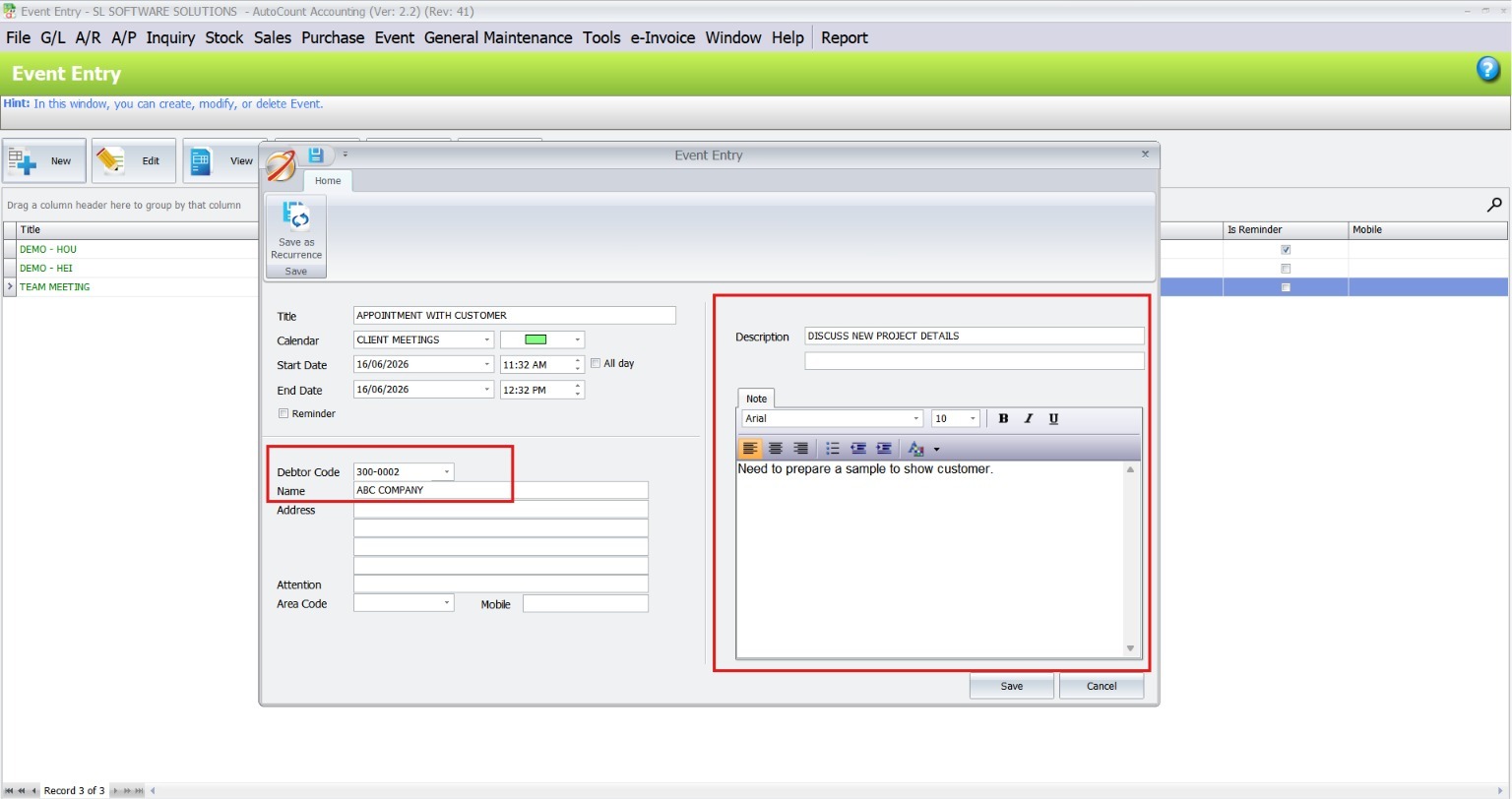
In the Debtor Code field, select the client associated with the event. You can also add remarks or additional notes about the appointment, such as meeting objectives or required materials. Once all details are entered, save the entry to have it reflected in the main calendar.
- Add Client Details & Notes: In Debtor Code, select the customer (if applicable). Add remarks like goals, location, or notes about materials needed.
Pro Tip:
Include a phone number or reference in remarks — this helps when including WhatsApp notifications or follow-ups.
Reminder Notifications
Staying ahead of tasks is easy with the plugin’s built-in Reminder Notification System.
1. Setting Timely Alerts
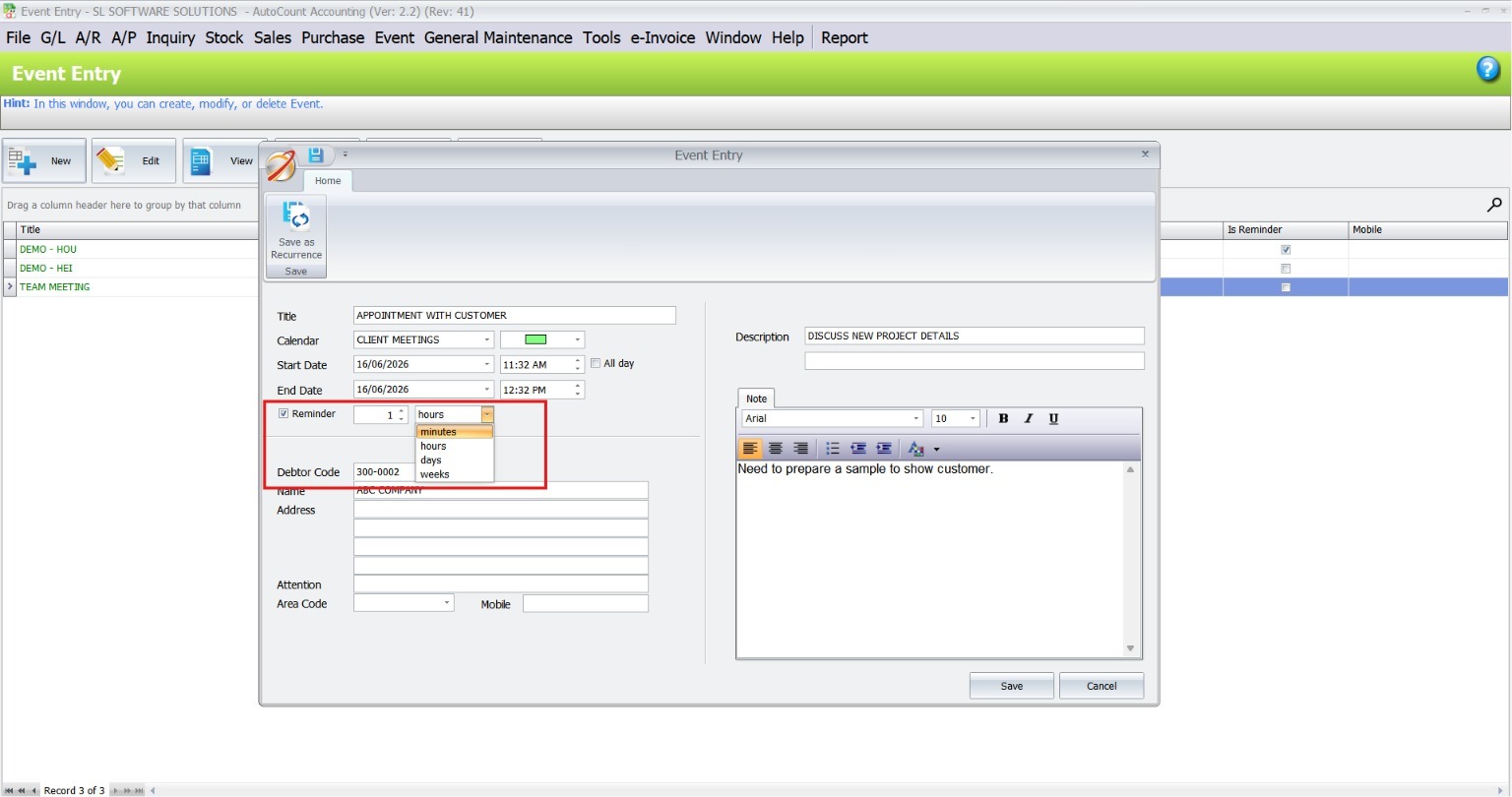
For each appointment, you can enable a reminder by editing the event and selecting the Reminder checkbox. Choose the preferred notification time frame, such as minutes, hours, days, or weeks before the event, to ensure timely reminders.
Keep your team ahead of time so tasks aren’t forgotten.
- Enable Reminder Alerts: Edit an event and tick Reminder. Choose when you want alerted — minutes, hours, days, or weeks before.
2. Managing Reminders Effectively
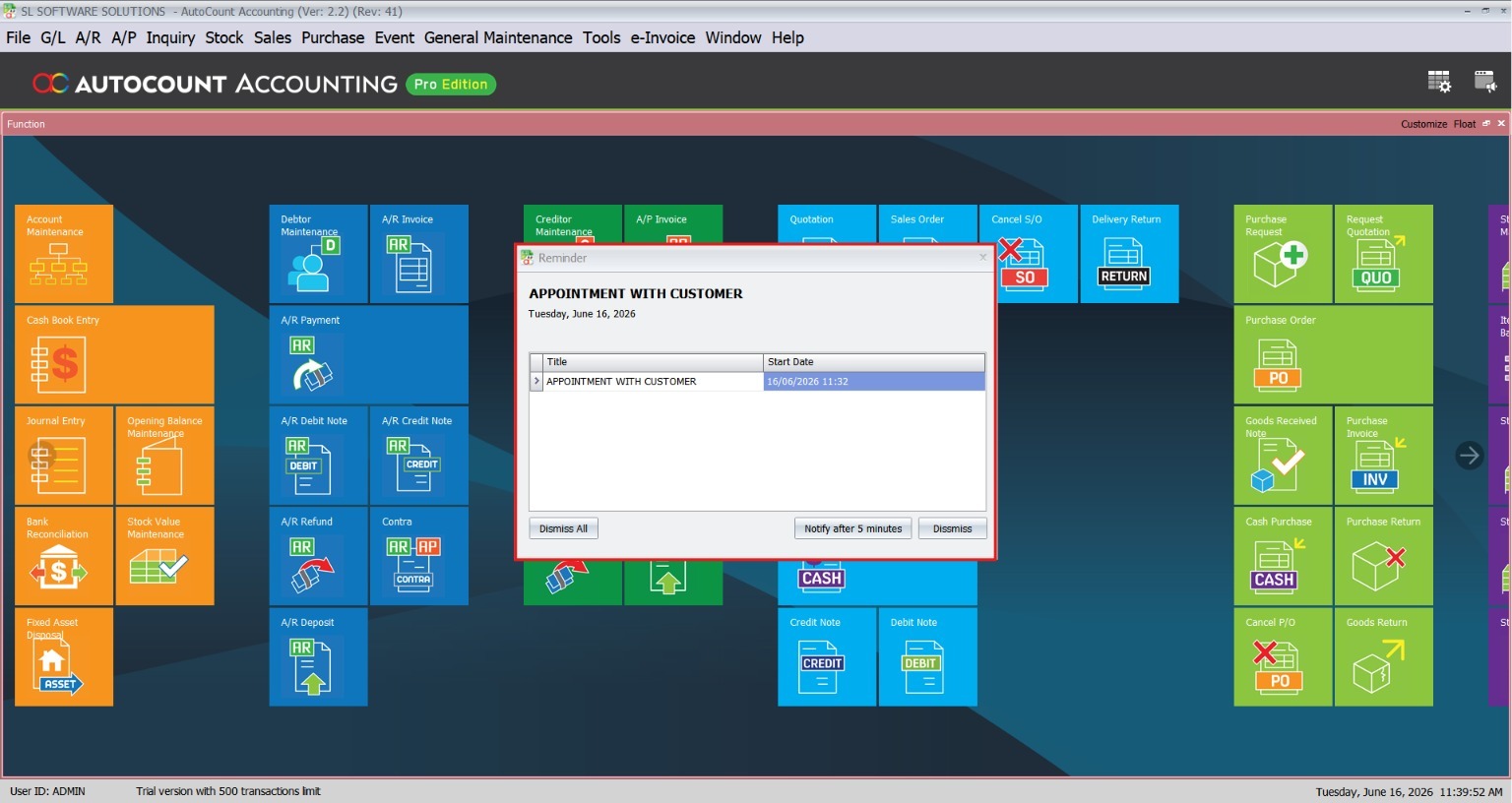
When the reminder window appears, you can dismiss it by clicking Dismiss All or Dismiss. If you’d like to postpone the reminder, select Notify After 5 Minutes to delay it for a more convenient time.
- Manage Reminders: When a reminder pops up, click Dismiss All / Dismiss to clear, or choose Notify After 5 Minutes to delay.
Pro Tip:
For customer appointments, set reminders a few hours before so you can check materials or confirm travel time
Recurrence Settings
The Recurrence Feature is ideal for automating repetitive schedules, such as weekly meetings or monthly reviews.
1. Automating Regular Schedules
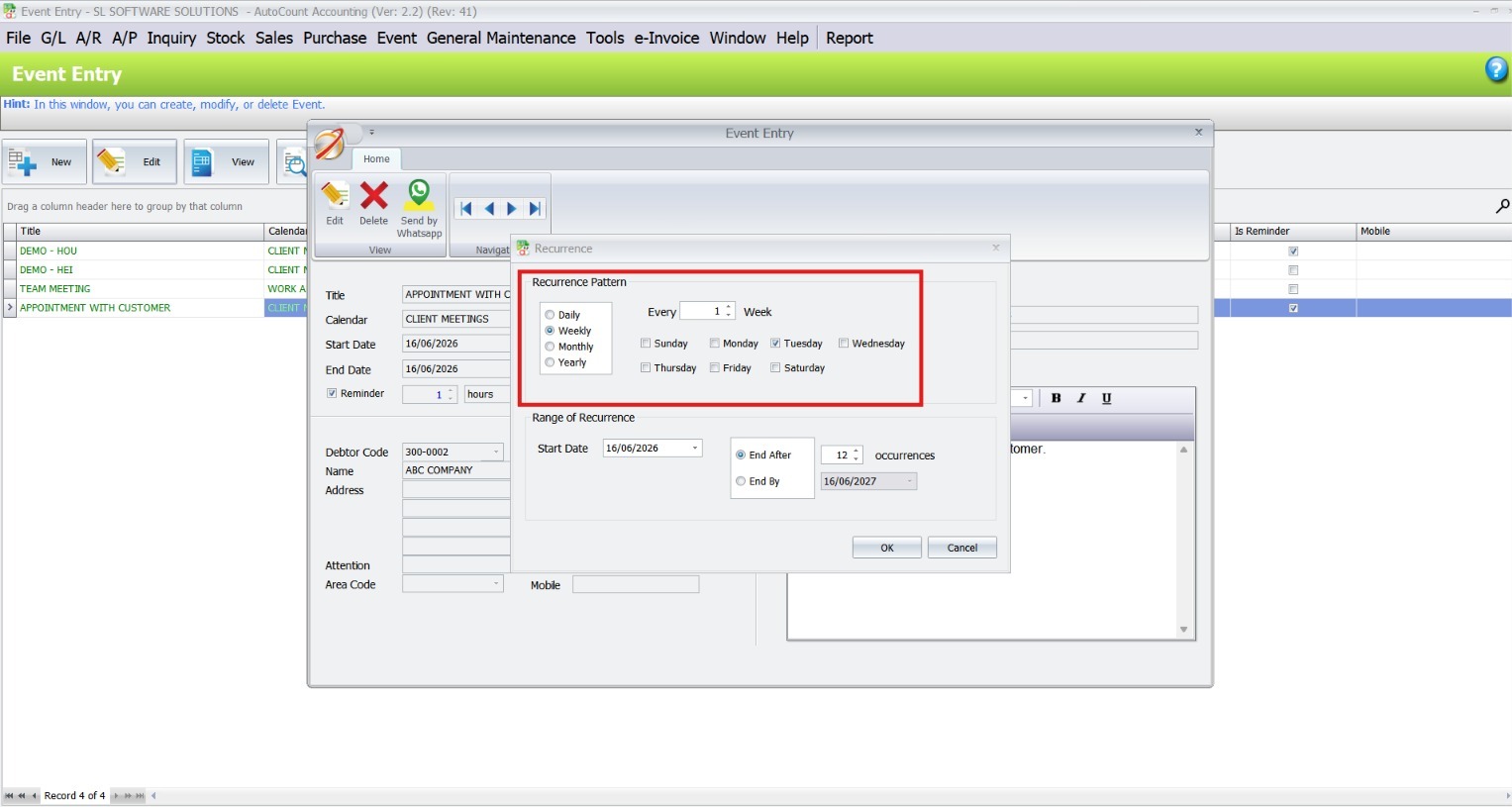
Edit an event and select Save as Recurrence to enable this feature. You can then configure the recurrence intervals, choosing from daily, weekly, monthly, or annually, depending on your needs.
Ideal for repeat schedules like weekly meetings or monthly check-ins.
- Enable Recurrence: Open an event and select Save as Recurrence.
- Set Interval: Choose how often it repeats — daily, weekly, monthly, or annually
2. Configuring Start and End Dates
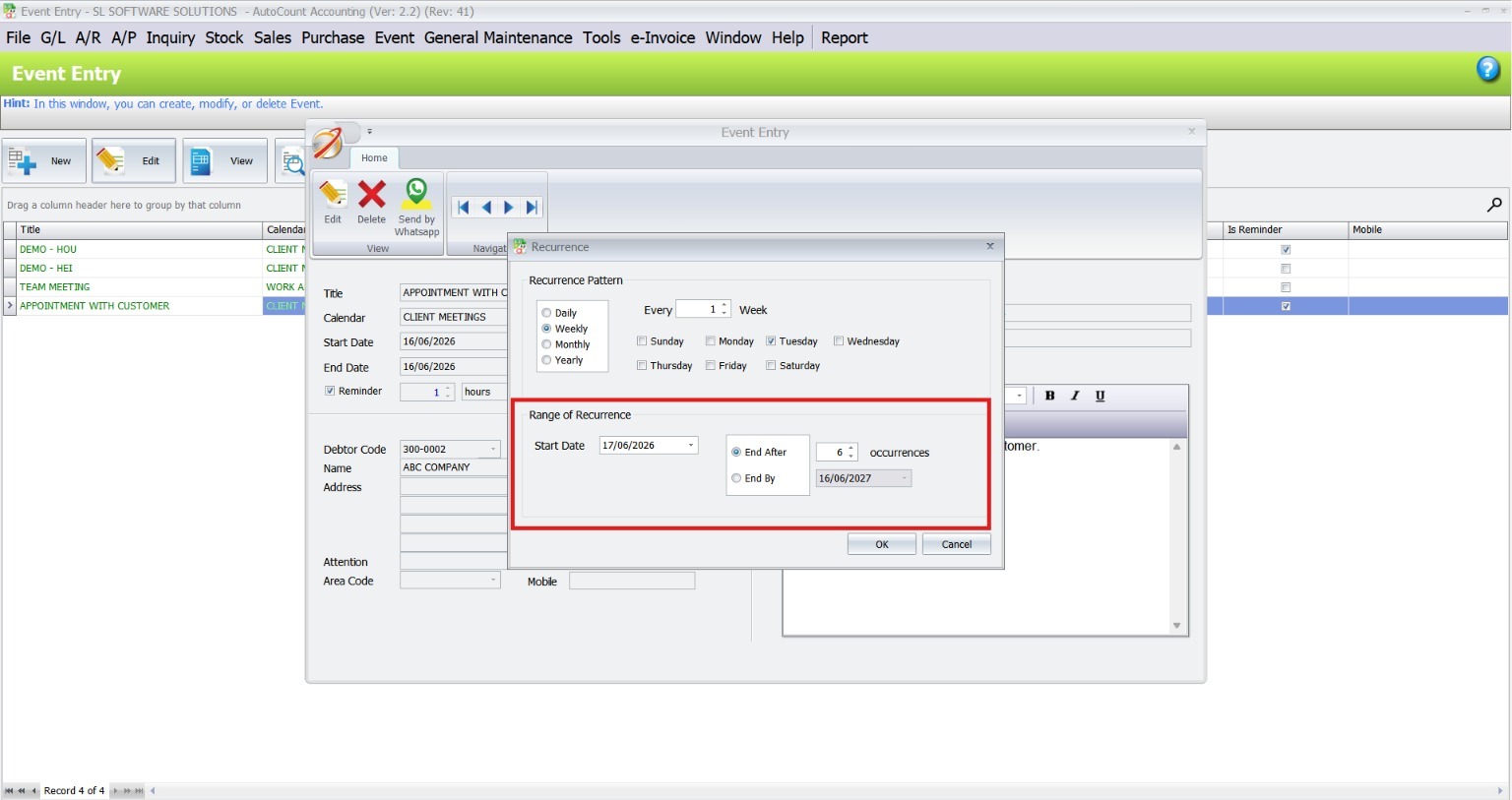
Define the recurrence’s start and end dates to align with your scheduling needs. For example, you can set a recurring meeting every Monday for the next six weeks.
- Define Start & End: Select the dates where the recurring pattern begins and ends.
Pro Tip:
Use this for things like “Weekly Staff Sync” or “Monthly Billing Review” so you don’t create the same event manually each time.
WhatsApp Notification Integration
The plugin’s WhatsApp Notification Integration is a unique feature that simplifies client communication.
1. Sending Appointment Confirmations
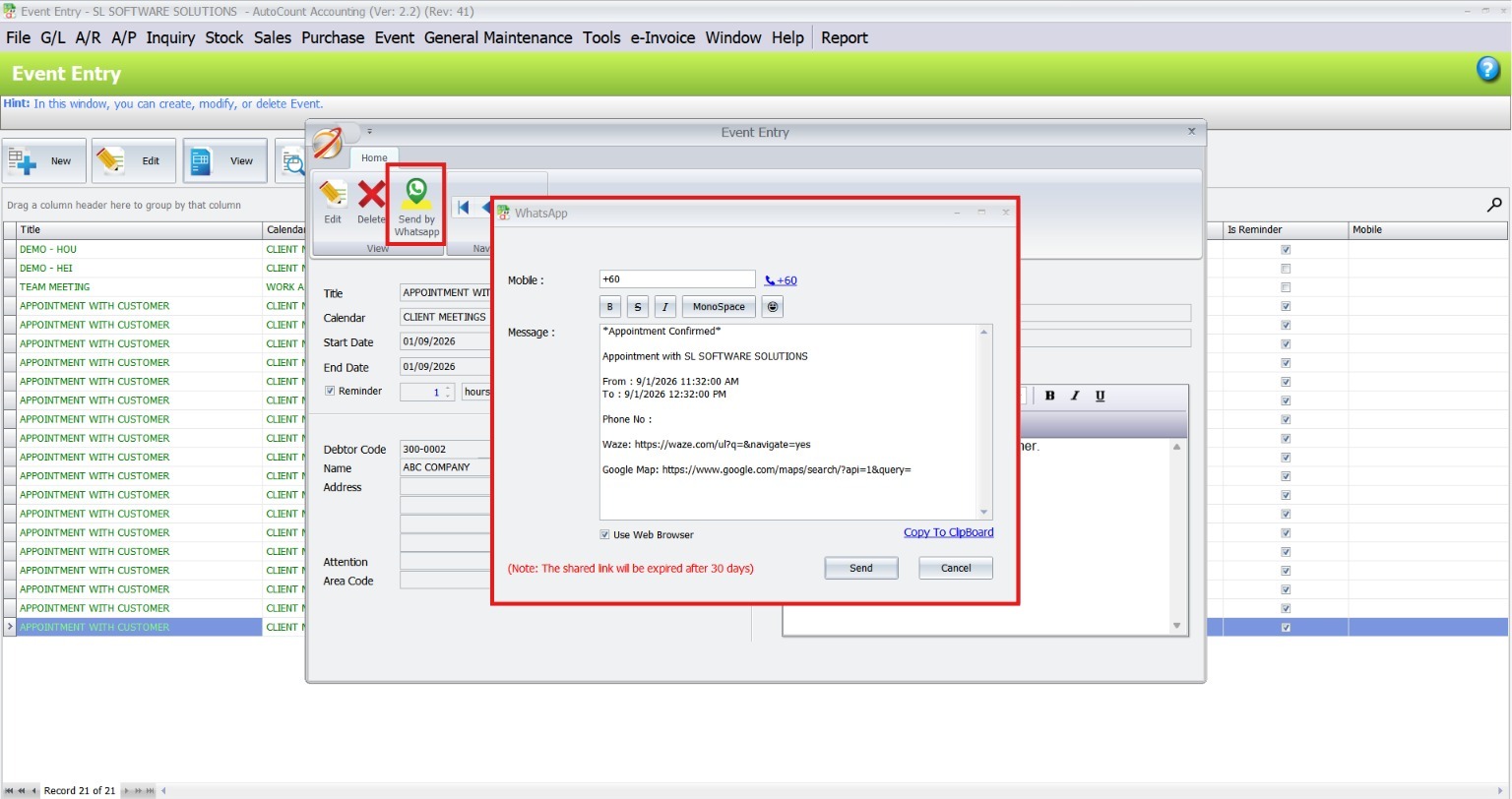
Select the desired appointment and click View > Send by WhatsApp. Enter the client’s phone number and send the notification with a single click. Use this feature to remind clients about upcoming meetings or confirm their attendance. This helps reduce no-shows and ensures clear communication between both parties.
This feature helps reduce missed appointments.
- Select an Event: Choose the appointment you want to notify about.
- Send via WhatsApp: Click View > Send by WhatsApp, confirm or enter the client’s phone number, and send.
Pro Tip:
Use WhatsApp notifications to confirm bookings or remind customers the day before — this cuts down no-shows.
User Interface and Accessibility
Calendar View Options
The AutoCount Event Management System Plugin offers flexible Calendar View Options to cater to different user preferences.
1. Day, Week, and Month Previews
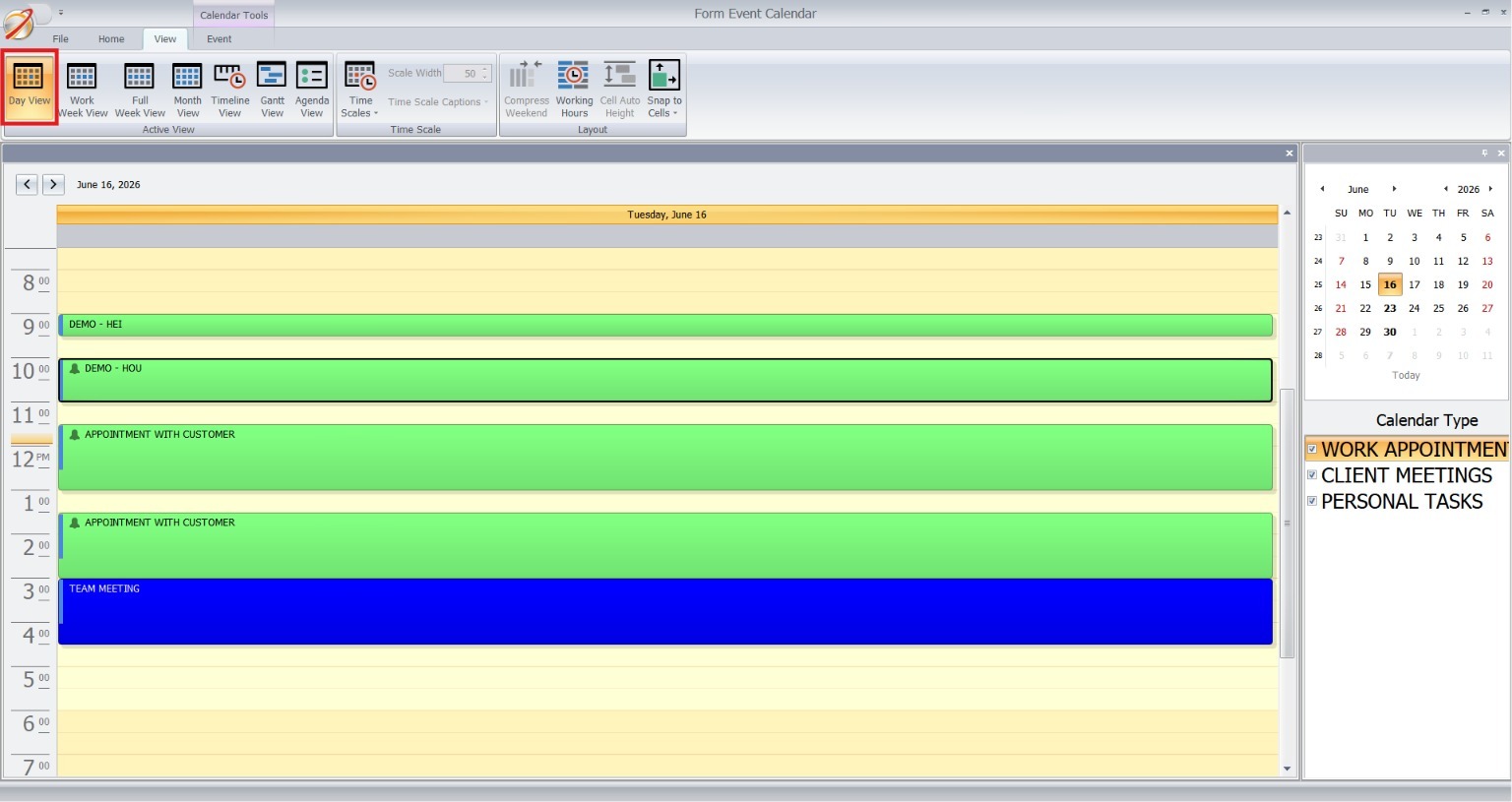
Switch between daily, weekly, and monthly views to suit your needs. Use the Day View for a detailed breakdown of events or the Month View for a broader perspective of your schedule.
View your schedule in ways that make your planning easier.
- Day View: Focused look at detailed timelines.
- Week View: Balanced view to plan blocks of tasks.
- Month View: Big-picture perspective for long-term planning.
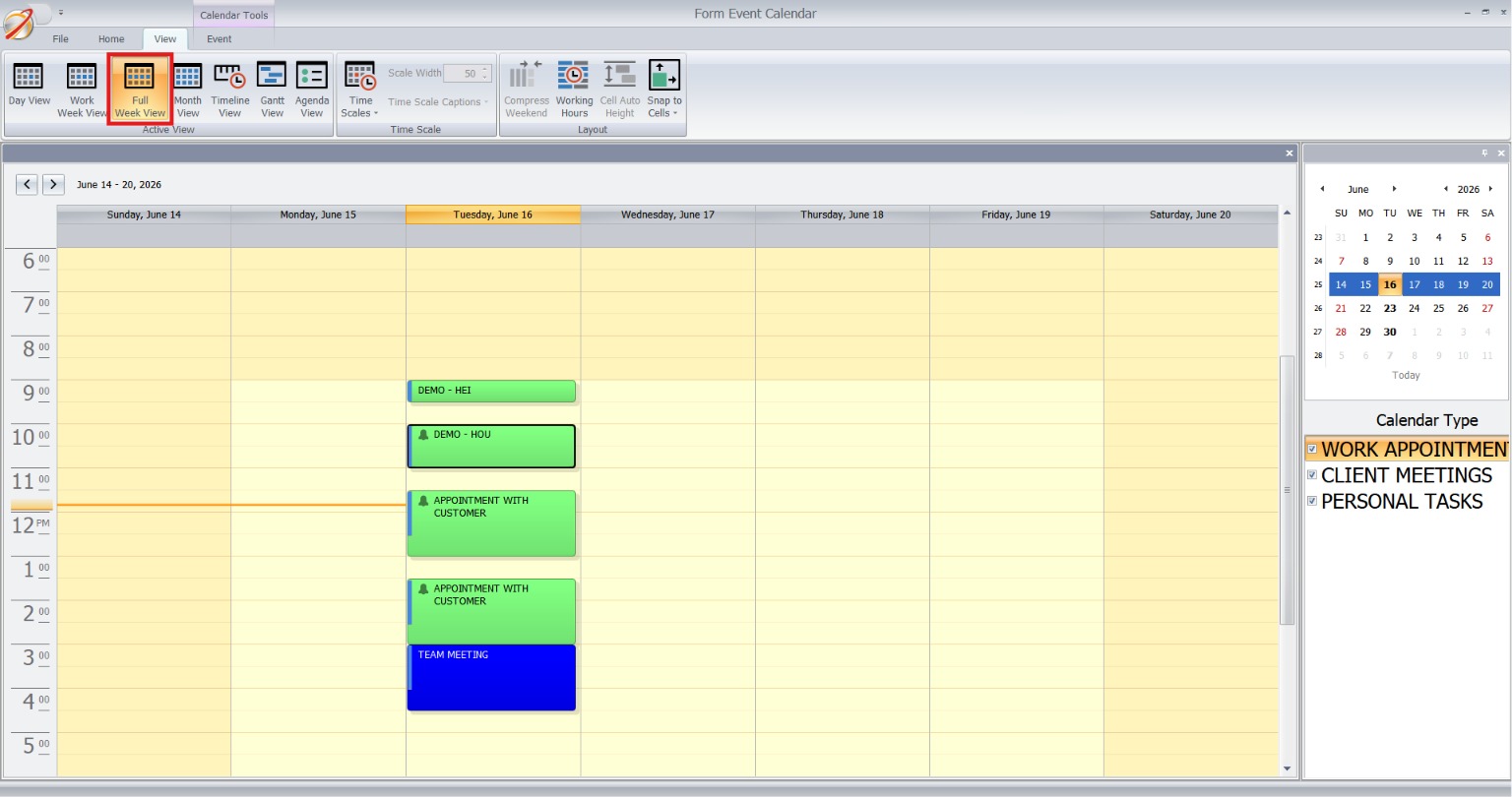
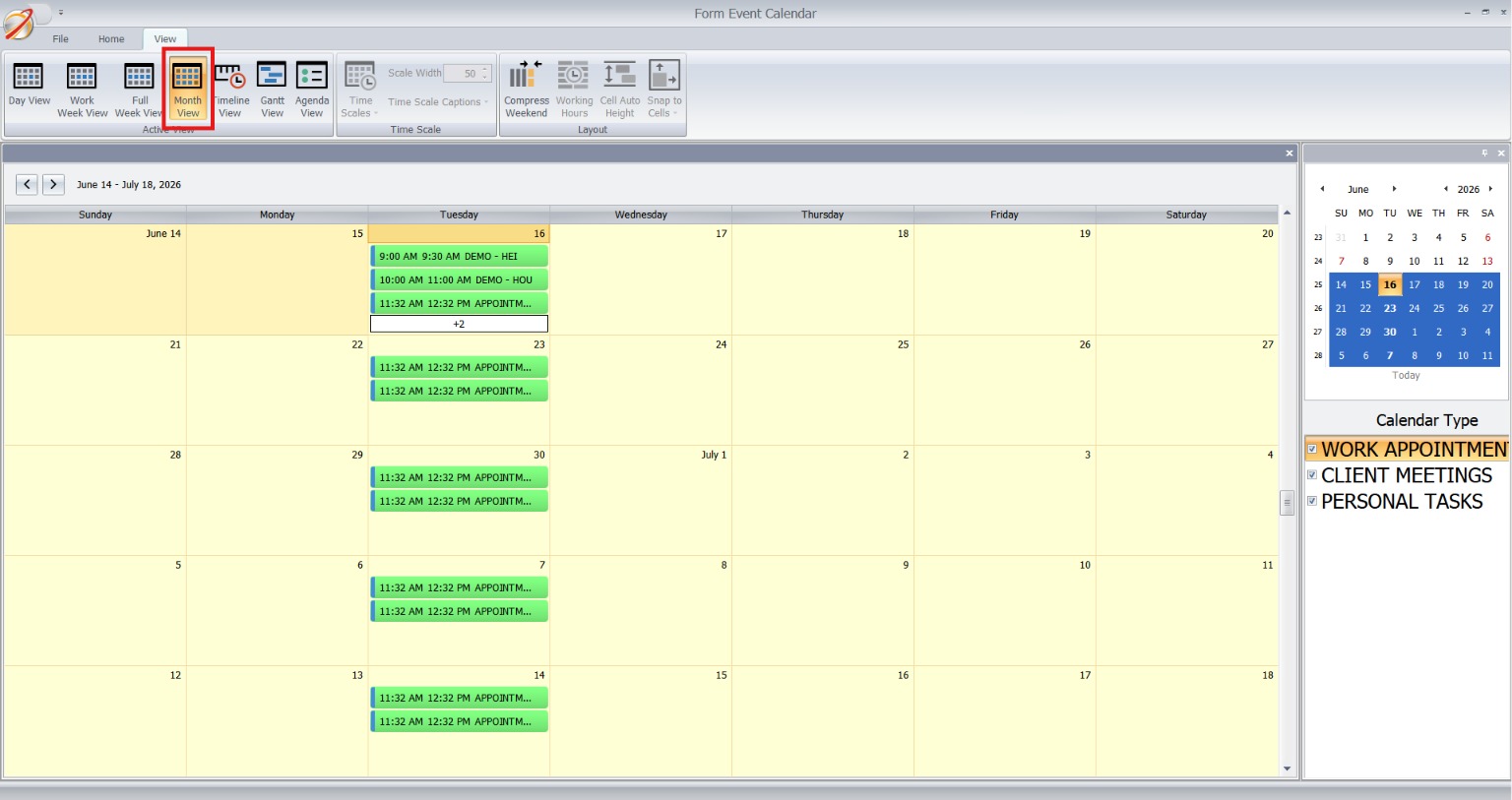
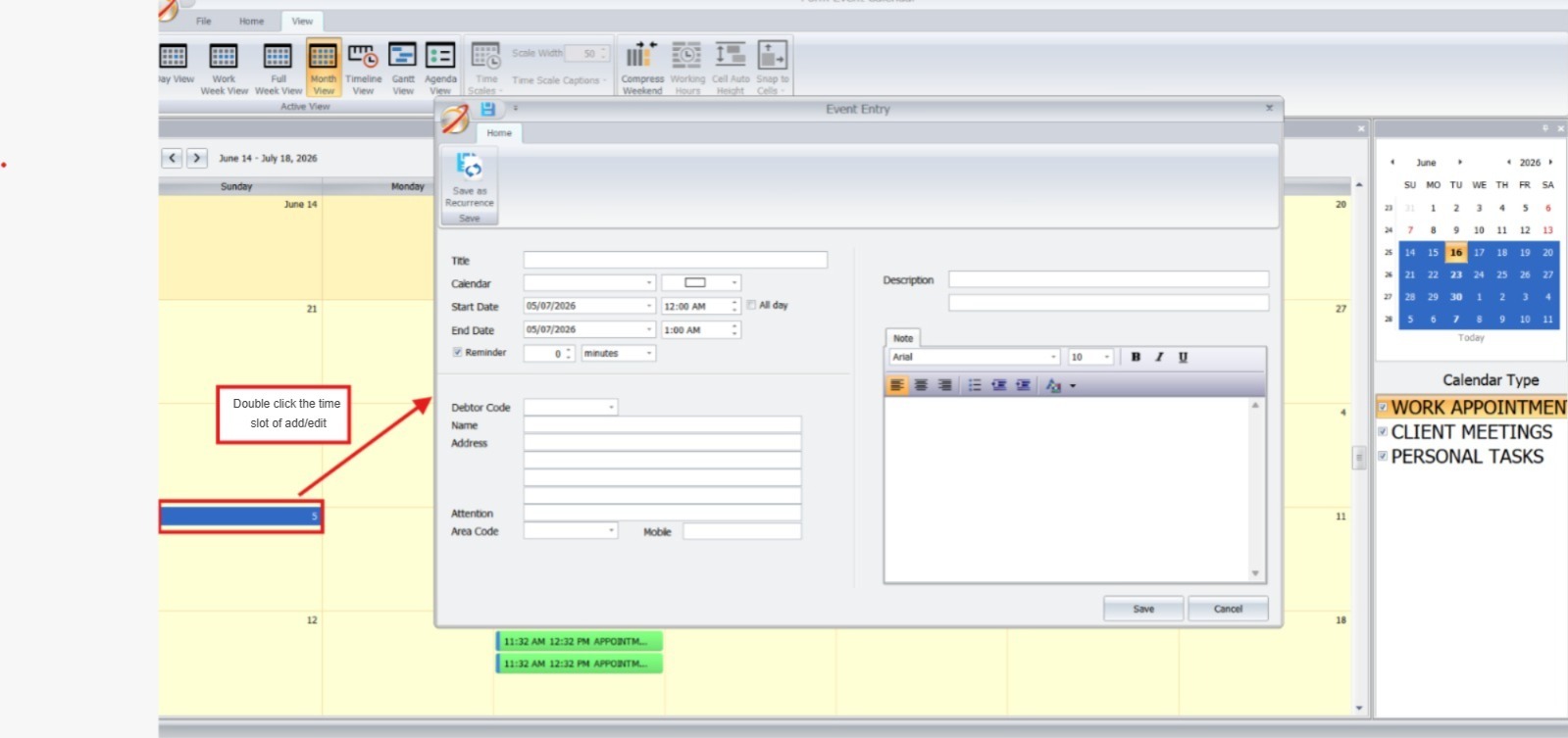
2. Creating and Editing Events Directly from Calendar
Double-click any time slot on the calendar to quickly add or modify events. This feature simplifies making last-minute changes and ensures your schedule stays up-to-date.
- Edit Directly From Calendar: Double-click any time slot to add or modify events without opening a separate screen.
Google Calendar Integration
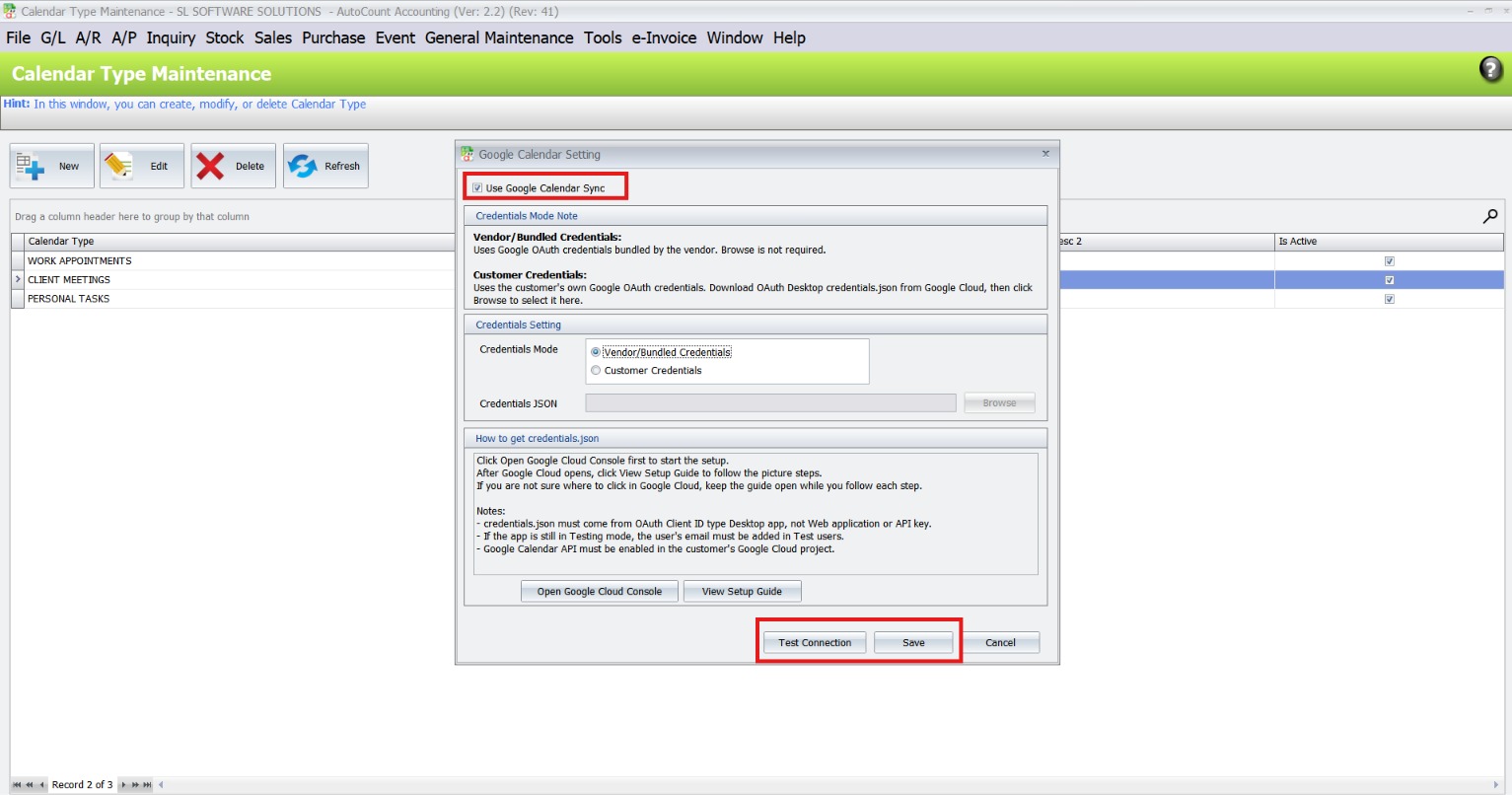
The Google Calendar Sync feature helps keep AutoCount events connected with Google Calendar, making it easier for users to manage appointments, meetings, and reminders in one place.
1. Enabling Google Calendar Sync
Ideal for businesses that want AutoCount appointments to appear in Google Calendar automatically.
- Enable Sync: Google Calendar Setting : Tick Use Google Calendar Sync
- Test & Save: Click Test Connection to verify the setup, then click Save to activate syncing.
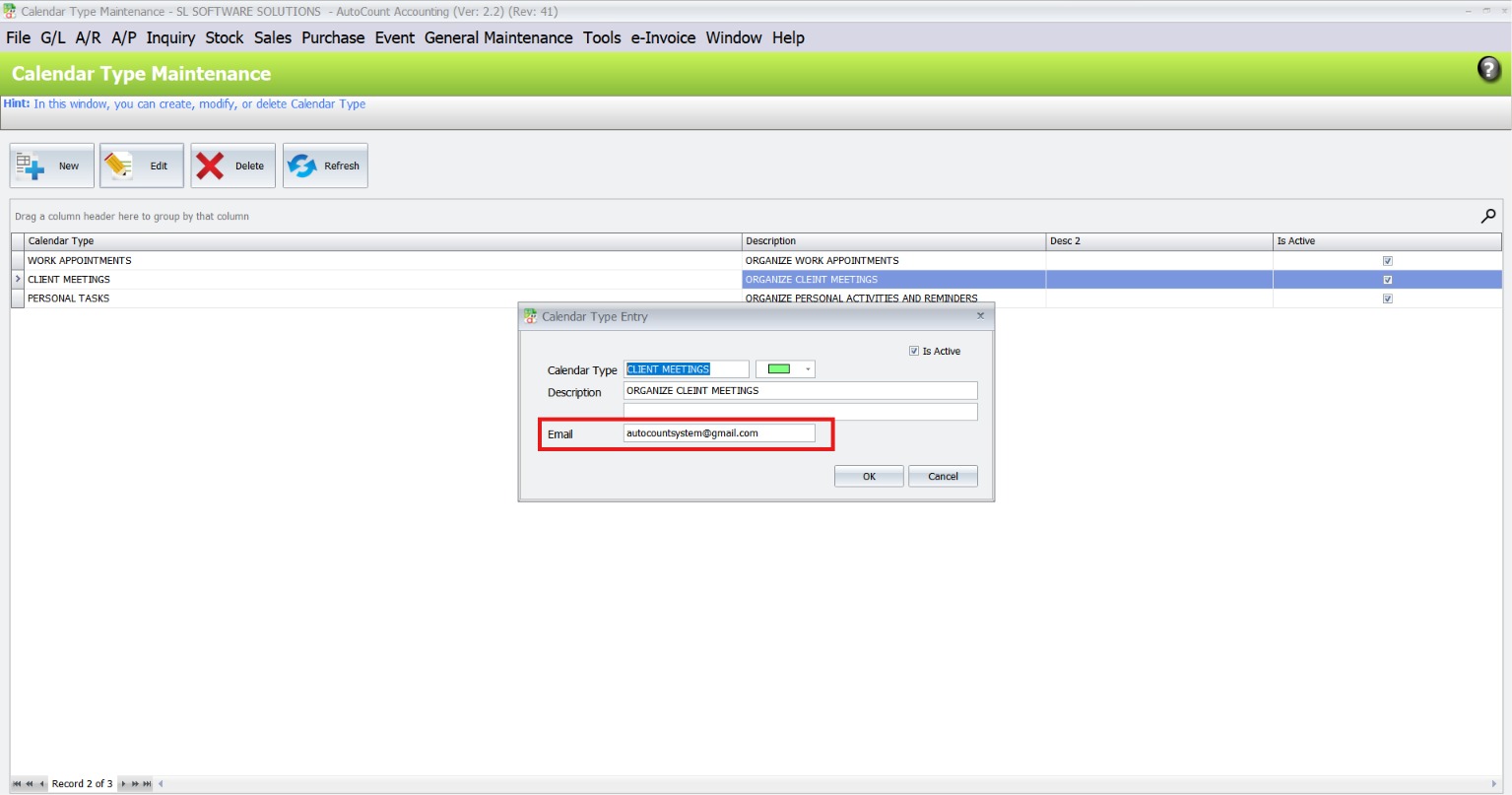
2. Setting Calendar Type Email
- Select Calendar Type: Choose Calendar Type you want to sync calendar with.
- Enter Email Address: Add the email and save settings
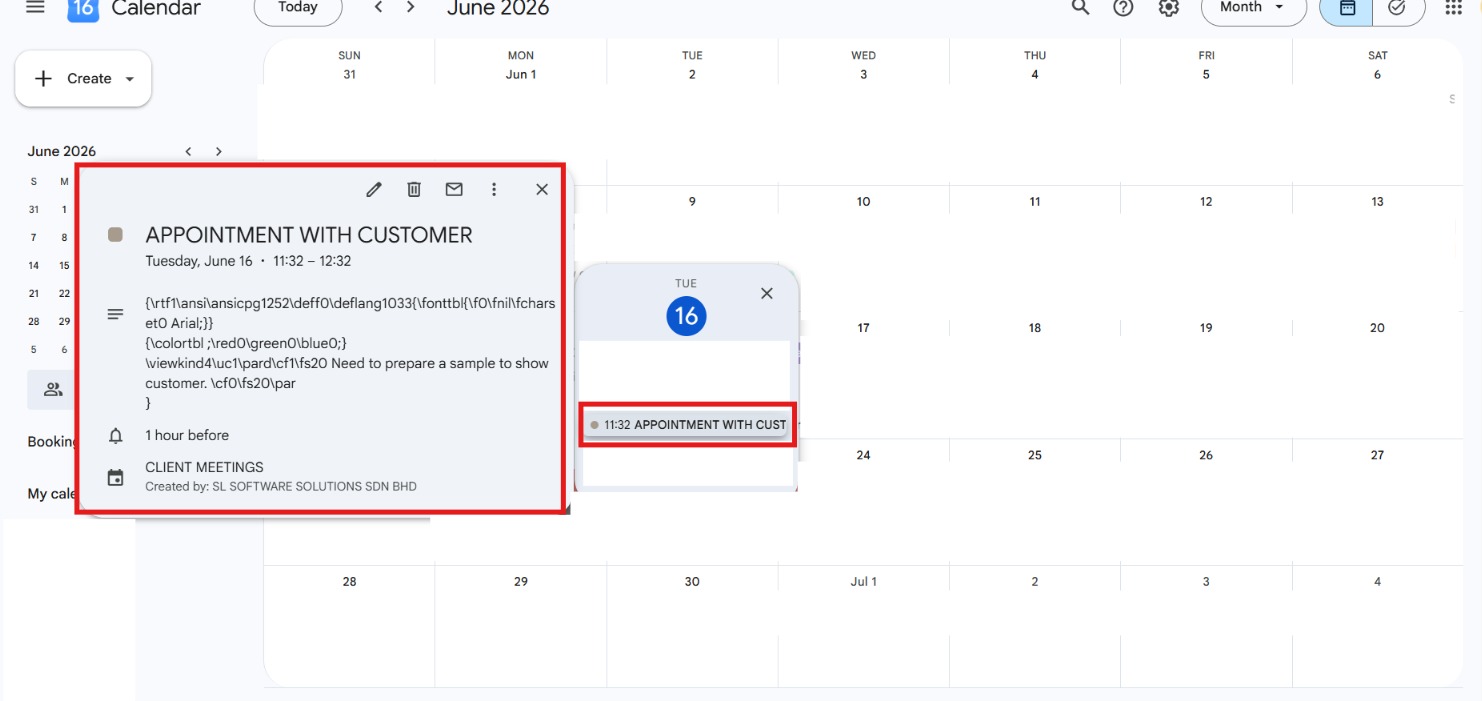
3. View Synced Events in Google Calendar
- Synced Appointment Details: Event title, date, time, reminder, and calendar type are shown in Google Calendar.
- Easy Schedule Tracking: Users can view upcoming appointments from Google Calendar without opening AutoCount.
Tips for Efficient Event Management
These practical habits help you get the most out of the system.
Regularly review reminders to stay on top of tasks.
Use the color-coding feature to identify priorities at a glance.
Keep your calendar categories clean, delete old ones you no longer use
Benefits of using Event Management System Plugin
Increased Efficiency
Plan, view, and manage events in one interface — no external calendars needed.
Better Accuracy
Detailed event entries and reminders cut down mistakes from manual scheduling.
Time Saving
Recurring events and bulk notifications streamline repetitive tasks.
Flexibility
Day/Week/Month calendar views and colour tags help you adapt planning to your workflow.
Seamless Integration
Everything lives inside AutoCount, so your appointment data connects with customer records and reminders are centralised.
Real-Life Applications and Use Cases
Small Businesses
- Manage client bookings, streamline team schedules, and send automated reminders.
- Example: A salon owner can set recurring appointments for regular customers.
Corporate Teams
- Organize team meetings and synchronize calendars across departments.
- Example: A project manager can use shared calendars to track deadlines.
Personal Scheduling
- Stay on top of personal commitments like fitness sessions or family events.
- Example: Use the calendar to set reminders for birthdays or anniversaries.
Streamlining Scheduling with AutoCount Plugin
The AutoCount Event Management System Plugin is a powerful tool for anyone looking to simplify scheduling and improve productivity. From calendar customization to WhatsApp notifications, it combines flexibility and functionality to deliver a seamless experience. Whether you’re managing a business or your personal commitments, this plugin ensures you stay organized and efficient.
Frequently Asked Questions
What is the cost of the plugin?
The cost depends on your subscription plan with AutoCount. Contact support for detailed pricing.
Can reminders be customized?
Yes, reminders can be set to notify minutes, hours, or even days in advance.
How secure is the plugin?
The plugin integrates with AutoCount’s secure infrastructure, ensuring data protection.
Does it support integrations beyond WhatsApp?
Currently, WhatsApp is the primary notification feature, but future updates may expand integrations.
Can multiple users access the same calendar?
Yes, the plugin supports multi-user access for collaborative event management.
Is it suitable for large enterprises?
While designed for businesses of all sizes, the plugin excels in small to medium enterprises.
Interested in Getting AutoCount for your Business?
Contact our sales team today to explore pricing options and get started with the perfect solution for you.