
-
AutoCount Accounting Features
-
- Approval Workflow
- Audit Trail
- Auto Save in Draft Folder
- AutoCount Contra Account
- AutoCount License Setting Guide
- Deposit Tracking & Management
- Documents Numbering Format
- Full Transfer and Partial Transfer
- Import Data to AutoCount Accounting Using Excel
- Informative Charts and Analytical Data
- Layout Customization
- Multi Pricing
- Sales and Services Tax
- Schedule Backup
- Search Lookup Edit
- View Documents Flow
- AutoCount Feature Stock Take
- Column Chooser
- Show Remaining (3) Collapse
-
AutoCount Cloud Accounting
-
AutoCount E-Invoice
-
AutoCount HRMS User Guide
-
AutoCount Modules
-
- Activity Stream
- Advanced Financial Report
- Advanced Item
- Advanced Multi-UOM
- Advanced Quotation Module
- Basic Multi-UOM
- Budget Module
- Consignment
- Filter By Salesman
- FOC Quantity
- Formula
- Item Batch
- Item Package
- Landing Cost
- Multi-Currency
- Multi-Dimensional Analysis
- Multi-Location
- Project Account
- Recurrence
- Remote Credit Control Module
- Stock Assembly
- User Defined Fields (UDF)
- AutoCount SST Hidden Functions
- AutoCount SST Submission - Service Tax
- AutoCount Scripting Module User Guide
- AutoCount Bonus Point Module User Guide
- AutoCount Service Management Plugin User Guide
- Show Remaining (12) Collapse
-
AutoCount Plugins
-
- Fixed Assets Management
- Goldsmith
- TD Ordering Mobile Apps
- TD Stock Mobile Apps
- Universal Import Plugin
- DMS Import Plugin
- AutoCount Pick List Plugin User Guide
- AutoCount Credit Memo Plugin User Guide
- AutoCount Lock Price Plugin
- AutoCount Progressive Billing
- AutoCount Easy Recurrence Plugin
- Batch Update Unit Price Plugin
- AutoCount Production order
- AutoCount Car Tint Film Plugin
-
- Event Management System
- AutoCount To-Do List Plugin
- AutoCount AutoBank Reconciliation Plugin
- Intercompany Billing Plugin User Guide
- Lead Management 2.0 Plugin
- AutoCount Service Contract Plugin User Guide
- AutoCount Optical Plugin
- AutoCount Integrator Plugin
- AutoCount Procurement Planning Plugin
- Cage Management Plugin
- AutoCount Vehicle Plugin
- AutoCount Agent Validation Plugin User Guide
- AutoCount Barcode Generator Plugin User Guide
- AutoCount Easy Batch Number Entry Plugin User Guide
- Warranty 2.0 Plugin
- AutoCount Easy Photo 2.0 User Guide
- AutoCount Recurring Invoice Plugin User Guide
- AutoCount Scale Barcode Plugin User Guide
- AutoCount Recurrence Late Interest Plugin
- AutoCount Item Visibility Control
- AutoCount Bill Remark Plugin User Guide
- AutoCount Pain Tracker User Guide
- AutoCount Easy Payment
- AutoCount Easy Deposit Plugin
- AutoCount Easy Knock Off Plugin
- AutoCount Daily Collection Summary Plugin
- Timber Log Plugins
- Batch Transfer SODO Plugin
- AutoCount Vege Basket Plugin Guide
- AutoCount Fruit Basket Plugin Guide
- Referral Management Plugin
- AutoCount Migrator Plugin
- AutoCount Email & WhatsApp Plugin
- AutoCount Multi Company Knock Off Plugin
- AutoCount Advance Aging Format Plugin
- AutoCount Payment Request Plugin
- AutoCount Vehicle Master Plugin
- AutoCount Advance Deposit Plugin
- AutoCount IC Checker Plugin
- AutoCount RMA Plugin
- AutoCount Historical Outstanding DO Listing Plugin
- AutoCount Project Department Visibility Control Plugin
- AutoCount MRP Order Plugin
- AutoCount GridToExcel Plugin
- AutoCount Stock Availability Report Plugin
- AutoCount Batch Transfer SO DO Plugin
- AutoCount Centralized Kitchen Management Plugin
- SL AutoCount API
- AutoCount InterCompany Billing Plugin
- AutoCount Sales Commission Plugin
- AutoCount Advanced Credit Term Plugin
- AutoCount Advanced Stock Assembly Plugin
- AutoCount Shipment Plugin
- AutoCount Tour Plugin
- AutoCount Smart Analysis
- AutoCount Rental Management
- Show Remaining (41) Collapse
-
-
Form Template
-
Report Template
-
- Advance Quotation
- Cash Sale
- Consignment
- Consignment Movement
- Credit Note
- Debit Note
- Delivery Order
- FOC Quantity Analysis By Document Report
- Invoice
- Item Package Sales Report
- Monthly Sales Analysis
- Outstanding Sales Order Listing
- Profit And Loss Of Documents
- Quotation
- Sales Agent Contribution Report
- Sales Order
- Top/Bottom Sales Ranking
- Show Remaining (2) Collapse
-
- Available Stock Status Report
- Expired Item Batch Listing
- Inventory Physical Worksheet
- Stock Adjustment
- Stock Aging Report
- Stock Assembly
- Stock Assembly Order
- Stock Balance By Location
- Stock Balance Report
- Stock Card Report
- Stock Disassembly
- Stock Issue
- Stock Item Profit Margin
- Stock Movement Report
- Stock Receive
- Stock Take
- Stock Transfer
- Stock Write Off
- Show Remaining (3) Collapse
-
B2B ORDERING
-
AutoCount AI Agent
AutoCount Accounting: Contra Account
Introduction to AutoCount Contra Account
Firstly, in accounting, contra account play a vital role in presenting a company's true financial position by offsetting balances in related accounts. AutoCount, a powerful accounting software, simplifies the management of contra accounts, particularly when dealing with both receivables and payables involving the same entity. Therefore, this guide will walk you through everything you need to know about AutoCount Contra Account—from setting up and recording transactions to leveraging advanced features and troubleshooting common issues.
AutoCount Contra Account Video Guide
A straightforward videos guide showing how to use AutoCount’s contra account feature to streamline accounting process and saves time.
- AutoCount Contra Account (EN)
Contra Account Setup
Integration & Contra Account Setup
- AutoCount Contra Account (CN)
反向账户设置
集成和对冲账户设置
Understanding the Concept of Contra Account
What is a Contra Account?
Firstly, a contra account is an account that reduces the balance of a related account. To clarify, it typically carries a balance opposite to the associated account. For example, accumulated depreciation is a contra asset account that reduces the value of the asset account it’s linked to. In addition, contra revenue accounts, like sales returns, reduce the total revenue reported.
Real-World Examples
In practice, businesses use contra accounts like allowance for doubtful accounts to anticipate potential losses from unpaid invoices, or sales returns to account for goods returned by customers. In addition, these accounts ensure that financial statements remain accurate and credible.
Avoiding Common Errors
Common errors include misallocating amounts or selecting incorrect accounts. Therefore, to avoid these mistakes, try to regularly reconcile your contra accounts and utilize AutoCount’s error-checking features to ensure accuracy.
Step-by-Step Guide
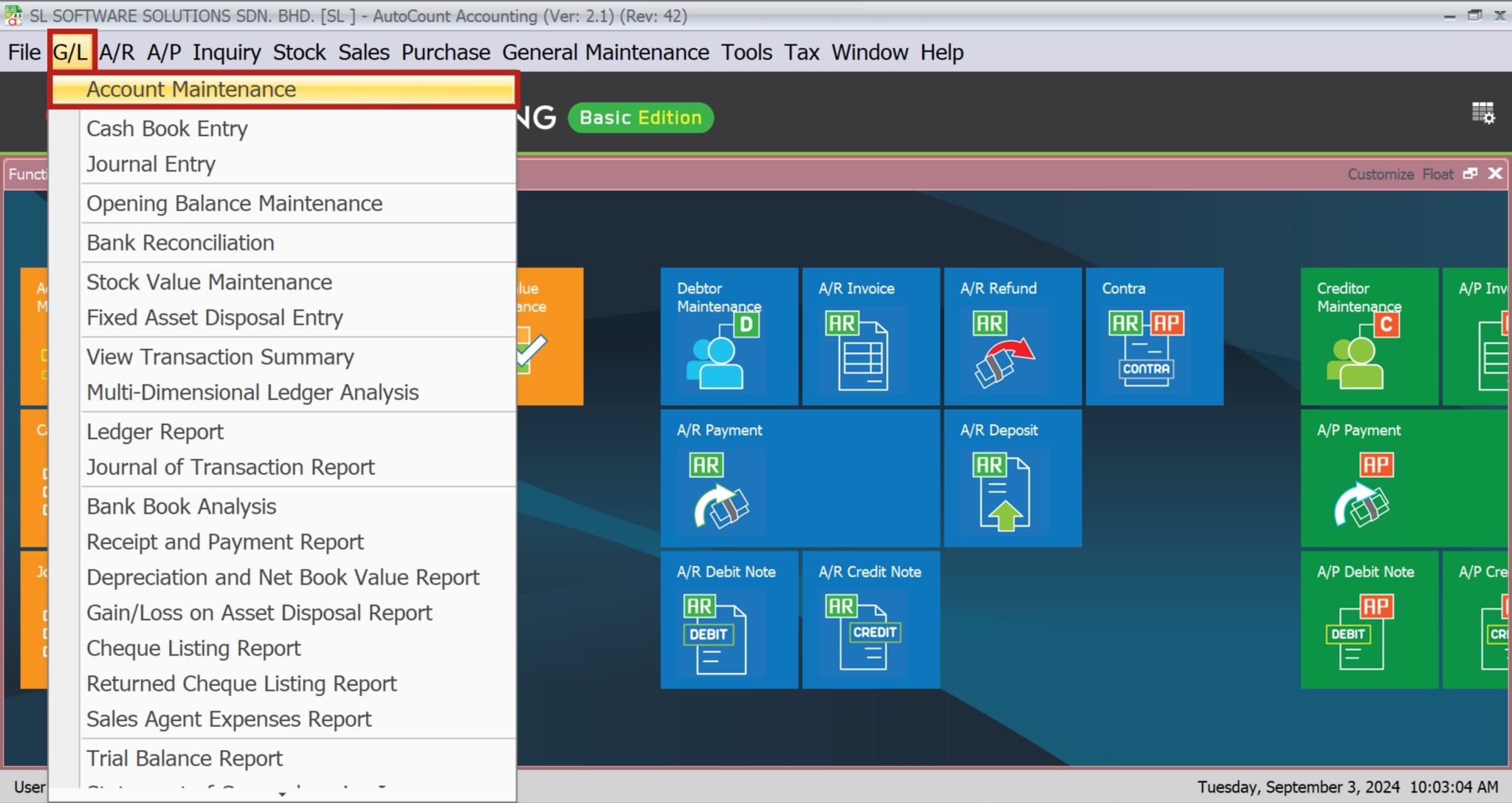
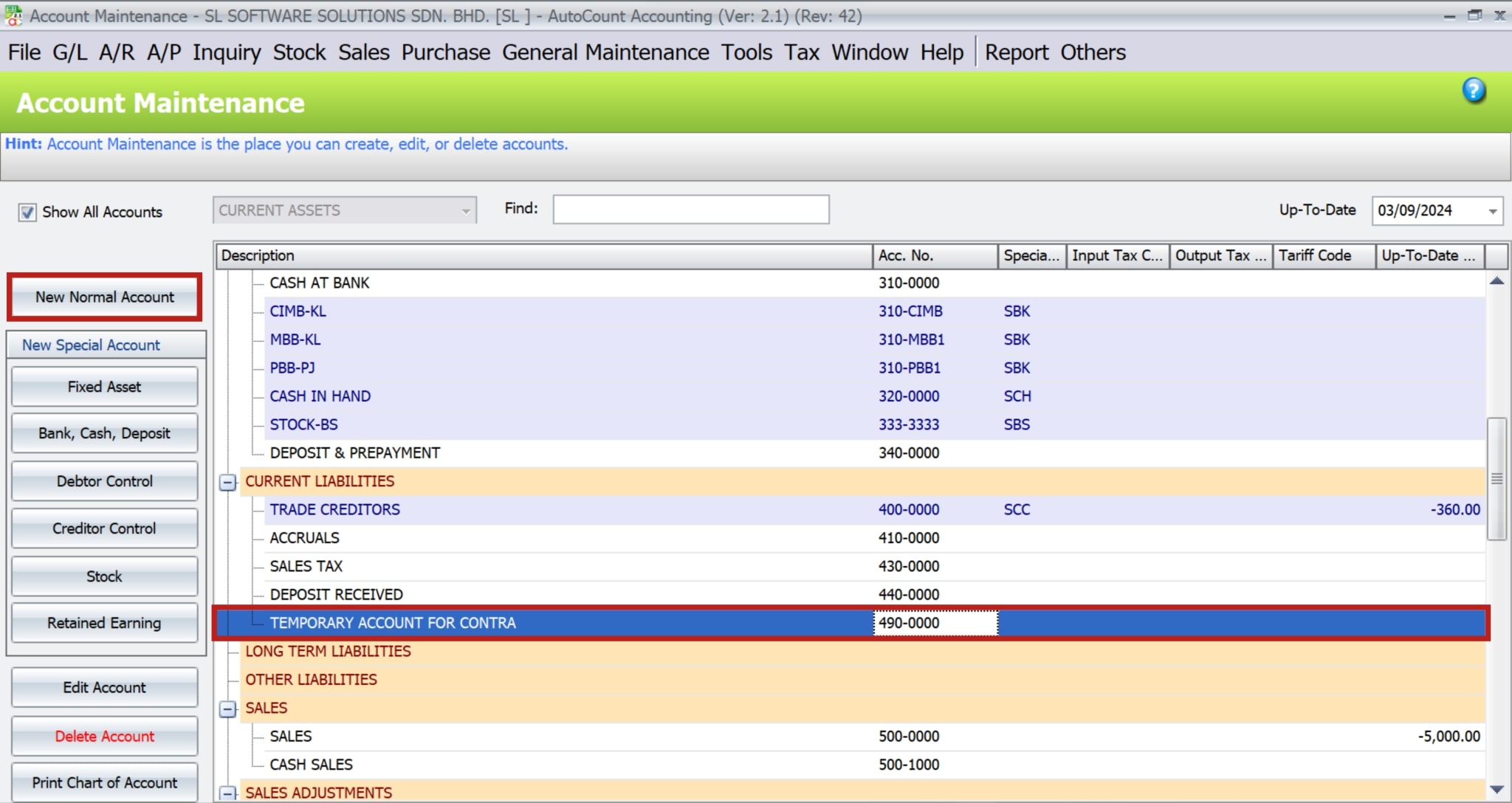
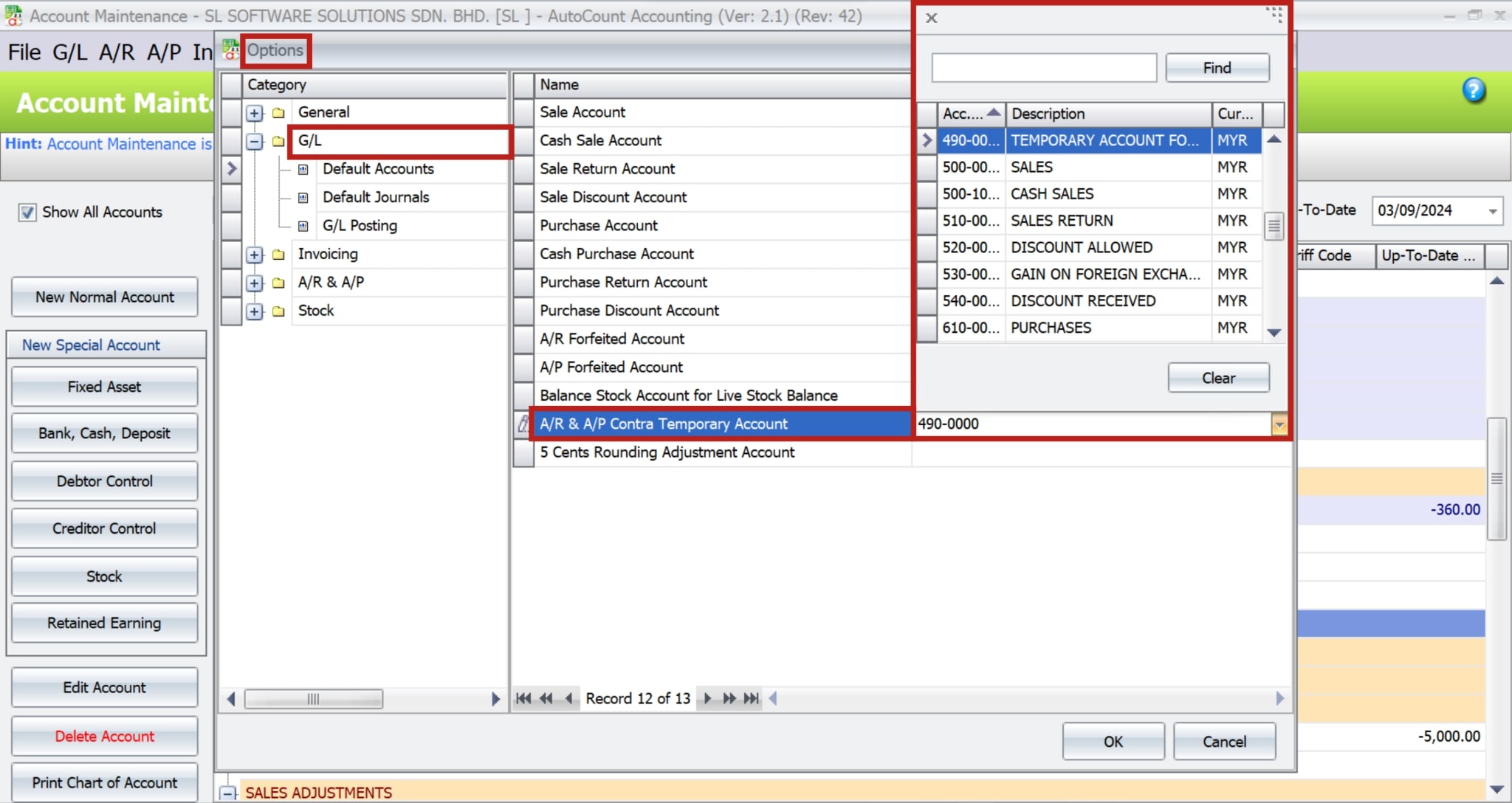
Create a new contra account in AutoCount:
-
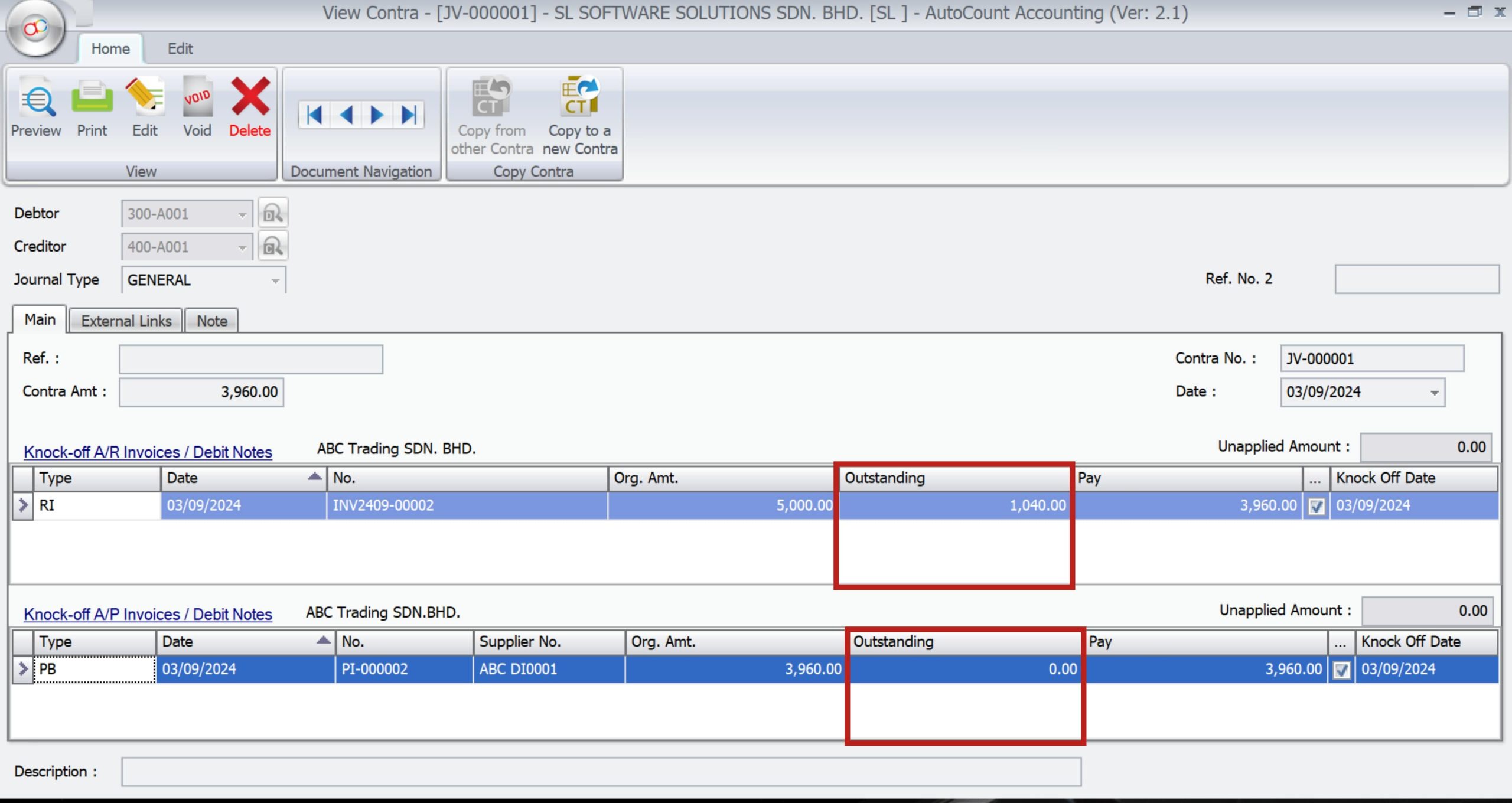
Firstly, navigate to A/R > A/R and A/P Contra Entry.
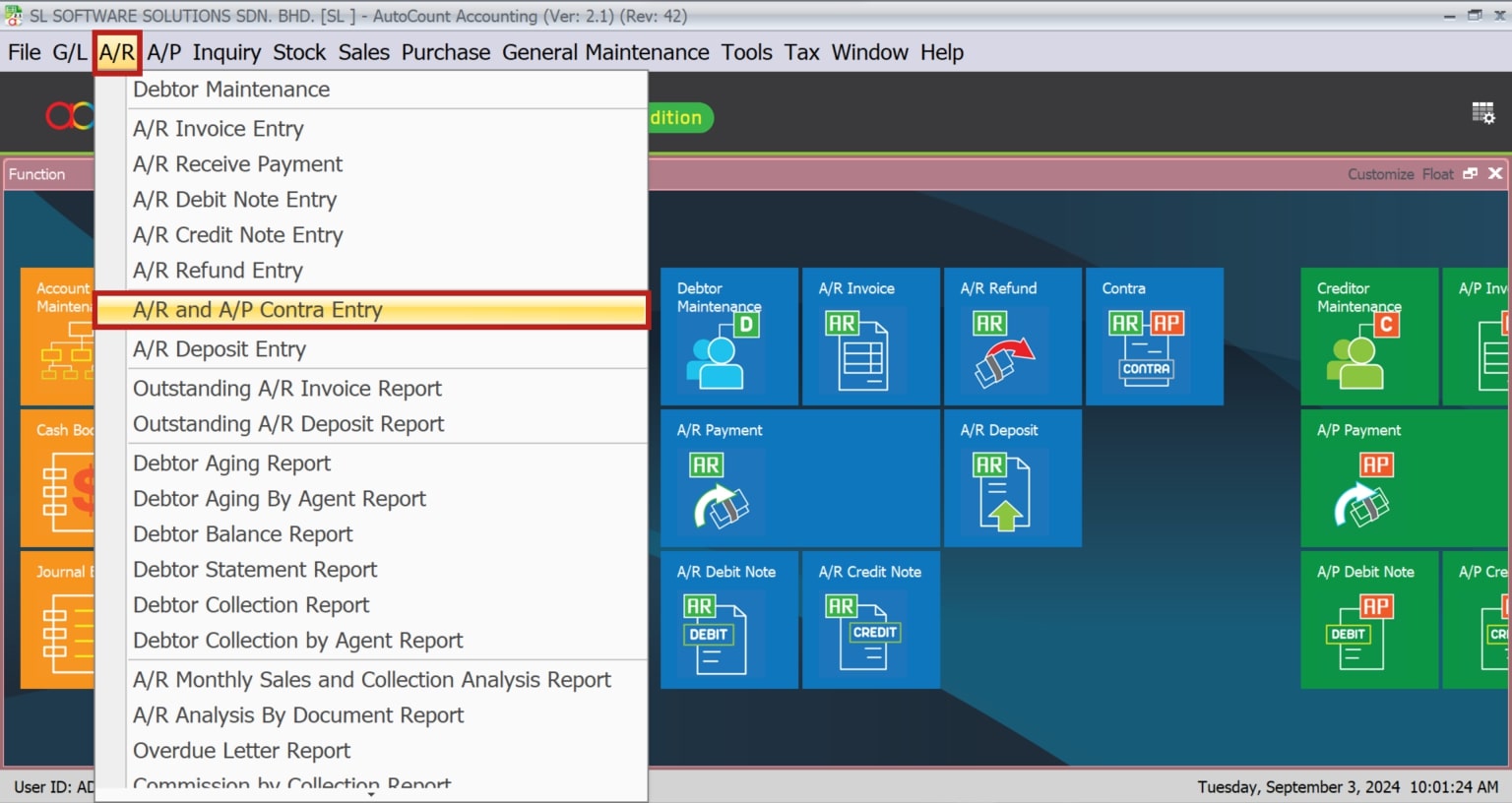
- Secondly, click on “Create A New Contra” to begin the process.
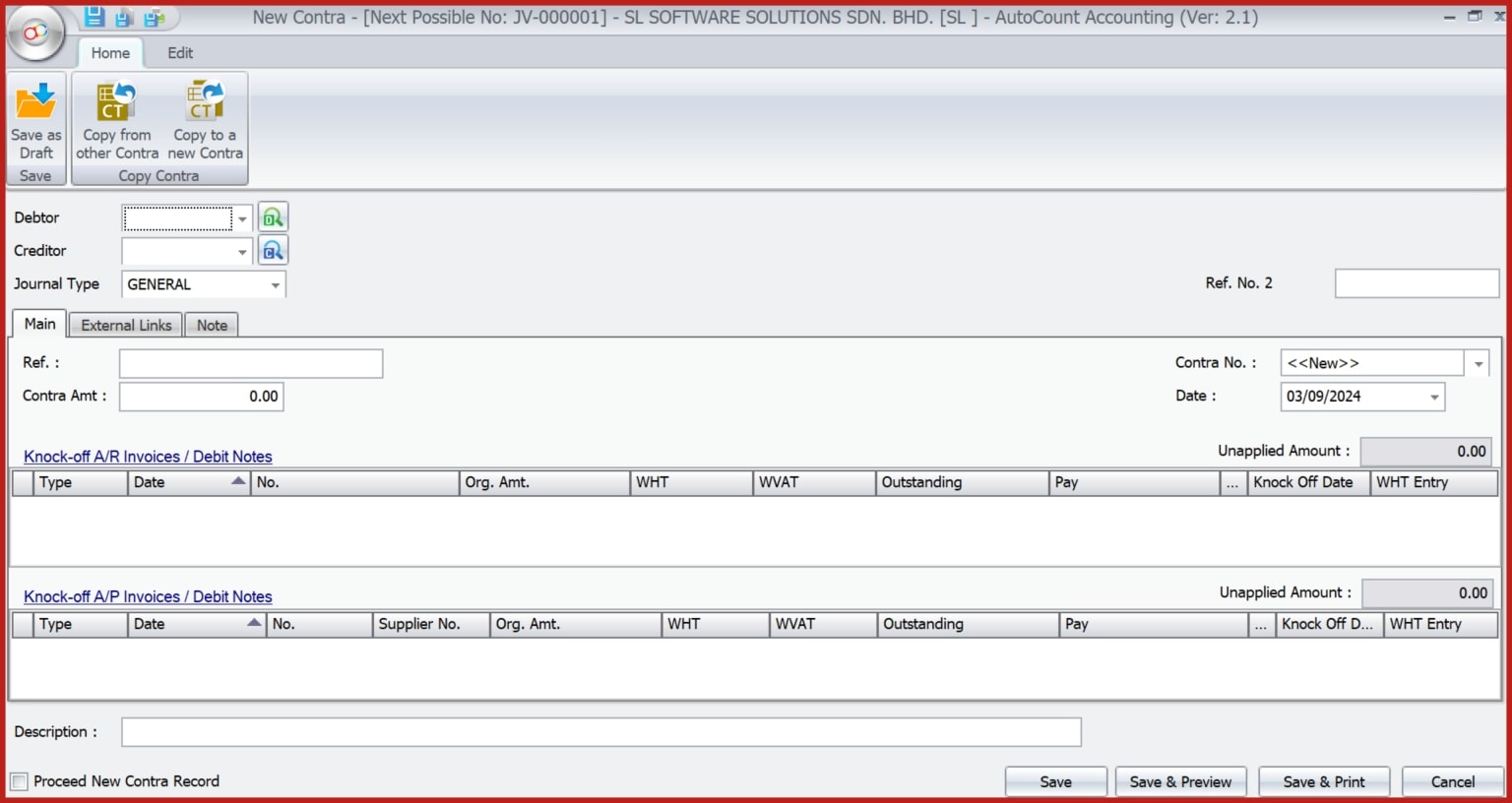
- Thirdly, assign the appropriate debtor and creditor by entering the relevant information or selecting from the drop-down menu.
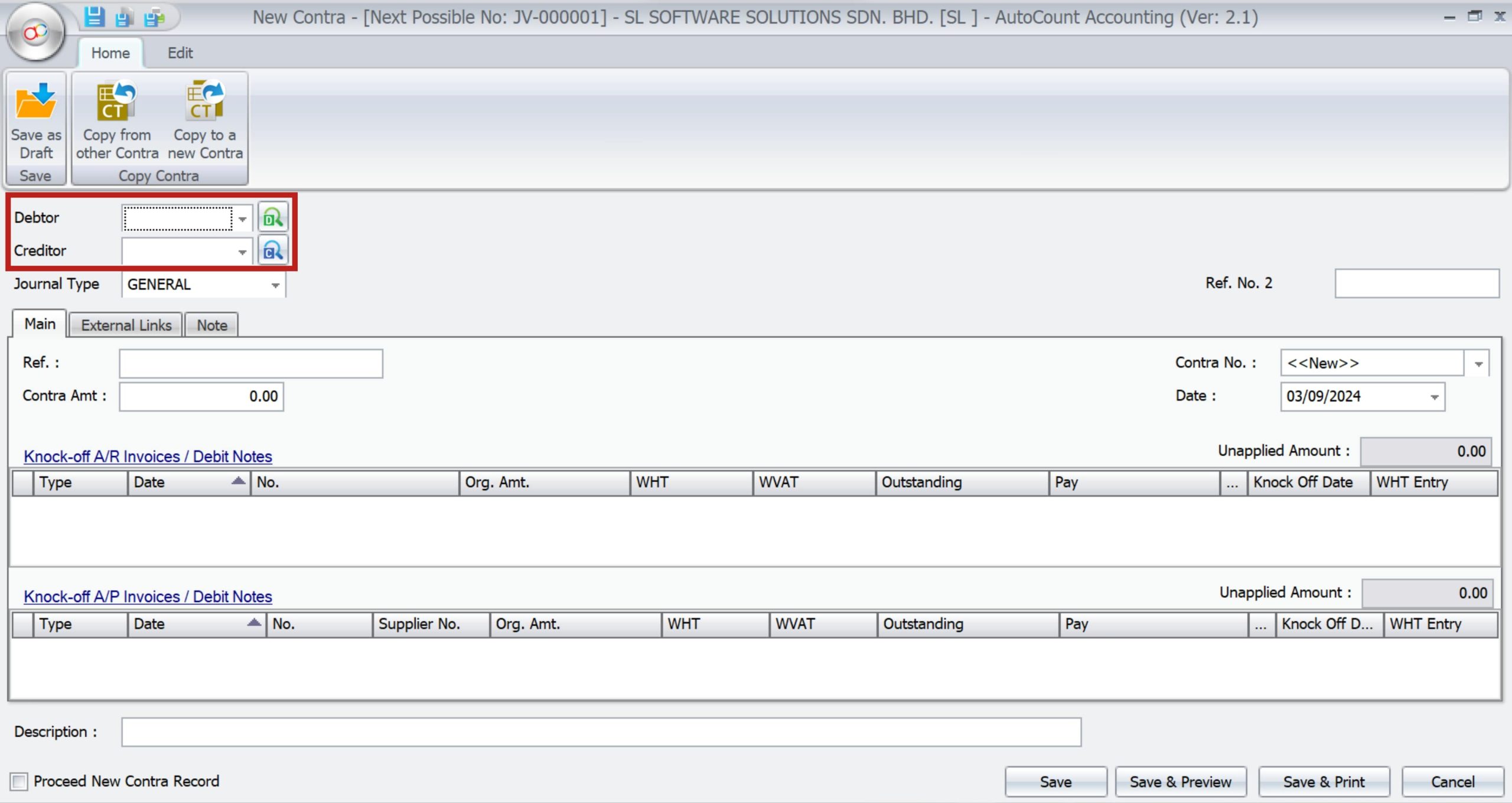
Assigning Debtors/Creditors
The details column allows you to assign the appropriate Debtor or Creditor by entering the relevant information or selecting from a drop-down list. Accurate assignment is crucial for ensuring that the contra entry offsets the correct accounts.
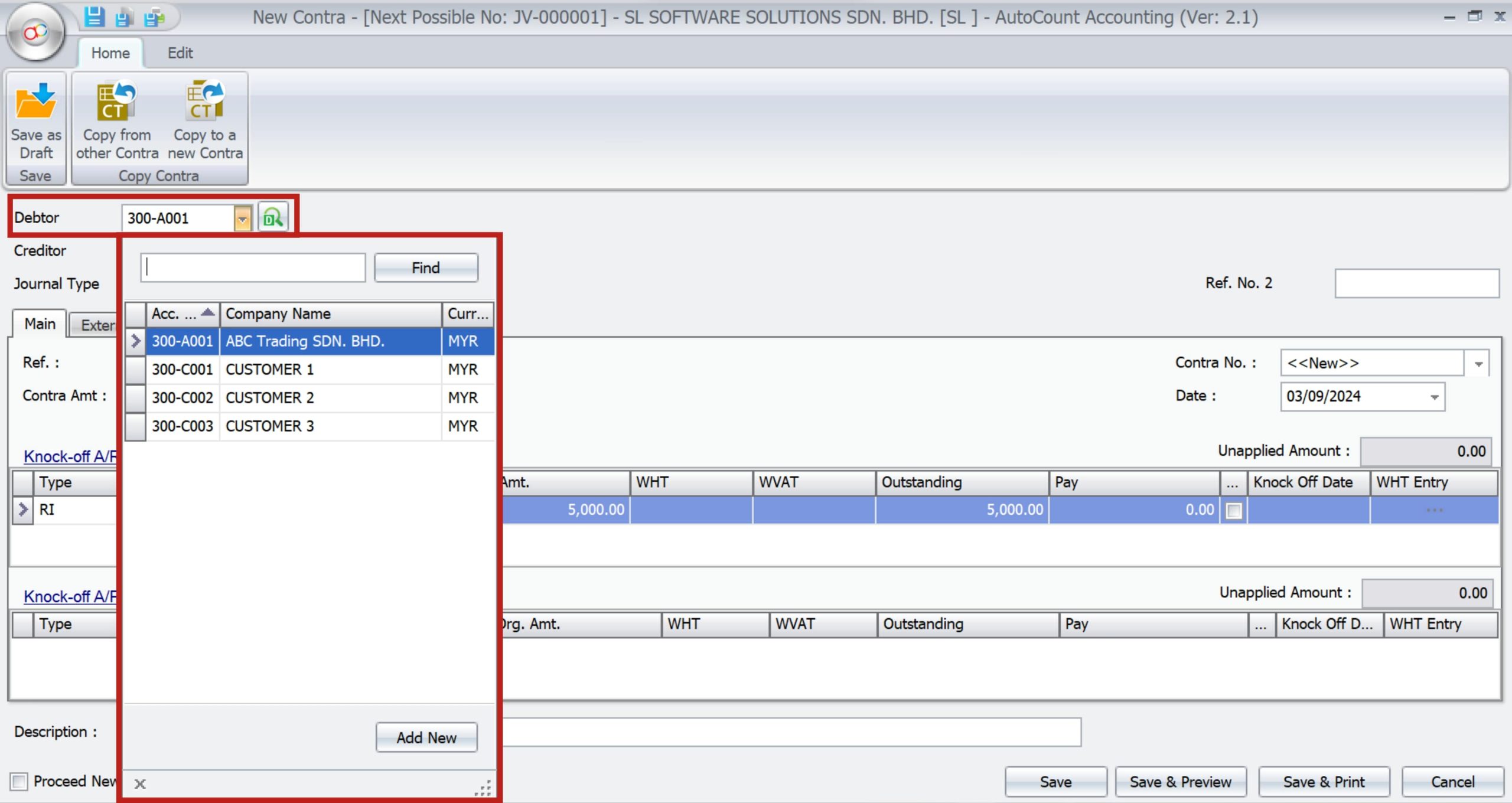
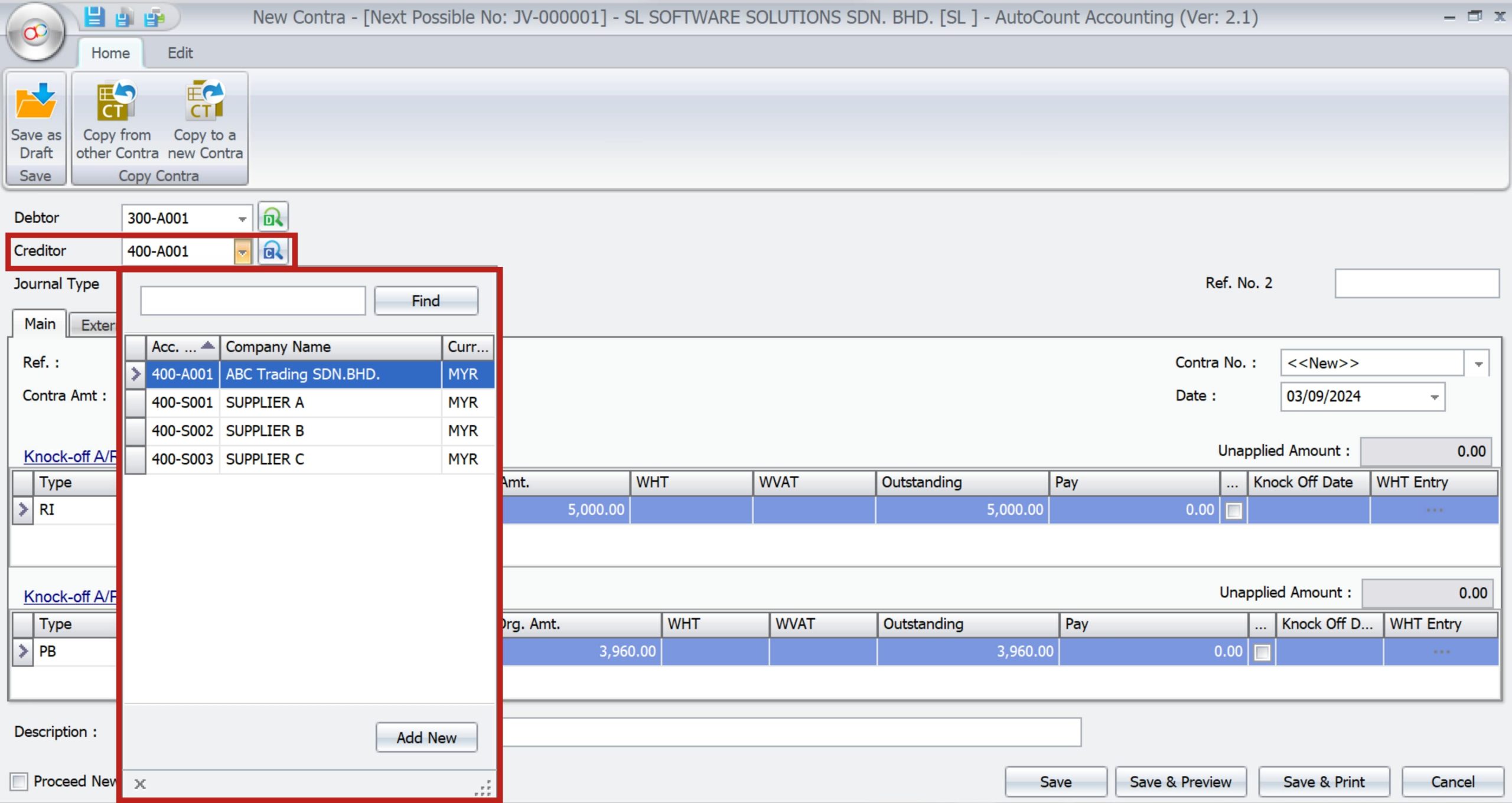
Entering Contra Amounts
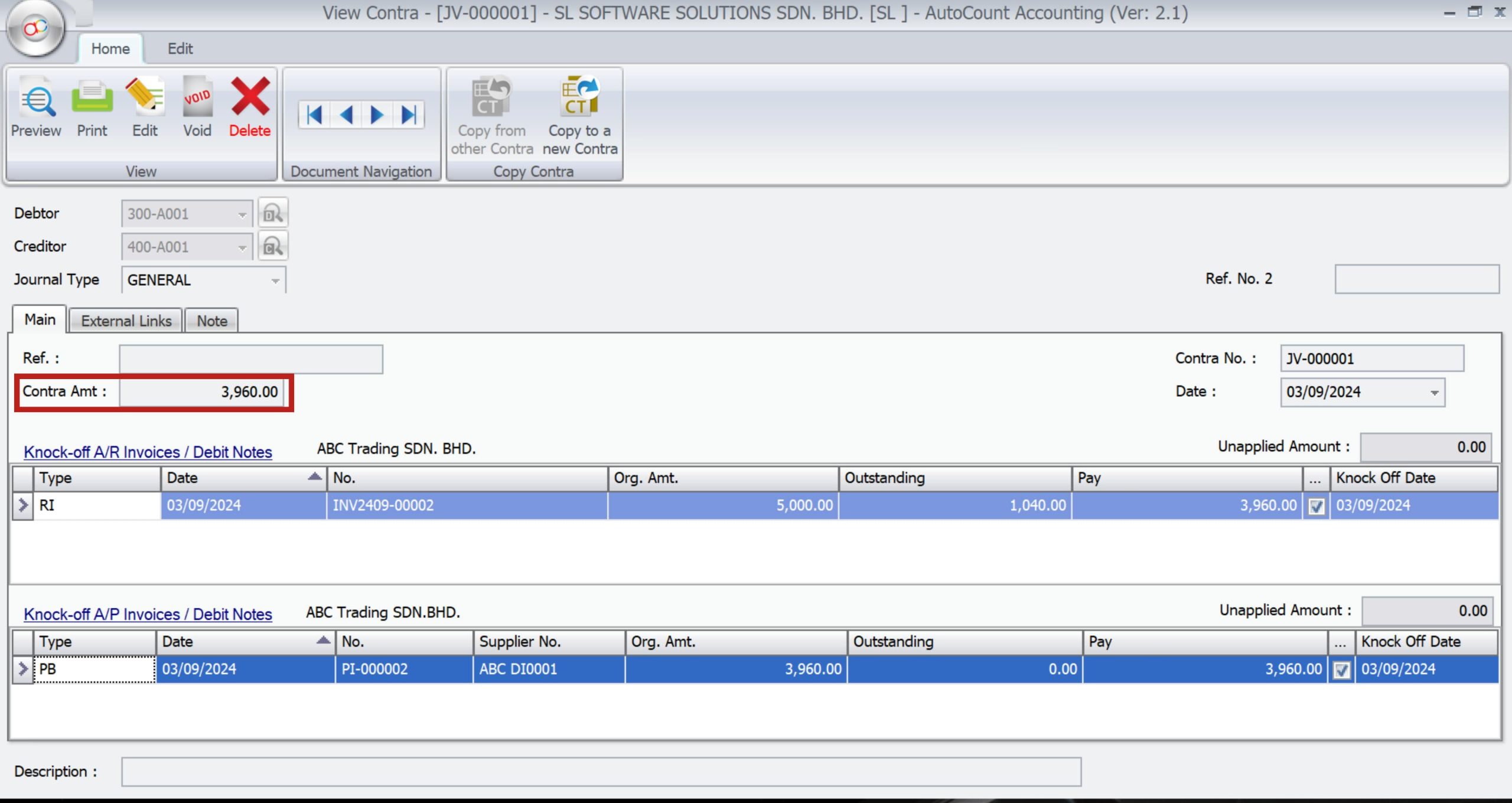
Enter the specific amount to be offset between the debtor and creditor accounts in the Contra Amt field. The system date is automatically captured, but you can adjust it if necessary.
Manage Multiple Transactions
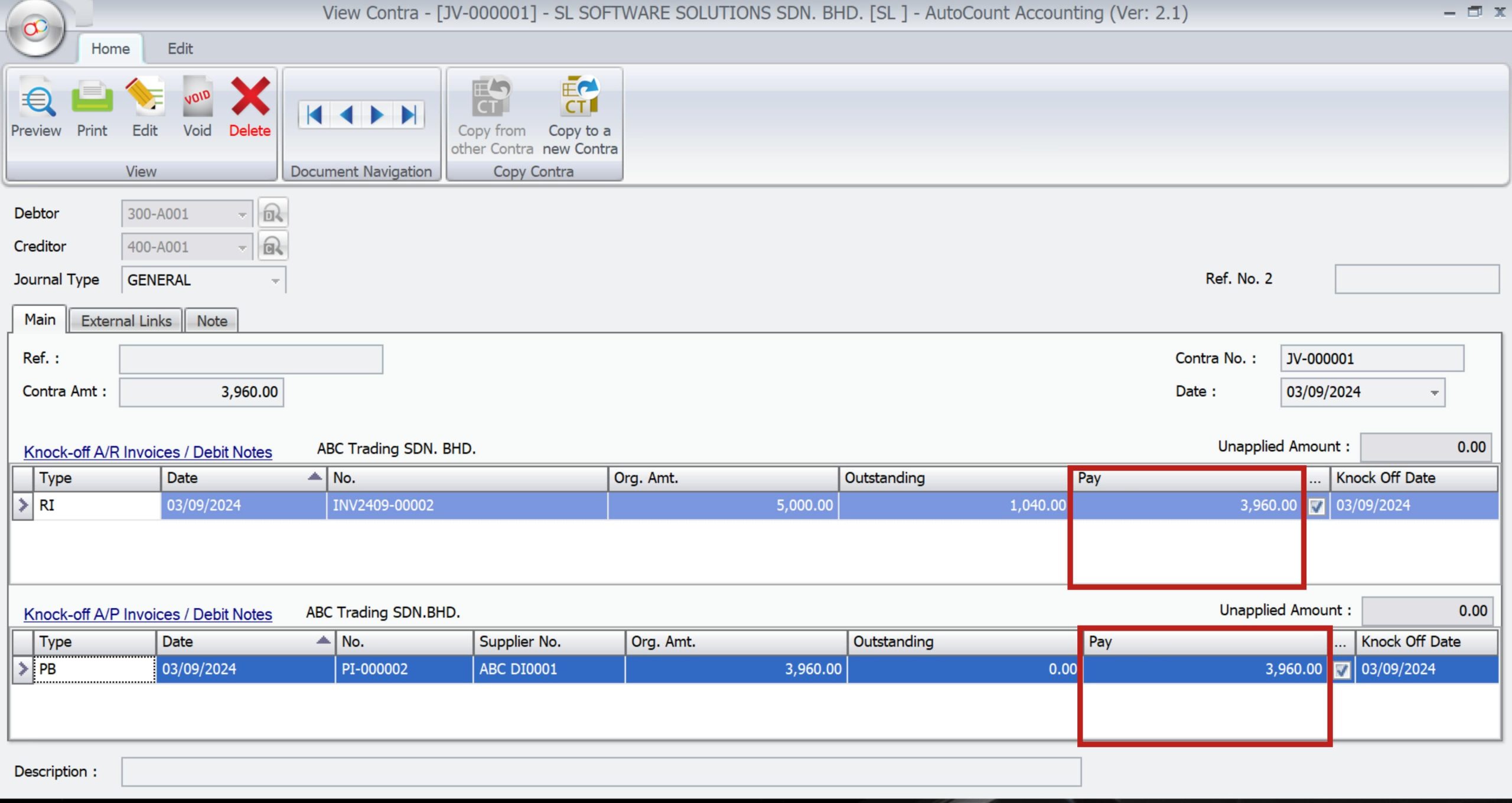
AutoCount allows for managing multiple transactions within a single contra entry. This is particularly useful in complex scenarios where you need to be offset several invoices or payments . The “Pay” column in the Knock Off AP Invoices/Debit Notes section helps apply contra amounts to specific documents efficiently.
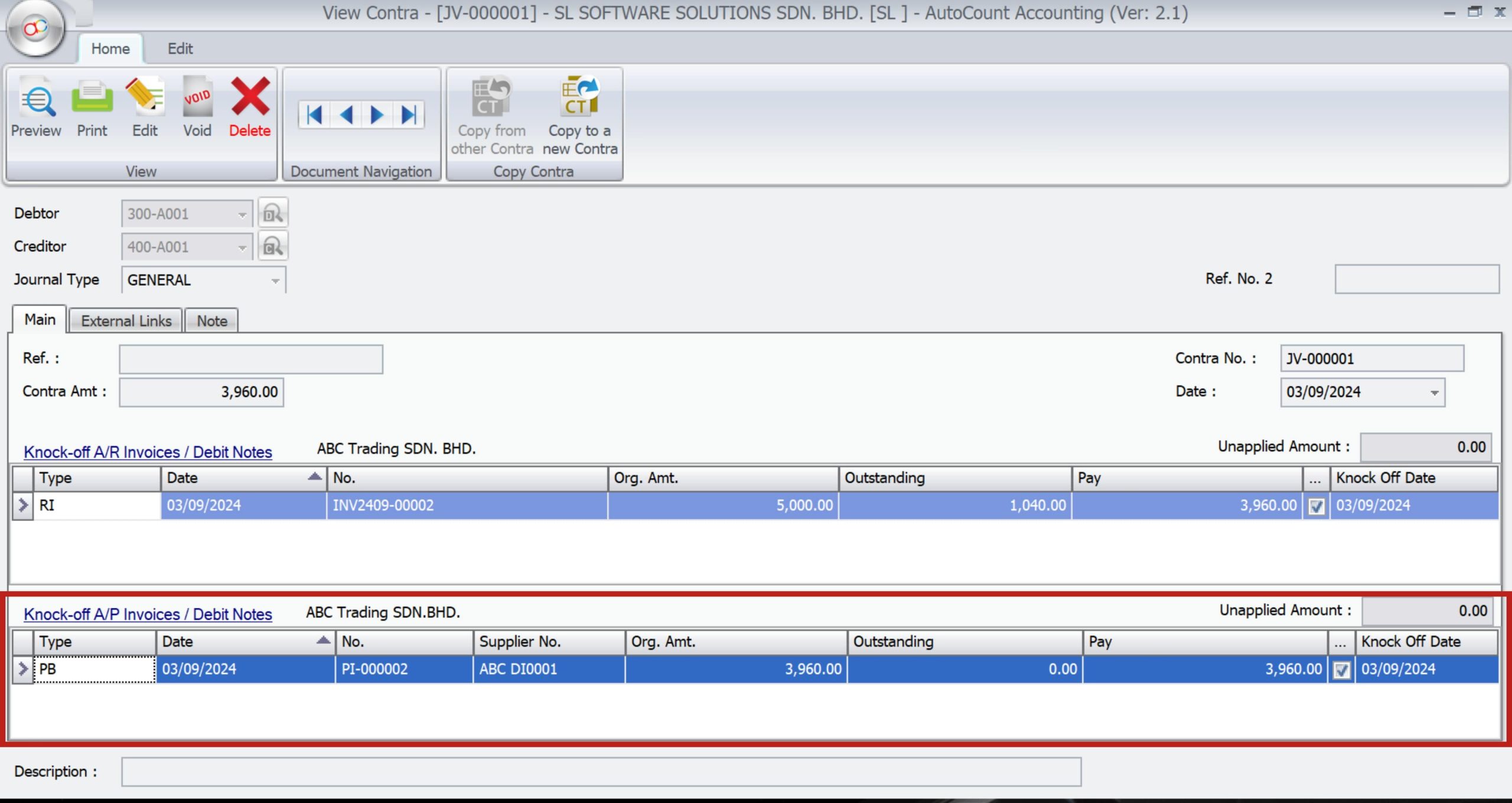
Knock Off AP Invoices/Debit Notes
This section allows you to handle the knock off process, where the contra amount is applied to specific transactions. To clarify, it ensures correct reconciliation of all relevant invoices and debit notes.
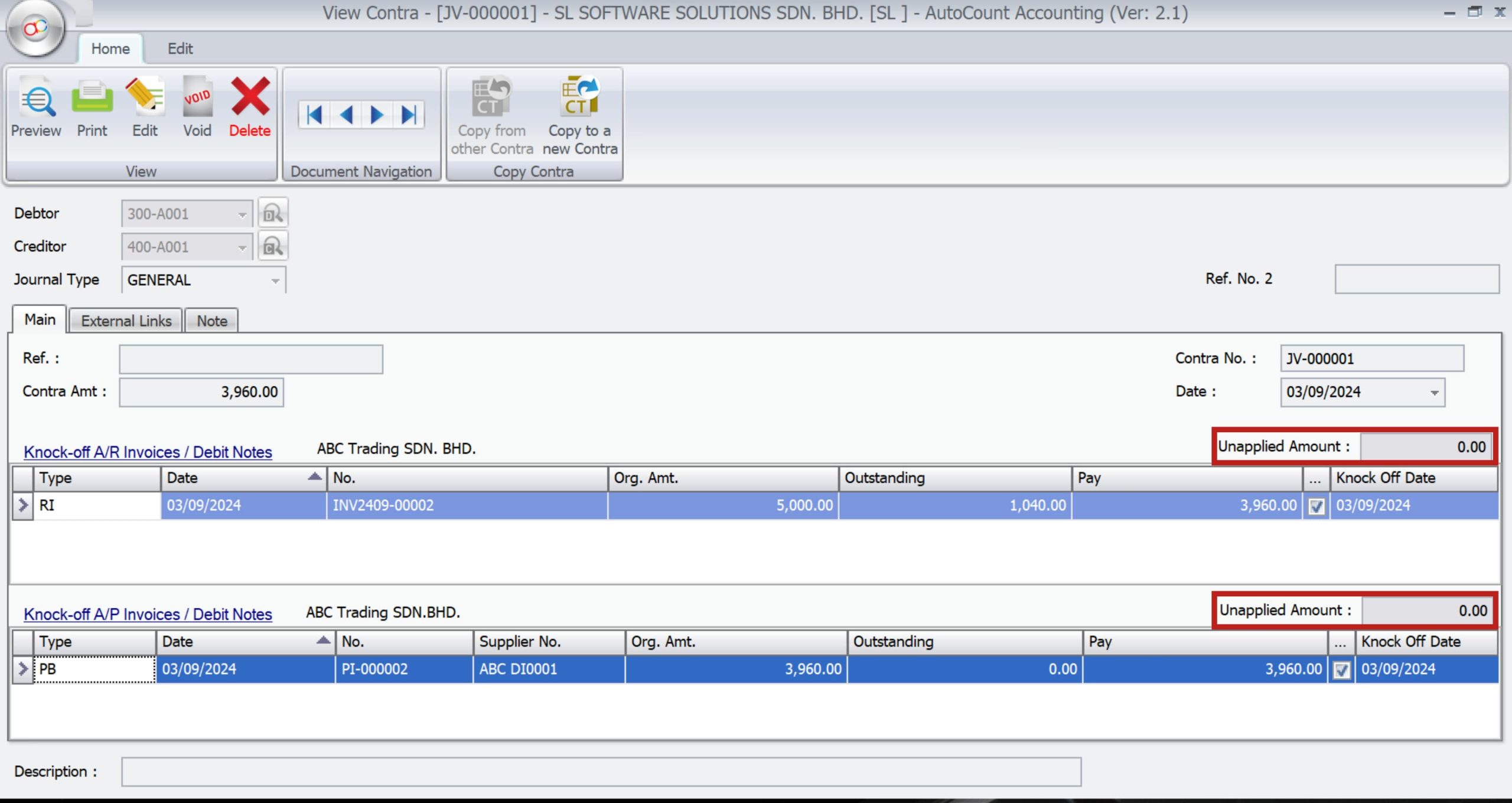
Understanding Unapplied Amounts
The “Unapplied Amount” field shows the contra amount that has not yet been applied to an invoice or debit note. This helps track outstanding amounts that need to be reconciled.
Managing Outstanding Balances
Firstly, AutoCount helps manage outstanding balances by allowing you to specify the portion of the contra amount to apply against unpaid invoices or debit notes. Thus, ensuring accurate tracking of payables.
Contra Account Preview
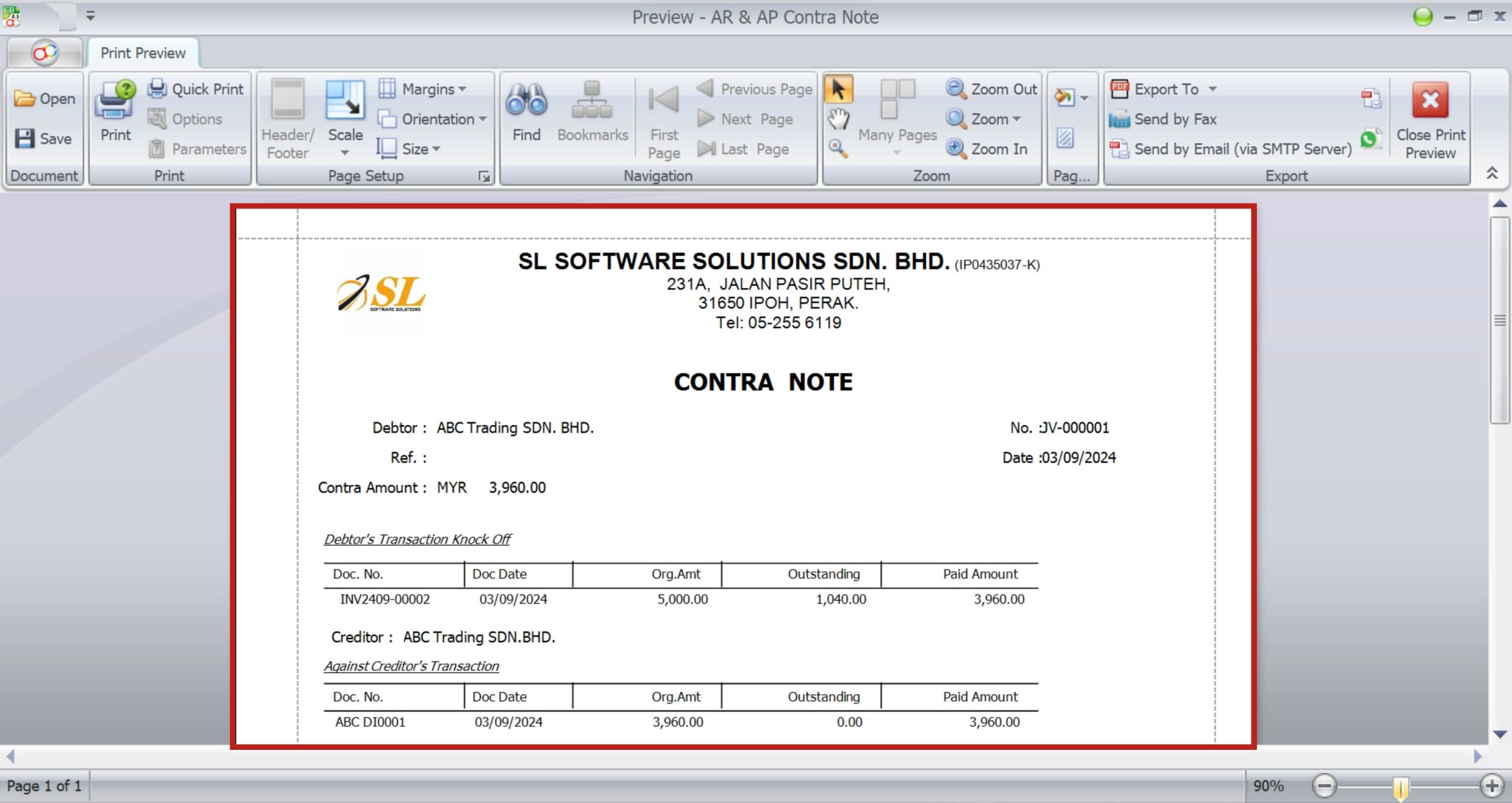
AutoCount helps you in many ways possible. That includes making a contra note for you without the hassle of creating a separate word document as the integrated design editor helps you to make one. Thus, saving hours of your time.
Common Challenges and Solutions in AutoCount Contra Account
Typical Issues Users Face
Challenges include incorrect data entry, failure to reconcile accounts regularly, and confusion over the correct application of contra amounts. These issues can lead to inaccurate financial statements and compliance problems.
Troubleshooting Guide
When encountering issues with contra entries, start by reviewing transaction history and account settings. AutoCount’s troubleshooting tools can help identify and resolve common problems, ensuring that your entries are accurate and up to date.
Support and Resources
AutoCount provides a range of support options, including online tutorials, a comprehensive knowledge base, and direct customer support, to assist users in managing contra accounts effectively.
AutoCount vs. Other Accounting Software for Contra Account
Comparison with QuickBooks, Xero, and Others
When comparing AutoCount with other accounting software like QuickBooks and Xero, AutoCount stands out for its robust contra account management features. While other platforms offer similar functionalities, AutoCount’s detailed customization options and seamless integration capabilities make it a preferred choice for many businesses.
Pros and Cons of Using AutoCount
Advantages of using AutoCount include ease of use, powerful reporting tools, and seamless integration with other systems. However, the software may require a learning curve for those new to digital accounting.
Benefits of Using AutoCount for Contra Account Management
Streamlined Accounting Processes
AutoCount simplifies accounting processes by automating repetitive tasks and reducing manual errors. Thus, ensuring your financial records are always accurate and up-to-date.
Enhanced Accuracy
AutoCount’s automated reconciliation and error-checking features enhance the accuracy of your financial records, particularly when managing complex contra entries.
Time-Saving Features
The software’s batch processing and automation features save time. Thus, allowing you to focus on more strategic financial tasks.
Conclusion
Managing contra accounts is a crucial part of maintaining accurate financial records. AutoCount provides a comprehensive solution for this, offering powerful tools and features that simplify the process and ensure that your books remain balanced and up-to-date. Therefore, by following best practices and tips outlined in this guide, you can maximize the benefits of AutoCount and keep your financial records in top shape.
Frequently Asked Questions
What is a Contra Account in AutoCount?
A contra account in AutoCount is an account that offsets another account, reducing its balance to provide a clearer picture of financial data.
How do I set up a Contra Account in AutoCount?
To set up a contra account, navigate to A/R > A/R and A/P Contra Entry, then follow the prompts to create and configure your account.
What are the benefits of using AutoCount for managing Contra Accounts?
AutoCount offers streamlined processes, enhanced accuracy, and time-saving features that simplify contra account management.
Can I edit a Contra Account after it’s been created?
Yes, AutoCount allows you to edit contra accounts after they have been created, ensuring that all financial data remains accurate.
How does AutoCount help in managing outstanding balances in Contra Accounts?
AutoCount provides tools for applying contra amounts to specific transactions, ensuring that outstanding balances are accurately tracked and managed.
Interested in Getting AutoCount for your Business?
Contact our sales team today to explore pricing options and get started with the perfect solution for you.