
-
AutoCount Accounting Features
-
- Approval Workflow
- Audit Trail
- Auto Save in Draft Folder
- AutoCount Contra Account
- AutoCount License Setting Guide
- Deposit Tracking & Management
- Documents Numbering Format
- Full Transfer and Partial Transfer
- Import Data to AutoCount Accounting Using Excel
- Informative Charts and Analytical Data
- Layout Customization
- Multi Pricing
- Sales and Services Tax
- Schedule Backup
- Search Lookup Edit
- View Documents Flow
- AutoCount Feature Stock Take
- Column Chooser
- Show Remaining (3) Collapse
-
AutoCount Cloud Accounting
-
AutoCount E-Invoice
-
AutoCount HRMS User Guide
-
AutoCount Modules
-
- Activity Stream
- Advanced Financial Report
- Advanced Item
- Advanced Multi-UOM
- Advanced Quotation Module
- Basic Multi-UOM
- Budget Module
- Consignment
- Filter By Salesman
- FOC Quantity
- Formula
- Item Batch
- Item Package
- Landing Cost
- Multi-Currency
- Multi-Dimensional Analysis
- Multi-Location
- Project Account
- Recurrence
- Remote Credit Control Module
- Stock Assembly
- User Defined Fields (UDF)
- AutoCount SST Hidden Functions
- AutoCount SST Submission - Service Tax
- AutoCount Scripting Module User Guide
- AutoCount Bonus Point Module User Guide
- AutoCount Service Management Plugin User Guide
- Show Remaining (12) Collapse
-
AutoCount Plugins
-
- Fixed Assets Management
- Goldsmith
- TD Ordering Mobile Apps
- TD Stock Mobile Apps
- Universal Import Plugin
- DMS Import Plugin
- AutoCount Pick List Plugin User Guide
- AutoCount Credit Memo Plugin User Guide
- AutoCount Lock Price Plugin
- AutoCount Progressive Billing
- AutoCount Easy Recurrence Plugin
- Batch Update Unit Price Plugin
- AutoCount Production order
- AutoCount Car Tint Film Plugin
-
- Event Management System
- AutoCount To-Do List Plugin
- AutoCount AutoBank Reconciliation Plugin
- Intercompany Billing Plugin User Guide
- Lead Management 2.0 Plugin
- AutoCount Service Contract Plugin User Guide
- AutoCount Optical Plugin
- AutoCount Integrator Plugin
- AutoCount Procurement Planning Plugin
- Cage Management Plugin
- AutoCount Vehicle Plugin
- AutoCount Agent Validation Plugin User Guide
- AutoCount Barcode Generator Plugin User Guide
- AutoCount Easy Batch Number Entry Plugin User Guide
- Warranty 2.0 Plugin
- AutoCount Easy Photo 2.0 User Guide
- AutoCount Recurring Invoice Plugin User Guide
- AutoCount Scale Barcode Plugin User Guide
- AutoCount Recurrence Late Interest Plugin
- AutoCount Item Visibility Control
- AutoCount Bill Remark Plugin User Guide
- AutoCount Pain Tracker User Guide
- AutoCount Easy Payment
- AutoCount Easy Deposit Plugin
- AutoCount Easy Knock Off Plugin
- AutoCount Daily Collection Summary Plugin
- Timber Log Plugins
- Batch Transfer SODO Plugin
- AutoCount Vege Basket Plugin Guide
- AutoCount Fruit Basket Plugin Guide
- Referral Management Plugin
- AutoCount Migrator Plugin
- AutoCount Email & WhatsApp Plugin
- AutoCount Multi Company Knock Off Plugin
- AutoCount Advance Aging Format Plugin
- AutoCount Payment Request Plugin
- AutoCount Vehicle Master Plugin
- AutoCount Advance Deposit Plugin
- AutoCount IC Checker Plugin
- AutoCount RMA Plugin
- AutoCount Historical Outstanding DO Listing Plugin
- AutoCount Project Department Visibility Control Plugin
- AutoCount MRP Order Plugin
- AutoCount GridToExcel Plugin
- AutoCount Stock Availability Report Plugin
- AutoCount Batch Transfer SO DO Plugin
- AutoCount Centralized Kitchen Management Plugin
- SL AutoCount API
- AutoCount InterCompany Billing Plugin
- AutoCount Sales Commission Plugin
- AutoCount Advanced Credit Term Plugin
- AutoCount Advanced Stock Assembly Plugin
- AutoCount Shipment Plugin
- AutoCount Tour Plugin
- AutoCount Smart Analysis
- AutoCount Rental Management
- Show Remaining (41) Collapse
-
-
Form Template
-
Report Template
-
- Advance Quotation
- Cash Sale
- Consignment
- Consignment Movement
- Credit Note
- Debit Note
- Delivery Order
- FOC Quantity Analysis By Document Report
- Invoice
- Item Package Sales Report
- Monthly Sales Analysis
- Outstanding Sales Order Listing
- Profit And Loss Of Documents
- Quotation
- Sales Agent Contribution Report
- Sales Order
- Top/Bottom Sales Ranking
- Show Remaining (2) Collapse
-
- Available Stock Status Report
- Expired Item Batch Listing
- Inventory Physical Worksheet
- Stock Adjustment
- Stock Aging Report
- Stock Assembly
- Stock Assembly Order
- Stock Balance By Location
- Stock Balance Report
- Stock Card Report
- Stock Disassembly
- Stock Issue
- Stock Item Profit Margin
- Stock Movement Report
- Stock Receive
- Stock Take
- Stock Transfer
- Stock Write Off
- Show Remaining (3) Collapse
-
B2B ORDERING
-
AutoCount AI Agent
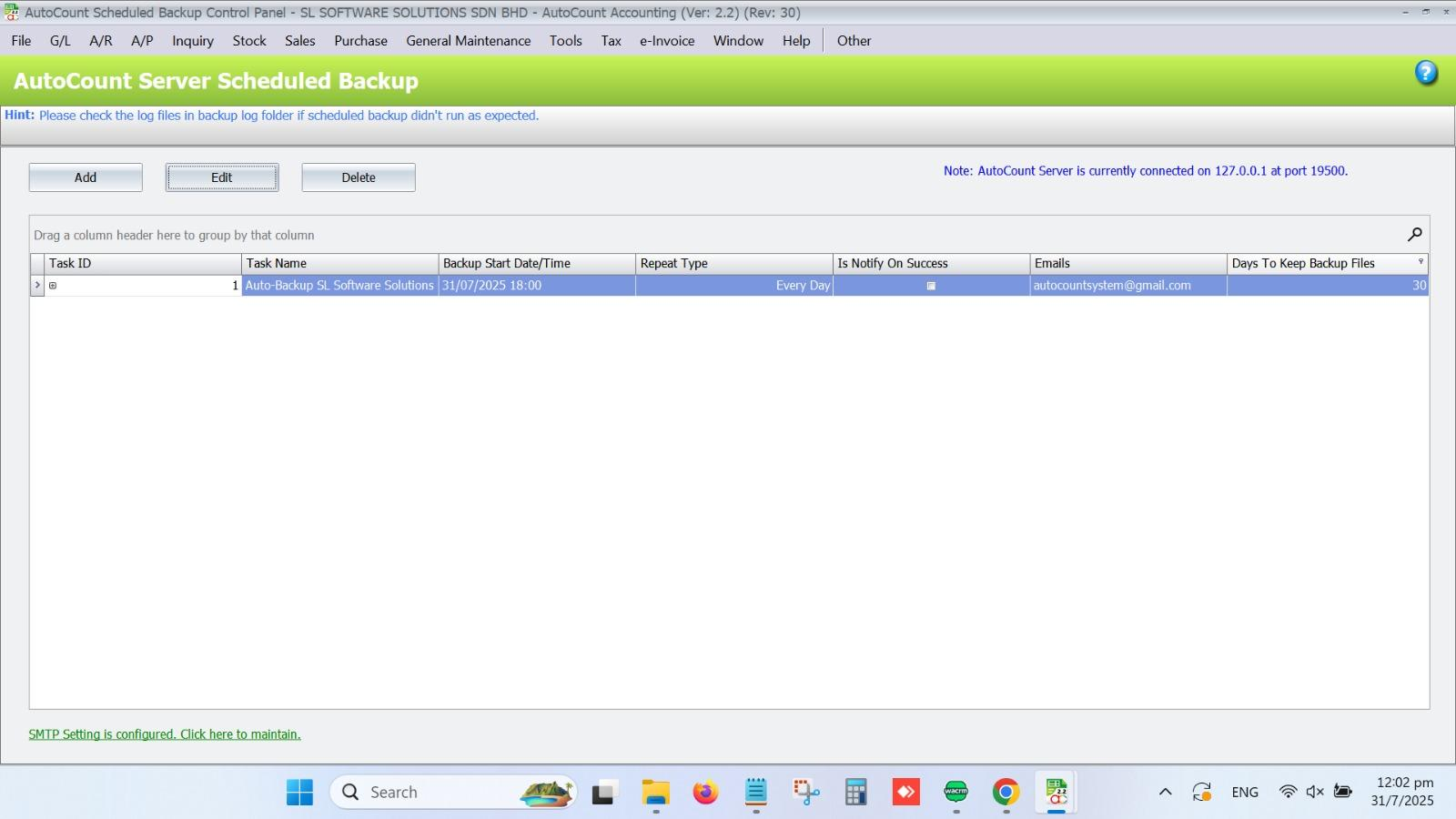
AutoCount Accounting: Schedule Backup
Introduction to AutoCount Schedule Backup
Setting up scheduled backups in AutoCount Accounting ensures your data is regularly backed up without manual intervention. This guide will walk you through configuring the backup settings, setting up an SMTP server, and automating backup tasks. With scheduled backups, you can rest assured knowing your financial data is securely stored and easily retrievable.
Objective
to ensure that critical data is regularly and automatically backed up, reducing the risk of data loss due to system failures, human errors, or disasters. This process helps maintain business continuity by securing financial, inventory, and transactional data, allowing for efficient recovery and minimizing downtime.
AutoCount Schedule Backup : How to Setup
Learn how to set up and manage the AutoCount Schedule Backup, making it easy to automate and secure your data backups.
Steps to Set Up Scheduled Backup in Server in AutoCount
Setting up the AutoCount Scheduled Backup Server is straightforward. Here’s how to get started:
Navigate to Settings
- Go to File > Manage AutoCount Server > Scheduled Backup Setting
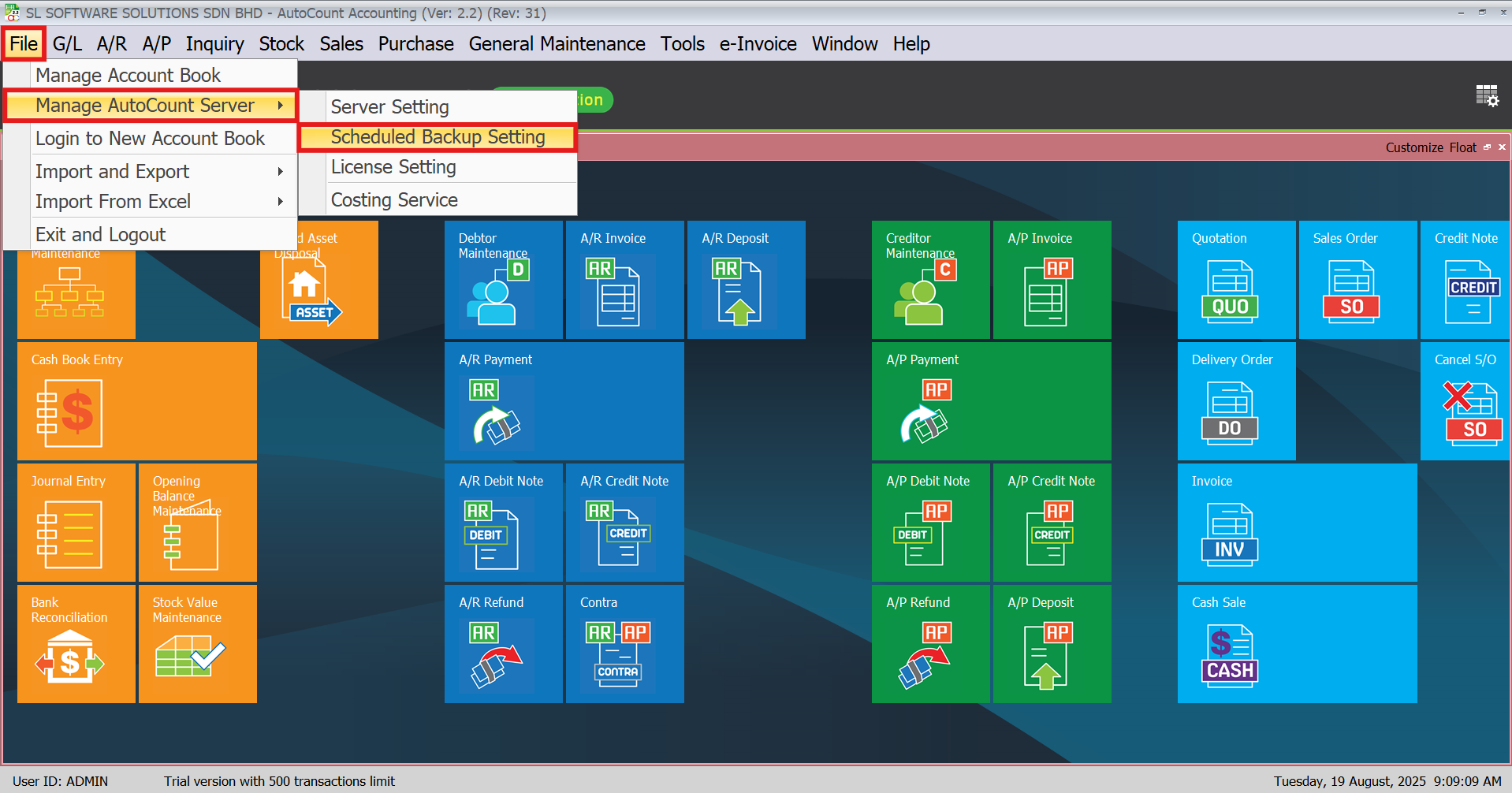
Step 5: Configure SMTP Server for Email Notifications
Before you can set up the scheduled backup, you need to configure your SMTP server for email notifications:
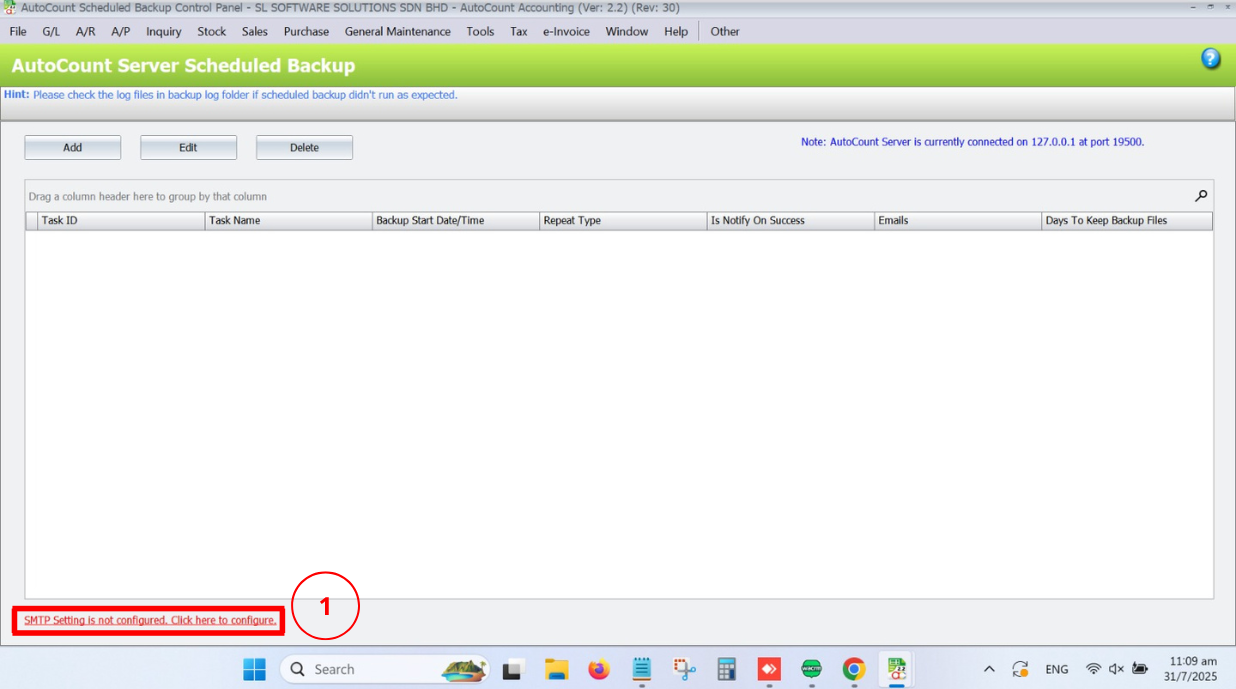
- SMTP Host: gmail.com
- Sender Email: Your company’s email address
- Email Password: Use the App Passwordgenerated through your Gmail account (for help, see [How to Obtain an App Password]).
- Port Number: 587
- Test Email: Enter any email address to test the setup.
Once the SMTP server settings are complete, click Save to continue.
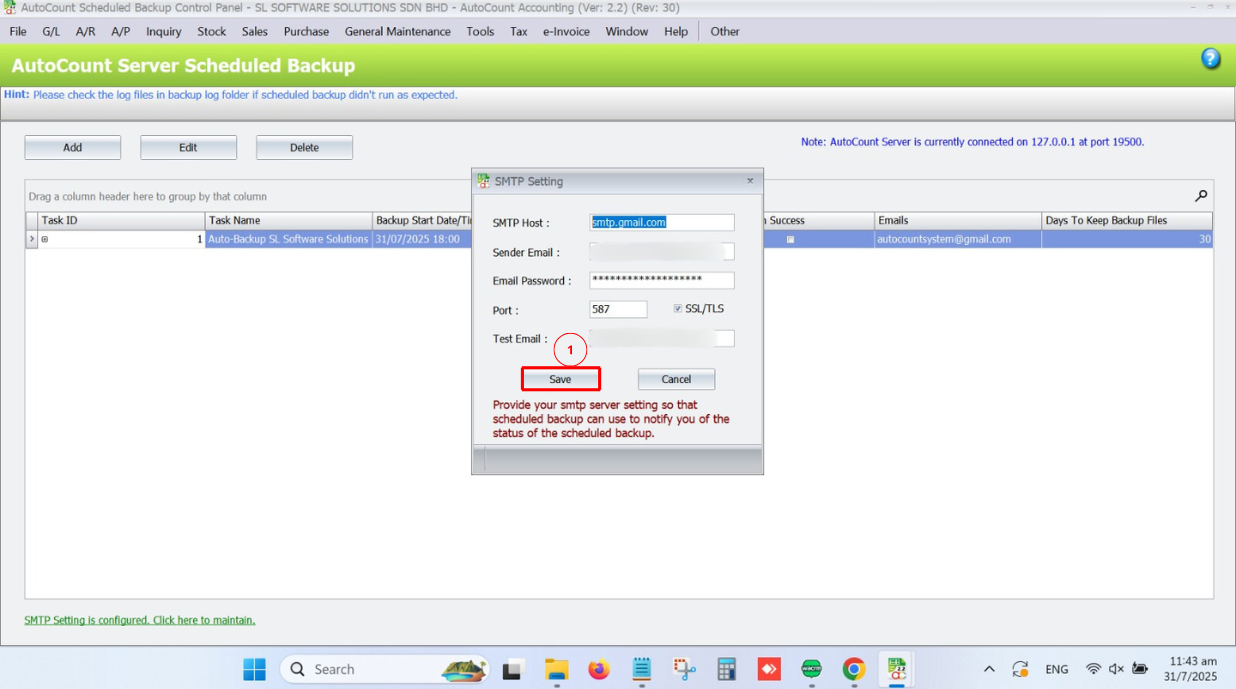
Set Up Scheduled Backup Task
- Click Add > Fill up all the details needed and Save
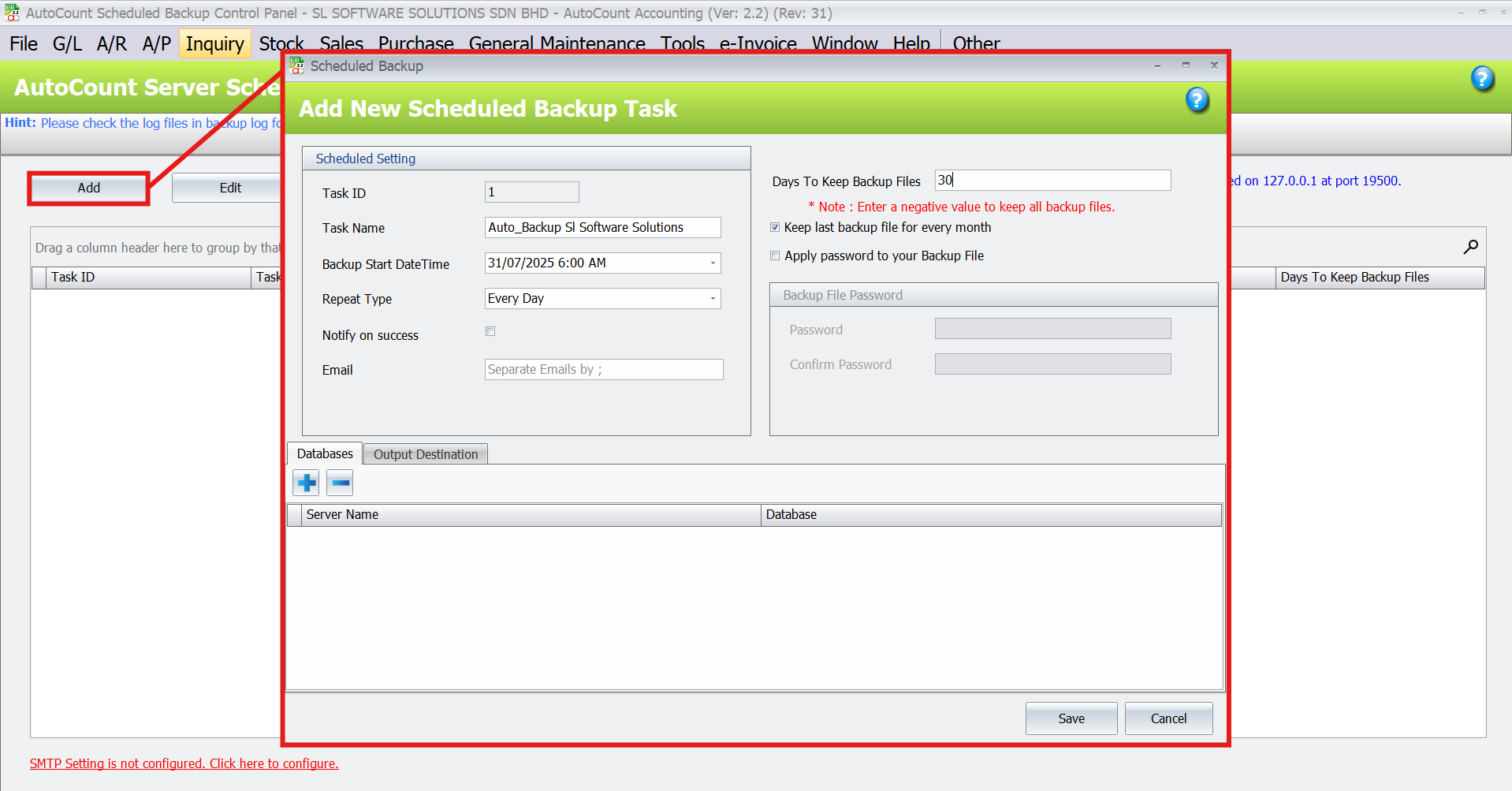
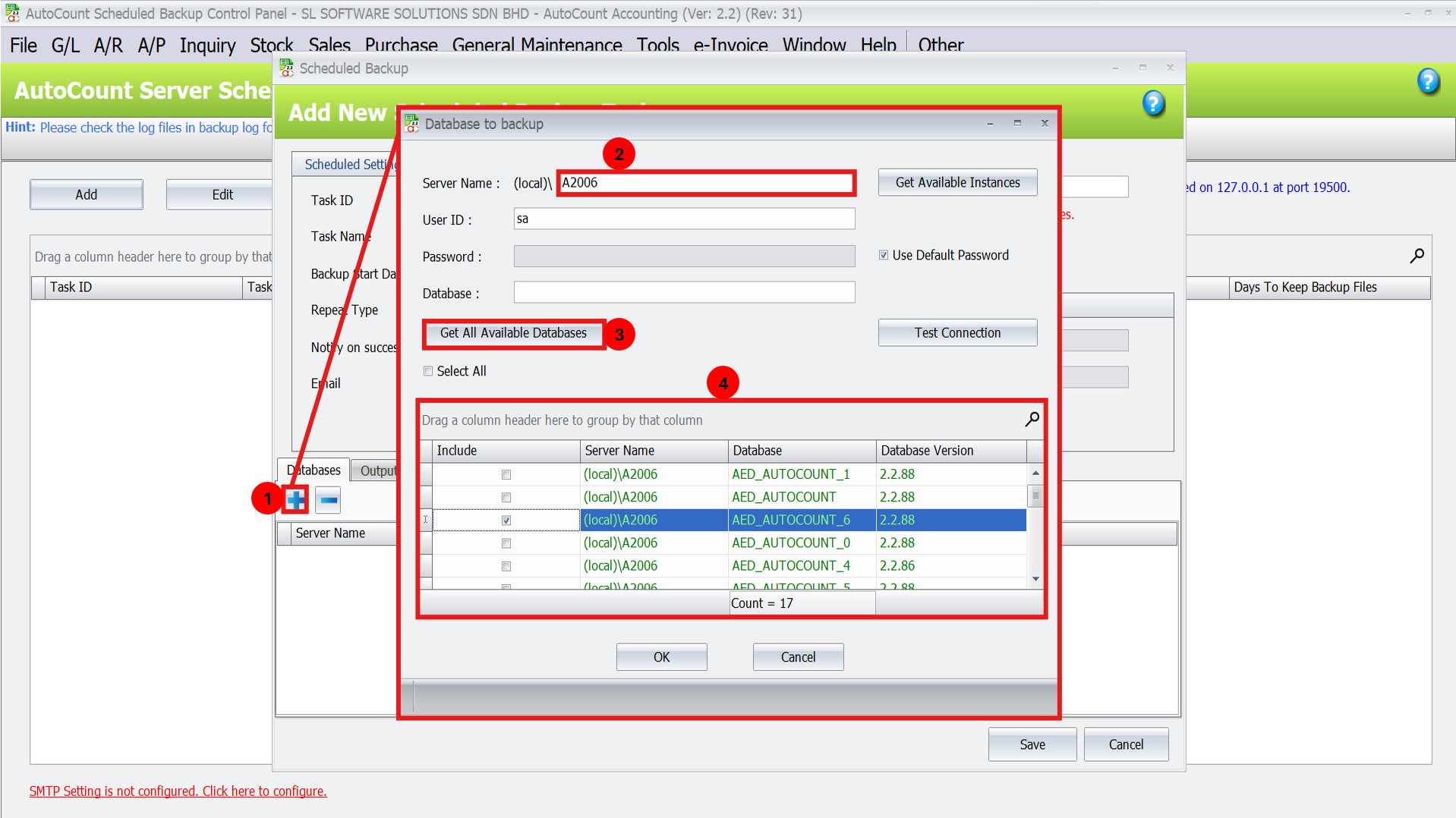
Database Tab
- Click ‘+’ > Key in Server Name: A2006
- Click Get All Available Databases > Select database to backup > Click OK
Output Destination Tab
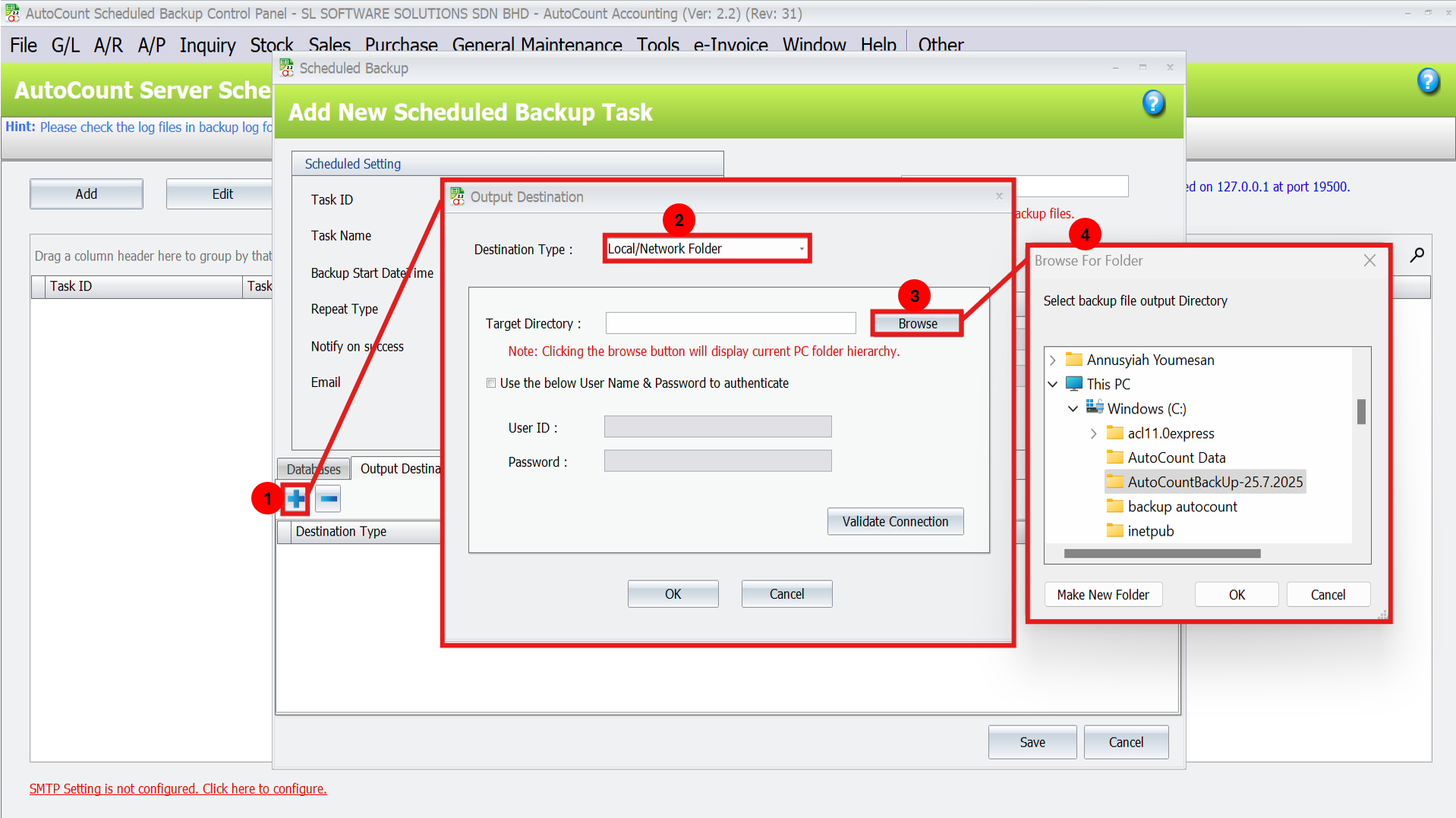
There are three outputs destinations you may choose:
1. Local/Network Folder
- Click Browse > Select the respective folder > Click OK to save
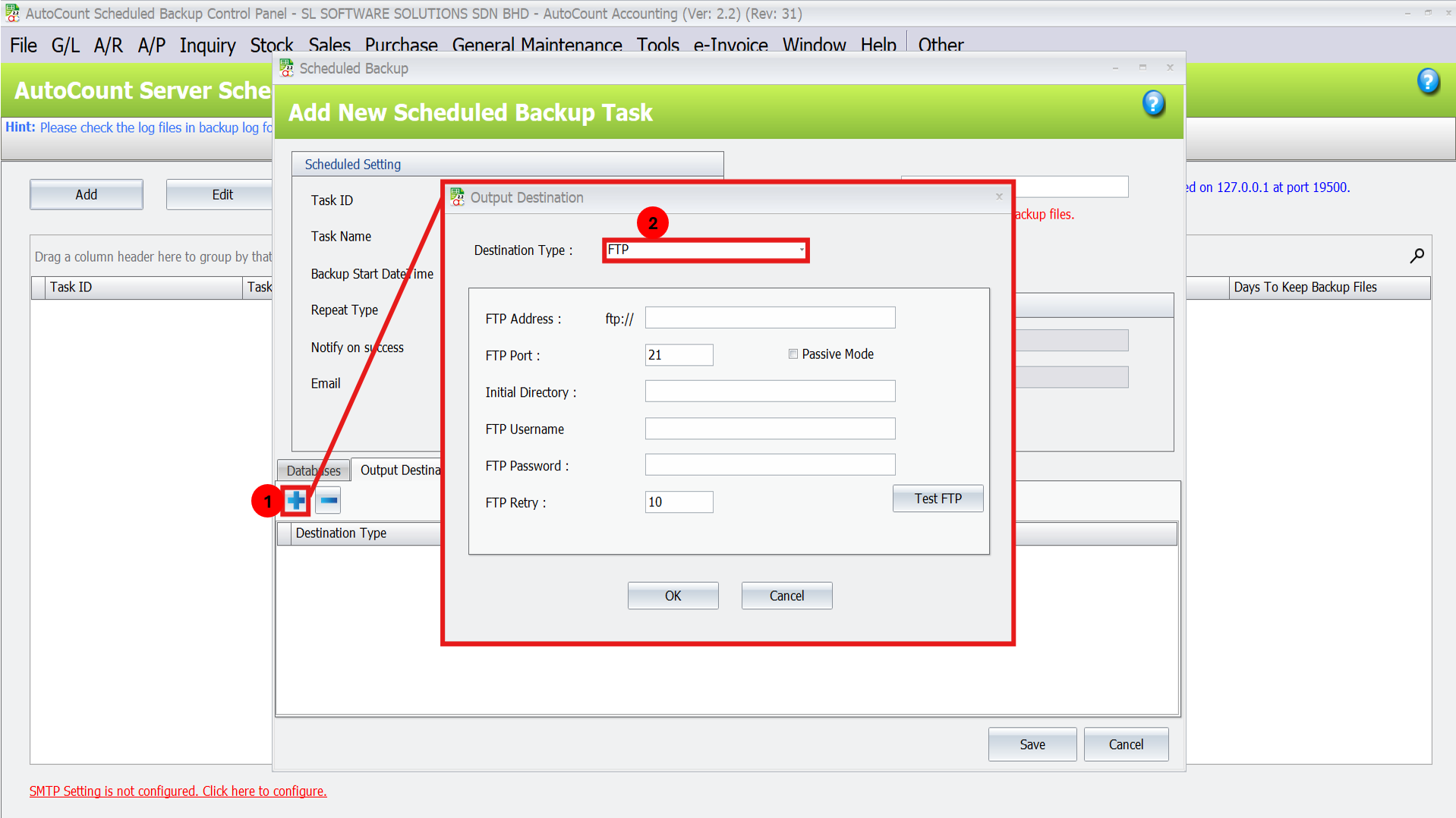
2. FTP
- Fill up all the details needed > Test FTP > Click OK
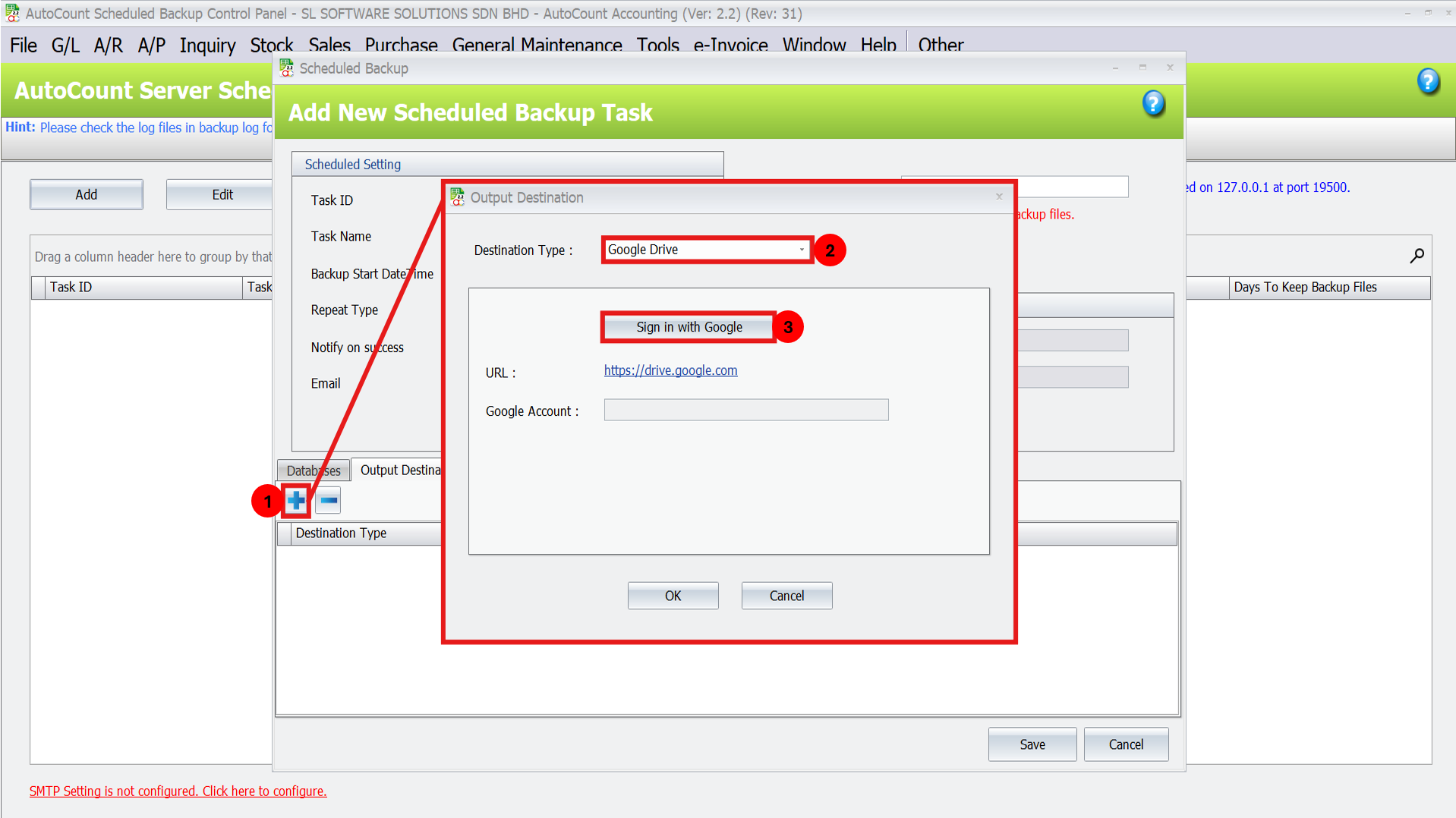
3. Google Drive
- Click Sign In With Google > Redirect to Google Account Login > Click OK
Troubleshooting Common Issues
Conclusion
Setting up scheduled backups in AutoCount Accounting ensures the safety and reliability of your business data. By automating the backup process, you eliminate the risk of losing critical information due to unexpected events. With the ability to set custom intervals, manage email notifications, and retain backups for a specific period, you gain full control over your data protection strategy.
Ensure your backups are stored in a secure location and regularly monitored for optimal performance.
Frequently Asked Questions
How often should I schedule my backups?
It’s recommended to schedule backups based on your business needs. For daily transactions, daily or weekly backups are ideal. If you deal with a high volume of data, consider hourly backups.
Can I store backups in the cloud?
AutoCount doesn’t provide direct integration with cloud storage, but you can configure your backup task to store files in any local directory, which can then be synced with cloud storage manually.
What happens if the scheduled backup fails?
AutoCount will send an email notification if the backup fails. Review the error logs, check your server connection, and ensure there is enough storage space in the backup location.
Can I back up multiple databases in one task?
Yes, you can select multiple databases in one backup task by choosing them under the Databases tab when setting up the backup task.
Is there a way to automate backups for remote locations?
Yes, but this may require additional configuration for networked drives or remote file servers. You can set up the backup location as a network folder or use third-party tools to sync with remote systems.
How do I secure my backup files?
Use strong passwords for your backup files and consider encrypting them if possible.
Interested in Getting AutoCount for your Business?
Contact our sales team today to explore pricing options and get started with the perfect solution for you.