
-
AutoCount Accounting Features
-
- Approval Workflow
- Audit Trail
- Auto Save in Draft Folder
- AutoCount Contra Account
- AutoCount License Setting Guide
- Deposit Tracking & Management
- Documents Numbering Format
- Full Transfer and Partial Transfer
- Import Data to AutoCount Accounting Using Excel
- Informative Charts and Analytical Data
- Layout Customization
- Multi Pricing
- Sales and Services Tax
- Schedule Backup
- Search Lookup Edit
- View Documents Flow
- AutoCount Feature Stock Take
- Column Chooser
- Show Remaining (3) Collapse
-
AutoCount Cloud Accounting
-
AutoCount E-Invoice
-
AutoCount HRMS User Guide
-
AutoCount Modules
-
- Activity Stream
- Advanced Financial Report
- Advanced Item
- Advanced Multi-UOM
- Advanced Quotation Module
- Basic Multi-UOM
- Budget Module
- Consignment
- Filter By Salesman
- FOC Quantity
- Formula
- Item Batch
- Item Package
- Landing Cost
- Multi-Currency
- Multi-Dimensional Analysis
- Multi-Location
- Project Account
- Recurrence
- Remote Credit Control Module
- Stock Assembly
- User Defined Fields (UDF)
- AutoCount SST Hidden Functions
- AutoCount SST Submission - Service Tax
- AutoCount Scripting Module User Guide
- AutoCount Bonus Point Module User Guide
- AutoCount Service Management Plugin User Guide
- Show Remaining (12) Collapse
-
AutoCount Plugins
-
- Fixed Assets Management
- Goldsmith
- TD Ordering Mobile Apps
- TD Stock Mobile Apps
- Universal Import Plugin
- DMS Import Plugin
- AutoCount Pick List Plugin User Guide
- AutoCount Credit Memo Plugin User Guide
- AutoCount Lock Price Plugin
- AutoCount Progressive Billing
- AutoCount Easy Recurrence Plugin
- Batch Update Unit Price Plugin
- AutoCount Production order
- AutoCount Car Tint Film Plugin
-
- Event Management System
- AutoCount To-Do List Plugin
- AutoCount AutoBank Reconciliation Plugin
- Intercompany Billing Plugin User Guide
- Lead Management 2.0 Plugin
- AutoCount Service Contract Plugin User Guide
- AutoCount Optical Plugin
- AutoCount Integrator Plugin
- AutoCount Procurement Planning Plugin
- Cage Management Plugin
- AutoCount Vehicle Plugin
- AutoCount Agent Validation Plugin User Guide
- AutoCount Barcode Generator Plugin User Guide
- AutoCount Easy Batch Number Entry Plugin User Guide
- Warranty 2.0 Plugin
- AutoCount Easy Photo 2.0 User Guide
- AutoCount Recurring Invoice Plugin User Guide
- AutoCount Scale Barcode Plugin User Guide
- AutoCount Recurrence Late Interest Plugin
- AutoCount Item Visibility Control
- AutoCount Bill Remark Plugin User Guide
- AutoCount Pain Tracker User Guide
- AutoCount Easy Payment
- AutoCount Easy Deposit Plugin
- AutoCount Easy Knock Off Plugin
- AutoCount Daily Collection Summary Plugin
- Timber Log Plugins
- Batch Transfer SODO Plugin
- AutoCount Vege Basket Plugin Guide
- AutoCount Fruit Basket Plugin Guide
- Referral Management Plugin
- AutoCount Migrator Plugin
- AutoCount Email & WhatsApp Plugin
- AutoCount Multi Company Knock Off Plugin
- AutoCount Advance Aging Format Plugin
- AutoCount Payment Request Plugin
- AutoCount Vehicle Master Plugin
- AutoCount Advance Deposit Plugin
- AutoCount IC Checker Plugin
- AutoCount RMA Plugin
- AutoCount Historical Outstanding DO Listing Plugin
- AutoCount Project Department Visibility Control Plugin
- AutoCount MRP Order Plugin
- AutoCount GridToExcel Plugin
- AutoCount Stock Availability Report Plugin
- AutoCount Batch Transfer SO DO Plugin
- AutoCount Centralized Kitchen Management Plugin
- SL AutoCount API
- AutoCount InterCompany Billing Plugin
- AutoCount Sales Commission Plugin
- AutoCount Advanced Credit Term Plugin
- AutoCount Advanced Stock Assembly Plugin
- AutoCount Shipment Plugin
- AutoCount Tour Plugin
- AutoCount Smart Analysis
- AutoCount Rental Management
- Show Remaining (41) Collapse
-
-
Form Template
-
Report Template
-
- Advance Quotation
- Cash Sale
- Consignment
- Consignment Movement
- Credit Note
- Debit Note
- Delivery Order
- FOC Quantity Analysis By Document Report
- Invoice
- Item Package Sales Report
- Monthly Sales Analysis
- Outstanding Sales Order Listing
- Profit And Loss Of Documents
- Quotation
- Sales Agent Contribution Report
- Sales Order
- Top/Bottom Sales Ranking
- Show Remaining (2) Collapse
-
- Available Stock Status Report
- Expired Item Batch Listing
- Inventory Physical Worksheet
- Stock Adjustment
- Stock Aging Report
- Stock Assembly
- Stock Assembly Order
- Stock Balance By Location
- Stock Balance Report
- Stock Card Report
- Stock Disassembly
- Stock Issue
- Stock Item Profit Margin
- Stock Movement Report
- Stock Receive
- Stock Take
- Stock Transfer
- Stock Write Off
- Show Remaining (3) Collapse
-
B2B ORDERING
-
AutoCount AI Agent
AutoCount Module: Advanced Item Module
Introduction to AutoCount Advanced Item Module
In today’s competitive business landscape, inventory management is critical for operational efficiency and profitability. Therefore, a lot of the businesses now optimize stock control, reduce errors, and make data-driven decisions using the AutoCount Advanced Item Module. To clarify, this module enhances the AutoCount Accounting System by adding advanced filtering capabilities, detailed stock analysis, and seamless integration with POS (Point of Sale) and BOM (Bill of Materials). Therefore, in this guide, we’ll dive deep into the features, applications, and benefits of the AutoCount Advanced Item Module, along with real-world examples to illustrate its value.
What is the AutoCount Advanced Item Module?
Firstly, the AutoCount Advanced Item Module is a module that enhances the functionality of the AutoCount Accounting System as an advanced inventory management tool.
As a result, businesses can classify items into brands, categories, and classes, apply them for sales or purchase purposes, and generate tailored reports to support better decision-making.
In addition, manufacturers, wholesalers, and retailers find this module particularly useful because it reduces operational errors, saves time, and improves inventory data accuracy. So in this guide, we’ll dive deep into the features, applications, and benefits of the AutoCount Advanced Item Module, along with real-world examples to illustrate its value.
AutoCount Advanced Item Module Video Guide
These videos comprehensively explains the AutoCount Advanced Item Module and details its features and ways to streamline inventory management.
- AutoCount Advanced Item Module (EN)
Advanced Item Module Setup
Integration & Advanced Item Module Setup
- AutoCount Advanced Item Module (CN)
高级项目模块设置
集成和高级项目模块设置
Core Features of the AutoCount Advanced Item Module
Advanced Filtering Capabilities
The module provides filtering options that exceed the default item group and type filters. Moreover, with this feature, users can filter inventory reports based on:
Flexible Item Applications
Businesses define how items are used across their operations using the module, ensuring accurate categorization and reducing mismanagement.
By offering flexible application options, the module minimizes human errors and improves operational workflows.
Batch Processing for Time-Saving Operations
Updating individual items in a large inventory often consumes time and leads to error. The batch processing feature allows users to:
Keyword-Based Search
Firstly, easily search for multiple items in your inventory by using relevant keywords.
Batch Updates
Secondly, apply updates, such as changing brands, categories, or classes, to multiple items simultaneously.
Time-Saving Accuracy
Thirdly, save time and maintain accuracy in inventory management.
Integration with BOM and POS
The module integrates seamlessly with:
BOM (Bill of Materials)
Assign items as raw materials or finished goods to streamline manufacturing workflows.
POS Systems
Enable items for retail sales, wholesale transactions, or both, depending on business needs.
For example, manufacturers can ensure that raw materials are restricted to BOM processes, while retailers can configure items for retail sales.
Customizable Reports
Businesses can generate tailored reports using advanced filtering options. Key features include:
Range Filtering
Specify a range of brands, categories, or classes for focused analysis.
Multi-Select Filtering
Select filters of brands, categories, or classes to customize reports.
The Multi-Dimensional Analysis Module is a separate, distinct module. Although it operates independently, businesses commonly package this feature with the advanced item module for easier deployment. In addition, businesses could generate custom reports to gain deeper insights into stock performance and make data-driven decisions.
Detailed Walkthrough: How to Use the AutoCount Advanced Item Module
1. Enable Bonus Point Module
- Go to Tools > Program Control > Module Setting.

2.Adding Categories and Classes
- Use the respective maintenance options under More Stock Maintenance.
- Define categories and classes to improve the organization of your inventory.

3.Filter In Report
- After that, at Stock Balance Report, clicking the ‘More Options’.
- Next, click ‘Filter 2’.
- After that, use select in range by click “filter by range” and choose the desired item by setting the “from” and “to” values to define the range.

- Next, click ‘Inquiry’ and the desired result will be displayed.

OR
- Use multi-select by clicking ‘Filter by multi-select’.
- Firstly, select the checkboxes you want.
- Next, click ‘OK’ to proceed.

- Click ‘Inquiry’ and the desired result will be displayed.

- After that, click ‘Preview’ and select report type you want and click ‘OK’.

- The Stock Balance Report now shows.

Applying Items to Operations
1. Assigning Sales and Purchase Roles
- Firstly, navigate to Stock > Stock Item Maintenance.
- Secondly, select the item, click “Edit” and tick the boxes for Sales or Purchase as needed.
- Thirdly, click ‘OK’ to save the changes.

- After that, your changes will be updated in the list.

How It Avoid Mistake?
The “Apply In” feature helps reduce errors by ensuring items are correctly assigned as Sales or Purchase items. For example:
- Scenario: A raw material (e.g., fabric) is only used for manufacturing and should not appear on sales invoices.
- Solution: By selecting ‘Purchase’ and unchecking ‘Sales’, this item will only be visible in purchase-related processes (e.g., purchase orders) and excluded from sales-related documents.
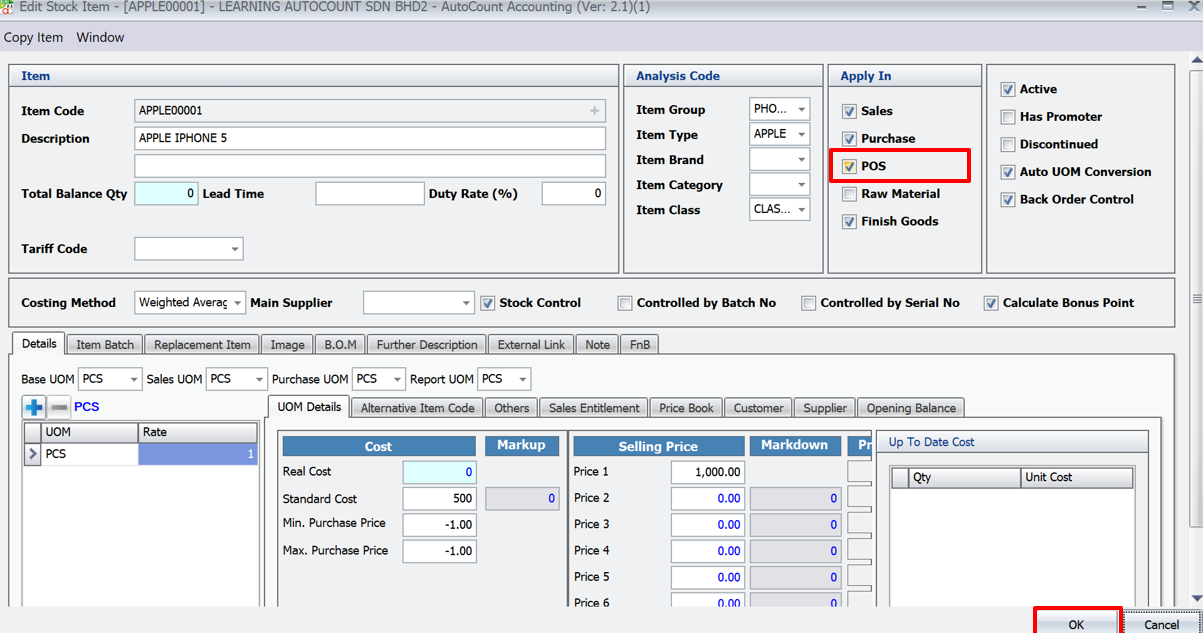
2. Configuring Items for POS
- For retail sales, tick the “POS” option under the apply in settings.
- Leave this unchecked for wholesale-only items.
- Click ‘OK’ to save the changes.
3. Marking Raw Materials and Finished Goods
- Firstly, navigate to Stock > Stock Item Maintenance.
- Secondly, select the item, click “Edit” and tick the boxes for Raw Materials or Finished Goods.

BOM Maintenance (Bill of Materials)
In BOM maintenance, label items as Raw Materials or Finished Goods to avoid mistakes. Raw Materials are used to make Finished Goods, which are sold to customers. This setup ensures that sales invoices do not include raw materials. It also reduces errors when the sales department buys raw materials, as they won’t be mistakenly sold. Labeling items properly keeps inventory and production organized.
Batch Processing
This feature is particularly useful for businesses with extensive inventories, reducing the time spent on manual updates.
1. Use Find feature
- Firstly, navigate to Stock > Stock Item Maintenance.
- After that, use the “Find” feature to search for items based on keywords.

2.Select items
- Secondly, use keywords to search, click ‘Search’ to proceed.
- After that, select the items to update by ticking the checkboxes or using the “Check All” option.

Search and Manage Item
To search efficiently, use keywords to filter the items. You can choose multiple criteria for the search. Once the criteria are selected, click 'Search' to proceed. You can select all items by clicking 'Check All' or choose individual items by clicking on them.
3.Range Set
- Click the button next to ‘Delete’ to select all items.
- Then, click the button beside to apply range set for the selection.
- This allows you to manage all items within the specified range quickly.

4.Apply changes
- Apply changes to the selected items, such as updating brands, categories, or classes.

5.Save the update
- The system highlights changes by turning the column blue.
- Click ‘Save’ to update.

6.Update Success
- Click ‘Refresh’ to successfully update the item class, category, or brand.

Setting Up Stock Item Permissions for Multiple Users
Access Rights for Approval Users on Credit Control
Managing access rights properly ensures security and controls what actions different users perform on items like Stock Item Brand, Class, and Category. Administrators assign permissions based on user roles to ensure secure and efficient task completion. AutoCount allows you to set these access rights easily.


Real-World Applications of the AutoCount Advanced Item Module

Retailer
A retail business uses the module to identify slow-moving brands in their stock aging reports. For instance, by filtering their inventory by brand and class, they adjust their procurement strategy, reducing overstocking and optimizing cash flow.

Manufacturer
A manufacturing company leverages the BOM integration feature to assign raw materials and finished goods accurately. This prevents errors in production workflows and ensures that only finished goods appear in sales invoices.

Wholesale Distributor
A wholesale distributor uses batch processing to reclassify hundreds of items across multiple categories, saving time and improving inventory accuracy.
Conclusion
Businesses use the AutoCount Advanced Item Module to streamline inventory management, improve operational efficiency, and enhance reporting capabilities. The module offers features like advanced filtering, item classification, and integration with POS and BOM, providing a comprehensive solution for managing stock at scale. This module equips retailers, manufacturers, and distributors with tools to optimize inventory processes and make smarter, data-driven decisions.
Frequently Asked Questions
What is the main purpose of the AutoCount Advanced Item Module?
The module enhances inventory management by introducing advanced filtering, item categorization, and reporting features.
How does it integrate with BOM?
It streamlines manufacturing by allowing businesses to assign items as raw materials or finished goods, reducing production errors.
Is it suitable for POS systems?
Yes, the module integrates with POS systems, allowing businesses to configure items for retail or wholesale sales.
Can I apply changes to multiple items simultaneously?
Yes, the batch processing feature enables users to update multiple items at once, saving time and effort.
What are the benefits of customizable reports?
Customizable reports provide deeper insights into inventory performance, enabling businesses to make informed decisions.
How does the module improve decision-making?
With advanced filters, businesses can analyze stock trends, optimize inventory, and prevent overstocking or stockouts.
Interested in Getting AutoCount for your Business?
Contact our sales team today to explore pricing options and get started with the perfect solution for you.