
-
AutoCount Accounting Features
-
- Approval Workflow
- Audit Trail
- Auto Save in Draft Folder
- AutoCount Contra Account
- AutoCount License Setting Guide
- Deposit Tracking & Management
- Documents Numbering Format
- Full Transfer and Partial Transfer
- Import Data to AutoCount Accounting Using Excel
- Informative Charts and Analytical Data
- Layout Customization
- Multi Pricing
- Sales and Services Tax
- Schedule Backup
- Search Lookup Edit
- View Documents Flow
- AutoCount Feature Stock Take
- Column Chooser
- Show Remaining (3) Collapse
-
AutoCount Cloud Accounting
-
AutoCount E-Invoice
-
AutoCount HRMS User Guide
-
AutoCount Modules
-
- Activity Stream
- Advanced Financial Report
- Advanced Item
- Advanced Multi-UOM
- Advanced Quotation Module
- Basic Multi-UOM
- Budget Module
- Consignment
- Filter By Salesman
- FOC Quantity
- Formula
- Item Batch
- Item Package
- Landing Cost
- Multi-Currency
- Multi-Dimensional Analysis
- Multi-Location
- Project Account
- Recurrence
- Remote Credit Control Module
- Stock Assembly
- User Defined Fields (UDF)
- AutoCount SST Hidden Functions
- AutoCount SST Submission - Service Tax
- AutoCount Scripting Module User Guide
- AutoCount Bonus Point Module User Guide
- AutoCount Service Management Plugin User Guide
- Show Remaining (12) Collapse
-
AutoCount Plugins
-
- Fixed Assets Management
- Goldsmith
- TD Ordering Mobile Apps
- TD Stock Mobile Apps
- Universal Import Plugin
- DMS Import Plugin
- AutoCount Pick List Plugin User Guide
- AutoCount Credit Memo Plugin User Guide
- AutoCount Lock Price Plugin
- AutoCount Progressive Billing
- AutoCount Easy Recurrence Plugin
- Batch Update Unit Price Plugin
- AutoCount Production order
- AutoCount Car Tint Film Plugin
-
- Event Management System
- AutoCount To-Do List Plugin
- AutoCount AutoBank Reconciliation Plugin
- Intercompany Billing Plugin User Guide
- Lead Management 2.0 Plugin
- AutoCount Service Contract Plugin User Guide
- AutoCount Optical Plugin
- AutoCount Integrator Plugin
- AutoCount Procurement Planning Plugin
- Cage Management Plugin
- AutoCount Vehicle Plugin
- AutoCount Agent Validation Plugin User Guide
- AutoCount Barcode Generator Plugin User Guide
- AutoCount Easy Batch Number Entry Plugin User Guide
- Warranty 2.0 Plugin
- AutoCount Easy Photo 2.0 User Guide
- AutoCount Recurring Invoice Plugin User Guide
- AutoCount Scale Barcode Plugin User Guide
- AutoCount Recurrence Late Interest Plugin
- AutoCount Item Visibility Control
- AutoCount Bill Remark Plugin User Guide
- AutoCount Pain Tracker User Guide
- AutoCount Easy Payment
- AutoCount Easy Deposit Plugin
- AutoCount Easy Knock Off Plugin
- AutoCount Daily Collection Summary Plugin
- Timber Log Plugins
- Batch Transfer SODO Plugin
- AutoCount Vege Basket Plugin Guide
- AutoCount Fruit Basket Plugin Guide
- Referral Management Plugin
- AutoCount Migrator Plugin
- AutoCount Email & WhatsApp Plugin
- AutoCount Multi Company Knock Off Plugin
- AutoCount Advance Aging Format Plugin
- AutoCount Payment Request Plugin
- AutoCount Vehicle Master Plugin
- AutoCount Advance Deposit Plugin
- AutoCount IC Checker Plugin
- AutoCount RMA Plugin
- AutoCount Historical Outstanding DO Listing Plugin
- AutoCount Project Department Visibility Control Plugin
- AutoCount MRP Order Plugin
- AutoCount GridToExcel Plugin
- AutoCount Stock Availability Report Plugin
- AutoCount Batch Transfer SO DO Plugin
- AutoCount Centralized Kitchen Management Plugin
- SL AutoCount API
- AutoCount InterCompany Billing Plugin
- AutoCount Sales Commission Plugin
- AutoCount Advanced Credit Term Plugin
- AutoCount Advanced Stock Assembly Plugin
- AutoCount Shipment Plugin
- AutoCount Tour Plugin
- AutoCount Smart Analysis
- AutoCount Rental Management
- Show Remaining (41) Collapse
-
-
Form Template
-
Report Template
-
- Advance Quotation
- Cash Sale
- Consignment
- Consignment Movement
- Credit Note
- Debit Note
- Delivery Order
- FOC Quantity Analysis By Document Report
- Invoice
- Item Package Sales Report
- Monthly Sales Analysis
- Outstanding Sales Order Listing
- Profit And Loss Of Documents
- Quotation
- Sales Agent Contribution Report
- Sales Order
- Top/Bottom Sales Ranking
- Show Remaining (2) Collapse
-
- Available Stock Status Report
- Expired Item Batch Listing
- Inventory Physical Worksheet
- Stock Adjustment
- Stock Aging Report
- Stock Assembly
- Stock Assembly Order
- Stock Balance By Location
- Stock Balance Report
- Stock Card Report
- Stock Disassembly
- Stock Issue
- Stock Item Profit Margin
- Stock Movement Report
- Stock Receive
- Stock Take
- Stock Transfer
- Stock Write Off
- Show Remaining (3) Collapse
-
B2B ORDERING
-
AutoCount AI Agent
AutoCount Module: Filter By Salesman
Understanding the AutoCount Filter by Salesman Module
Firstly, the AutoCount Filter by Salesman Module is a powerful tool designed to enhance business efficiency and data security. To clarify, this module ensures that individual salesmen or agents can only view and manage records relevant to them. Thus, fostering accountability and reducing competition among team members. Therefore, by enabling this feature, businesses can safeguard sensitive information and maintain a streamlined workflow.
AutoCount Filter by salesman Module Video Guide
- AutoCount Filter by salesman Module (EN)
Filter by salesman Module Setup
Integration & Filter by salesman Module Setup
- AutoCount Filter by salesman Module (CN)
按销售员筛选 模块设置
按销售员模块设置进行集成和筛选
What is the AutoCount Filter by Salesman Module?
The AutoCount Filter by Salesman Module is a software feature integrated into AutoCount’s accounting system. It allows businesses to:
This module is especially useful in sales-driven industries where sensitive customer data must remain confidential.
Why Use The AutoCount Filter By Salesman module?
For businesses managing multiple sales agents, controlling data visibility is crucial. Here’s why this module is essential:
Setting Up the Filter by Salesman Module
Proper configuration is key to maximizing the benefits of this tool. Follow these steps to set it up:
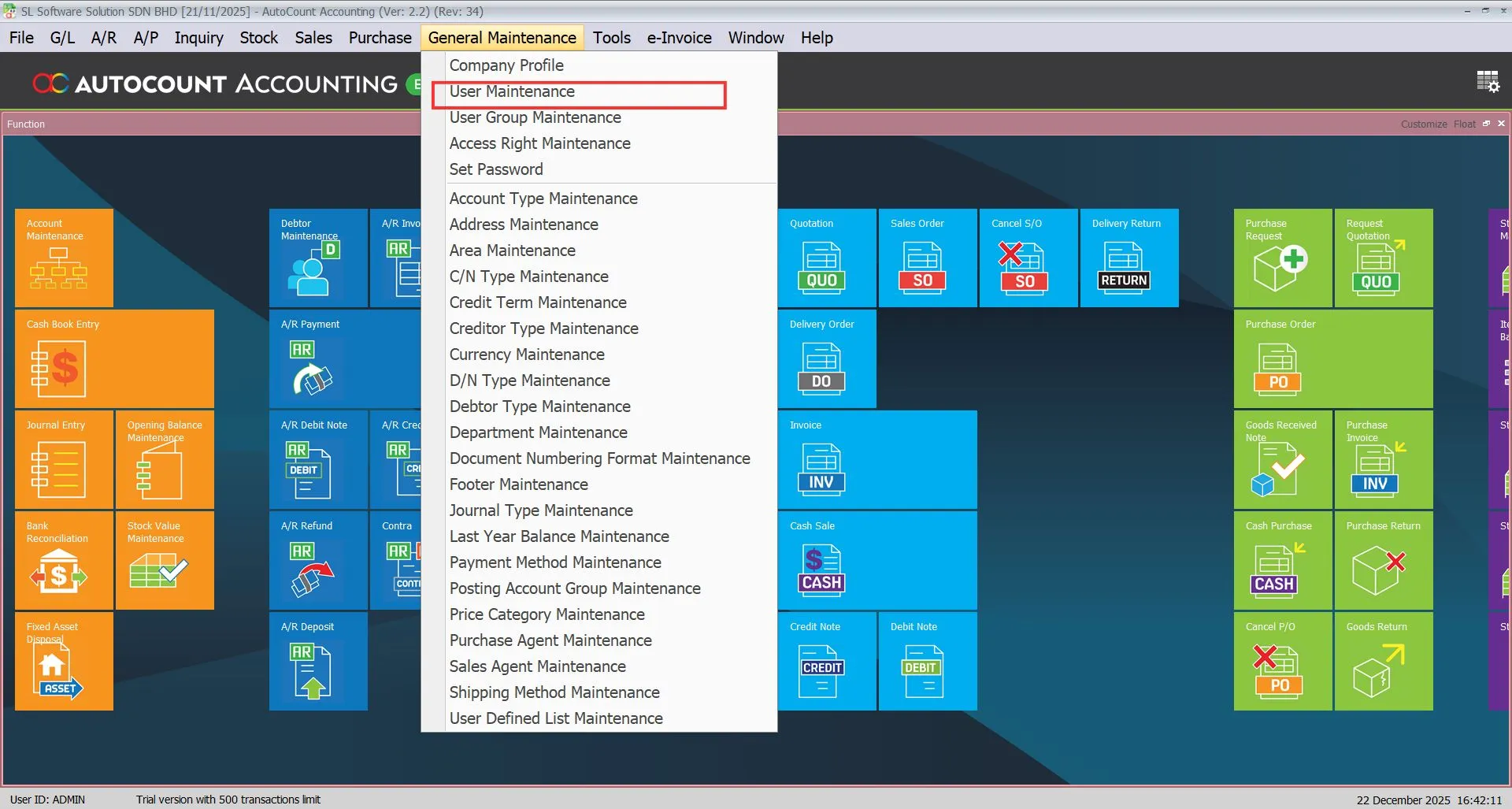
1. Navigating User Maintenance
- FIrstly, go to General Maintenance > User Maintenance.
Secondly, select the user whose access rights need editing.
Thirdly, click on Edit to configure permissions.
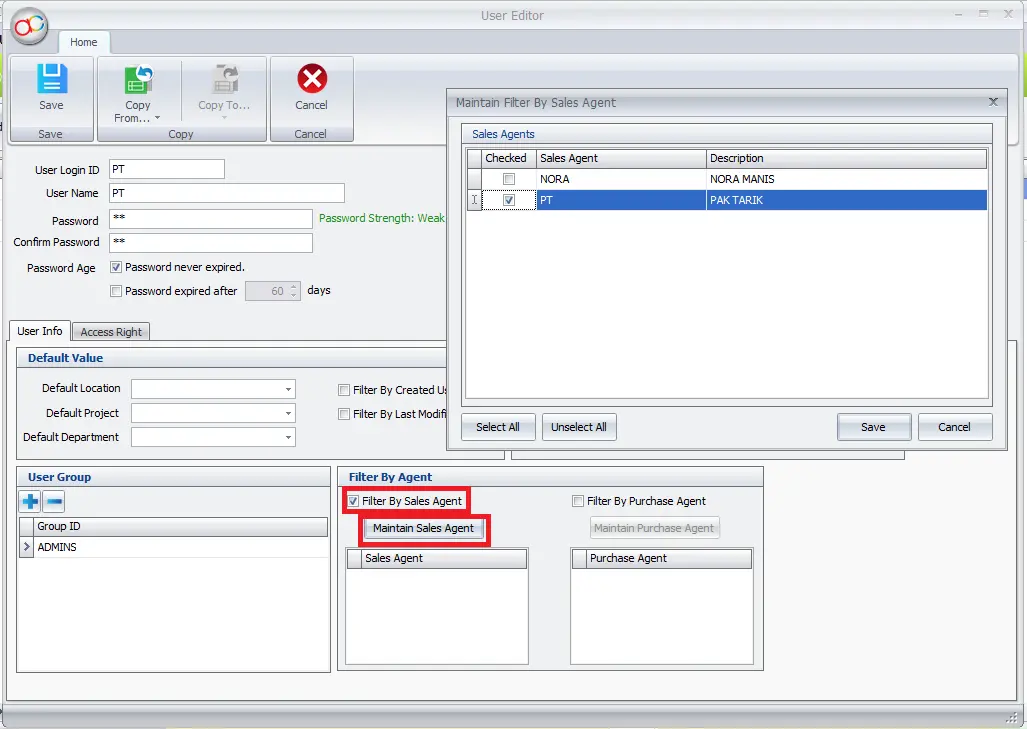
2. Applying Filters for Specific Agents
- Firstly, click the Filter by Sales/Purchase Agent
- Secondly, click on Maintain Sales/Purchase Agent to assign specific agents.
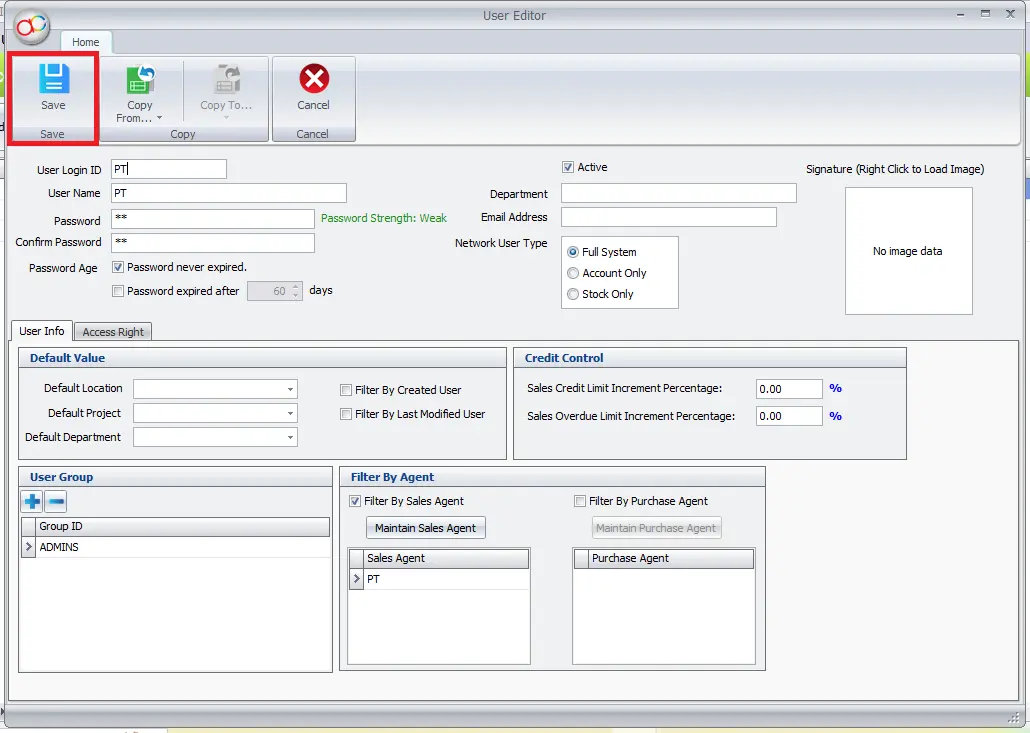
Finally, save the changes to finalize the setup.
Practical Applications of the Module
One common use case involves restricting an agent’s access to invoices created by others.
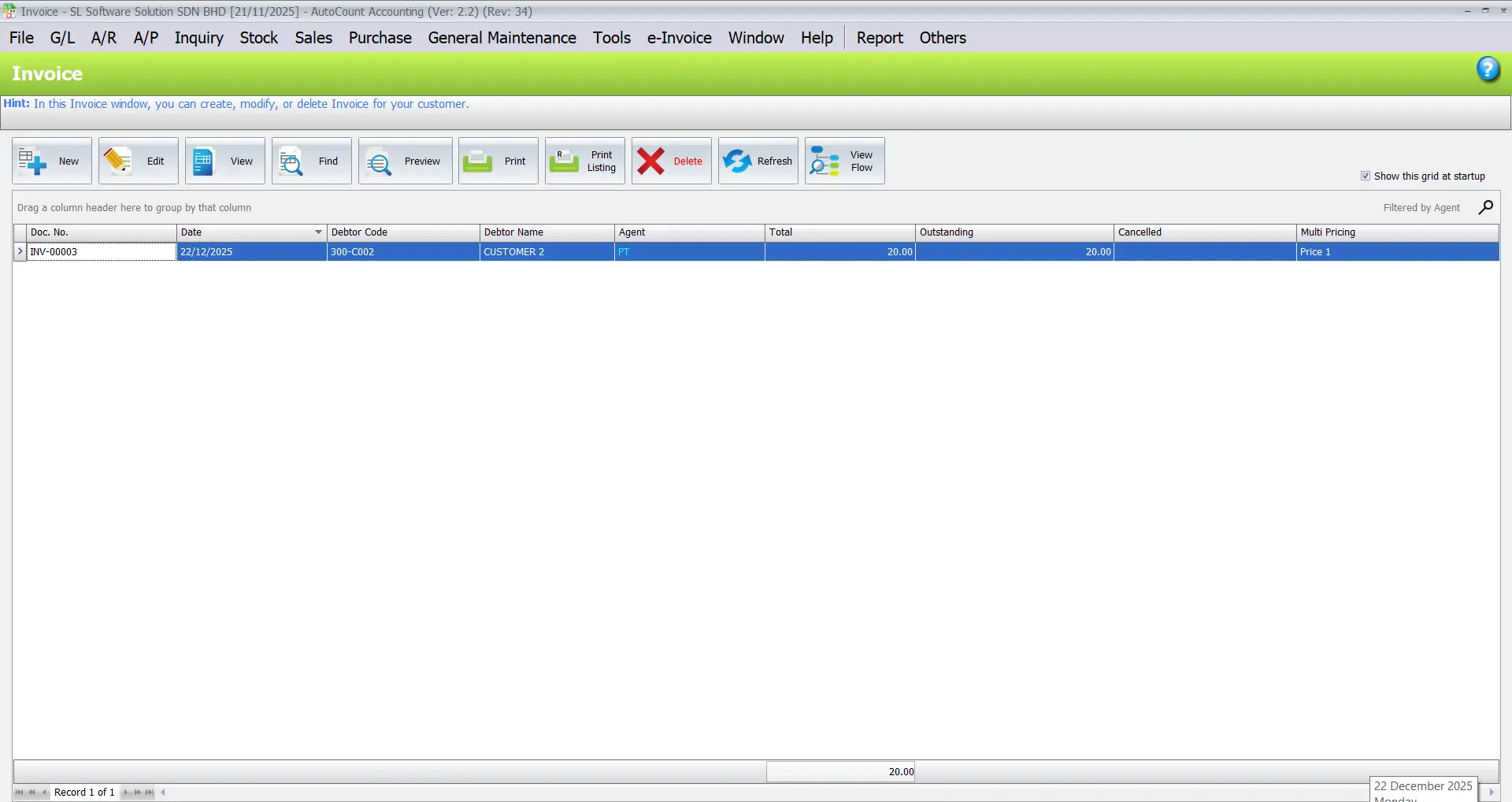
Restricting Access to Non-Assigned Records
- For example, if Agent Doe is assigned to handle Agent PT’s customers,
- Doe can only view records related to PT.
- Any records tied to other agents, such as Nora, will remain inaccessible.
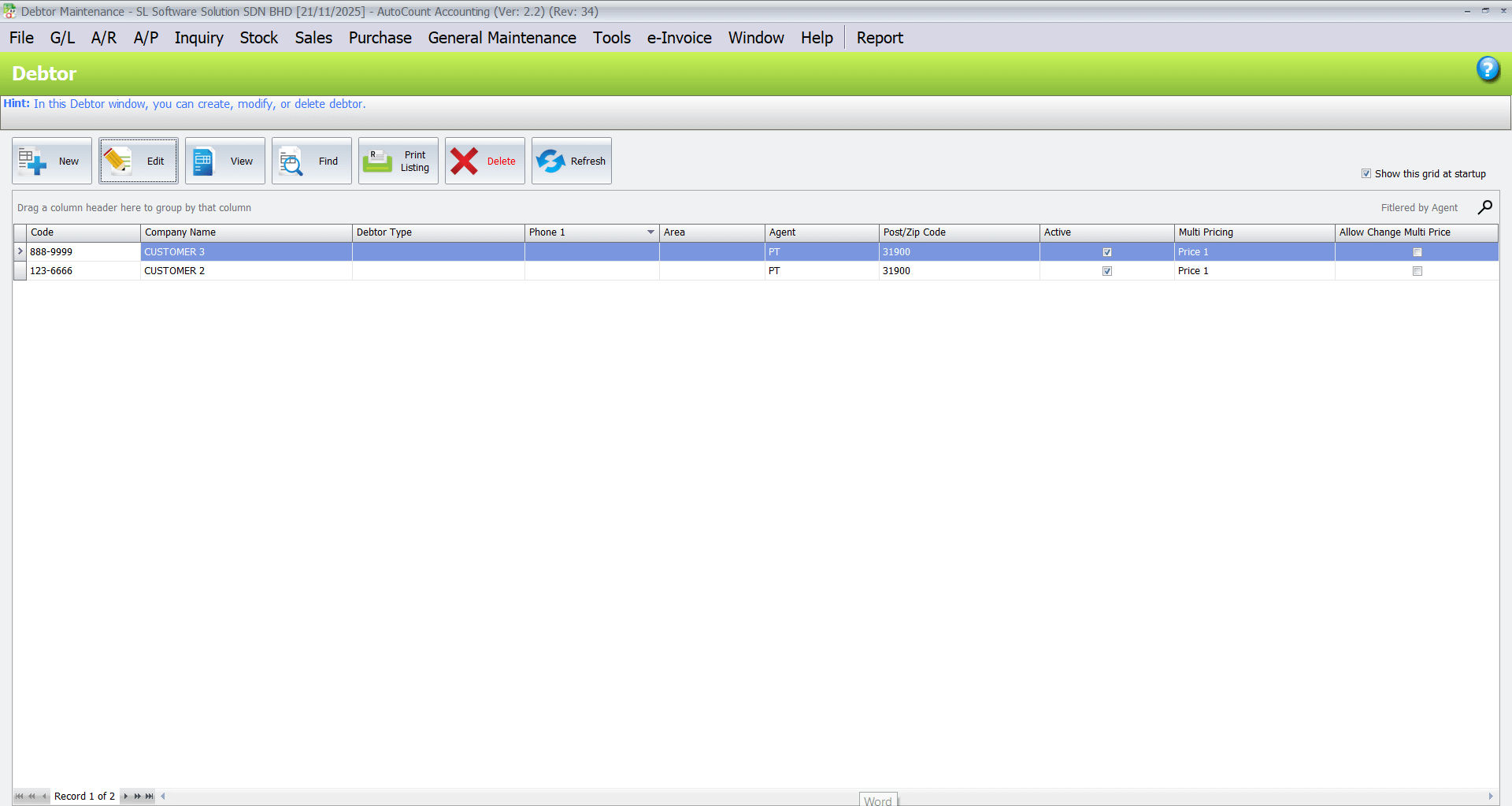
Enabling the Filter by Agent in Lookup Editor
This advanced feature restricts document creation to assigned customers or suppliers.
Steps to Activate:
1. Firstly, go to Tools > Options.
2. Secondly, under General > Application Settings, enable Apply Filter by Agent in Lookup Editor.
3. Finally, click OK to save changes.
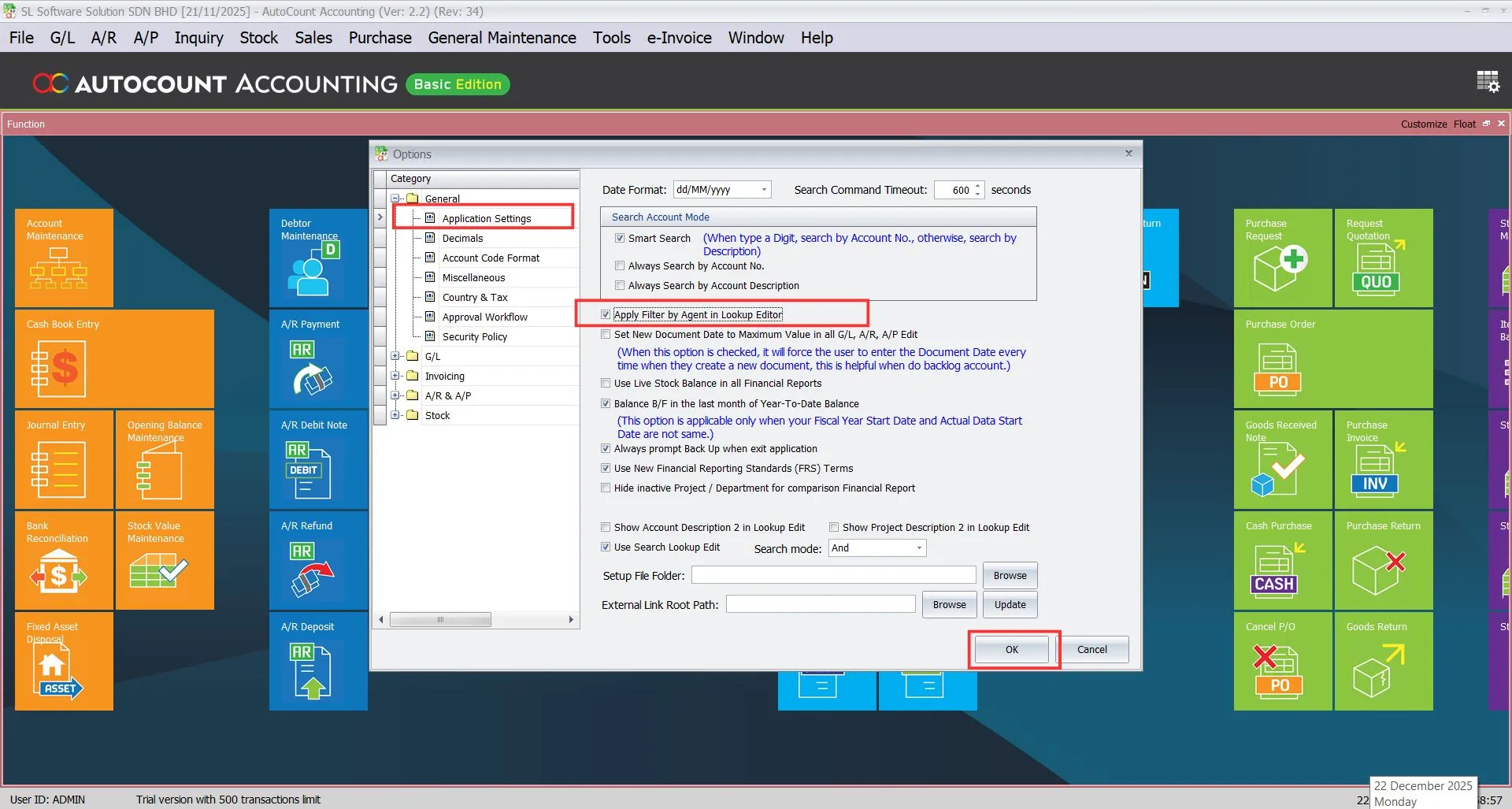
Applied Example: Creating Documents
Before activating this filter, users could create invoices for any customer, regardless of assignment. For example:
- A user could inadvertently select customers assigned to another sales agent.
- Thus, leading to potential confusion or conflicts.
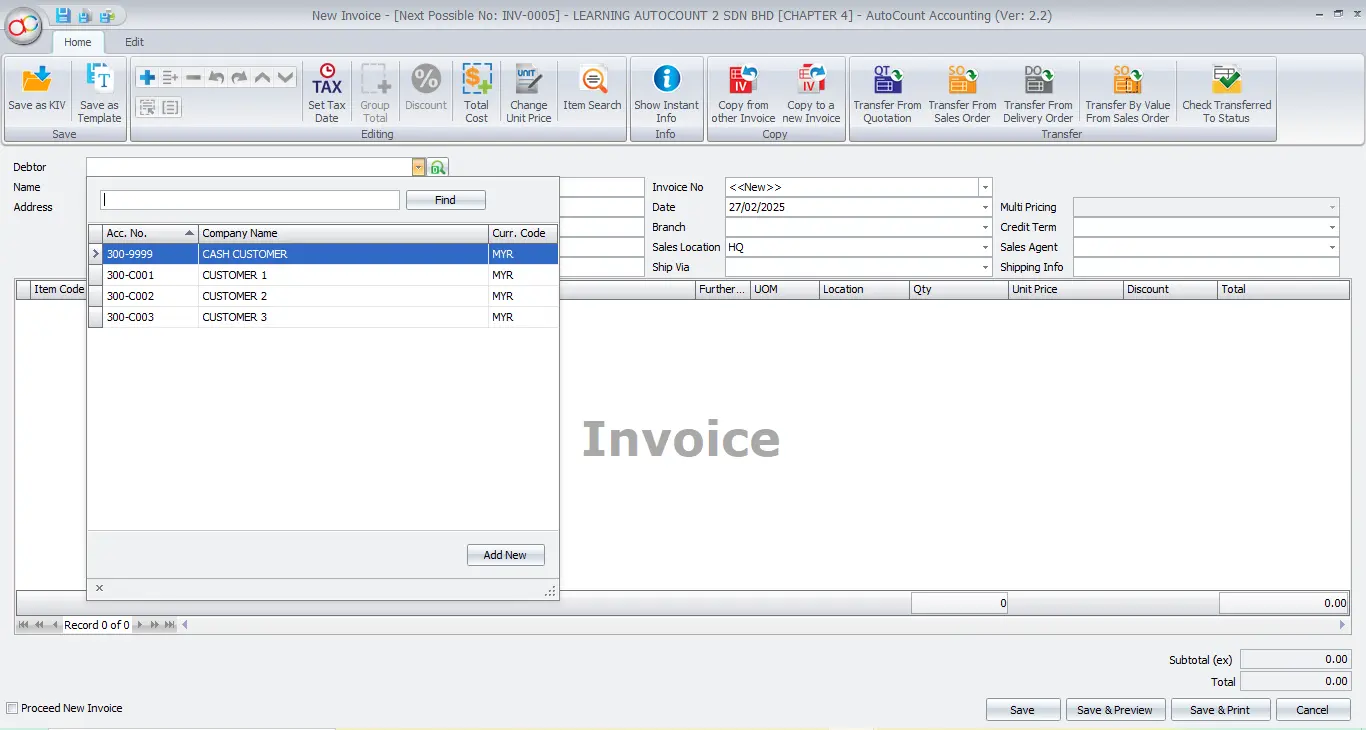
After enabling the Filter by Agent in Lookup Editor:
- The system restricts user Doe to only access customers assigned to Agent PT.
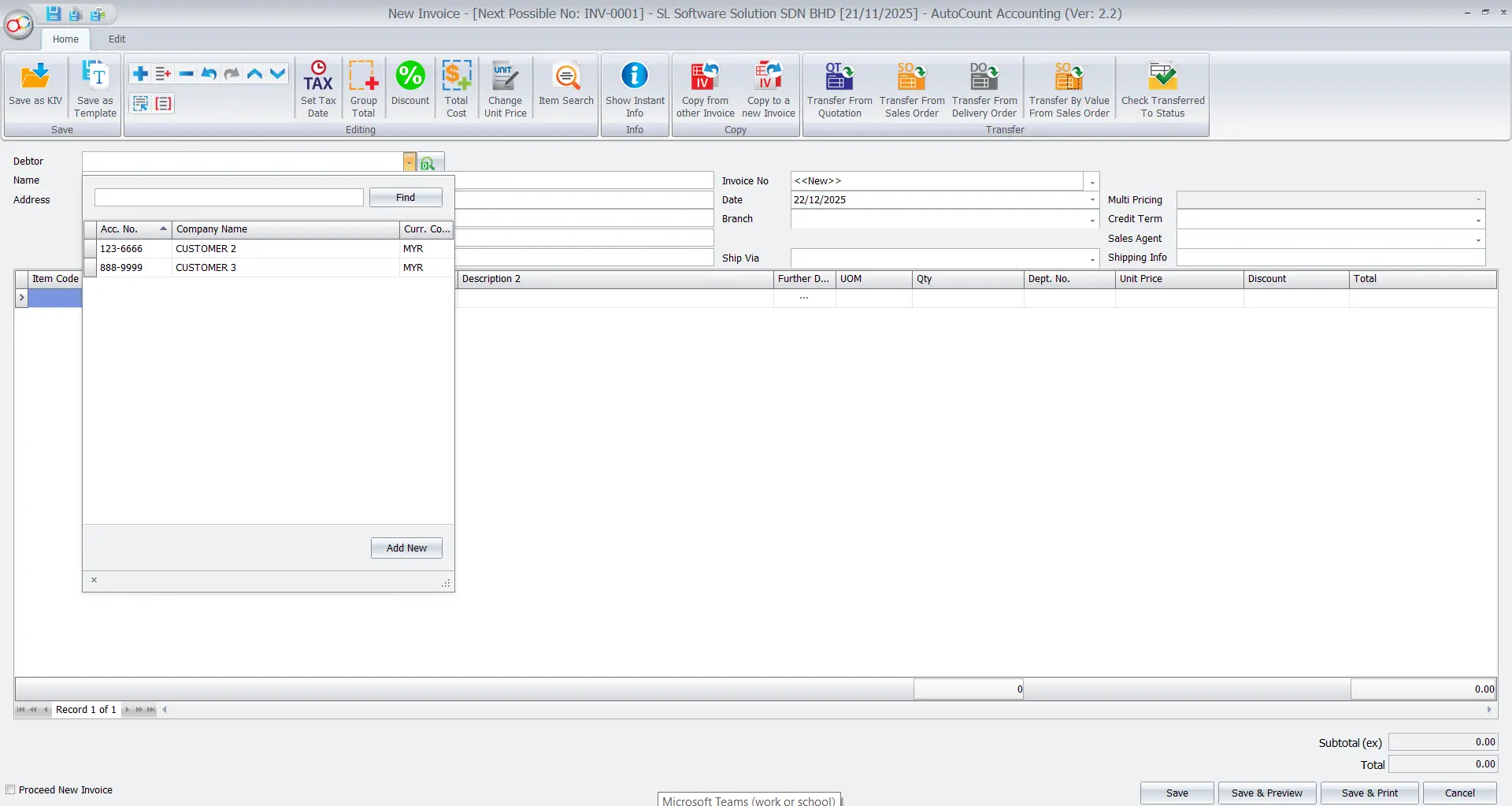
- Doe can create documents using another agent’s name, like Nora, for customers assigned to PT.
- However, the document will disappear from Doe’s view after refreshing, as Nora’s records are restricted.
Reporting and Analysis with Filter by Salesman
Generate precise and tailored reports to analyze sales performance effectively.
Viewing Reports by Sales Agent
Go to Sales > Monthly Sales Analysis Report.
Select the desired date range and Group Level 1 as Sales Agent.
Then, click “Inquiry”.
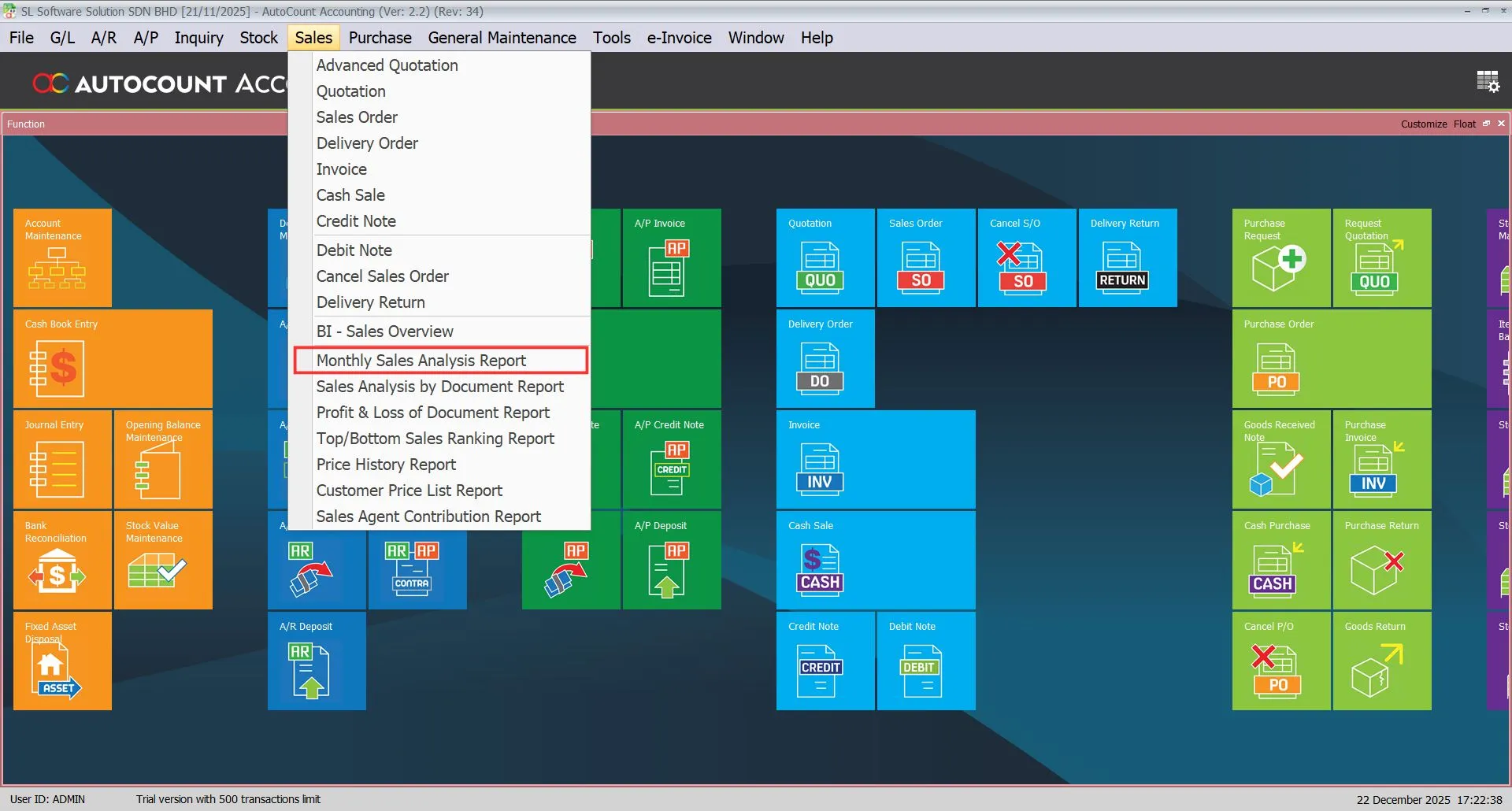
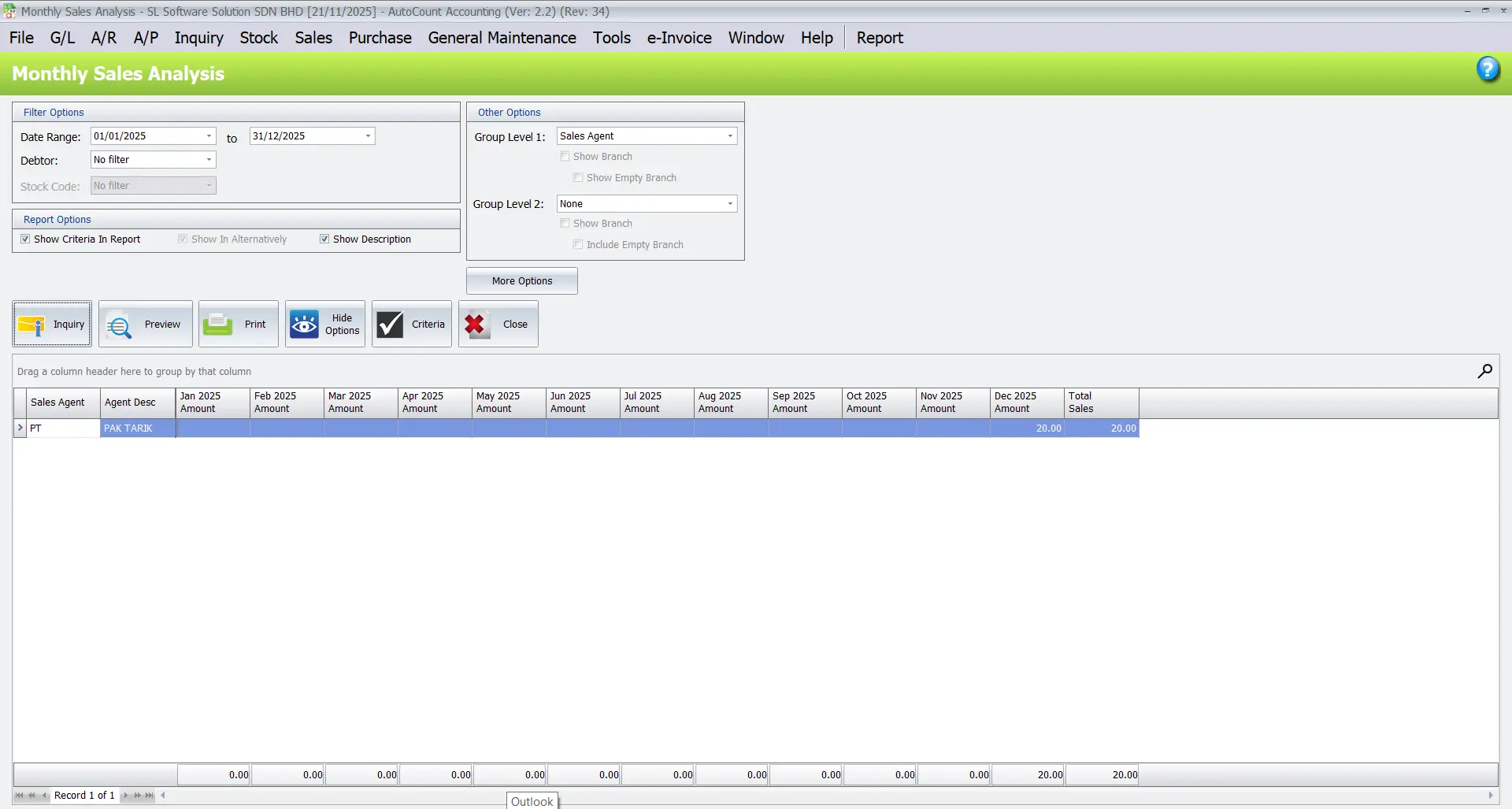
These reports offer actionable insights while maintaining data security.
Advantages of Using the Filter by Salesman Module
Data Security
Prevents unauthorized access to sensitive records.
Enhanced Productivity
Streamlines tasks by reducing irrelevant data visibility.
Accurate Reporting
Facilitates detailed and reliable performance tracking.
Conclusion
The AutoCount Filter by Salesman Module is an invaluable tool for businesses looking to safeguard data and improve efficiency. By leveraging its features, companies can ensure secure operations, better accountability, and more focused sales management.
Frequently Asked Questions
What businesses benefit most from this module?
Businesses with multiple sales agents needing secure data management.
Can this module integrate with other AutoCount features?
Yes, it integrates with inventory and financial modules.
Is it suitable for small businesses?
Yes, it’s ideal for protecting client data and enhancing accountability.
Can the module handle both sales and purchase records?
Yes, it works for both sales and purchase records.
What happens if a user needs temporary access to another agent’s records?
Admins can adjust permissions temporarily.
Is training required to implement this module effectively?
Minimal training ensures smooth implementation and use.
Interested in Getting AutoCount for your Business?
Contact our sales team today to explore pricing options and get started with the perfect solution for you.