
-
AutoCount Accounting Features
-
- Approval Workflow
- Audit Trail
- Auto Save in Draft Folder
- AutoCount Contra Account
- AutoCount Feature Stock Take
- AutoCount License Setting Guide
- Column Chooser
- Deposit Tracking & Management
- Documents Numbering Format
- Full Transfer and Partial Transfer
- Import Data to AutoCount Accounting Using Excel
- Informative Charts and Analytical Data
- Layout Customization
- Multi Pricing
- Sales and Services Tax
- Schedule Backup
- Search Lookup Edit
- View Documents Flow
- Show Remaining (3) Collapse
-
AutoCount Cloud Accounting
-
AutoCount E-Invoice
- AutoCount E-Invoicing Tutorial
- E-Invoice Guide and Preparation for AutoCount Users
- Employee Handbook Template for E-Invoicing
- How E-Invoice Works in AutoCount Accounting?
- How to Enable and Submit SVDP e-Invoices in AutoCount 2.0
- How to Use AutoCount Accounting for LHDN e-Invoice
- What is E-Invoicing?
-
AutoCount Payroll & HRMS
-
- Coming soon
-
- Coming soon
-
AutoCount Modules
-
- Activity Stream
- Advanced Financial Report
- Advanced Item
- Advanced Multi-UOM
- Advanced Quotation Module
- AutoCount Bonus Point Module User Guide
- AutoCount Scripting Module User Guide
- AutoCount Service Management Plugin User Guide
- AutoCount SST Hidden Functions
- AutoCount SST Submission - Service Tax
- Basic Multi-UOM
- Budget Module
- Consignment
- Filter By Salesman
- FOC Quantity
- Formula
- Item Batch
- Item Package
- Landing Cost
- Multi-Currency
- Multi-Dimensional Analysis
- Multi-Location
- Project Account
- Recurrence
- Remote Credit Control Module
- Stock Assembly
- User Defined Fields (UDF)
- Show Remaining (12) Collapse
-
AutoCount Plugins
-
- AutoCount Car Tint Film Plugin
- AutoCount Credit Memo Plugin User Guide
- AutoCount Easy Recurrence Plugin
- AutoCount Lock Price Plugin
- AutoCount Pick List Plugin User Guide
- AutoCount Production order
- AutoCount Progressive Billing
- Batch Update Unit Price Plugin
- DMS Import Plugin
- Fixed Assets Management
- Goldsmith
- TD Ordering Mobile Apps
- TD Stock Mobile Apps
- Universal Import Plugin
-
- AutoCount Advance Aging Format Plugin
- AutoCount Advance Deposit Plugin
- AutoCount Advanced Credit Term Plugin User Guide
- AutoCount Advanced Stock Assembly Plugin User Guide
- AutoCount Agent Validation Plugin User Guide
- AutoCount AutoBank Reconciliation Plugin User Guide
- AutoCount Barcode Generator Plugin User Guide
- AutoCount Batch Transfer SO DO Plugin
- AutoCount Bill Remark Plugin User Guide
- AutoCount Cage Management Plugin User Guide
- AutoCount Centralized Kitchen Management Plugin
- AutoCount Daily Collection Summary Plugin User Guide
- AutoCount Easy Batch Number Entry Plugin User Guide
- AutoCount Easy Deposit Plugin User Guide
- AutoCount Easy Knock Off Plugin
- AutoCount Easy Payment Plugin User Guide
- AutoCount Easy Photo 2.0 User Guide
- AutoCount Email & WhatsApp Plugin User Guide
- AutoCount Event Management System Plugin User Guide
- AutoCount Fruit Basket Plugin Guide
- AutoCount GridToExcel Plugin
- AutoCount Historical Outstanding DO Listing Plugin
- AutoCount IC Checker Plugin
- AutoCount Integrator Plugin
- AutoCount InterCompany Billing Plugin
- AutoCount Item Visibility Control Plugin User Guide
- AutoCount Migrator Plugin
- AutoCount MRP Order Plugin
- AutoCount Multi Company Knock Off Plugin
- AutoCount Optical Plugin
- AutoCount Pain Tracker Plugin User Guide
- AutoCount Payment Request Plugin
- AutoCount Procurement Planning Plugin User Guide
- AutoCount Project Department Visibility Control Plugin
- AutoCount Recurrence Late Interest Plugin
- AutoCount Recurring Invoice Plugin User Guide
- AutoCount Referral Management Plugin User Guide
- AutoCount Rental Management
- AutoCount RMA Plugin
- AutoCount Sales Commission Plugin
- AutoCount Scale Barcode Plugin User Guide
- AutoCount Service Contract Plugin User Guide
- AutoCount Shipment Plugin User Guide
- AutoCount Smart Analysis Plugin User Guide
- AutoCount Stock Availability Report Plugin
- AutoCount Timber Log Plugin User Guide
- AutoCount To-Do List Plugin User Guide
- AutoCount Tour Plugin User Guide
- AutoCount Vege Basket Plugin User Guide
- AutoCount Vehicle Master Plugin User Guide
- AutoCount Vehicle Plugin
- AutoCount Warranty 2.0 Plugin User Guide
- Batch Transfer SODO Plugin
- Intercompany Billing Plugin User Guide
- Lead Management 2.0 Plugin
- SL AutoCount API
- AutoCount Smart Dashboard Plugin User Guide
- Show Remaining (42) Collapse
-
-
Form Template
-
Report Template
-
- Advance Quotation
- Cash Sale
- Consignment
- Consignment Movement
- Credit Note
- Debit Note
- Delivery Order
- FOC Quantity Analysis By Document Report
- Invoice
- Item Package Sales Report
- Monthly Sales Analysis
- Outstanding Sales Order Listing
- Profit And Loss Of Documents
- Quotation
- Sales Agent Contribution Report
- Sales Order
- Top/Bottom Sales Ranking
- Show Remaining (2) Collapse
-
- Available Stock Status Report
- Expired Item Batch Listing
- Inventory Physical Worksheet
- Stock Adjustment
- Stock Aging Report
- Stock Assembly
- Stock Assembly Order
- Stock Balance By Location
- Stock Balance Report
- Stock Card Report
- Stock Disassembly
- Stock Issue
- Stock Item Profit Margin
- Stock Movement Report
- Stock Receive
- Stock Take
- Stock Transfer
- Stock Write Off
- Show Remaining (3) Collapse
-
B2B ORDERING
-
AutoCount AI Agent
-
AutoCount FAQ & Troubleshooting
- How to Add New User ID in AutoCount Accounting (Step-by-Step Guide)
- How to Add or Edit Company Header in AutoCount
- How to Add the Account Number Column in AutoCount
- How to Adjust Decimal Places in AutoCount
- How to Change Default Document Numbering Format for OR and PV in AutoCount
- How to Disable e-Invoice in AutoCount
- How to Switch to Default Workspace in AutoCount
- How to Turn Off Smart App Control in Windows 11 for AutoCount
-
AutoCount F&B
-
- How to Accept or Reject QR Orders in AutoCount F&B POS
- How to Connect AutoCount POS Backend to QR Ordering Using an API Key
- How to Create a Restaurant in AutoCount QR Ordering Backend
- How to Customize AutoCount QR Ordering Customer View and Operating Hours
- How to Print and Test AutoCount F&B Table QR Codes
- How to Publish Menu Items to AutoCount F&B QR Ordering
- How to Set Up AutoCount F&B QR Ordering: Complete Guide
- How to Set Up Table QR Codes in AutoCount F&B
-
-
AutoCount Unicart Integration
- How Customer, Supplier and Order Field Mapping Works
- How Does a SiteGiant iSKU Map to an AutoCount Item Code?
- How Does the System Check Duplicate iSKU Mapping?
- How Is the Stock Sync Quantity Calculated?
- How Shipping, Discounts, Vouchers and Marketplace Charges Post to AutoCount?
- How Should a New AutoCount Item and SiteGiant iSKU Be Created?
- How SiteGiant Members and Bonus Points Sync with AutoCount POS
- How SiteGiant Orders Sync to AutoCount: Manual or Automatic
- How SiteGiant Purchase Flow Posts to AutoCount GRN
- How to Auto Sync AutoCount Price & Cost to SiteGiant Inventory
- How to Choose the Stock Master in SiteGiant and AutoCount
- How to Connect SiteGiant ERP to AutoCount and Confirm the Connection
- How to Handle Cancelled, Returned or Refunded Online Orders?
- How to Handle Fulfilled by Shopee Stock in AutoCount
- How to Handle SiteGiant Bundle / KIT Items
- How to Map Different UOMs for the Same Item?
- How to Reconcile Marketplace Settlements Using Bulk Knock Off
- How to Set the Posting Rules for Each Sales Channel
- How to Sync Stock from AutoCount to SiteGiant: Manual or Automatic
- Show Remaining (4) Collapse
AutoCount Statement of Account — Debtor Statement Templates
Looking for a Statement of Account template? Explore seven original AutoCount Debtor Statement report layouts for reviewing customer balances. Compare 6-month, 12-month, System, User and Preprinted Form layouts, view PDF samples and download the corresponding ART ZIP files.
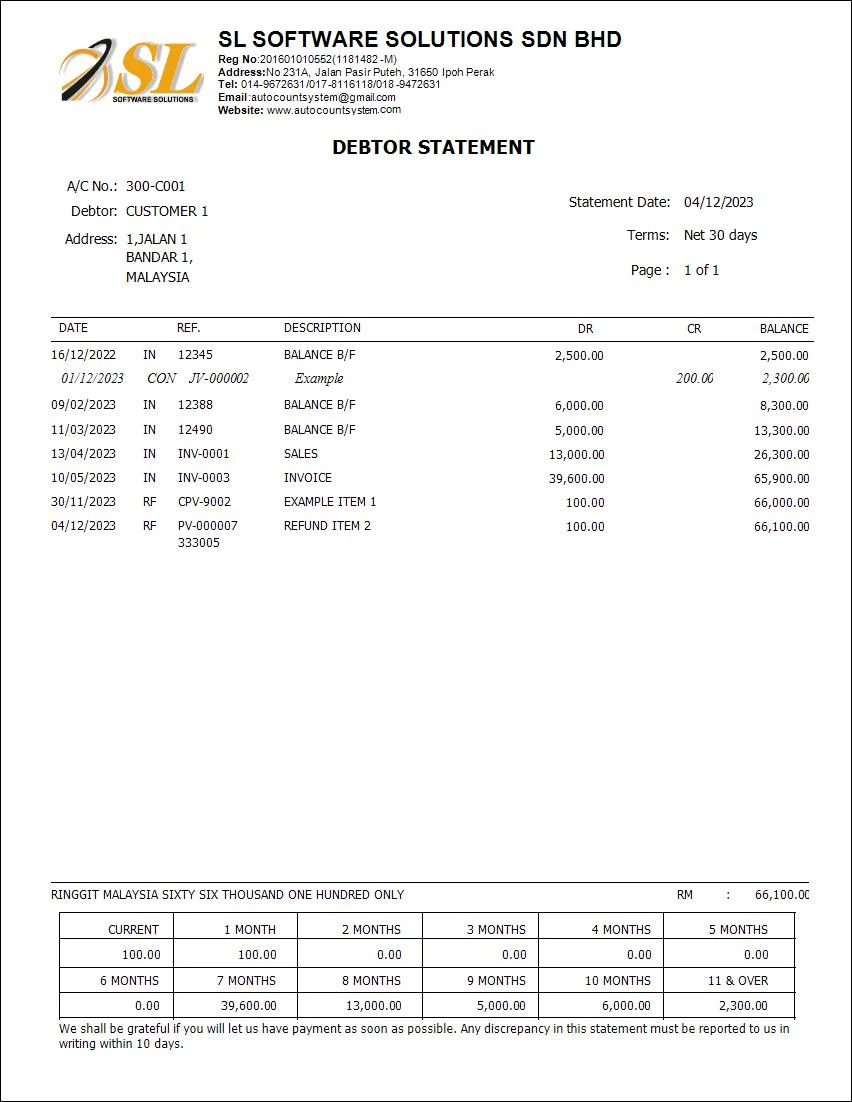
The AutoCount Debtor Statement Report helps review customer balances through printable statements. Choose an original 6-month or 12-month design, user layout or preprinted-form format. These files are report templates and sample PDFs, not transaction-entry tools. Verify compatibility with your AutoCount version.
Statement of Account Templates and PDF Samples
7 templatesPreview and download the original AutoCount Debtor Statement System, User and Preprinted Form report layouts.
Debtor Statement – 12 Months – System Report
Original AutoCount system printout for Debtor Statement-12 Months.
↓ Download ART (ZIP)Debtor Statement – 12 Months – User Report
Original user-designed AutoCount statement layout for Debtor Statement-12 Months.
↓ Download ART (ZIP)Debtor Statement – 6 Months – System Report
Original AutoCount system printout for Debtor Statement-6 Months.
↓ Download ART (ZIP)Debtor Statement – 6 Months – User Report
Original user-designed AutoCount statement layout for Debtor Statement-6 Months.
↓ Download ART (ZIP)Debtor Statement – 6 Months – SL Software Layout – User Report
Original user-designed AutoCount statement layout for Debtor Statement-6 Months.
↓ Download ART (ZIP)Debtor Statement – 12 Months (For Preprinted Form) – System Report
Original AutoCount system printout for Debtor Statement - 12 Months (For Preprinted Form).
↓ Download ART (ZIP)Debtor Statement – 6 Months (For Preprinted Form) – System Report
Original AutoCount system printout for Debtor Statement - 6 Months (For Preprinted Form).
↓ Download ART (ZIP)The ART ZIP includes the report template, while the PDF shows a sample printout. Verify compatibility with your installed AutoCount version before importing.
Need a Custom Debtor Statement Layout?
Need your company logo, different statement periods, customer details, signature fields or a preprinted form? SL Software can review your sample and installed AutoCount version.
Discuss Report Customization ↗Explore Other AutoCount Report Templates
Debtor Aging Reports
Explore outstanding customer balances grouped by aging period.
View Debtor Aging →Creditor Statement Reports
Browse supplier account statement templates.
View Creditor Statements →AutoCount Accounting
Explore customer account reporting and receivables workflows. For official software information, visit the AutoCount Accounting overview.
Explore Accounting →Statement of Account and Debtor Statement FAQs
What does a Debtor Statement Report show?
A Debtor Statement Report presents a customer’s account statement and outstanding balance details, helping accounting teams review receivables. The printable template provides an alternative layout for existing data; it does not change transactions or payment allocations.
Which layouts are available?
The library includes seven System, User and Preprinted Form layouts for six-month and twelve-month statements. Use the sample images to compare the column arrangement and any preprinted stationery requirements before choosing a file.
What is the difference between ART ZIP and PDF?
The ART ZIP contains a report-layout file for a compatible AutoCount installation. The PDF is a sample of the printed statement, allowing you to check the document appearance without importing or modifying your current report format.
Can I use a preprinted form?
The page includes original 6-month and 12-month preprinted-form templates. Verify that your form stock and AutoCount version match the layout.
Can these reports be customized?
Contact SL Software with a sample of your desired layout, the customer fields you need, paper size, branding and AutoCount version. The team can review whether those print-format changes are feasible while preserving your accounting data.
What is the difference between a Statement of Account and a Debtor Aging Report?
A customer Statement of Account presents account activity and balance information for the selected reporting period. A Debtor Aging Report groups outstanding receivables by age to support credit control and collection follow-up. See the Debtor Aging Report Templates.
Need Help With Debtor Statement Reports?
Discuss report customization with SL Software.