
-
AutoCount Accounting Features
-
- Approval Workflow
- Audit Trail
- Auto Save in Draft Folder
- AutoCount Contra Account
- AutoCount License Setting Guide
- Deposit Tracking & Management
- Documents Numbering Format
- Full Transfer and Partial Transfer
- Import Data to AutoCount Accounting Using Excel
- Informative Charts and Analytical Data
- Layout Customization
- Multi Pricing
- Sales and Services Tax
- Schedule Backup
- Search Lookup Edit
- View Documents Flow
- AutoCount Feature Stock Take
- Column Chooser
- Show Remaining (3) Collapse
-
AutoCount Cloud Accounting
-
AutoCount E-Invoice
-
AutoCount HRMS User Guide
-
AutoCount Modules
-
- Activity Stream
- Advanced Financial Report
- Advanced Item
- Advanced Multi-UOM
- Advanced Quotation Module
- Basic Multi-UOM
- Budget Module
- Consignment
- Filter By Salesman
- FOC Quantity
- Formula
- Item Batch
- Item Package
- Landing Cost
- Multi-Currency
- Multi-Dimensional Analysis
- Multi-Location
- Project Account
- Recurrence
- Remote Credit Control Module
- Stock Assembly
- User Defined Fields (UDF)
- AutoCount SST Hidden Functions
- AutoCount SST Submission - Service Tax
- AutoCount Scripting Module User Guide
- AutoCount Bonus Point Module User Guide
- AutoCount Service Management Plugin User Guide
- Show Remaining (12) Collapse
-
AutoCount Plugins
-
- Fixed Assets Management
- Goldsmith
- TD Ordering Mobile Apps
- TD Stock Mobile Apps
- Universal Import Plugin
- DMS Import Plugin
- AutoCount Pick List Plugin User Guide
- AutoCount Credit Memo Plugin User Guide
- AutoCount Lock Price Plugin
- AutoCount Progressive Billing
- AutoCount Easy Recurrence Plugin
- Batch Update Unit Price Plugin
- AutoCount Production order
- AutoCount Car Tint Film Plugin
-
- Event Management System
- AutoCount To-Do List Plugin
- AutoCount AutoBank Reconciliation Plugin
- Intercompany Billing Plugin User Guide
- Lead Management 2.0 Plugin
- AutoCount Service Contract Plugin User Guide
- AutoCount Optical Plugin
- AutoCount Integrator Plugin
- AutoCount Procurement Planning Plugin
- Cage Management Plugin
- AutoCount Vehicle Plugin
- AutoCount Agent Validation Plugin User Guide
- AutoCount Barcode Generator Plugin User Guide
- AutoCount Easy Batch Number Entry Plugin User Guide
- Warranty 2.0 Plugin
- AutoCount Easy Photo 2.0 User Guide
- AutoCount Recurring Invoice Plugin User Guide
- AutoCount Scale Barcode Plugin User Guide
- AutoCount Recurrence Late Interest Plugin
- AutoCount Item Visibility Control
- AutoCount Bill Remark Plugin User Guide
- AutoCount Pain Tracker User Guide
- AutoCount Easy Payment
- AutoCount Easy Deposit Plugin
- AutoCount Easy Knock Off Plugin
- AutoCount Daily Collection Summary Plugin
- Timber Log Plugins
- Batch Transfer SODO Plugin
- AutoCount Vege Basket Plugin Guide
- AutoCount Fruit Basket Plugin Guide
- Referral Management Plugin
- AutoCount Migrator Plugin
- AutoCount Email & WhatsApp Plugin
- AutoCount Multi Company Knock Off Plugin
- AutoCount Advance Aging Format Plugin
- AutoCount Payment Request Plugin
- AutoCount Vehicle Master Plugin
- AutoCount Advance Deposit Plugin
- AutoCount IC Checker Plugin
- AutoCount RMA Plugin
- AutoCount Historical Outstanding DO Listing Plugin
- AutoCount Project Department Visibility Control Plugin
- AutoCount MRP Order Plugin
- AutoCount GridToExcel Plugin
- AutoCount Stock Availability Report Plugin
- AutoCount Batch Transfer SO DO Plugin
- AutoCount Centralized Kitchen Management Plugin
- SL AutoCount API
- AutoCount InterCompany Billing Plugin
- AutoCount Sales Commission Plugin
- AutoCount Advanced Credit Term Plugin
- AutoCount Advanced Stock Assembly Plugin
- AutoCount Shipment Plugin
- AutoCount Tour Plugin
- AutoCount Smart Analysis
- AutoCount Rental Management
- Show Remaining (41) Collapse
-
-
Form Template
-
Report Template
-
- Advance Quotation
- Cash Sale
- Consignment
- Consignment Movement
- Credit Note
- Debit Note
- Delivery Order
- FOC Quantity Analysis By Document Report
- Invoice
- Item Package Sales Report
- Monthly Sales Analysis
- Outstanding Sales Order Listing
- Profit And Loss Of Documents
- Quotation
- Sales Agent Contribution Report
- Sales Order
- Top/Bottom Sales Ranking
- Show Remaining (2) Collapse
-
- Available Stock Status Report
- Expired Item Batch Listing
- Inventory Physical Worksheet
- Stock Adjustment
- Stock Aging Report
- Stock Assembly
- Stock Assembly Order
- Stock Balance By Location
- Stock Balance Report
- Stock Card Report
- Stock Disassembly
- Stock Issue
- Stock Item Profit Margin
- Stock Movement Report
- Stock Receive
- Stock Take
- Stock Transfer
- Stock Write Off
- Show Remaining (3) Collapse
-
B2B ORDERING
-
AutoCount AI Agent
AutoCount Module: Remote Credit Control Module
Introduction to AutoCount Remote Credit Control
In today’s fast-moving business world, it’s really important to manage your company’s finances well. In other words, the AutoCount Remote Credit Control module can help with this. To clarify, it lets supervisors and managers more easy and quickly approve customer orders. Therefore, this plugin can make a big difference in how you handle credit control and make your business run smoother.
AutoCount Remote Credit Control Module Video Guide
Key Features of AutoCount Remote Credit Control Module
Efficient Approval Workflow
Firstly, it makes it more easy for supervisors and managers to say "yes" or "no" to customer orders from their own computers. In other words, they don't have to go to other people's computers. They just need to type in a password, and they can say "yes" or "no" quickly. Thus, saving more time and makes the work more smooth.
Access Right Management
Secondly, you can set up who can approve orders by deciding who has the power. For example, if a salesperson or buyer goes over their credit limit or owes too much, the system tells the supervisor or manager on their computer. In addition, it also shows how much they went over. This help them make quick decisions on whether to say "yes" or "no" to the order.
Time and Effort Savings
Thirdly, you don't have to do things manually and make extra work for yourself. This module lets supervisors and managers more easy to handle credit control without spending more time and effort.
Enhanced Credit Control Management
In addition, improve credit control management with a simplified and efficient approach. Stay on top of credit limits, monitor overdue accounts, and make sure timely approvals. Streamline operations and minimize credit risks for better financial management.
Increased Productivity
Finally, make work go faster by making credit control easier. When the process is smooth and you get automatic messages, supervisors and managers can focus on important jobs and make quick decisions. Thus, helping the business get more done.
Step-by-Step Guide to Use AutoCount Remote Credit Control Module
1. Setting up Credit Control
- First, right click on Debtor Maintainance in the main menu.
- Then, select the debtor that you want to enforce the credit control limit and click edit.

- Click on Credit Control and key in the Credit Limit and Credit Term’s Overdue Limit.
- Tick on the “Controlled by credit trem” and change to “Need password“.

2. Maintaining Access Right
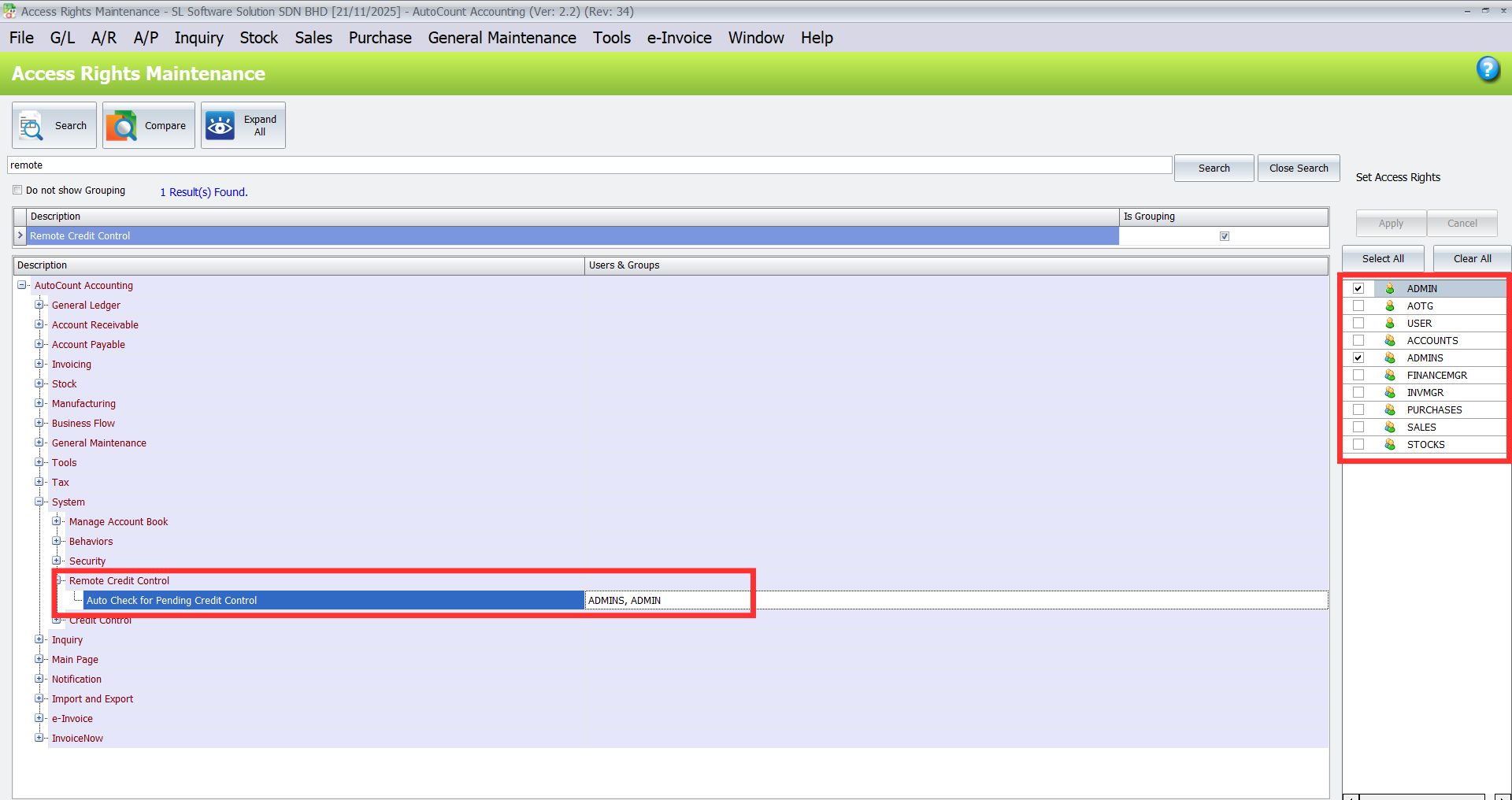
Ensure you have enable the access right to allow admin to approve or reject pending credit limit approval request and to allow auto check for pending credit control.
- First, go to General Maintainance > Access Right Maintainance.
- Use the search function and search for “remote“.
- Expand the “Remote credit control” and make sure to tick on “ADMIN” to grant the access right for Auto Check for Pending Credit Control.
- Then, click on Apply.
3. Test on Normal User Account
Log out from the admin account and login again using different user account that do not have access right to approve credit control limit. (For example – normal user)
- Then, go to Sales > Invoice to create a new invoice.
- Click on New to create new invoice and key in an amount that exceed the credit limit that was set just now.
- Once you click Save, a window will pop up alerting the user that the debtor has violate the credit limit.
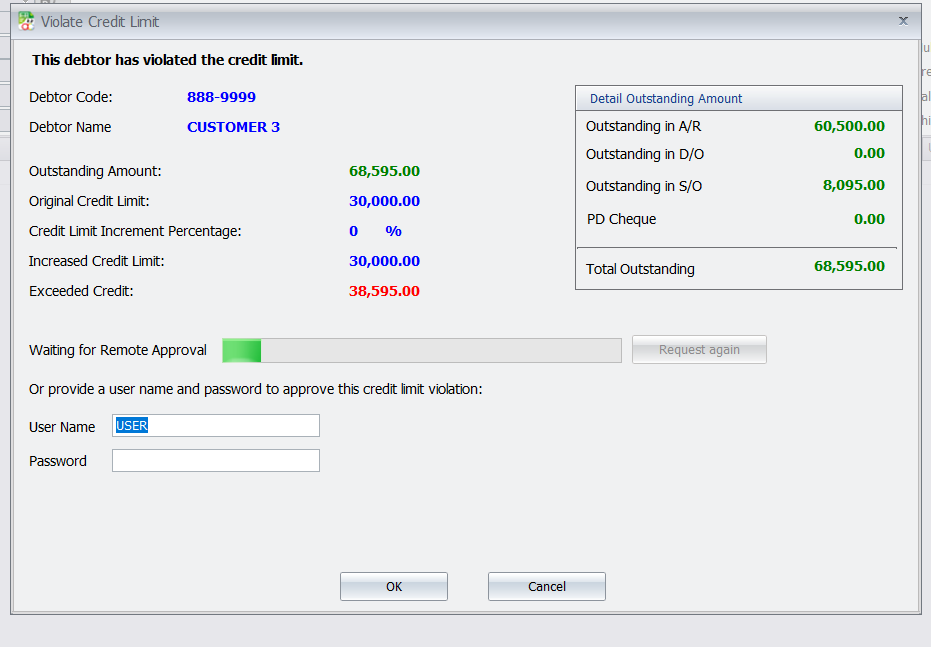
In the Admin account, a Document Credit Control Approval window will pop up, allowing the admin to approve or reject the request.

- The system will also notify the user whether the request has been approved or rejected.

Benefits of AutoCount Remote Credit Control Module
1. Approve or Reject Orders
- With the notifications and calculated data, supervisors or managers can easily say “yes” or “no” to customer orders. This helps to make sure that we follow the credit rules and manage orders well.

2. Convenient Approval Process
- Open the AutoCount Remote Credit Control Module on your computer. Enter the special password to start the approval process.
3. Automated Notifications
- Get messages on your computer when a salesperson or buyer goes over their credit limit or owes too much. The system figure out how much they went over, so you can make quick decisions.
Conclusion
To conclude, get the advantages of the AutoCount Remote Credit Control Module. It will help your business work better, manage credit well, and get more done. As a result, you’ll have smoother work, automatic messages, and more easy to approve processes. Therefore, try this module and make your credit control even better for success.
Interested in Getting AutoCount for your Business?
Contact our sales team today to explore pricing options and get started with the perfect solution for you.