
-
AutoCount Accounting Features
-
- Approval Workflow
- Audit Trail
- Auto Save in Draft Folder
- AutoCount Contra Account
- AutoCount License Setting Guide
- Deposit Tracking & Management
- Documents Numbering Format
- Full Transfer and Partial Transfer
- Import Data to AutoCount Accounting Using Excel
- Informative Charts and Analytical Data
- Layout Customization
- Multi Pricing
- Sales and Services Tax
- Schedule Backup
- Search Lookup Edit
- View Documents Flow
- AutoCount Feature Stock Take
- Show Remaining (2) Collapse
-
AutoCount Cloud Accounting
-
AutoCount E-Invoice
-
AutoCount HRMS User Guide
-
AutoCount Modules
-
- Activity Stream
- Advanced Financial Report
- Advanced Item
- Advanced Multi-UOM
- Advanced Quotation Module
- Basic Multi-UOM
- Budget Module
- Consignment
- Filter By Salesman
- FOC Quantity
- Formula
- Item Batch
- Item Package
- Landing Cost
- Multi-Currency
- Multi-Dimensional Analysis
- Multi-Location
- Project Account
- Recurrence
- Remote Credit Control Module
- Stock Assembly
- User Defined Fields (UDF)
- AutoCount SST Hidden Functions
- AutoCount SST Submission - Service Tax
- Show Remaining (9) Collapse
-
AutoCount Plugins
-
Form Template
-
Report Template
-
- Advance Quotation
- Cash Sale
- Consignment
- Consignment Movement
- Credit Note
- Debit Note
- Delivery Order
- FOC Quantity Analysis By Document Report
- Invoice
- Item Package Sales Report
- Monthly Sales Analysis
- Outstanding Sales Order Listing
- Profit And Loss Of Documents
- Quotation
- Sales Agent Contribution Report
- Sales Order
- Top/Bottom Sales Ranking
- Show Remaining (2) Collapse
-
- Available Stock Status Report
- Expired Item Batch Listing
- Inventory Physical Worksheet
- Stock Adjustment
- Stock Aging Report
- Stock Assembly
- Stock Assembly Order
- Stock Balance By Location
- Stock Balance Report
- Stock Card Report
- Stock Disassembly
- Stock Issue
- Stock Item Profit Margin
- Stock Movement Report
- Stock Receive
- Stock Take
- Stock Transfer
- Stock Write Off
- Show Remaining (3) Collapse
AutoCount Module: Advanced Quotation Module
Introduction to AutoCount Advanced Quotation Module
The AutoCount Advanced Quotation module helps businesses streamline and manage their quotation process before confirming a sale. It allows users to control, track, and revise quotations with ease, ensuring greater accuracy and smoother collaboration between teams.
Why Use This Module?
Key Benefits
Track changes and revisions
Internal status control (Open, Pending, Approved, Success, Lost)
Print and email professional quotes
Convert to Sales Orders or Invoices
Ideal For
This module is ideal for businesses that require internal quotation approvals before sending to customers. It supports businesses that need traceable revisions, streamlined collaboration, and detailed control over their quotation workflow.
How to Enable Advanced Quotation Module in AutoCount?
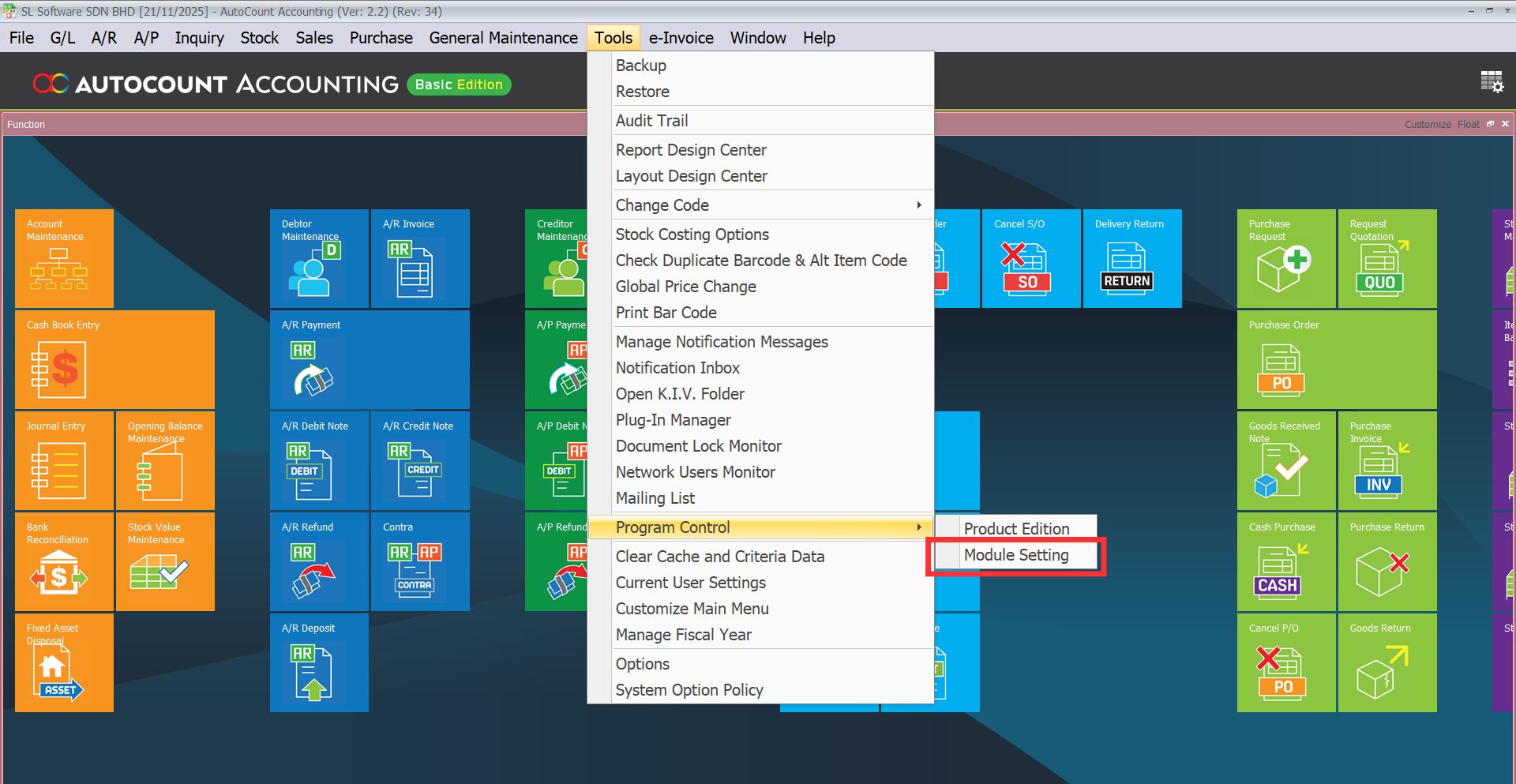
First, got to Tools > Program Control > Select Module Setting
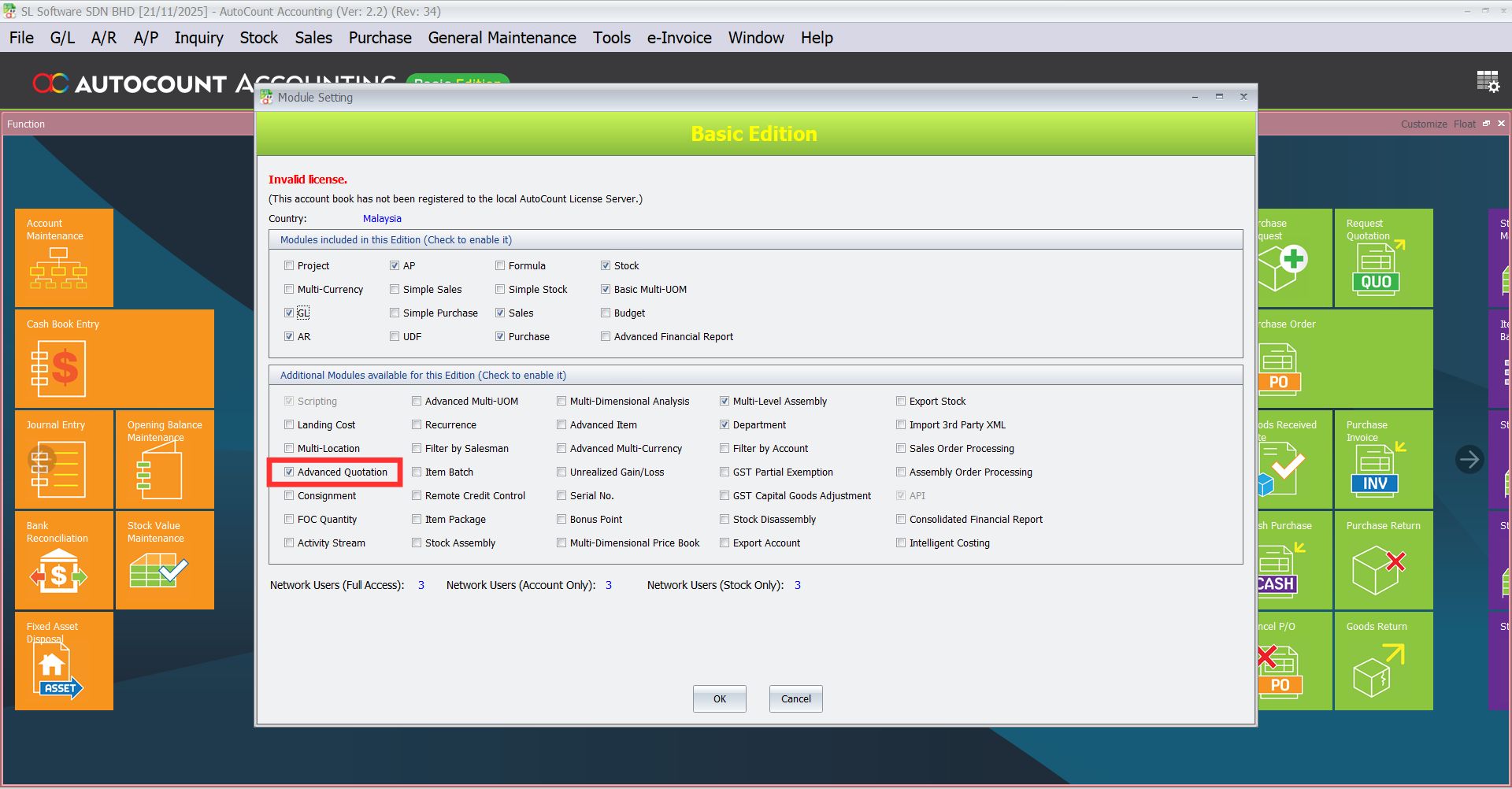
Then, tick the “Advanced Quotation” to enable the module. Click “Ok” once finished.
Step-by-Step Guide to Use AutoCount Advanced Quotation Module
Accessing the Module
- From the top menu bar, go to Sales > Advanced Quotation.
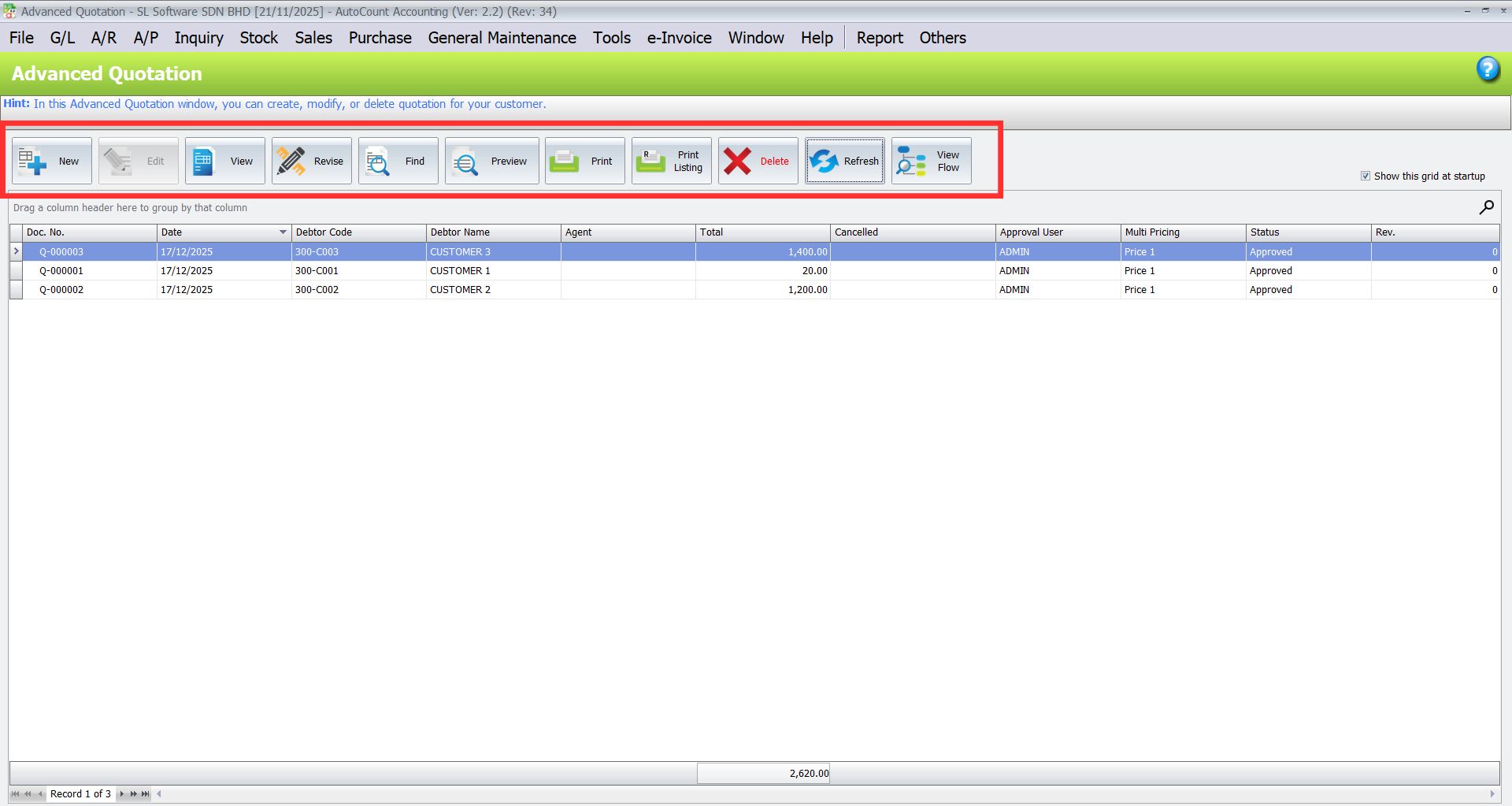
- Image below shows the available functions in the Advanced Quotation module.
- You may proceed to add new quotation by clicking on the “New” button.
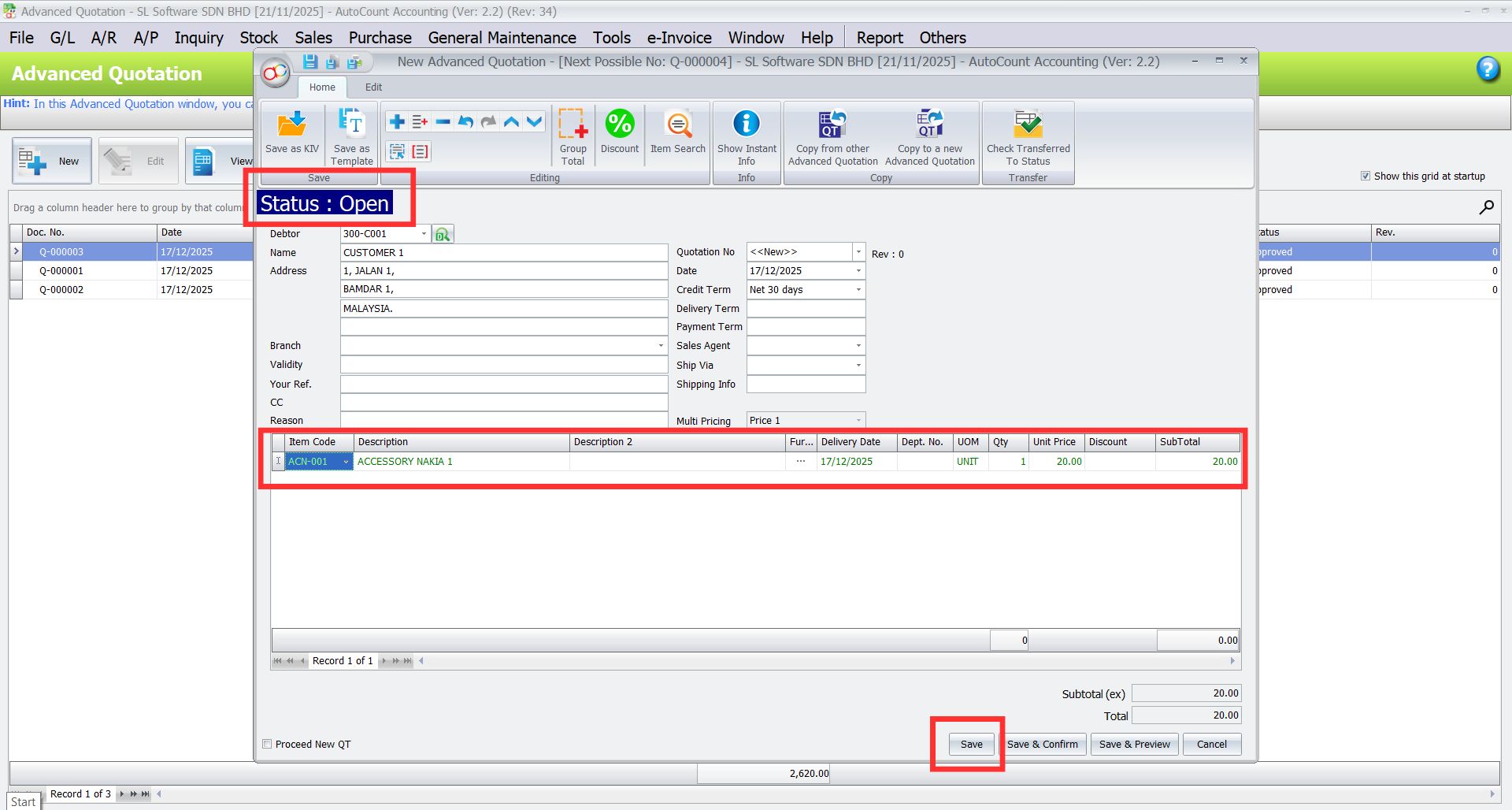
- The status will show the current state of the document.
- Key in the details and information and click Save to proceed.
Revision Control
AutoCount Advanced Quotation module allow users to easily revise quotations while maintaining a complete change history. Enables users to track updates for review and future reference.
Note: If a customer asks for changes, you should Revise, NOT Edit — this keeps previous versions intact.
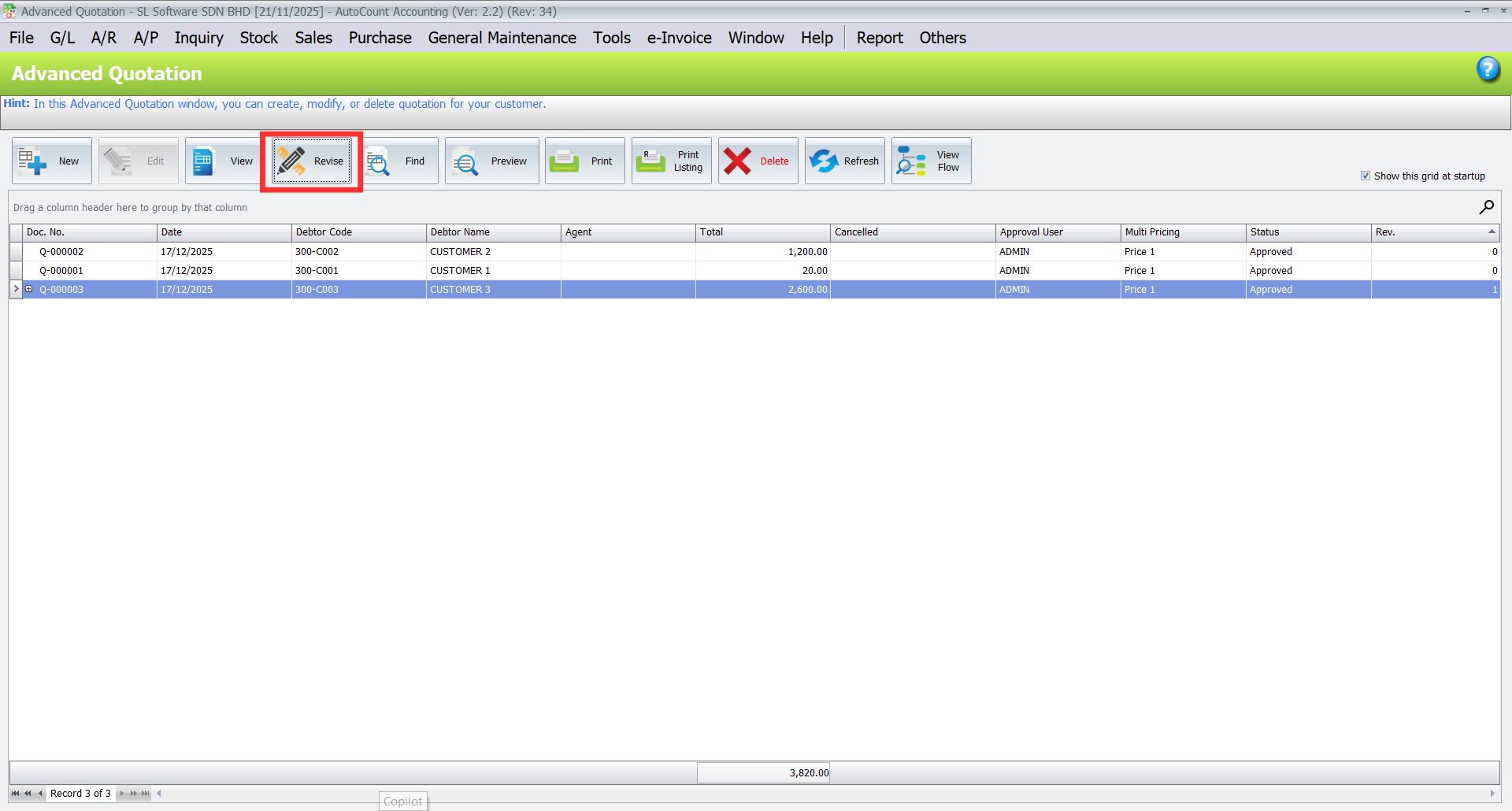
- First, select an existing quotation then click “Revise“.
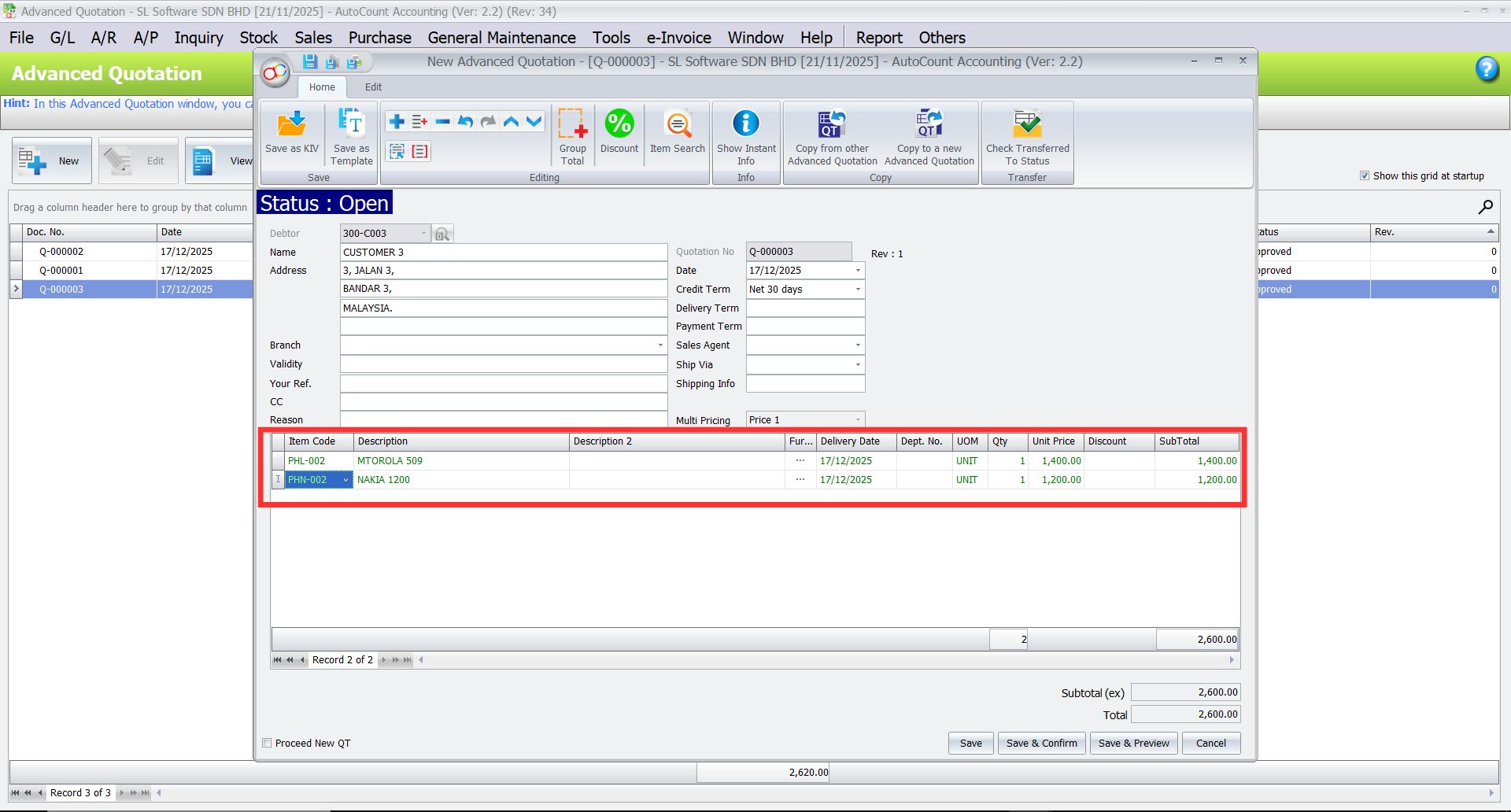
- Enter the updated details and click Save.
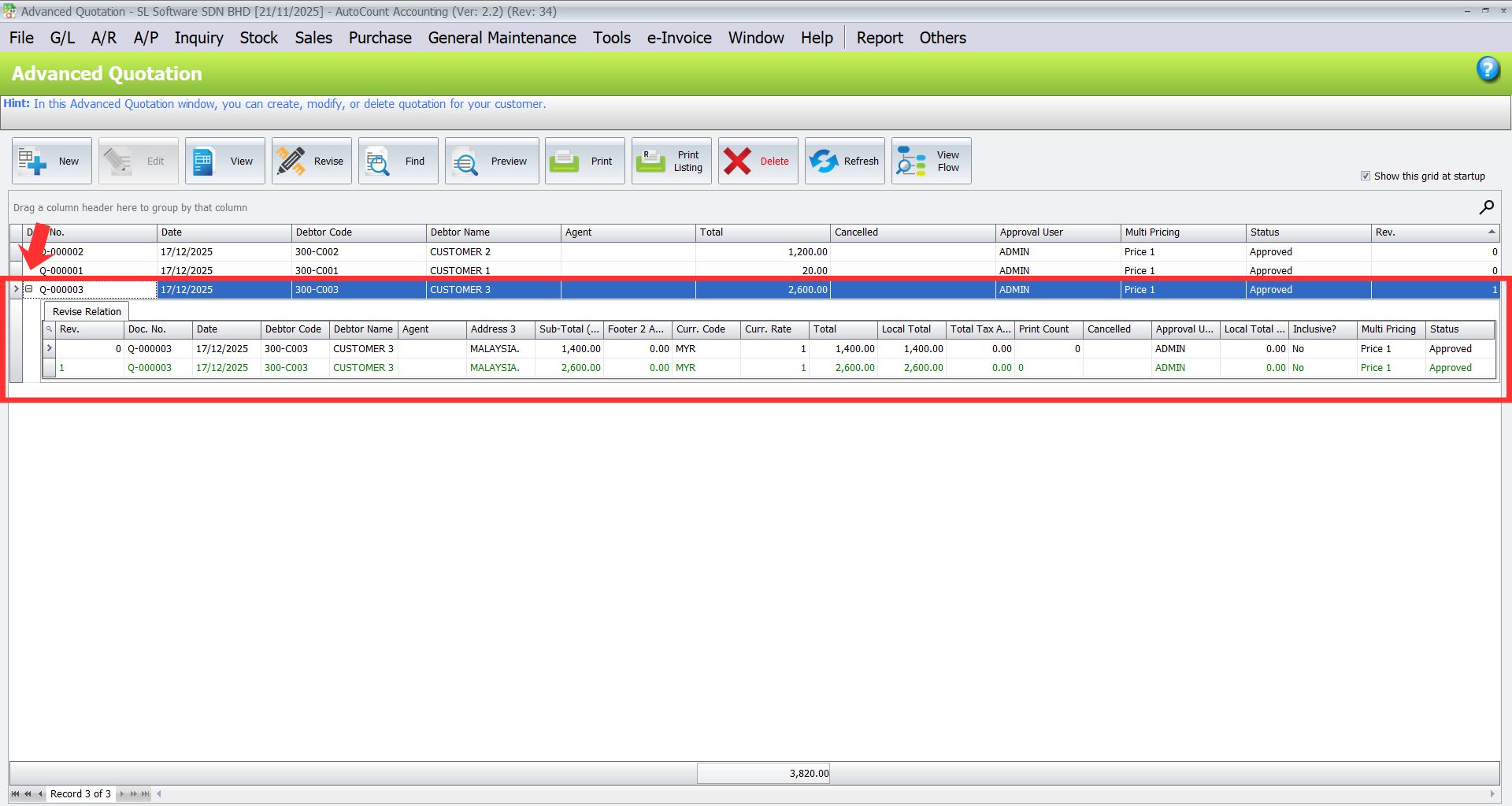
Click on the plus sign “+” next to the Doc. No. of the quotation to trace previous revisions.
Approve Advanced Quotation
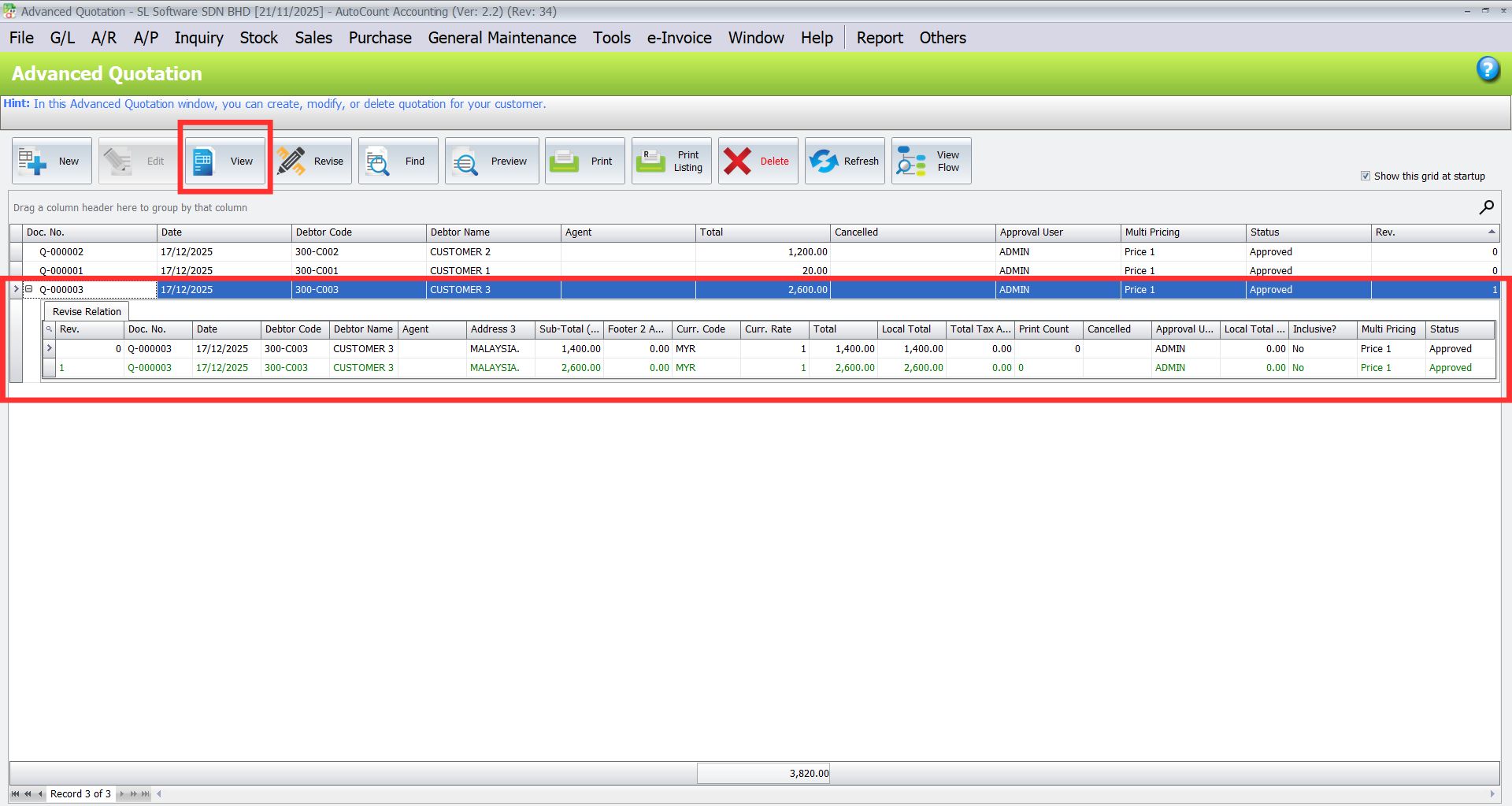
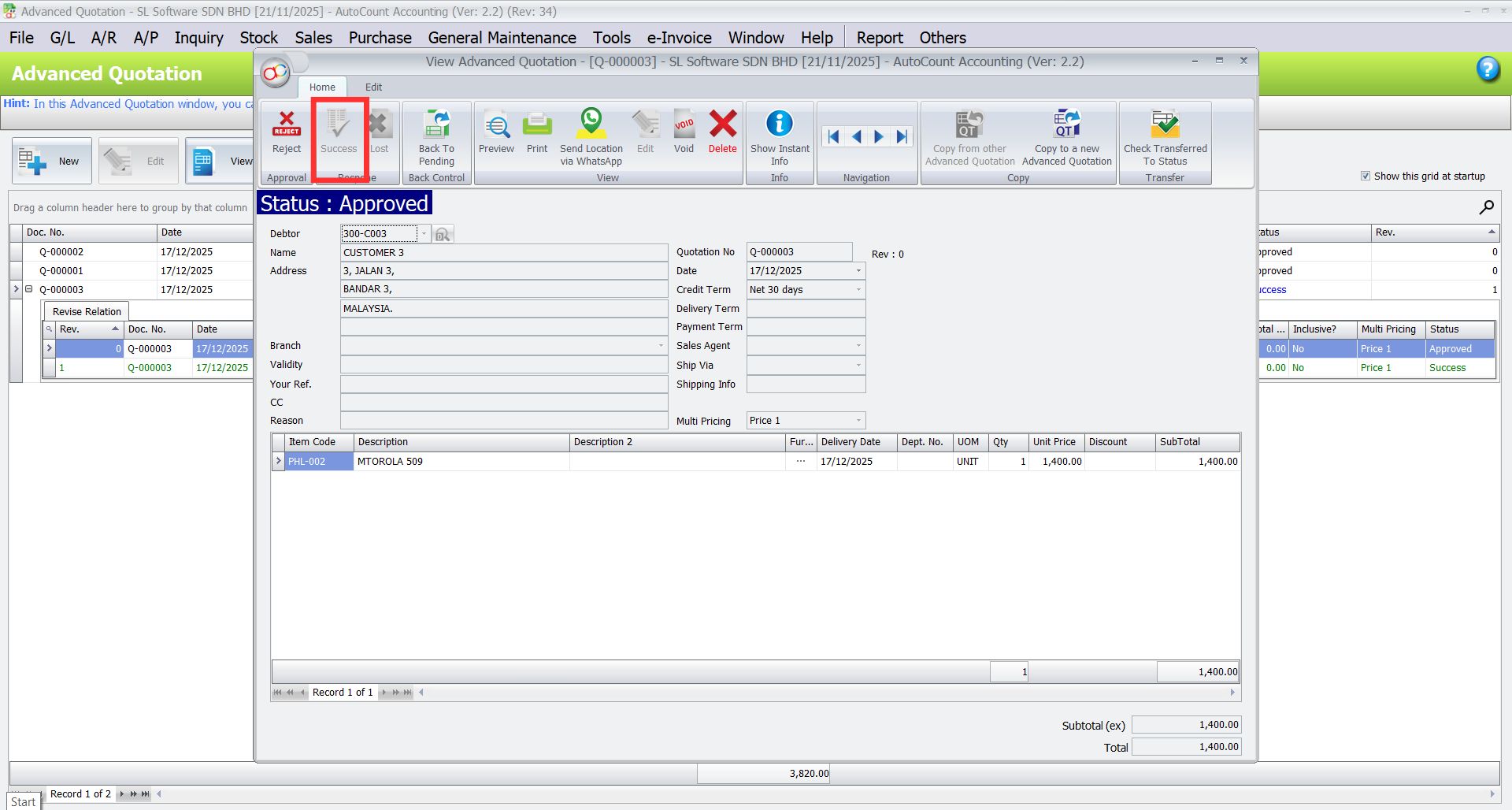
- Click “View” to view the revision of the advanced quotation that has been approved.
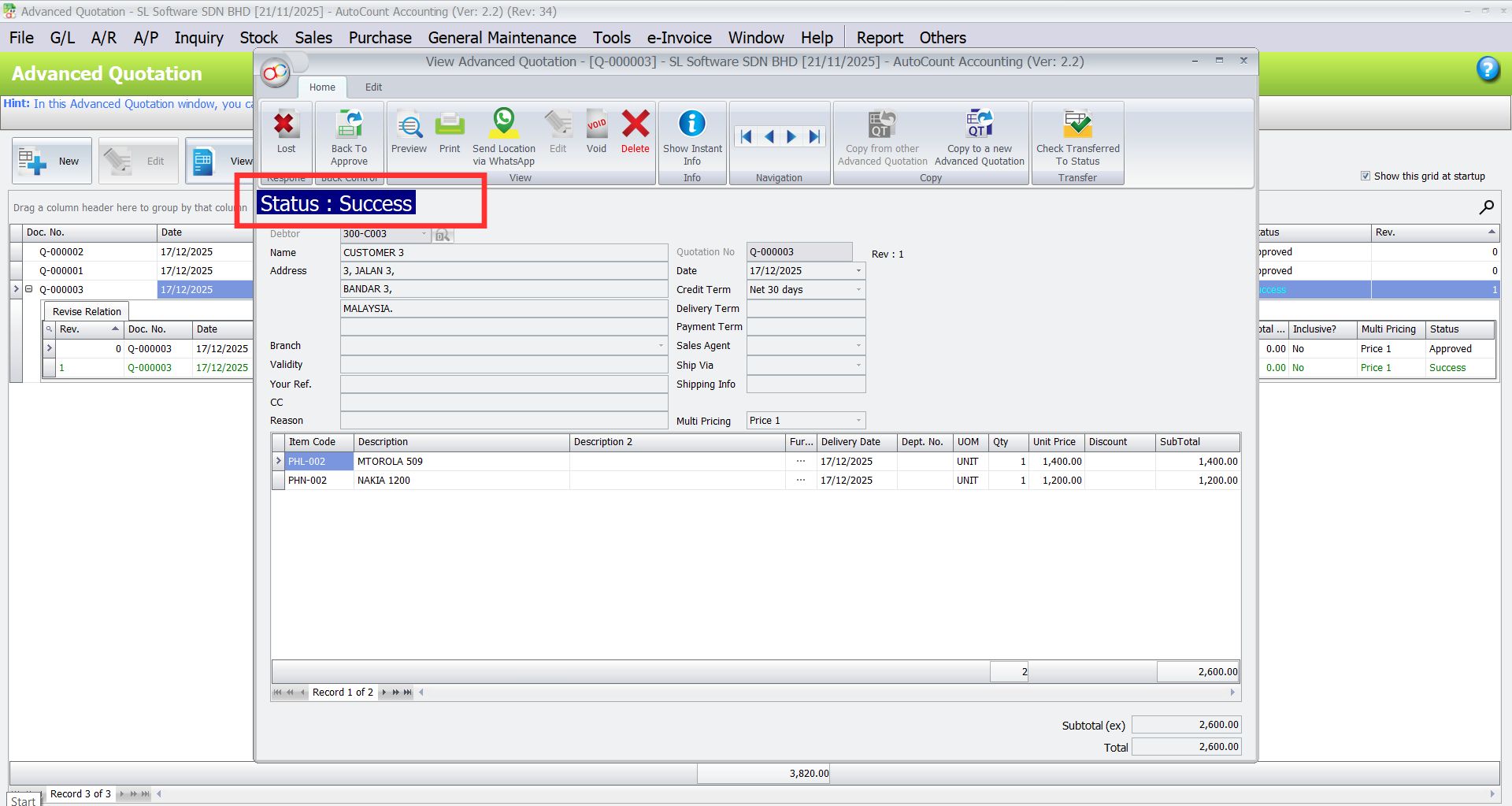
- Click “Success” to approve the advanced quotation.
- The status will change to “Success“.
Quotation Status
- Open: Draft quotation.
- Pending: Submitted internally for approval.
- Approved: Ready to send to customer.
- Success: Customer accepted quote.
- Lost: Customer rejected quote.
Transfer to Sales Order or Invoice
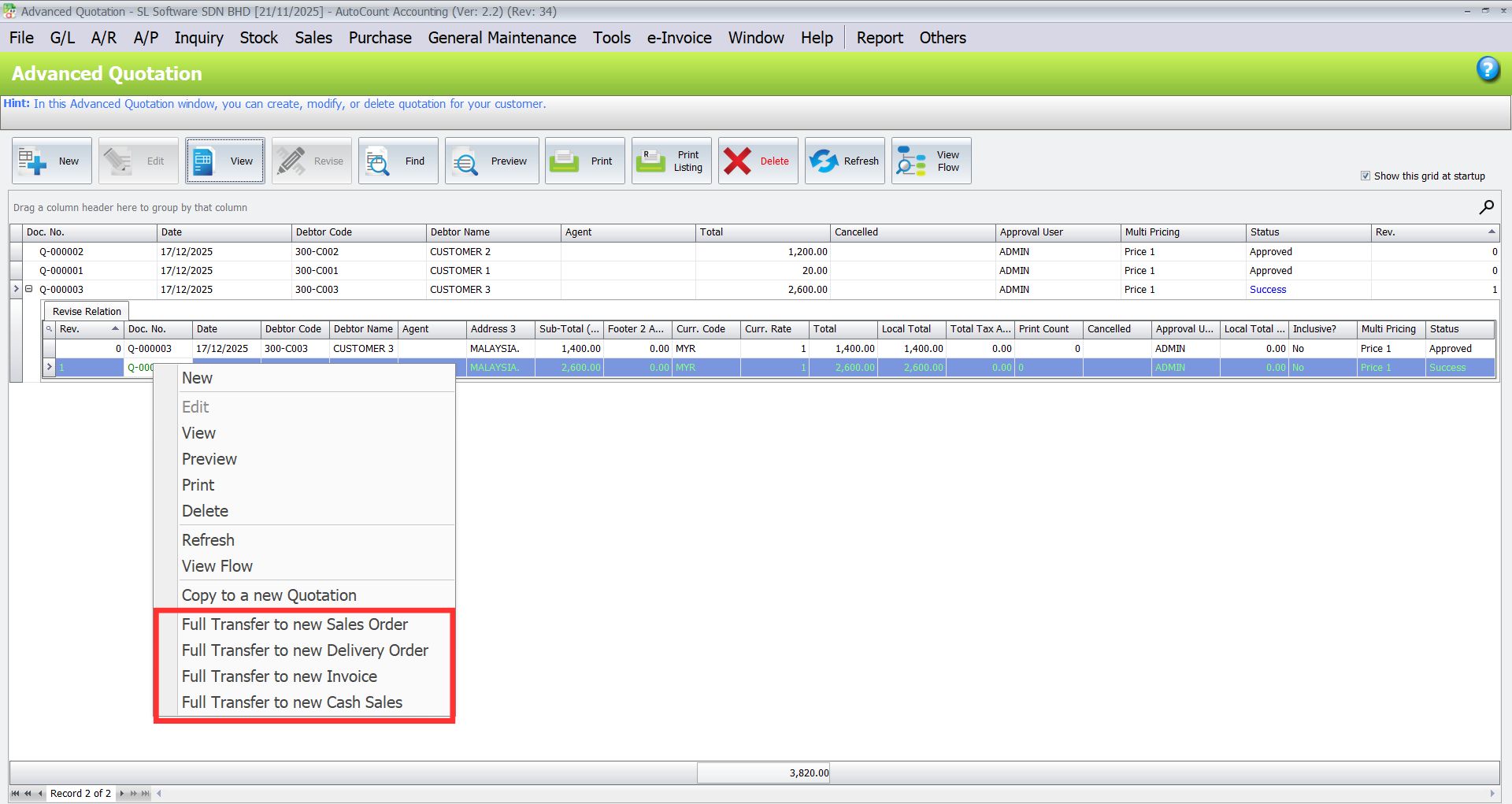
AutoCount Advanced Quotation module allows you to transfer to new Sales Order, Delivery Order, Invoice, and Cash Sales.
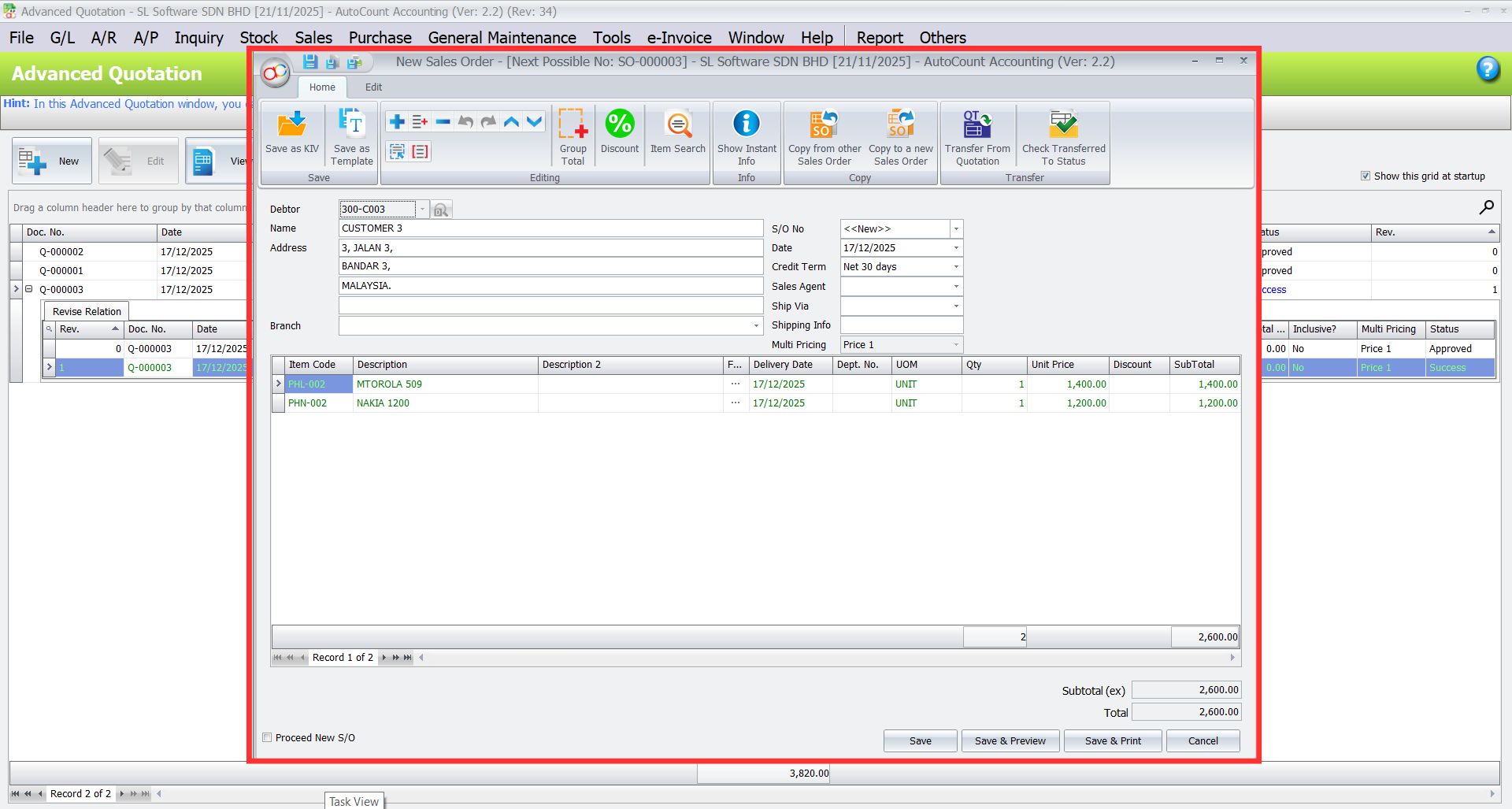
- Right click on the quotation with Success status to transfer the document to new sales order.
- Then, click “Save” to create the sales order.
View Document List
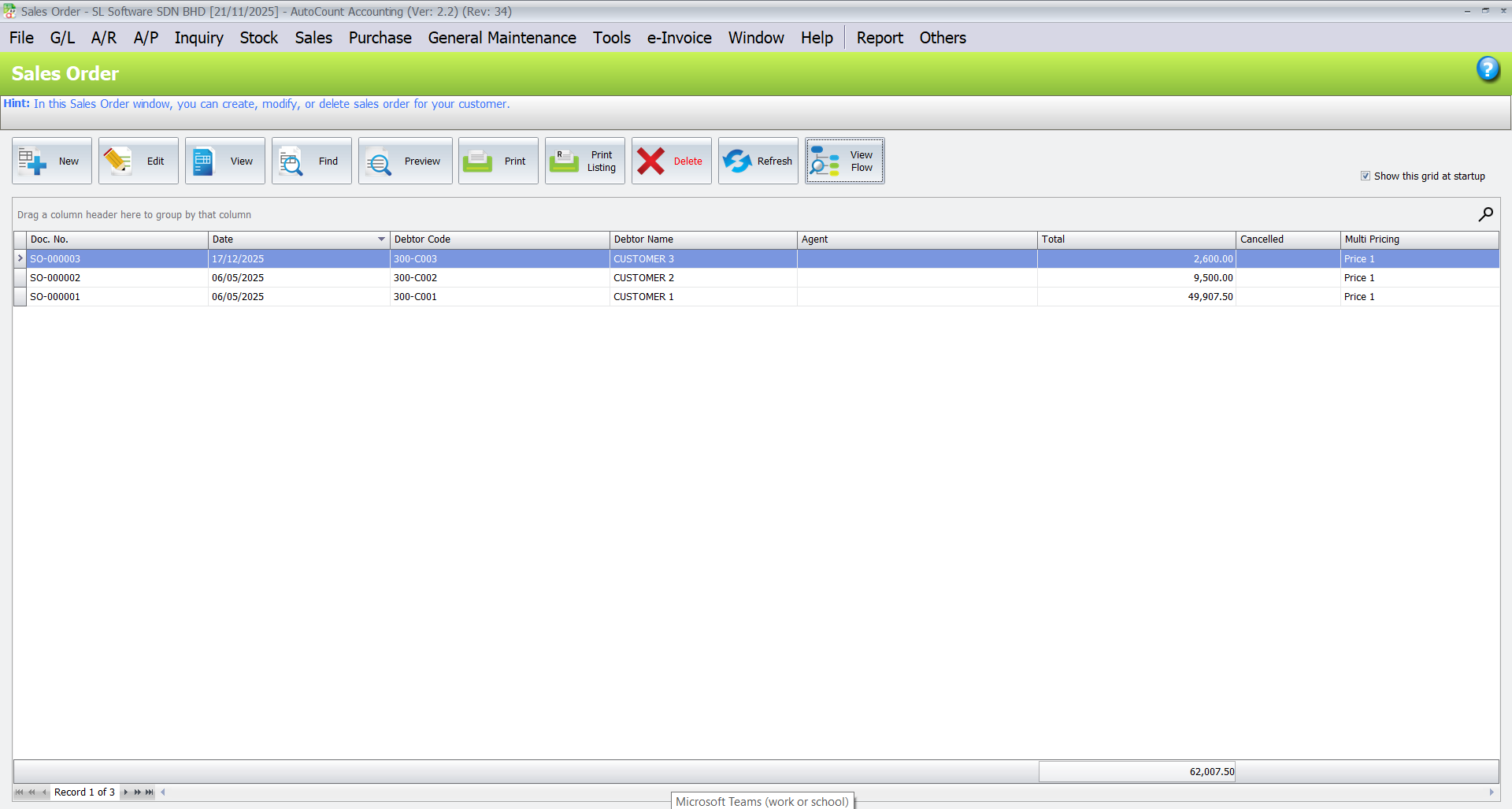
Users can view document list in the Sales Order list.
Simply click Sales > Sales Order from the top menu bar.
View Flow
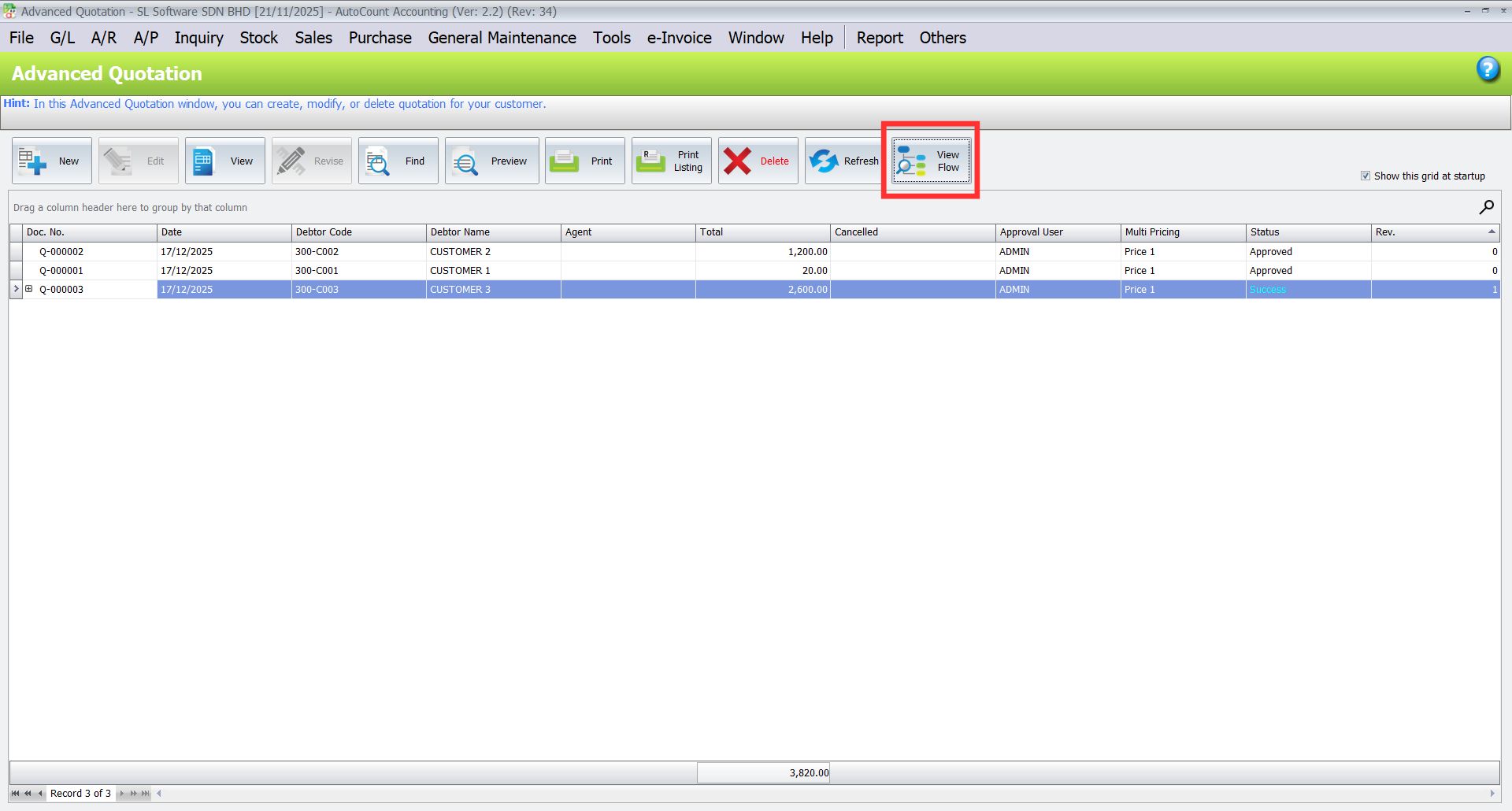
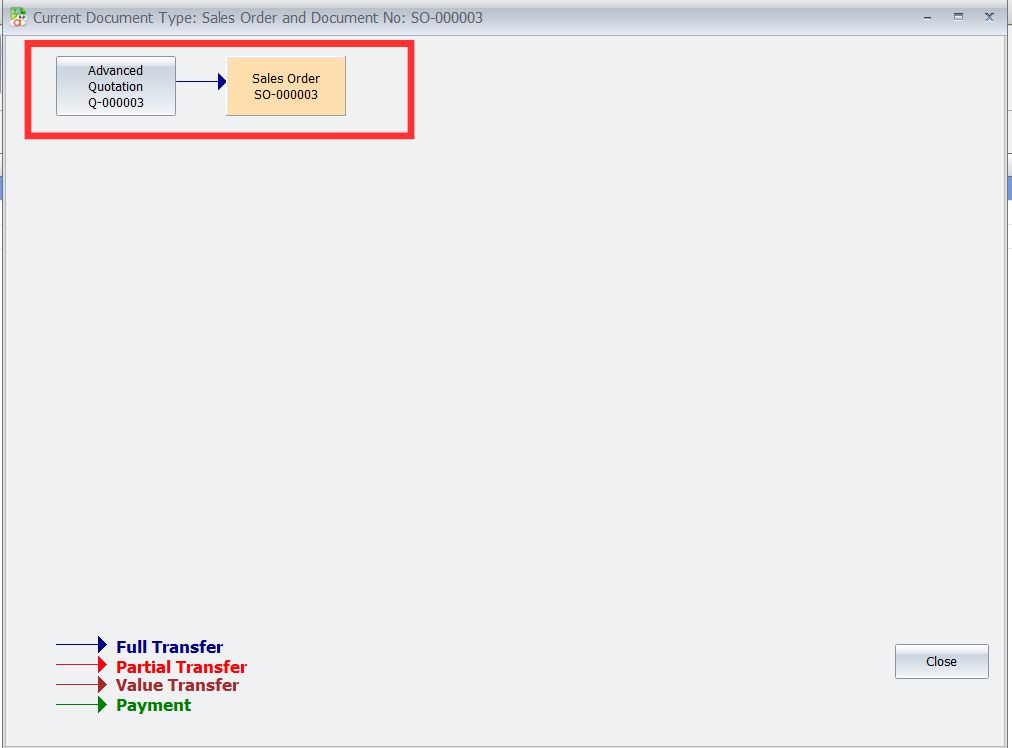
View flow allows users to trace the origin of the document. You can trace the revision of an Advanced Quotation that a sales order was transferred from.
- Click on “View Flow” in the Sales Order to trace document revision.
Conslusion
The AutoCount Advanced Quotation Module enhances your pre-sales workflow with smart tools like revision tracking, workflow control, email alerts, and status monitoring. It improves team collaboration, speeds up approval cycles, and ensures accurate, professional quotations—helping you serve customers more efficiently and confidently.
Interested in Getting AutoCount for your Business?
Contact our sales team today to explore pricing options and get started with the perfect solution for you.