
-
AutoCount Accounting Features
-
- Approval Workflow
- Audit Trail
- Auto Save in Draft Folder
- AutoCount Contra Account
- AutoCount License Setting Guide
- Deposit Tracking & Management
- Documents Numbering Format
- Full Transfer and Partial Transfer
- Import Data to AutoCount Accounting Using Excel
- Informative Charts and Analytical Data
- Layout Customization
- Multi Pricing
- Sales and Services Tax
- Schedule Backup
- Search Lookup Edit
- View Documents Flow
- AutoCount Feature Stock Take
- Show Remaining (2) Collapse
-
AutoCount Cloud Accounting
-
AutoCount E-Invoice
-
AutoCount HRMS User Guide
-
AutoCount Modules
-
- Activity Stream
- Advanced Financial Report
- Advanced Item
- Advanced Multi-UOM
- Advanced Quotation Module
- Basic Multi-UOM
- Budget Module
- Consignment
- Filter By Salesman
- FOC Quantity
- Formula
- Item Batch
- Item Package
- Landing Cost
- Multi-Currency
- Multi-Dimensional Analysis
- Multi-Location
- Project Account
- Recurrence
- Remote Credit Control Module
- Stock Assembly
- User Defined Fields (UDF)
- AutoCount SST Hidden Functions
- AutoCount SST Submission - Service Tax
- Show Remaining (9) Collapse
-
AutoCount Plugins
-
Form Template
-
Report Template
-
- Advance Quotation
- Cash Sale
- Consignment
- Consignment Movement
- Credit Note
- Debit Note
- Delivery Order
- FOC Quantity Analysis By Document Report
- Invoice
- Item Package Sales Report
- Monthly Sales Analysis
- Outstanding Sales Order Listing
- Profit And Loss Of Documents
- Quotation
- Sales Agent Contribution Report
- Sales Order
- Top/Bottom Sales Ranking
- Show Remaining (2) Collapse
-
- Available Stock Status Report
- Expired Item Batch Listing
- Inventory Physical Worksheet
- Stock Adjustment
- Stock Aging Report
- Stock Assembly
- Stock Assembly Order
- Stock Balance By Location
- Stock Balance Report
- Stock Card Report
- Stock Disassembly
- Stock Issue
- Stock Item Profit Margin
- Stock Movement Report
- Stock Receive
- Stock Take
- Stock Transfer
- Stock Write Off
- Show Remaining (3) Collapse
AutoCount Module: Budget Module
(CN) AutoCount Budget Module Video Guide
The video comprehensively explains the AutoCount Budget Module and details.
Key Benefits of AutoCount Budget Module
Businesses define how items are used across their operations using the module, ensuring accurate categorization and reducing mismanagement:
Accurate Budget Planning
Set detailed budget figures for profit and loss accounts (e.g., income and expenses) so your financial targets are clear and structured.
Operational Categorization
Define how budget items are used across operations to ensure accurate categorization and reduce mismanagement.
Monthly Budget Control
Assign monthly budget amounts to better monitor and control cash flow throughout the year.
How To Use AutoCount Budget Module?
1. Budget Maintenance
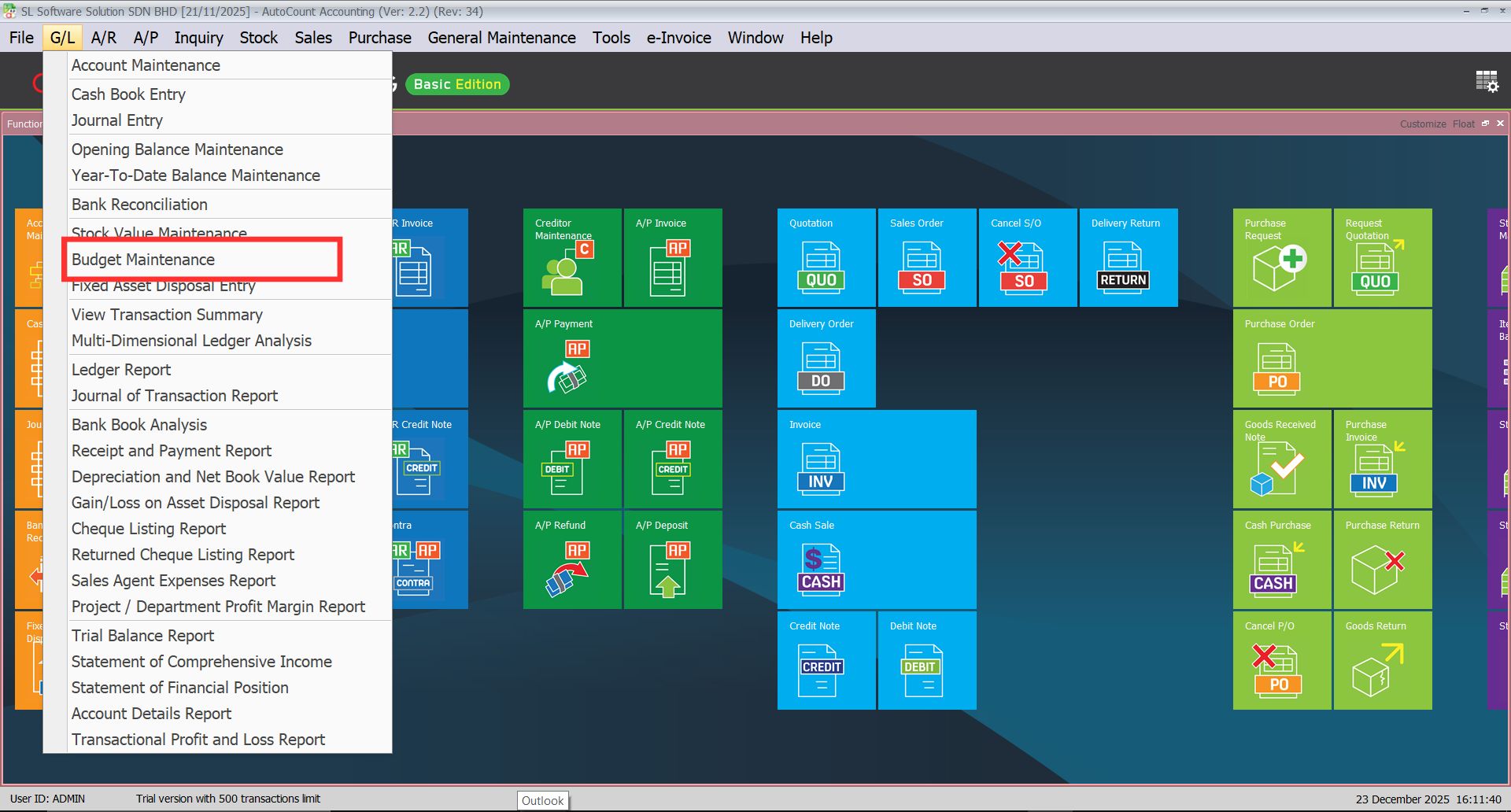
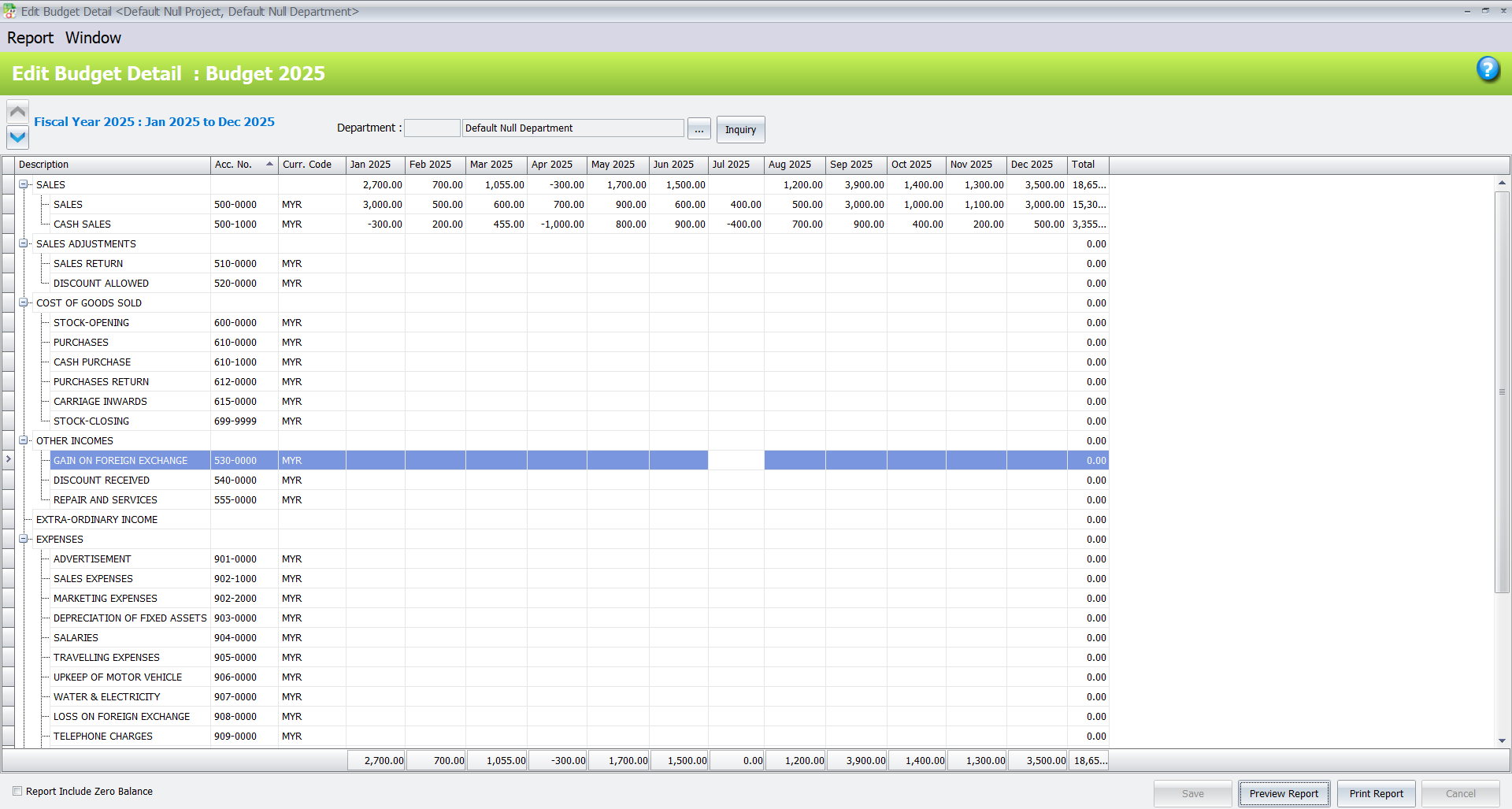
- Set and maintain budgets easily under G/L > Budget Maintenance. Enter monthly planned revenue and expenses to guide financial management.
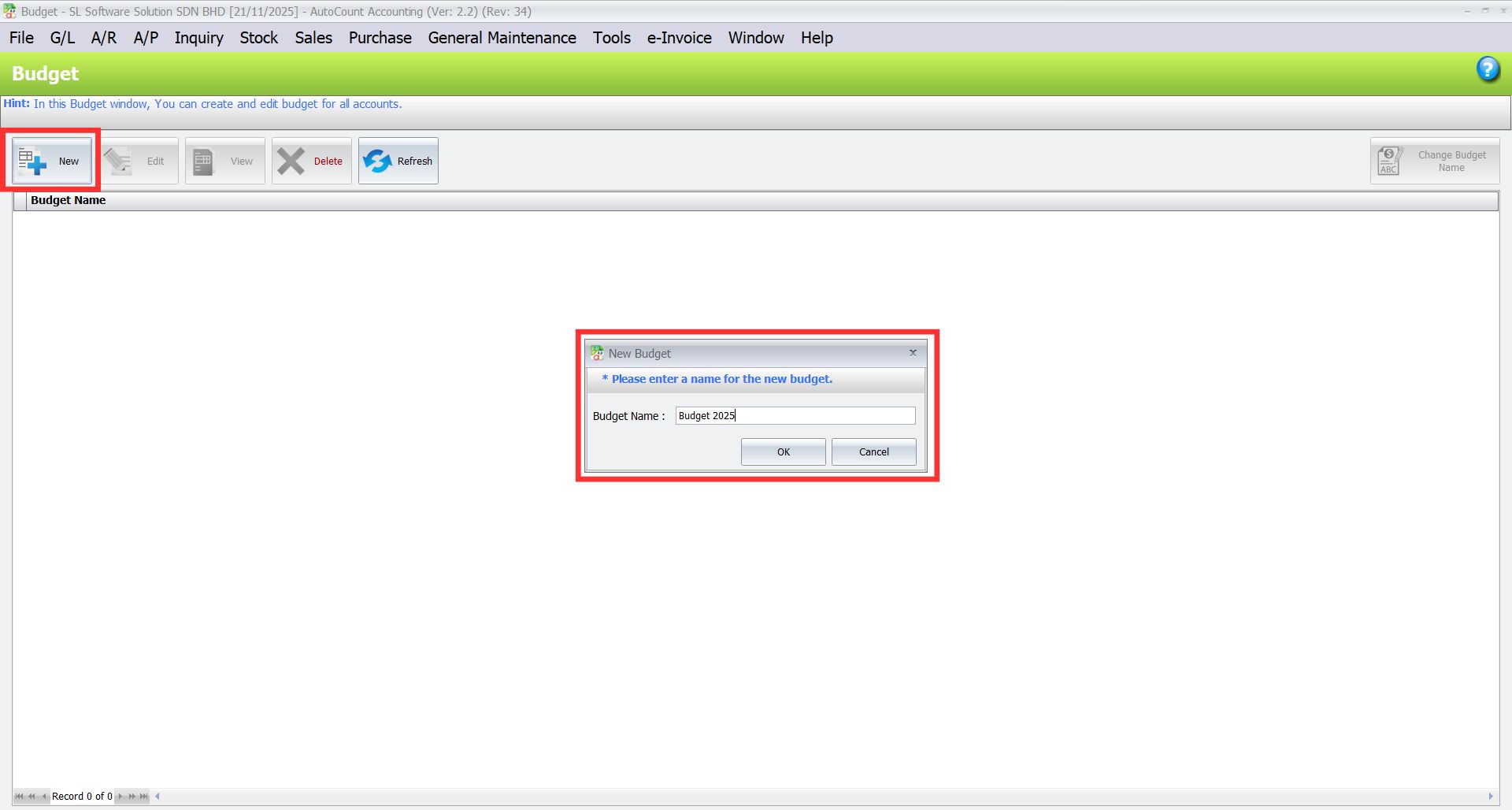
- Click on New, then enter budget name and press Ok.
2. Budget Comparison
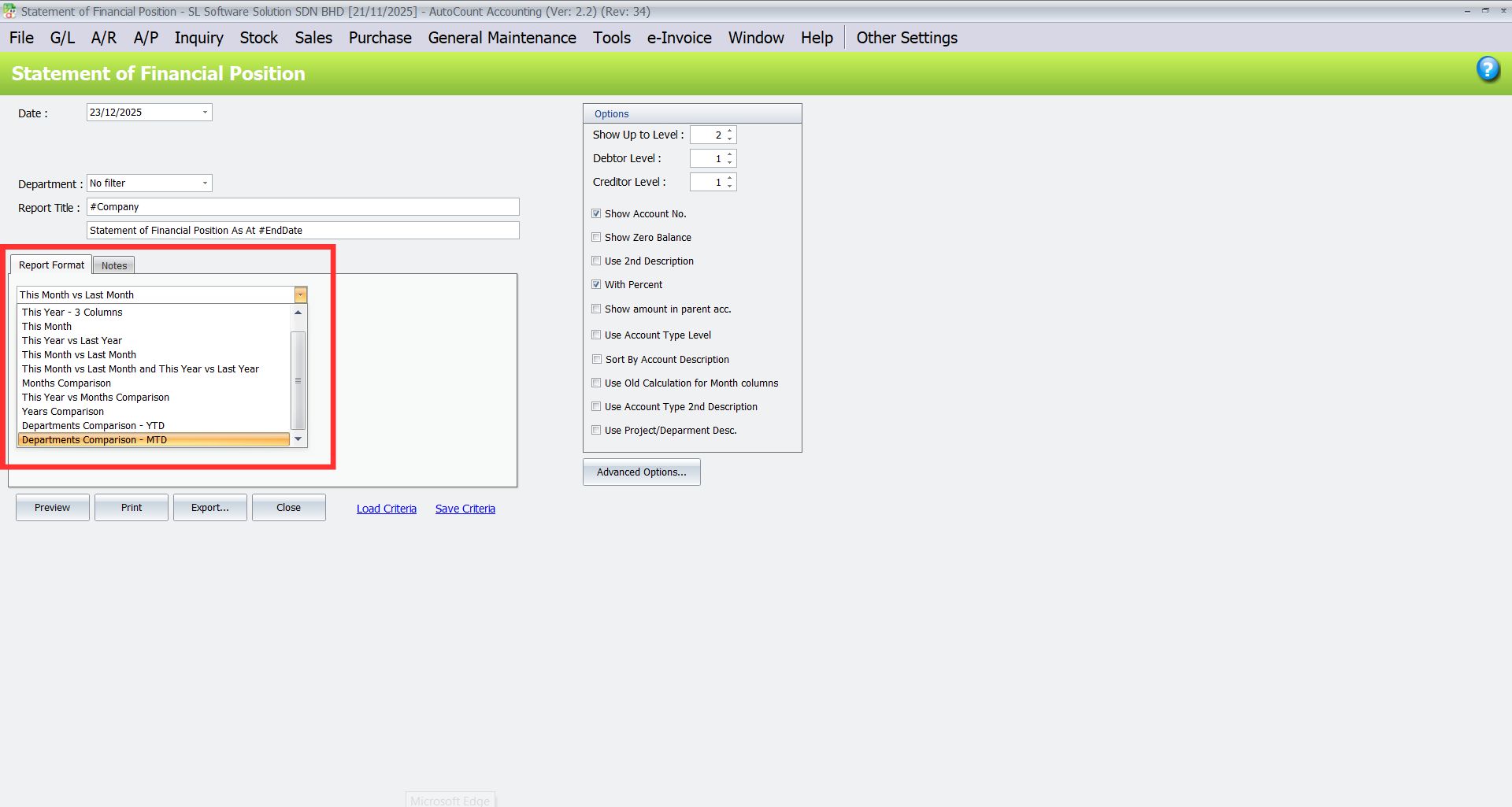
- Secondly, look at how things really went compared to what you planned in different report formats, like “This Month vs. Month Budget” and “This Year vs. Year Budget”. Find differences, study what’s changing, and change your money plans to controls things better.
3. Financial Control
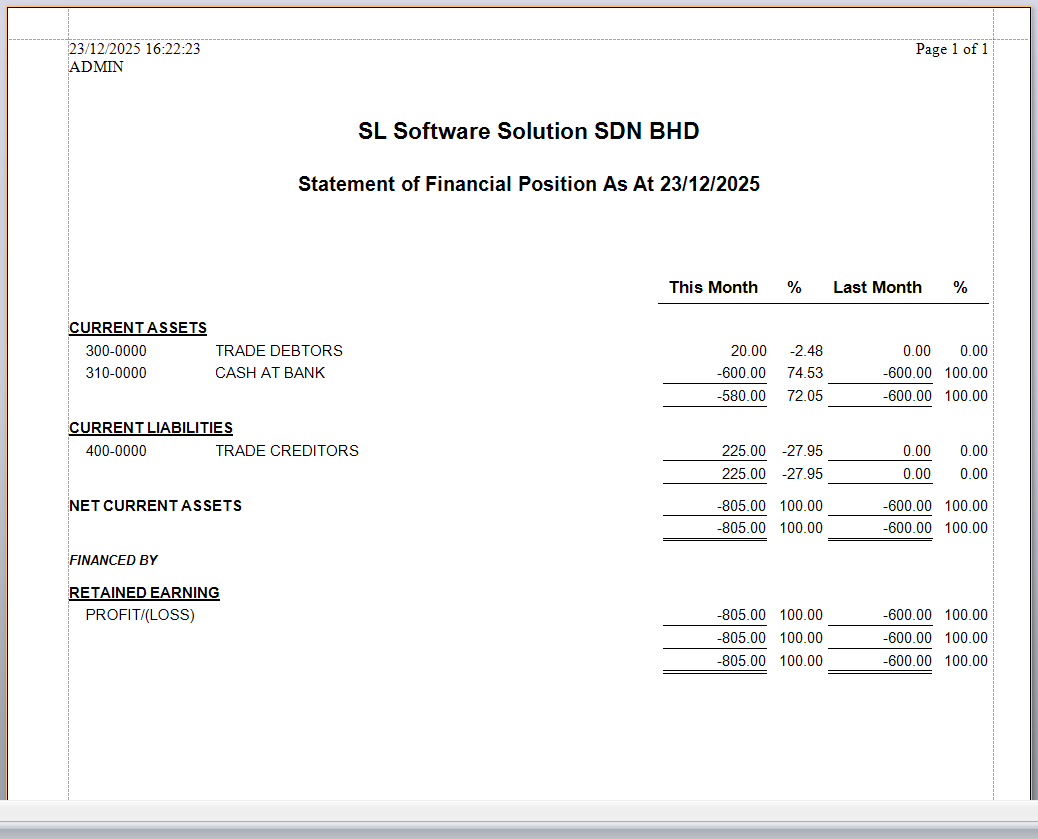
- Thirdly, take better charge of your money by making monthly budgets and watching how things actually go. The Budget module helps keep an eye on what you spend and earn, so you can use your resources well and match them with what your business wants to do. Therefore, keep your money in line and make smart financial choices ahead of time
4. Informed Decision-Making
- In addition, use the right financial info and compare it with your budget to make smart choices. See what you did compared to what you planned, and find what you’re good at, what needs work, and where you can do better. This helps you plan, use your resources well, and make smart decisions for the best financial performance.
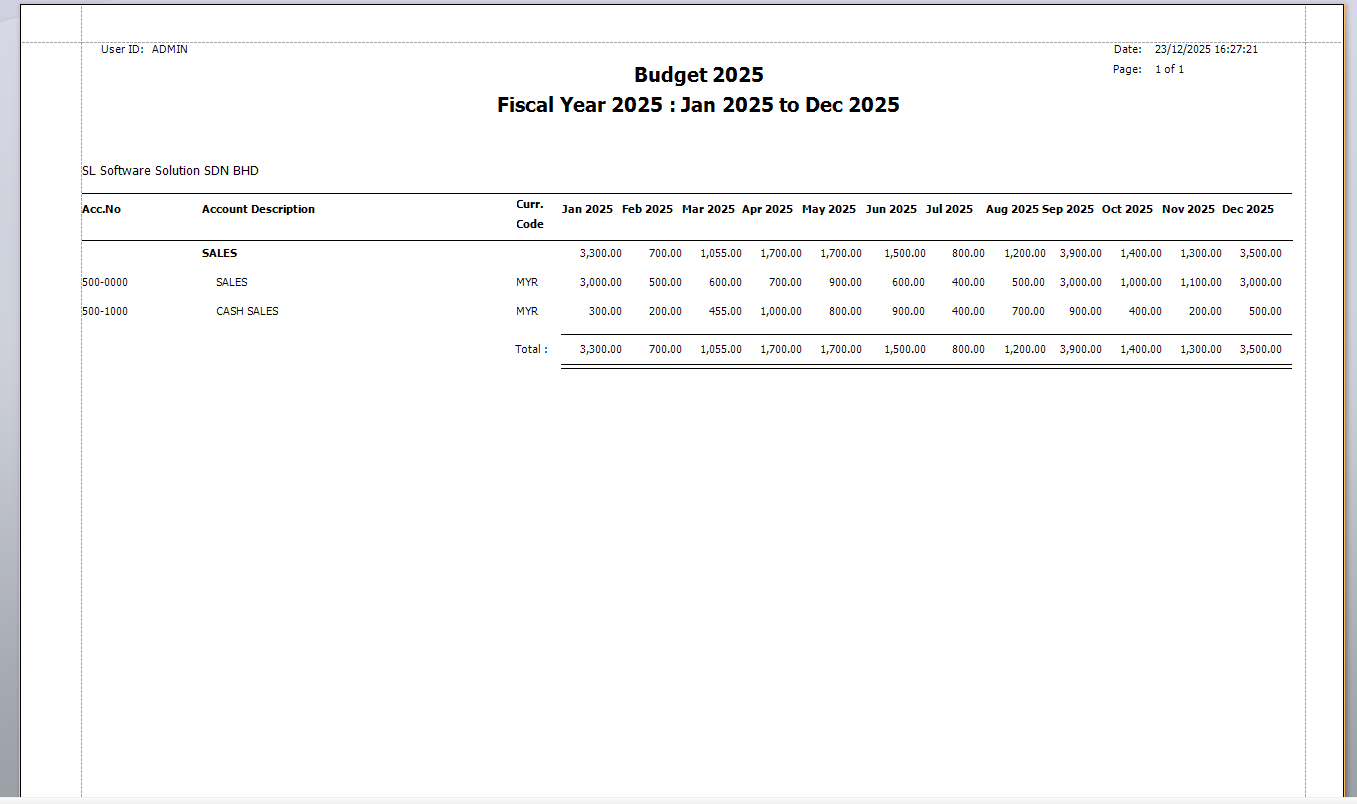
5. Multiple Budgets
- Finally, make different budgets for different money situations or parts of your organization. You can choose each budget to use for reports, which gives you flexibility and helps you study how each part of your business is doing.
- Use the arrow up and down on the top left corner to select fiscal year.
- Use negative “-“ for credit amount when entering budget for respective month.
Conclusion
The AutoCount Budget Module equips businesses with powerful tools to plan, manage, and control Profit and Loss budgets. With features like budget maintenance, comparisons, customizable reports, and multi-budget support, it improves financial visibility, resource allocation, and decision-making. By integrating this module into your workflow, you’ll gain stronger control over your budgeting process and support long-term financial success.
Interested in Getting AutoCount for your Business?
Contact our sales team today to explore pricing options and get started with the perfect solution for you.