
-
AutoCount Accounting Features
-
- Approval Workflow
- Audit Trail
- Auto Save in Draft Folder
- AutoCount Contra Account
- AutoCount License Setting Guide
- Deposit Tracking & Management
- Documents Numbering Format
- Full Transfer and Partial Transfer
- Import Data to AutoCount Accounting Using Excel
- Informative Charts and Analytical Data
- Layout Customization
- Multi Pricing
- Sales and Services Tax
- Schedule Backup
- Search Lookup Edit
- View Documents Flow
- AutoCount Feature Stock Take
- Column Chooser
- Show Remaining (3) Collapse
-
AutoCount Cloud Accounting
-
AutoCount E-Invoice
-
AutoCount HRMS User Guide
-
AutoCount Modules
-
- Activity Stream
- Advanced Financial Report
- Advanced Item
- Advanced Multi-UOM
- Advanced Quotation Module
- Basic Multi-UOM
- Budget Module
- Consignment
- Filter By Salesman
- FOC Quantity
- Formula
- Item Batch
- Item Package
- Landing Cost
- Multi-Currency
- Multi-Dimensional Analysis
- Multi-Location
- Project Account
- Recurrence
- Remote Credit Control Module
- Stock Assembly
- User Defined Fields (UDF)
- AutoCount SST Hidden Functions
- AutoCount SST Submission - Service Tax
- AutoCount Scripting Module User Guide
- AutoCount Bonus Point Module User Guide
- Show Remaining (11) Collapse
-
AutoCount Plugins
-
- Fixed Assets Management
- Goldsmith
- TD Ordering Mobile Apps
- TD Stock Mobile Apps
- Universal Import Plugin
- DMS Import Plugin
- AutoCount Item Scope Plugin
- AutoCount Easy Knock Off Plugin
- AutoCount Pick List Plugin User Guide
- AutoCount Agent Validation Plugin User Guide
- AutoCount Barcode Generator Plugin User Guide
- AutoCount Bill Remark Plugin User Guide
- AutoCount Easy Batch Number Entry Plugin User Guide
- AutoCount Recurring Invoice Plugin User Guide
- AutoCount Easy Photo 2.0 User Guide
- AutoCount Pain Tracker User Guide
- AutoCount Credit Memo Plugin User Guide
- Show Remaining (2) Collapse
-
- AutoCount Easy Recurrence Plugin
- AutoCount Recurring Billing Plugin
- Event Management System
- AutoCount To-Do List Plugin
- AutoCount AutoBank Reconciliation Plugin
- Intercompany Billing Plugin User Guide
- AutoCount Basket Plugin User Guide
- Lead Management 2.0 Plugin
- AutoCount Service Contract Plugin User Guide
- Autocount Repacking Plugin
- AutoCount Scale Barcode Plugin User Guide
- AutoCount Progressive Billing
- AutoCount Optical Plugin
- AutoCount Meter Reading Plugin User Guide
- AutoCount Car Tint Film Plugin
- AutoCount Leasing Plugin User Guide
- AutoCount Integrator Plugin
- AutoCount Procurement Planning Plugin
- Show Remaining (3) Collapse
-
-
Form Template
-
Report Template
-
- Advance Quotation
- Cash Sale
- Consignment
- Consignment Movement
- Credit Note
- Debit Note
- Delivery Order
- FOC Quantity Analysis By Document Report
- Invoice
- Item Package Sales Report
- Monthly Sales Analysis
- Outstanding Sales Order Listing
- Profit And Loss Of Documents
- Quotation
- Sales Agent Contribution Report
- Sales Order
- Top/Bottom Sales Ranking
- Show Remaining (2) Collapse
-
- Available Stock Status Report
- Expired Item Batch Listing
- Inventory Physical Worksheet
- Stock Adjustment
- Stock Aging Report
- Stock Assembly
- Stock Assembly Order
- Stock Balance By Location
- Stock Balance Report
- Stock Card Report
- Stock Disassembly
- Stock Issue
- Stock Item Profit Margin
- Stock Movement Report
- Stock Receive
- Stock Take
- Stock Transfer
- Stock Write Off
- Show Remaining (3) Collapse
AutoCount Module: Export Account Module
Export Account Module — Simplify Your Account Data Transfer
The AutoCount Export Account Module allows you to efficiently export financial transaction data (GL, AR, AP) from one AutoCount account book and import it into another. This is especially useful for accountants, auditors, and businesses that need to migrate, analyse or consolidate financial data across account books.
What Is the Export Account Module?
The Export Account Module is an optional AutoCount Accounting feature that enables users to extract core accounting transactions — such as General Ledger, Accounts Receivable and Accounts Payable — into a compressed data file. This file can then be safely imported into another AutoCount account book, making it ideal for auditing, backup, or data migration workflows.
Key Features & Capabilities
Export Multiple Financial Data Types
- GL (General Ledger) – All your ledger postings.
- AR (Accounts Receivable) – Invoices and payments issued to customers.
- AP (Accounts Payable) – Supplier invoices and payments.
Export all or selective items
Flexible Filtering
Date Range Filter
Choose specific periods for export.
Selective Transactions
Instead of exporting everything, pick only what you need.
Import Back Into AutoCount
Once exported, the compressed file can be imported back into AutoCount using the Import All Data menu.
Export Account Data
- Navigate to File > Import & Export > Export All Data.
(This option only appears once Export Account module is enabled.)
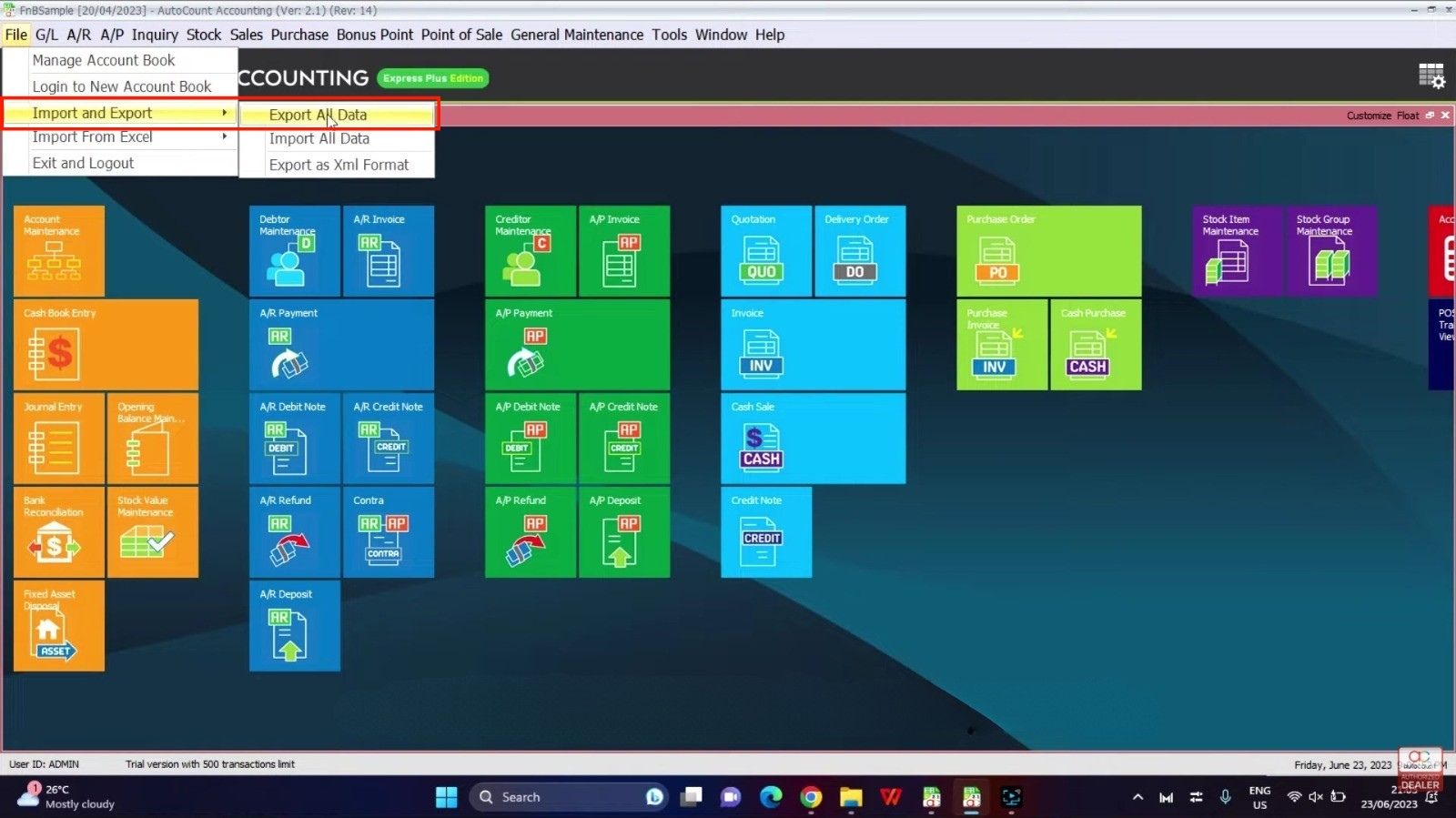
- You’ll see checkboxes to select what types of data to export (GL, AR, AP).
- Tick Export All or individually tick GL, AR, and AP, depending on what you need.
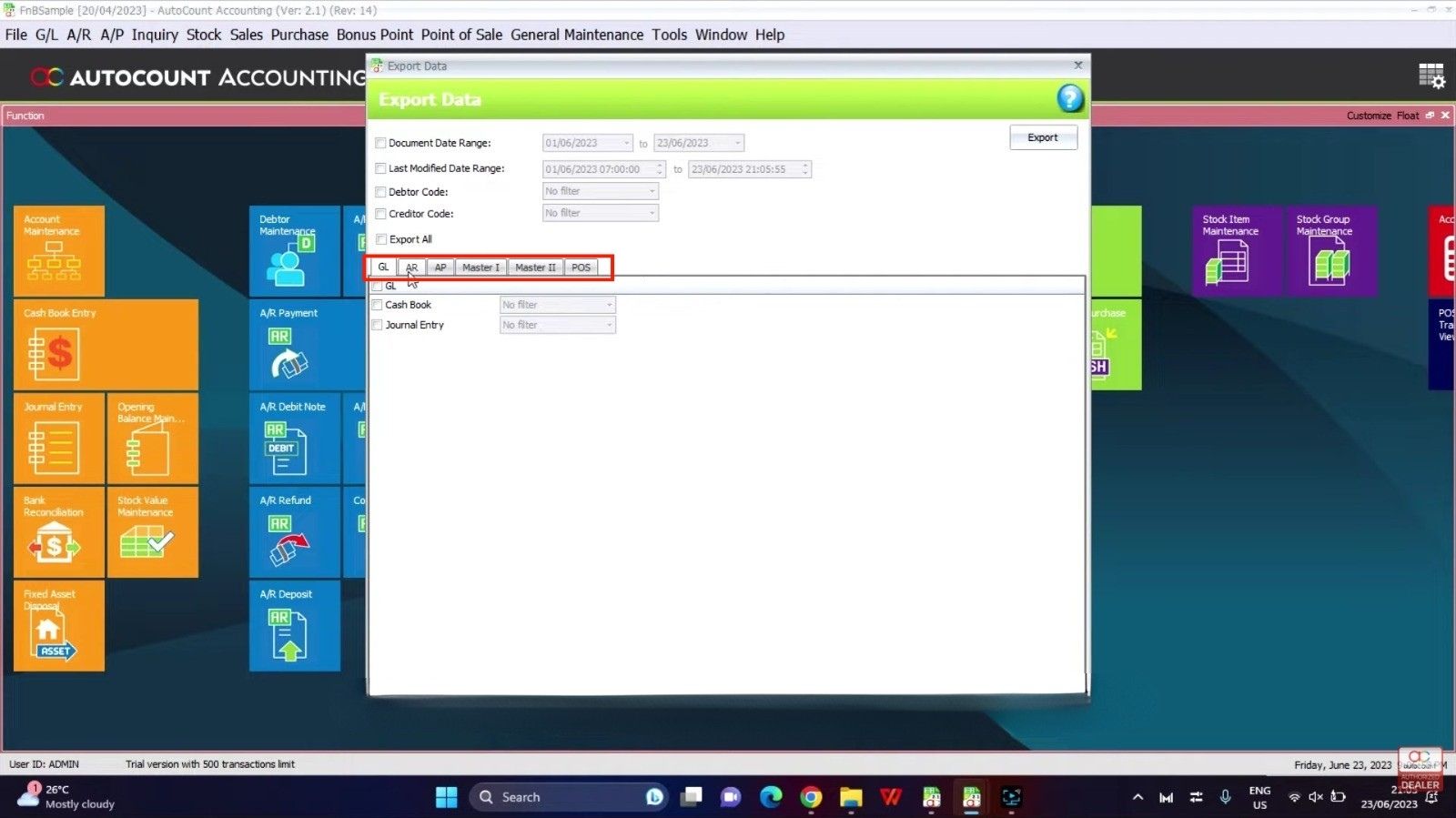
Apply filters:
- Document Date Range — Select the start and end dates for exporting transactions.
- Invoice/Transaction Filters — Instead of exporting everything, you can set filters (e.g., by document number or date range).
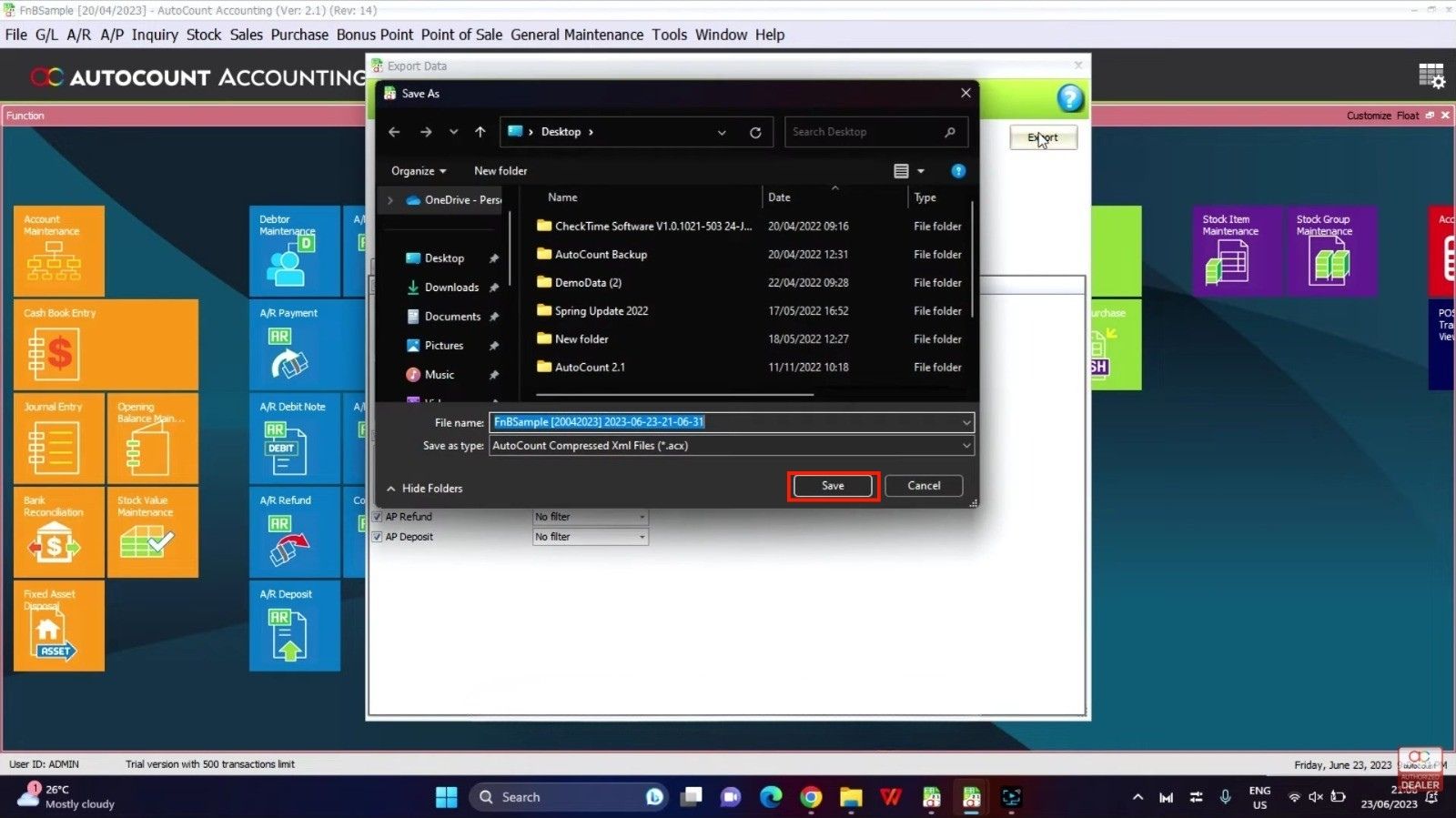
Click Export:
- Choose a folder (for example Desktop) to save the exported compressed (.XML) file locally.
- Click Save. (You will now see the exported file on your chosen location.)
Import Account Data into Another Account Book
- Log into the destination AutoCount account book.
- Go to File > Import & Export > Import All Data.
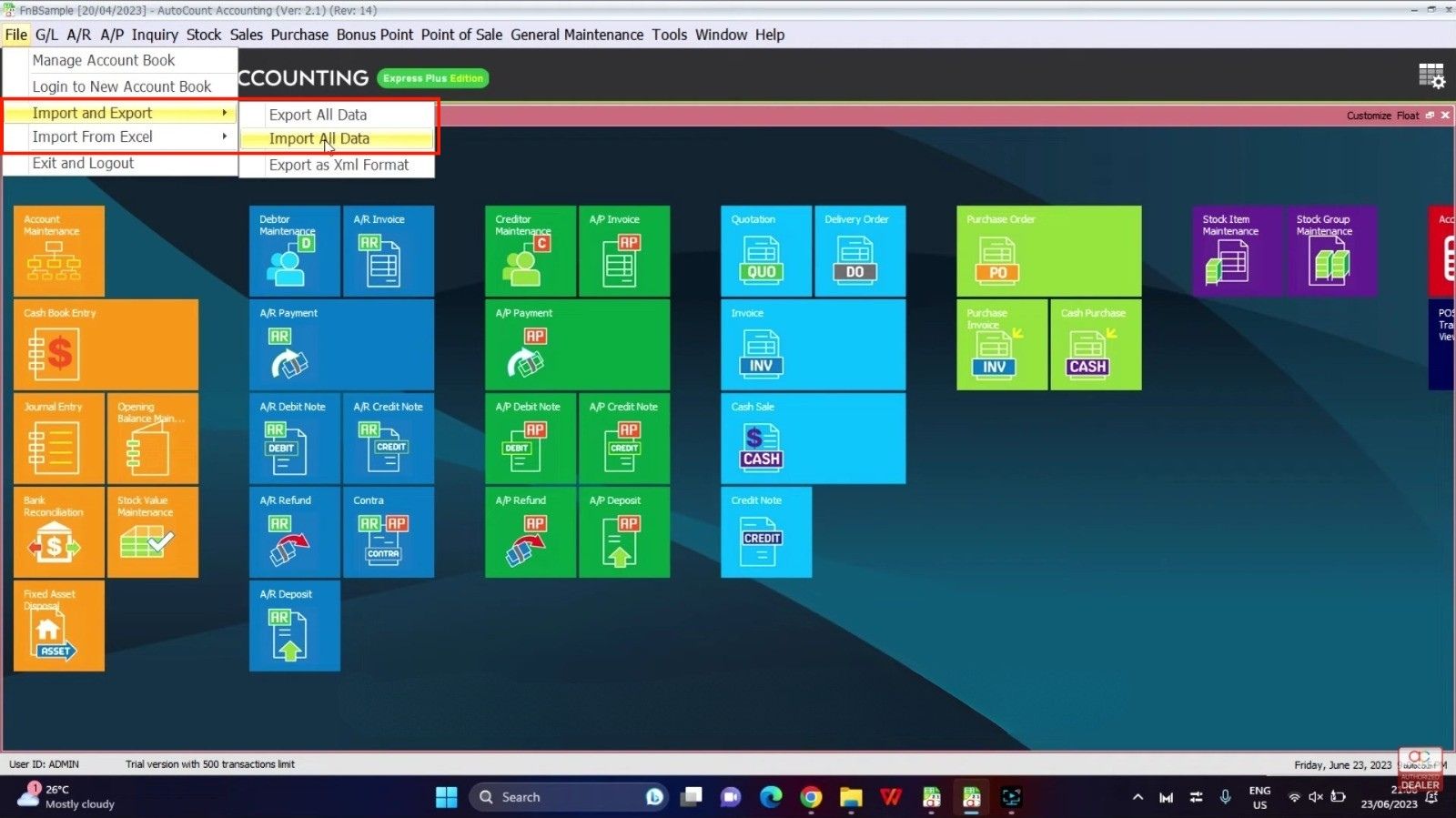
- Click Load Data and select the previously exported file (e.g., from Desktop).
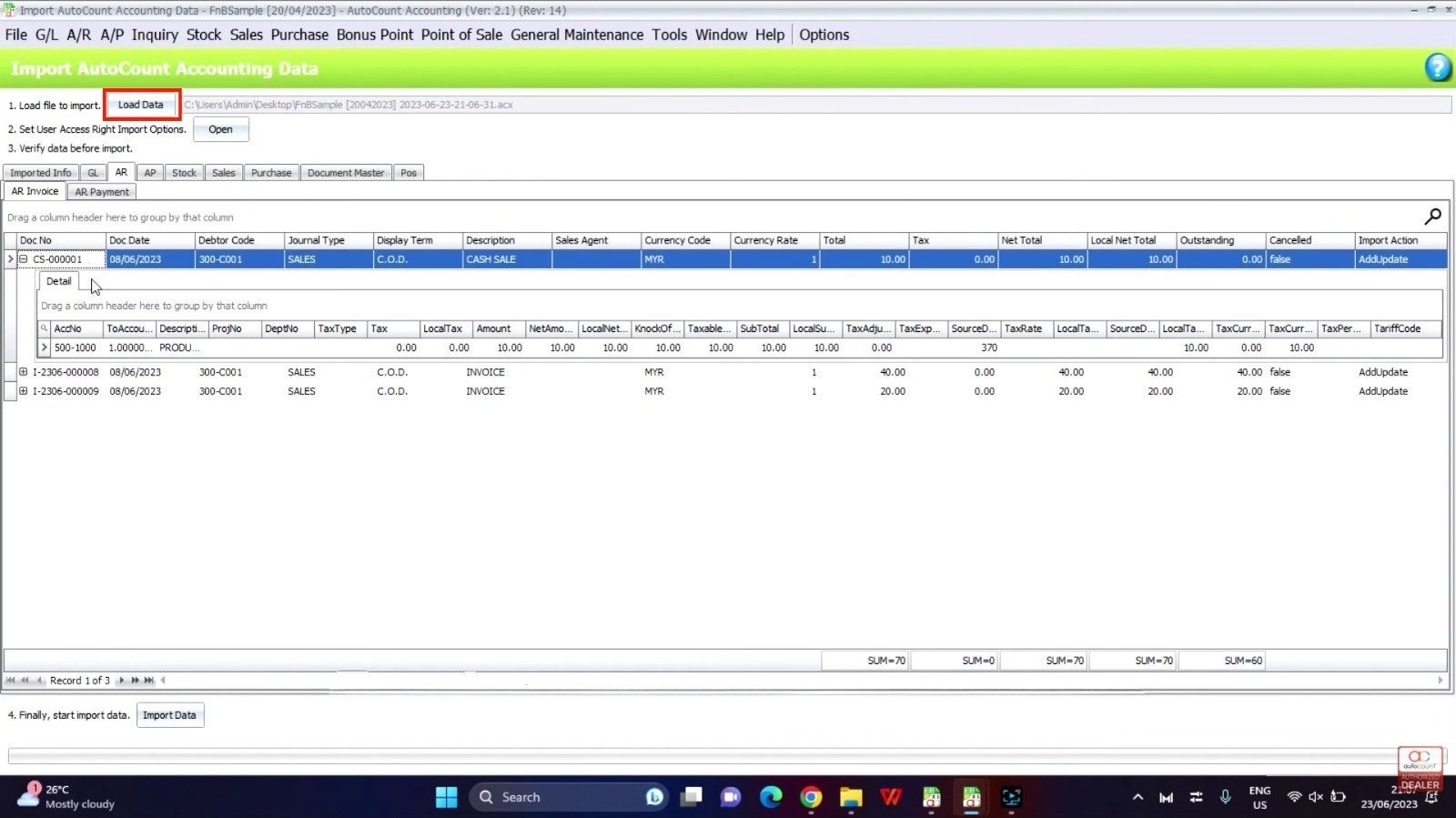
You’ll see a summary of what the import includes:
- Number of GL transactions
- Number of AR invoices & payments
- Number of AP invoices & payments
If everything looks correct, click Import Data to complete the process.
Quick Reminder: Enable the Module
Before you start exporting data:
- Go to Tools > Program Control > Module Setting
- Ensure Export Account is checked to enable the feature.
What Data Gets Exported / Imported
When exporting via this module, the following key accounting data sets can be included:
- General Ledger entries
- Accounts Receivable documents and payments
- Accounts Payable documents and payments
These are packaged into a compressed XML file which preserves structure and detail when moving between account books.
Benefits of Using Export Account Module
Streamlines data movement
Easily transfer financial records across account books.
Improves data accuracy
Filtering helps export relevant transactions only.
Boosts flexibility
Suitable for reporting, auditing, consolidation and mergers.
Supports audits & backups
Export files can be archived for compliance or analysis.
Conclusion
The AutoCount Export Account Module gives you powerful control for exporting key financial data from your account books and importing it into others — all with filtering and clear process flow. Whether you’re preparing for audits, migrating accounts, or consolidating data, this feature makes your accounting workflow cleaner and more efficient.
Frequently Asked Questions
What format does the exported file use?
Exported data is saved as a compressed XML file, suitable for import back into AutoCount.
Do I need special access rights?
Ensure you have necessary system permissions to use the Export Account and Import All Data menus.
Can I filter by date or document number?
Yes! You can define date ranges and apply filters to narrow down what gets exported.
Interested in Getting AutoCount for your Business?
Contact our sales team today to explore pricing options and get started with the perfect solution for you.