
-
AutoCount Accounting Features
-
- Approval Workflow
- Audit Trail
- Auto Save in Draft Folder
- AutoCount Contra Account
- AutoCount License Setting Guide
- Deposit Tracking & Management
- Documents Numbering Format
- Full Transfer and Partial Transfer
- Import Data to AutoCount Accounting Using Excel
- Informative Charts and Analytical Data
- Layout Customization
- Multi Pricing
- Sales and Services Tax
- Schedule Backup
- Search Lookup Edit
- View Documents Flow
- AutoCount Feature Stock Take
- Column Chooser
- Show Remaining (3) Collapse
-
AutoCount Cloud Accounting
-
AutoCount E-Invoice
-
AutoCount HRMS User Guide
-
AutoCount Modules
-
- Activity Stream
- Advanced Financial Report
- Advanced Item
- Advanced Multi-UOM
- Advanced Quotation Module
- Basic Multi-UOM
- Budget Module
- Consignment
- Filter By Salesman
- FOC Quantity
- Formula
- Item Batch
- Item Package
- Landing Cost
- Multi-Currency
- Multi-Dimensional Analysis
- Multi-Location
- Project Account
- Recurrence
- Remote Credit Control Module
- Stock Assembly
- User Defined Fields (UDF)
- AutoCount SST Hidden Functions
- AutoCount SST Submission - Service Tax
- AutoCount Scripting Module User Guide
- AutoCount Bonus Point Module User Guide
- Show Remaining (11) Collapse
-
AutoCount Plugins
-
- Fixed Assets Management
- Goldsmith
- TD Ordering Mobile Apps
- TD Stock Mobile Apps
- Universal Import Plugin
- DMS Import Plugin
- AutoCount Item Scope Plugin
- AutoCount Easy Knock Off Plugin
- AutoCount Pick List Plugin User Guide
- AutoCount Agent Validation Plugin User Guide
- AutoCount Barcode Generator Plugin User Guide
- AutoCount Bill Remark Plugin User Guide
- AutoCount Easy Batch Number Entry Plugin User Guide
- AutoCount Recurring Invoice Plugin User Guide
- AutoCount Easy Photo 2.0 User Guide
- AutoCount Pain Tracker User Guide
- AutoCount Credit Memo Plugin User Guide
- Show Remaining (2) Collapse
-
- AutoCount Easy Recurrence Plugin
- AutoCount Recurring Billing Plugin
- Event Management System
- AutoCount To-Do List Plugin
- AutoCount AutoBank Reconciliation Plugin
- Intercompany Billing Plugin User Guide
- AutoCount Basket Plugin User Guide
- Lead Management 2.0 Plugin
- AutoCount Service Contract Plugin User Guide
- Autocount Repacking Plugin
- AutoCount Scale Barcode Plugin User Guide
- AutoCount Progressive Billing
- AutoCount Optical Plugin
- AutoCount Meter Reading Plugin User Guide
- AutoCount Car Tint Film Plugin
- AutoCount Leasing Plugin User Guide
- AutoCount Integrator Plugin
- AutoCount Procurement Planning Plugin
- Show Remaining (3) Collapse
-
-
Form Template
-
Report Template
-
- Advance Quotation
- Cash Sale
- Consignment
- Consignment Movement
- Credit Note
- Debit Note
- Delivery Order
- FOC Quantity Analysis By Document Report
- Invoice
- Item Package Sales Report
- Monthly Sales Analysis
- Outstanding Sales Order Listing
- Profit And Loss Of Documents
- Quotation
- Sales Agent Contribution Report
- Sales Order
- Top/Bottom Sales Ranking
- Show Remaining (2) Collapse
-
- Available Stock Status Report
- Expired Item Batch Listing
- Inventory Physical Worksheet
- Stock Adjustment
- Stock Aging Report
- Stock Assembly
- Stock Assembly Order
- Stock Balance By Location
- Stock Balance Report
- Stock Card Report
- Stock Disassembly
- Stock Issue
- Stock Item Profit Margin
- Stock Movement Report
- Stock Receive
- Stock Take
- Stock Transfer
- Stock Write Off
- Show Remaining (3) Collapse
AutoCount Module: Unrealized Gain/Loss and Advanced Multi-Currency Modules
Understanding Unrealized Gain/Loss in Multi Currency Accounting
Managing foreign currency transactions can be complex — especially when exchange rates fluctuate between invoice issuance and payment or reporting dates. The AutoCount Unrealized Gain/Loss Module and the Advanced Multi Currency Module help you accurately revalue outstanding foreign currency balances, report currency gains/losses, and comply with financial standards.
AutoCount Unrealized Gain/Loss Module Video Guide
These videos shows how the AutoCount Unrealized Gain/Loss module automates calculation and tracking — making foreign‑currency accounting simple, accurate, and stress‑free.
- AutoCount Unrealized Gain/Loss Module (EN)
Unrealized Gain/Loss Module Setup
Integration & Unrealized Gain/Loss Module Setup
- AutoCount Unrealized Gain/Loss Module (CN)
未实现收益/损失模块设置
集成与未实现收益/损失模块设置
What Are These Modules?
Unrealized Gain/Loss Module
This feature calculates unrealized foreign exchange gains or losses on outstanding transactions and automatically posts temporary journal entries that will be reversed in the next period — preserving original transaction values while reflecting current rates for reporting.
Advanced Multi Currency Module
This is a comprehensive foreign currency solution that includes both realized and unrealized gain/loss revaluations without automatically reversing entries. Journal entries from revaluations remain permanent, giving you a more accurate ongoing picture of currency impacts.
Why This Matters?
When businesses trade internationally — issuing sales or purchase invoices in USD, EUR, or other currencies — fluctuating exchange rates can create differences between recorded values and their true worth at reporting or payment. These differences are classified as:
- Realized Gain/Loss — occurs when a transaction is settled in full.
- Unrealized Gain/Loss — occurs when a transaction remains outstanding at a reporting date.
Accurate tracking ensures financial statements reflect true economic value and complies with auditor or accounting standards for foreign currency reporting.
Key Features & Capabilities
Unrealized Gain/Loss Module
- Revalue outstanding foreign transactions at a specified rate.
- Auto‑generate unrealized gain/loss journal entries.
- Automatically reverse those entries the following day so original values remain intact.
- Ideal when auditors require reversal reporting.
Advanced Multi Currency Module
- Continuous revaluation based on changing exchange rates.
- Auto journal entries that do not reverse, preserving ongoing currency impacts.
- Includes both realized and unrealized gain/loss calculation.
- Detailed currency revaluation reporting to support financial analysis.
Access Foreign Currency Revaluation or Unrealized Gain/Loss
For Unrealized Gain/Loss
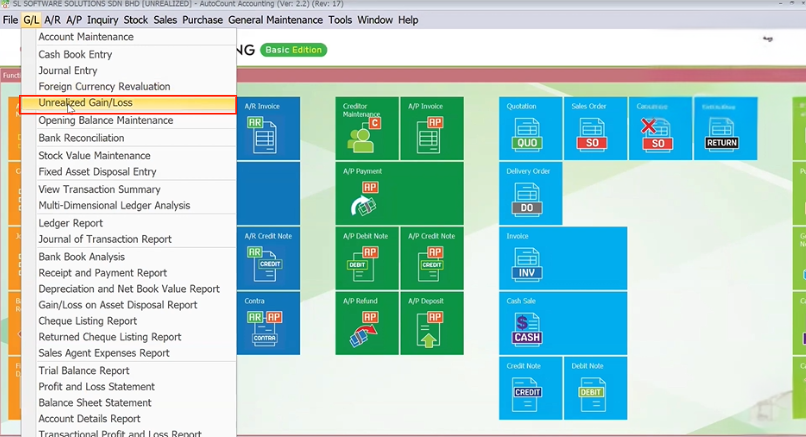
- Go to G/L > Unrealized Gain/Loss.
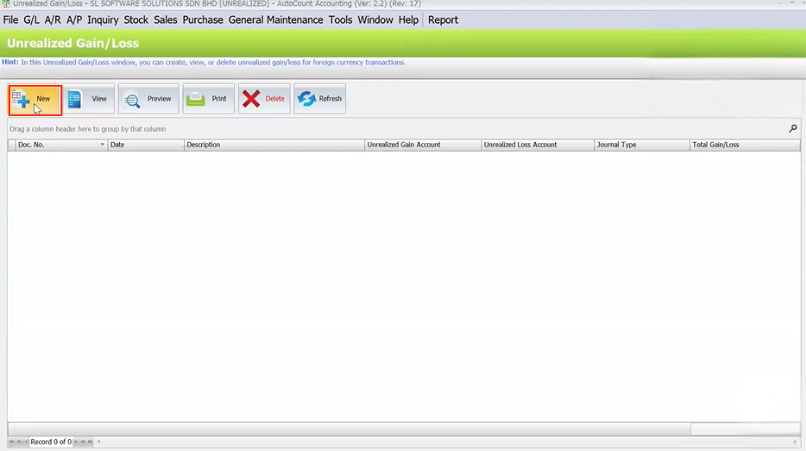
- Click New, confirm the date and unbeaten currency rate.
- Assign G/L accounts for gain and loss posting.
- Click Start Unrealized to calculate unrealized amounts.
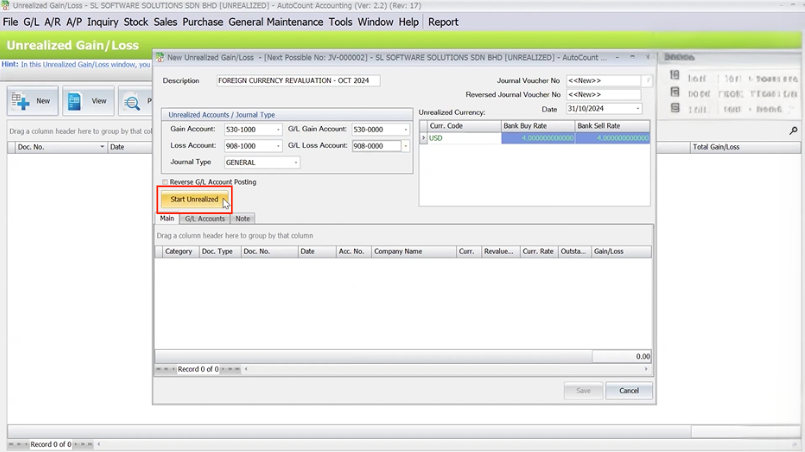
- Save the revaluation.
- Temporary journal entries get created.
- Reversals will be auto‑generated on the next day.
For Advanced Multi Currency Revaluation
- Go to G/L > Foreign Currency Revaluation.
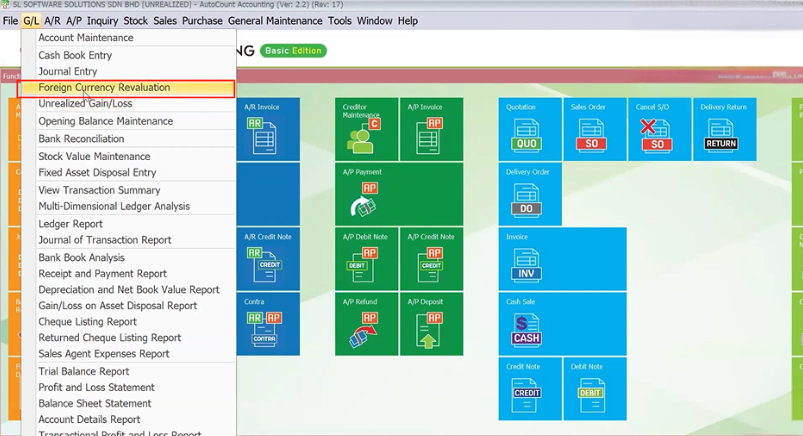
- Click New, confirm the revaluation date and latest rate.
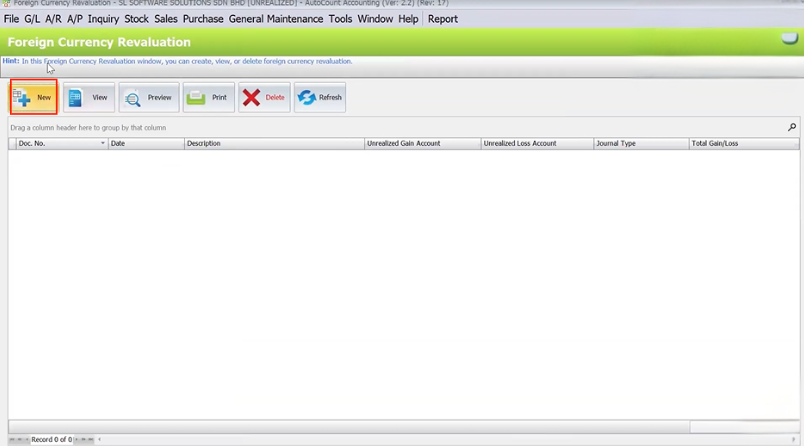
- Assign applicable G/L accounts and descriptions.
- Start the revaluation.
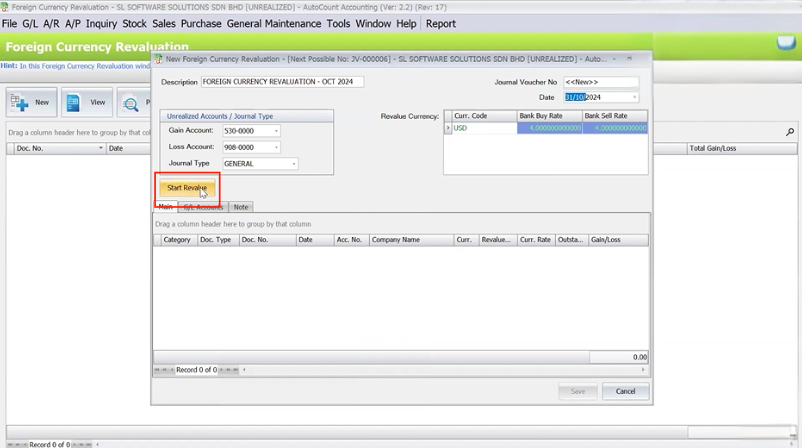
- Save — this will generate permanent gain/loss postings based on current outstanding balances.
Quick Reminder: Enable the Needed Modules
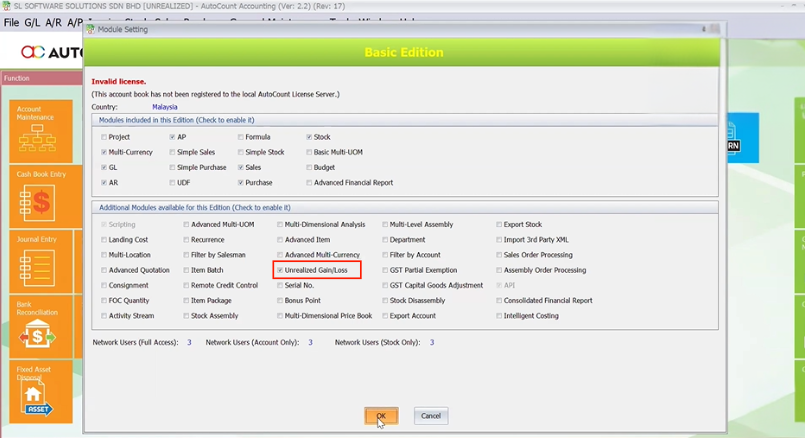
- Go to Tools > Program Control > Module Setting.
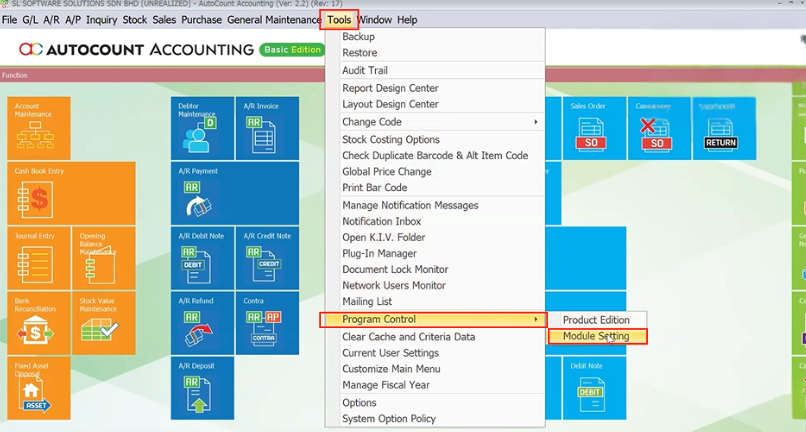
- Check Multi‑Currency
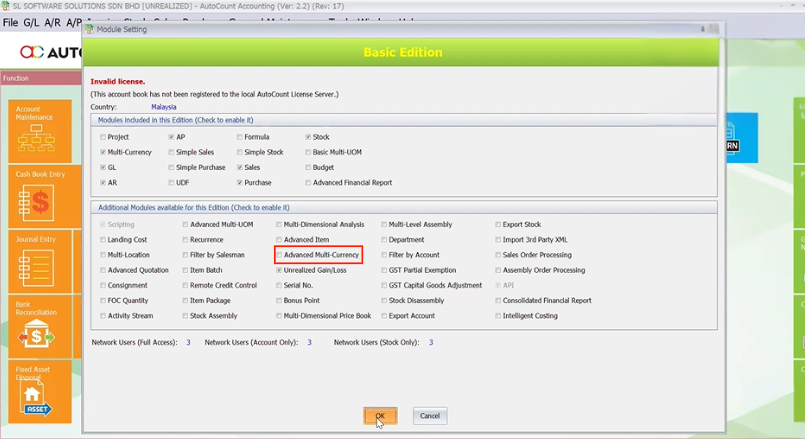
- Then enable Unrealized Gain/Loss or Advanced Multi‑Currency depending on your reporting needs.
How It Works in Practice
Unrealized Gain/Loss
- Revaluations are temporary: entries created on one day, then reversed the next.
- The original exchange rate remains as the base for later comparisons and payments.
- This is useful when accounting standards require reversal.
Advanced Multi Currency
- Revaluations remain in the ledger — no automatic reversal.
- Exchange adjustments stay reflected permanently, giving a full picture of currency impact over time.
- Ideal for detailed financial analysis across multiple periods.
Benefits of Each Module
Unrealized Gain/Loss Module
- Meets auditor expectations with reversible reporting.
- Helps isolate temporary valuation changes from original postings.
Advanced Multi Currency Module
- Permanent, detailed view of currency gains/losses.
- Supports complex multi‑currency business environments.
- Better for long‑term financial analysis and reporting.
Which Should You Choose?
- If you need revaluations that reverse automatically to match auditor expectations or period reporting — choose Unrealized Gain/Loss.
- If you want comprehensive currency tracking that carries adjustments throughout the life of outstanding transactions — go with Advanced Multi‑Currency.
Conclusion
AutoCount gives you flexible tools to handle foreign currency fluctuations and provide accurate gain/loss reporting. Whether you just need periodic unrealized adjustments or full‑featured continuous revaluation, the Unrealized Gain/Loss and Advanced Multi‑Currency Modules help you comply, report, and analyze financial performance with confidence.
Frequently Asked Questions
Do I need the base Multi Currency Module first?
Yes, both Unrealized Gain/Loss and Advanced Multi‑Currency require the Multi‑Currency Module enabled first.
What happens to the journal entries from unrealized gain/loss?
They are automatically reversed the next day to restore original transaction values while enabling reporting.
Can I keep revaluation entries permanently?
Yes — that’s the purpose of the Advanced Multi‑Currency Module: to preserve revaluation impacts over time.
Interested in Getting AutoCount for your Business?
Contact our sales team today to explore pricing options and get started with the perfect solution for you.