
-
AutoCount Accounting Features
-
- Approval Workflow
- Audit Trail
- Auto Save in Draft Folder
- AutoCount Contra Account
- AutoCount License Setting Guide
- Deposit Tracking & Management
- Documents Numbering Format
- Full Transfer and Partial Transfer
- Import Data to AutoCount Accounting Using Excel
- Informative Charts and Analytical Data
- Layout Customization
- Multi Pricing
- Sales and Services Tax
- Schedule Backup
- Search Lookup Edit
- View Documents Flow
- AutoCount Feature Stock Take
- Column Chooser
- Show Remaining (3) Collapse
-
AutoCount Cloud Accounting
-
AutoCount E-Invoice
-
AutoCount HRMS User Guide
-
AutoCount Modules
-
- Activity Stream
- Advanced Financial Report
- Advanced Item
- Advanced Multi-UOM
- Advanced Quotation Module
- Basic Multi-UOM
- Budget Module
- Consignment
- Filter By Salesman
- FOC Quantity
- Formula
- Item Batch
- Item Package
- Landing Cost
- Multi-Currency
- Multi-Dimensional Analysis
- Multi-Location
- Project Account
- Recurrence
- Remote Credit Control Module
- Stock Assembly
- User Defined Fields (UDF)
- AutoCount SST Hidden Functions
- AutoCount SST Submission - Service Tax
- AutoCount Scripting Module User Guide
- AutoCount Bonus Point Module User Guide
- Show Remaining (11) Collapse
-
AutoCount Plugins
-
- Fixed Assets Management
- Goldsmith
- TD Ordering Mobile Apps
- TD Stock Mobile Apps
- Universal Import Plugin
- DMS Import Plugin
- AutoCount Item Scope Plugin
- AutoCount Easy Knock Off Plugin
- AutoCount Pick List Plugin User Guide
- AutoCount Agent Validation Plugin User Guide
- AutoCount Barcode Generator Plugin User Guide
- AutoCount Bill Remark Plugin User Guide
- AutoCount Easy Batch Number Entry Plugin User Guide
- AutoCount Recurring Invoice Plugin User Guide
- AutoCount Easy Photo 2.0 User Guide
- AutoCount Pain Tracker User Guide
- AutoCount Credit Memo Plugin User Guide
- Show Remaining (2) Collapse
-
- AutoCount Easy Recurrence Plugin
- AutoCount Recurring Billing Plugin
- Event Management System
- AutoCount To-Do List Plugin
- AutoCount AutoBank Reconciliation Plugin
- Intercompany Billing Plugin User Guide
- AutoCount Basket Plugin User Guide
- Lead Management 2.0 Plugin
- AutoCount Service Contract Plugin User Guide
- Autocount Repacking Plugin
- AutoCount Scale Barcode Plugin User Guide
- AutoCount Progressive Billing
- AutoCount Optical Plugin
- AutoCount Meter Reading Plugin User Guide
- AutoCount Car Tint Film Plugin
- AutoCount Leasing Plugin User Guide
- AutoCount Integrator Plugin
- AutoCount Procurement Planning Plugin
- Show Remaining (3) Collapse
-
-
Form Template
-
Report Template
-
- Advance Quotation
- Cash Sale
- Consignment
- Consignment Movement
- Credit Note
- Debit Note
- Delivery Order
- FOC Quantity Analysis By Document Report
- Invoice
- Item Package Sales Report
- Monthly Sales Analysis
- Outstanding Sales Order Listing
- Profit And Loss Of Documents
- Quotation
- Sales Agent Contribution Report
- Sales Order
- Top/Bottom Sales Ranking
- Show Remaining (2) Collapse
-
- Available Stock Status Report
- Expired Item Batch Listing
- Inventory Physical Worksheet
- Stock Adjustment
- Stock Aging Report
- Stock Assembly
- Stock Assembly Order
- Stock Balance By Location
- Stock Balance Report
- Stock Card Report
- Stock Disassembly
- Stock Issue
- Stock Item Profit Margin
- Stock Movement Report
- Stock Receive
- Stock Take
- Stock Transfer
- Stock Write Off
- Show Remaining (3) Collapse
AutoCount Module: SST Hidden Functions
Unlock the Full Potential of AutoCount SST with These Hidden Features
The AutoCount SST (Sales and Service Tax) module includes several hidden functions that can make tax submission and management much easier. From re-submitting reports to inclusive and exclusive tax settings, these powerful features are designed to streamline your tax processes.
AutoCount SST Hidden Features Demo
Watch this demo to explore hidden features of AutoCount SST. Learn how to enhance your workflow with advanced tools and hidden functionalities in AutoCount Accounting.
Core Features
Re-Submit SST Forms After Submission
This feature allows easy amendment and resubmission of SST forms without deleting previous data, ensuring flexibility through automatic detection and notification of changes.
Transaction Change Tracking Report
This feature records all SST transaction changes, allowing adjustments to be traced for auditing, error correction, and overall system transparency.
Inclusive and Exclusive Tax Settings
This feature allows users to toggle between inclusive and exclusive tax rates per transaction, providing greater control and easier compliance with different tax regulations.
Access Rights for Sensitive SST Modifications
This feature allows role-based access to SST data, ensuring only authorized users can make amendments while maintaining security and control over sensitive tax information.
Resubmit SST Reports
- After submitting an SST form, if a change is required, amend the transaction details (e.g., invoice date, amounts).
- The system will automatically lock the previous submission.
- You can resubmit the updated SST without deleting the previous submission.
Track Transaction Changes
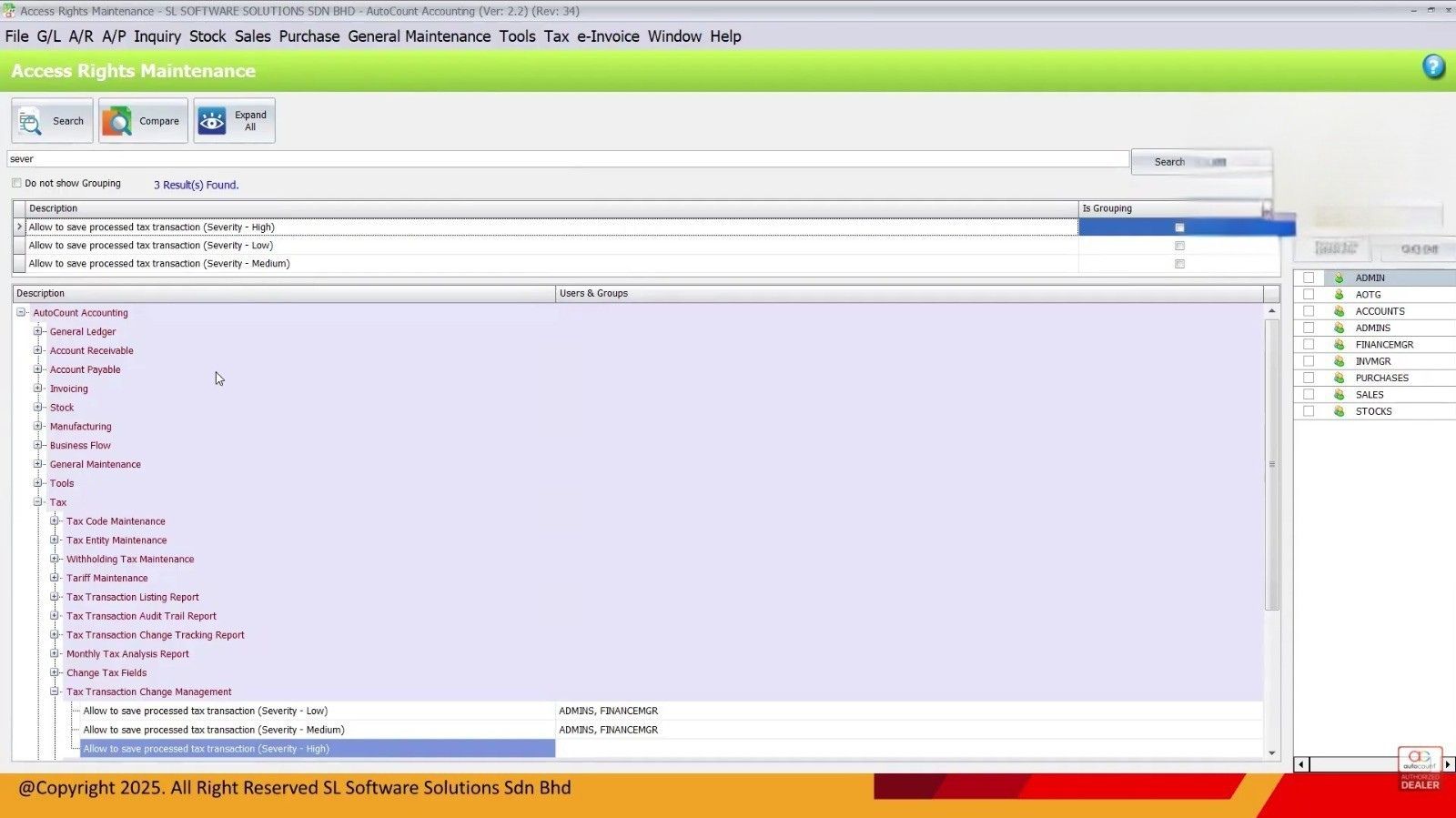
1. Enable transaction tracking for high, medium, and low security changes.
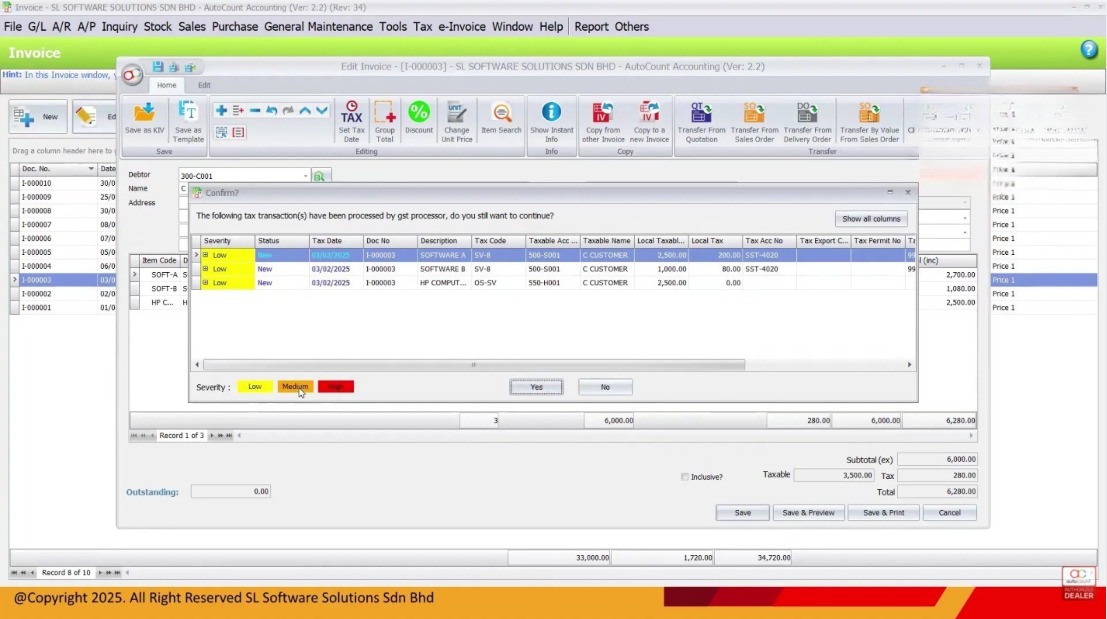
2. Check the transaction change log for details of amendments (e.g., item code change, tax adjustments).
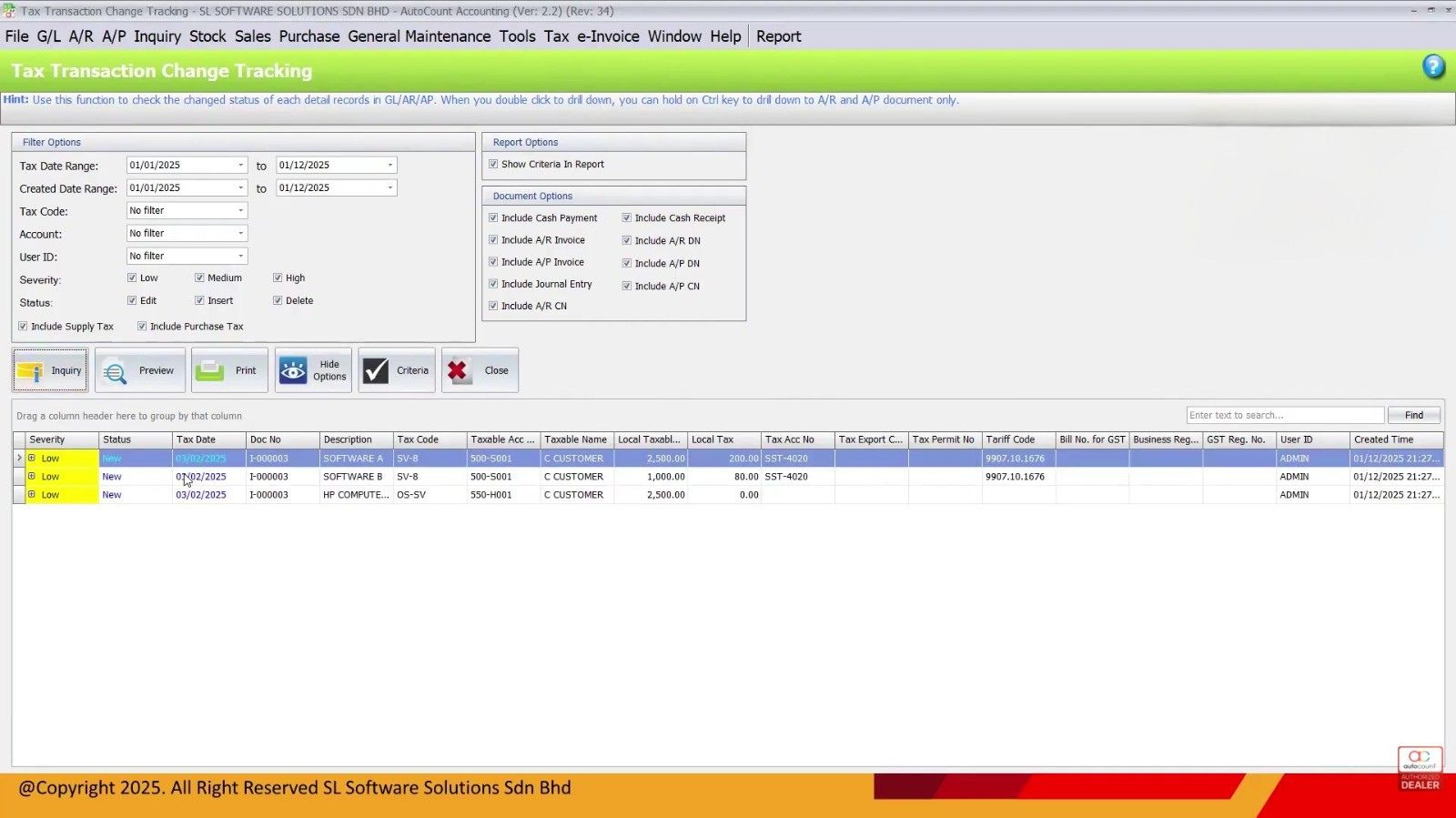
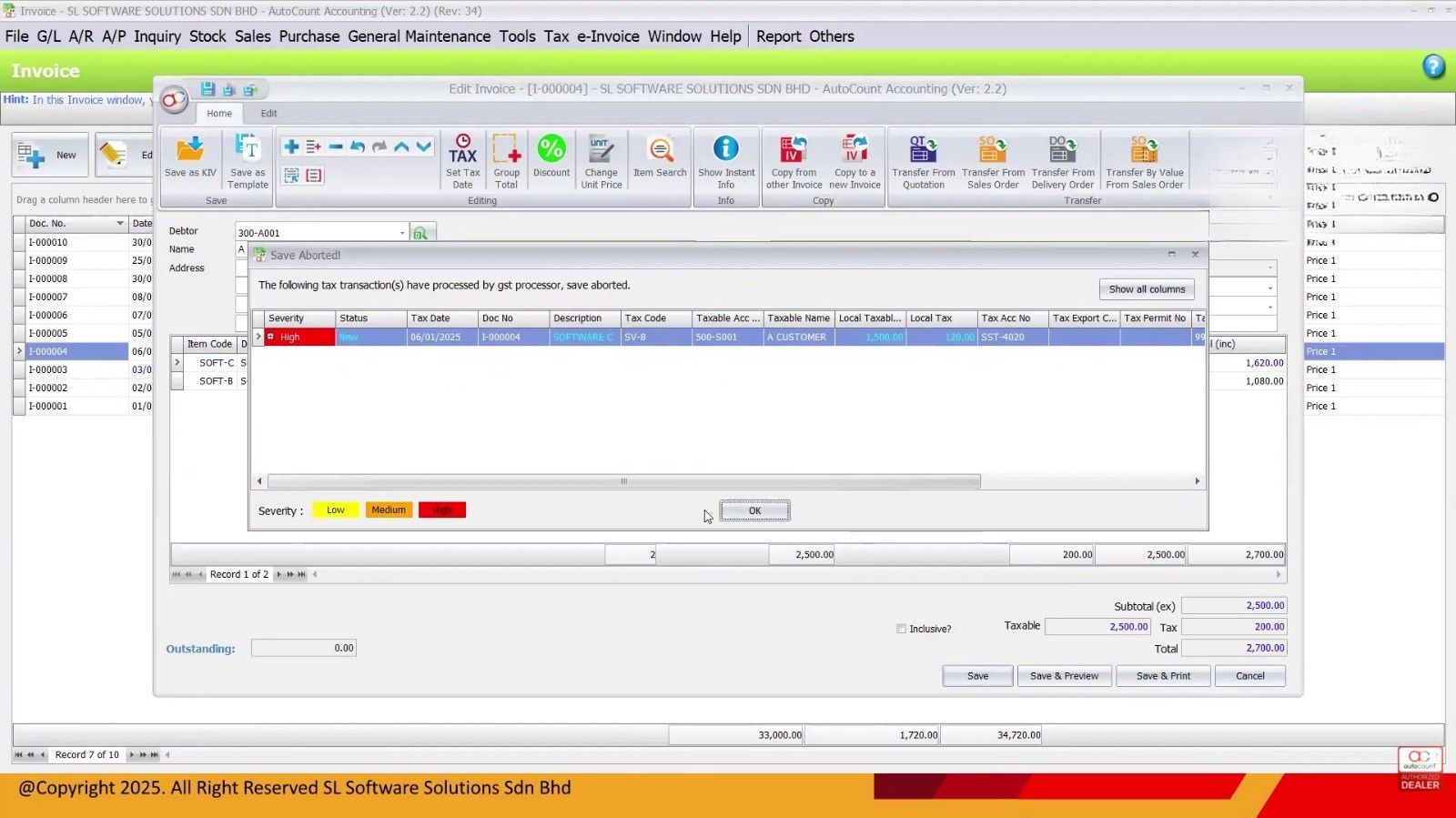
3. For high-security changes, access rights are required to save the modifications.
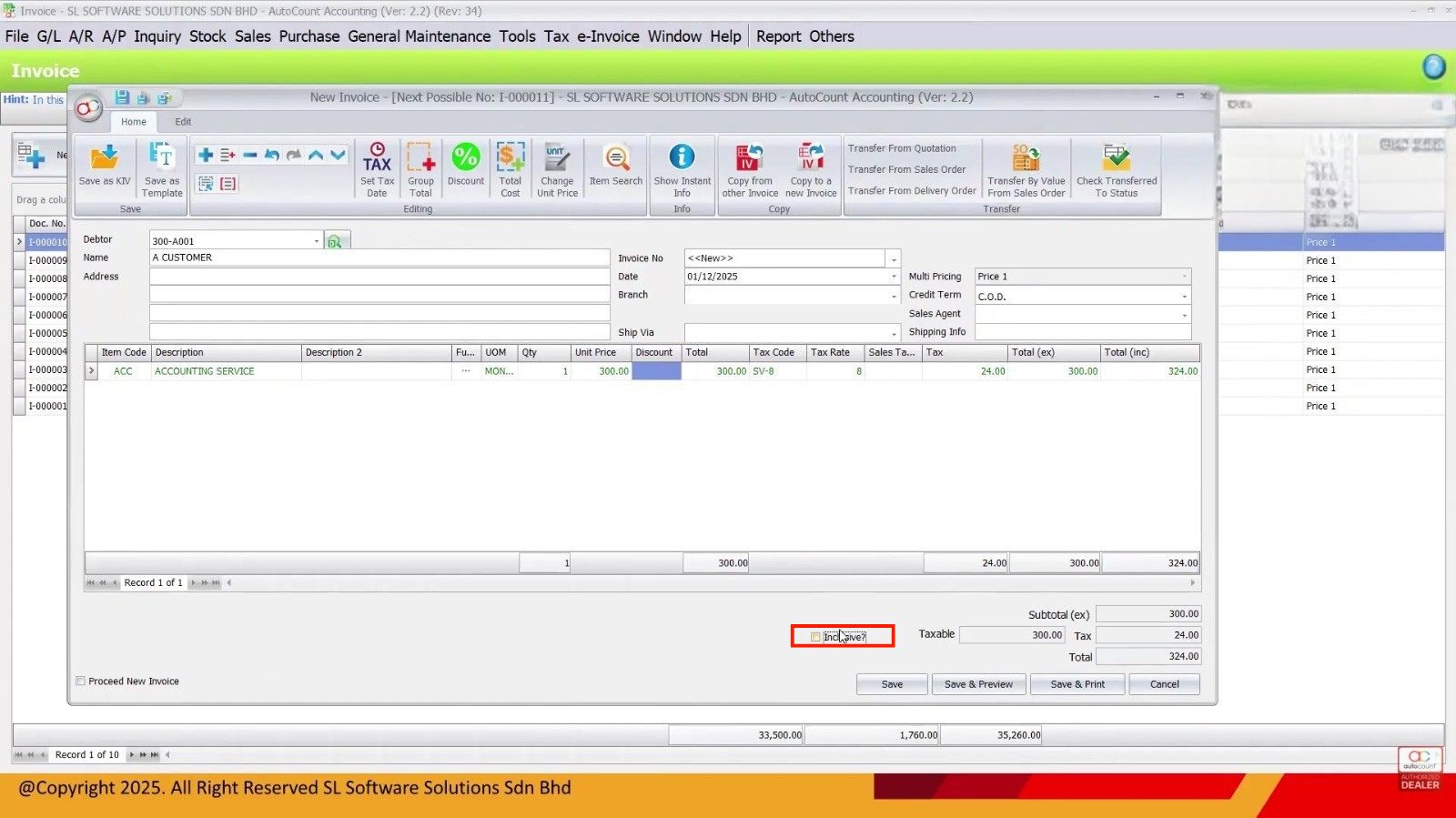
Set Inclusive or Exclusive Tax
- Go to Tools → Options and enable Inclusive or Exclusive Tax settings.
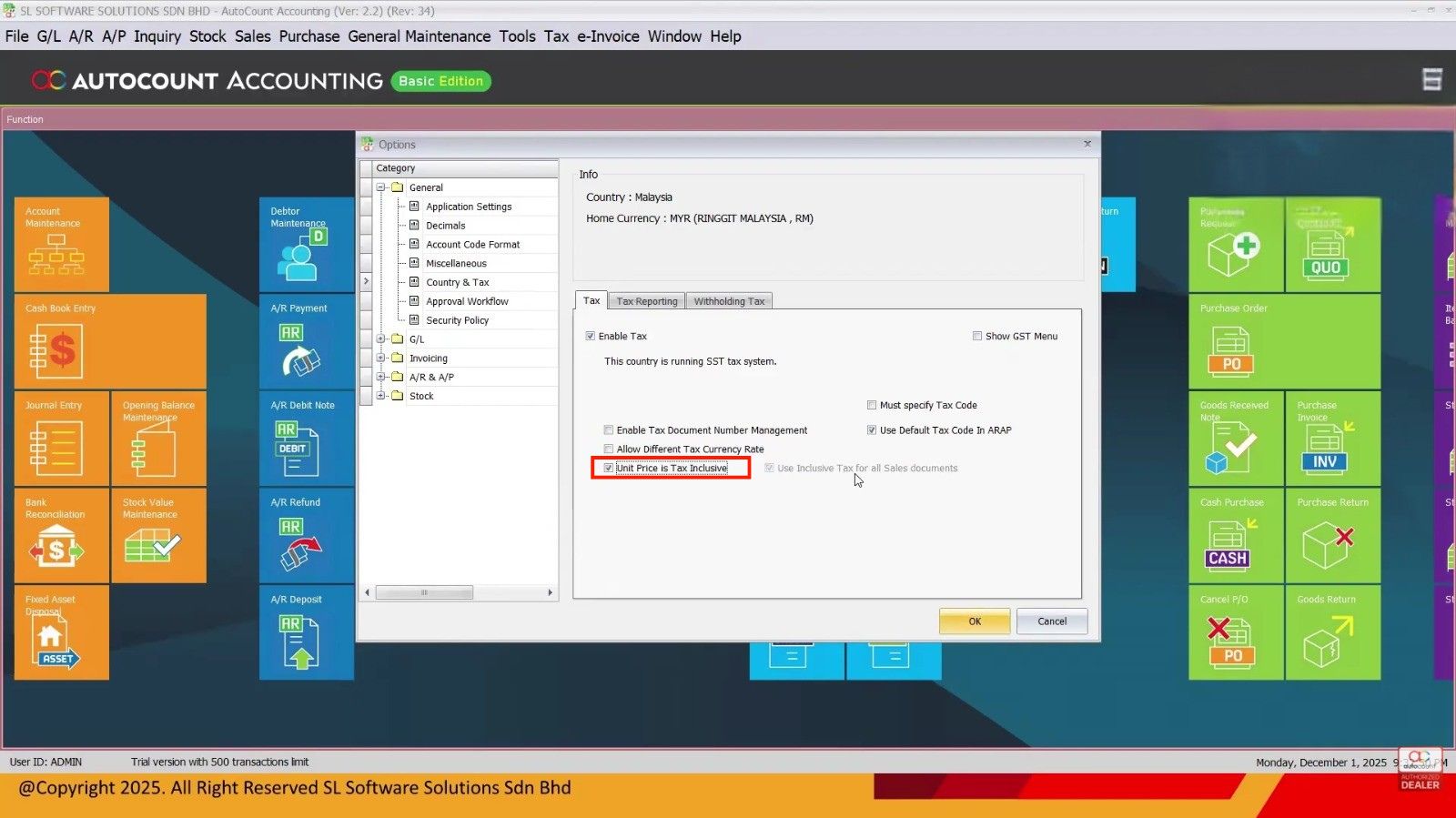
- Enable tax on unit price for invoices that need it.
- Set the default for inclusive tax on all transactions, or allow flexibility by changing it per invoice.
Assign Access Rights
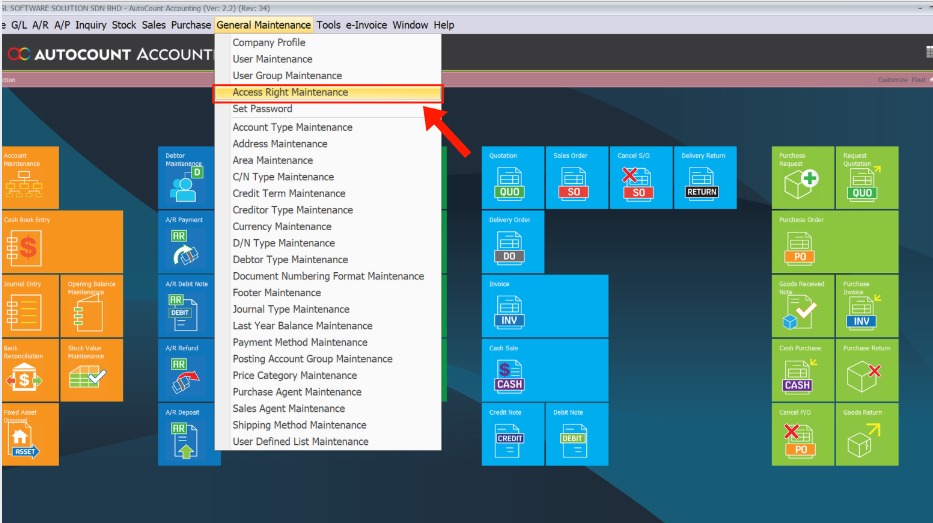
1. Assign low, medium, or high security access to users for submitting or modifying SST data.
- Go to General Maintenance → Access Rights to assign access based on security levels.
2. For high-security tasks, ensure only authorized users (e.g., managers) have the ability to make changes.
Use Text Code and Text Document Numbering
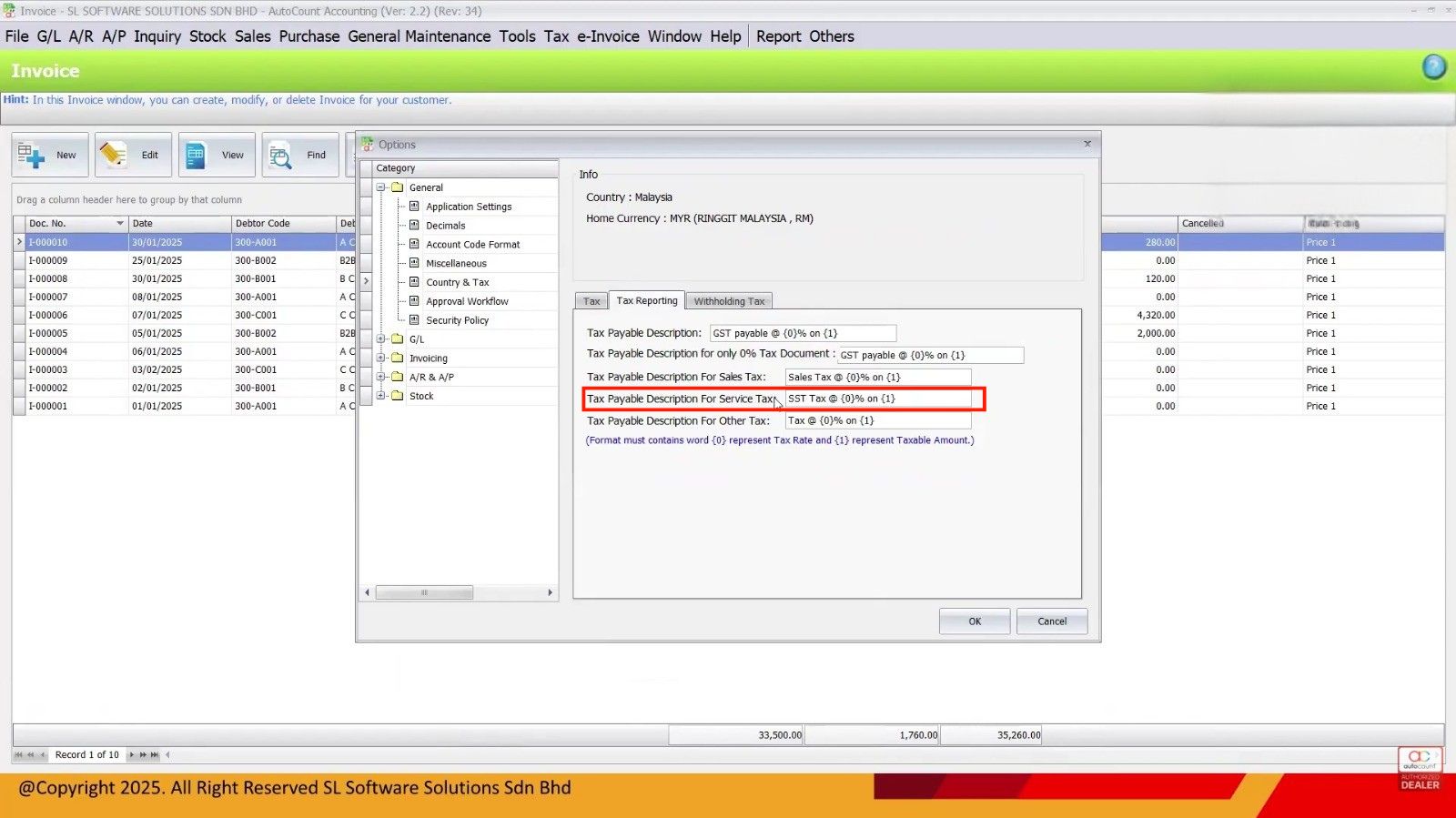
- Go to Tools → Options → Country & Tax to enable Text Document Numbering Management.
- Set up Text Codes for each product or service, ensuring that tax codes are correctly assigned.
Benefits & Business Value
Efficient Correction Process
Amend and resubmit SST forms without deleting previous data.
Transparency and Audit Trail
Keep track of every change made to the SST forms with detailed reports.
Flexible Tax Settings
Easily toggle between inclusive or exclusive tax for different business needs.
Secure Data Management
Control who can make changes to sensitive SST data with access rights settings.
Conclusion
The AutoCount SST Hidden Functions provide powerful tools to improve your tax submission process. From resubmitting SST forms to managing inclusive/exclusive tax settings and securing data with access rights, these features enhance flexibility and control. By utilizing these hidden functions, businesses can ensure accurate, efficient, and compliant tax reporting.
Frequently Asked Questions
Can I resubmit an SST form after it’s been submitted?
Yes, you can amend and resubmit the SST form without deleting the processor.
How does the system track changes made to SST forms?
The system generates a Transaction Change Tracking Report that logs all amendments made to the data.
How do I set inclusive/exclusive tax for invoices?
You can set this in the SST settings, where you can choose whether taxes are included in the price or added separately.
How do I restrict access to modify SST data?
You can set access rights in AutoCount under General Maintenance to control who can modify SST data based on security levels.
Interested in Getting AutoCount for your Business?
Contact our sales team today to explore pricing options and get started with the perfect solution for you.