
-
AutoCount Accounting Features
-
- Approval Workflow
- Audit Trail
- Auto Save in Draft Folder
- AutoCount Contra Account
- AutoCount License Setting Guide
- Deposit Tracking & Management
- Documents Numbering Format
- Full Transfer and Partial Transfer
- Import Data to AutoCount Accounting Using Excel
- Informative Charts and Analytical Data
- Layout Customization
- Multi Pricing
- Sales and Services Tax
- Schedule Backup
- Search Lookup Edit
- View Documents Flow
- AutoCount Feature Stock Take
- Column Chooser
- Show Remaining (3) Collapse
-
AutoCount Cloud Accounting
-
AutoCount E-Invoice
-
AutoCount HRMS User Guide
-
AutoCount Modules
-
- Activity Stream
- Advanced Financial Report
- Advanced Item
- Advanced Multi-UOM
- Advanced Quotation Module
- Basic Multi-UOM
- Budget Module
- Consignment
- Filter By Salesman
- FOC Quantity
- Formula
- Item Batch
- Item Package
- Landing Cost
- Multi-Currency
- Multi-Dimensional Analysis
- Multi-Location
- Project Account
- Recurrence
- Remote Credit Control Module
- Stock Assembly
- User Defined Fields (UDF)
- AutoCount SST Hidden Functions
- AutoCount SST Submission - Service Tax
- AutoCount Scripting Module User Guide
- AutoCount Bonus Point Module User Guide
- Show Remaining (11) Collapse
-
AutoCount Plugins
-
- Fixed Assets Management
- Goldsmith
- TD Ordering Mobile Apps
- TD Stock Mobile Apps
- Universal Import Plugin
- DMS Import Plugin
- AutoCount Item Scope Plugin
- AutoCount Easy Knock Off Plugin
- AutoCount Pick List Plugin User Guide
- AutoCount Agent Validation Plugin User Guide
- AutoCount Barcode Generator Plugin User Guide
- AutoCount Bill Remark Plugin User Guide
- AutoCount Easy Batch Number Entry Plugin User Guide
- AutoCount Recurring Invoice Plugin User Guide
- AutoCount Easy Photo 2.0 User Guide
- AutoCount Pain Tracker User Guide
- AutoCount Credit Memo Plugin User Guide
- Show Remaining (2) Collapse
-
- AutoCount Easy Recurrence Plugin
- AutoCount Recurring Billing Plugin
- Event Management System
- AutoCount To-Do List Plugin
- AutoCount AutoBank Reconciliation Plugin
- Intercompany Billing Plugin User Guide
- AutoCount Basket Plugin User Guide
- Lead Management 2.0 Plugin
- AutoCount Service Contract Plugin User Guide
- Autocount Repacking Plugin
- AutoCount Scale Barcode Plugin User Guide
- AutoCount Progressive Billing
- AutoCount Optical Plugin
- AutoCount Meter Reading Plugin User Guide
- AutoCount Car Tint Film Plugin
- AutoCount Leasing Plugin User Guide
- AutoCount Integrator Plugin
- AutoCount Procurement Planning Plugin
- Show Remaining (3) Collapse
-
-
Form Template
-
Report Template
-
- Advance Quotation
- Cash Sale
- Consignment
- Consignment Movement
- Credit Note
- Debit Note
- Delivery Order
- FOC Quantity Analysis By Document Report
- Invoice
- Item Package Sales Report
- Monthly Sales Analysis
- Outstanding Sales Order Listing
- Profit And Loss Of Documents
- Quotation
- Sales Agent Contribution Report
- Sales Order
- Top/Bottom Sales Ranking
- Show Remaining (2) Collapse
-
- Available Stock Status Report
- Expired Item Batch Listing
- Inventory Physical Worksheet
- Stock Adjustment
- Stock Aging Report
- Stock Assembly
- Stock Assembly Order
- Stock Balance By Location
- Stock Balance Report
- Stock Card Report
- Stock Disassembly
- Stock Issue
- Stock Item Profit Margin
- Stock Movement Report
- Stock Receive
- Stock Take
- Stock Transfer
- Stock Write Off
- Show Remaining (3) Collapse
AutoCount Plugin: Knock Off Plugin
Simplify Payments, Credit Notes & Debtors Matching — All in One Place
The AutoCount Easy Knock Off Plugin enhances your cash collection and accounts receivable workflow by consolidating multiple transaction types—outstanding invoices, credit notes, debit notes, and payments—into a single unified screen. This eliminates the need to jump between separate screens (like Official Receipt and Credit Note entry), helping cashiers and accountants reconcile and apply transactions faster and more accurately.
AutoCount Knock Off Plugin Video Guide
Watch these videos guide to learn how to effectively use the AutoCount Knock Off Plugin. Gain insights on managing item visibility and usage across various AutoCount Accounting modules.
- AutoCount Knock Off Plugin (EN)
Knock Off Plugin Setup
Integration & Knock Off Setup
- AutoCount Knock Off Plugin (CN)
仿冒插件设置
集成与仿制设置
Core Features
Single Unified Knock Off Screen
View outstanding invoices, credit notes, and debit notes together on one interface. This gives users a complete picture of what’s owed and what’s due to be applied, reducing confusion and speeding up reconciliation workflows.
In traditional AutoCount workflows, credit notes and receipts live on separate screens — this plugin brings them together for convenience and accuracy.
Flexible Payment Application
Process customer payments alongside transaction matching to both invoices and credit notes.
Accept multiple payment types (cash, card, bank transfer).
Apply credit notes directly against invoices within the same screen.
This flexibility saves time and reduces manual steps in receivables processing — no more reopening transactions or manual bookkeeping after the fact.
Real Time Adjustment & Branch Filtering
Users can filter and apply knock off logic based on branch codes, making this ideal for multi branch organizations where collections and invoicing occur across different outlets.
Dynamic Amount Control
Modify applied amounts on the fly if you don’t want to clear the full amount at once. This is especially useful for:
Partial payments
Combining multiple credit notes against a large invoice
Adjusting deductions before finalizing the knock off
Improved AR/AP Workflows
While Easy Knock Off focuses on manual interactive matching, it also integrates smoothly with more advanced automation tools like AR/AP Batch Knock Off plugins (for full automation), Inter Company Knock Off, or Excel Import Knock Off tooling — all designed for larger scale or specialized workflows.
Why it matters?
Faster Cash Application
No need to open separate receipts or credit note entry screens — everything is in one place.
Reduced Errors
Minimizes manual copy‑and‑paste work between modules and spotting mismatched payments.
Better Visibility
See outstanding debit and credit transactions together so you never miss an amount due or refundable.
Useful for Complex Scenarios
Handles real‑world situations like FMCG returns, multi‑branch reconciliations, and partial payments.
Benefits & Business Value
The Easy Knock Off Plugin helps your business:
Reduce manual reconciliation time
Improve collection accuracy
Streamline month-end AR processes
Support multi branch & multi payment complexity
Whether you handle high volumes of credit notes, combine payments across invoices, or want a cleaner receivables process, this plugin brings clarity and efficiency.
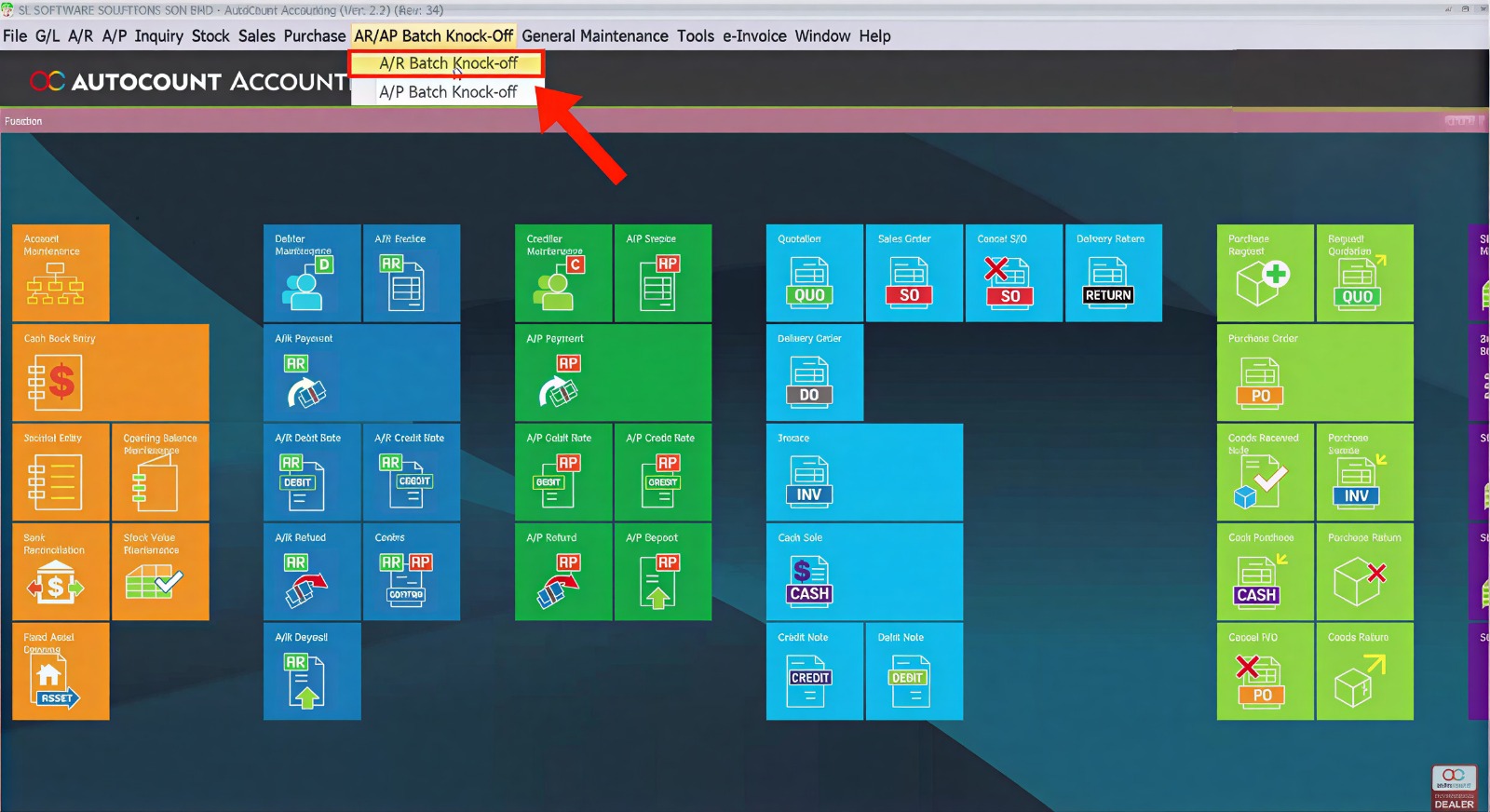
Starting the Easy Knock Off Screen
Open AR Easy Knock Off (or AP Easy Knock Off if matching supplier credits/payments).
The screen shows aggregated data including:
- Outstanding invoices
- Unapplied credit notes
- Debit notes or contra balances
- Payments available for application
Selecting Branch & Customer Context
If your business uses branch codes (e.g., Ipoh, Penang, KL), choose the relevant branch to filter the listed transactions.
This helps users focus only on invoice/credit groups relevant to that outlet or customer segment.
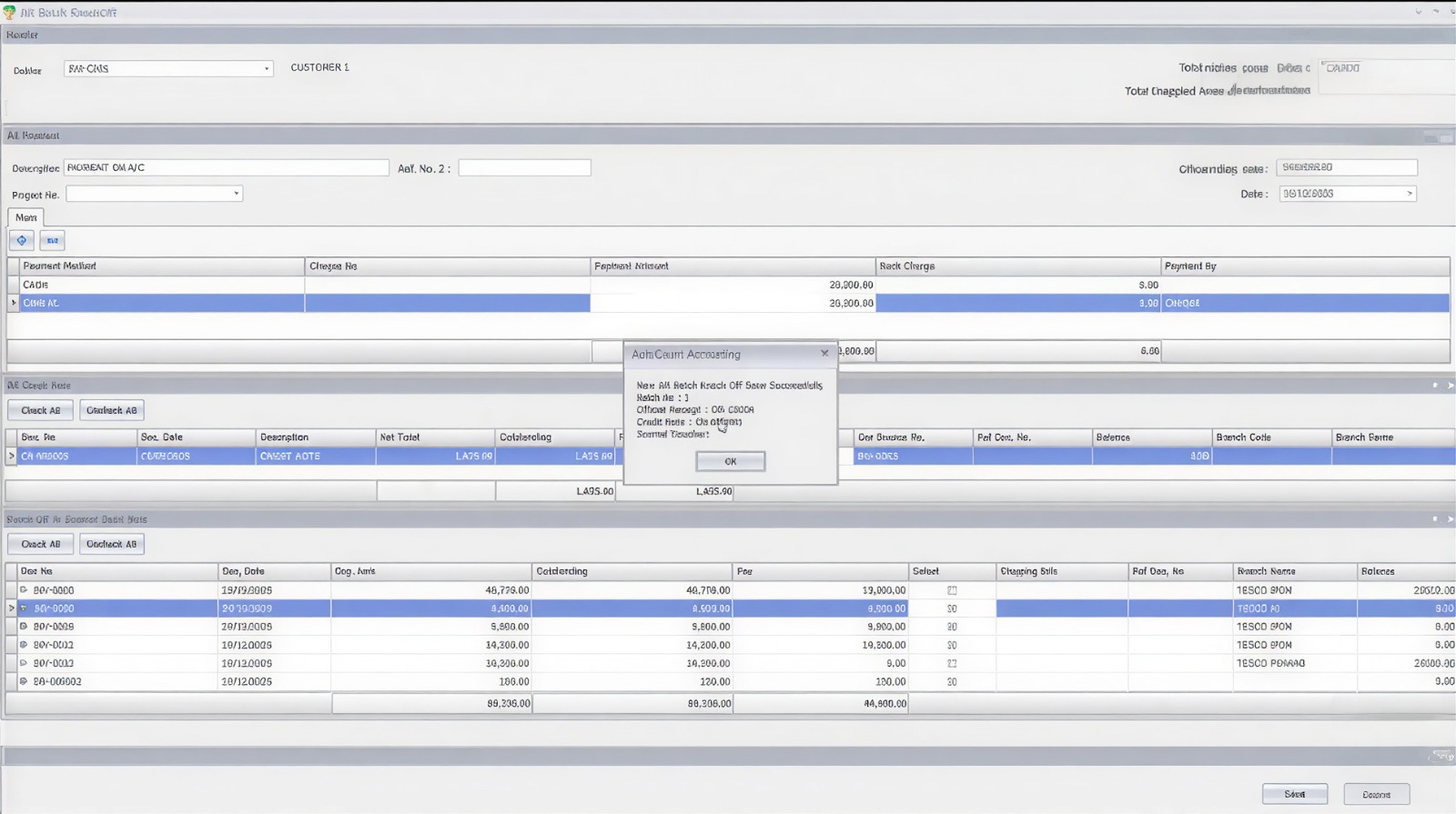
Apply Knock Off
In the combined screen:
- Review credit note balances
- Select invoices to apply
- Add payment amount and choose payment method
- Adjust partial allocations if desired
- View running total of applied amounts
You can manually increase or reduce applied amounts before saving if needed.
Confirm & Save
Once you’re satisfied with the match:
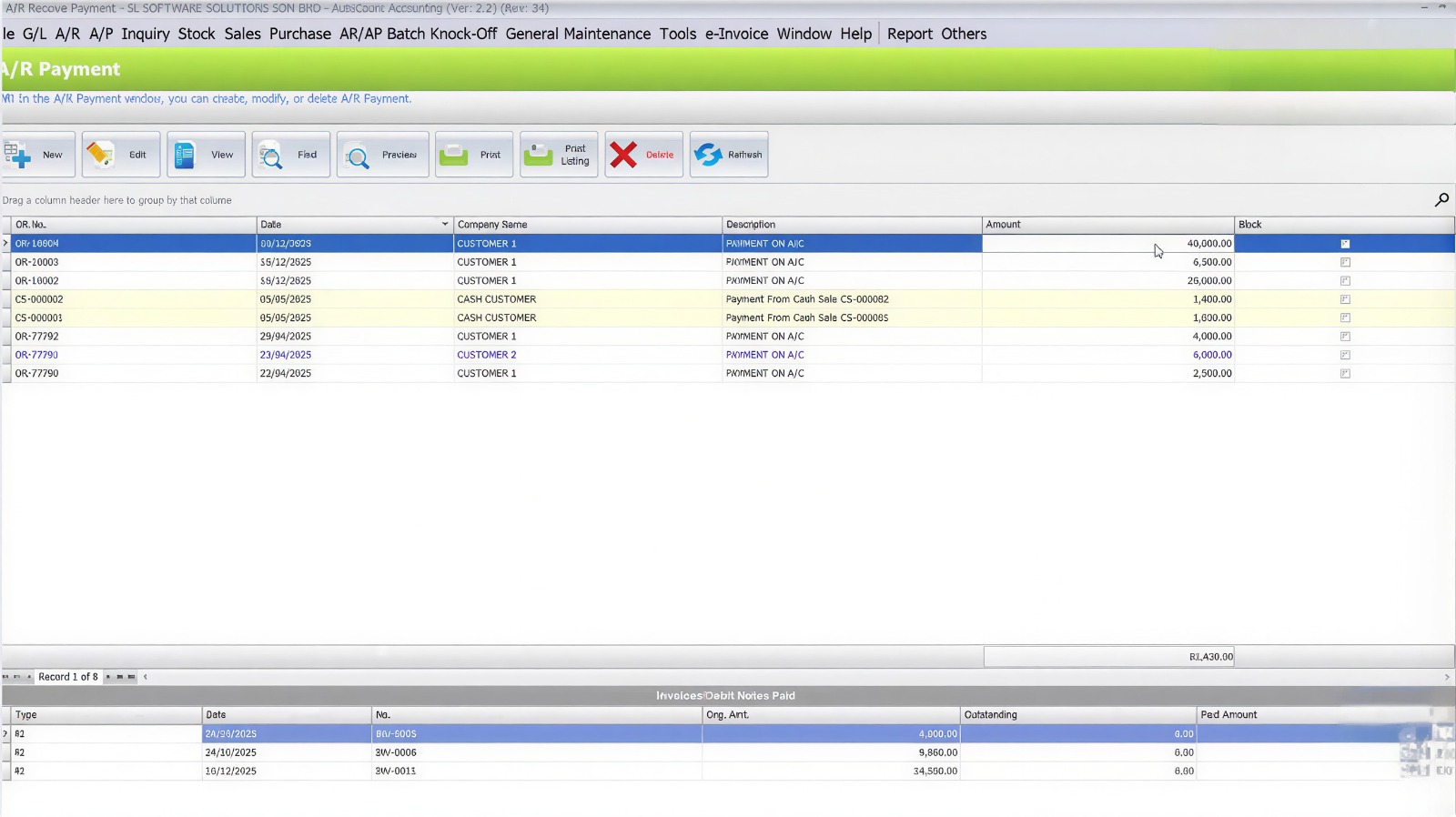
Save the transaction — the system will:
- Apply matched payments and credits
- Generate corresponding AR/AP posting entries
- Update outstanding balances in real time
The applied results appear as knocked‑off transactions in AR/AP and cash/bank positions.
Access & Permissions
Make sure the plugin is enabled in AutoCount and that authorized users (e.g., AR/AP roles) have access rights assigned in General Maintenance > Access Right Maintenance.

Once rights are set, users will see Easy Knock Off options under Accounts Receivable (AR) and Accounts Payable (AP) menus.
Advanced & Related Plugins
Access ControlAR/AP Batch Knock Off Plugin
Automates matching of large historic receivables and payables using business rules.
Inter Company Knock Off
Handles cross‑company payment applications within corporate groups.
Excel Import Knock Off
Fast reconciliation based on external spreadsheet data, ideal for e‑commerce marketplace orders.
This functionality enhances internal process control and accountability — particularly in environments with multi‑brand portfolios or segmented business units.
Tips & Best Practices
Assign access rights in advance so users don’t struggle to find the function.
Use branch filters for clearer allocation when dealing with multiple outlets.
Review credit note validity before applying to avoid mismatches.
Combine partial and full allocations smartly for tidy AR/AP reconciliation.
Conclusion
The AutoCount Easy Knock Off Plugin brings receivable/payment reconciliation into a single, intuitive interface, saving time and reducing AR errors. It’s an essential enhancement for businesses with frequent customer credit activity, branch‑based operations, or complex payment scenarios.
Use this plugin to create a cleaner, more efficient cash application process in your AutoCount system.
Frequently Asked Questions
Will this affect my accounting data integrity?
No. The plugin applies transactions using standard AR/AP posting logic — it doesn’t overwrite existing entries, it matches and posts like normal AutoCount receivable logic.
Is this compatible with all AutoCount versions?
Compatibility depends on your AutoCount core version and plugin framework. Check with your dealer for specific version support.
Can I undo a knock off?
Yes — in transactions where an auto‑generated payment or application was done, you can unknock off if needed (depending on configuration and rights).
Does it support partial application?
Yes — you can adjust applied amounts before saving to reflect partial payments or partial credit use.
Interested in Getting AutoCount for your Business?
Contact our sales team today to explore pricing options and get started with the perfect solution for you.