
-
AutoCount Accounting Features
-
- Approval Workflow
- Audit Trail
- Auto Save in Draft Folder
- AutoCount Contra Account
- AutoCount License Setting Guide
- Deposit Tracking & Management
- Documents Numbering Format
- Full Transfer and Partial Transfer
- Import Data to AutoCount Accounting Using Excel
- Informative Charts and Analytical Data
- Layout Customization
- Multi Pricing
- Sales and Services Tax
- Schedule Backup
- Search Lookup Edit
- View Documents Flow
- AutoCount Feature Stock Take
- Column Chooser
- Show Remaining (3) Collapse
-
AutoCount Cloud Accounting
-
AutoCount E-Invoice
-
AutoCount HRMS User Guide
-
AutoCount Modules
-
- Activity Stream
- Advanced Financial Report
- Advanced Item
- Advanced Multi-UOM
- Advanced Quotation Module
- Basic Multi-UOM
- Budget Module
- Consignment
- Filter By Salesman
- FOC Quantity
- Formula
- Item Batch
- Item Package
- Landing Cost
- Multi-Currency
- Multi-Dimensional Analysis
- Multi-Location
- Project Account
- Recurrence
- Remote Credit Control Module
- Stock Assembly
- User Defined Fields (UDF)
- AutoCount SST Hidden Functions
- AutoCount SST Submission - Service Tax
- AutoCount Scripting Module User Guide
- AutoCount Bonus Point Module User Guide
- Show Remaining (11) Collapse
-
AutoCount Plugins
-
- Fixed Assets Management
- Goldsmith
- TD Ordering Mobile Apps
- TD Stock Mobile Apps
- Universal Import Plugin
- DMS Import Plugin
- AutoCount Item Scope Plugin
- AutoCount Easy Knock Off Plugin
- AutoCount Pick List Plugin User Guide
- AutoCount Agent Validation Plugin User Guide
- AutoCount Barcode Generator Plugin User Guide
- AutoCount Bill Remark Plugin User Guide
- AutoCount Easy Batch Number Entry Plugin User Guide
- AutoCount Recurring Invoice Plugin User Guide
- AutoCount Easy Photo 2.0 User Guide
- AutoCount Pain Tracker User Guide
- AutoCount Credit Memo Plugin User Guide
- Show Remaining (2) Collapse
-
- AutoCount Easy Recurrence Plugin
- AutoCount Recurring Billing Plugin
- Event Management System
- AutoCount To-Do List Plugin
- AutoCount AutoBank Reconciliation Plugin
- Intercompany Billing Plugin User Guide
- AutoCount Basket Plugin User Guide
- Lead Management 2.0 Plugin
- AutoCount Service Contract Plugin User Guide
- Autocount Repacking Plugin
- AutoCount Scale Barcode Plugin User Guide
- AutoCount Progressive Billing
- AutoCount Optical Plugin
- AutoCount Meter Reading Plugin User Guide
- AutoCount Car Tint Film Plugin
- AutoCount Leasing Plugin User Guide
- AutoCount Integrator Plugin
- AutoCount Procurement Planning Plugin
- Show Remaining (3) Collapse
-
-
Form Template
-
Report Template
-
- Advance Quotation
- Cash Sale
- Consignment
- Consignment Movement
- Credit Note
- Debit Note
- Delivery Order
- FOC Quantity Analysis By Document Report
- Invoice
- Item Package Sales Report
- Monthly Sales Analysis
- Outstanding Sales Order Listing
- Profit And Loss Of Documents
- Quotation
- Sales Agent Contribution Report
- Sales Order
- Top/Bottom Sales Ranking
- Show Remaining (2) Collapse
-
- Available Stock Status Report
- Expired Item Batch Listing
- Inventory Physical Worksheet
- Stock Adjustment
- Stock Aging Report
- Stock Assembly
- Stock Assembly Order
- Stock Balance By Location
- Stock Balance Report
- Stock Card Report
- Stock Disassembly
- Stock Issue
- Stock Item Profit Margin
- Stock Movement Report
- Stock Receive
- Stock Take
- Stock Transfer
- Stock Write Off
- Show Remaining (3) Collapse
AutoCount Plugin: Universal Import Plugin
Simplify and Automate Data Imports from Excel/CSV Files into AutoCount
The AutoCount Universal Import Plugin is a powerful data import tool designed to help you upload large volumes of structured data — such as customers, suppliers, transactions, stock, and accounting records — from Excel or CSV files directly into AutoCount without manual entry. Unlike the standard Import by Excel tool (copy-paste), this plugin uses file upload, header mapping, and column searching to make bulk data import faster, more accurate, and flexible.
AutoCount Universal Import Plugin Video Guide
- AutoCount Lock Price Plugin (EN)
Universal Import Plugin Setup
Integration & Universal Import Setup
- AutoCount Lock Price Plugin (CN)
通用导入插件设置
集成和通用导入设置
Wide Range of Supported Data Types
The Universal Import Plugin lets you import data across many modules, including:
Default AccNo: Account numbers for transactions.
Default ARAP: Accounts receivable and payable.
Default Debtor Creditor: Details of debtors and creditors.
Default GL: General ledger entries.
Default Purchase: Transactional records.
Default StockItem: Manage basic item information and codes.
Default Stock: Inventory details.
Default General Maintenance: Other administrative data.
Default Sales: Records for sales invoices and cash sales.
Default Item and Itempackage: Handle individual items and bundle sets.
It accommodates commonly used formats such as Excel (.xlsx) and CSV (.csv) files. Hence, ensuring flexibility and compatibility with existing systems.
Key Features
Flexible File Upload
Upload Excel (.xlsx) or CSV files directly. No fixed templates required—simply match your file headers to AutoCount fields.
Excel Header Mapping
Align your file's column names (e.g., "CustomerName") with AutoCount fields. Save mappings for future recurring imports.
Column Searching
Missing a field? The plugin can look up and fill data (e.g., find DebtorCode via Company Name) to ensure completeness without manual editing.
Error Handling & Validation
Auto-detects errors before import. Export error records, correct them easily, and re-import with confidence.
Why Use Universal Import Plugin?
Save Time
Automate bulk data entry and eliminate repetitive manual input.
Integration Ready
Ideal for importing data from other systems (POS, ERP, WMS, etc.).
Reduce Errors
Header mapping and lookup features minimize human errors.
Supports Large Data Sets
Efficiently handles large transactional data during system setup or migration.
Download & Prepare Templates
- Go to the plugin or your website to download template Excel files for the data you want to import.
- These templates show correct columns/headers expected by AutoCount.
Fill or Map Excel Headers
- Populate your Excel file with data, matching the template header names where possible.
- If your header names differ, you’ll configure header mapping
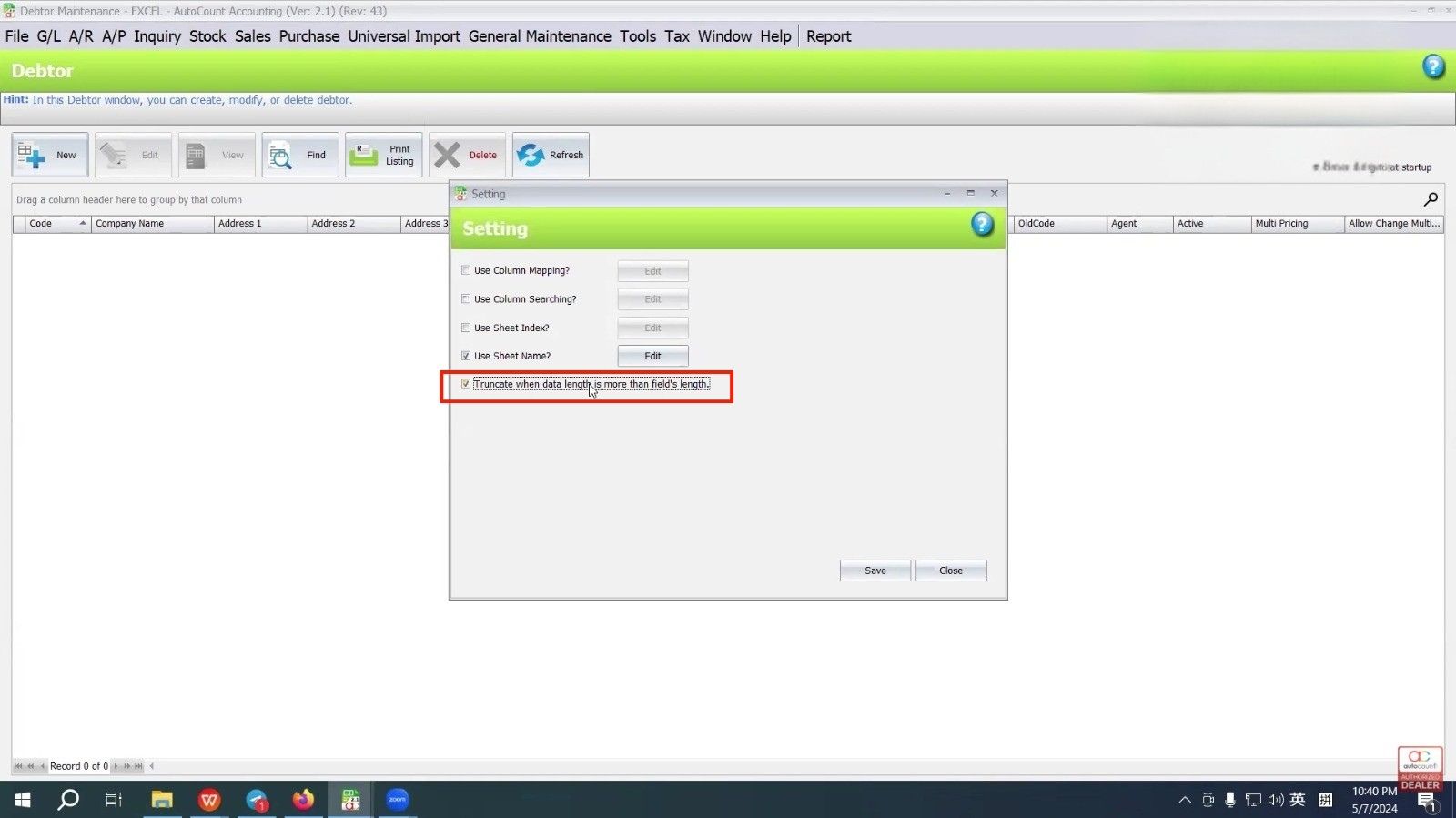
Configure Import Settings
Before importing, set configuration options like:
- Sheet Name — match the worksheet name in your Excel file.
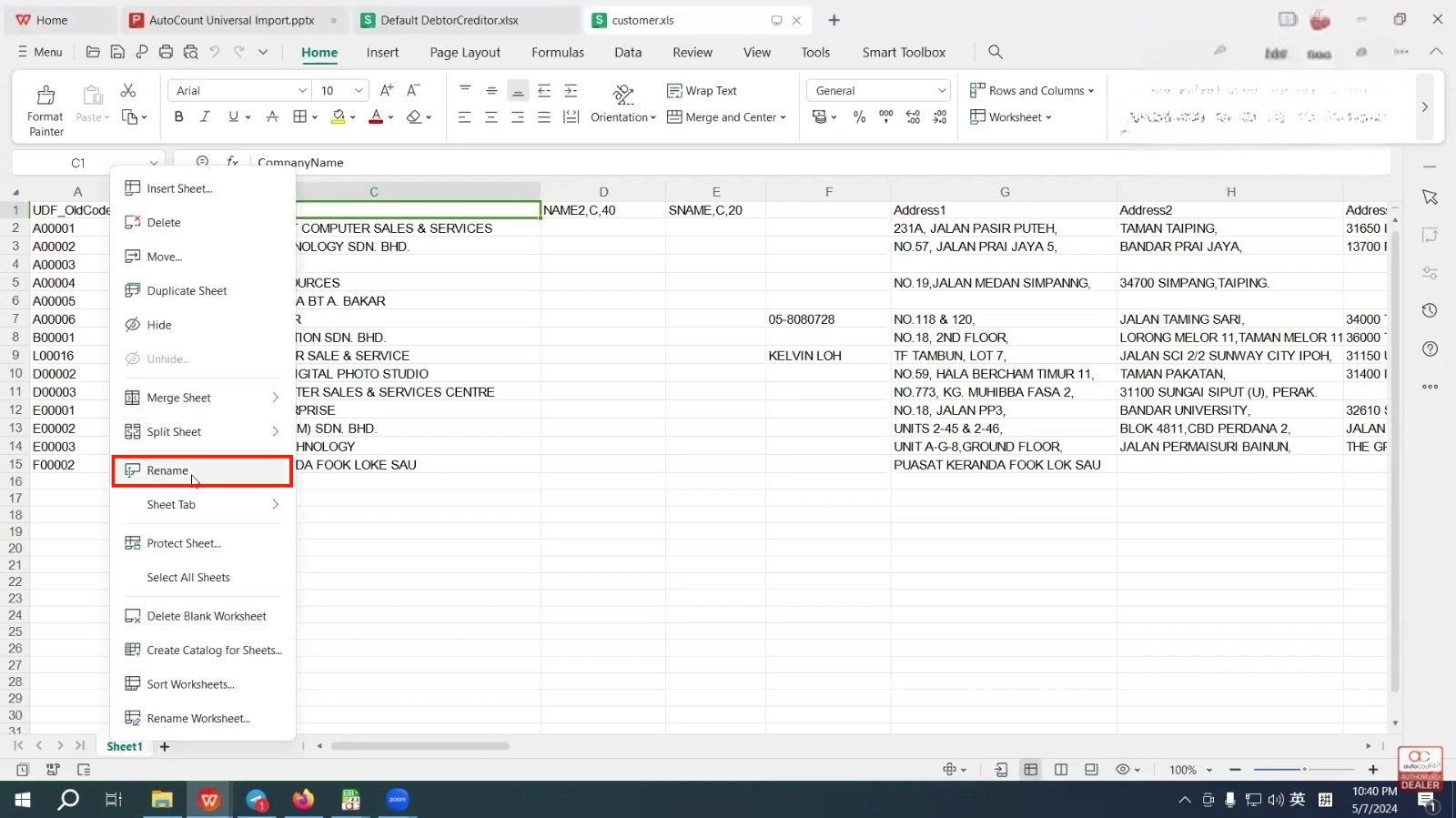
- Truncate settings — adjust long text fields (e.g., address) to prevent errors.
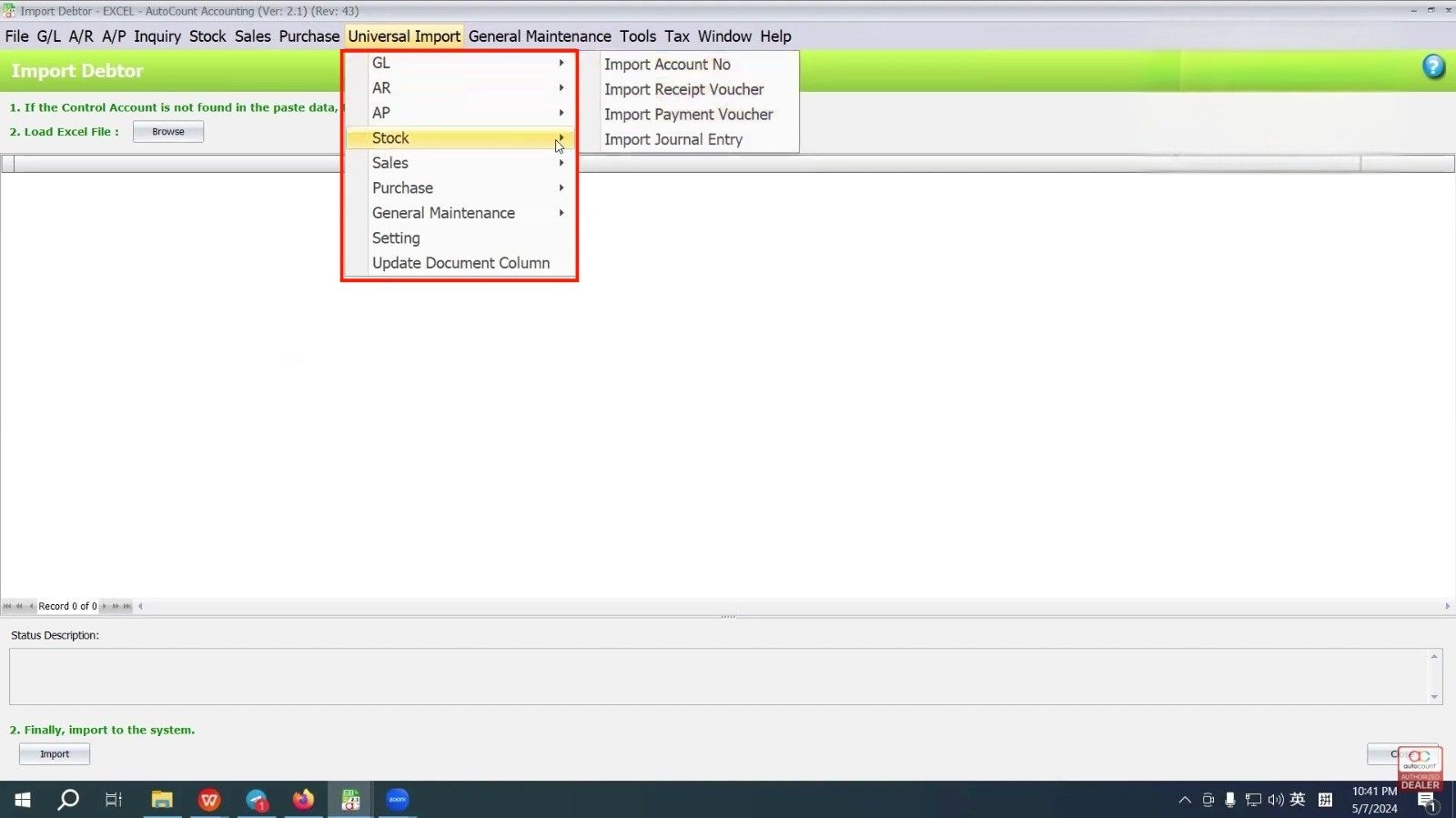
Import the File
- In the plugin interface, choose the data type (e.g., Customer, Supplier, Sales Invoice).
- Click Browse and select your prepared file.
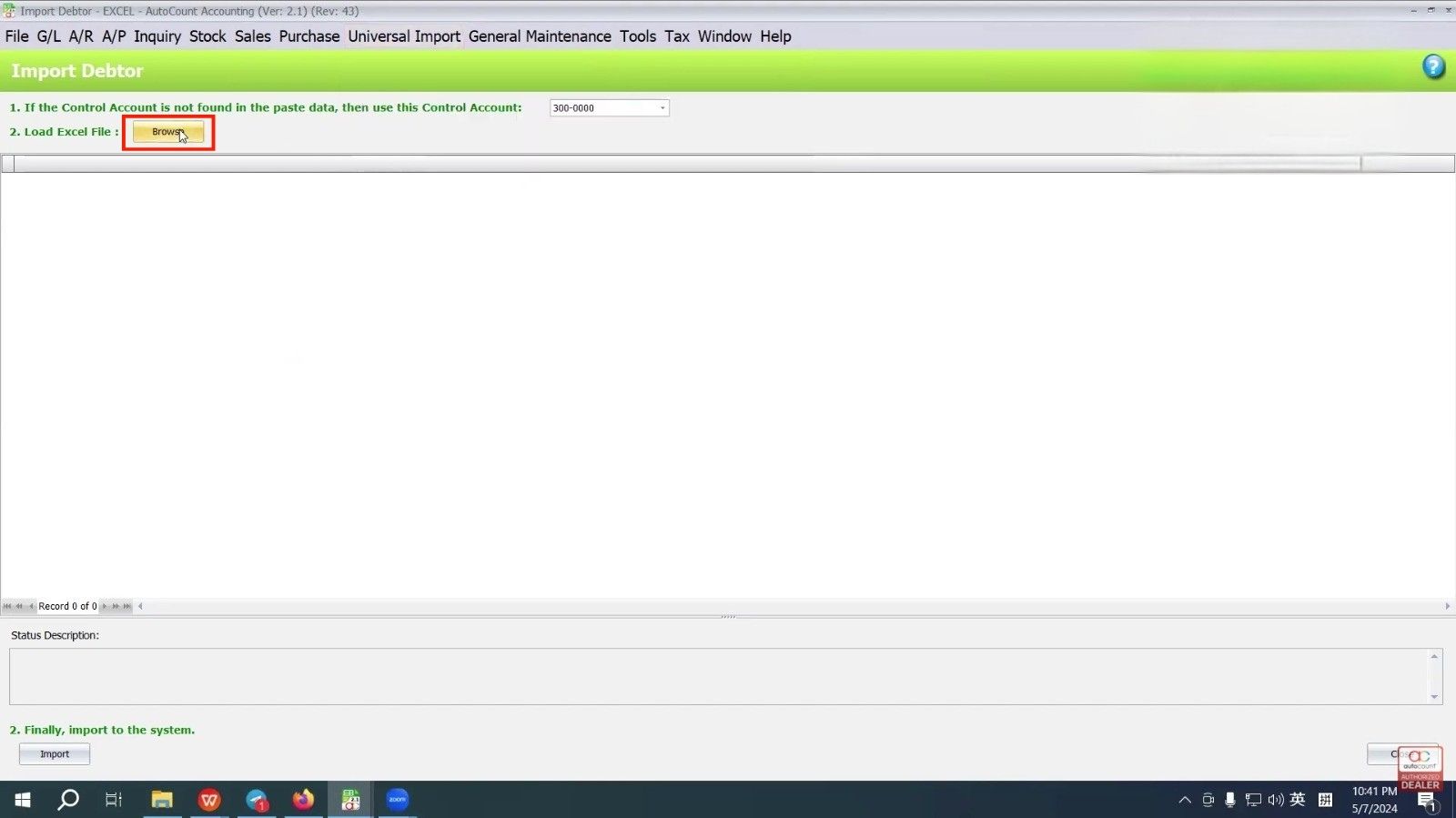
- The plugin will check the file.
- Click Import to start.
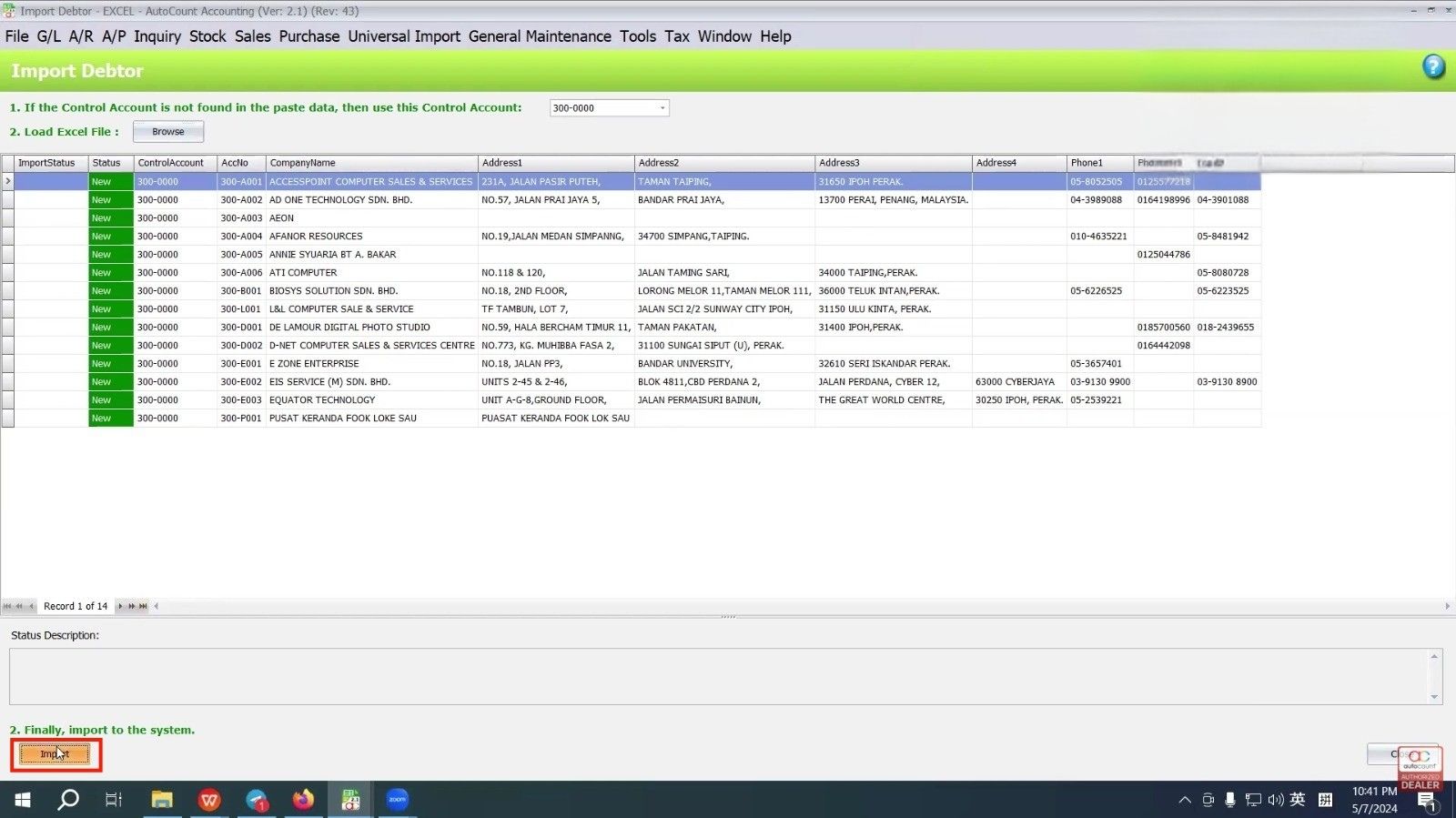
Review Results & Errors
The system will display:
- Success imports
- Error records (if any)
Export error records to a file, fix issues, and re-import.
Confirm Imported Data
After import, verify the imported records in AutoCount:
- Sales invoices appear correctly
- Customers, stock records, transaction entries match your source data
This confirmation ensures accuracy and completeness.
Quick Reminder: Prepare Your Excel/CSV File
- Ensure your data is complete and in a structured format.
- Save it as .xlsx or .csv.
- If needed, use consistent headers for key fields like codes and names.
Quick Reminder: Install and Open the Plugin
- Go to Tools → Plug‑In Manager in AutoCount and install the Universal Import Plugin.
- Once installed, navigate to Universal Import > Import in the menu.
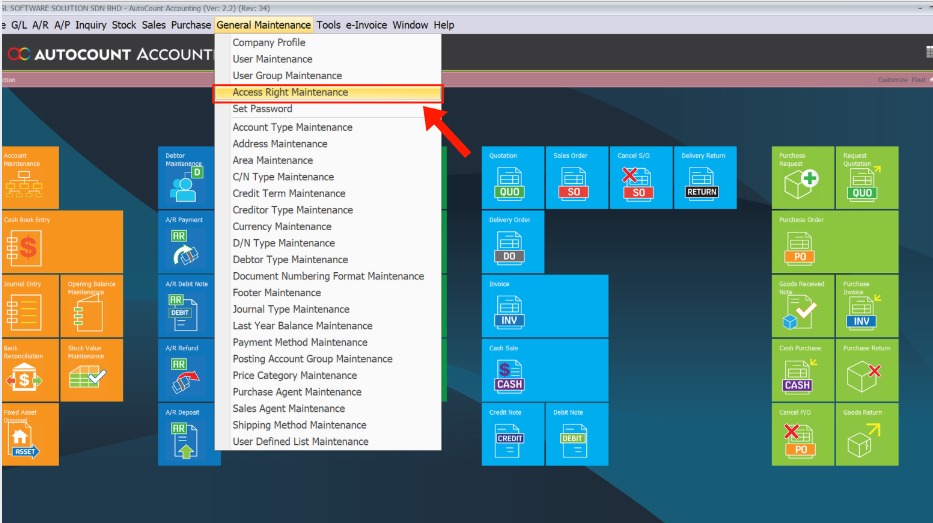
Quick Reminder: Set Access Rights
- Only users with the correct access rights can run the plugin.
- Go to General Maintenance → Access Right Maintenance, and enable access for your user role.
Use Cases
Large invoice imports
Auto‑upload monthly sales from external systems
Stock data migration
Import inventory units and opening balances
Third-party integration
Bring in data exported from POS, ERP, or PMS systems
System migration
Move legacy data into AutoCount quickly
Multi-format imports
Use CSV or Excel files interchangeably
Conclusion
The AutoCount Universal Import Plugin is a versatile, flexible, and powerful solution to automate and accelerate your data import tasks. Whether you’re migrating systems, importing daily transactions, or syncing with other platforms, this plugin helps you maintain accuracy while saving significant manual effort.
Frequently Asked Questions
What formats does the plugin support?
It supports Excel (.xlsx) and CSV formats, ensuring compatibility with common data exports.
Can I import customer or supplier details?
Yes — the plugin supports master data like Debtor (customers), Creditor (suppliers), and even GL and stock item records.
What if my column headers don’t match AutoCount fields?
You can use header mapping to match your file’s names to AutoCount’s required fields.
What happens if required data is missing?
The plugin can use column searching to infer missing codes based on reference fields in your file.
How do I fix errors during import?
Export the “error records” file from the error screen, correct the problems in your source file, and re‑import.
Interested in Getting AutoCount for your Business?
Contact our sales team today to explore pricing options and get started with the perfect solution for you.