
-
AutoCount Accounting Features
-
- Approval Workflow
- Audit Trail
- Auto Save in Draft Folder
- AutoCount Contra Account
- AutoCount License Setting Guide
- Deposit Tracking & Management
- Documents Numbering Format
- Full Transfer and Partial Transfer
- Import Data to AutoCount Accounting Using Excel
- Informative Charts and Analytical Data
- Layout Customization
- Multi Pricing
- Sales and Services Tax
- Schedule Backup
- Search Lookup Edit
- View Documents Flow
- AutoCount Feature Stock Take
- Show Remaining (2) Collapse
-
AutoCount Cloud Accounting
-
AutoCount E-Invoice
-
AutoCount HRMS User Guide
-
AutoCount Modules
-
- Activity Stream
- Advanced Financial Report
- Advanced Item
- Advanced Multi-UOM
- Advanced Quotation Module
- Basic Multi-UOM
- Budget Module
- Consignment
- Filter By Salesman
- FOC Quantity
- Formula
- Item Batch
- Item Package
- Landing Cost
- Multi-Currency
- Multi-Dimensional Analysis
- Multi-Location
- Project Account
- Recurrence
- Remote Credit Control Module
- Stock Assembly
- User Defined Fields (UDF)
- AutoCount SST Hidden Functions
- AutoCount SST Submission - Service Tax
- Show Remaining (9) Collapse
-
AutoCount Plugins
-
Form Template
-
Report Template
-
- Advance Quotation
- Cash Sale
- Consignment
- Consignment Movement
- Credit Note
- Debit Note
- Delivery Order
- FOC Quantity Analysis By Document Report
- Invoice
- Item Package Sales Report
- Monthly Sales Analysis
- Outstanding Sales Order Listing
- Profit And Loss Of Documents
- Quotation
- Sales Agent Contribution Report
- Sales Order
- Top/Bottom Sales Ranking
- Show Remaining (2) Collapse
-
- Available Stock Status Report
- Expired Item Batch Listing
- Inventory Physical Worksheet
- Stock Adjustment
- Stock Aging Report
- Stock Assembly
- Stock Assembly Order
- Stock Balance By Location
- Stock Balance Report
- Stock Card Report
- Stock Disassembly
- Stock Issue
- Stock Item Profit Margin
- Stock Movement Report
- Stock Receive
- Stock Take
- Stock Transfer
- Stock Write Off
- Show Remaining (3) Collapse
AutoCount Plugin: Bonus Point Module User Guide
Understanding AutoCount Bonus Point Module
Rewarding customers encourages loyalty, repeat purchases, and stronger customer relationships. The AutoCount Bonus Point Module lets businesses configure loyalty programs where customers earn and redeem bonus points based on purchases. Points can be calculated by item count, item value, or full invoice total, and redeemed at checkout — either in POS or accounting.
What Is The AutoCount Bonus Point Module?
A built in loyalty rewards system that integrates with both AutoCount POS and AutoCount Accounting. It tracks customer points earned from purchases, forms rules for how points are calculated, and lets members redeem points for goods or discounts during sales or invoice processing.
Why This Matters?
In competitive markets, loyalty programs help businesses:
Increase customer retention by offering repeat purchase rewards
Encourage more spending through points based incentives
Track engagement with flexible member and redemption reports
Simplify rewards redemption directly at checkout or during invoicing
Key Features & Capabilities
Member & Account Setup
Create and manage customer members with bonus point accounts and define member types for segmentation (e.g., VIP, Regular).
Flexible Calculation Rules
Bonus points can be awarded based on item quantity, item subtotal, or invoice total with option to round up points or define point increment values.
Earn & Redeem Points in Sales
Points are earned automatically on qualifying sales and can be redeemed as part of cash or multi-payment at checkout.
Bonus Point Adjustment
Manually increase or decrease a member’s point balance if needed.
Bonus Point Reports
View and filter bonus point transactions via transaction listings.
Setting Up the Bonus Point Module
Enable Bonus Point Module
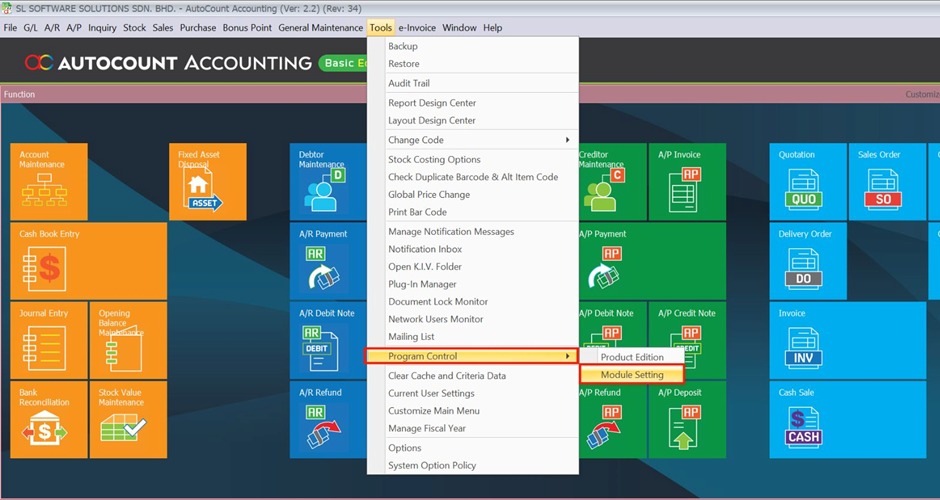
- Go to Tools > Program Control > Module Setting.
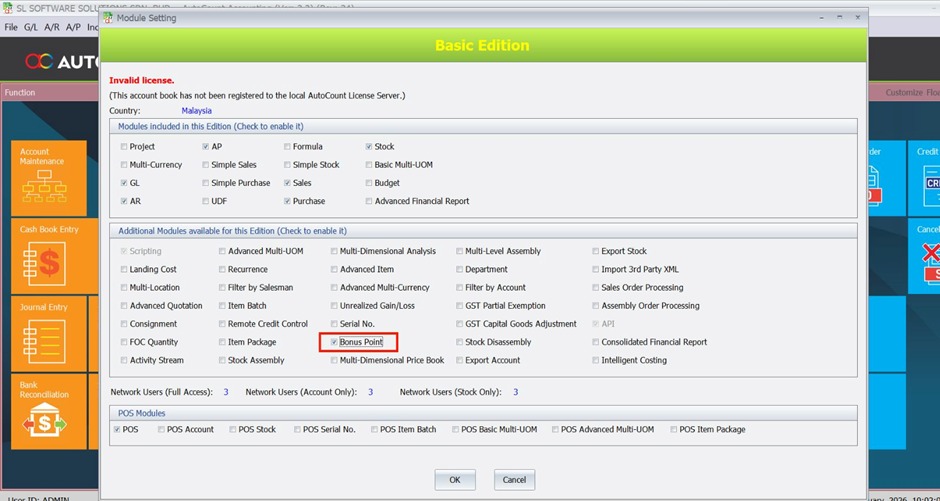
- Check the Bonus Point box to enable the module.
Bonus Point Features
Member Maintenance
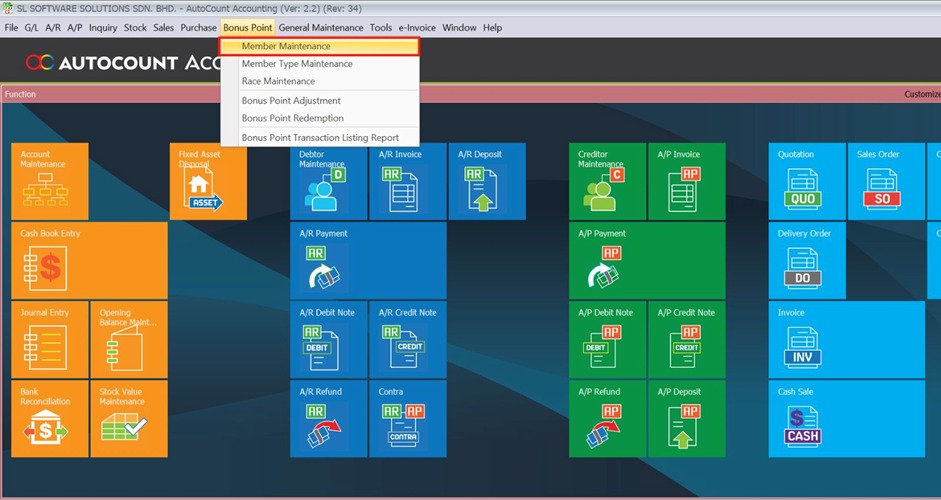
- Go to Bonus Point > Member Maintenance.
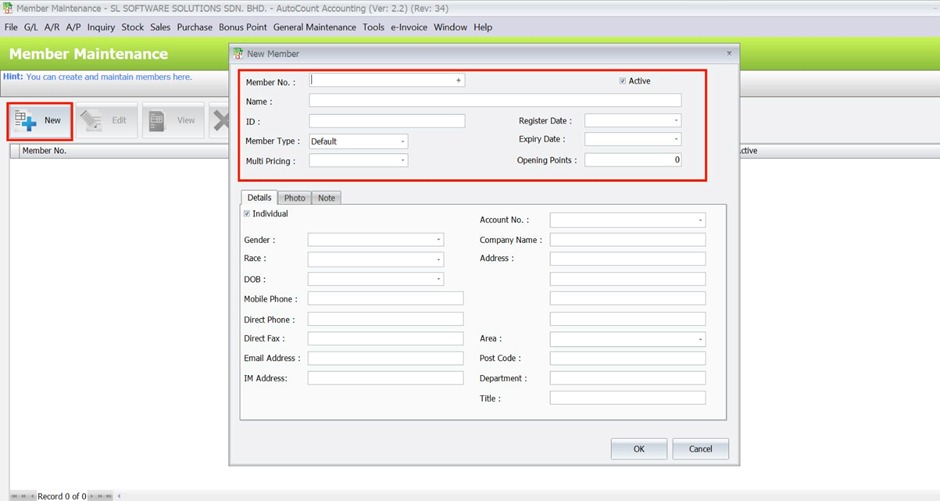
- Click New.
- Enter member details (name, contact).
- Click Save.
Note: Use this to register customers for the bonus program.
Member Type Maintenance
- Go to Bonus Point > Member Type Maintenance.
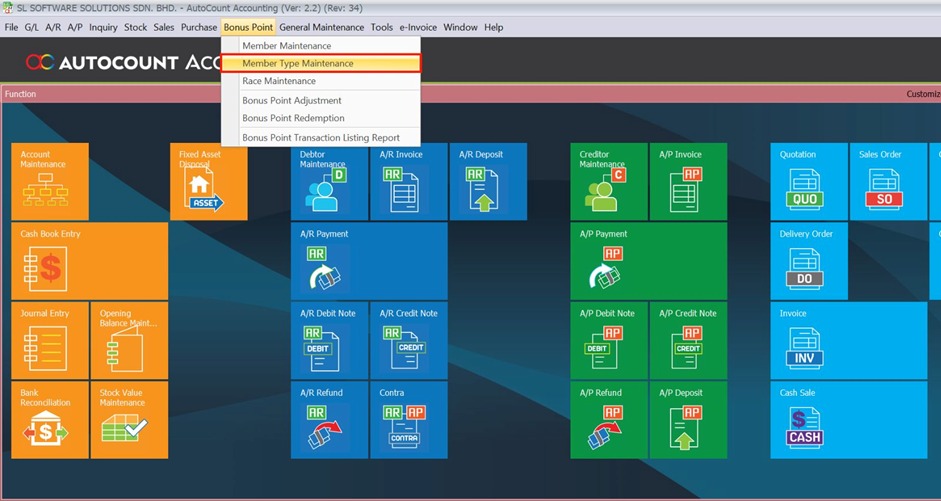
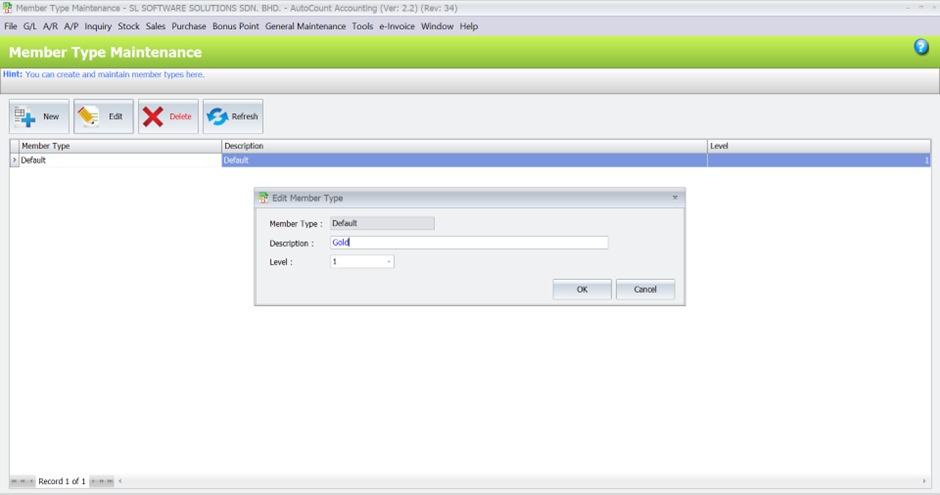
- Modify Default or click New.
- Enter type description (e.g., VIP, Gold).
- Click Save.
Note: Useful for reporting or segmentation.
Race Maintenance
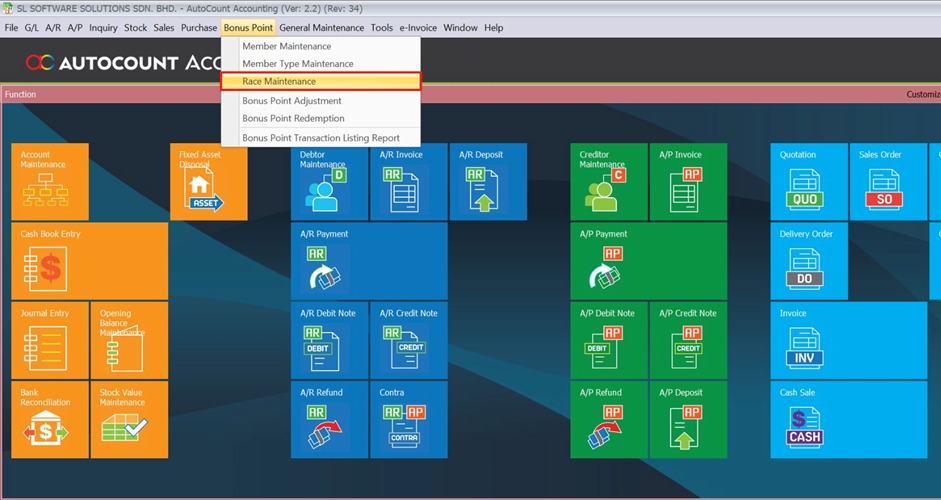
- Go to Bonus Point > Race Maintenance.
- Edit or add races as needed.
Note: Optional categorization feature.
Bonus Point Calculation
Bonus Point Calculation Options
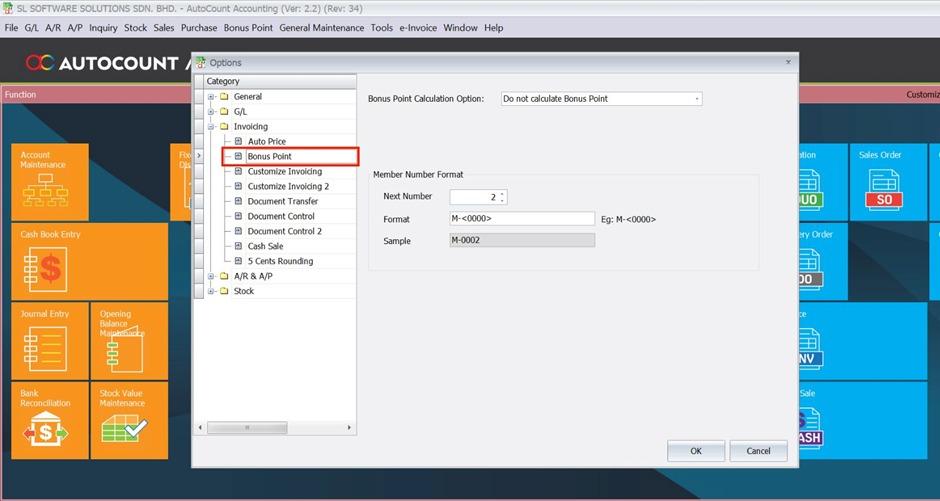
- Go to Tools > Options > Invoicing > Bonus Point.
- Choose calculation method:
– Based on Item Quantity
– Based on Item Subtotal
– Based on Invoice Total
Determine Method
- Select the desired method.
- If Item Quantity: Define points per quantity at Stock > Stock Item Maintenance > Sales Entitlement.
- If Item Subtotal or Invoice Total: Set points per sales value and rounding.
Bonus Point Calculation base on Item Total – Example
- Points are calculated using item subtotals (only items flagged for bonus).
Only items checked with “Calculate Bonus Point” count.
Bonus Point Calculation base on Invoice Total – Example
- Points are based on entire invoice value, regardless of item flags.
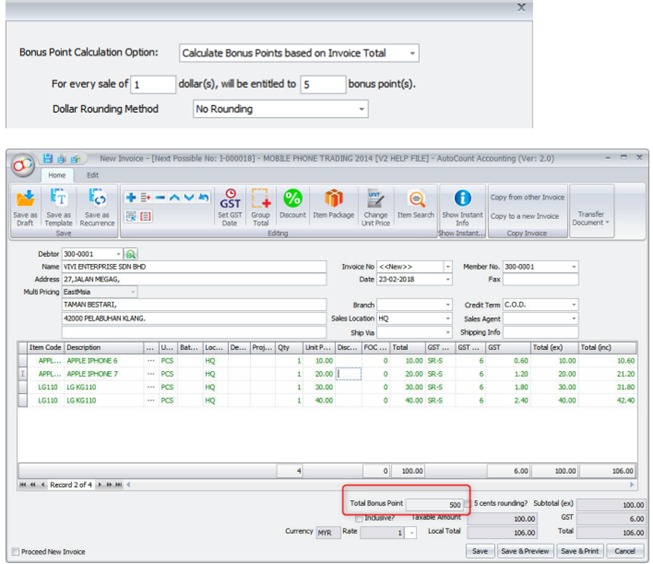
Using Bonus Points
Invoice with Bonus Point
- Go to Sales > Invoice.
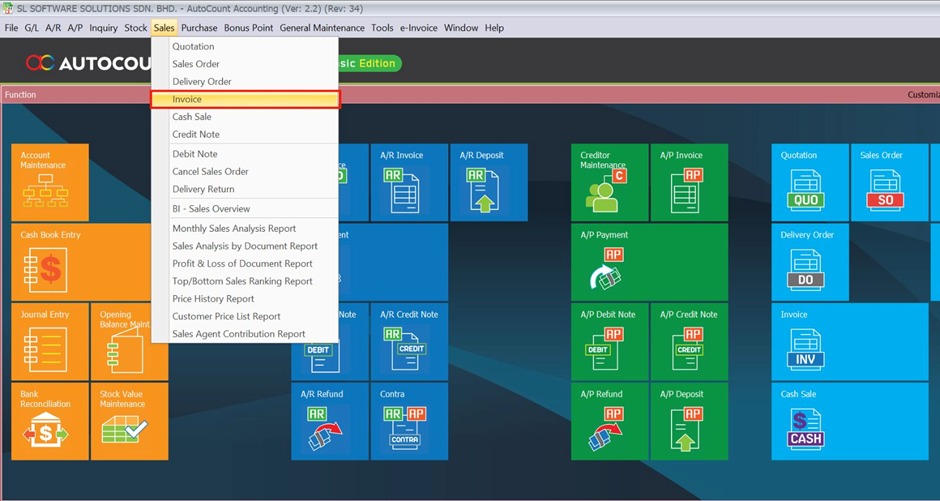
- Create an invoice and select a debtor with a bonus account.
- Click + to add items.
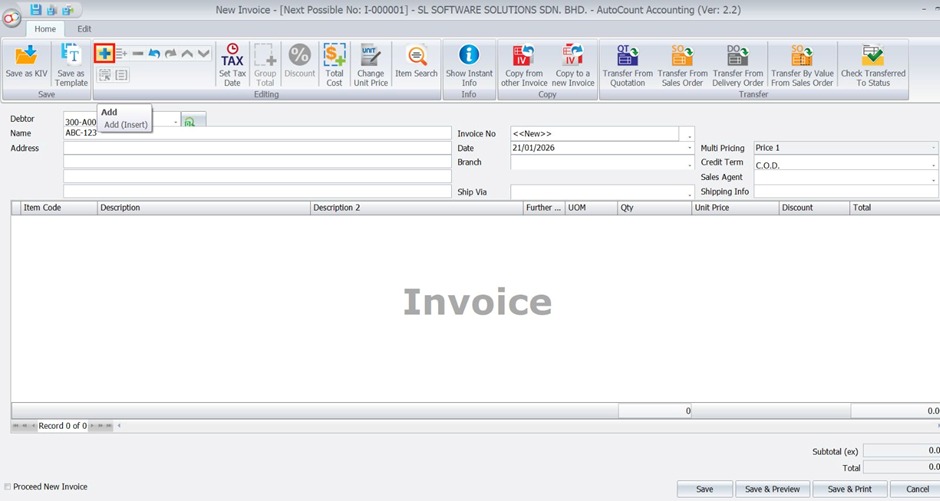
- Points will be calculated based on your settings.
Bonus Point Adjustment
- Go to Bonus Point > Bonus Point Adjustment.
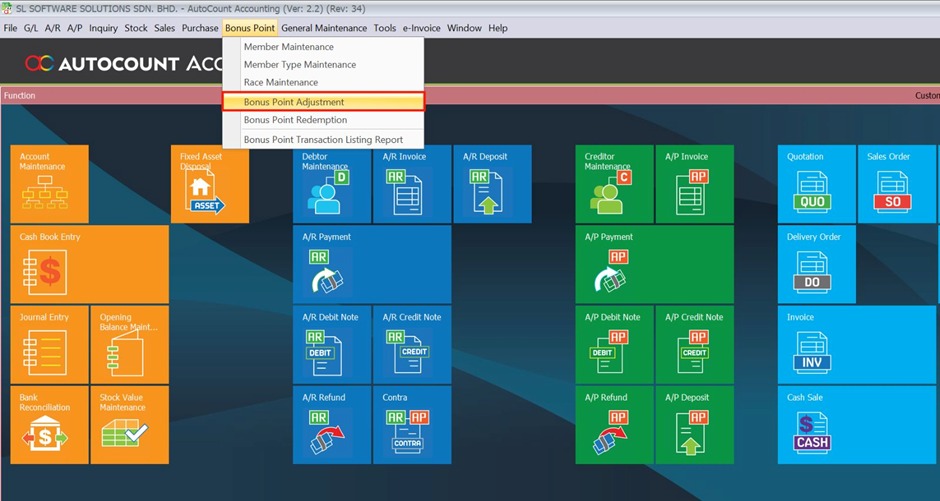
- Select a member.
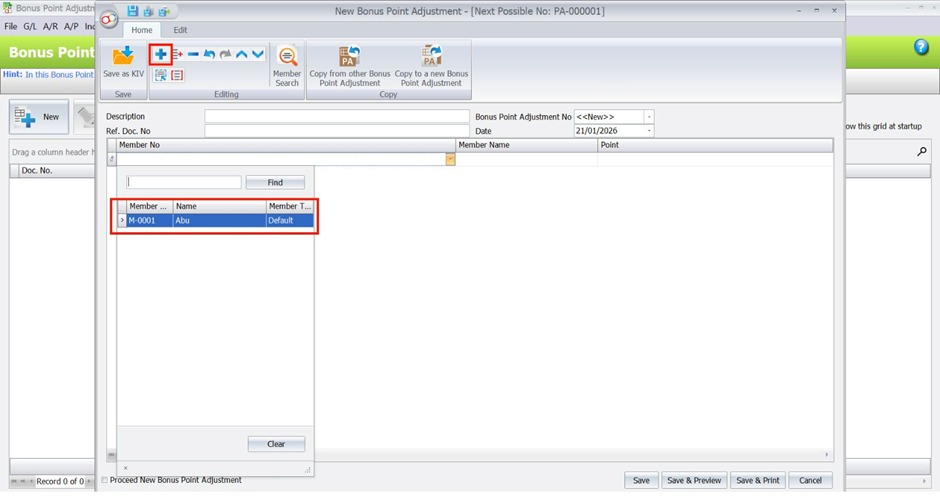
- Increase or decrease points as needed.
- Click Save.
Bonus Point Redemption
- Go to Bonus Point > Bonus Point Redemption.
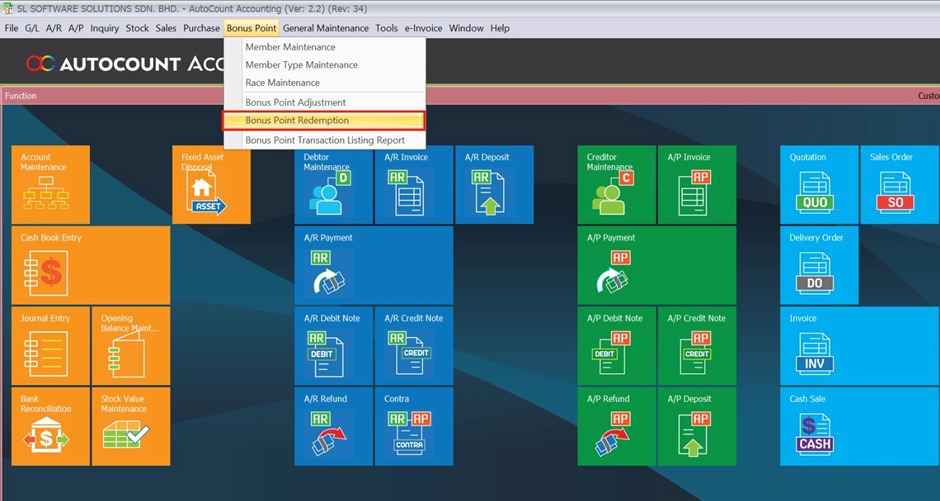
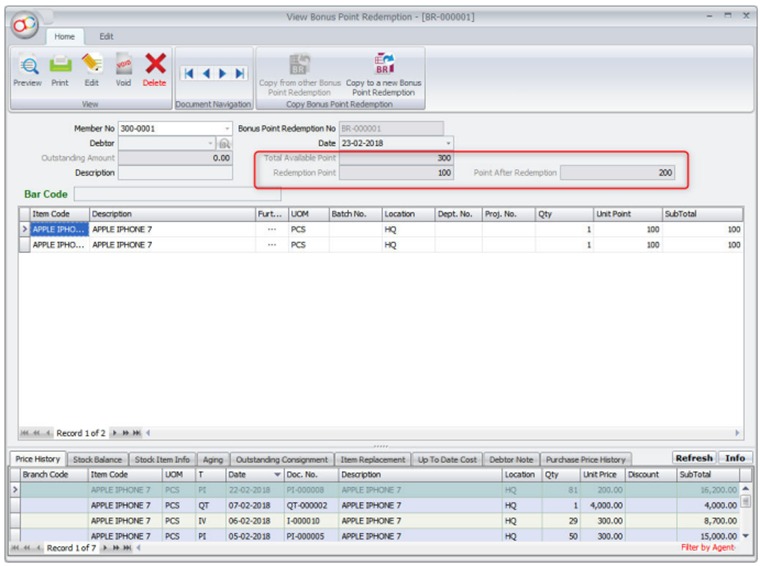
- Click New Bonus Point Redemption.
- Select Bonus Point Account.
- Select a debtor.
- Click + and add items to redeem.
- Observe Total Available Points, Redemption Points, and Points After Redemption.
Reports
View Report
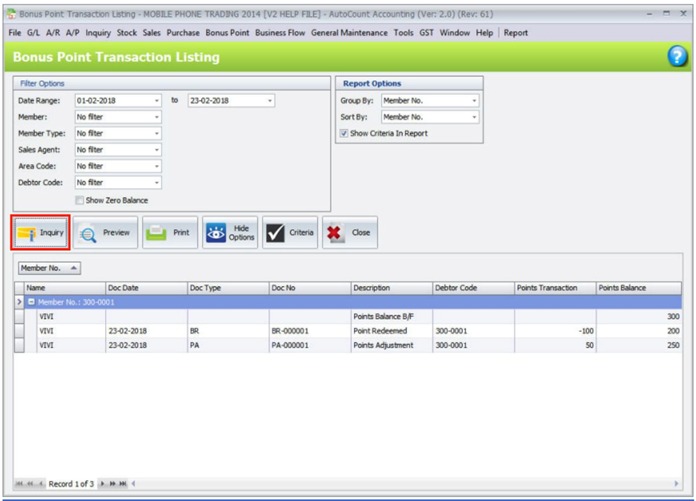
- Go to Bonus Point > Bonus Point Transaction Listing Report.
- Set filters as required.
- Click Inquiry to view.
Benefits of Using Bonus Point Module
Boost Customer Loyalty
Encourages repeat spending by rewarding purchases.
Flexible Loyalty Rules
Choose how points are earned — item count, item value, or invoice total.
Seamless POS Integration
Members can earn/redeem points directly at POS checkout.
Actionable Reporting
Easily track point transactions and member activity.
Conclusion
The AutoCount Bonus Point Module simplifies loyalty program management by letting you define how customers earn points, track those points reliably, and redeem them at checkout. It helps you boost loyalty, increase repeat business, and provide flexible reward options that fit your sales model.
Frequently Asked Questions
How do I enable the Bonus Point Module?
Go to Tools > Program Control > Module Setting and check Bonus Point.
Can bonus points be earned in POS?
Yes — points can be earned and redeemed during POS transactions when the module is enabled.
How are points calculated?
Points can be based on item quantity, item subtotal, or full invoice total.
What if a member’s points need adjusting?
Use Bonus Point Adjustment to manually add or remove points.
Where can I see point transactions?
Use the Bonus Point Transaction Listing Report to view earned/redeemed points.
Interested in Getting AutoCount for your Business?
Contact our sales team today to explore pricing options and get started with the perfect solution for you.